2025 May - New Features
Data API Access
The Data API enables you to extract data directly from LearningSpace, making it easier to generate custom reports, conduct research, or integrate your data into other tools. If you’ve ever wished for a way to “just export all the data,” this is it.
Learn more at Data API - How-to Guide
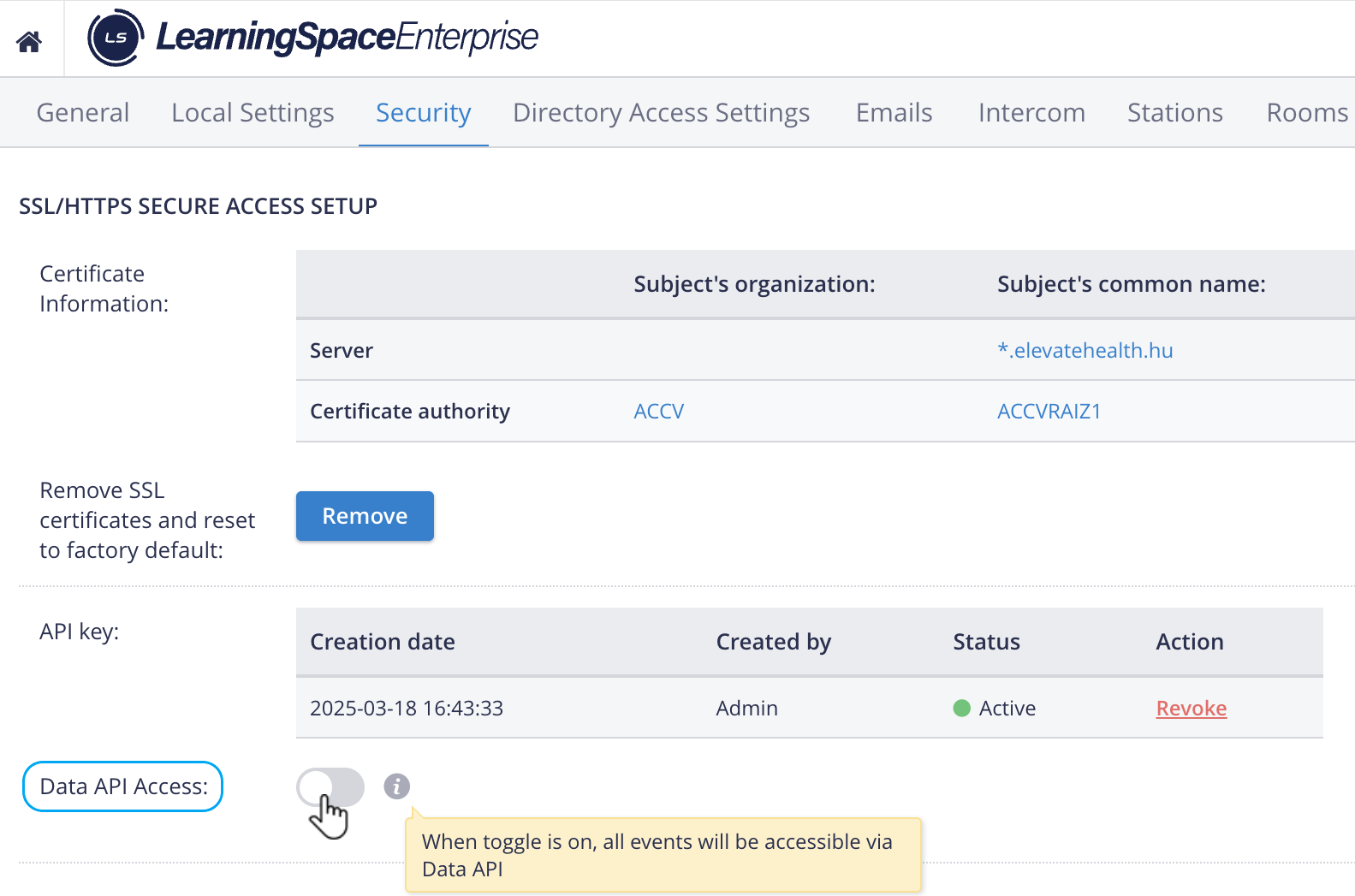
The data API toggle is in the "off" position by default.
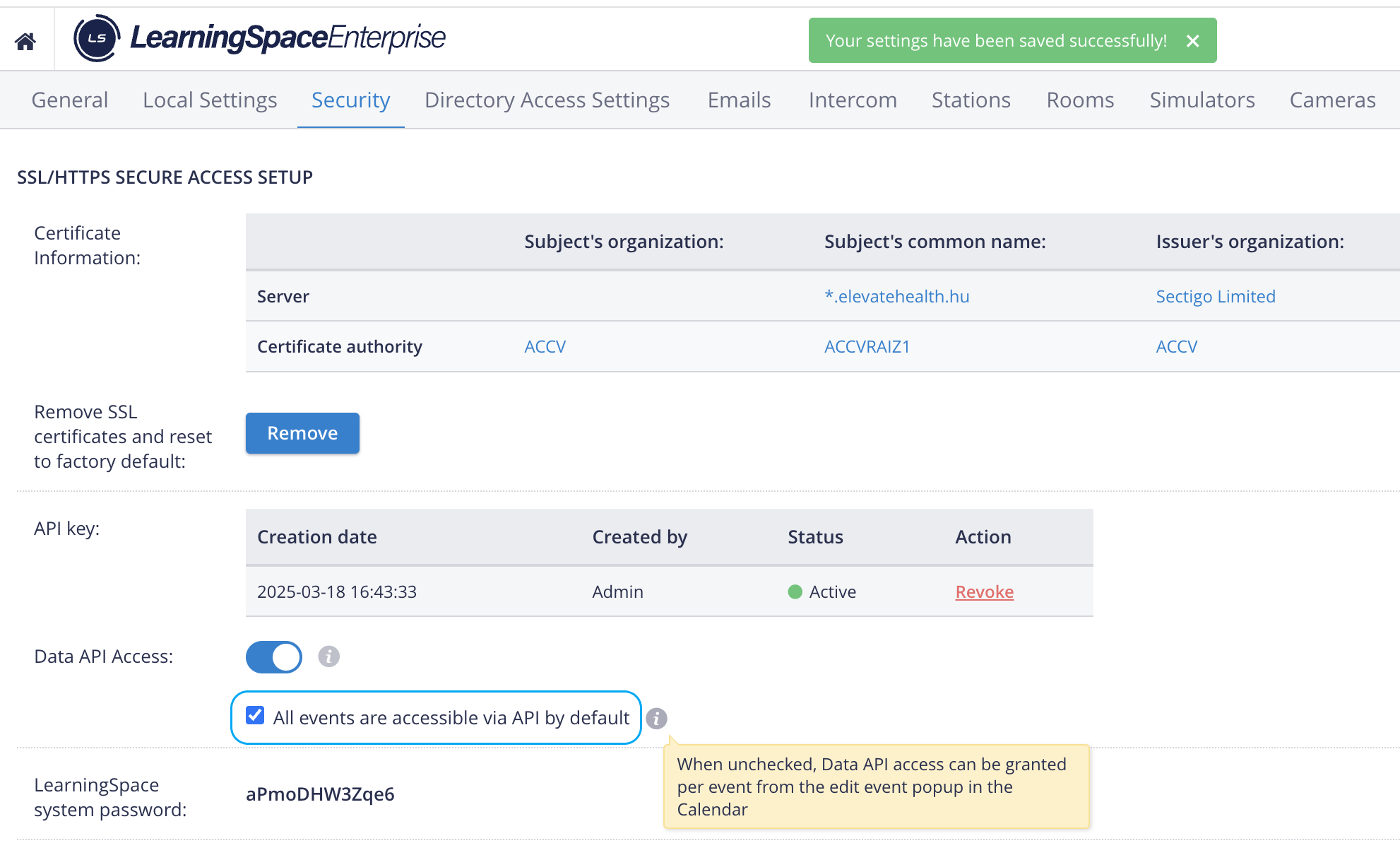
If unchecked, only the events selected in the Calendar Modulewill be added to the range of Data API.
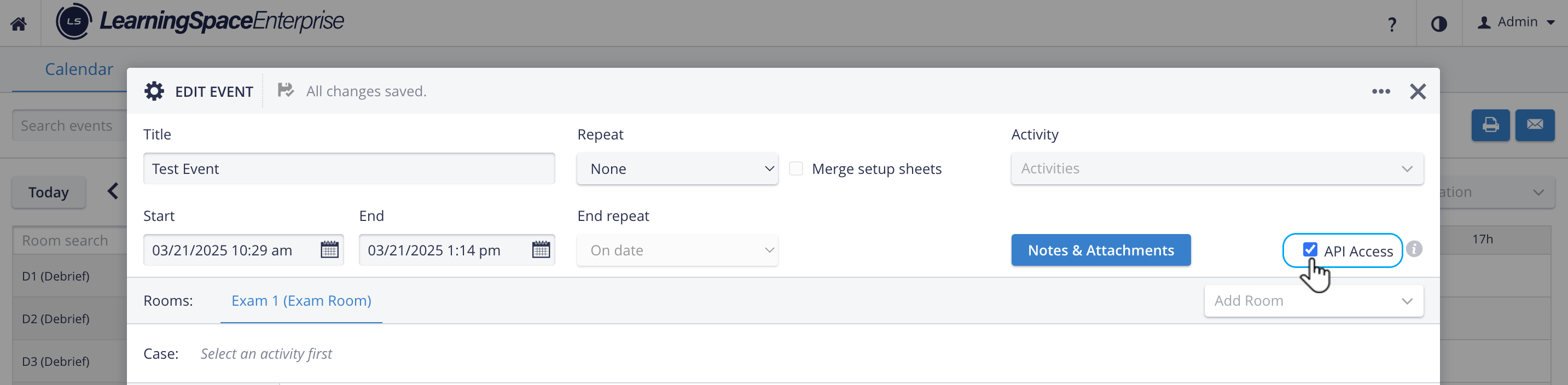
Once Data API access has been enabled, your institution’s system developers can proceed based on the API documentation provided by LearningSpace support.
Content provided by the Data API
List of Activities (including details like ID, title, start, and end dates)
List of Cases (including details like patient name, presenting complaint, Case ID, and number)
List of Events (also, Events ready for NBOME integration)
List of Students (including student details like ID, full name, and NBOME ID)
List of Video files associated with specific video recordings
Student assessment results, video recordings
For more information, proceed here.
Case Number Field
In the latest versions of LearningSpace Enterprise, a new Case number field is available in the Edit Case pop-up of the Case Manager to further identify the Case.
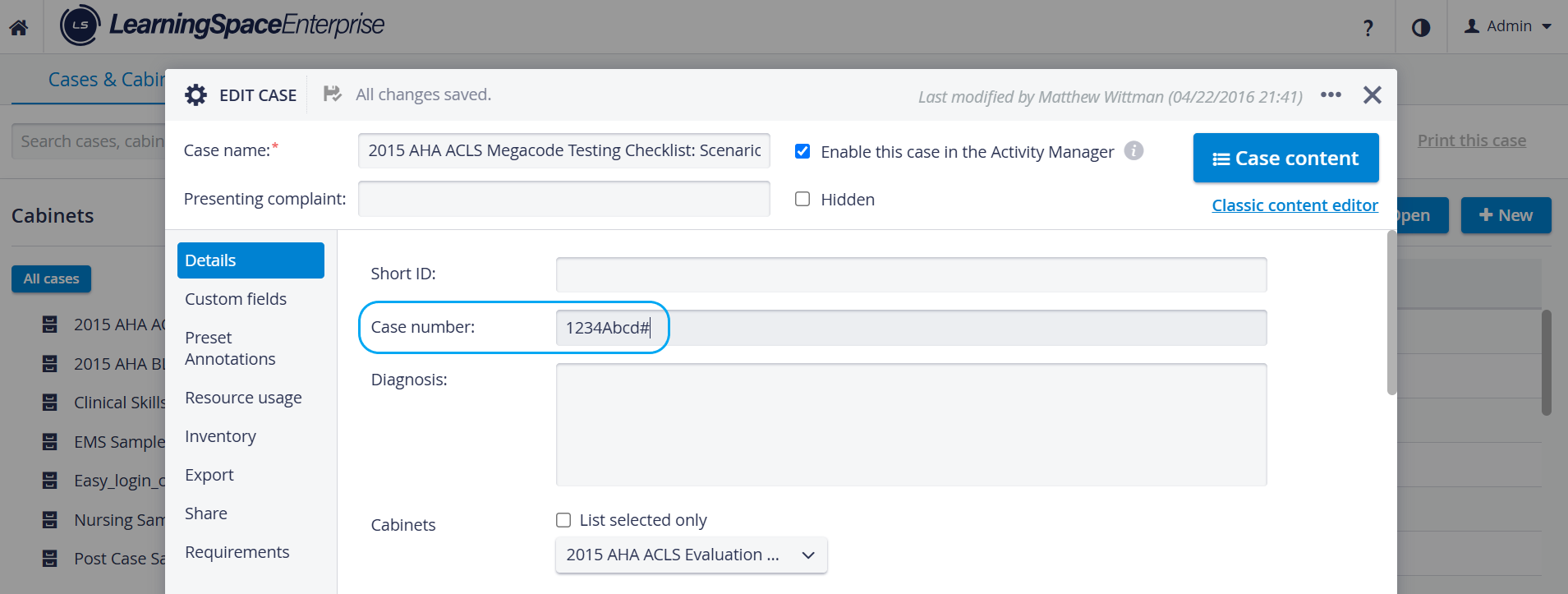
This field is a single-line free text input and can accept any characters. It does not need to be unique, and it is saved automatically.
The Case number is displayed in the response provided by the Data API feature, along with several Case-related details.
Calendar-Related Enhancements
Calendar Export to Excel: New Columns
New columns have been added to the Excel Export of the Calendar’s List view:
Day of the Week (displays the day of the week (e.g., Monday, Friday) for each event’s date)
Duration (shows the duration of the event in minutes, calculated from the event’s Start Time and End Time.)
Room(s) (displays the event's associated room(s).)
Activity type (displays the type of the Activity)
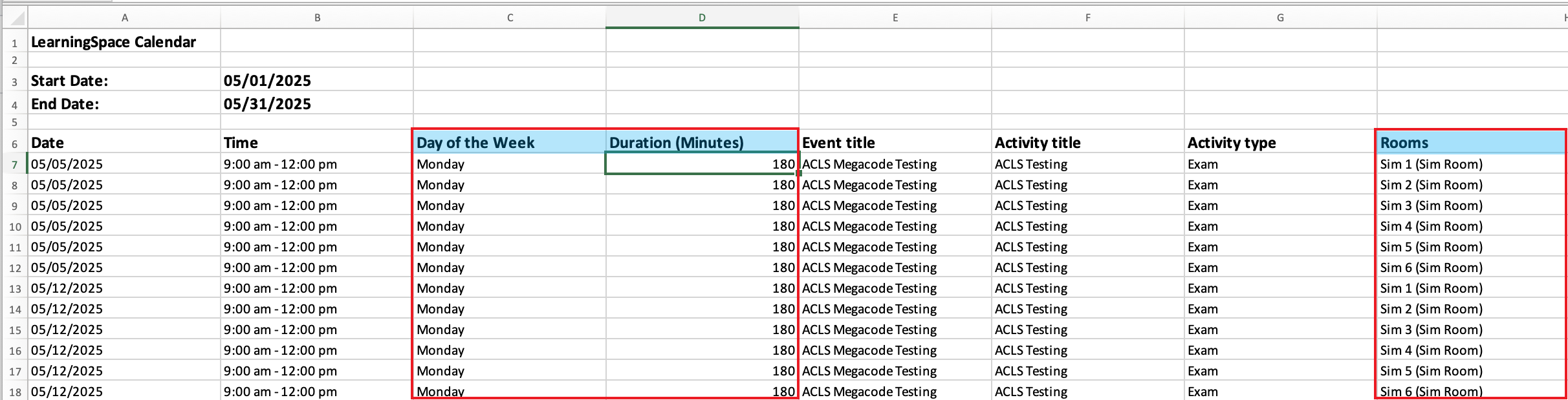
Day of the Week, Duration and Rooms Columns
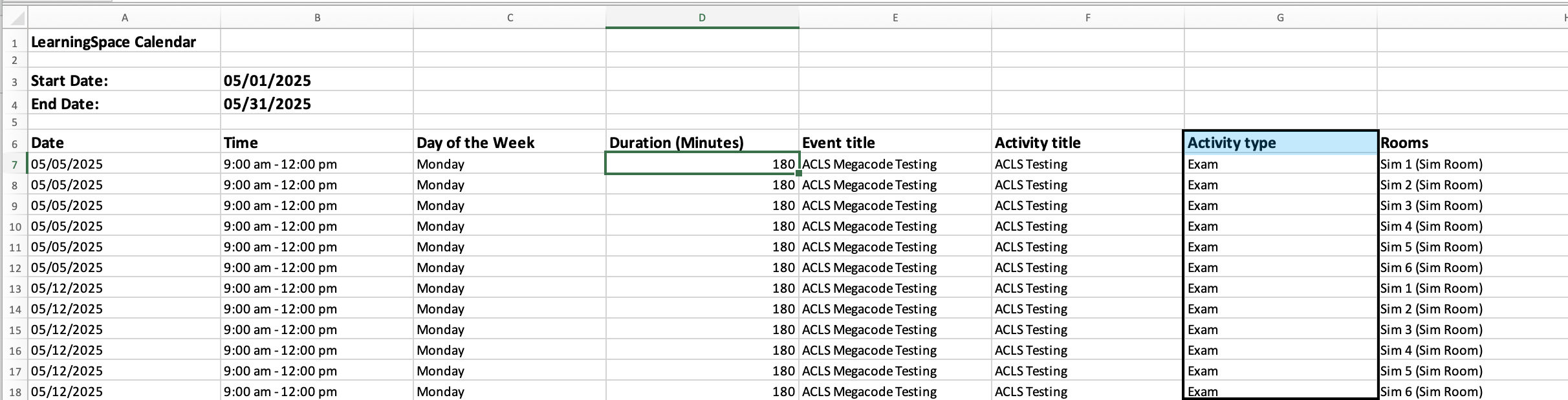
Activity Type Column in the Exported Excel File
More about Activity Types: Basics tab General System Information
If the event is assigned to multiple rooms, they appear separated by a comma, unless the Room-Based Event breakdown option (described below) is enabled.

Room-Based Event Breakdown
In the Calendar List view, a new cogwheel icon has been added next to the ‘Export to Excel’ button. When clicked, it opens a pop-up configuration menu with the ‘Break events into multiple rows if assigned to multiple rooms’ toggle:

When the toggle is on, multi-room events appear as multiple rows, with one room per row.
When the toggle is off, multi-room events are listed as comma-separated values in one cell.
Users’ breakdown preference is saved per user and not applied globally. It is reapplied on future visits.
Datepicker Improvements
AM-PM Switch
The smoother switching between AM and PM in the date picker has enhanced the calendar's user experience. The Timepicker add-on is not included with all Date Pickers; it is only used when you need to set hours or minutes.

⬆️ Up arrow:
Clock: 9AM, 10AM, 11AM, → 12PM, 1PM, 2PM, ...
or
Clock: 10PM, 11PM, → 12AM, 1AM, 2AM, ...
Minutes: 57, 58, 59, → 0, 1, 2, ...
If the setting is 24H:
⬆️ Up arrow:
Clock: 22, 23, → 0, 1, 2, ...
Minutes: 57, 58, 59, → 0, 1, 2, …
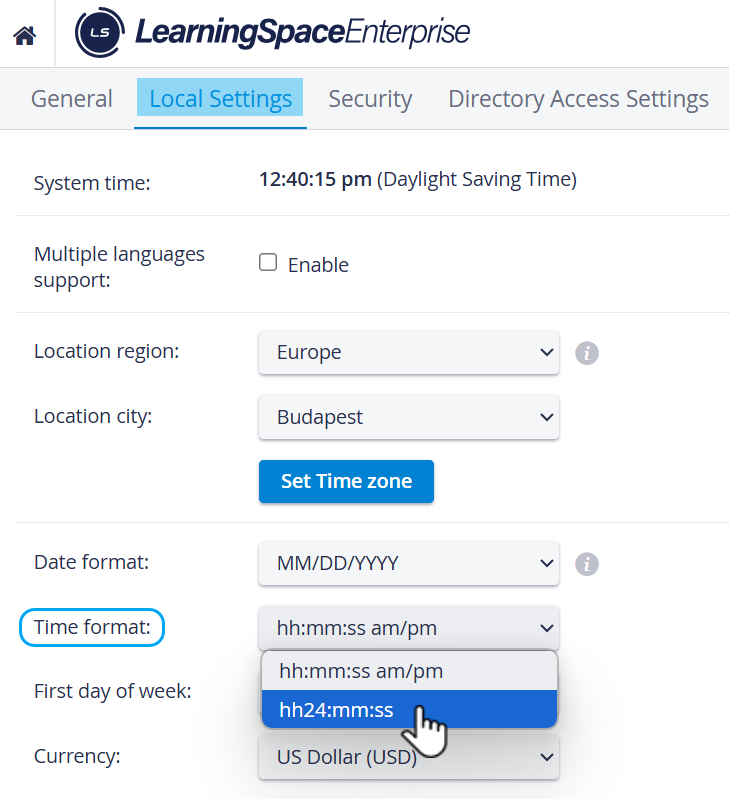
Start and End Date selector
From now on, the Start and End Date selector in Calendar works as follows:

Similarly, if we choose a date when the End Date would be earlier than the Start Date, the system also retains the length of the Event and automatically updates the Start Date value, preserving the Event's length.

During each automatic setting, the input flashes yellow, indicating that the system has set it.
If the Event length cannot be kept in the automatic setting to stay within the given day (which is a mandatory criterion when setting up Events), LearningSpace automatically shortens the Event length to fit the day. The same principle applies if the Event does not fit at the beginning of the day: the automatic setting goes before 12 AM (midnight).

Users are informed about these adjustments with a yellow message.
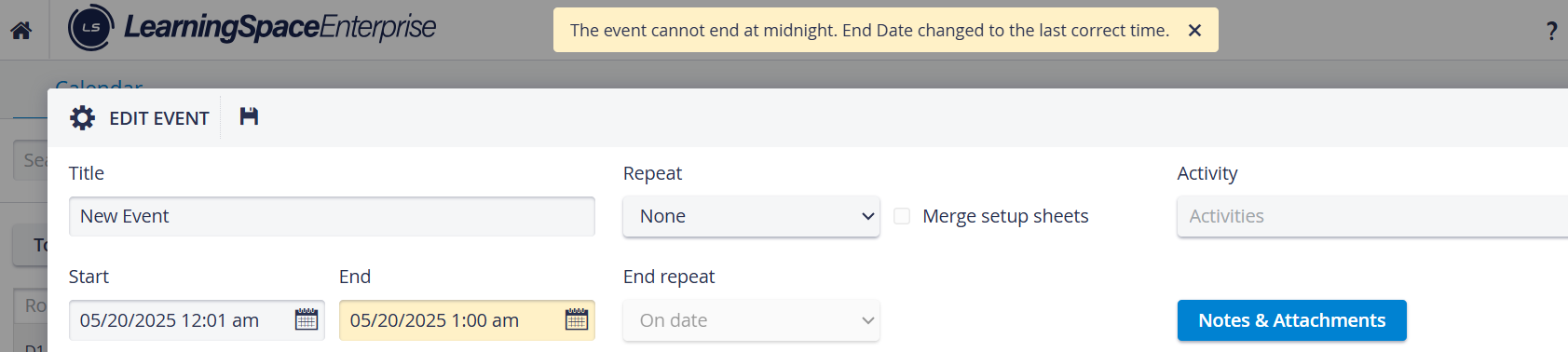
This enhancement affects the following modules of LearningSpace:
Calendar Module Advanced Scheduling Activity Manager User Manager
and SP Manager.
Hide ‘Print Reports’ and ‘Export to Excel’ Options for Learners
A new feature has been introduced to hide the ‘Print’ and ‘Export to Excel’ buttons for Learners on Report pages by default. This new setting has been added under the "Report Printing" section in the Report settings of a given Activity.
This new option would resolve concerns about learners' ability to print or export reports during testing events. While learners need access to feedback (comments from SPs, clinicians, etc.), the export and print functions are not always suitable for them.
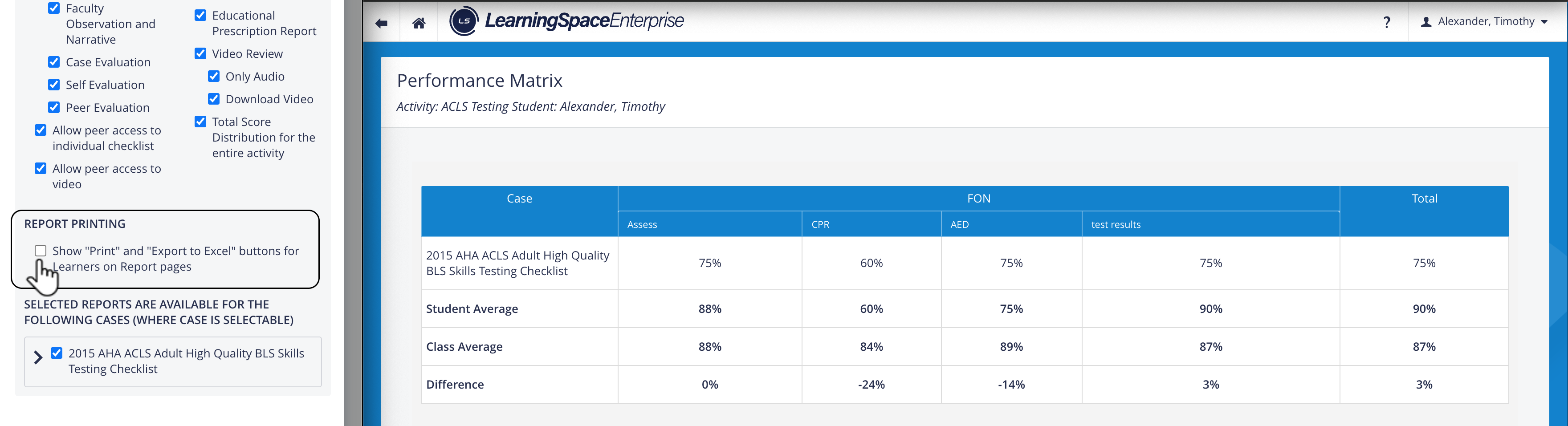
When toggled off (unchecked), the "Print" and "Export to Excel" buttons on the Report pages are hidden for Learners.
When toggled on (checked), the buttons are visible to learners.
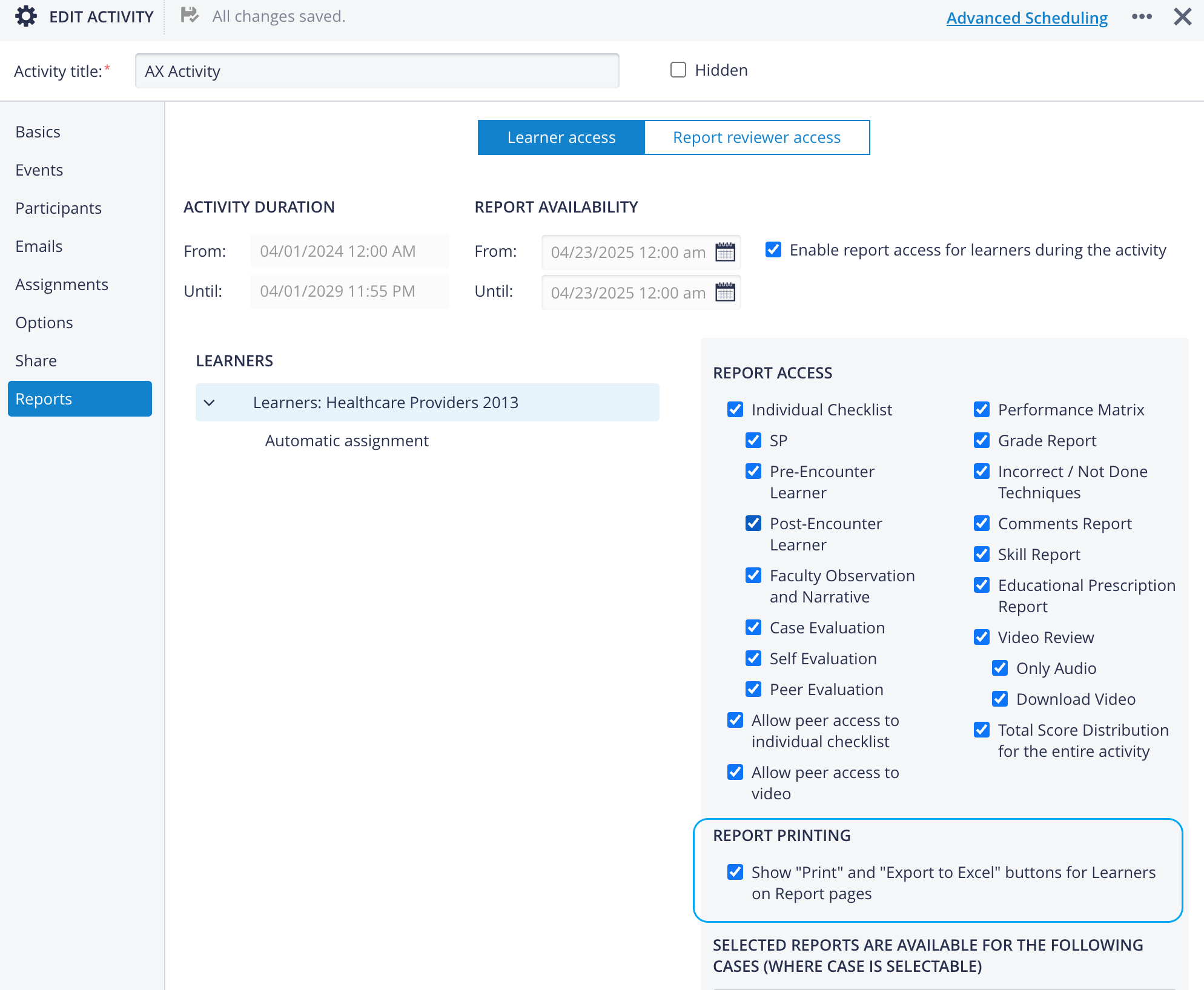
The setting is toggled off by default.
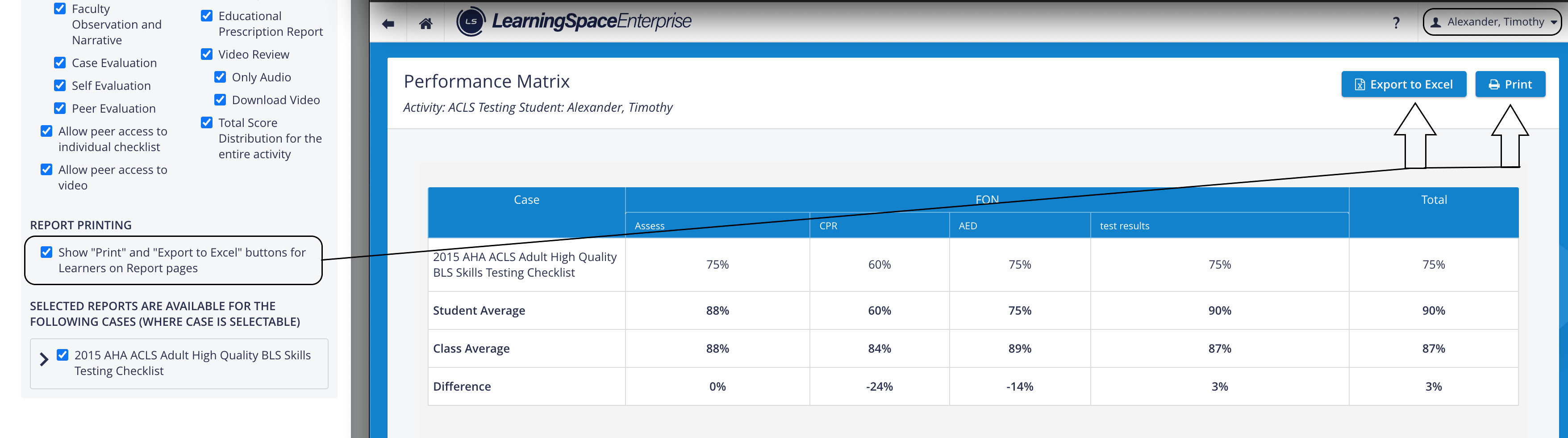
If the Report Printing option is disabled (unchecked), the buttons remain hidden for Learners on the Reports pages:
Print with Smart Scrollbars
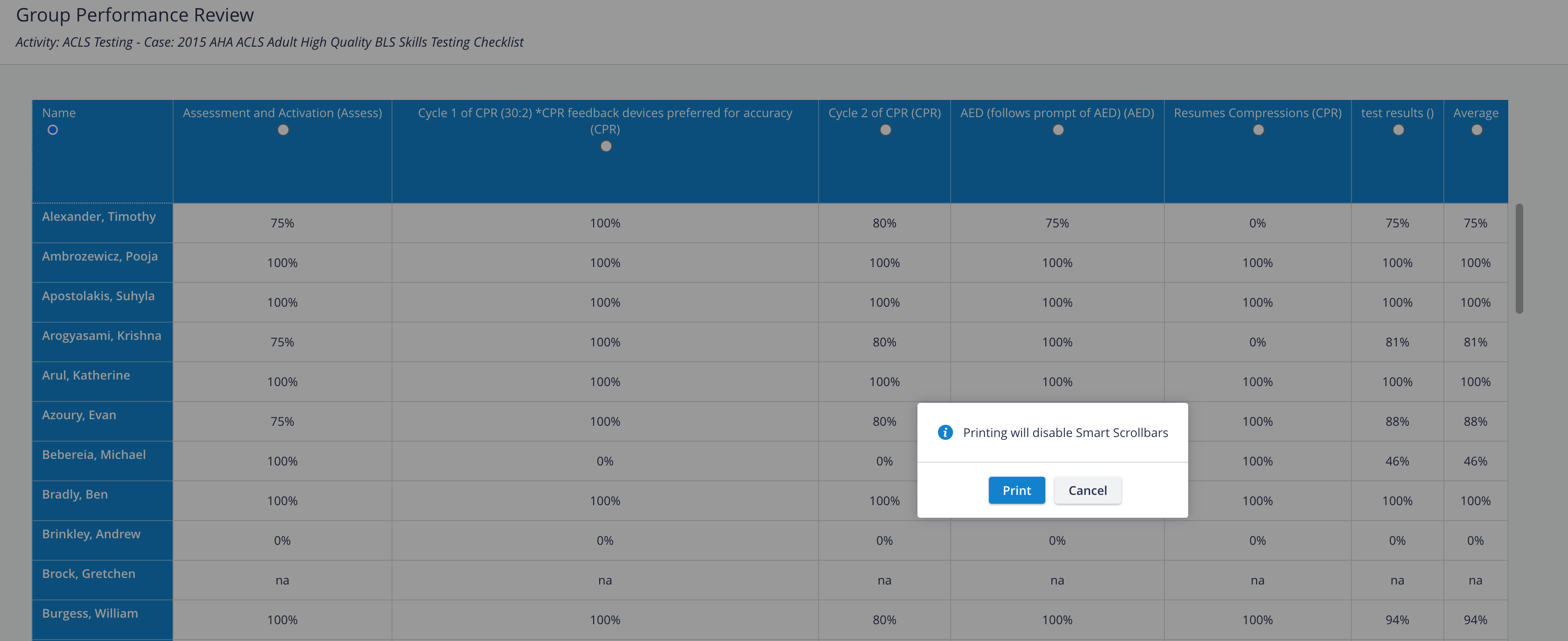
We are introducing an enhancement that enables printing when Smart Scrollbars are enabled.
Smart Scrollbars on → Clicking the Print button will show a small confirmation dialog:
“Printing will disable Smart Scrollbars.”
Clicking Print in the dialog automatically disables Smart Scrollbars and opens the browser’s print window, ready for printing. After printing, Smart Scrollbars remain turned off.
Clicking Cancel closes the confirmation dialog; no changes are made.
Learner Check-in Report Improvements
Department Field
For an even more detailed identification of LearningSpace users, a new field named ‘Department’ has been introduced in the Edit User pop-up.
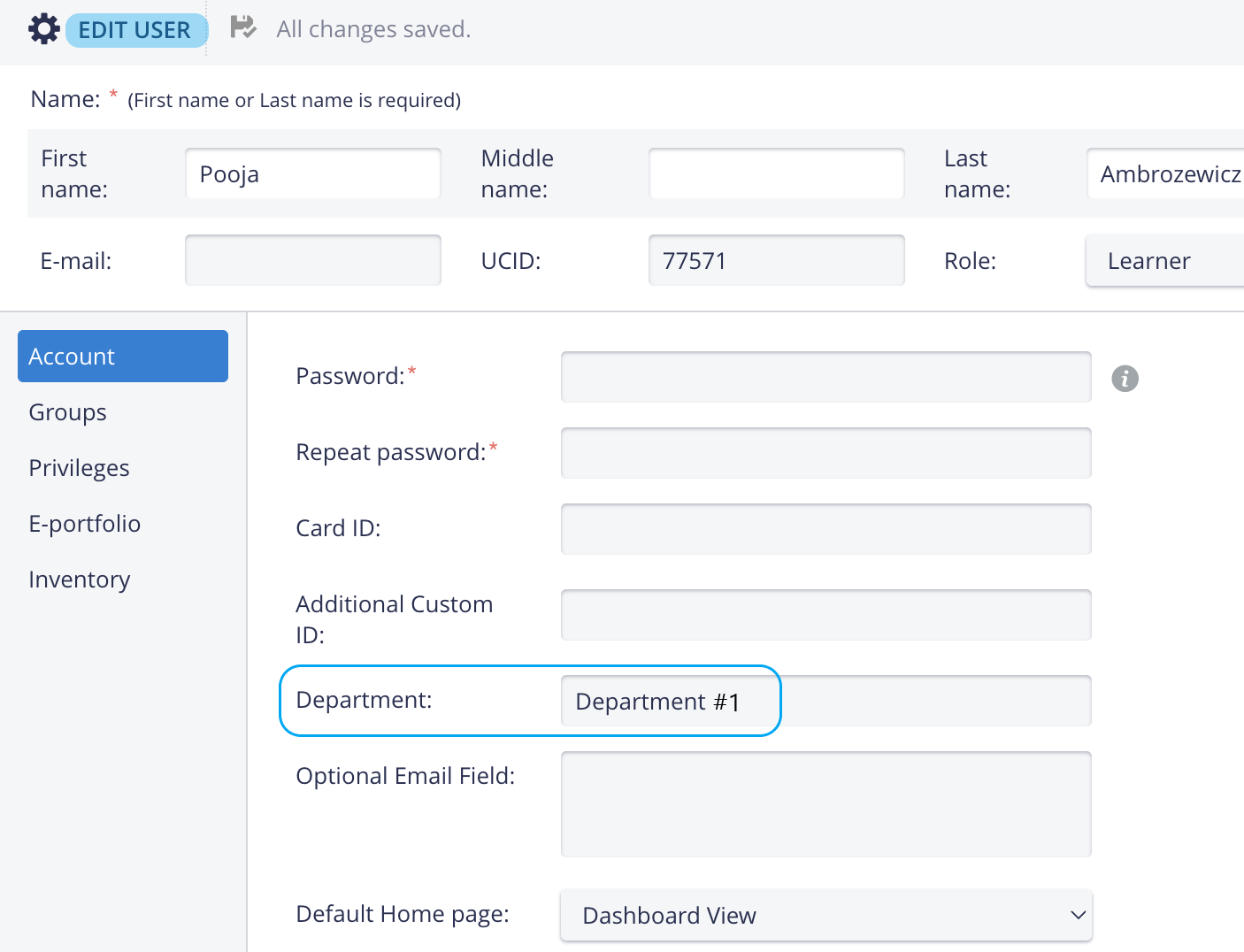
Department Field in User Manager
The new field can be synced via LDAP synchronization for each learner.
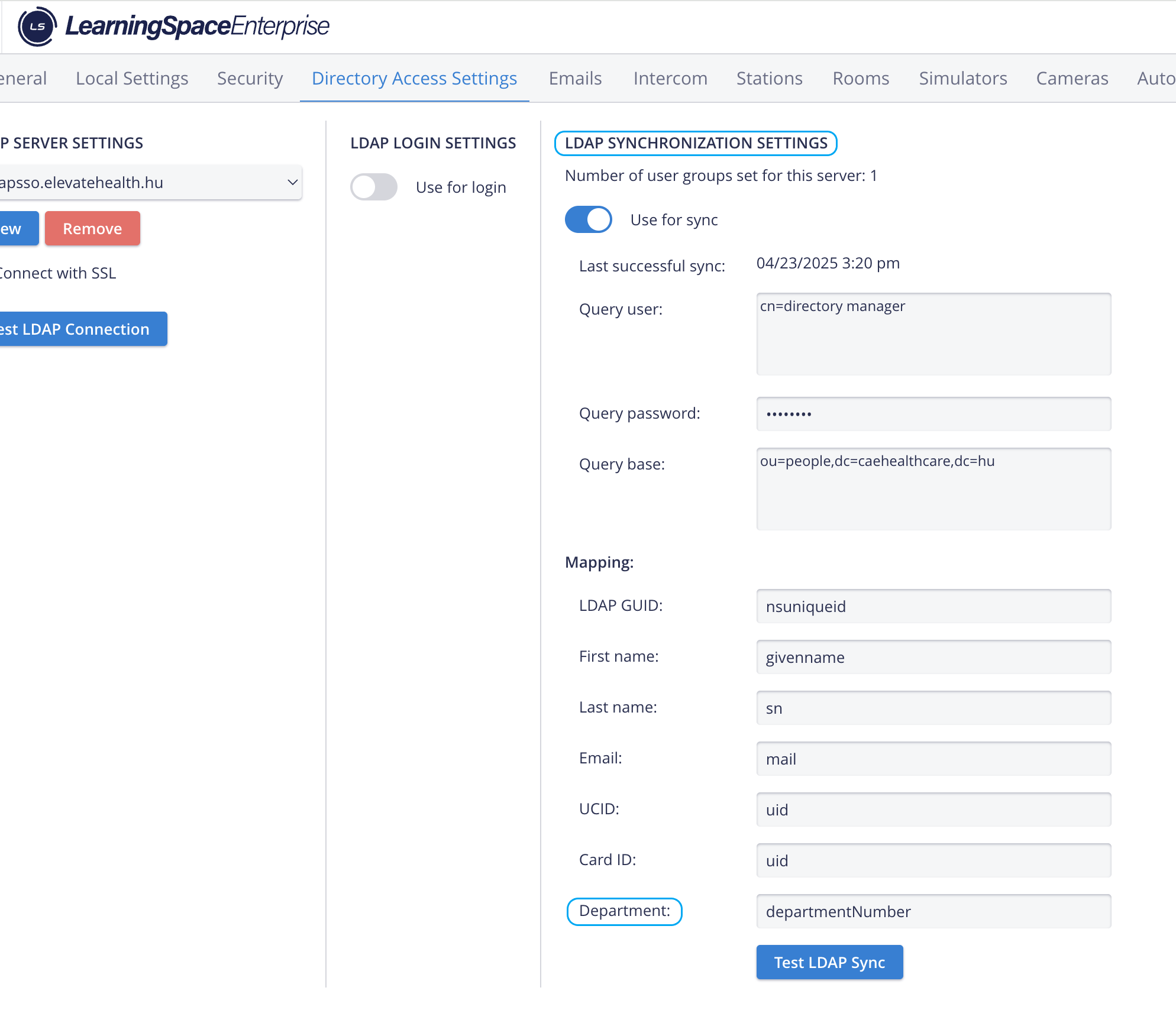
LDAP Sync in System Manager
The Department field has also been added as a column in the Learner Check-in report, which can be generated from the User Manager.
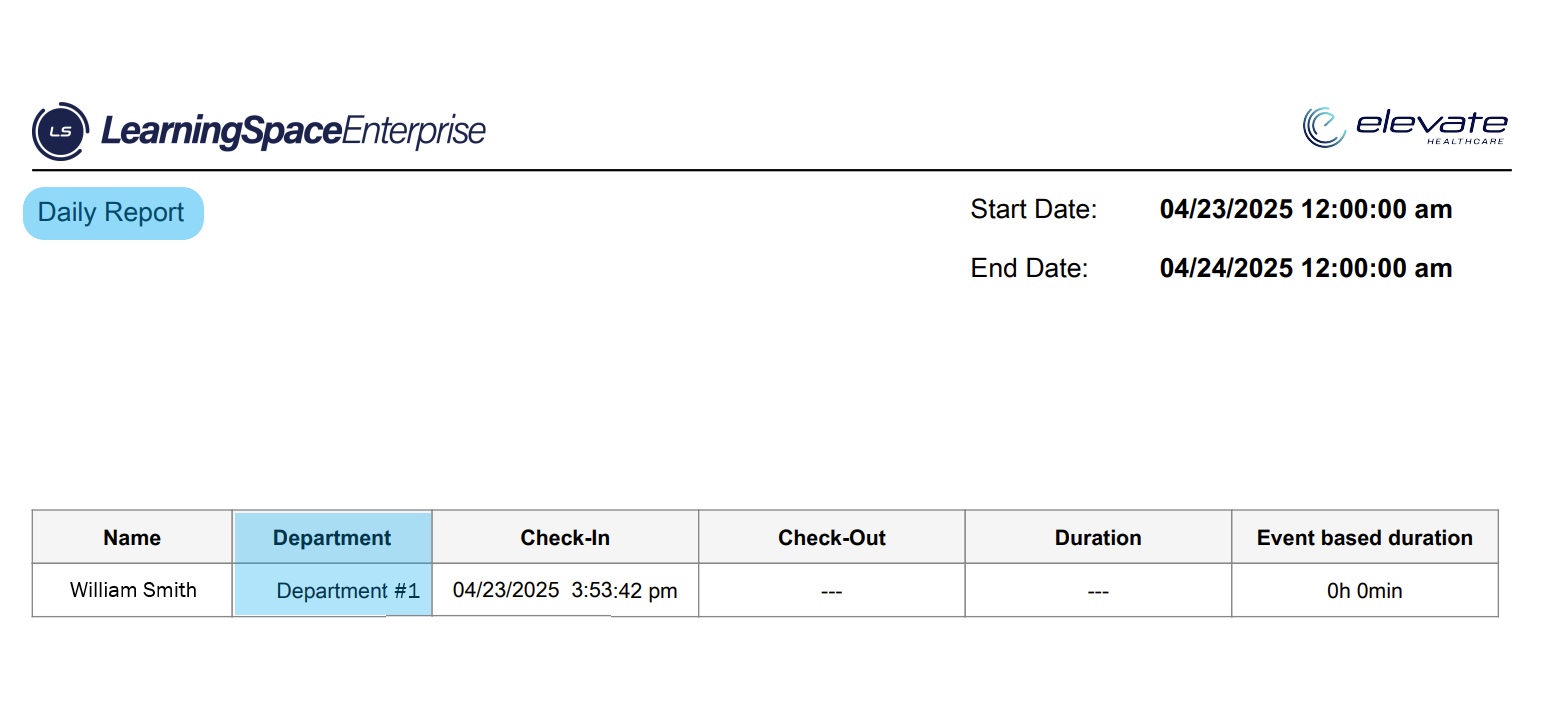
Learner Check-In Report
For information, refer to Learner Check-In - Check-Out
Export to Excel Option
The Check-in Report now features an Excel (XLSX) export capability, enabling you to download the raw data and filter it according to your specific needs.
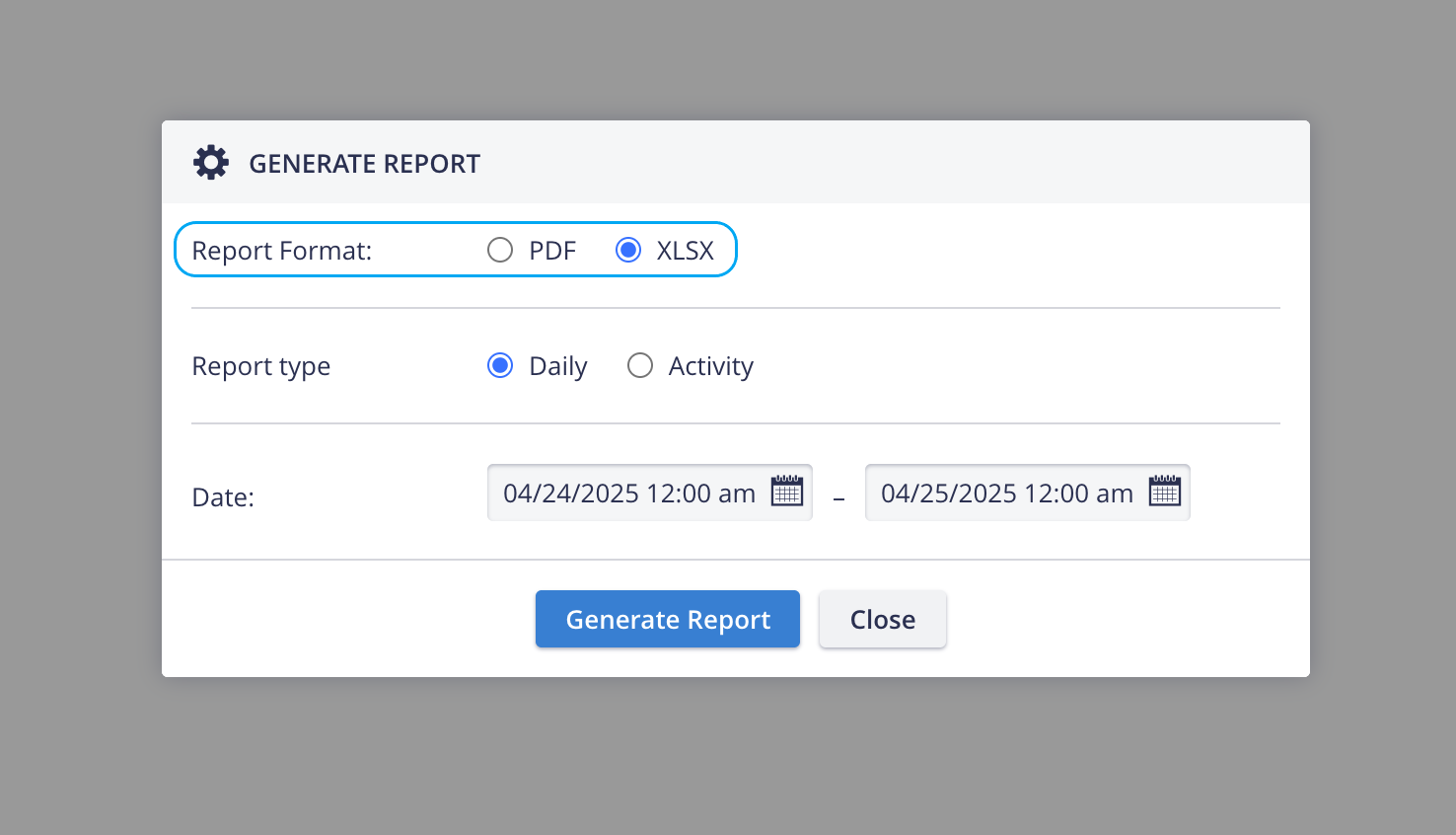
The report also contains the new ‘Department’ field.

Assignments Tab - Improved Access Control
The Edit Activity pop-up has been introduced with a new access control for the ‘Faculty vs. Learner’ assignment.
By default, all Faculty members have access to the data submitted by all Learners —> ‘Full access’.
To change this, you can set up custom access by switching to —> ‘Custom’.

For guidance on setting up custom access, proceed here.
PDF Reports Supporting Chinese, Traditional Chinese, Korean & Russian
This new enhancement allows report templates in LearningSpace to support Chinese, Korean, and Cyrillic characters. It helps support these complex (unicode) character languages in reports where PDFs are generated. For this purpose, a new font has been introduced (Arial Unicode MS).
List of Reports affected:
User Manager - Learner Check-in Report
Inventory Reports (Asset Usage report, Full Inventory report, etc.) and Setup Sheets
Video Review - Video Report (Annotations and Event Logs)
SPA - Cast Sheet Export as PDF

Learner Check-In Report

Inventory Report

Video Report
‘Show Learner’s ACID (or UID) Option in OEQS Module
In the OEQS Scoring module, learners are usually represented by randomly assigned numbers, which change across Activities, Cases, and Parts. This might make it challenging to track progress while maintaining anonymity.
In the latest version of LearningSpace, a new "Show Learner’s Additional Custom ID" option has been added to the Privacy Settings dropdown of the Activity Reporting Setup.

Show learner's Additional Custom ID Option
For this purpose, a new field has been introduced in the User Editor as well: the "Additional Custom ID" of the user. This field provides a consistent and anonymized identifier that can be managed institutionally without exposing personal information (e.g., email addresses or names).
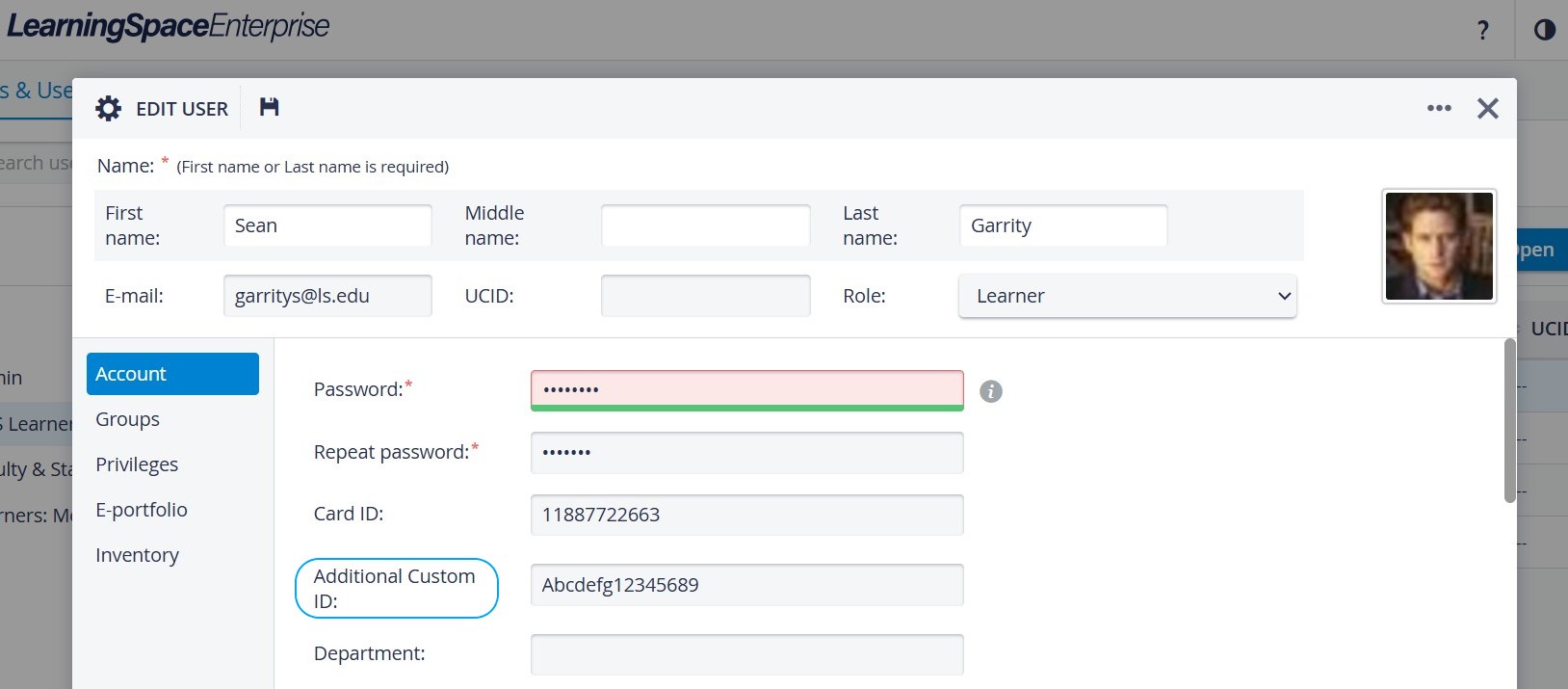
“Additional Custom ID” Field in User Profile
Unlike UCIDs (which may contain identifying data), ‘ACIDs’ are
consistent across all Activity/Case/Part views,
persistent across page refreshes or revisit scenarios,
non-identifiable, and only shows the exact value stored in the “Additional Custom ID” field of the user profile.
The ACID field can not be synced via LDAP synchronization.
When this option is selected in the Reporting Setup, the ordered number list in the Learners column on the OEQS Scoring page is replaced with the learner's Additional Custom ID.

If a user does not have an Additional Custom ID value populated, the fallback value (a Unique Identifier, or ‘UID’ ) is used. The UID is a number that does not contain any identifiable information.
➡️ UIDs are
unique identifiers assigned to learners by the system,
are anonymous and consistent (even if the page is refreshed or revisited),
allowing for reliable progress tracking across the system.

Batch Case Update Functionality in Scheduling (Stations)
To improve efficiency when setting up multiple Stations for the same Activity, LearningSpace introduces a batch Case update feature on the Scheduling (Stations) screen.
This new feature enables users to select multiple stations and assign a Case value to all of them simultaneously, using the "Set Case for selected Stations" dropdown, rather than manually updating each station.
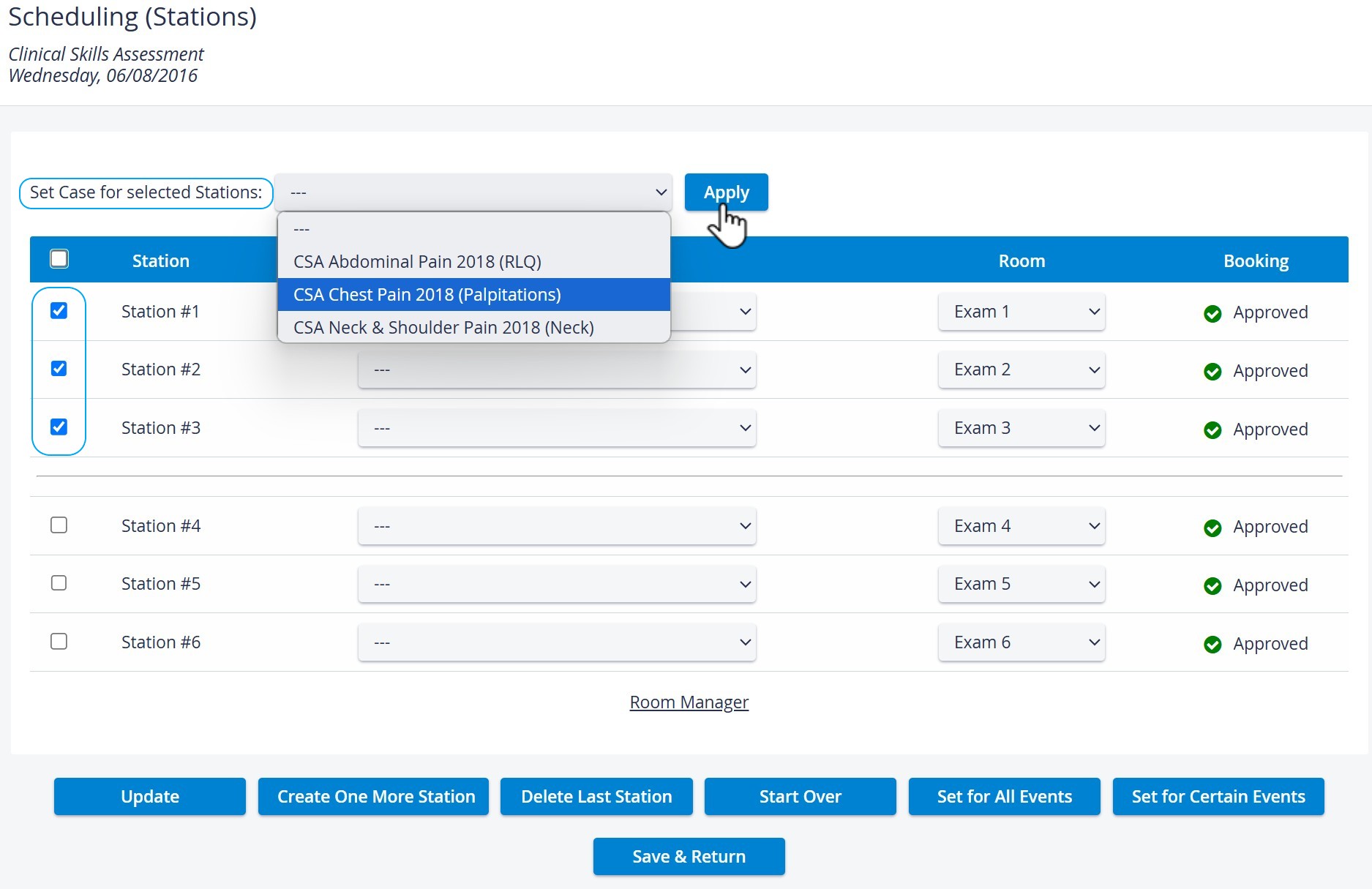
Set Case for selected Stations Dropdown
For easier mass selection, use the checkbox in the header for "Select All" and "Select None" controls.

After having used ‘Apply’, make sure to save your settings at the bottom of the page.
Extras
Preventing Copy-Paste During Exams

What the Script Does:
Disables Right-Click: Prevents students from accessing the context menu.
Prevents Text Selection: Stops users from selecting text to copy.
Blocks Copy-Paste Shortcuts: Disables keyboard shortcuts like
Ctrl+C,Ctrl+X, andCtrl+V.
See a step-by-step guide for installing Tampermonkey here.
SAML-based Single Sign-On (SSO) Authentication Guide
SAML-based Single Sign-On (SSO) authentication is supported in LearningSpace.
LearningSpace utilizes a Shibboleth Service Provider (SP) software to accomplish this.
For a feature overview, installation, and setup guide, please proceed here.
If you have any questions regarding SAML-based Single Sign-On in LearningSpace, don't hesitate to get in touch with LearningSpace Support!