Data API - How-to Guide
🔍 Accessing Data from LearningSpace with the Data API
What is Data API, and Why Would I Use It?
The Data API enables you to extract data directly from LearningSpace, making it easier to generate custom reports, conduct research, or integrate your data into other tools. If you’ve ever wished for a way to “just export all the data,” this is it.
That said, using the API requires some technical expertise. You won’t need to write code, but you’ll use tools and follow a few structured steps to set things up. A tech-savvy colleague will make light work of it.
Quick Start for Tech-Savvy Users 🧠
Generate an API Key in LearningSpace: Go to System > Security > Generate API Key.
Enable the Data API Access toggle.Run a script to get a token:
echo "Getting token for an LS instance..."
LS_HOST="[https://your-ls-instance.edu]"
CLIENT_SECRET="[your-api-key]"
API_TOKEN=$(curl "$LS_HOST/w/api/v2/auth.cgi" \
  -H "Content-Type: application/json" \
  -X POST --data '{"command":"token-for-apikey", "apiKeySecret":"'$CLIENT_SECRET'"}' | jq -r '.accessToken')
bytes=$(echo $API_TOKEN | wc -c)
echo "  received bytes: $bytes"
echo "This is your API token: \n"
echo $API_TOKEN
echo "\n"
Use Bearer token authentication in Insomnia/Postman and send requests to
/api/data/v1/....
👉 [Data API Endpoint Reference]Use query parameters like
offsetandlimitfor pagination.
Step-by-Step Guide for Non-Tech-Savvy Users 👩🏫👨🏻🏫
We’ll walk through how to extract a list of Cases from your system.
Step 1. Download an API Tool
Install Insomnia (a free app to test APIs):
👉 Download Insomnia
Step 2. Generate Your API Key
Log in to LearningSpace.
Go to the System module, and select the Security tab.
Click Generate API Key.
🛑 Important: Copy the API key now. You won’t be able to see it again.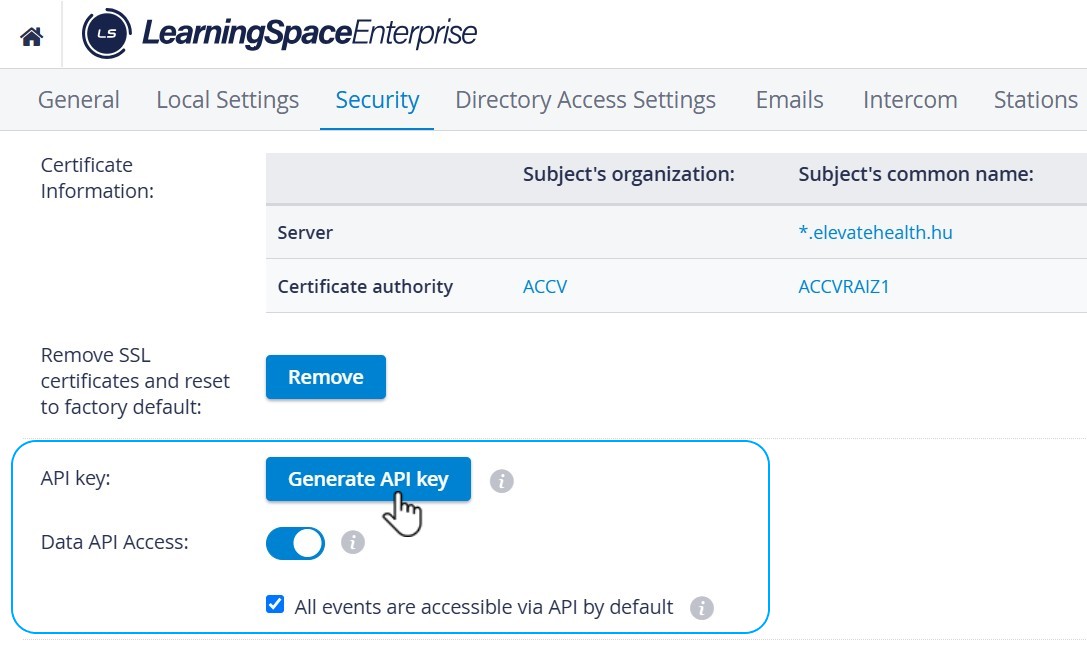
Step 3. Enable API Access
Make sure:
✅ Data API Access is toggled ON.
☑️ (Optional) All events are accessible via API by default if checked.
Step 4. Get Your API Token
Now we’ll convert your API key into a token that allows you to access the data.
FOR MAC/OS USERS:
Run a script manually
Open TextEdit or any plain text editor.
Paste the following script:
echo "Getting token for an LS instance..."
LS_HOST="[https://your-ls-instance.edu]"
CLIENT_SECRET="[your-api-key]"
API_TOKEN=$(curl "$LS_HOST/w/api/v2/auth.cgi" \
  -H "Content-Type: application/json" \
  -X POST --data '{"command":"token-for-apikey", "apiKeySecret":"'$CLIENT_SECRET'"}' | jq -r '.accessToken')
bytes=$(echo $API_TOKEN | wc -c)
echo "  received bytes: $bytes"
echo "This is your API token: \n"
echo $API_TOKEN
echo "\n"
Replace:
https://your-ls-instance.eduwith your LS web addressyour-api-key-herewith the API key from Step 2
Save it as
getToken.shOpen Terminal, navigate to the file, and run:
sh getToken.shYou’ll see your API token (a long string). Copy and save it somewhere safe.
FOR WINDOWS USERS:
🪄 getToken.bat – Windows Script
Open Notepad or any plain text editor.
Paste the following and save the file named as
getToken.bat, then double-click or run from Command Prompt:
@echo off
set /p LS_HOST=Enter your LS host URL (e.g. https://your-ls-instance.edu):
set /p API_KEY=Enter your API key:
echo.
echo Getting token for LearningSpace...
curl -s -X POST "%LS_HOST%/w/api/v2/auth.cgi" ^
  -H "Content-Type: application/json" ^
  -d "{\"command\":\"token-for-apikey\", \"apiKeySecret\":\"%API_KEY%\"}" ^
  > token.json
echo Done! Your token has been saved to token.json
echo.
type token.json
pause
Your API token (a long string) will be saved in a token.json file.
The file will look like this:
{"accessToken":"....token [long string of secure access token characters]...."}You need to copy the token part (a long string of secure access token characters) and save it in a secure location.
Step 5. Open Insomnia
You should see a blank screen.
Step 6. Create a New Request
Click the ➕ icon or use CTRL+N / CMD+N
Choose HTTP Request

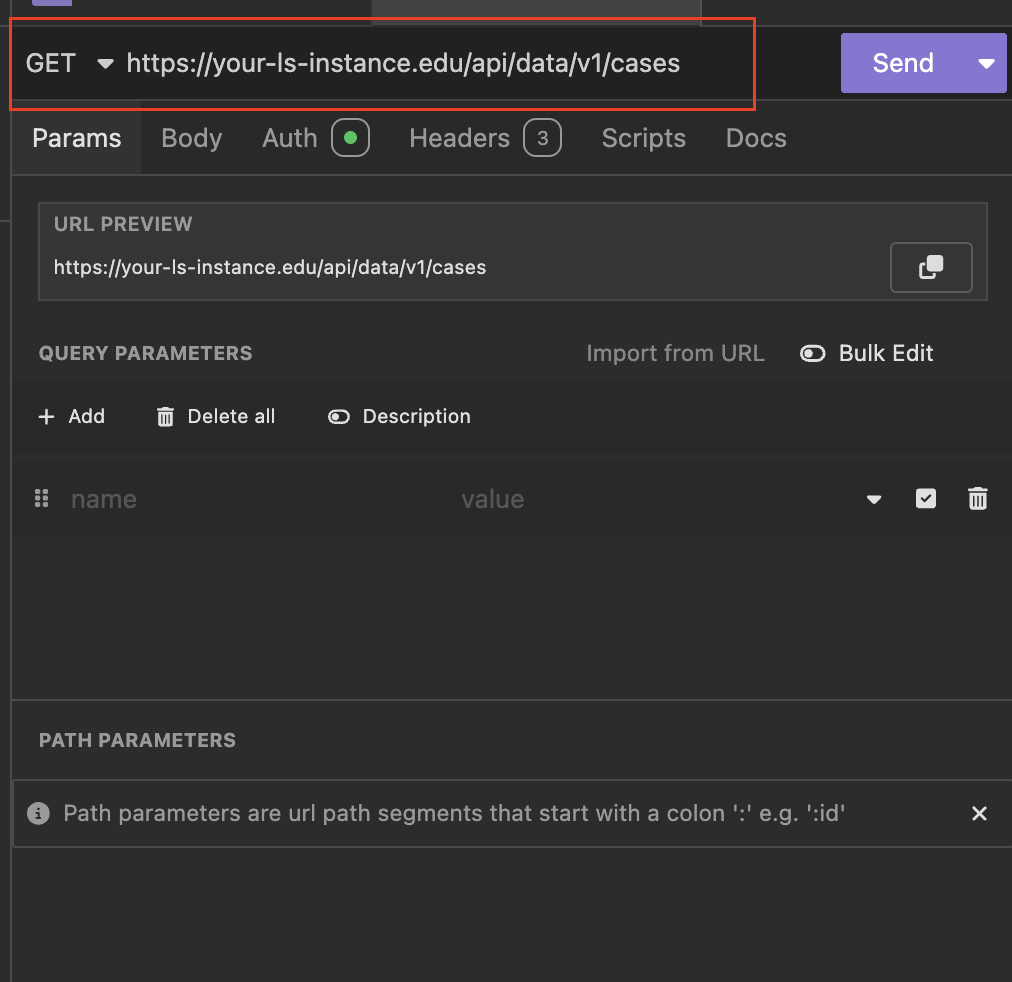
Step 7. Add the API URL
For a list of Cases, paste this into the URL field:
https://your-ls-instance.edu/api/data/v1/cases🧭 Tip: You can find more endpoints here 👉 [Data API Endpoint Reference]
Step 8. Set Authentication
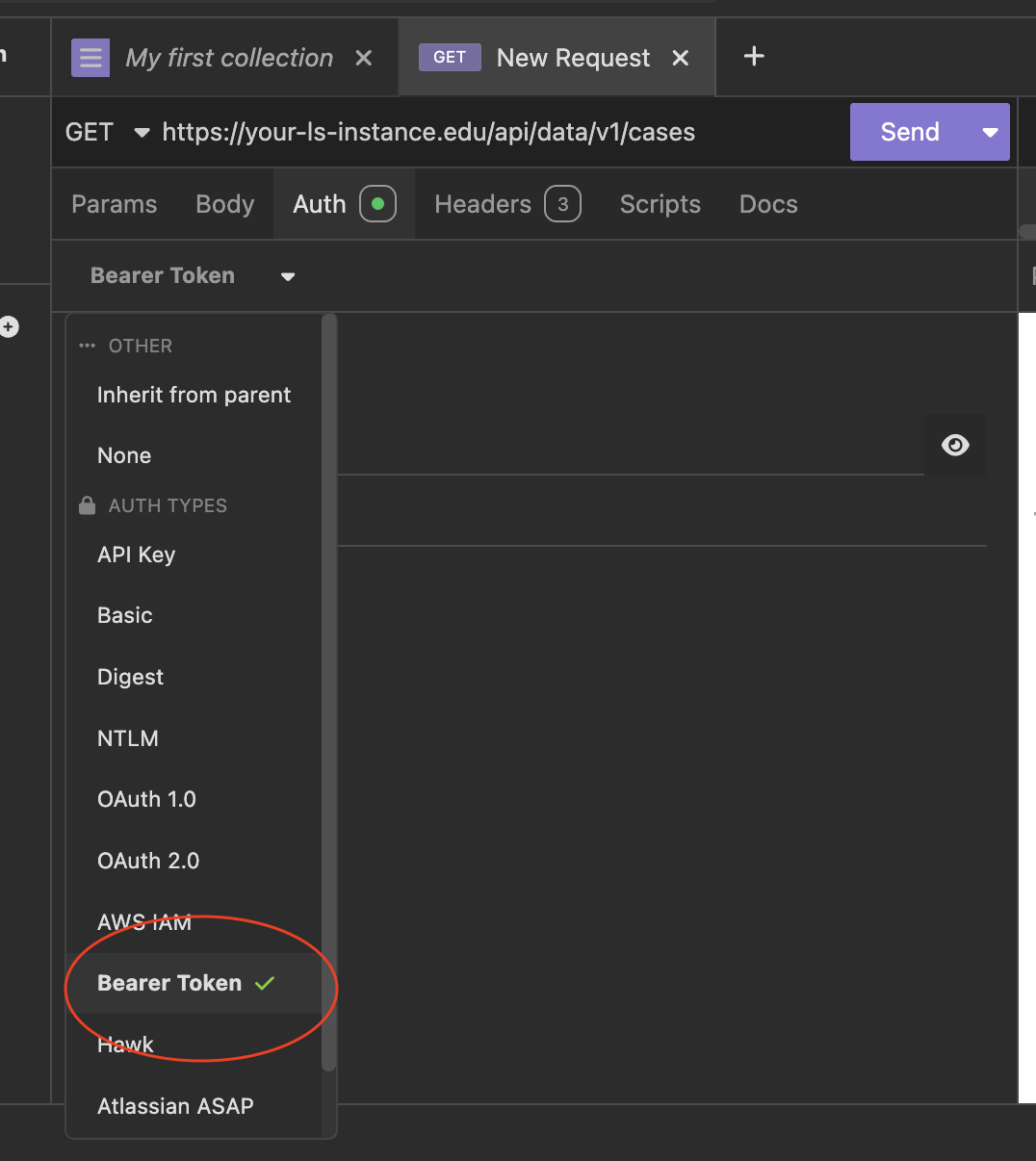
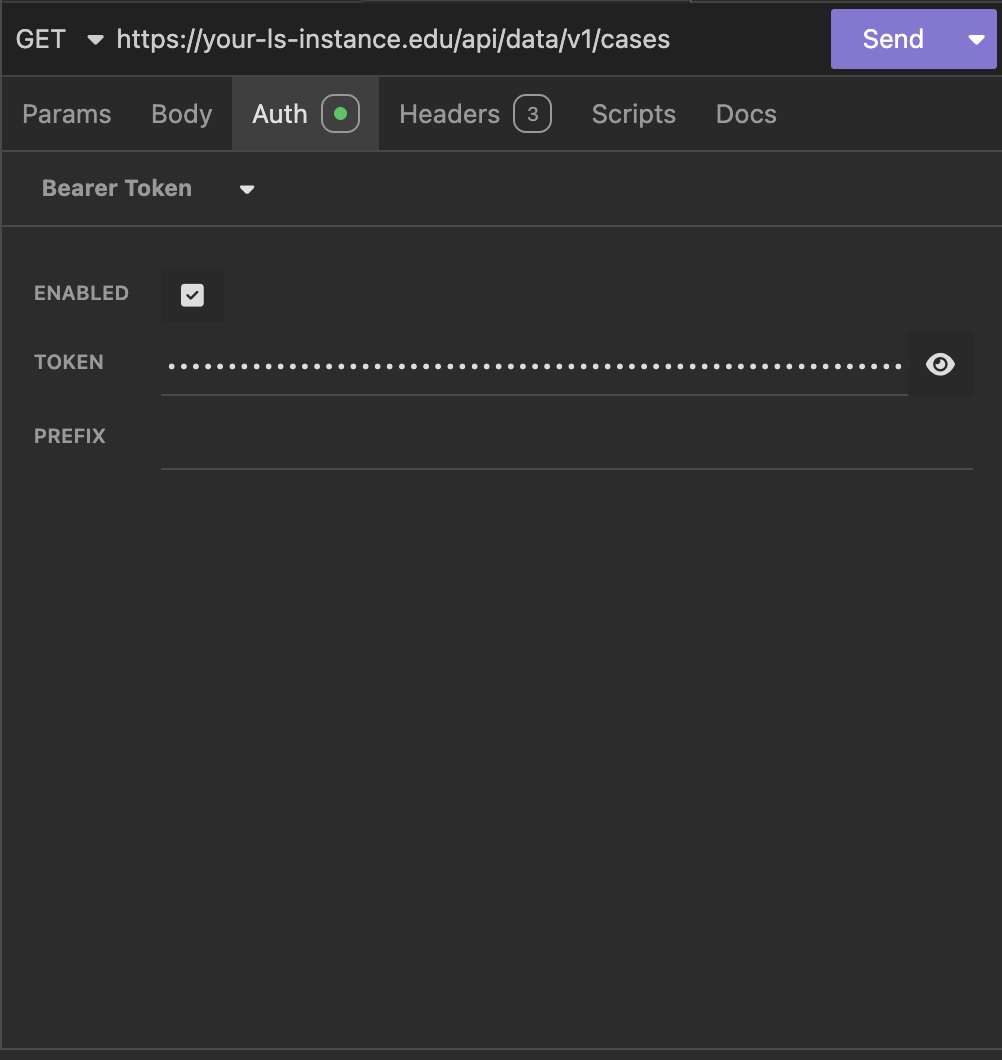
Click the Auth tab
Choose Bearer Token
Paste your API token in the field
Step 9. Send the Request
Click Send. The right panel will show your results.
🎉 Success! You’ve just pulled live data from your system.
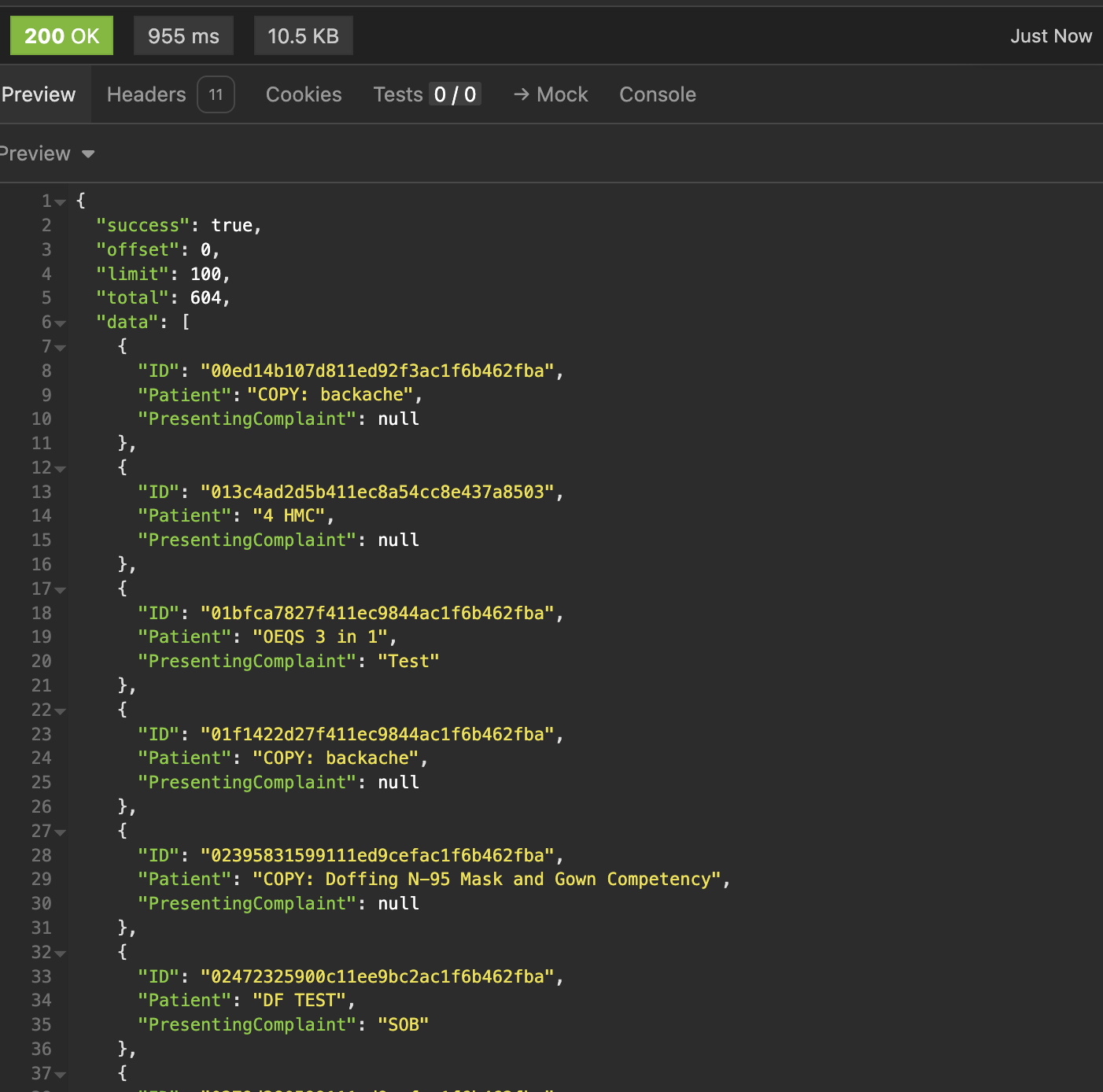
Bonus: Understand Your Result
In the result, you’ll see:
total: Total number of itemslimit: How many results per request (default is 100)offset: Where the results start (default is 0)
To get more results, increase the offset.
👉 For example, add ?offset=100 to the URL to get items 101–200.
Common Errors & How to Fix Them
❌ Error | ✅ Fix |
|---|---|
| Check if your LS address is correct or if you’re on VPN |
| Check for typos in the endpoint. Include |
| Make sure you're using the token, not the API key, in the Bearer Auth section. |
| Adjust the Request Timeout setting in Insomnia to ensure the request has sufficient time to be processed. E.g., increase the request timeout limit from 30 to 90 seconds (or even more). |
For information on APIs in LearningSpace, please refer to this link.