APIs in LearningSpace
This page lists and describes the LearningSpace APIs (Application Programming Interfaces) that allow other software to interact with the LearningSpace system programmatically.
Data API Access
The LearningSpace Data API provides access to various data points from the system, allowing customers to retrieve information about Activities, Cases, Events, Students, video recordings, and more.
Step-by-step Data API - How-to Guide
The Data API access can be manually toggled on or off on the Security NEW of the System Manager.
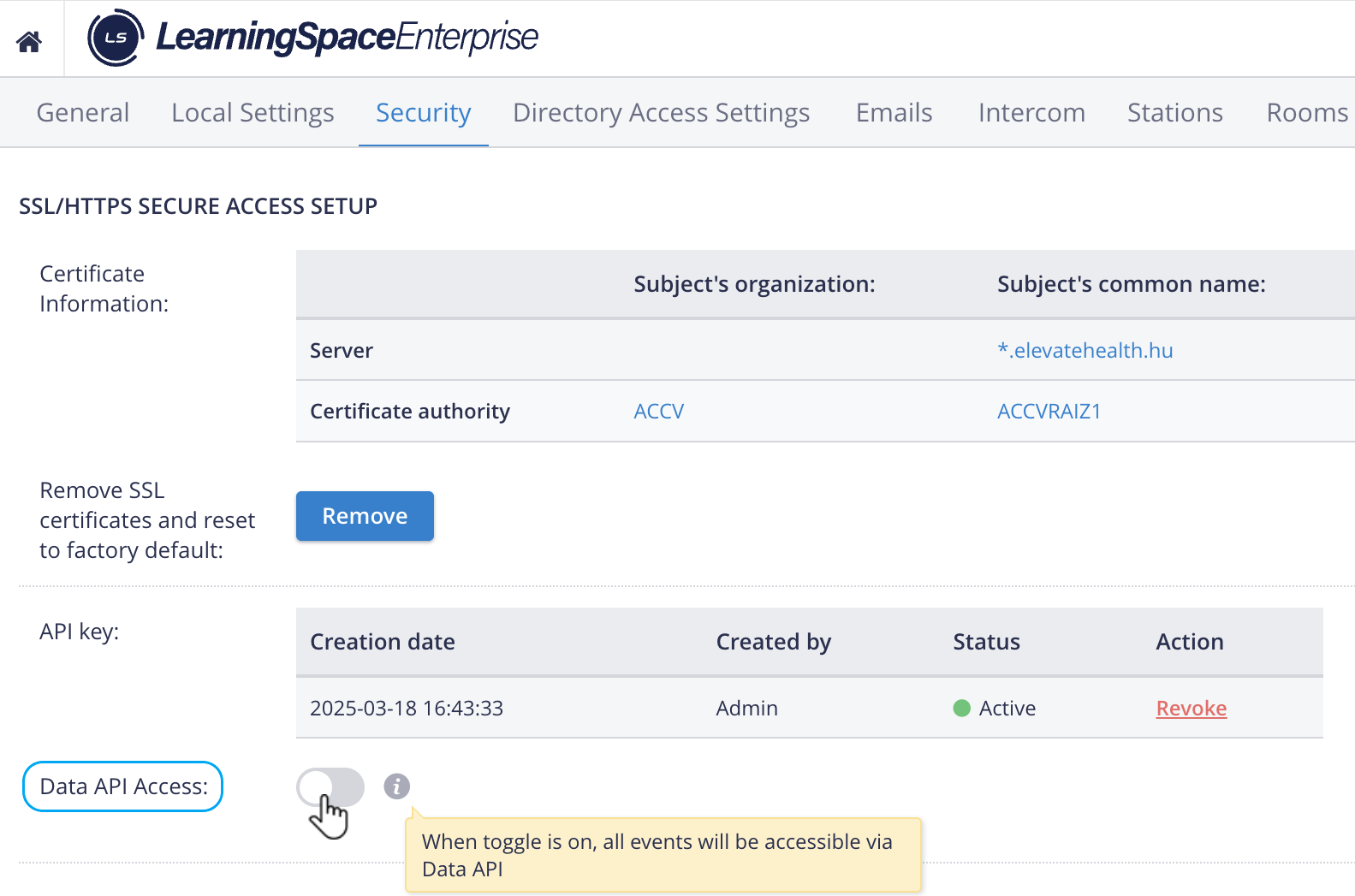
Once Data API access has been enabled, the Institution’s System developers can proceed using the API documentation provided by LearningSpace support.
An OpenAPI descriptor is generated, which describes the API contents available at https://[learning.space.url]/api/openapi/views.yaml
Once Data API Access is activated, the 'All events are accessible via API by default' checkbox will also appear (checked by default) to make all events available by default within the system.
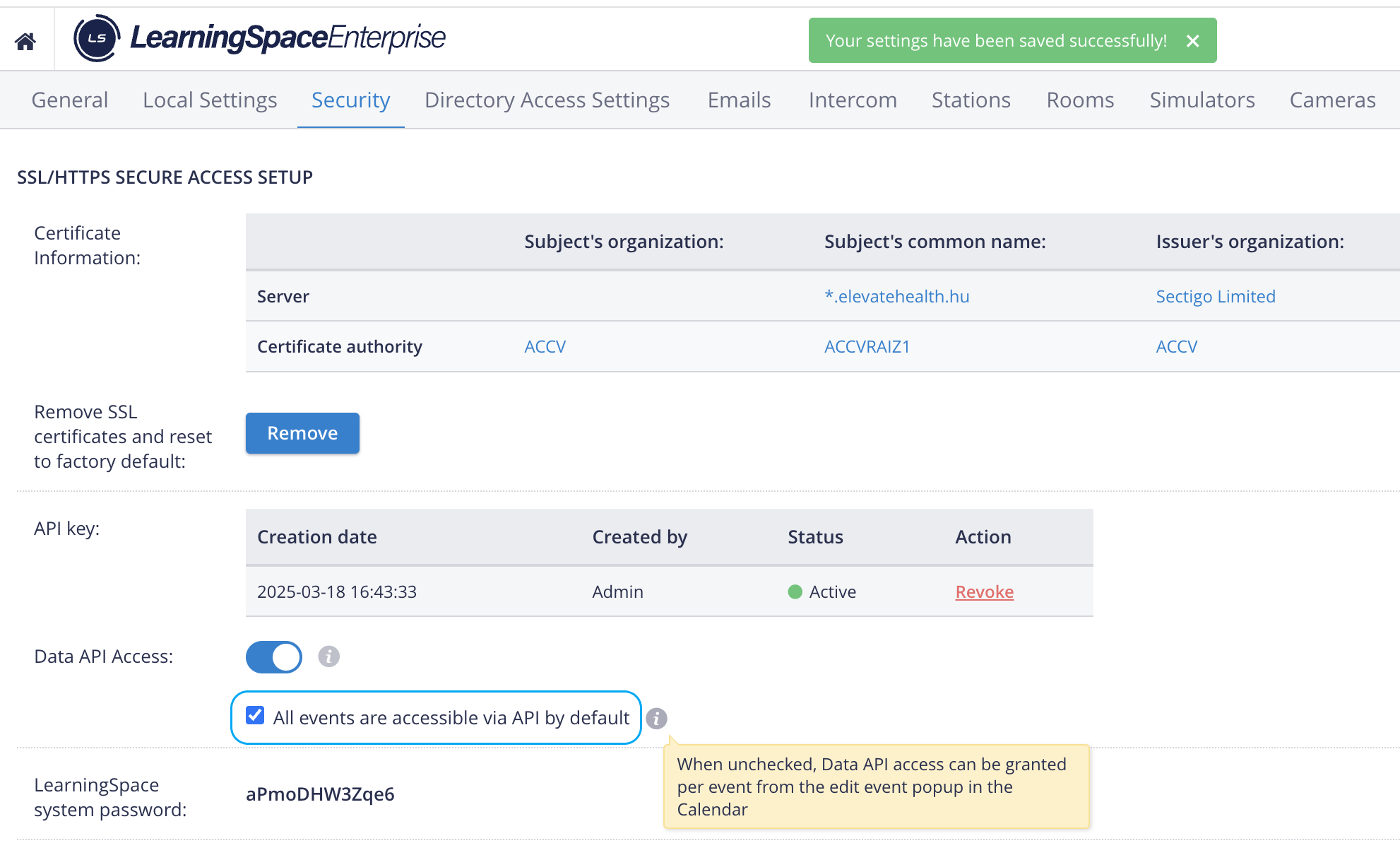
The data API toggle is in the "off" position by default.
If the 'All events are accessible via API by default' option is unchecked in the System manager, only the events selected in the Calendar Modulewill be added to the range of Data API.
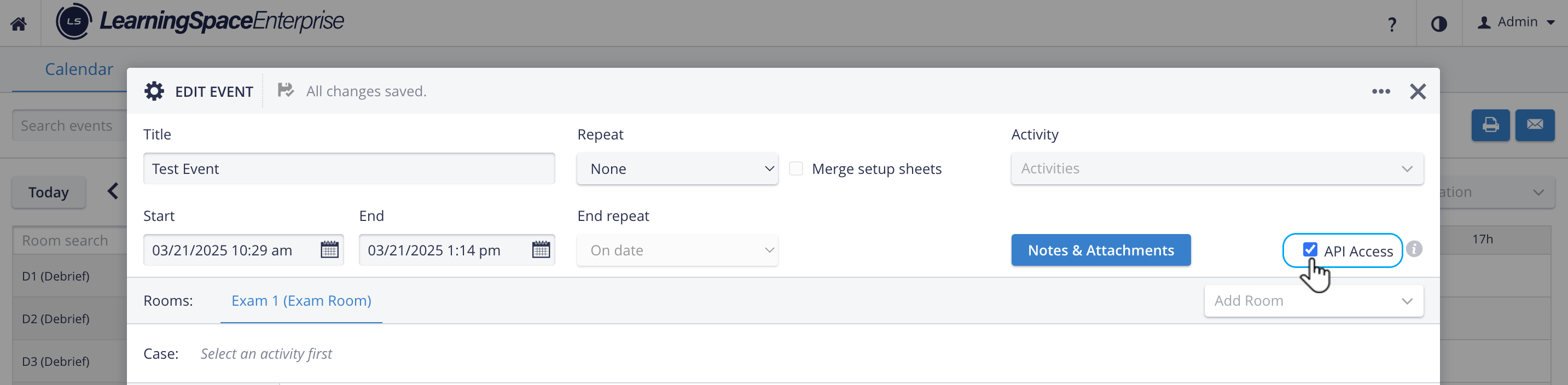
Both the events created in the Calendar and in Advanced Scheduling can be saved as API Access-capable events.
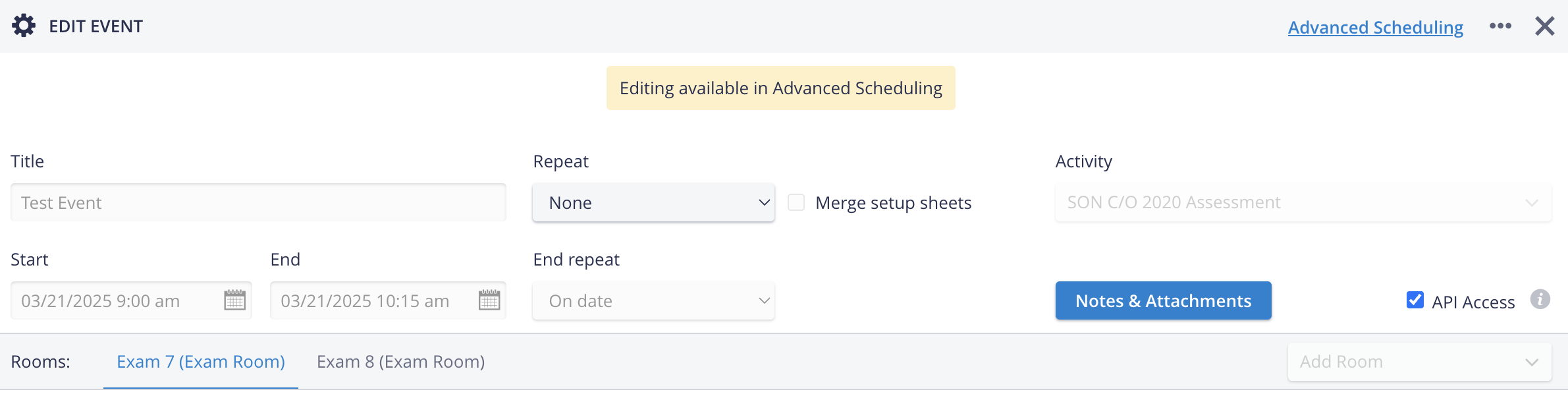
TIP: Notes can also be edited and saved for an Advanced scheduled event.
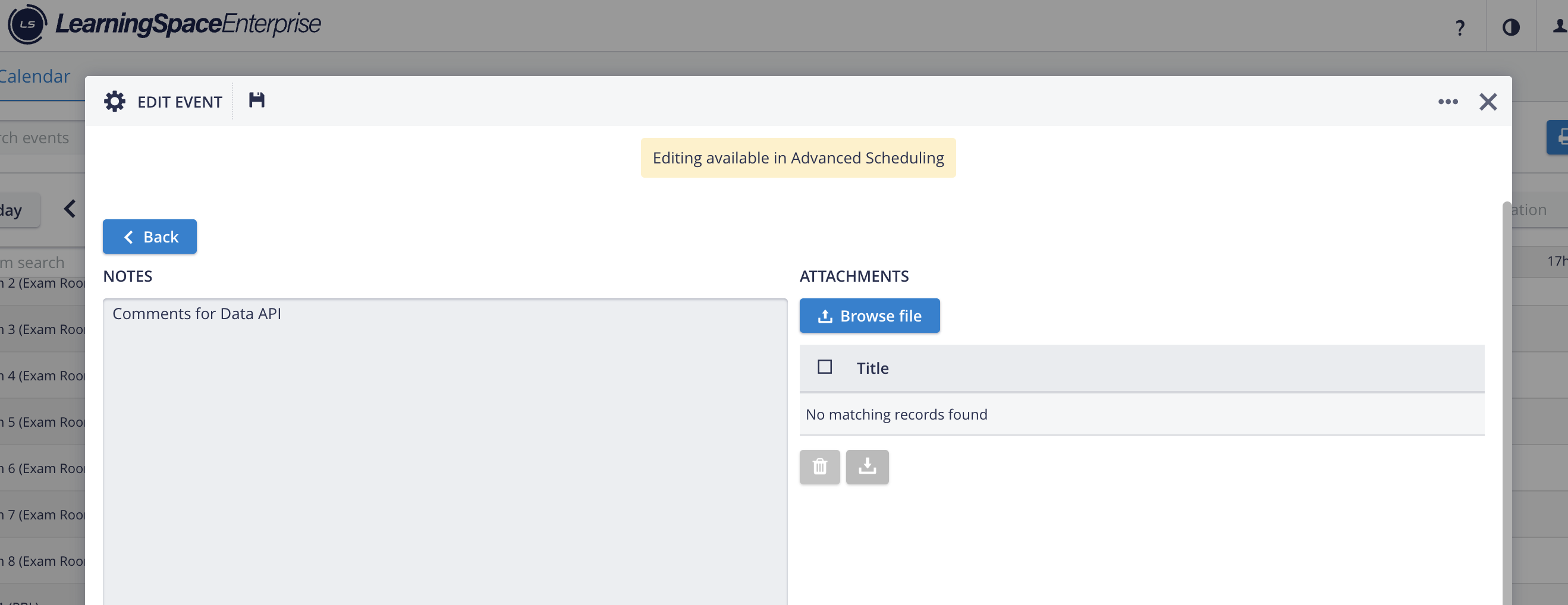
Content provided by the Data API
A detailed specification for the actual development can be utilized via the generated OpenAPI descriptor, which describes the API contents. This specification is available at:
https://[learning.space.url]/api/openapi/views.yaml.
Authentication is required via a bearer token (JWT), which can be obtained through the LearningSpace API Key.
Available Endpoints
Activities
GET
/api/data/v1/activitiesRetrieve a list of activities.
The response includes activity details such as ID, title, start, and end dates.
Cases
GET
/api/data/v1/casesRetrieve a list of cases.
The response includes case details such as patient name, presenting complaint, case ID, and case number.
Events of an Activity
GET
/api/data/v1/events/activity/{ActivityID}Retrieve events related to a specific activity.
Requires ActivityID as input.
Nbome Events
GET
/api/data/v1/events/nbomeRetrieve events marked as ready for NBOME integration.
Student Assessments (NBOME)
GET
/api/data/v1/student-assessments/nbome/event/{EventID}Retrieve student assessment results for a specific event.
The results adhere to the NBOME format.
Student Video Recordings for NBOME
GET
/api/data/v1/student-video-recordings/nbome/event/{EventID}Retrieve student video recordings for a specific NBOME event.
Students
GET
/api/data/v1/studentsRetrieve a list of students.
The response includes student details such as ID, full name, and NBOME ID.
Student Video Recordings for Event and Case
GET
/api/data/v1/student-video-recordings/event/{EventID}/case/{CaseID}/student/{StudentID}Retrieve video recordings for a specific student, event, and case.
Video Files for Video Recording
GET
/api/data/v1/video-files/video-recording/{VideoRecordingID}Retrieve a list of video files associated with a specific video recording.
When requesting video content, you will receive links to the video recordings in MP4 format.
Responses
GET
/api/data/v1/assessment/activity/{ActivityID}/responsesProvides a list of responses for all learners in all checklists and all cases assigned to an Activity
GET
/api/data/v1/assessment/activity/{ActivityID}/case/{CaseID}/responsesProvides a list of responses for all learners in all checklists in one case, assigned to an Activity
GET
/api/data/v1/assessment/activity/{ActivityID}/case/{CaseID}/learner/{LearnerID}/responsesProvides a list of responses for one learner in all checklists in one case assigned to an Activity
Case items
GET
/api/data/v1/assessment/activity/itemsProvides a list of all activities with their assigned cases and checklist items, along with all possible answer options
GET
/api/data/v1/assessment/activity/{ActivityID}/itemsProvides a list of one specific activity with its assigned cases and checklist items, along with all possible answer options
GET
/api/data/v1/assessment/activity/{ActivityID}/case/{CaseID}/itemsProvides a list of one specific activity and one specific assigned case and checklist items, along with all possible answer options
Comments Report
GET
/api/data/v1/assessment/activity/{ActivityID}/case/{CaseID}/learner/{LearnerID}/commentsProvides the content of the comments report
Response Format
Each response will include the following:
success: A boolean indicating if the request was successful.
total: The total number of records returned.
offset: The offset value, useful for pagination.
limit: The number of records returned in the current request.
data: An array containing the data objects related to the request.
Authentication
The API uses Bearer Authentication. You will need to provide a valid JWT token in the Authorization header of your request.
For more information, see Data API - New Reporting API Expansion.
External Calendar API Endpoint
With the help of the External Calendar API Endpoint feature, users will be able to process events (including date, event name, and room name) using their software integration components and work with the event information in any way they desire, like:
forwarding them to external calendar applications,
or presenting it as a static webpage.
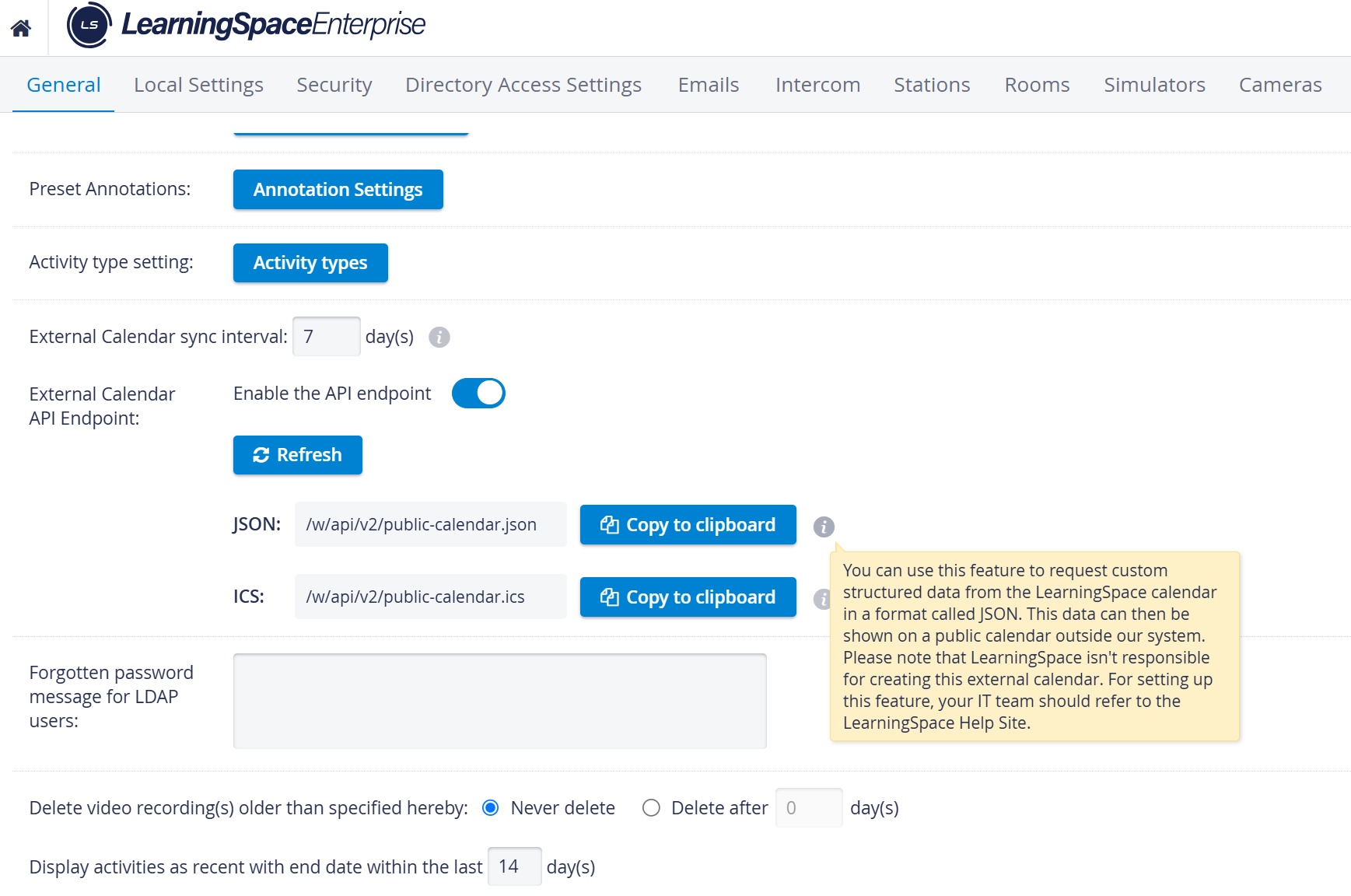
For more details, please visit the External Calendar API Endpoint or the How to Utilize External Calendar API Endpoint pages.
Learner Schedule API
This API allows exporting the times (i.e., rounds in) the learner is scheduled for, given a timeframe.
❓ Use case: using this data to enter into an external calendar software or to provide notifications (e.g., text messages to a phone) for learners about their scheduled exams. Output format: XML
By specifying an email address (learner email address saved in ) and a date range, the Student Calendar API returns the scheduled Activity titles and the start and end dates of the round(s) the learner has been scheduled to.
Video Recording Control API
This API provides video-related functionality in LearningSpace to external applications. Such external applications can use simple HTTP GET commands to control LearningSpace's video recording capabilities. LearningSpace also provides download access to recorded video content.
❔ Use case: The customer develops external tools to perform scheduled or automated recordings using the LearningSpace A/V system.
Goal of Integration
The end user wants to control the room's Recording State from within the room. Recording State control means that users can start and stop video recordings. Annotations can also be added to the recordings to tag them with notes, remarks, or participant names.
While the Recording State can be controlled by a logged-in Video Control privilege user from a connected client computer, the end user might want a more direct way to control it. It is equally important for those in the room to understand the status of Recording in the room.
A similarly important piece of information regarding video recording privacy and access control is the ability to assign the video recording to an Activity (a building block for tying together participants, schedule, curriculum, and access control).
Finally, adding notes or participant names to the recording from the Touch Panel enables easier lookup and identification of the recording, and also provides a way to direct debriefing sessions or provide performance-related feedback to participants.
Typical Use Case
The end user in the simulation room uses the touch panel to check the Recording status (recording or not recording). Before starting a recording, the end user can select an Activity defined to assign the recording. During recording, the touch panel can be used to add annotations. Finally, the recording can be stopped to reset the room's recording state.
Components of the integration
Touch Panel
Touch Panel Master Controller
Recording API
For more details, please contact the AVS Support team using any of the contact options available here.
Privacy API
This LearningSpace API allows a device to control the room’s privacy settings directly from within the room, using a wall-mounted touch panel (a network device panel).
Since the touch panels are behind a Touch Panel Master Controller, which makes requests to LearningSpace, all requests appear to come from the same IP address to LearningSpace.
Setup process
Add the Touch Panel Master Controller computer to LearningSpace as an additional station.
Add the Touch Panel Master Controller station to all the rooms that need to be controlled.
Use curl to verify the operation of the API at http://learning.space.address/w/api/v2/privacy.cgi,
It acts/performs just like pressing the privacy buttons on the UI.
Note: If the computer is not a station in any room in LearningSpace, nothing happens: since the station's IP is used to look up the associated room, this API does not allow non-stations to control the privacy of LearningSpace.
SP toolbar still works alongside this new tool.
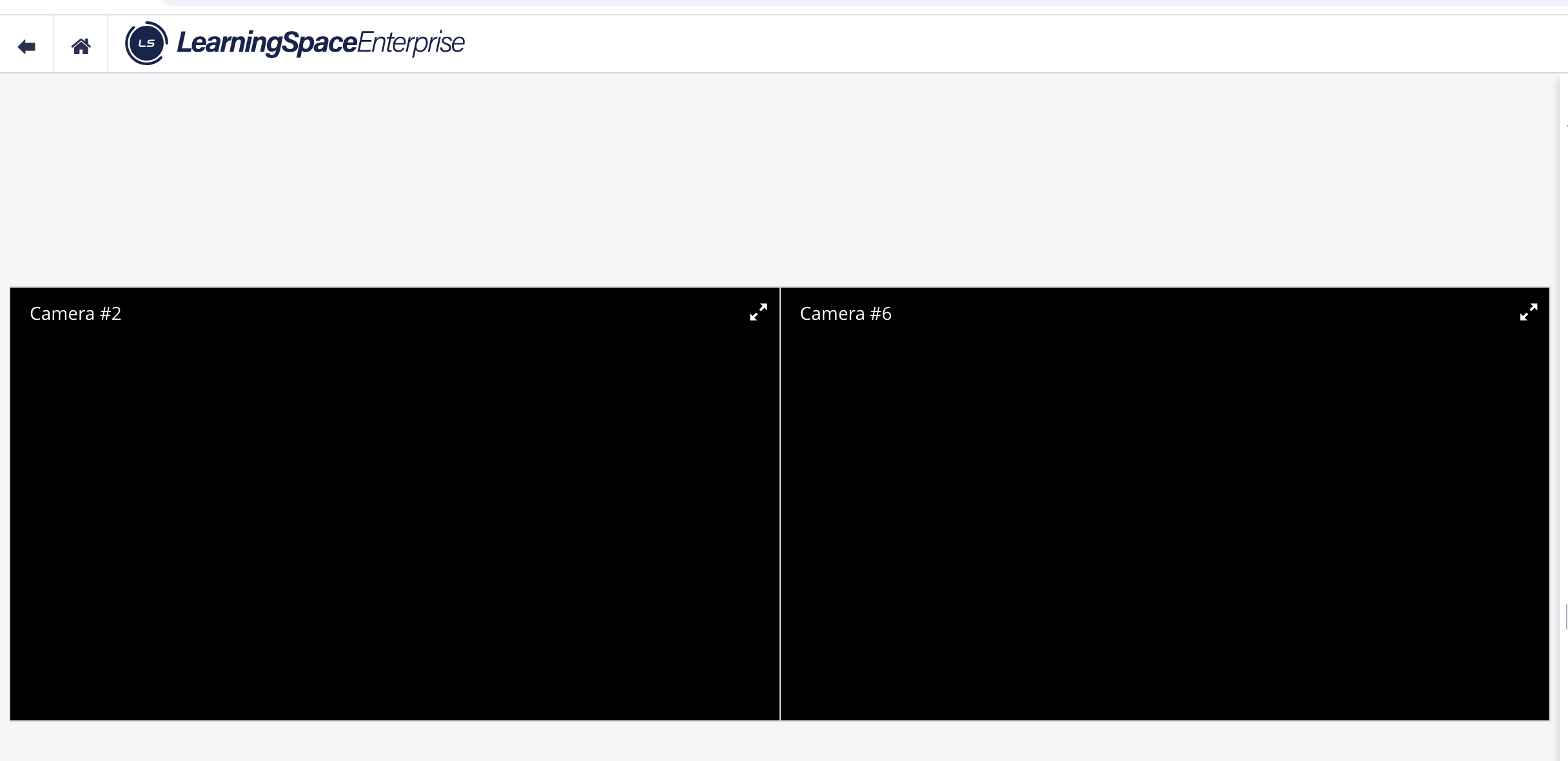
Blacked-out Camera Views - SP Privacy Mode Active
For more information, please contact the AVS Support team using one of the available contact options listed here.