SAML-based Single Sign-On (SSO) Authentication
SAML-based Single Sign-On Feature Overview
SAML-based Single Sign-On (SSO) is supported in LearningSpace.
LearningSpace uses Shibboleth Service Provider (Shibboleth SP) software to accomplish this.
Elevate Healthcare handles the Shibboleth LS server-side configuration.
NOTE: If SAML SSO authentication is enabled, the Easy SP/Learner services will be unavailable.
Once SAML SSO is enabled, a LearningSpace user will not be able to log in to LS via the LS login page. When the user enters the LearningSpace URL, the Shibboleth SP (which runs on the main application server) redirects them to the Identity Provider (IdP) login page.
On the IdP login page, the user enters their credentials (login name and password).
After successful authentication, the IdP redirects the user to LearningSpace.
During this phase, the IdP sends a unique attribute in a previously agreed-upon format that is necessary for identifying the user (e.g., eduPersonPrincipalName (eppn), eduPersonTargetedID, eduPersonAffiliation, etc.).In case this data is associated (‘mapped’) with a user’s UCID or email attribute in the LS database, LearningSpace will validate the session, and the user can log in.
A so-called ‘mixed login’ can be enabled to keep the original LS login functionality (e.g., for users with no corporate/institutional account but only a local LS account).
This feature allows users to access their LearningSpace system directly using their login credentials (stored locally in the LearningSpace database) by simply adding ‘/email’ to the URL.
Please reach out to LearningSpace Support to have ‘mixed login’ enabled on your system!
The following types of IdPs have been successfully integrated with LearningSpace so far:
Shibboleth (version 2 and version 3)
OKTA
ADFS
AZURE AD
Microsoft Entra ID
Requirements for setting up SAML SSO authentication
LearningSpace support requires the following:
Type and version of the customer’s IdP server (i.e., Shibboleth, ADFS, etc.) for an easier configuration method;
The unique attribute type and format that is used for user mapping and identification
The IdP server’s metadata.xml file or URL (idp-federation-metadata);
A test user created on the IdP side with access to the LearningSpace application. With the help of such a test user, support engineers can test the SAML SSO authentication.
To perform this test, the unique attribute’s value for the test user must be shared with support (which will be added to the test user’s UCID field in LearningSpace).
IMPORTANT REQUIREMENT: The affected LearningSpace instance must have a valid SSL certificate.
Installation and setup
LS Support team installs the Shibboleth SP on the main application server.
LS Support team generates the SP metadata (sp-metadata.xml file), and sends it to the customer.
The SP metadata needs to be imported by the customer on the IdP side (it is required to identify the Shibboleth SP).
LearningSpace SP metadata and endpoints | |
|---|---|
Identifier URL for the application. | https://<ls_url>/shibboleth |
Reply (Assertion) URL for the application. | https://<ls_url>/Shibboleth.sso/SAML2/POST |
Sign on URL for the application. | https://<ls_url>/ |
Relay state URL for the application. | https://<ls_url>/ |
Sign out URL for the application. | https://<ls_url>/Shibboleth.sso/Logout |
Once the above steps are completed, the SAML SSO authentication can be activated and used.
Optional configurations
Global logout: To configure it, the local IT must provide a global logout URL.
Mixed Login: The site is accessed via/email in the URL. (Example: https://<domain>/email or https://<ls_url>/email )
JIT (Just in Time Provisioning): To be able to create (or update) users in LS, the following claims containing the additional attributes are required:
first name
last name
email address
unique ID (it will be mapped to a hidden GUID and not UCID)
group membership/role value (LS will assign the new user to a group and give privileges/roles to the user)
Example: a new user with a "Learner" value for this attribute will be added to the "SSO Learners" group and the Learner role assigned.
Error messages
Value missing in the database
This error occurs when a user can log in to the client-side IdP. The IdP sends the user's unique ID to LearningSpace, but LS cannot find the user based on it.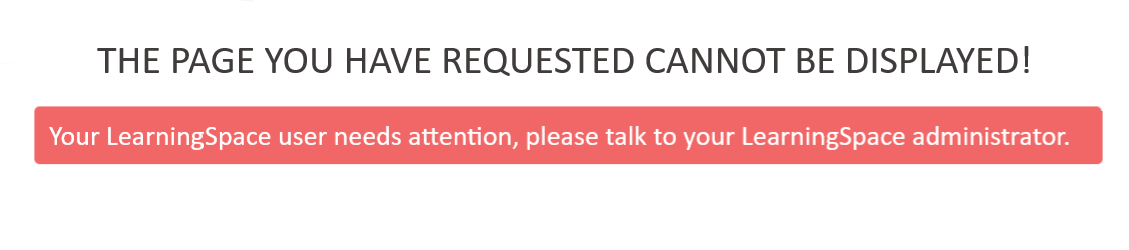
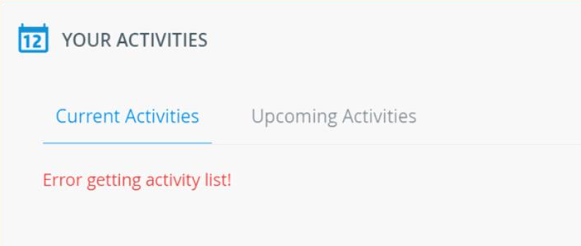
The reason could be that the value is not present in any of the user fields (email or UCID) in LS, and therefore, the user cannot be identified.
Value entered incorrectly (Case-sensitivity)
If you have any questions regarding the above information, don't hesitate to get in touch with LearningSpace Support!