How to Print a Report
Preset Reports Print option
🖨️ To print a Preset Report (either to paper or to PDF), use the Print button in the top right corner of the screen.
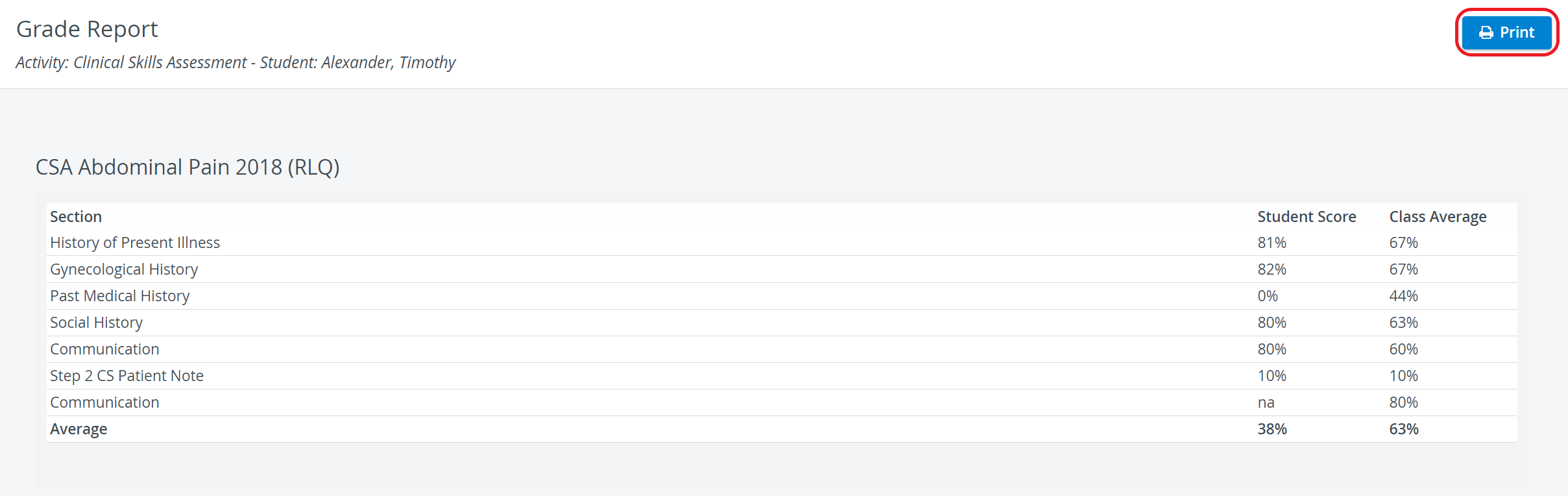
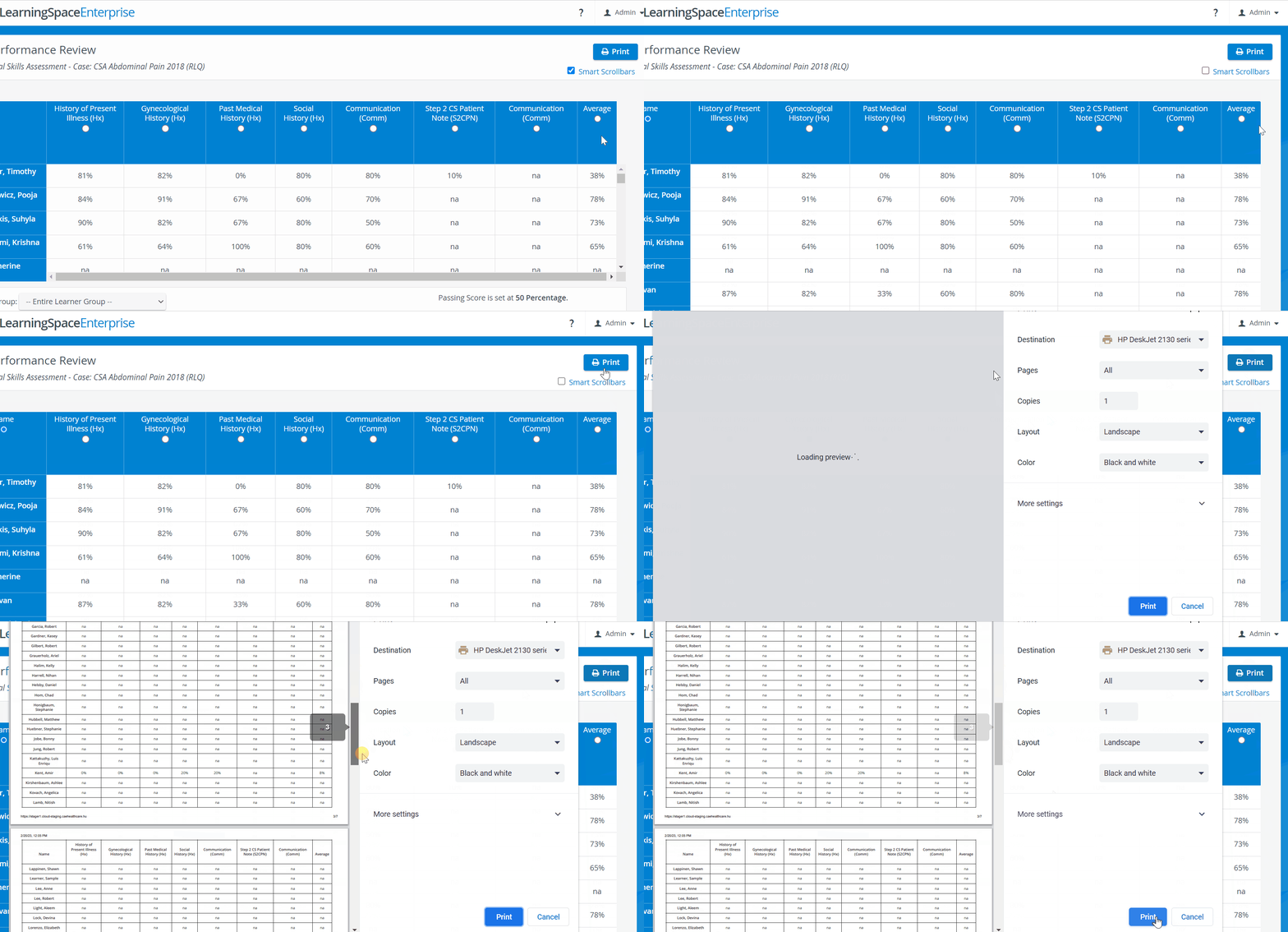
When using the Print button, a browser print dialog window pops up, where further settings can be adjusted (i.e., to ensure that multiple pages are printed if necessary).
The generated report will be displayed in a printer-friendly view without unnecessary elements.
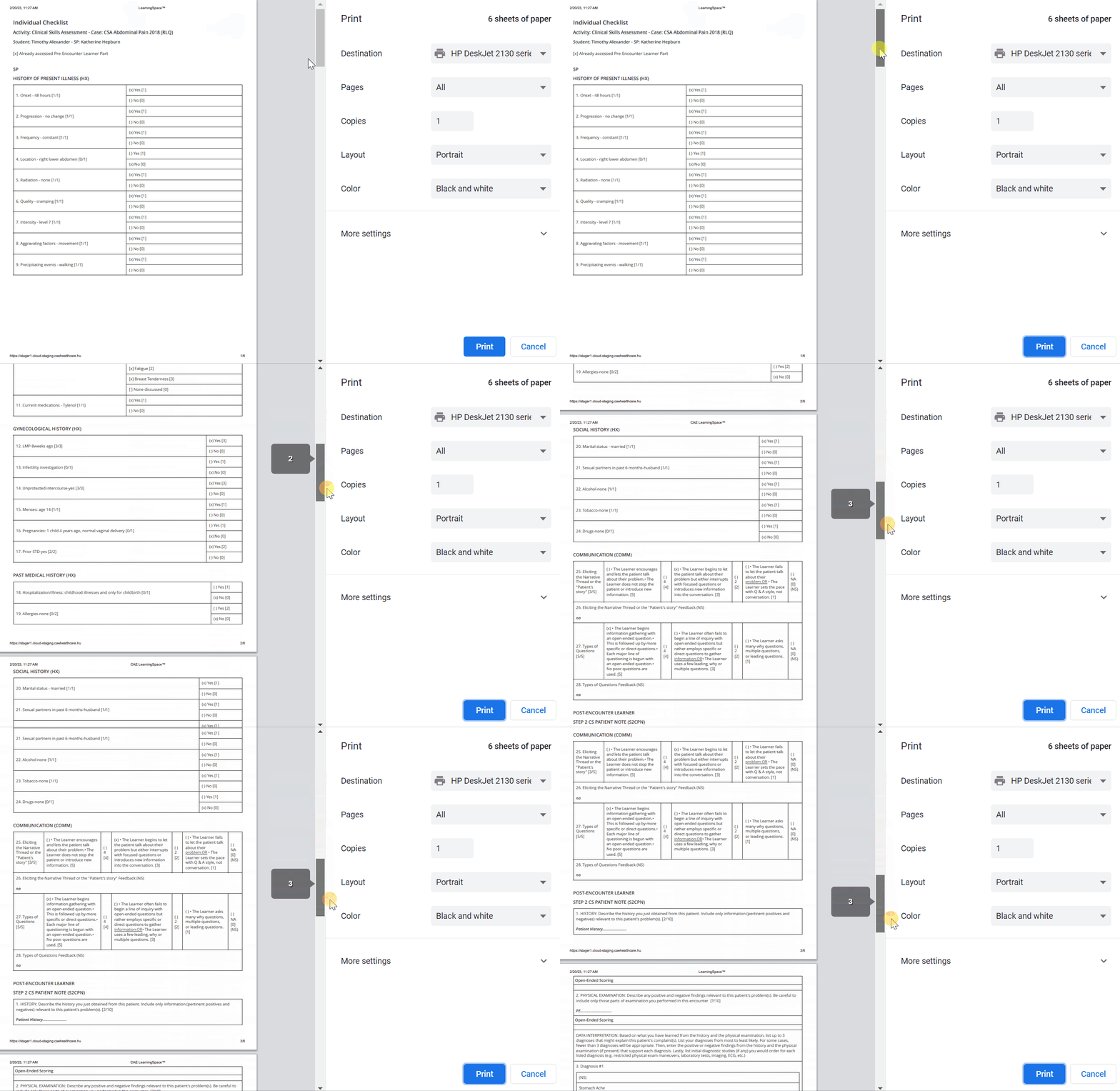
Background graphics turn the header of certain tables into grey:
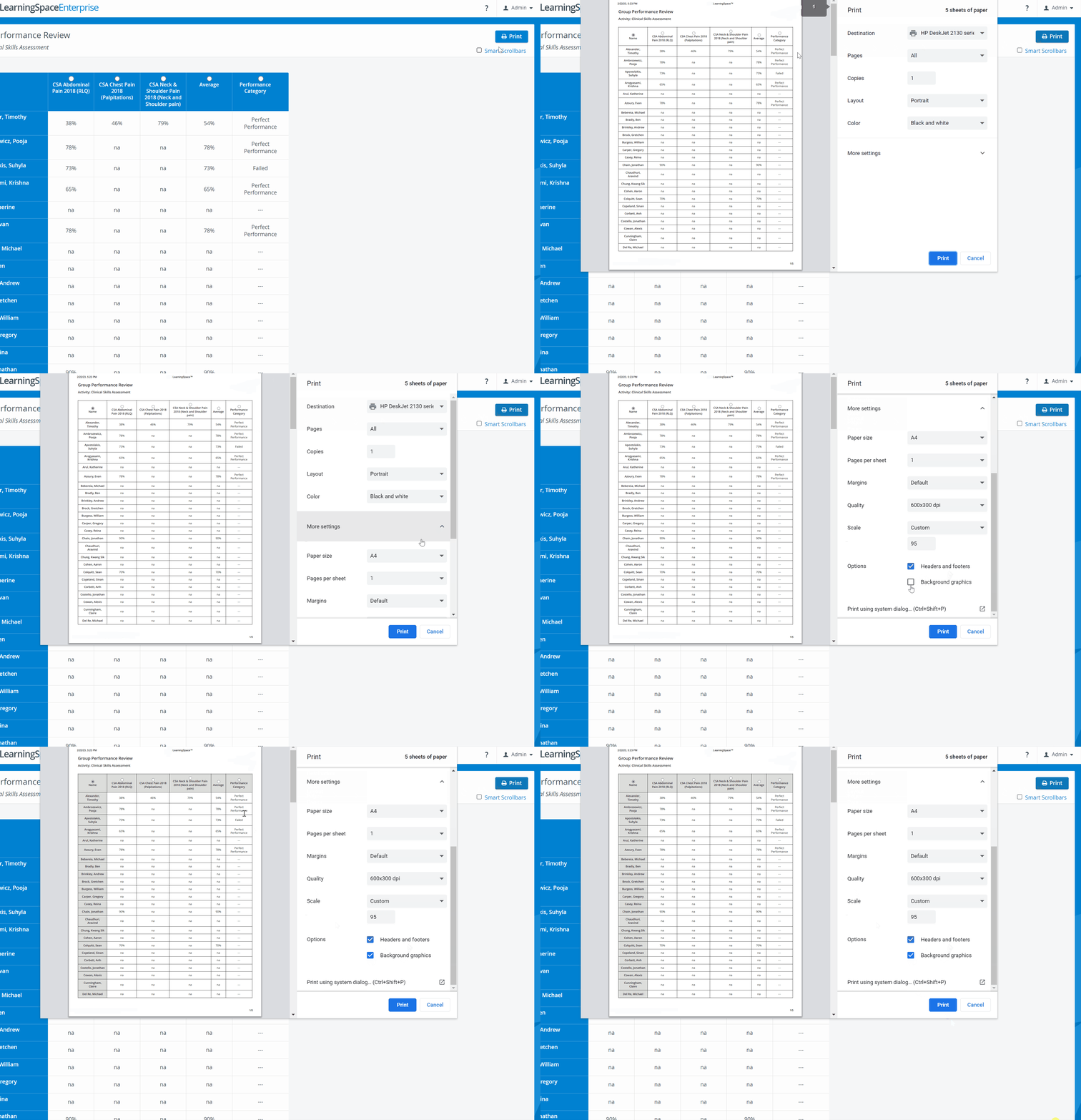
Reports containing colored elements can be printed in Color mode:
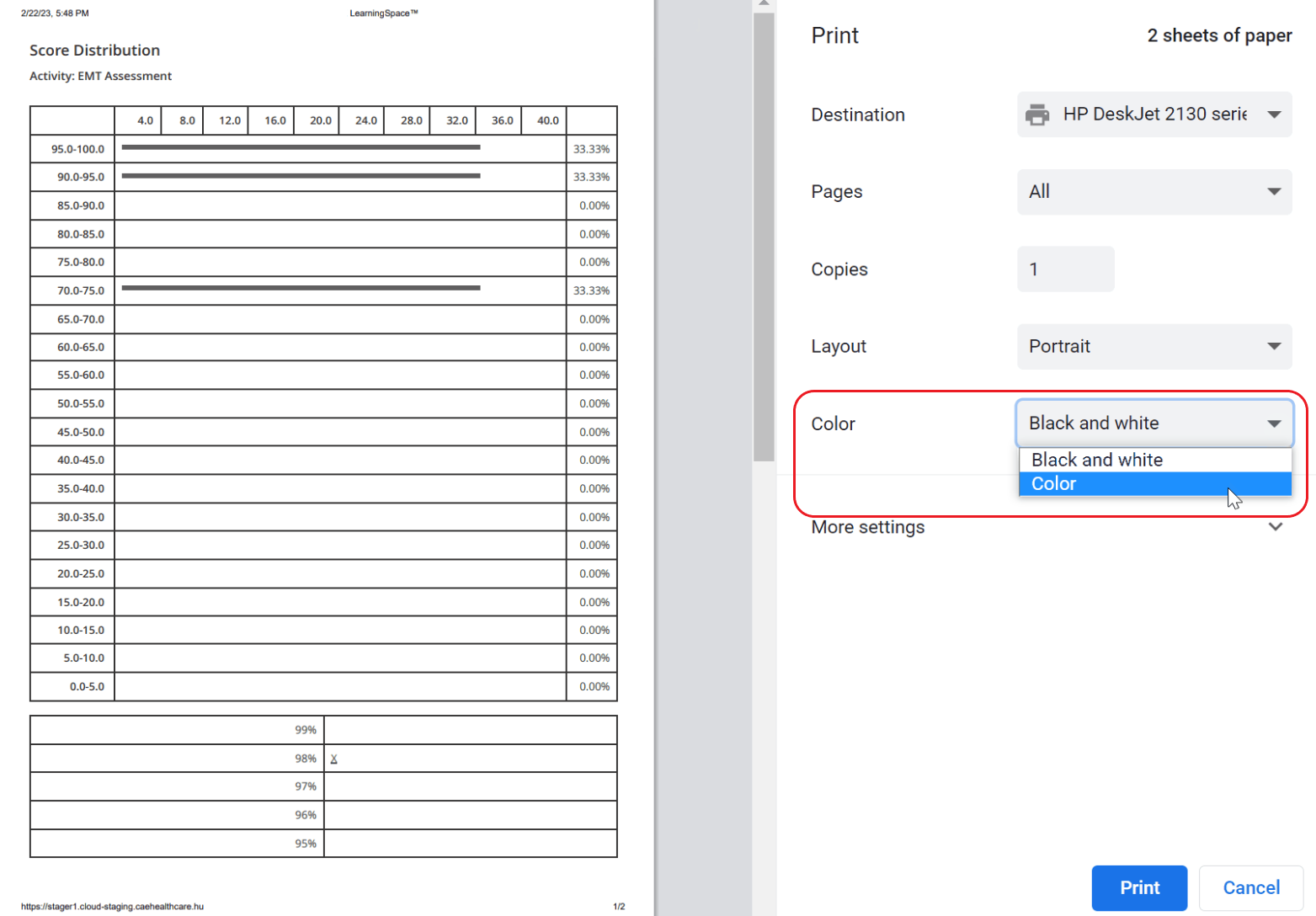
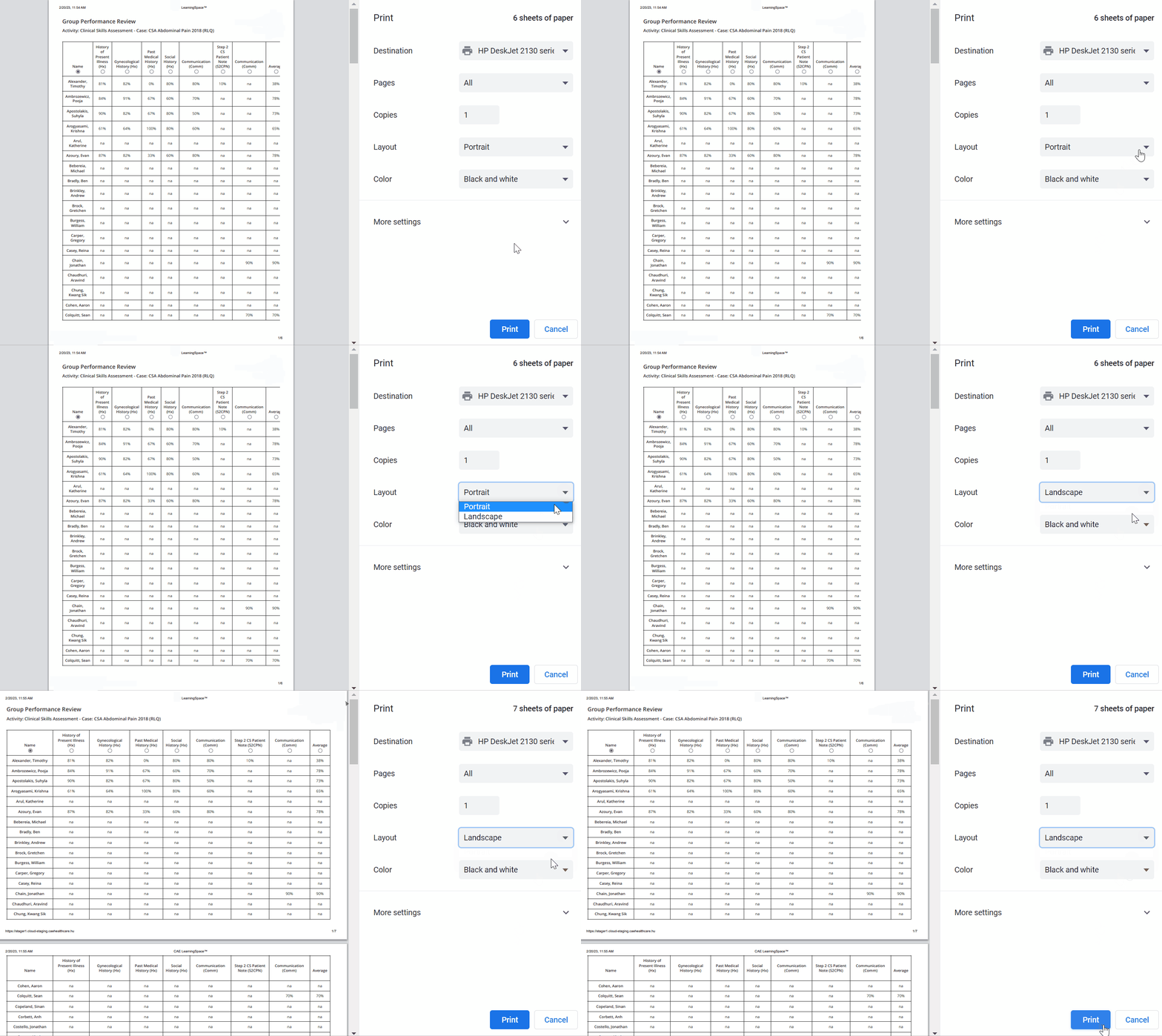
Portrait and Landscape layout
In case the complete report cannot be displayed in Portrait mode,
change to Landscape mode (Layout)
decrease letter size (Print preview window > More settings > Scale)
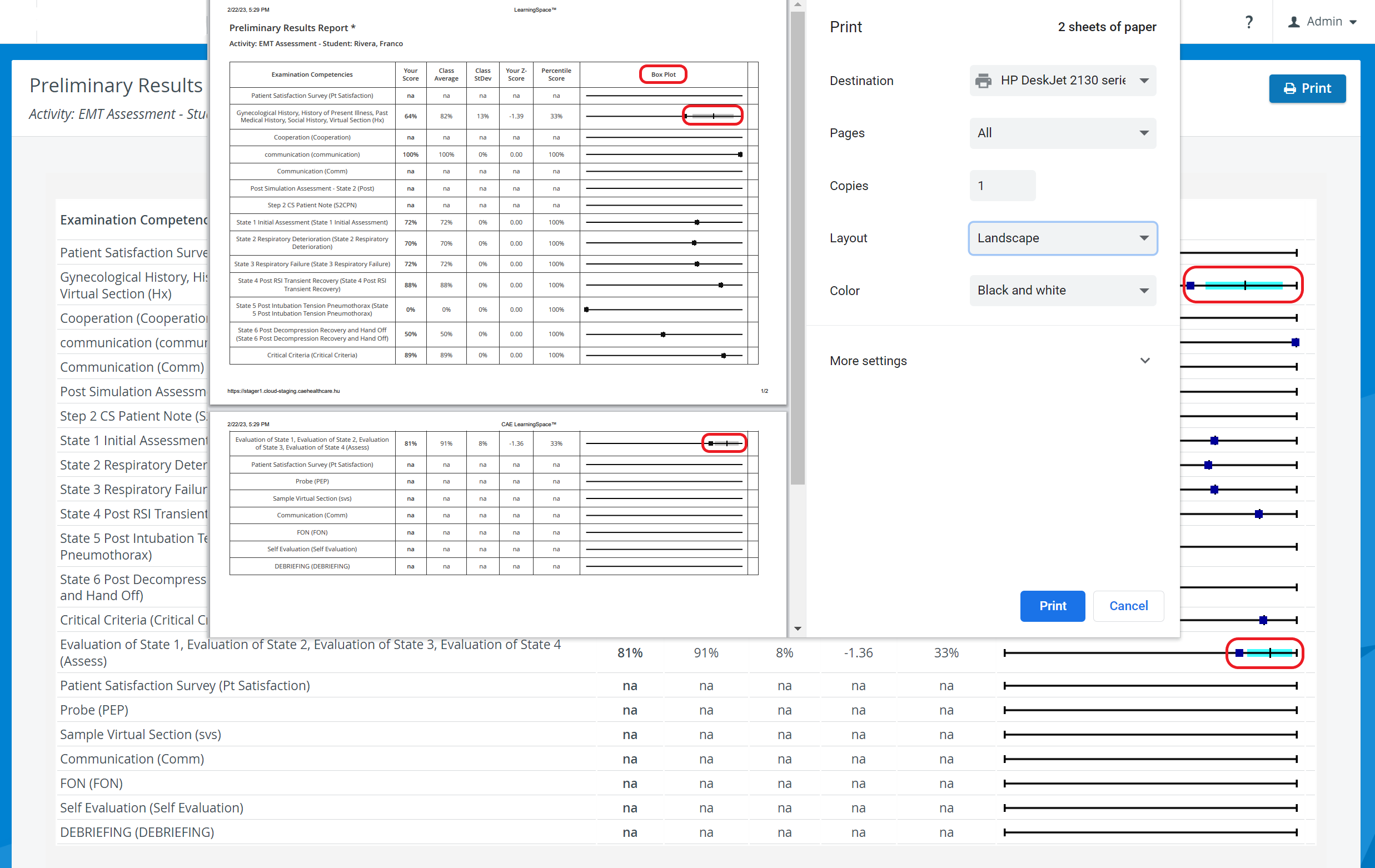
Reports with Boxplot can only be printed in Landscape mode.
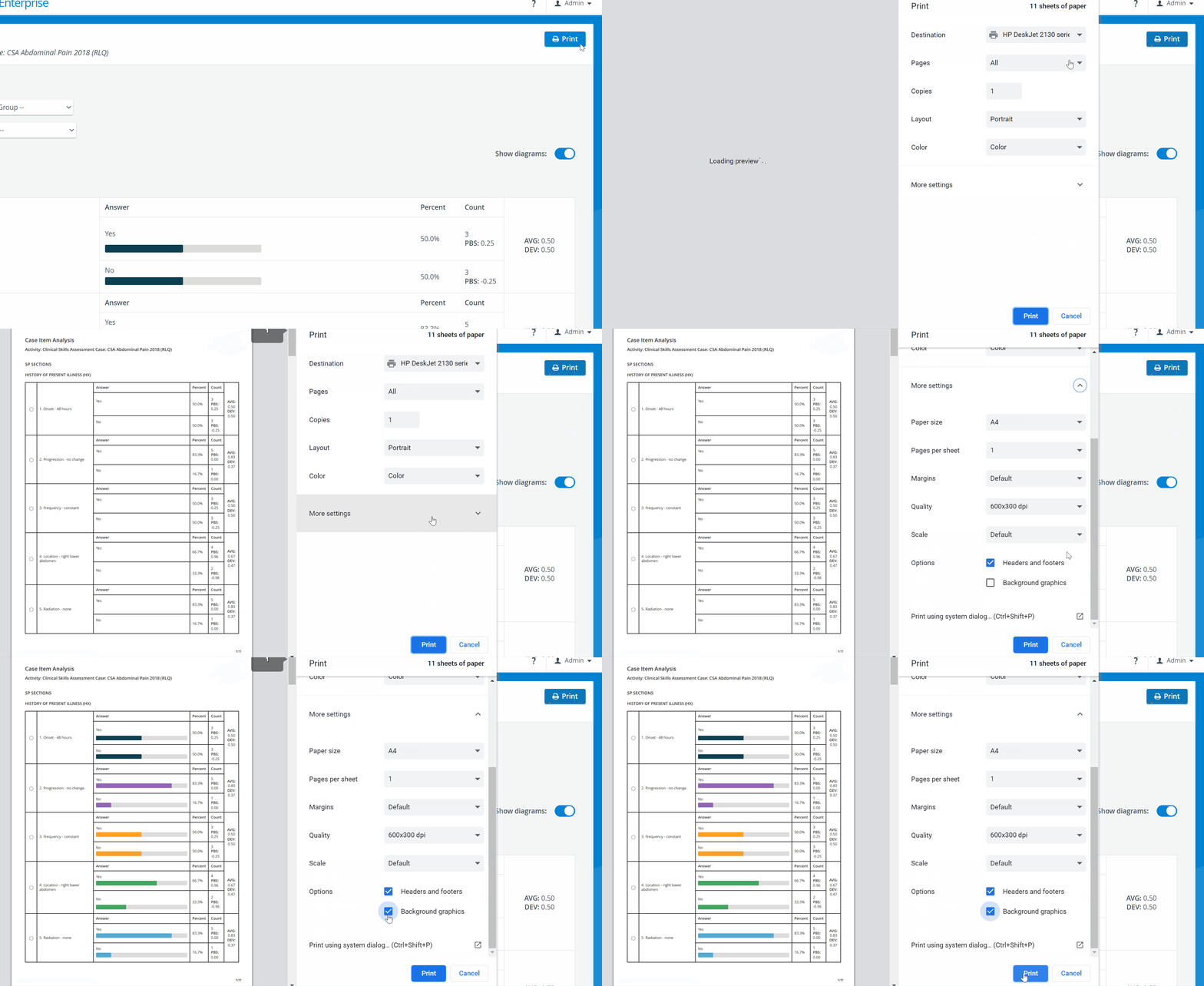
Printing Histograms
For printing Histograms (diagrams), the Background graphics option has to be enabled in the Print preview window (More settings > Options).
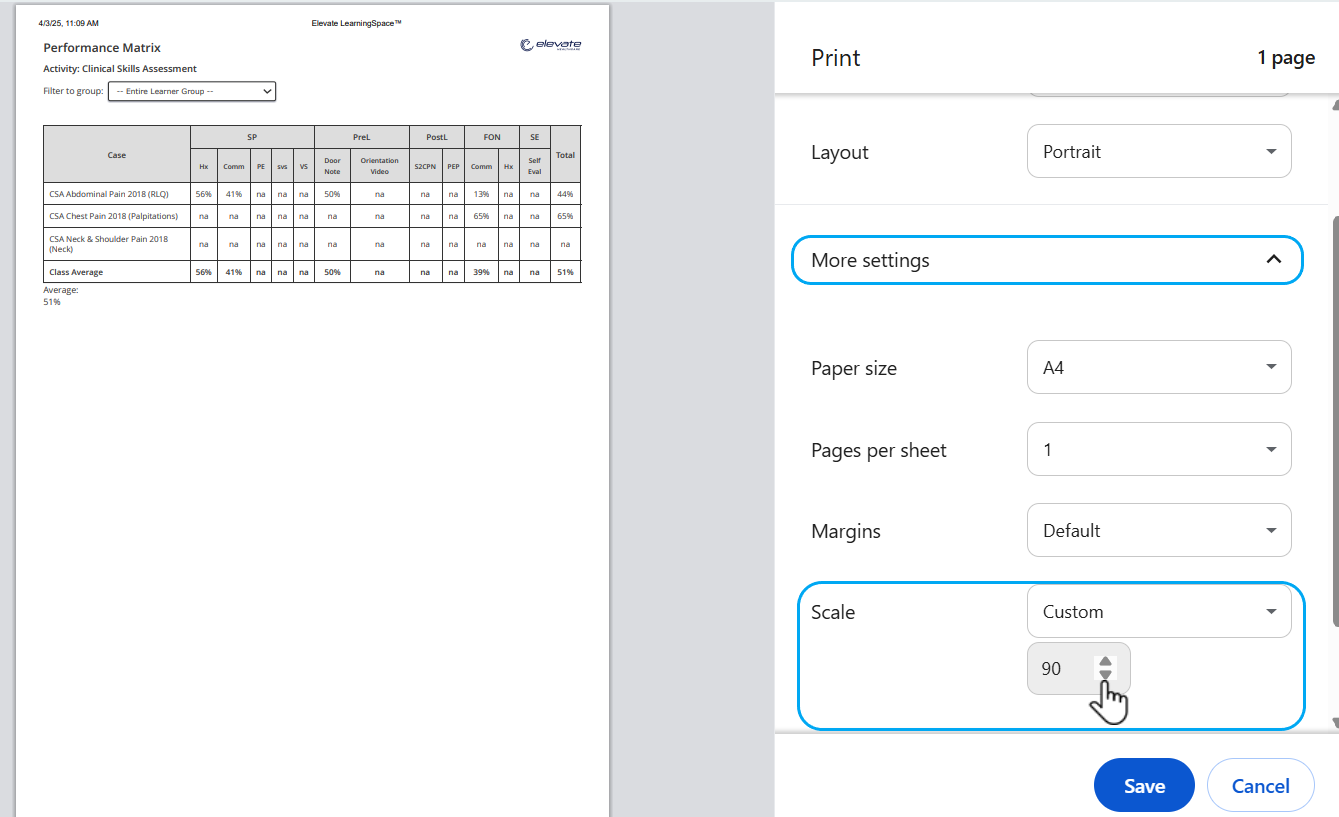
How to Fit a Report on a Page
If not all columns of a report fit on one page when printed, the percentage value (printing size) can be reduced in the print settings (‘More settings’) under Scale.
Turn off the Smart scrollbar
The smart scrollbar needs to be turned off before printing reports.
Printing with Smart Scrollbars
An enhancement enables printing when Smart Scrollbars are enabled.
Smart Scrollbars on → Clicking the Print button will show a small confirmation dialog:
“Printing will disable Smart Scrollbars.”
Clicking Print in the dialog automatically disables Smart Scrollbars and opens the browser’s print window, ready for printing. After printing, Smart Scrollbars remain turned off.
Clicking Cancel closes the confirmation dialog; no changes are made.
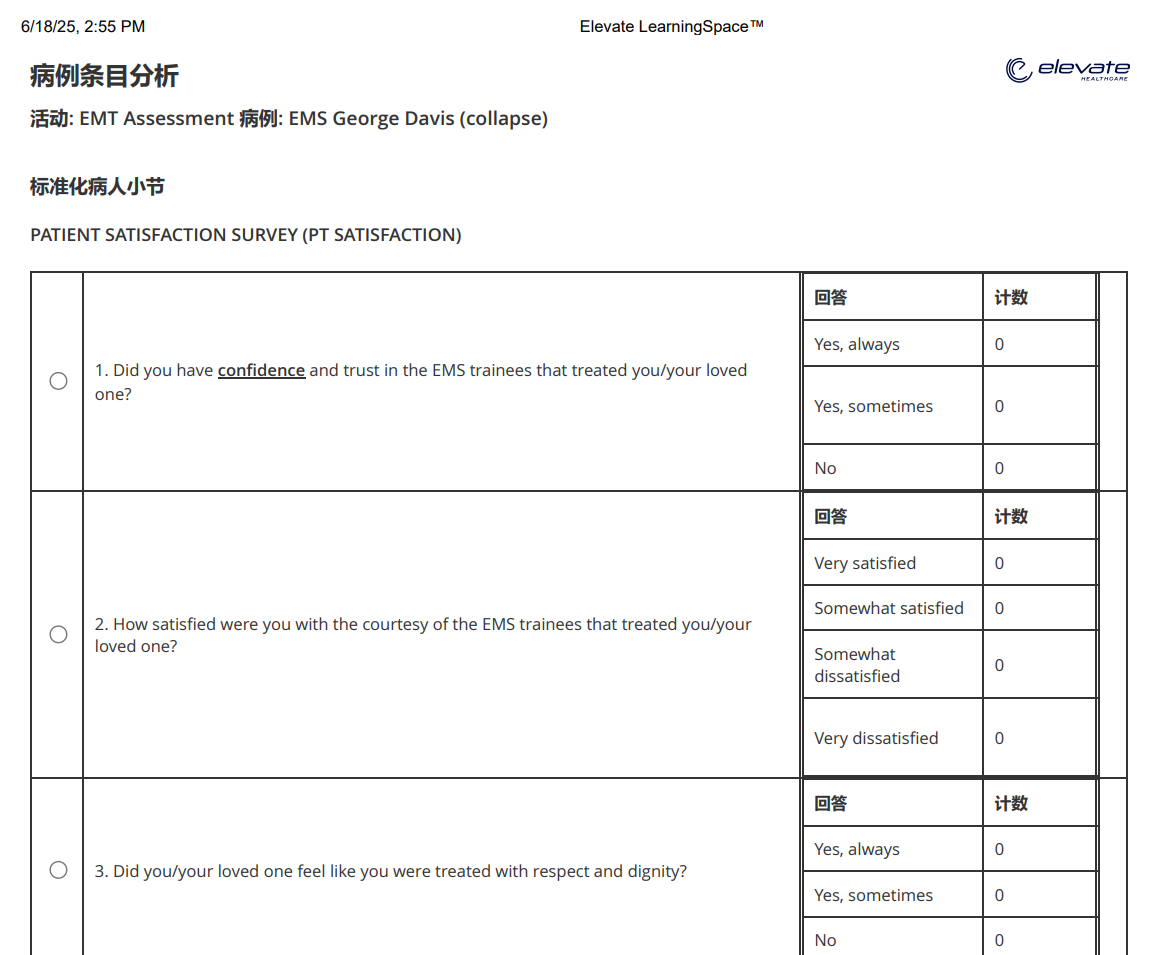
A latest enhancement allows Reports of LearningSpace to support Chinese, Korean, and Cyrillic characters.
Browser Printing
Alternatively, the Crtl + P or Cmd + P (Print from browser) options can also be utilized for printing LearningSpace reports.
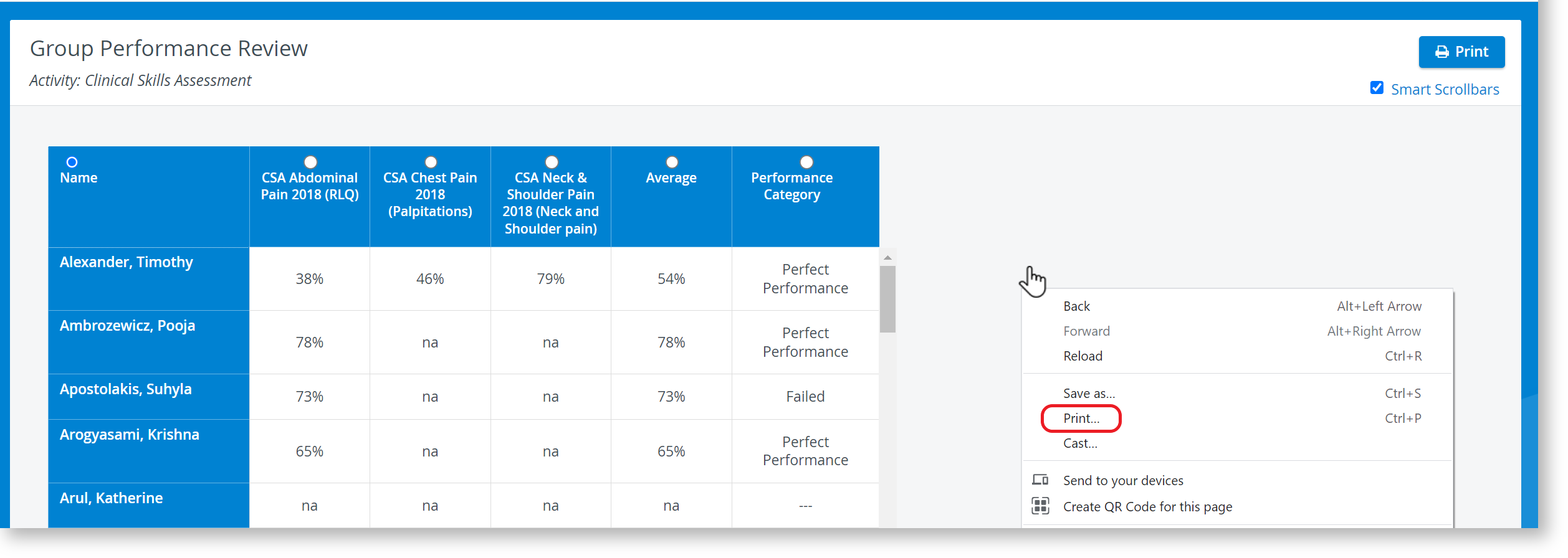
Browser Printing does not securely print multiple pages.
Activity Snapshot
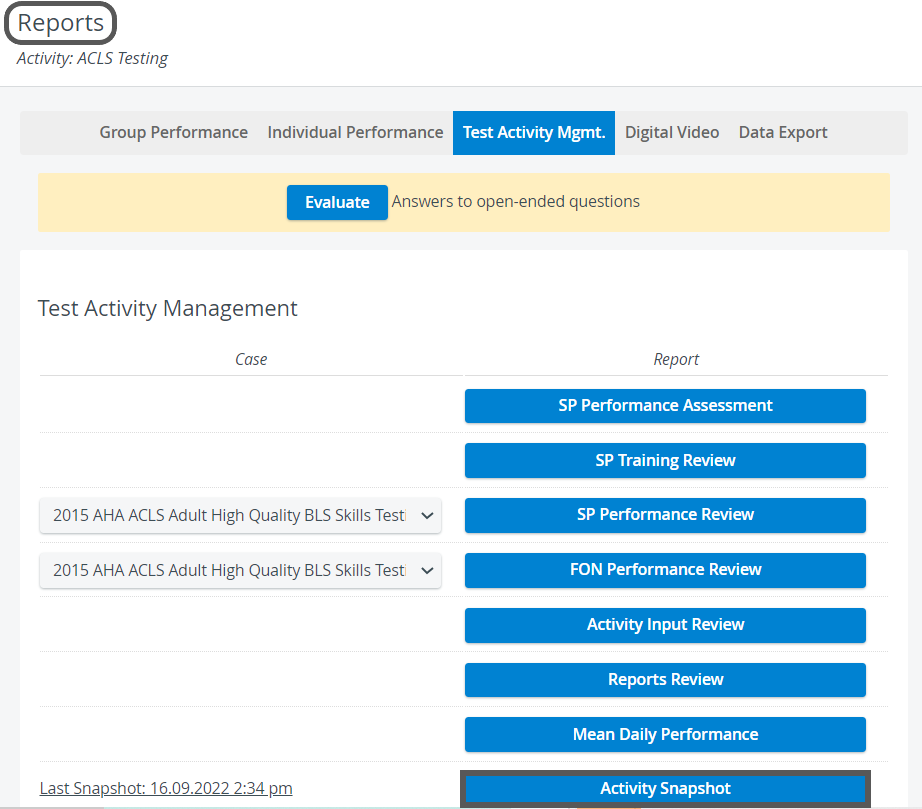
Reports can also be printed by using the Activity Snapshot tool which can be reached under Classic Reports. For a step-by-step guide, go to How to Create an Activity Snapshot.
Export to Excel
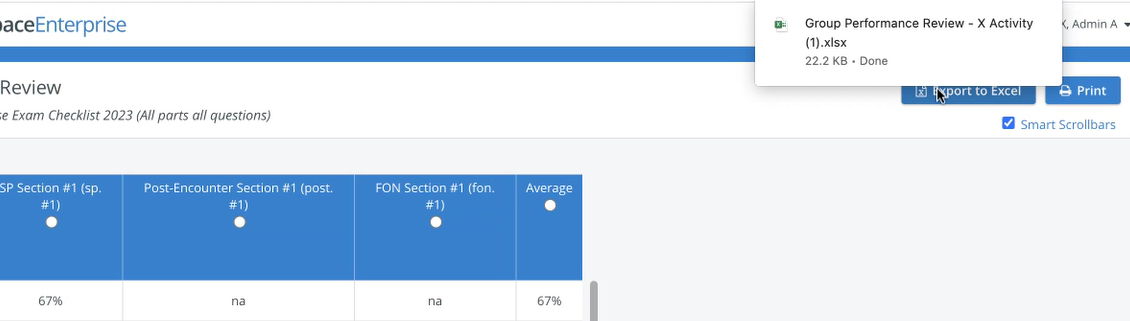
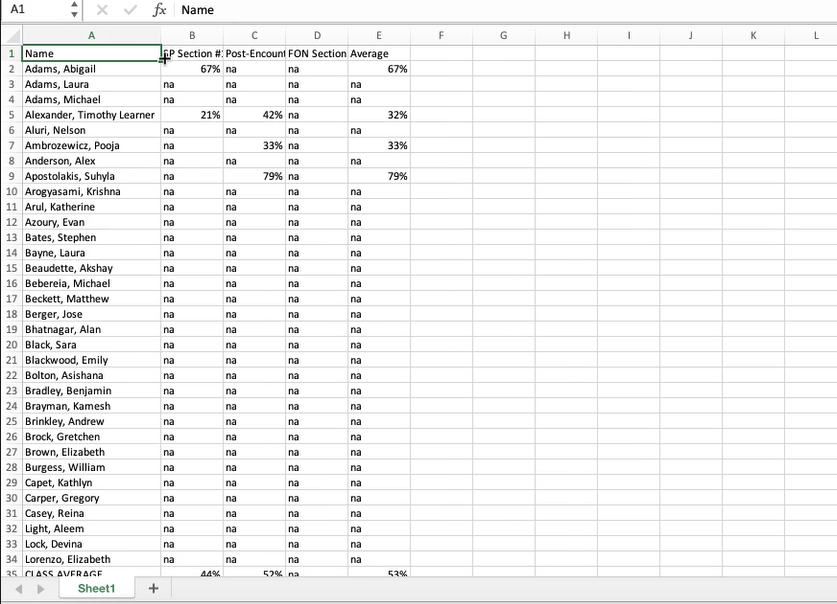
In the latest versions of LearningSpace, certain Preset reports can also be exported into an Excel (xls) file for more convenient management and easier utilization of the exported data in applications like Microsoft Excel or Google Sheets.
Reports that can be exported into Excel:
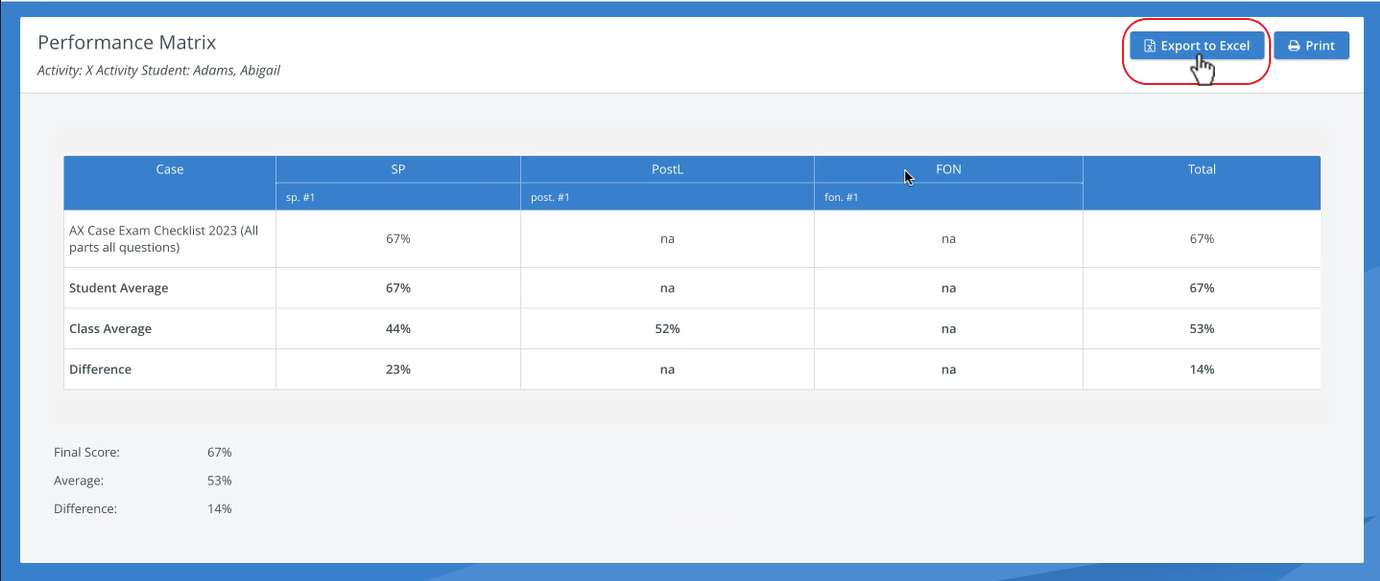

For more information, see 2023 August New Features - Release Notes.
Hide ‘Print Reports’ and ‘Export to Excel’ Options for Learners
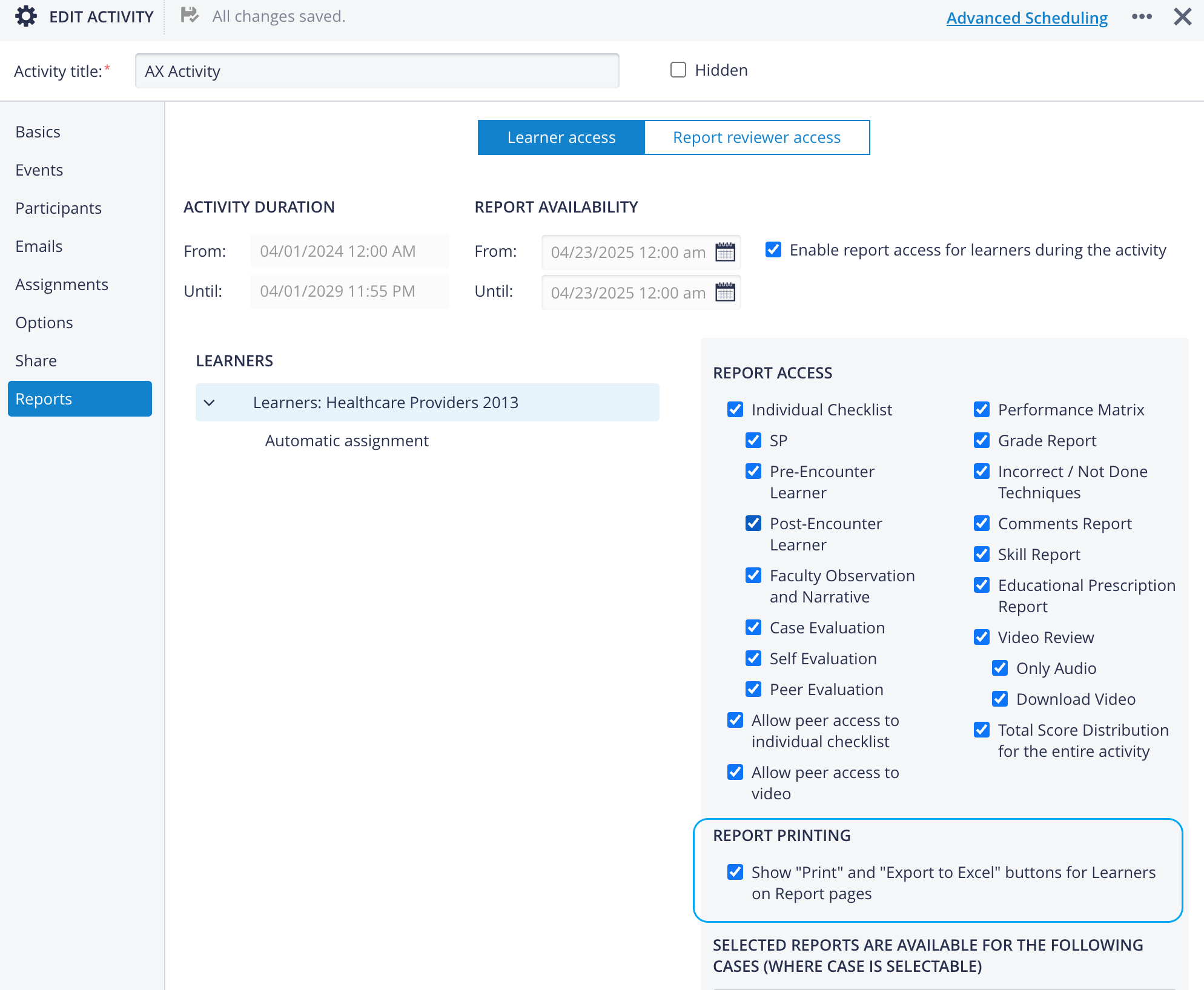
This feature is to hide the ‘Print’ and ‘Export to Excel’ buttons for Learners on Report pages by default. The relevant setting is accessible under the "Report Printing" section in the Report settings of a given Activity.
This option can resolve concerns about learners' ability to print or export reports during testing events. While learners need access to feedback (comments from SPs, clinicians, etc.), the export and print functions are not always suitable for them.
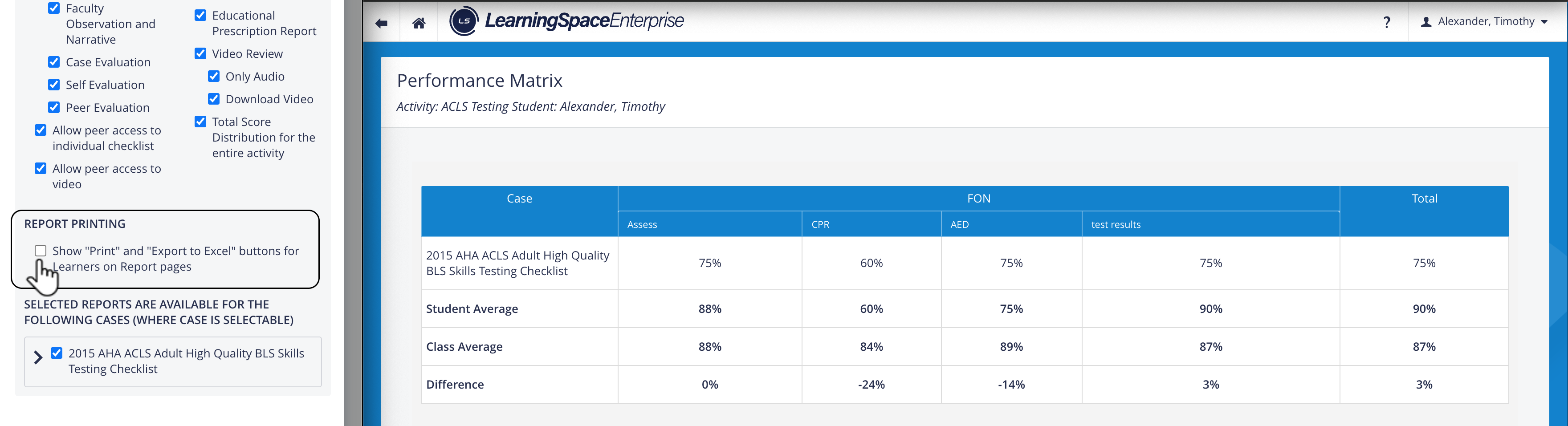
When toggled off (unchecked), the "Print" and "Export to Excel" buttons on the Report pages are hidden for Learners.
When toggled on (checked), the buttons are visible to learners.
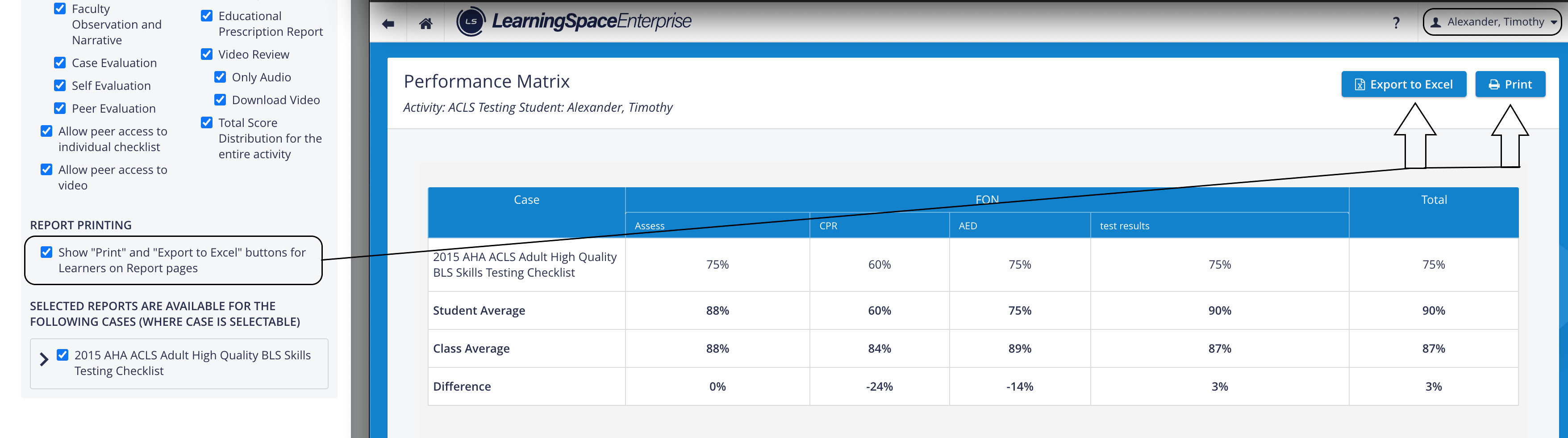
If the Report Printing option is disabled (unchecked), the buttons remain hidden for Learners on the Reports pages:
For more information, visit our Reports Module pages and watch the Reports Module Training Videos.