2026 April New Features

OEQS Enhancements
Joint Evaluation Option
The new Joint Evaluation Option enables grouping questions for Open-ended Question Scoring (OEQS) in the Case Manager. With this feature, questions can be linked in the Case editor so that they can be graded together using a single grading questionnaire in OEQS.
A joint‑evaluation item always relies on a main item that uses a questionnaire scoring method.
One or more joint‑evaluation items can be linked to a main item simultaneously.
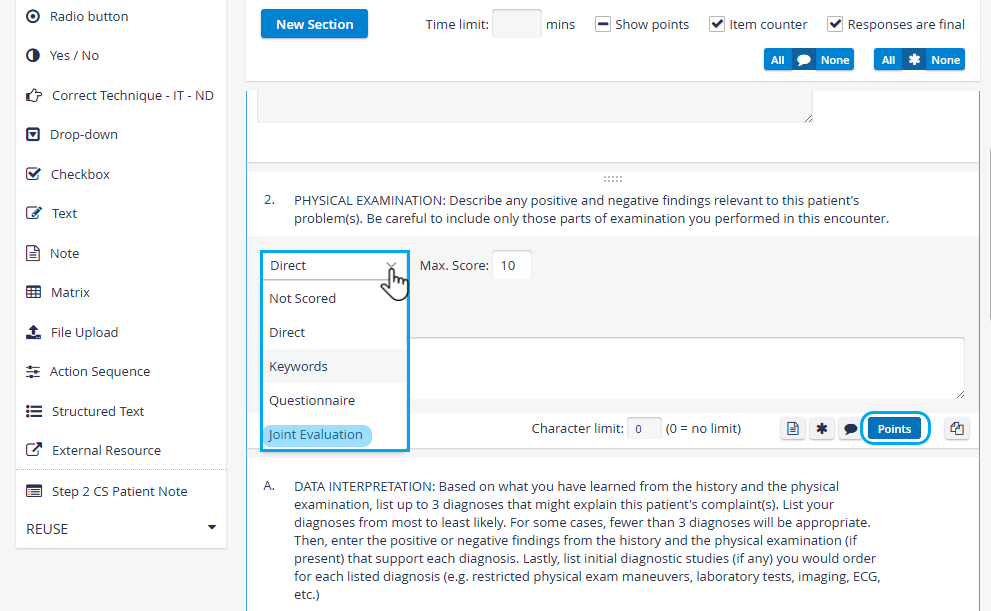
Scoring method drop-down - Joint Evaluation option
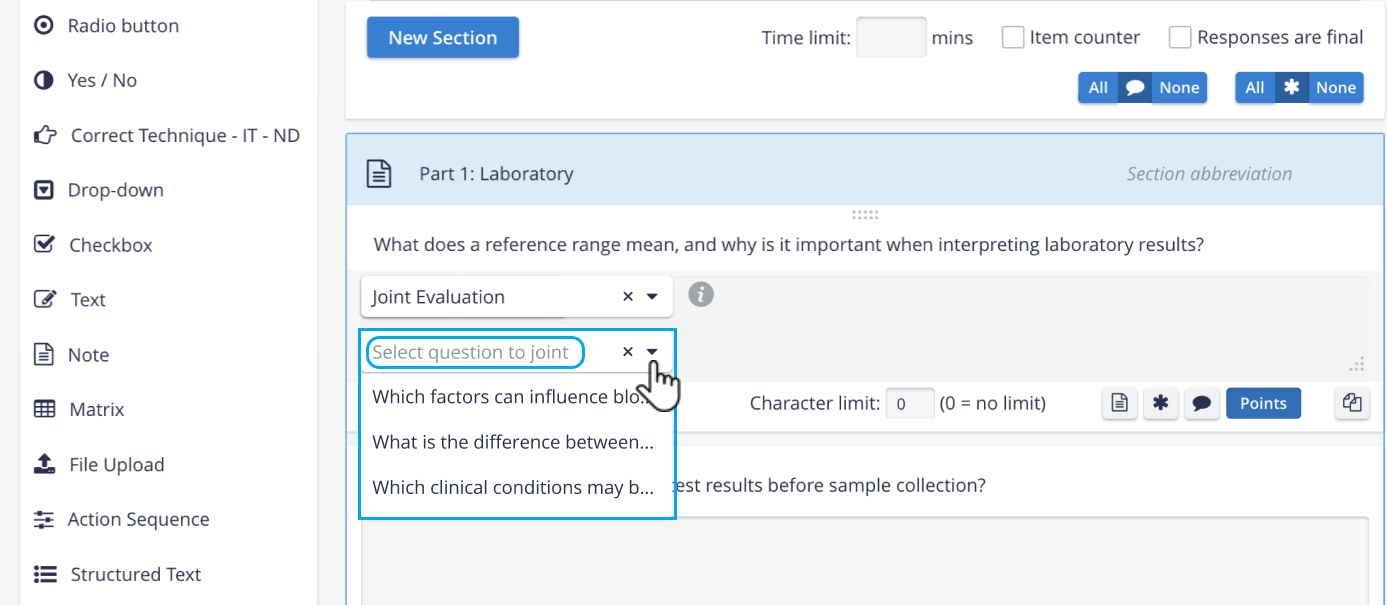
Select question to joint dropdown
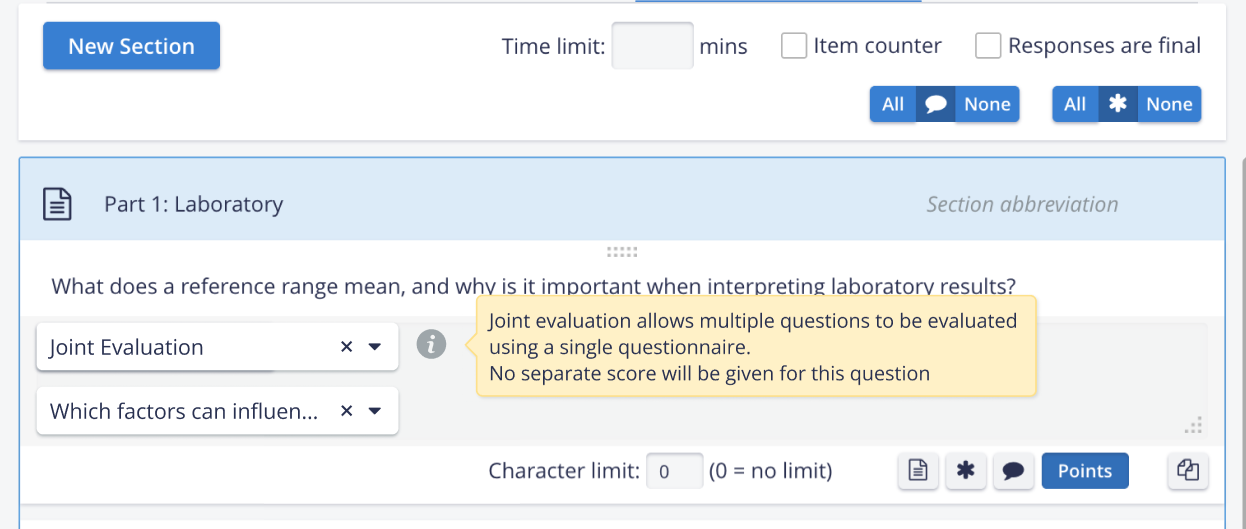
The Joint evaluation option is available for text and structured text items in the
On the OEQS Scoring page, the OEQS Responses panel highlights linked questions (in light blue) and allows easy navigation.
Admin or OEQS Data Entry users can see which questions/learner responses are linked together, and can more easily navigate among them during scoring.
The OEQS Scoring panel displays the same questionnaire when navigating between linked questions
Admin or OEQS Data Entry users can view the single scoring questionnaire while navigating among the linked questions, making it easy to complete the grading checklist and view learner responses simultaneously.
LearningSpace’s OEQS AI Assistant can handle these grouped items, graded using a single special-section questionnaire.

Joint Evaluation - OEQS Scoring page
Joint evaluation is available even if the OEQS AI Assistant is not active in a LearningSpace instance.
For more details, go to How to set up Joint Evaluation and How to use Joint Evaluation.
New Confirmation pop-up in OEQS
A new confirmation pop-up box has been added in OEQS scoring when a faculty member clicks “Submit” on an already scored response. The pop-up shows the following text:
“This response has already been scored. Are you certain you want to apply a new score?”

Users can proceed with either the “OK” or “Cancel” option.
The function is available for direct / keyword / checklist-scored questions.
Case Content Enhancements
Show Points for All Items Option
Admin or Case Manager users can show scoring details (Points) for all items in a checklist at once, with one click, for a better overview of how each item is scored:
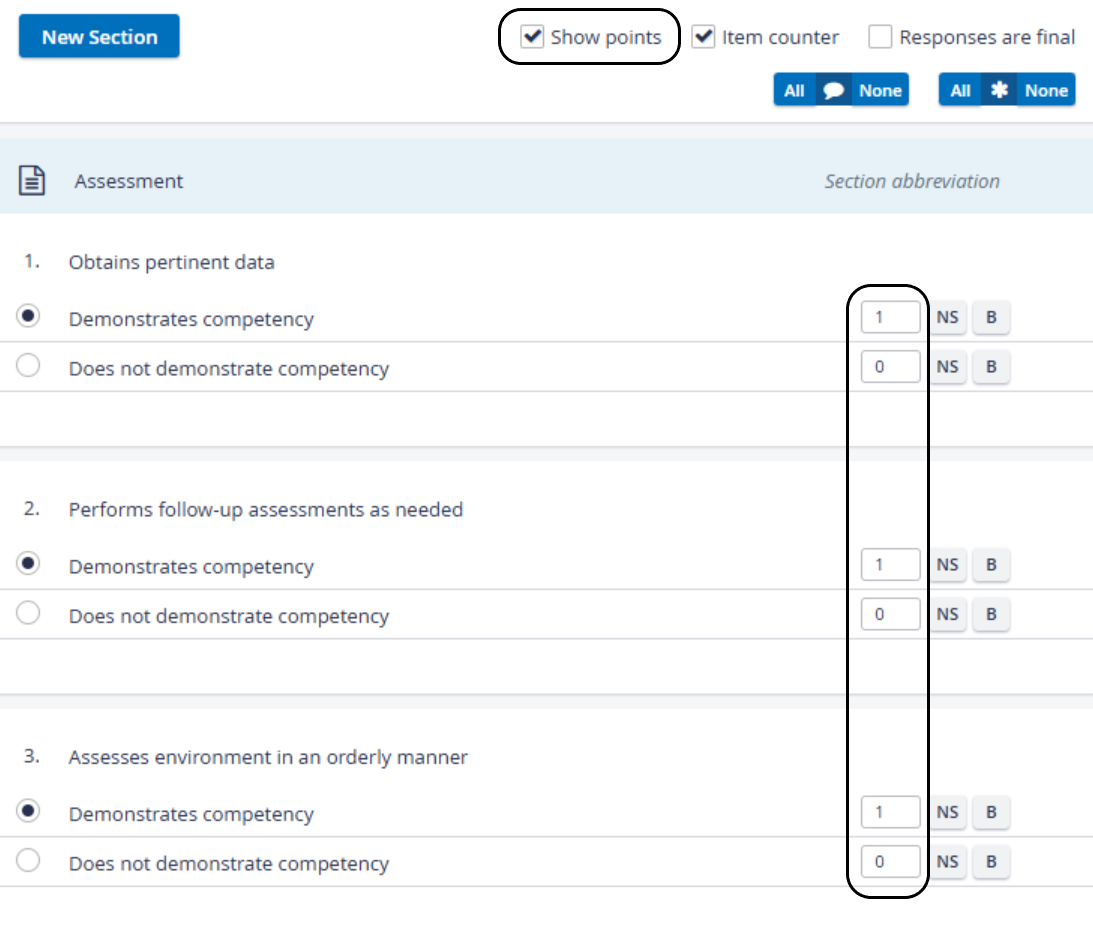
The ‘Show points’ checkbox has three states:
Checked - scoring information is shown for all items in the part.
Dash (horizontal line) - (‘partially checked’) - point value display has been disabled for some items, and thus, scoring information is shown only for the rest of the items. (The user can disable point value display for specific items by clicking the blue Points button for those items.)
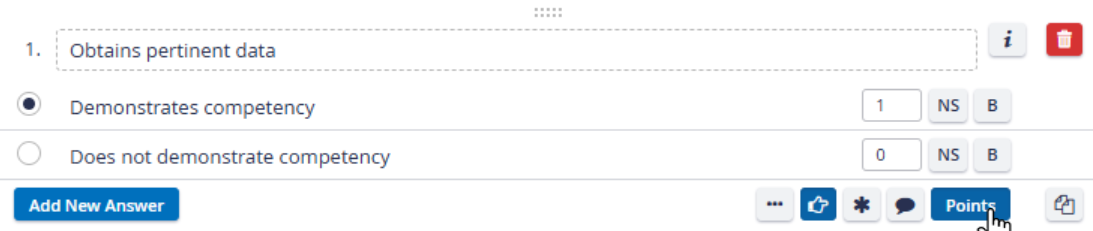
Disable Point Value Display

Show Point Value - partially
Unchecked - scoring information is hidden for all items.
Share Scoring Notes with AI
With the new Share Note Content with AI option, Admin or Case manager users can mark additional scoring content at the question level for AI processing in the OEQS AI Assistant. This way, they can feed additional OEQS scoring-related content to the AI, so the AI's answer suggestions will be based not only on the learner response but also on the scoring notes.

Share Scoring Notes Content toggle in Case Content Editor
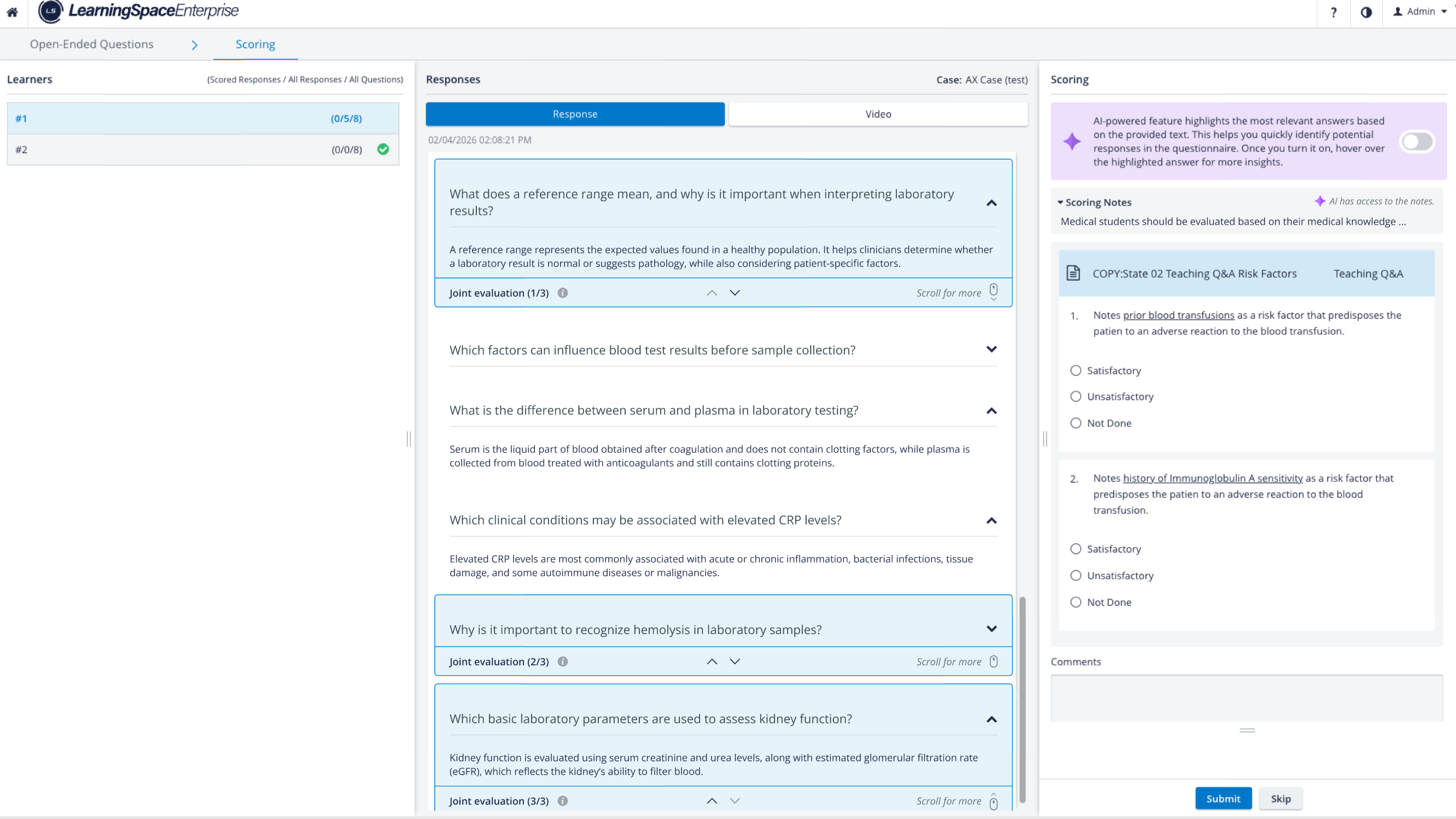
Shared Scoring Notes Content in OEQS Scoring
The ‘Share Note content with AI’ option is available:
only if the OEQS AI Assistant is enabled in LS;
for every text and structured text item in the Pre-encounter and Post-encounter parts of a Case;
and if the text or structured text item is set to be graded using a special-section questionnaire.
Shared scoring notes will also be visible on the OEQS scoring page for joint items (if enabled on the main question). See How to set up Joint Evaluation.
New Permission Controls for Transcript View & Download for Learners
In the latest versions of LearningSpace, Video Review allows Learners to download transcripts only if this is explicitly enabled in the Activity's Edit Activity pop-up.
This means that transcript download and visibility are not automatically granted for Learners.
From now on, LearningSpace grants:
Separate permission control for transcript visibility or download.
Transcript download is only available when Video review and Transcript download are enabled.
Go to the Edit Activity pop-up of your Activity
Open the Reports tab
Select Learner Access
Use the “Transcript” and “Download transcript” options to limit Learners' access to the Transcript download.
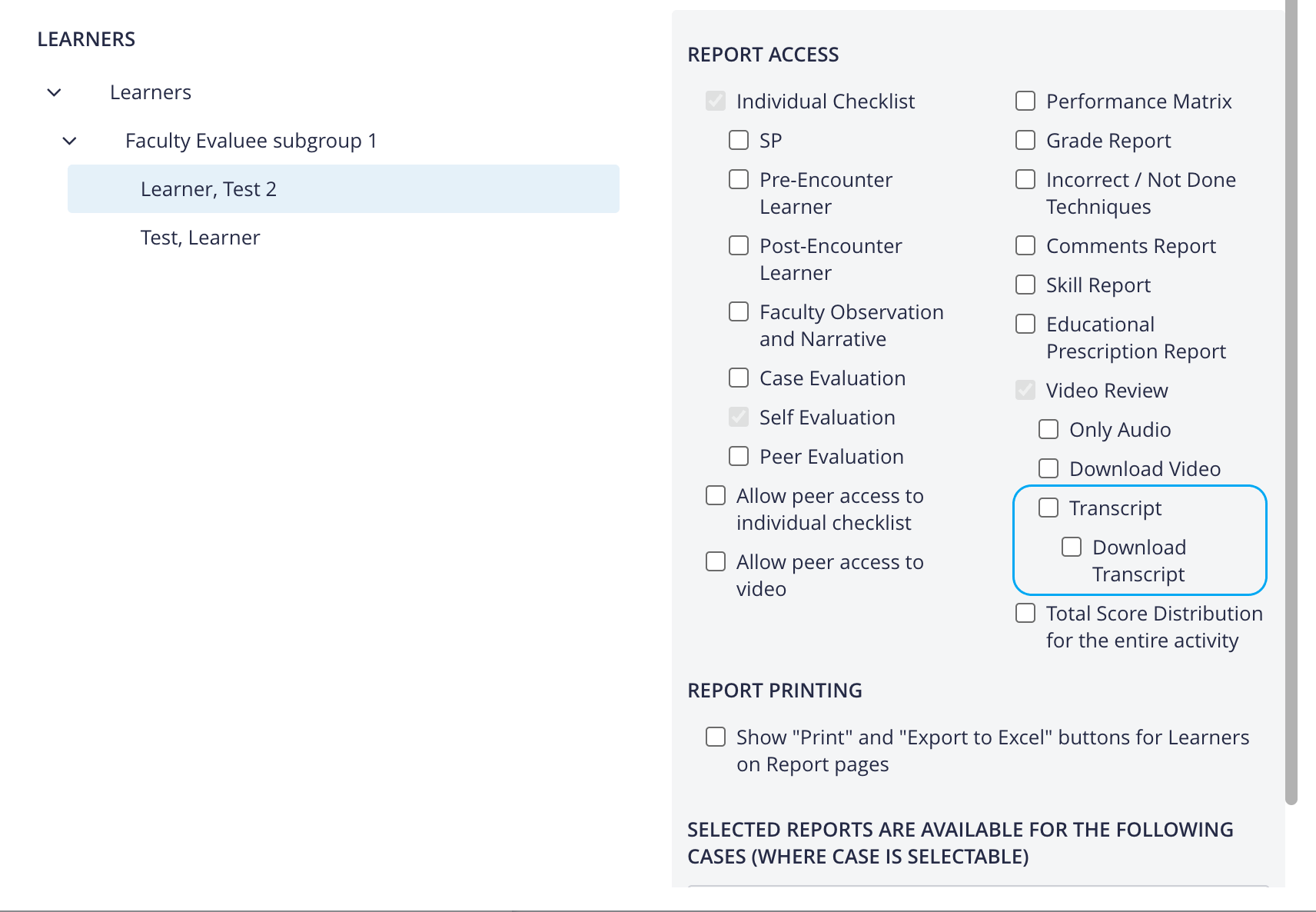
If the Transcript checkbox is unchecked → the transcript is not visible to Learners in the Video Review.
If the Transcript is enabled (checked) but Download Transcript is disabled (unchecked)→ the transcript is view-only.
If both options are enabled → Learners get full access to the transcript.
For further details, go to How to use the Video Transcript Tool?
New Reporting API Expansion (Data API)
LearningSpace’s new Data API endpoints no longer rely on the legacy raw data API. These new endpoints can be used to extract the same type of data on the same scale as the legacy data API.
This new Data API is the future, and we encourage customers to move away from the legacy, so-called Raw Data API.
Authentication via a JWT token obtained from the API key is available on the LearningSpace UI.
For more details, see: How to Generate a Data API key
Three areas are targeted with new API endpoints:
Responses → Item-level submitted evaluation data used by LearningSpace to calculate Learner performance scores (Case total scores, Activity total scores, etc.).
Comments → Scoring comments submitted during Open-ended question scoring, along with the associated textual responses and points given. Formative feedback, comments, or any text submitted in text and structured text items.
Items → Questions/items of evaluation checklists along with possible answer options and point values (not submitted data).
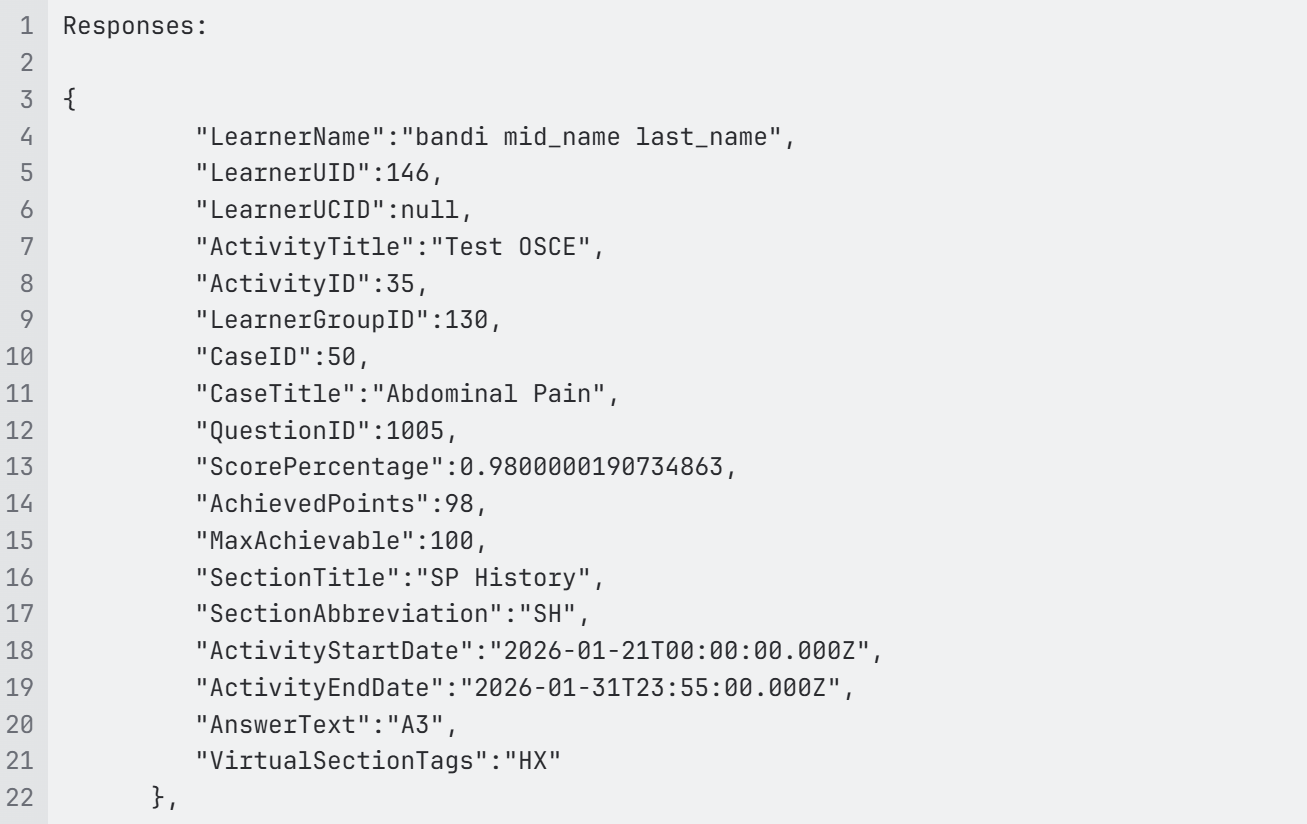
API Response Examples (mock data)
For further details, see Data API - New Reporting API Expansion.
Password Visibility Option
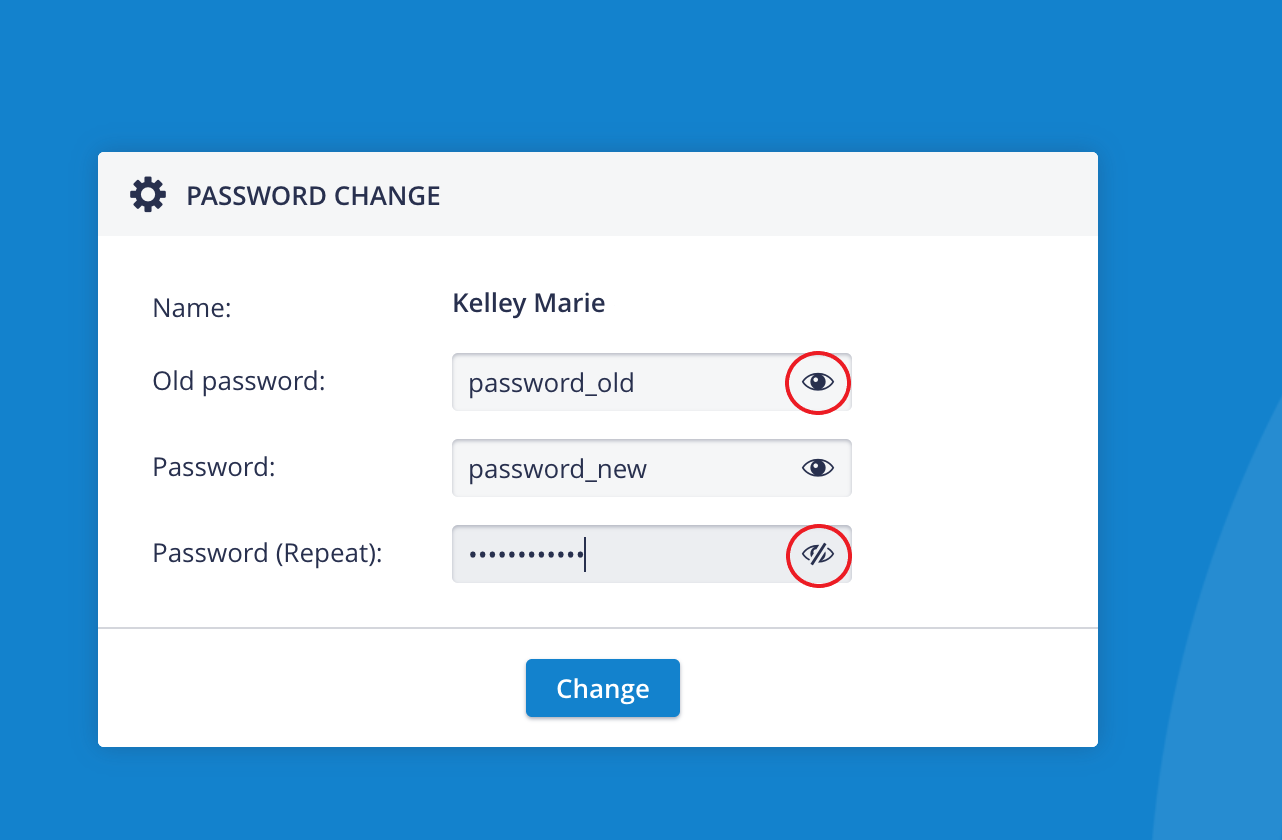
Force Password Change pop-up
has been added to the following pages to reduce login errors and improve user experience:
LearningSpace login page
User Manager (Edit User, User Account Settings, Initial Settings page)
System Manager (SMTP server configuration part, Emails Tab, Simulators Tab - Wireless Bridge Settings)
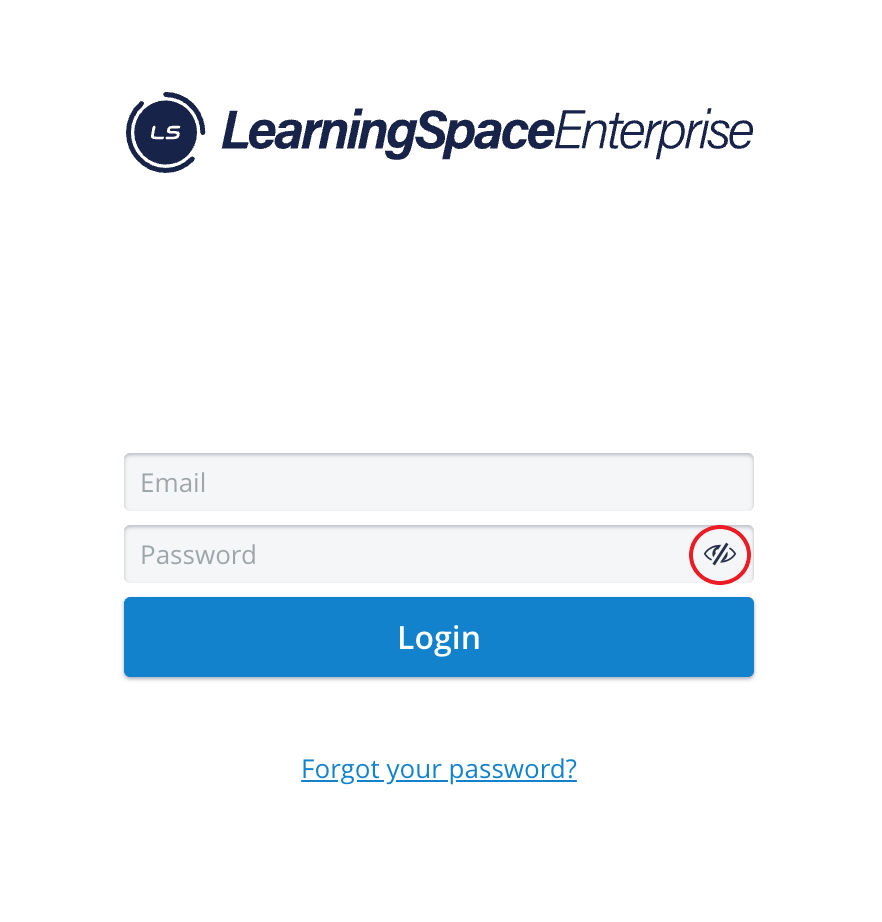
Login Screen
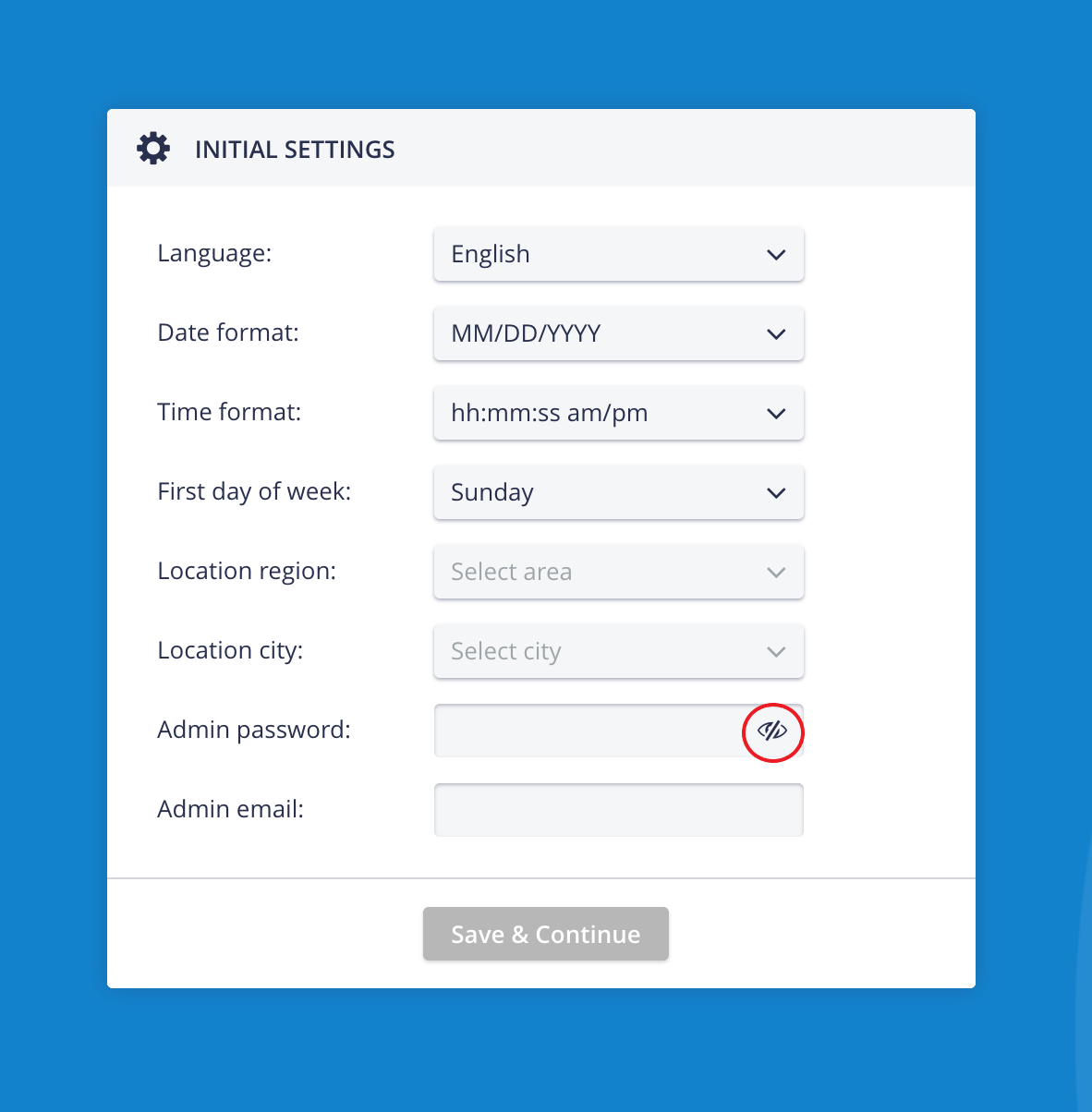
Initial Settings pop-up

System Manager - SMTP Server Credentials Settings
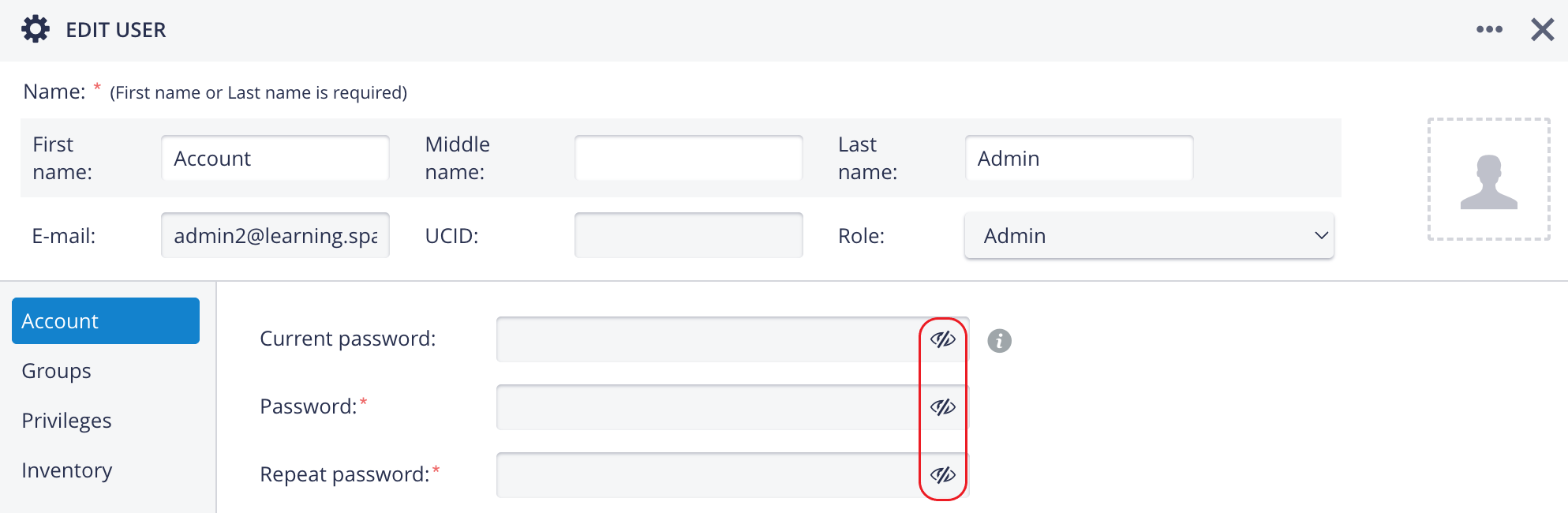
Edit User window - Password Settings fields

User Account Settings pop-up
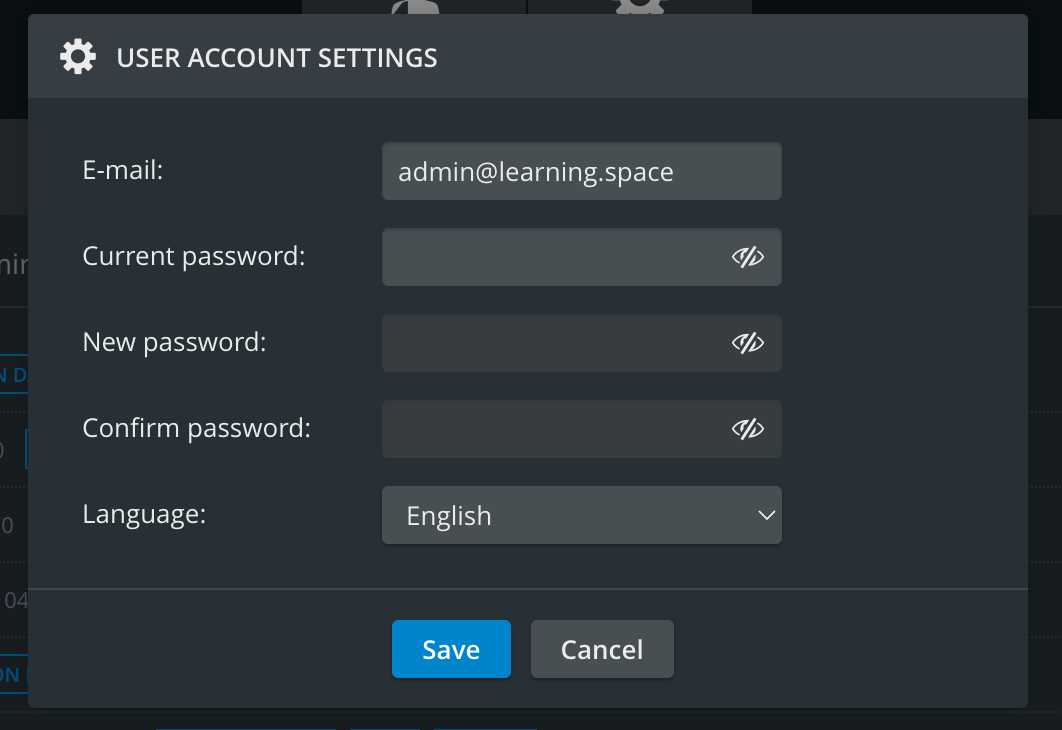
User Account Settings - Dark mode
Enable Placard Autoscroll Option
With the Get Placard feature, you can display the door note of the Activity currently running in the simulation room instead of printing it and placing it on the door.
The Placard text area is manually scrollable: if the detailed case description exceeds the available display space, the remaining text will still be visible by using the manual scrollbar.
With the new Enable Placard Autoscroll feature, the detailed case description will autoscroll, but you can still scroll through it manually.

Placard Autoscroll enabled

Scrolling Placard Long Case Description