Edit Activity Pop-Up
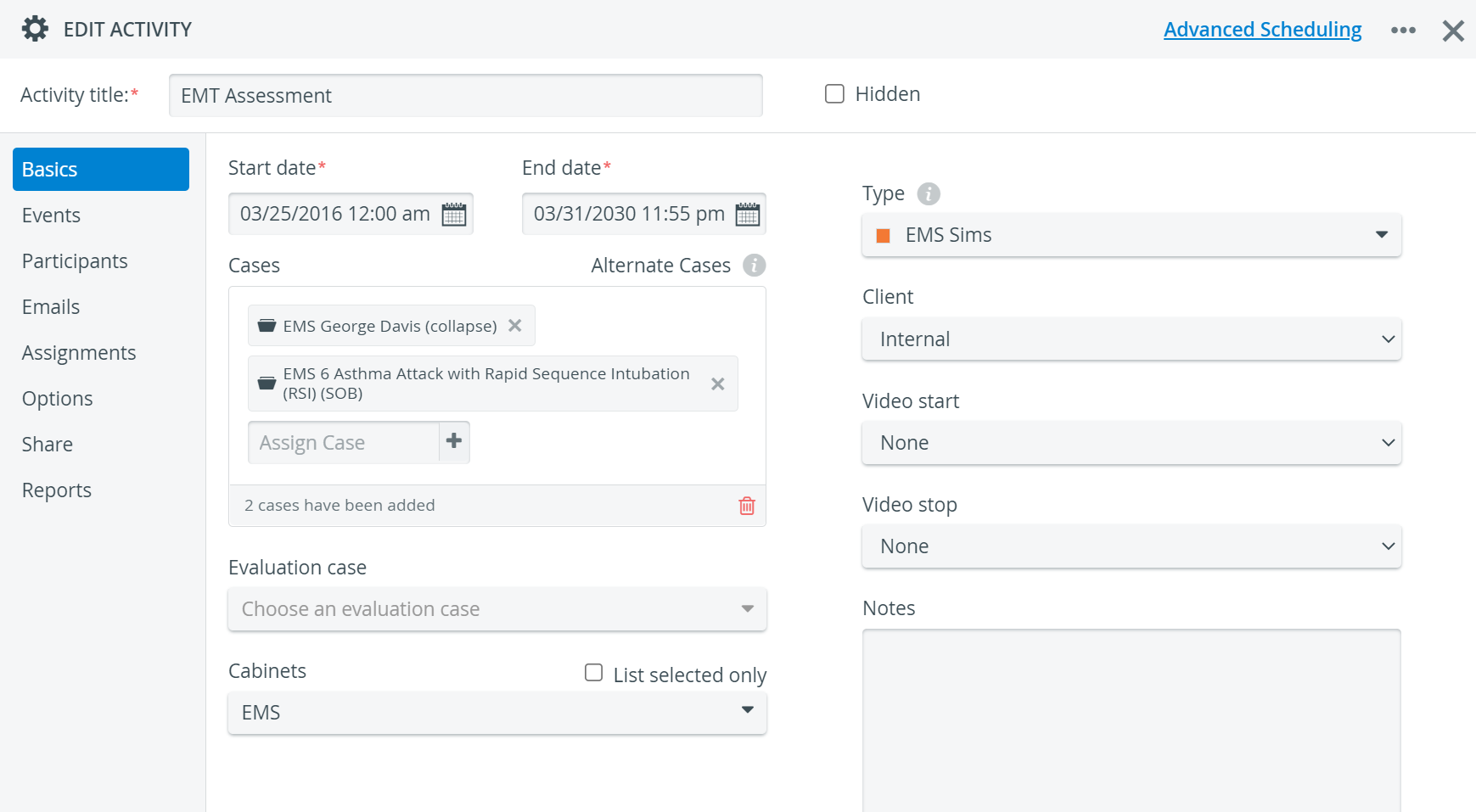
The Edit Activity pop-up window is the interface for creating a new Activity or modifying an existing one. The pop-up tabs contain data on the various properties of the Activity.
The pop-up header includes the Activity title field.
Providing a title is essential in creating a new Activity. Without a title entered, switching between tabs is not possible. Also, if no title is provided, the system does not save the newly added Activity, even if other data was entered on the Basics tab.
IMPORTANT: Users with Activity Manager privilege can only access and edit already-existing Activities shared with them on the Share tab of the Edit Activity pop-up window.
However, they can create and thus fully access new Activities.
Hidden checkbox
Hiding an Activity is an alternative to deleting it.
Deleting an Activity results in the related submits and records being completely removed from the database. See How to Delete an Activity.
On the other hand, ticking the Hidden checkbox for an Activity (i.e., hiding it) will have the following effects:
The Activity will not be listed in the Activities panel (unless 'Show hidden Activities' is enabled).
NOTE: This checkbox must also be enabled when searching for a hidden Activity.
Learner data entry will be prevented (even when running Activities), as the Activity will not be displayed to members of the assigned Learner group.
Related submissions and records will not be displayed to members of the assigned Learner group.
All the above effects of hiding an Activity can be reverted at any time by unchecking the Hidden option under Edit Activity.
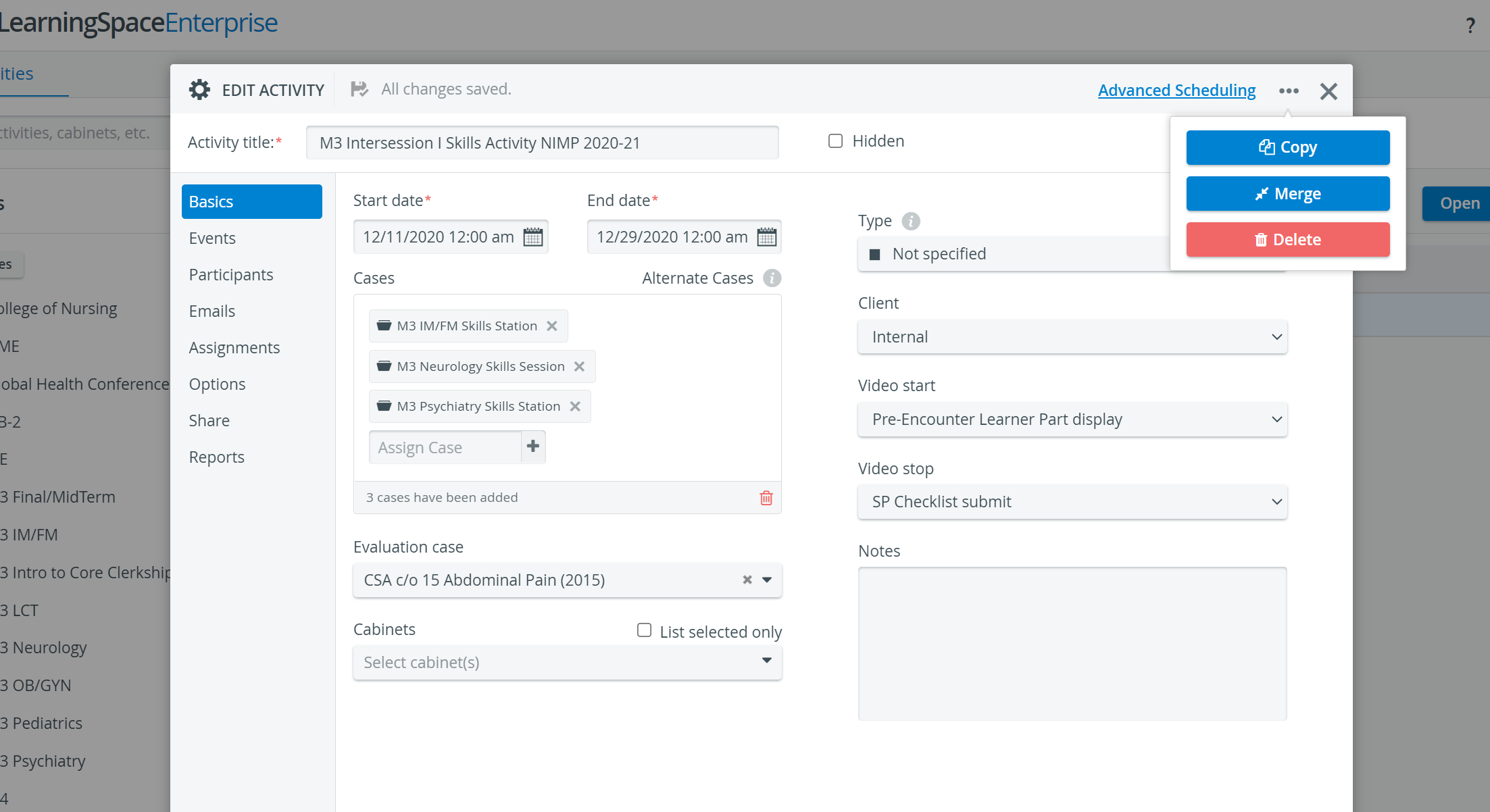
You can copy, merge, or delete an Activity using the 'three-dot' (options) icon in the top-right corner of the window.

For more information, visit our Activity - How to pages and view our Activity Manager Training Videos.