Open-Ended Question Scoring - OEQS
Necessary privilege:
Users with Open-Ended Question Scoring Data Entry privileges can rate answers to open-ended questions by clicking the OEQS button on the Your Activities panel.
The panel lists only Activities shared with the user, activities where the user is a member of the assigned Faculty group.
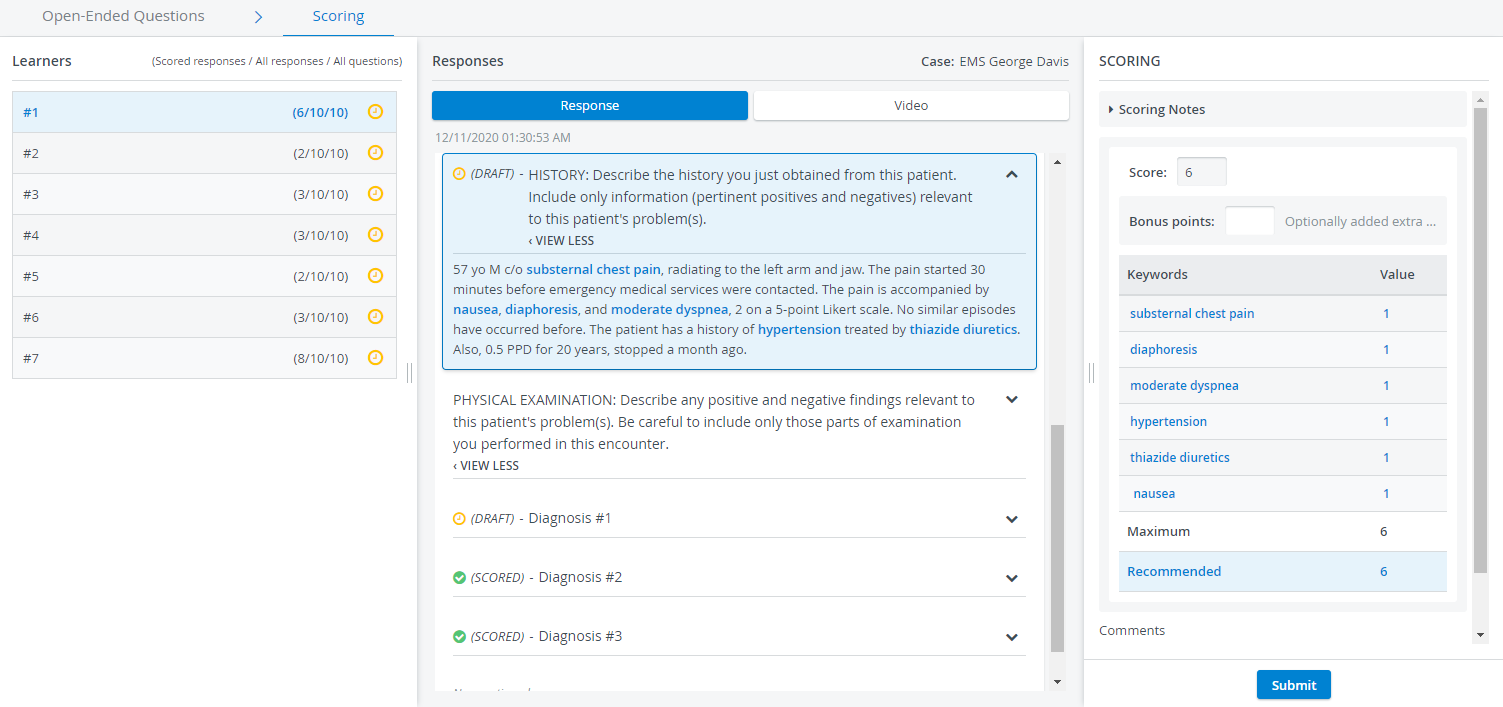
While item types offer selectable answers to a question, thereby yielding concrete score values calculable by the system, the text item type phrases a question that requires a freely worded textual answer from the responder's part. As the system cannot calculate the score value of such answers, scoring requires the active participation of a competent user.
Conditions to be met for OEQS
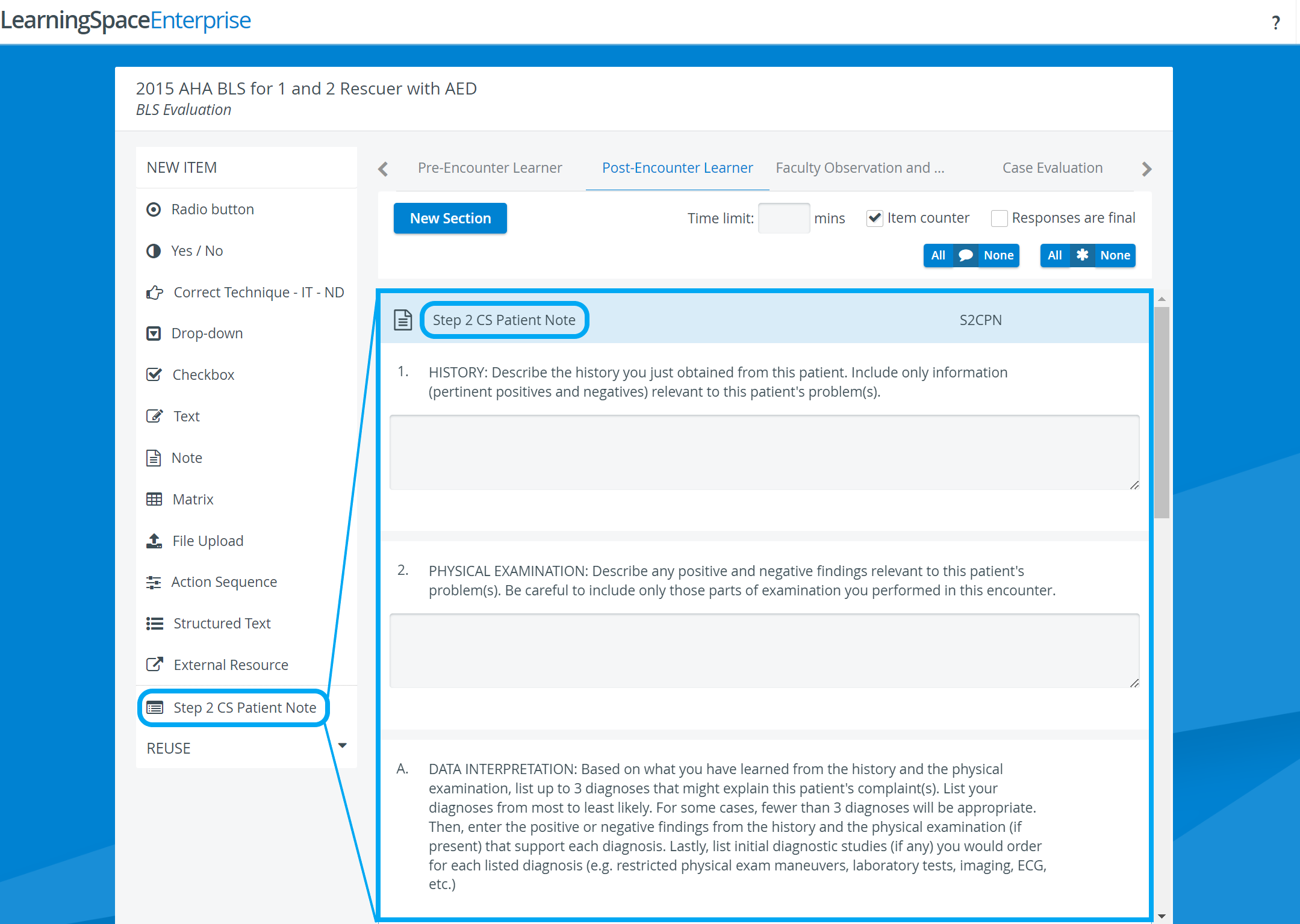
any of the checklists of a Case has to contain at least one text or structured text item or Step 2 CS Patient Note section that is scored
such a Case has to be assigned to an Activity
the scoring user has to have an Open-Ended Question Scoring Data Entry privilege
such a user has to be a member of the Faculty group assigned to the Activity in which the Case is added
See How to Evaluate Answers to Open-Ended Questions for details.
Preparation: Scored Text Item Type in a Case Part
Scoring notes: instructions for scorers on the nuances of evaluating responses. Such notes are displayed below the question on the Learner response page.
Scoring textual items of a checklist has three available techniques. When clicking the Points button, a drop-down menu appears for selecting the scoring method:
Direct scoring
When Direct scoring is selected, a Max. Score field is displayed where the maximum point value must be determined; OEQS users can choose to give any number between zero and the provided score value.
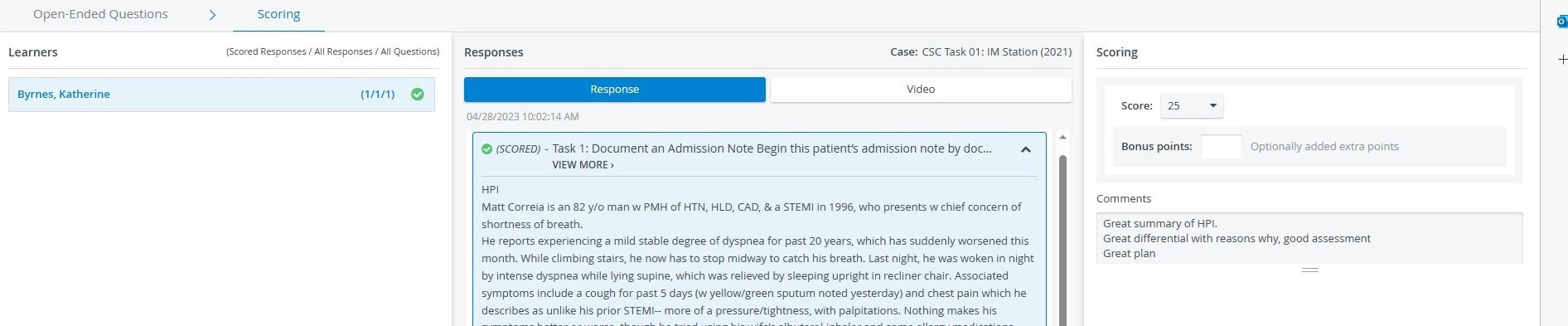
If an item has direct scoring, the FON submit (OEQS) is not clickable in the Individual Checklist report. The submit is only clickable if the item’s scoring is questionnaire-based or based on the Keyword method.
To check out the Direct-scoring-related report, use the Comments report.

Keywords method
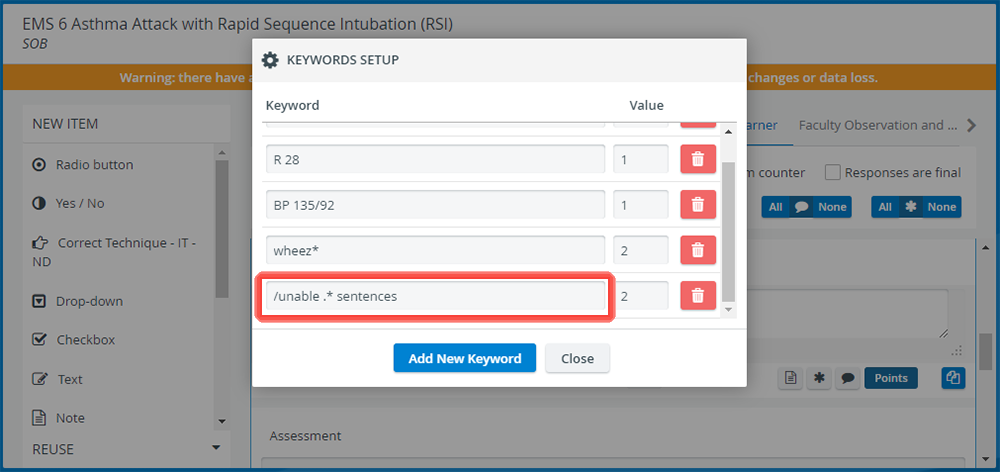
Selecting the Keywords method displays the Set Keywords button. Clicking the button opens the Keywords Setup pop-up, where any word can be set with a fixed value. Thus, when typed in, the system recognizes and calculates a recommended score for the response (from the sum of the point values of the matching words), which is displayed on the OEQS page by highlighting the relevant words in the response text and also listing them with their values and the recommended score.
IMPORTANT: Keyword setup should be treated as a guideline for scoring; answers should be double-checked and approved by OEQS users.
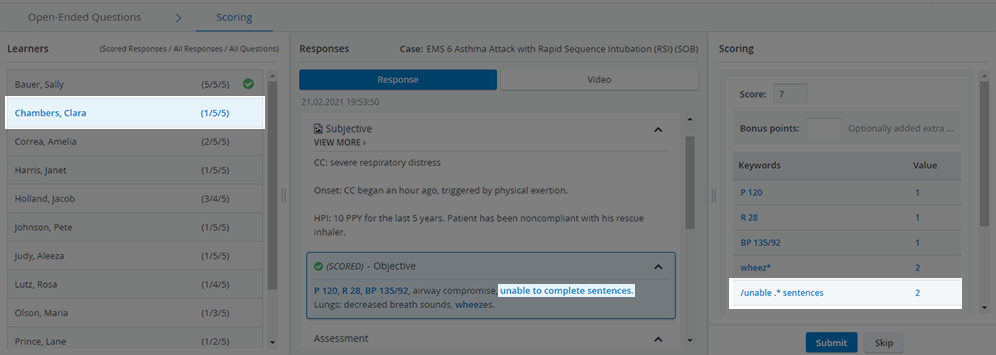
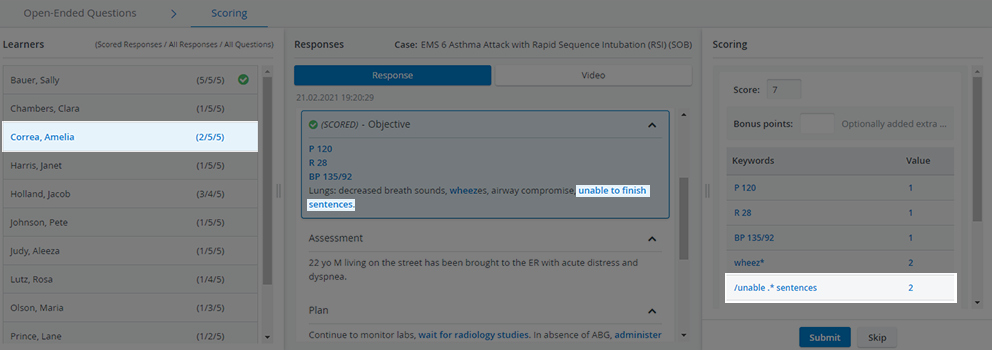
If multiple spellings are considered acceptable or typos might be disregarded, alternative spellings can be listed within the same keyword field, separated by comma(s).
In such a case, the system will calculate the recommended score for either listed word.
Questionnaire-based scoring
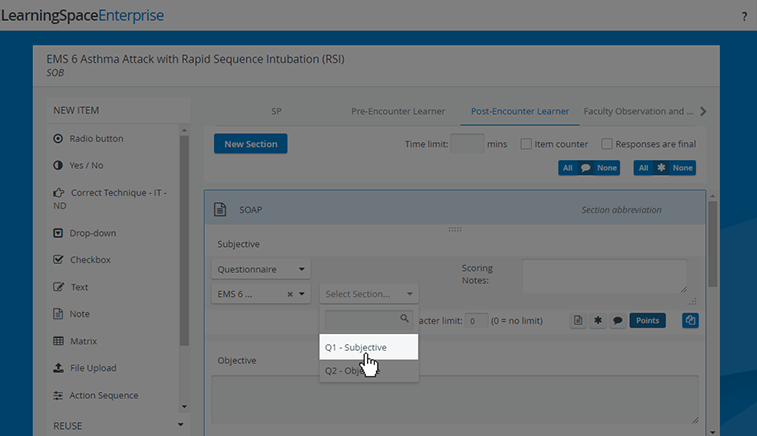
Questionnaire-based scoring entails evaluation completed by answering a set of questions. The questionnaire can be created in the Special Section, then selected via the drop-down menus when the Questionnaire method is selected.
For further information, see the Reports - How to pages and the Reports Module Training Videos.