Items
An Item is a set of a certain question and, depending on the Item type, the possible answers for that question.
New Item
There are different Item types available in the LearningSpace system.
Once a Section is added, any type of Item can be inserted by clicking it on the list in the NEW Item panel (left side of the screen).

The toolbar at the top of the checklist allows formatting of each added item, and media files can also be inserted.

Media items, e.g., pictures or videos, can be attached to any item. See How to Upload a Media Item.

Features available for Items
The following features are available for the Items; however, not all features for all Item types:


Set Answers button - alternative for the Points button; prompts the Answer Setup pop-up window where answers can be entered with the point value determined, including options for NS (not scored) and B (bonus).
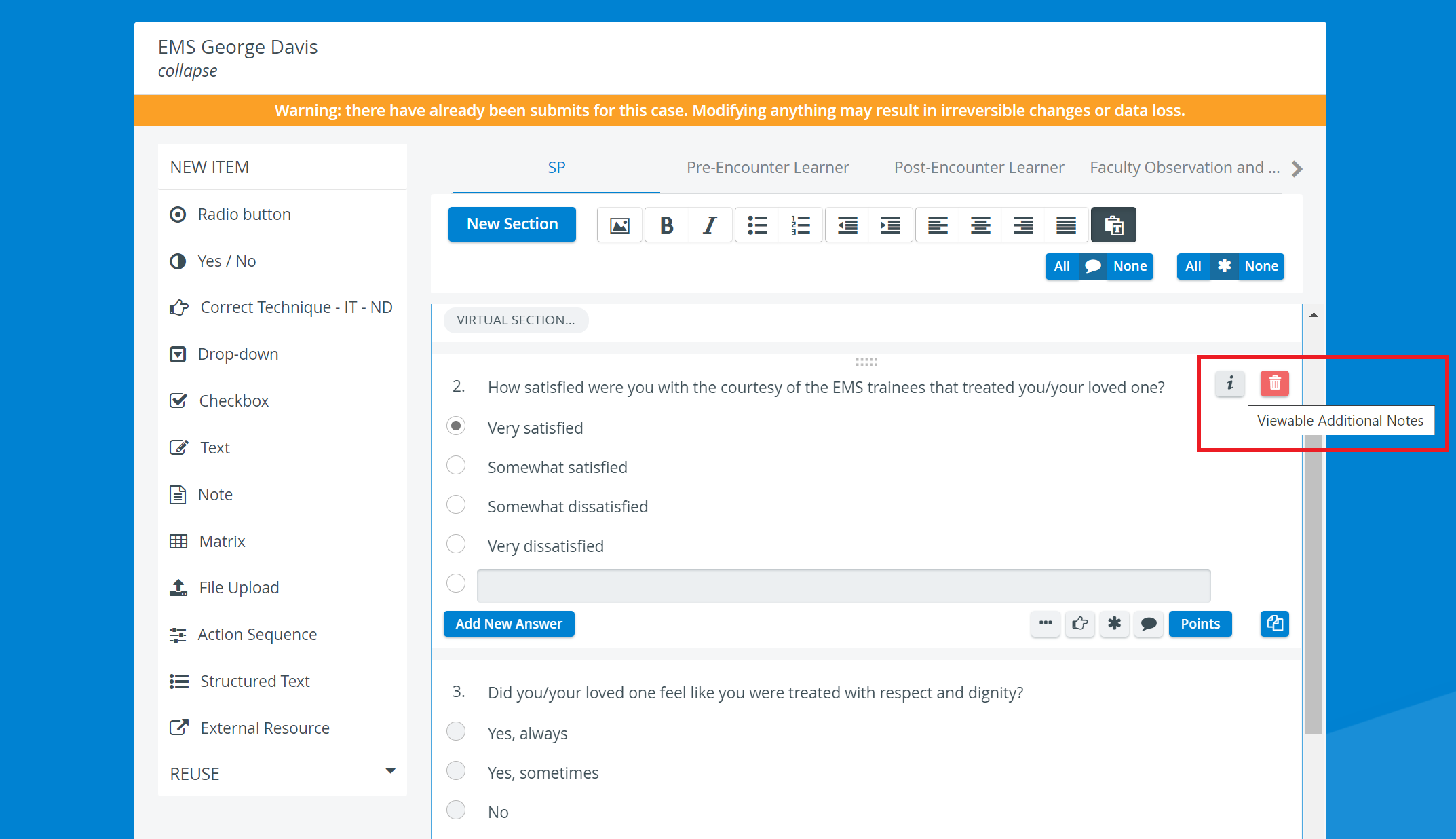
Decimals and minus points can also be used to determine score values via the Points button. However, when assigning the same score to different answer options (e.g., at the Checkbox Item type) or assigning only negative values, the system cannot determine the correct answer (e.g., by highlighting it on the checklist in Reports).
Show Points for All Items Option
Admin or case manager users can show scoring details (Points) for all items in a checklist at once, with one click, for a better overview of how each item is scored:

Show Points Option enabled
The ‘Show points’ checkbox has three states:
Checked - scoring information is shown for all items in the part.
Dash (horizontal line) - (‘partially checked’) - point value display has been disabled for some items, and thus, scoring information is shown only for the rest of the items. (The user can disable point value display for specific items by clicking the blue Points button for those items.)
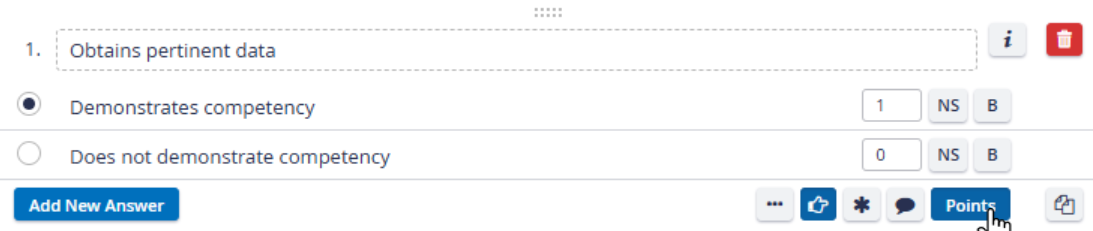
Disable Point Value Display

Show Point Value - partially
Unchecked - scoring information is hidden for all items.
Joint Evaluation Option
The new Joint Evaluation Option enables grouping questions for OEQS scoring in Case Manager. With this feature, questions can be linked in the Case editor so that they can be graded together using a single grading questionnaire in OEQS.

A joint‑evaluation item always relies on a main item that uses a questionnaire scoring method.
One or more joint‑evaluation items can be linked to a main item simultaneously.
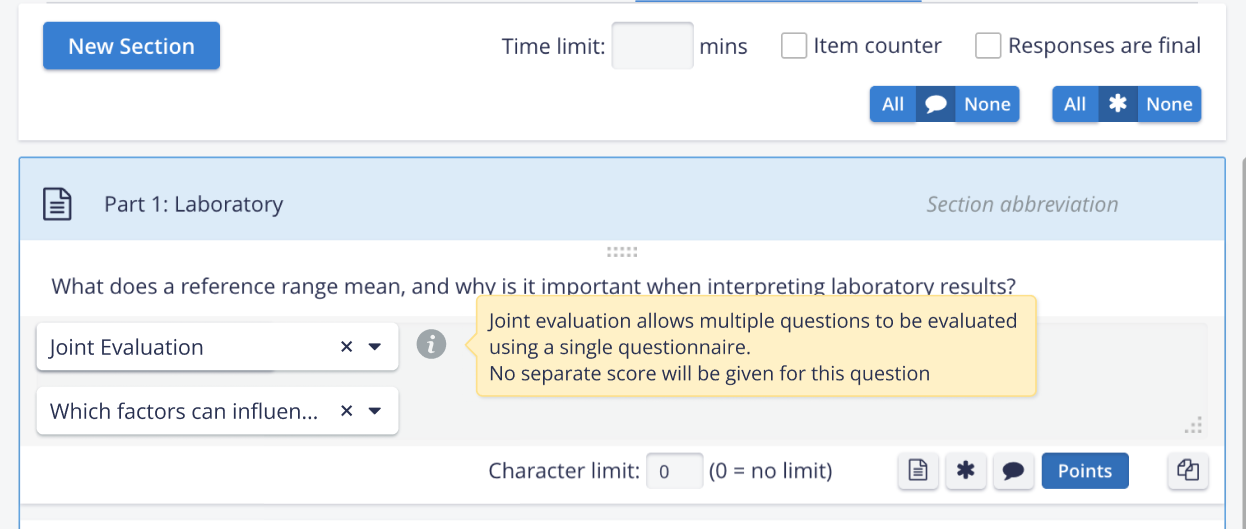
IMPORTANT: A joint item can only select a main question from within the same section; the main question must be located in the same section as the joint item.
REUSE / COPY
Question reuse/copy: If only a joint evaluation question is reused (copied), it will be set to not-scored by default (which can be manually modified if necessary).
Section reuse/copy:
If sections with joint evaluation groups are reused within case parts that allow joint evaluation, the main-joint question relation remains.
If sections with joint evaluation groups are reused within case parts that do not allow joint evaluation, the joint question will be set as not scored.
For details, see How to set up Joint Evaluation and How to use Joint Evaluation.
Share Scoring note content with AI
Admin or Case manager users can mark additional scoring content at the question level for AI processing in the OEQS AI Assistant. This way, they can feed additional OEQS scoring-related content to the AI, so the AI's answer suggestions will be based not only on the learner's response but also on the scoring notes.

Share Scoring Notes with AI toggle
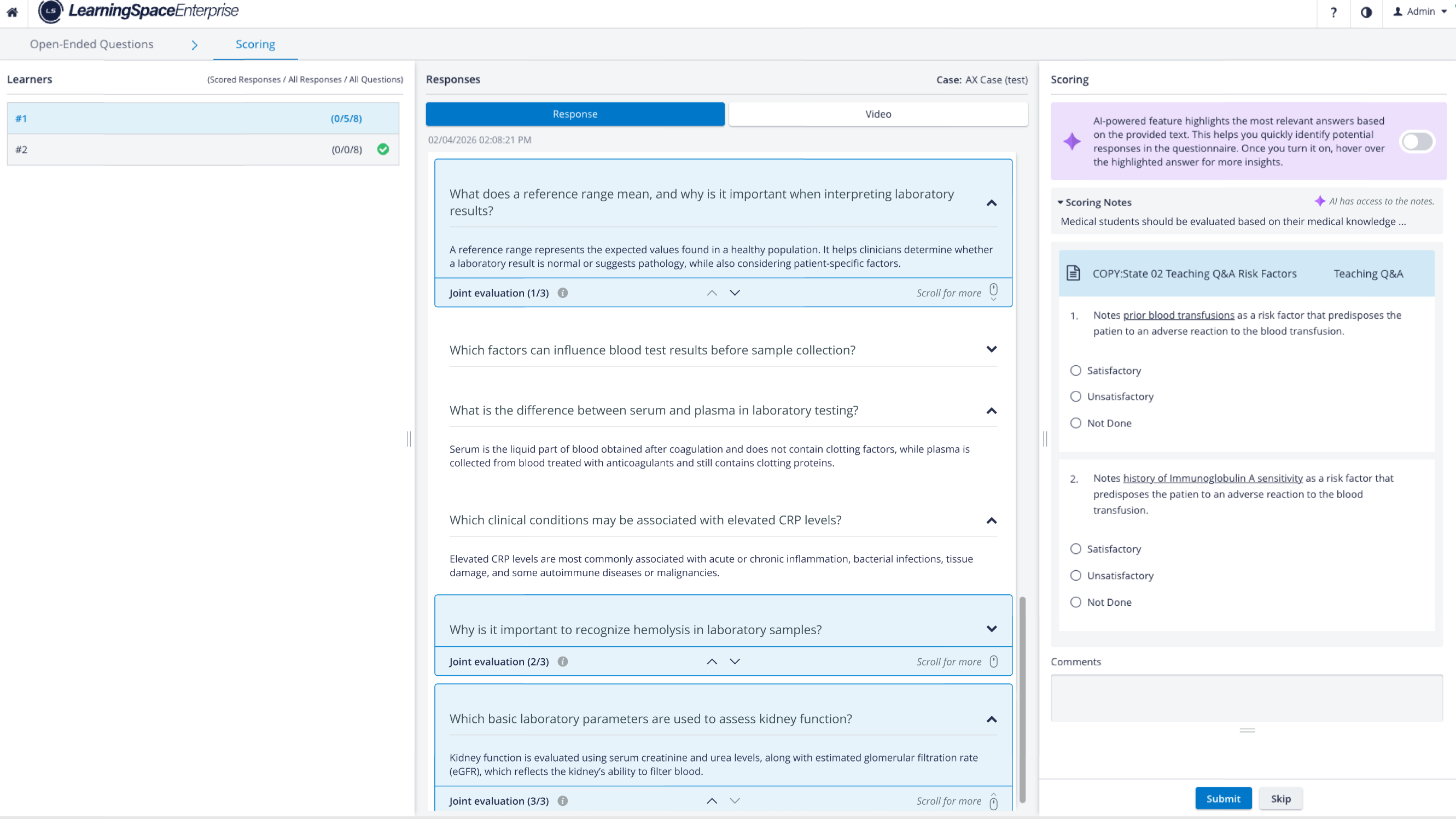
Shared Scoring Notes Content in OEQS Scoring
Shared scoring notes will also be visible on the OEQS scoring page for joint items (if enabled on the main question).
For details, go to
OEQS Scoring Page
2026 April New Features
The ‘Share Note content with AI option’ is available
Only if the OEQS AI Assistant Feature is enabled in LS.
For every text and structured text item in the Pre-encounter and Post-encounter parts of a Case.
Only if the text item or structured text item is set to be graded using a special section questionnaire.
Scoring notes can be enabled/disabled after the evaluation has taken place (post-evaluation): this way, you have flexibility over what content should be fed to AI at any given time.
Enabling or disabling content sharing with AI after AI has already generated OEQS scoring suggestions triggers AI suggestion re-generation (if re-generation is triggered on the OEQS page).
Copying Items
A fully created item can be duplicated, thereby copying the question and all its answers.
As with any added Item, a copied one can be freely modified. You can add more fields by clicking the Add New Answer button, or delete any extra field by clicking the icon appearing when hovering over the row to be deleted.


Reuse
Sections and Items created within any Case checklist are stored in the system and can be readily reused in any newly created checklist.
The REUSE panel is below the NEW Item panel; clicking it opens the panel instead of the Item list.

By default, the Question category is activated and displayed in dark blue. To reuse a Section, switch to the Section category.
When typing in the Search field, all Items/ Sections that contain the letter combination entered will be listed below the search bar.

Reuse Section Search

Reuse Questions - selected
For Questions, the search results are listed with the Item type icon.
Hovering over the listed Item will prompt a tooltip window displaying the entire Item or Section.
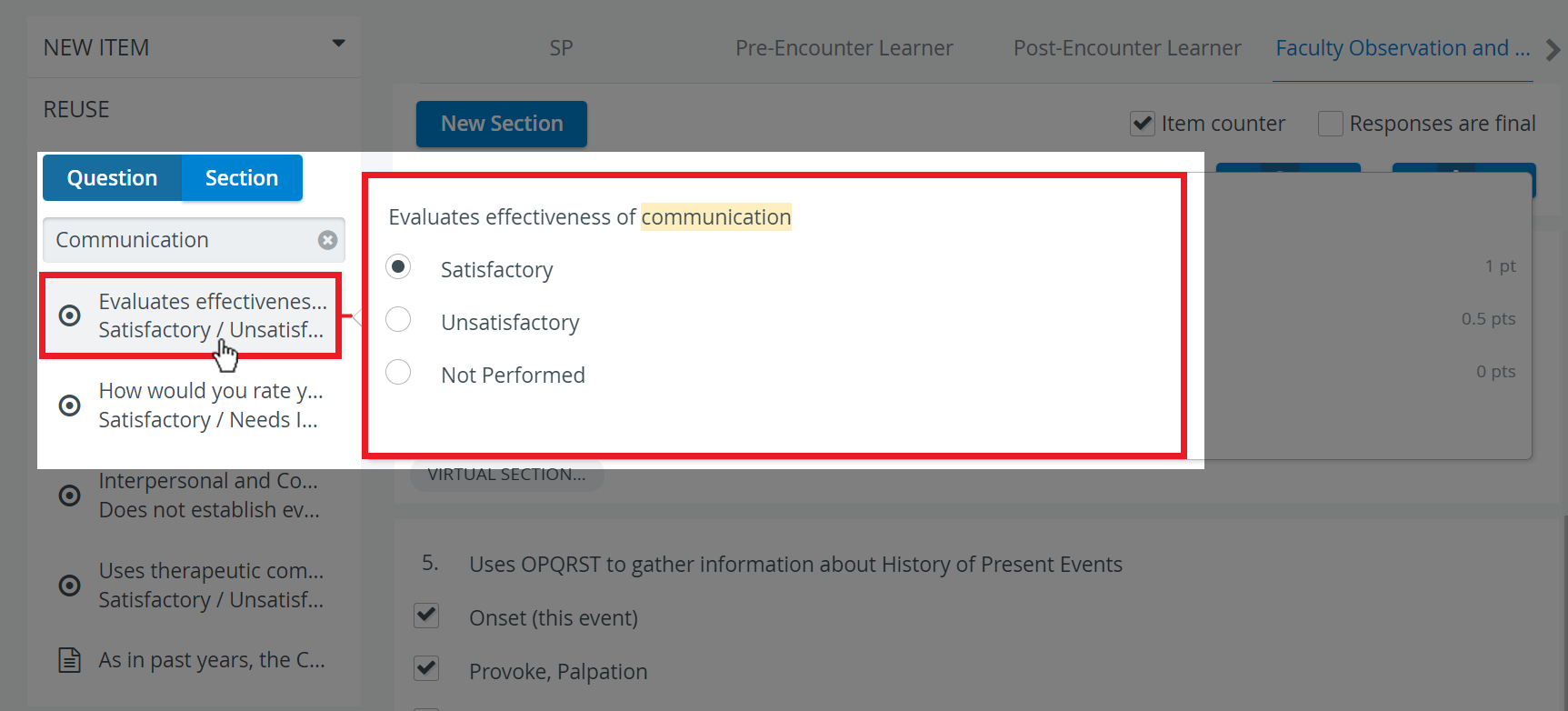
Once an Item or Section is reused, it can be modified as desired.
See also How to Reuse Items.
Virtual sections - Tagging
Items can be assigned specific tags that can be linked to create a Virtual Section unit. With the help of this feature, you can regroup certain items of the Case into a separate Section and review the results for this Section in certain reports.
Like common Sections, a Virtual section is also a group of items that are already present in the Case. Thus, respondents do not have to 're-answer' the questions in a Virtual section, since their responses are already saved.
A tagged item (or virtual section) does not affect data entry, but it does affect reporting: its scores will be visible in specific reports.
Tagged questions can be included in different Sections or even parts, but then be observed as one Section at score calculation (e.g., one of the Sections can be that of the FON, the other one of the SP part).
With this setup, the scores for items appearing in both the SP/FON part and the Virtual Section will be weighted twice in the reports.
If you wish the scores to count only once - for example, in the Virtual Section - set the Section in the SP and FON part to not affect case total and skill area, make sure that the checkboxes 'Affects case total' and 'Affects skill area (cross-case section total)' are not selected.

Learn more at How to Create Virtual Sections - Tagging.
For further information, visit our Case Manager and Cases - How to pages or watch our Case Manager Training Videos.