Details tab
The Details tab accommodates the following options and pieces of information:
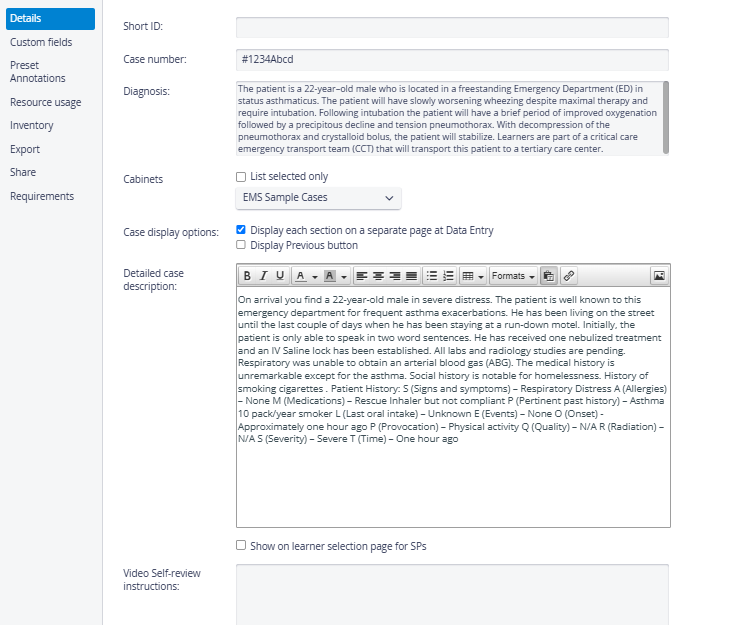
Short ID
An optional identifier is used in functions with limited space, e.g., Raw Data files.
If you export the raw data file for an Activity, Case names will not be displayed due to limited space. Still, the Short ID will be indicated in the column header (also, if Section Abbreviations are specified in the different checklists of a Case, they will be included in the column headers).
Case Number
In the latest versions of LearningSpace, a Case number field is also available for further identification of the Case.
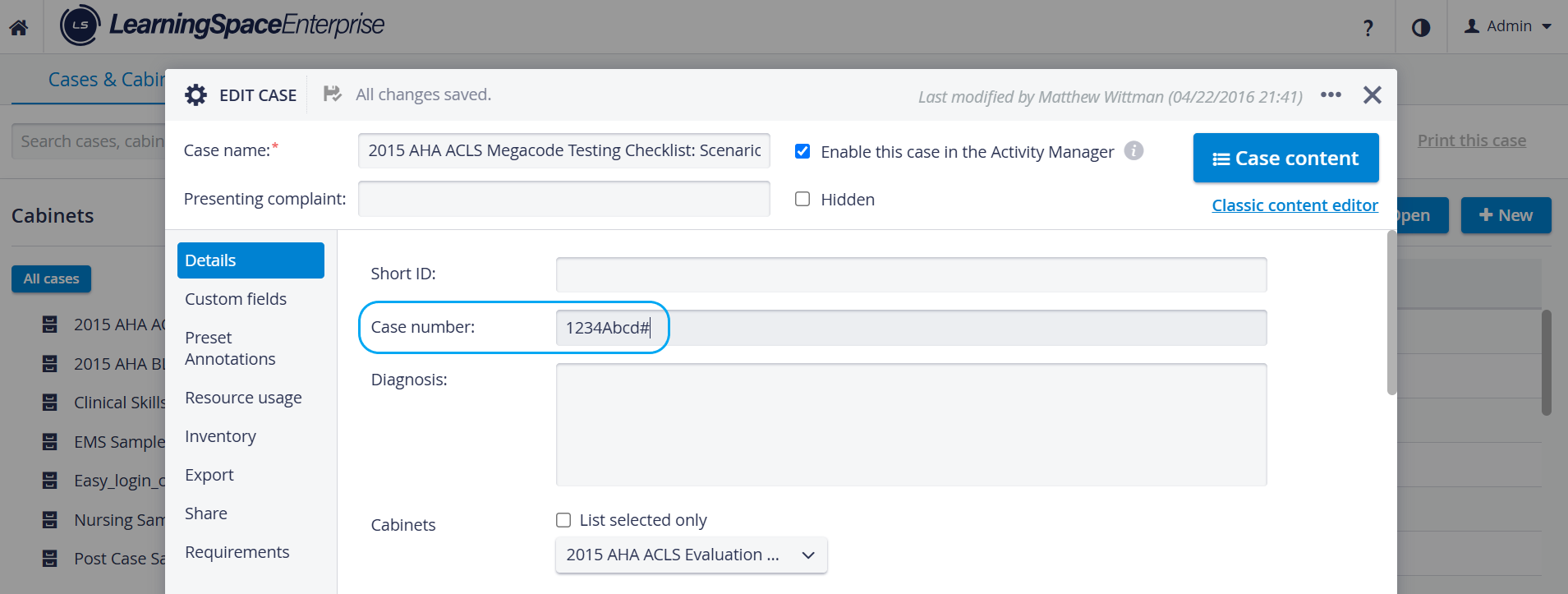
This field is a single-line free-text input and can accept any characters. It does not need to be unique, and it is saved automatically.
The value of the Case Number field appears in SP and Learner responses when using the Data API.
Diagnosis
An optional field for entering the expected diagnosis.
This field is not displayed anywhere but can only be seen by users with Case Manager privilege.
Cabinets
A drop-down for categorizing the edited Cases in existing cabinets.
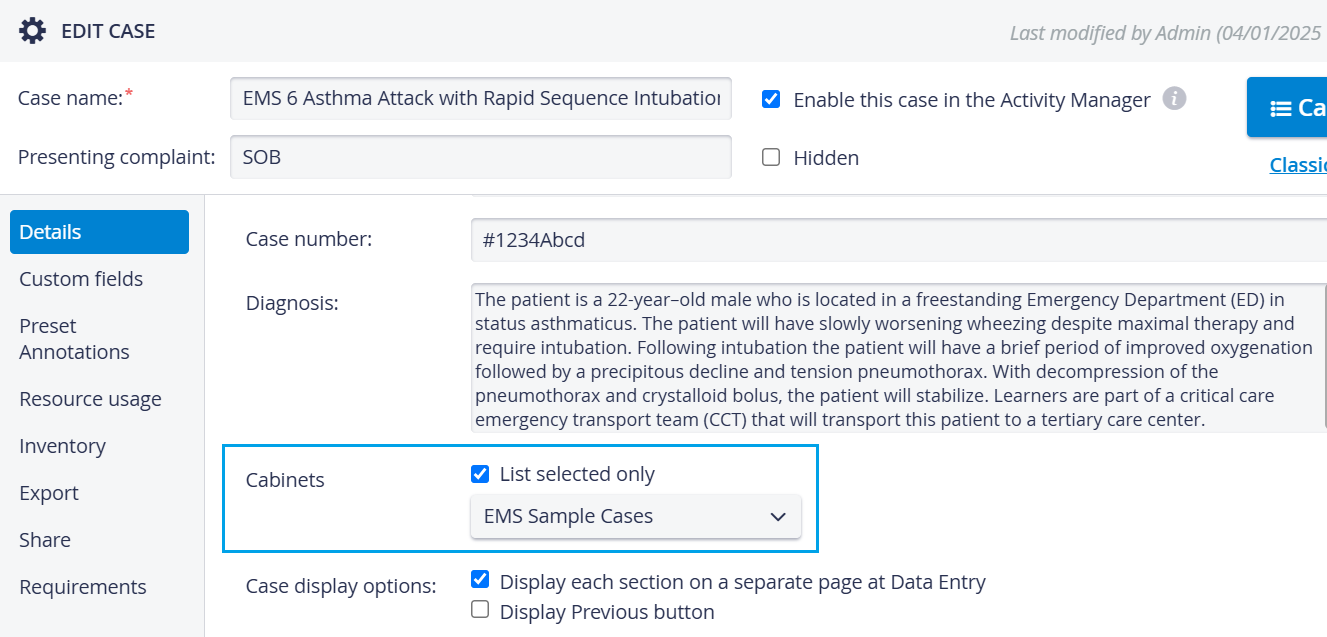
To check which cabinets the Case has been added to, tick the List selected only checkbox.
Case display options
Display each section on a separate page at Data Entry - by using this option, each section of a checklist will be displayed on a separate page during Data Entry. (This, along with the Responses are final option, which would e.g., prevent Learners from viewing the next sections within a checklist - that would possibly help them correctly answer previous questions.)
Display Previous button - the button allows the user to fill out a checklist to return to a previous page.
Detailed Case Description
Text editor for accommodating all the medical details and information pertaining to a Case. The text can be formatted, and links or media content can also be inserted.
The Detailed Case description is displayed
for SP users on the data entry prefill page, if the 'Show on learner selection page for SPs' checkbox is ticked;
for SP users during virtual events on the Learner pre-select page;
as a door note of the Activity currently running in the simulation room when the 'Placard' function is set up;
for SP users during Appointment requests on the Subject Details tab of the SPA Mobile Application.
The Case Description link will be displayed under the video panel if the video review page for a recording is accessed in Classic View via the Digital Video tab of the Reports page (after selecting a Case and Learner, then clicking the Video review button).
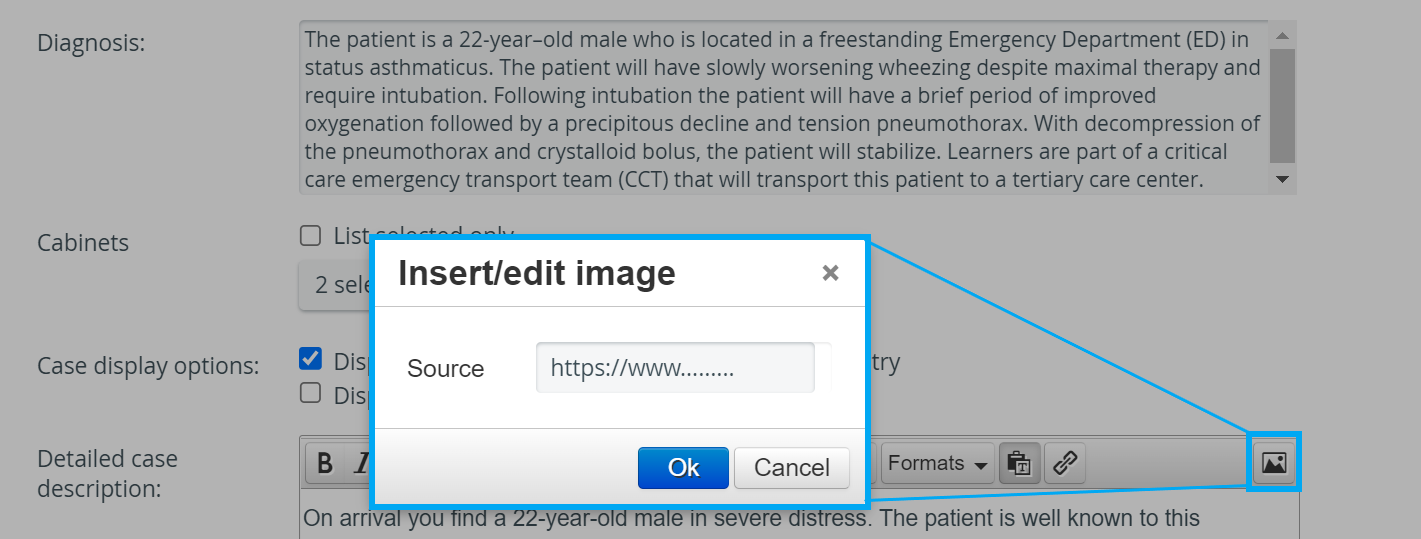
In the Source field of the Insert/Edit image option, use the weblinks of the images to be inserted.
Video Self-review instructions
Instructions are displayed when viewing recordings on the Video Review page. These instructions are intended to facilitate Learners' evaluation of their own performance in a particular Case by describing what Learners were expected to do during the encounter with the SP.
For further information, visit our Case Manager and Cases - How to pages or watch our Case Manager Training Videos.