How to Set up and Run Flexi Events

Setting up an Event with Flexi Scheduling
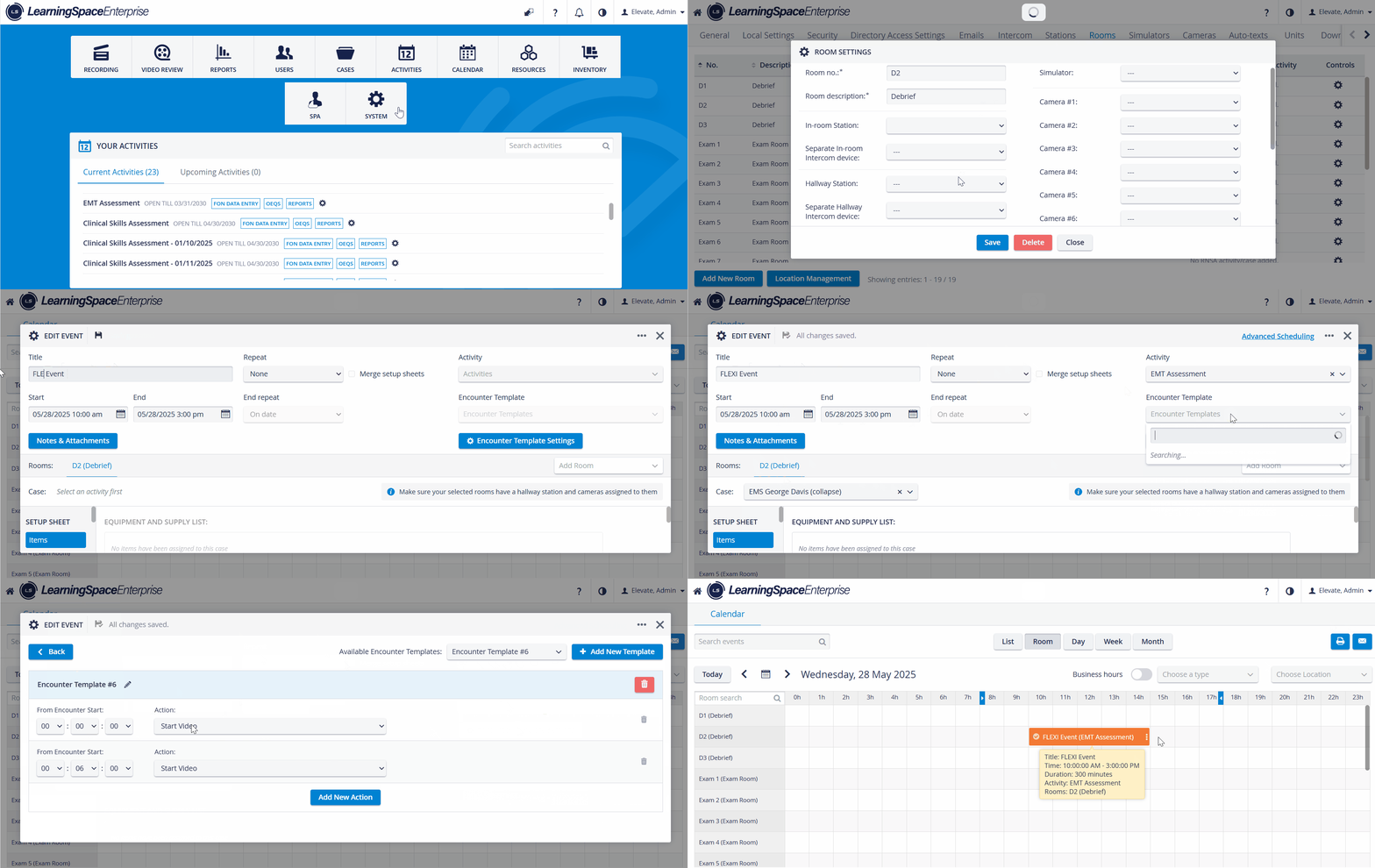
1. Set Up Your Device as a Hallway Station
Before you begin the Flexi Event, you'll need to set up any computer, laptop, or device used for the event as a Hallway station.
Navigate to System
Select the Stations tab.
Click on “Add this computer” and add it as a “Hallway station”.
Go to the Rooms tab.
Select your desired room and click the cogwheel icon next to it.
Select your computer from the Hallway Station dropdown, and assign your computer to the Room.
Save the settings to finalize the setup.
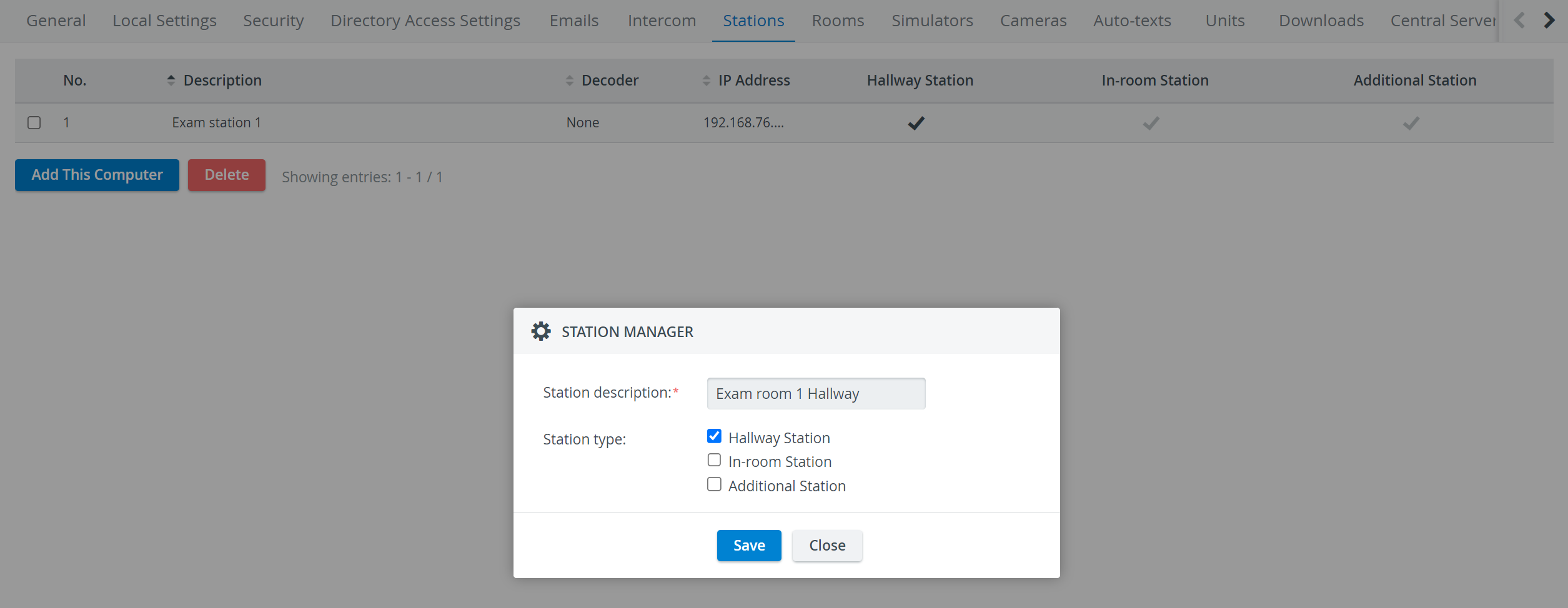
This device is now ready for use in a Flexi Event.
2. Set up a Calendar Event
Create an Event in the Calendar:
Add Title,
Add Activity,
Set Start and End date and time,
Add room(s) and Case(s).
Use the ‘Apply same case to all rooms’ option.
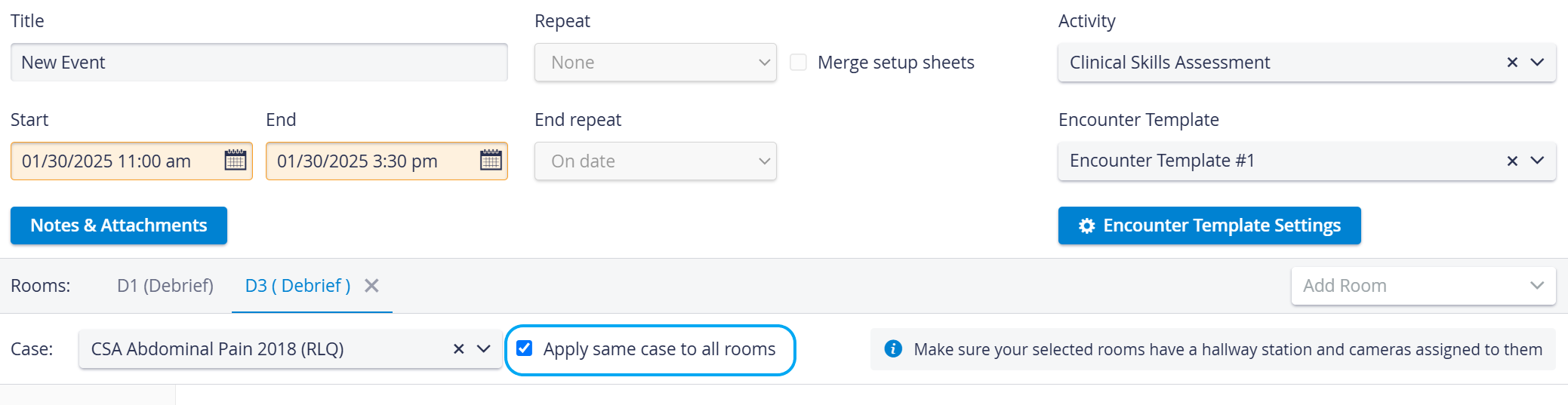
The ‘Repeat’ option is not available for Flexi Events.
NOTE: Participants of the Activity will be able to join the Flexi Event at the Hallway stations assigned to the selected Rooms.
For further help, proceed here.
3. Add an Encounter Template to the Event
Add an Encounter Template to the Event in the Calendar .
This will turn it into a ‘Flexi’ event.
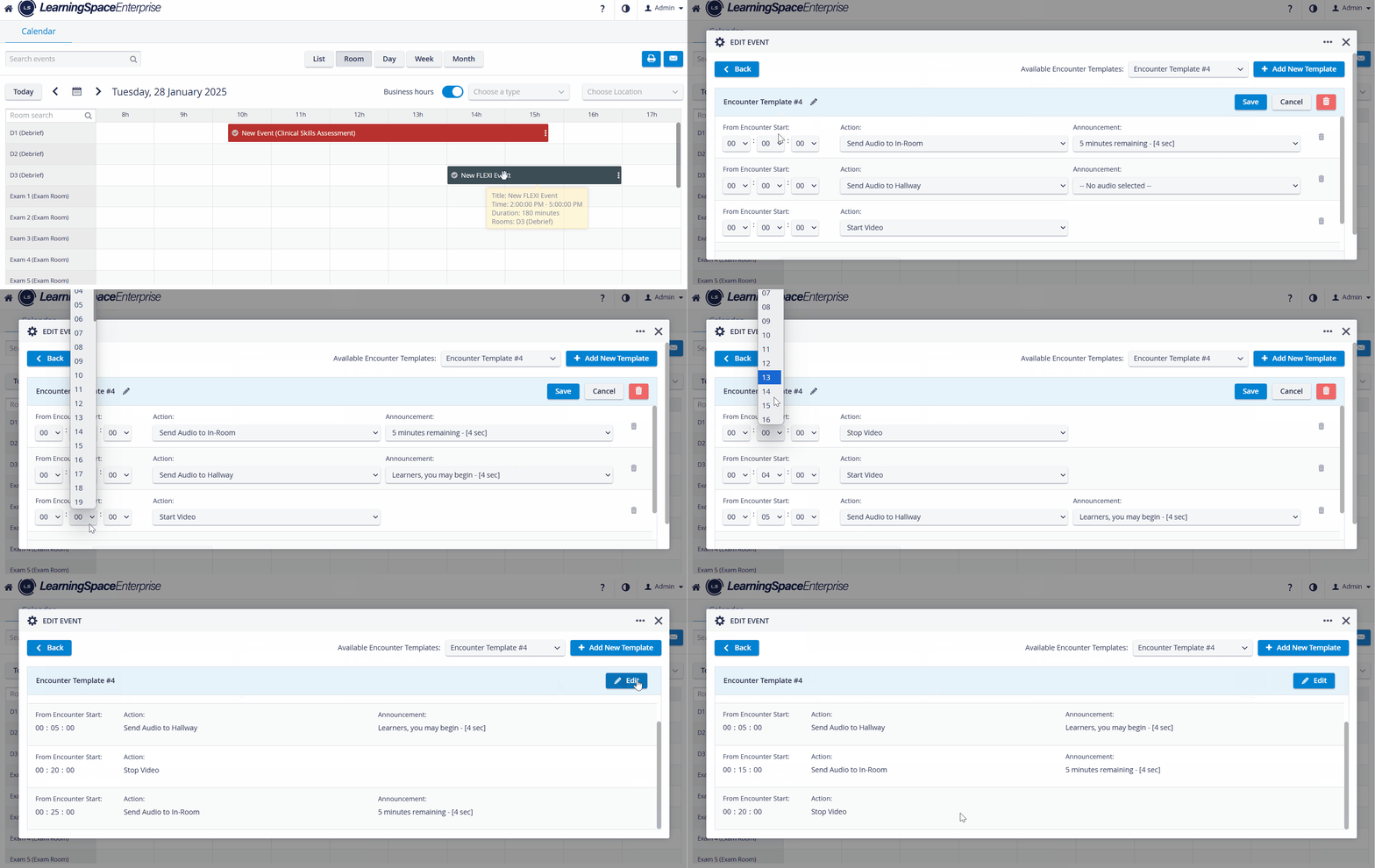
Editing an Encounter Template
Running a Flexi Event
Tutorial Video
Flexi Scheduling Tutorial Video
Faculty and Learner in a Flexi Event - Step-by-step
Refer to the table below for guidance on the perspective of Faculties and Learners participating in a Flexi Event.
Technician / Faculty | Learner | What happens? |
|---|---|---|
| ||
| ||
| ||
| ||
| The Learner's state has changed to Ready. | |
| Encounter starts for ALL ROOMS where the Learner State is Ready. The encounter status changes to In Progress. | |
The Learner is automatically presented with the Pre- or Post-Encounter section | ||
| The status turns to orange during data entry and to green after submission. | |
| ||
| Recording will be available in the Video Review | |
Restart the Encounter | Complete the Encounter | |
Submit the Post-Encounter Part |
During the Encounter, SPs and FONs can perform data entry as well. The same status display also refers to their submissions.
Status | Symbol |
|---|---|
Checklists opened (or Partial submit) | (yellow clock)
|
Checklists submitted | (green checkmark)
|


An Encounter can be manually started and stopped under the Record Controls option at the bottom of the Live Activity Control page.

For more information, refer to Managing an Encounter on LAC.