Calendar Module
Calendar and Room-booking in LearningSpace
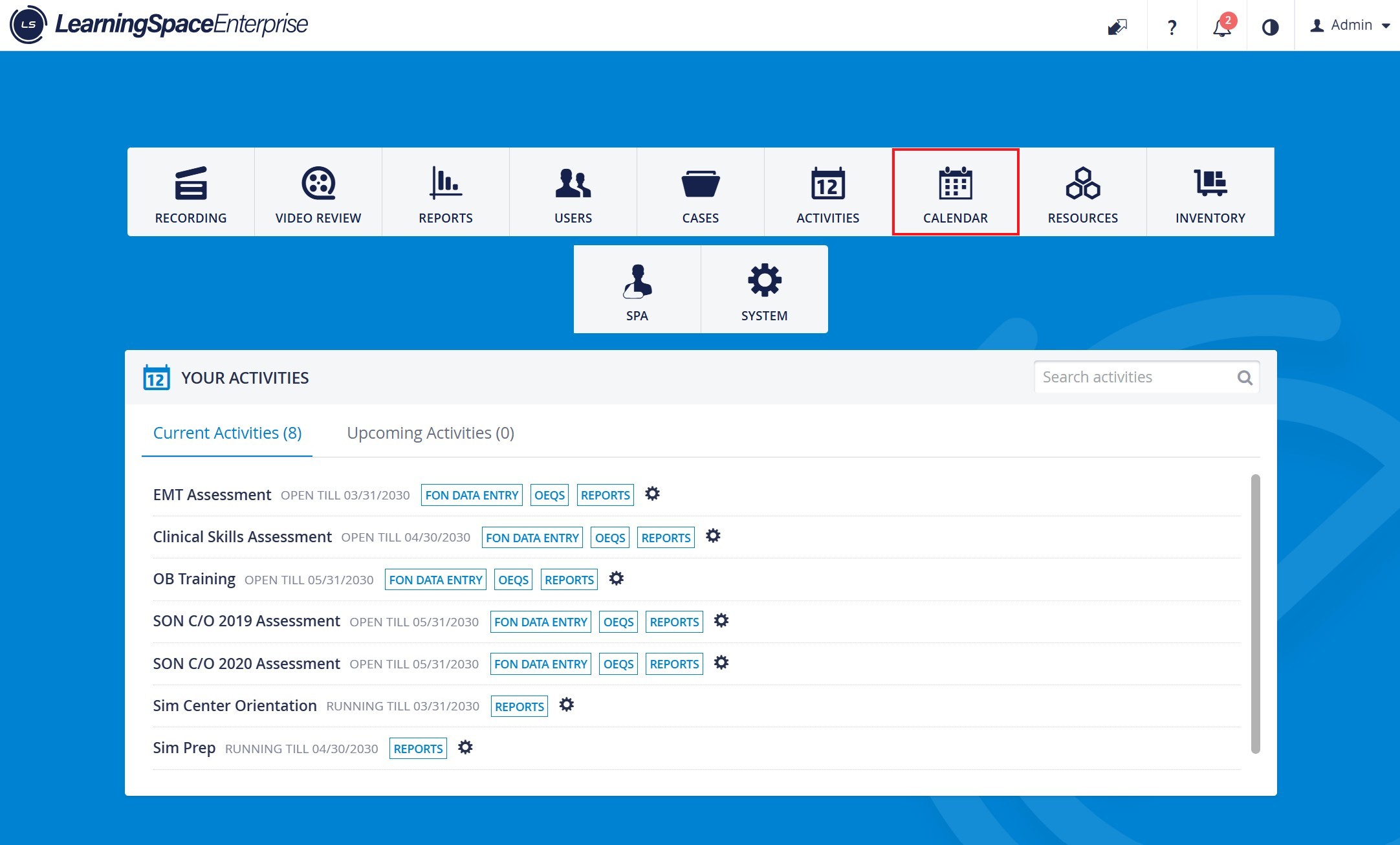
Scheduling Events
The Calendar module provides a simple way to schedule Events - independently or within an Activity.
The exact date and time can be set,
Case(s), participants, and resources can be assigned, and
repeat options are available.
User privileges necessary for access to the Calendar module are SRP (Scheduling and Resource Planner), SRP (full control), and Admin.
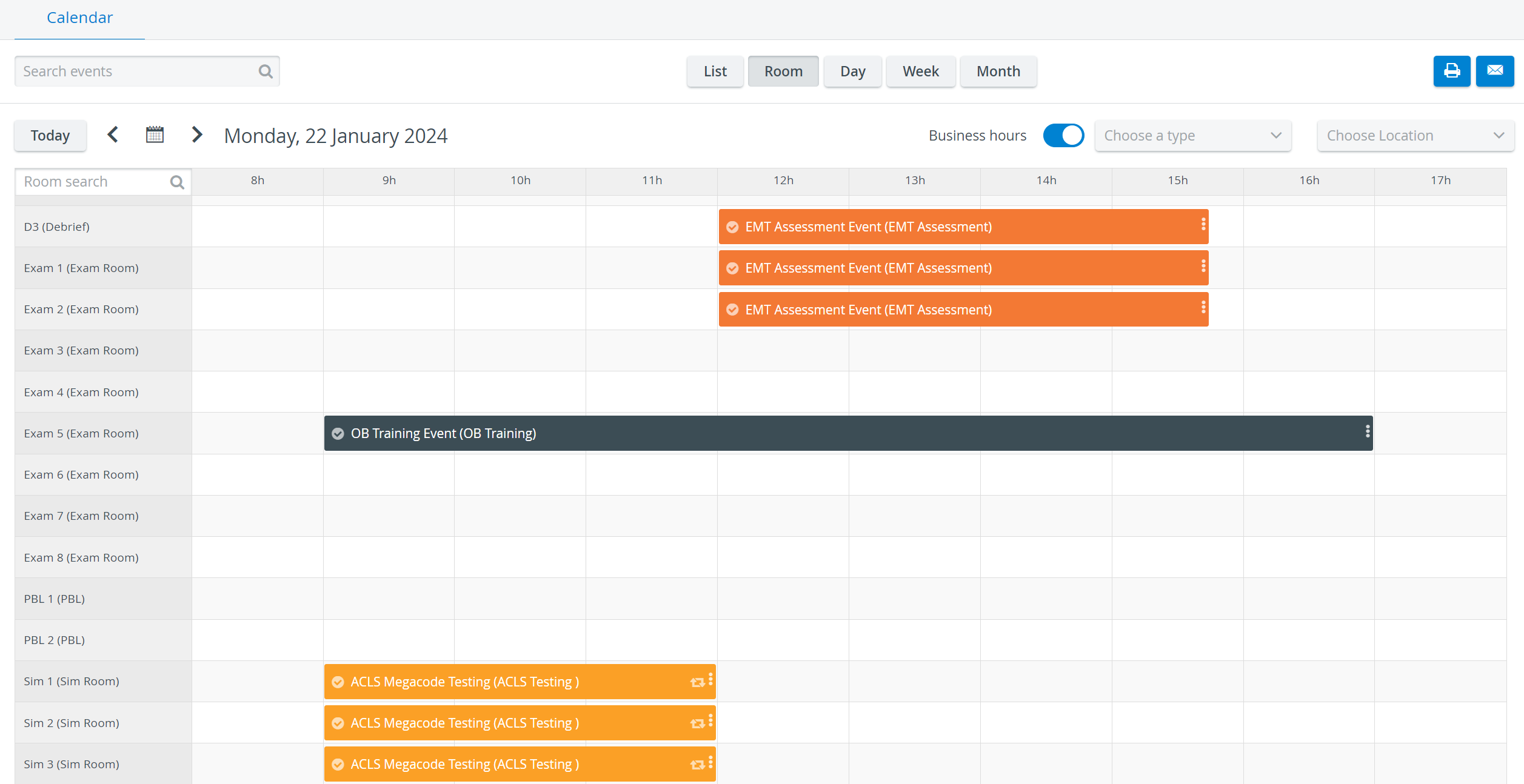
Scheduling displayed as paled indicates that the operating user has limited privileges and, thus, no access to that specific scheduling.
When hovering over any such Event, a warning message appears about No access.
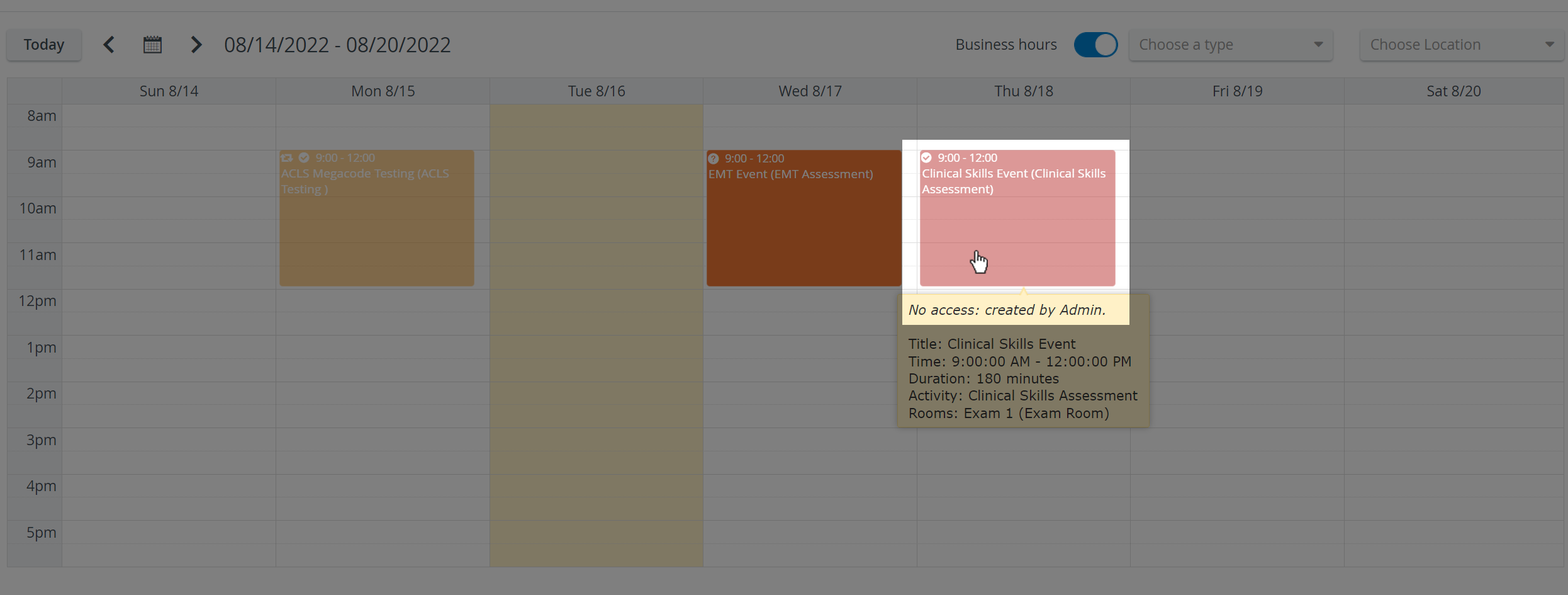
Timeslot structure can only be set on the Activity Scheduler page via Advanced Scheduling. The Advanced Scheduling link directing to it appears in the top right corner of the Edit Event pop-up window once an Activity is assigned to the Case in the corresponding drop-down.
Consequently, Events with scheduled timeslots can only be edited in Advanced Scheduling, and thus appear pale, even to users with the necessary privilege(s).

Calendar Functions
Functions available from the Calendar module | Details |
|---|---|
View Events | |
Add Events | |
Edit Events | |
Delete Events | |
E-mail Calendar View | |
Print Calendar View | |
Access the Activity Scheduler page | |
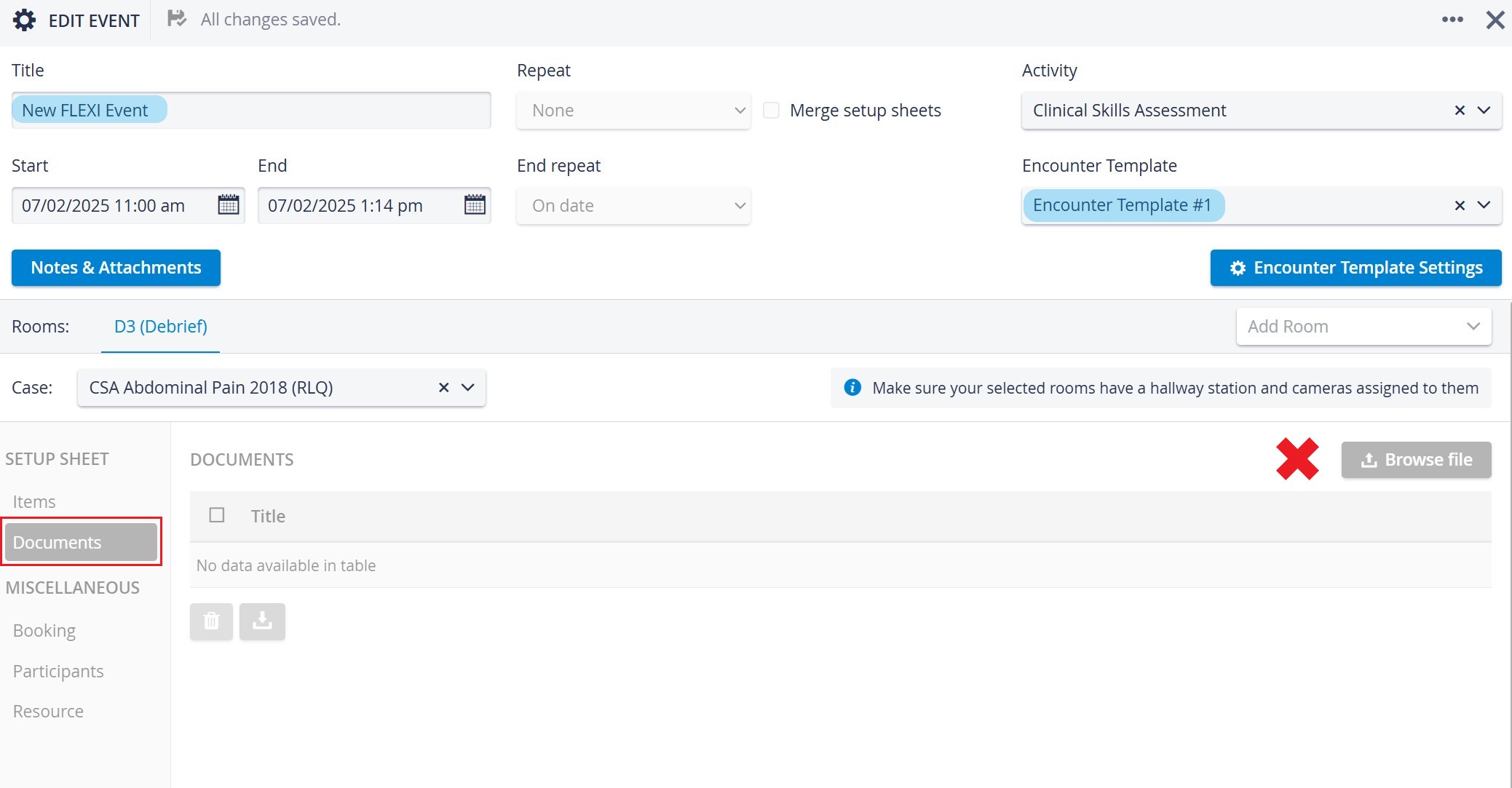
Document upload to Events | Document upload is possible to Events via the Calendar module without adding a Setup sheet to the Event (if the Inventory manager module is enabled). |
Setup Sheet merge | Setup sheets of multiple Cases can be merged within Calendar Events with the Merge Setup sheets option. |
Document upload
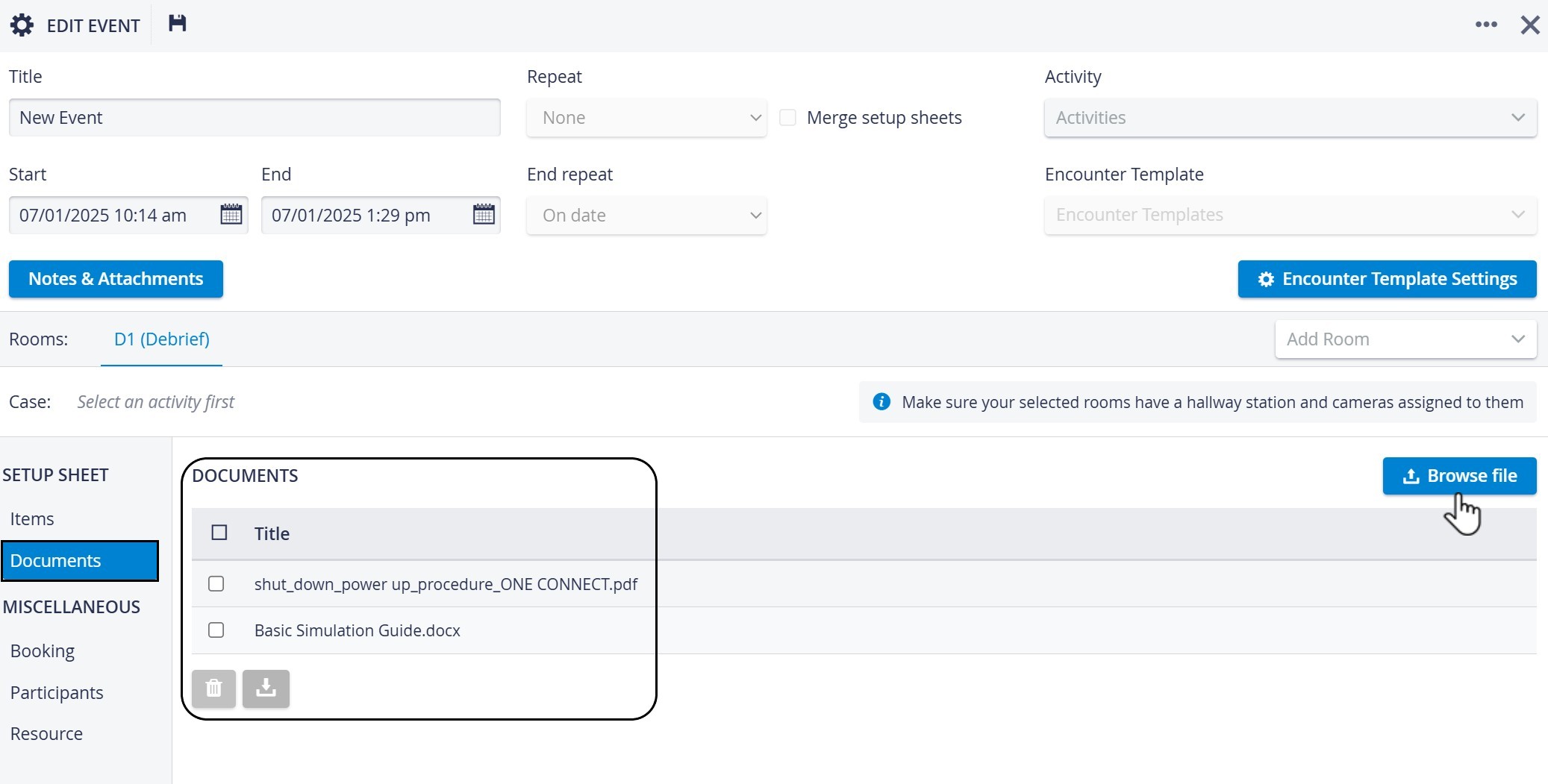
Document upload
Setup Sheet merge

NOTE: For Flexible Events, adding Setup Sheets is not possible; the option is pale for this type of Event.

Flexi events
You can create ‘Flexi events’ in the Calendar module with the help of Flexi Scheduling, by adding an Encounter Template to the event.
You can proceed with setting up the event as usual.
Flexible Scheduling (‘Flexi’) aims to streamline and enhance the administration and execution of OSCEs by leveraging and enhancing LearningSpace's existing modules. It improves efficiency and reduces the administrative burden of the Faculty.
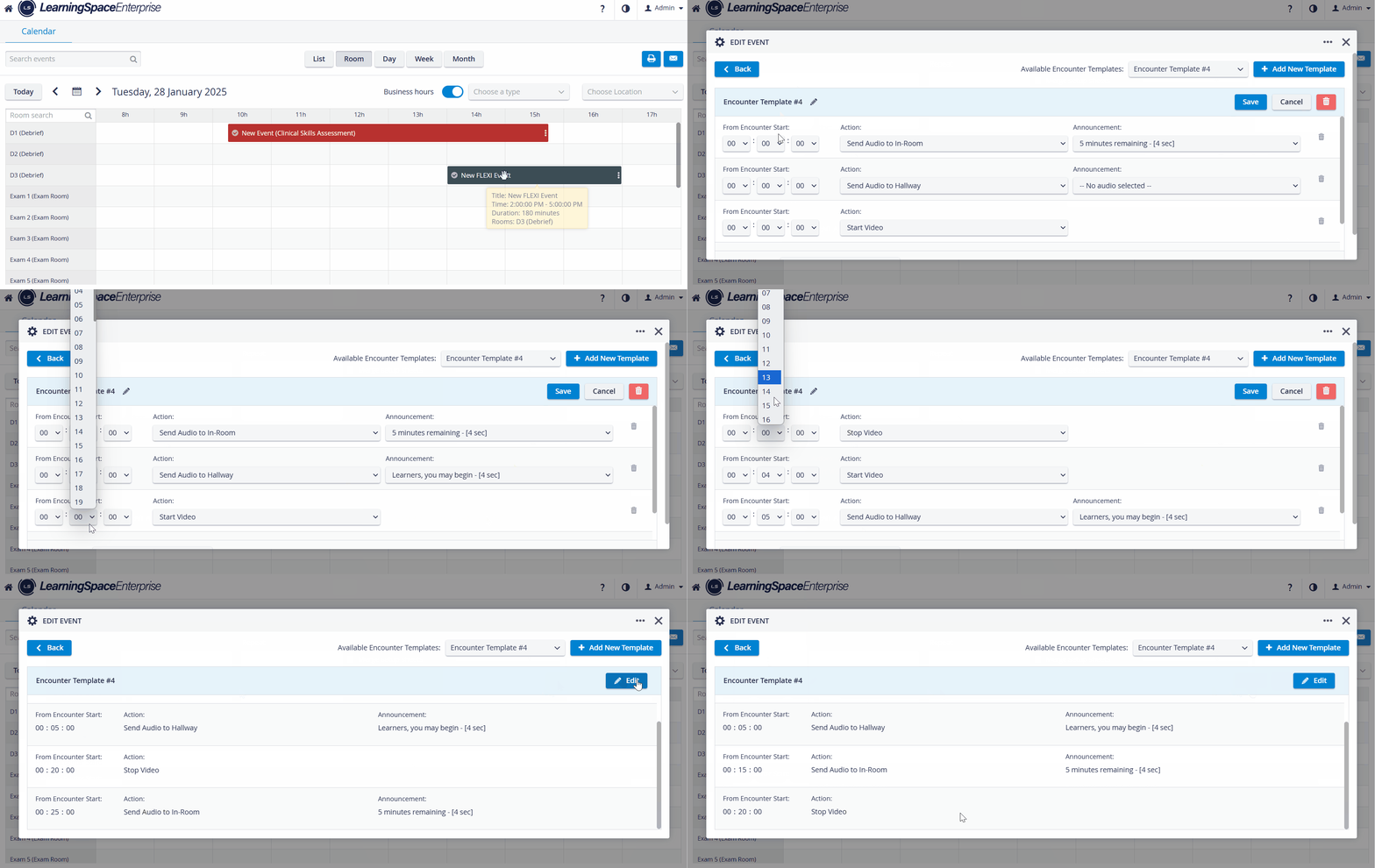

Adding Setup Sheets (Items, Document upload)
Using the Miscellaneous section (Booking, Participants, Resource)
Accessing Advanced Scheduling via a direct link from Edit Event
Privileges for accessing Calendar
The necessary privileges to access the module are SRP or SRP (full control)l
SRP (Scheduling and Resource Planner)
Users with this privilege can:
Schedule events in the Calendar module, and assign such Events to a running activity, thereby gaining access to the Advanced Scheduling function of that activity
access, edit, or delete Events that have not been assigned to any activity
print or send calendar views (Daily/ Weekly/ Monthly) in email
IMPORTANT: SRP users can only assign Activities that have been shared with them (Read and Write access) and are members of the Faculty group assigned to the activity.
Events scheduled by an SRP user must be approved by an SRP (full control) user or an Admin.
Additionally, any modification made to events by an SRP user regarding time, repetition, activity, or room settings must be (re-)approved by a user with Admin or SRP (full control) privileges.
SRP privilege users can’t create or edit Flexi events (only normal events).
SRP (full control)
A user with full control privilege has access to:
Schedule events in the Calendar module, and assign such Events to any running Activity (independent of sharing), thereby gaining access to the Advanced Scheduling function of the scheduled Activity
access, edit, or delete any Event (independently of the Share settings of the Activity)
print or send calendar views (Daily/ Weekly/ Monthly) in email
Events scheduled by an SRP full-control user are approved by default, and the user can also approve Events scheduled by an SRP user.
Only SRP Full Control (and Admin) privilege users:
can create and edit Flexi events.
can create, edit, and use Encounter Templates
For further information, visit our Calendar - How to pages or watch our Calendar Module Training Videos.