Rooms Tab
On the Rooms tab, rooms can be added, modified, or deleted.

A new room can be added by clicking the Add New Room button and then typing in the number/name and description of the room in the corresponding fields of the prompted pop-up.
All the available rooms are listed, and their editable settings can be accessed by clicking the cogwheel icon in the Controls column.

The icon opens the Room Settings pop-up, where all devices, including cameras, manikins, intercom devices, and more, can be assigned to the room.
One device can be assigned to one room at a time.

See details on How to Manage Rooms.
Room Settings pop-up
The pop-up can be opened by clicking the cogwheel next to the desired room and allows for the specification of the following settings:

Room no.: either a number or a name by which the room is to be distinguished
Room description: the type of the room (e.g., simulation lab, skills lab, auditorium, etc.)
In-room Station: a client computer designated for SP data entry
Separate In-room Intercom device: device for in-room intercom announcements
Hallway Station: computer designated for learner data entry (submitting Pre- or Post-Encounter Learner Part)
Separate Hallway Intercom device: device for intercom announcements outside the room
Additional Station: computer designated for display functions
Simulator: selecting one of the available simulators located in the room

Camera #1-5: assigning a maximum number of 5 configured cameras
Record control: assigning a tactile REC button (Push-button) to the room (which is physically located in the room and can be pressed to start a recording)
Location: determining a location (building, site, etc.) where the room belongs
9-camera feed in Single Room View
In the latest versions of LearningSpace, #6 #7 #8 #9 optional camera selector dropdowns have been added to the Room editor of the System manager.
It allows the Single Room View's (SRV) 3x3 layout to be used with camera feeds.

Push-button activation of the Privacy Mode
Privacy mode can also be controlled by using a Push-button within the physical rooms. Once a Push-button has been connected to a DAK (Digital Audio Kit) physically, and the DAK is configured on the Cameras tab, it can be selected as a
Record control device
Privacy control device
from the following two drop-downs of the Room Settings pop-up:

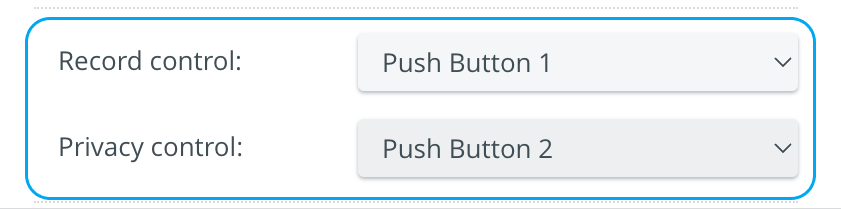
A Push-button hardware can only be assigned to a room once. Once assigned, it cannot be selected from the other drop-down any longer - otherwise, the following error message comes up:

⚠️ One Push-button can only be added to one room within the system.
If two DAKs are used with two Push buttons (one DAK/one Push button) →, record control and privacy control can be used simultaneously.
By utilizing only one DAK device and one Push button → either record or privacy control can be managed by the Push button.
For more information, visit How to Manage Privacy Mode for SP Users.
NOTE: The Push-Button has a 5-second throttling protection; any pushes within 5 seconds of the last push will be ignored.
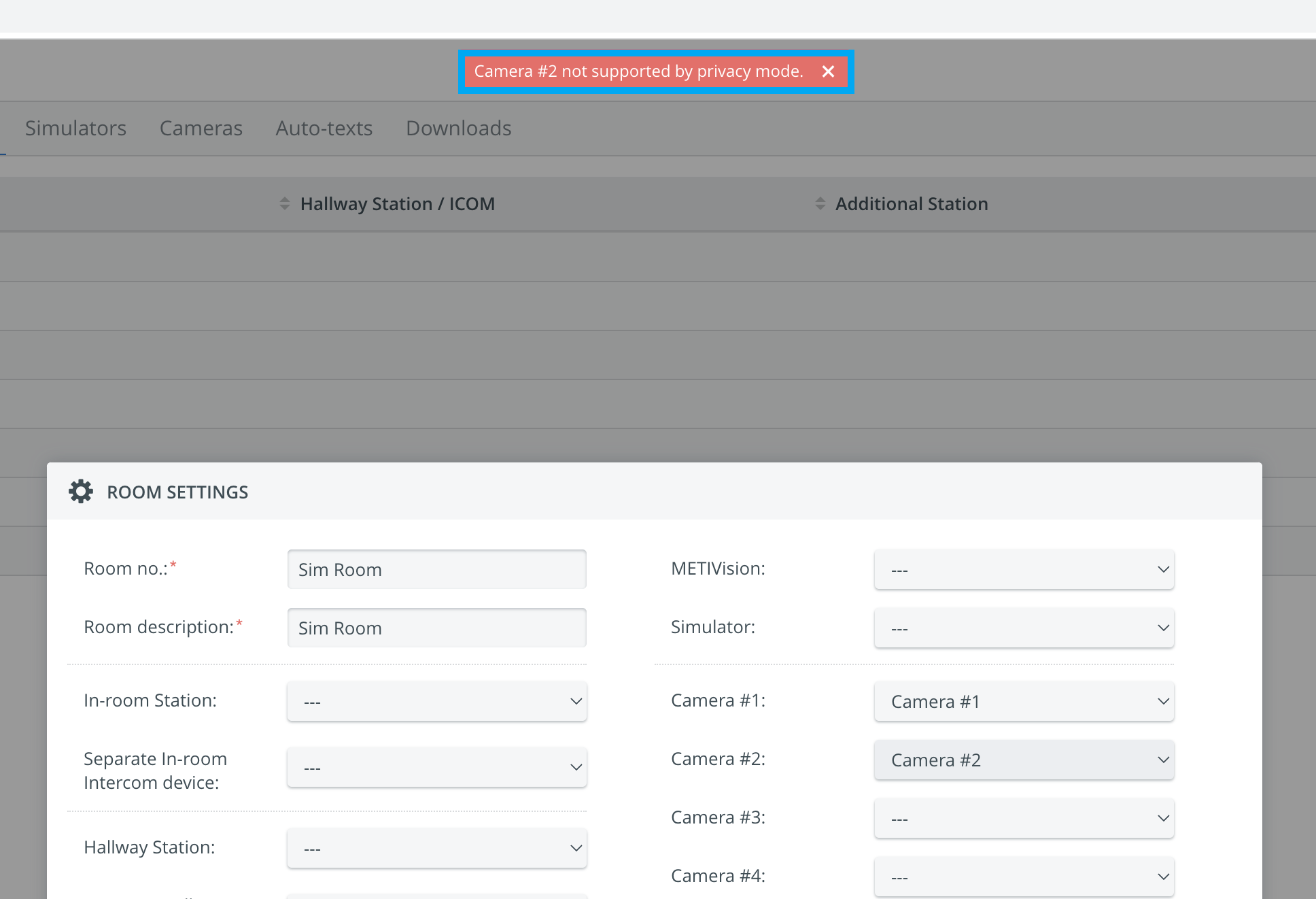
In case any of the Cameras within the room do not support Privacy Mode, the following warning message appears:
Privacy Mode and DCU/ Encoder
Privacy Mode is also accessible even when a DCU or a JTech encoder is present. (Earlier, adding a DCU or JTech encoder to a Room with Cameras disabled Privacy Mode. This limitation has been removed to ensure that Privacy Mode can always be enabled.)
NOTE: Privacy mode does not affect the device(s) connected to the DCU or encoder.
Privacy Mode is available under the following conditions:
The audio source is set to: ‘use without audio.’ OR:
The audio source is connected to another Elevate-handled device that is mutable.
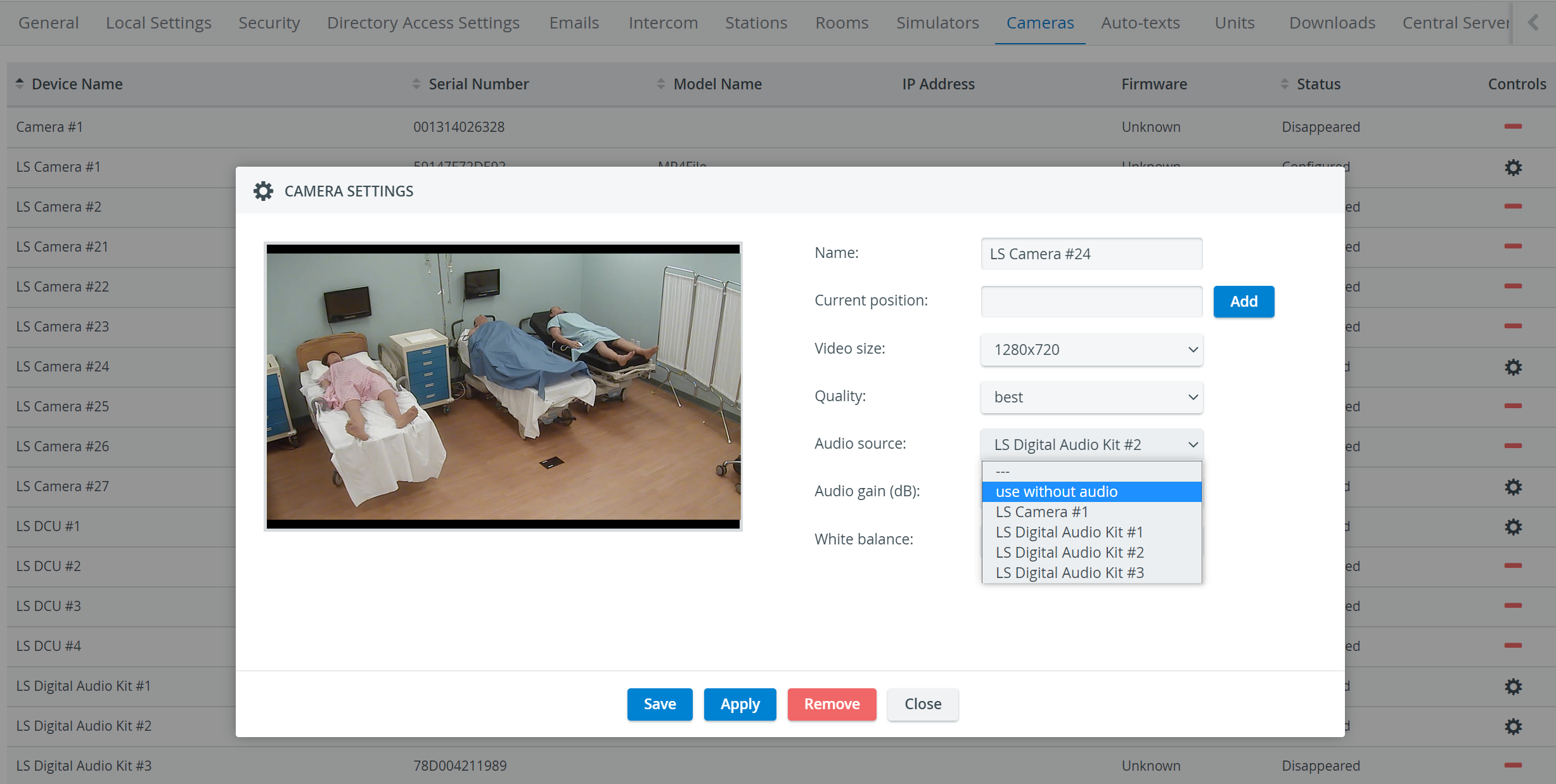
The mute icon is disabled if no audio is available on the assigned device (i.e., if the camera or its audio source cannot be muted).
Find step-by-step guides for System manager-related processes on our System - How to pages.