2026 January New Features: AI Tools and More!
AI Tools in LearningSpace
We are thrilled to introduce our new LearningSpace’s AI-powered features designed to assist faculty and scorers in evaluation tasks!
One core feature is the Checklist AI Assistant, which
analyzes video transcripts of simulated patient encounters and
suggests answers for faculty checklists,
significantly reducing the manual workload and
providing a confidence level for each suggestion.
Complementing this is the OEQS AI assistant, which
evaluates learners' textual responses to open-ended questions,
proposes scores, and
displays key insights as evidence.
Both AI tools rely on the Video Transcript tool to automatically convert audio into
searchable,
time-synced text,
a prerequisite for AI analysis.
Finally, a guide on Best Practices for Writing Checklist emphasizes the necessity of
writing clear, specific checklist questions and
comprehensive answer options
to ensure the AI's highest possible accuracy.
IMPORTANT: AI tools are not part of the base Enterprise package and are only available via the AI subscription that can be purchased separately.
FREE TRIAL: Each new customer who comes on board will have the option of a free trial with a limited time period.
For more information, reach out to Customer Support: ls-support@elevatehealth.net
Checklist AI assistant
Revolutionize your video review process with the new Checklist AI assistant feature!
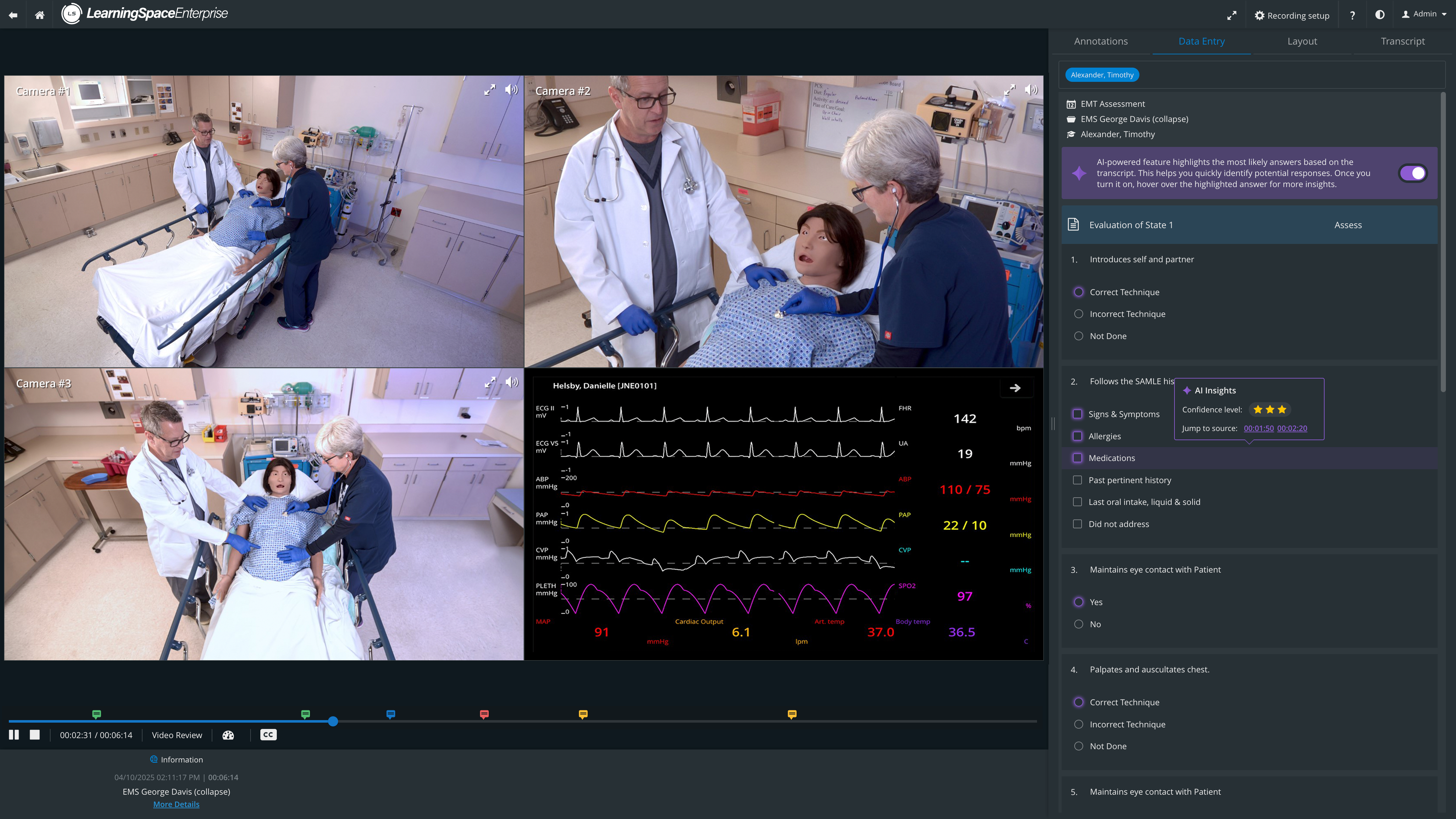
This powerful tool uses AI to analyze transcribed interactions (such as patient-provider simulations) and automatically prefill Faculty Observation Notes (FON) checklists, drastically reducing your workload and saving valuable time.
You maintain complete control, as the AI offers
purple-highlighted suggestions,
a confidence level (from ⭐️ to ⭐️⭐️⭐️), and
verifiable timestamps via the "Jump to Source" function, allowing you to swiftly confirm evidence directly from the transcript.
Faculty can accept or ignore AI-based recommendations for various item types, including Radio Buttons, Drop-downs, and Text fields, ensuring clear, consistent evaluations.
Learn more here: AI Assistant (Checklist Prefill)
OEQS AI Assistant
Accelerate your evaluation of textual responses with the groundbreaking OEQS AI Assistant!
This specialized feature extends Prefill capabilities by enabling users to evaluate textual learner responses to open-ended questions using a new data-processing engine.
The AI provides
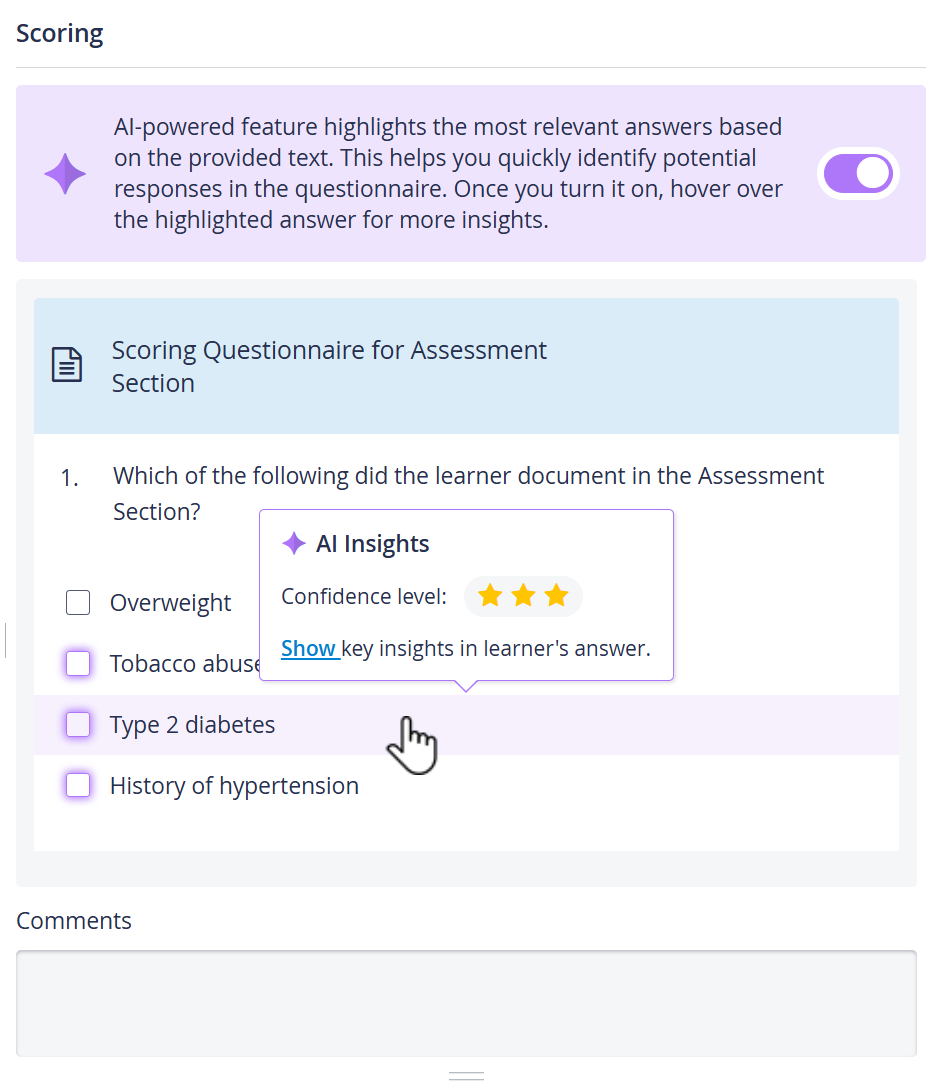
proposed fill results for the OEQS scoring checklist,
highlighting the most relevant, presumably correct answers in purple,
and indicating a confidence level to prioritize questionable items.
Best of all, faculty can use the "Show key insights in learner's answer" option, which displays the exact text snippets that support the AI's suggestion of that answer, providing transparent validation during scoring.
The LearningSpace – AI Assistant supports faculty by automatically pre-filling SOAP‑note–based checklists using large‑language‑model (LLM) analysis. To ensure accurate, reliable, and verifiable pre‑evaluation, the checklist's structure must be intentionally designed for natural‑language inputs rather than human-scoring shorthand.
Our new AI‑Ready SOAP Note Evaluation Checklist Guide provides practical instructions for faculty, SP educators, and OSCE designers on how to build checklists that the (OEQS) AI Assistant can interpret with high fidelity.
Learn more here: OEQS AI Assistant and AI‑Ready SOAP Note Evaluation Checklist Guide
Video Transcript Tool
Unlock deeper video analysis and accessibility with the dynamic Video Transcript Tool!
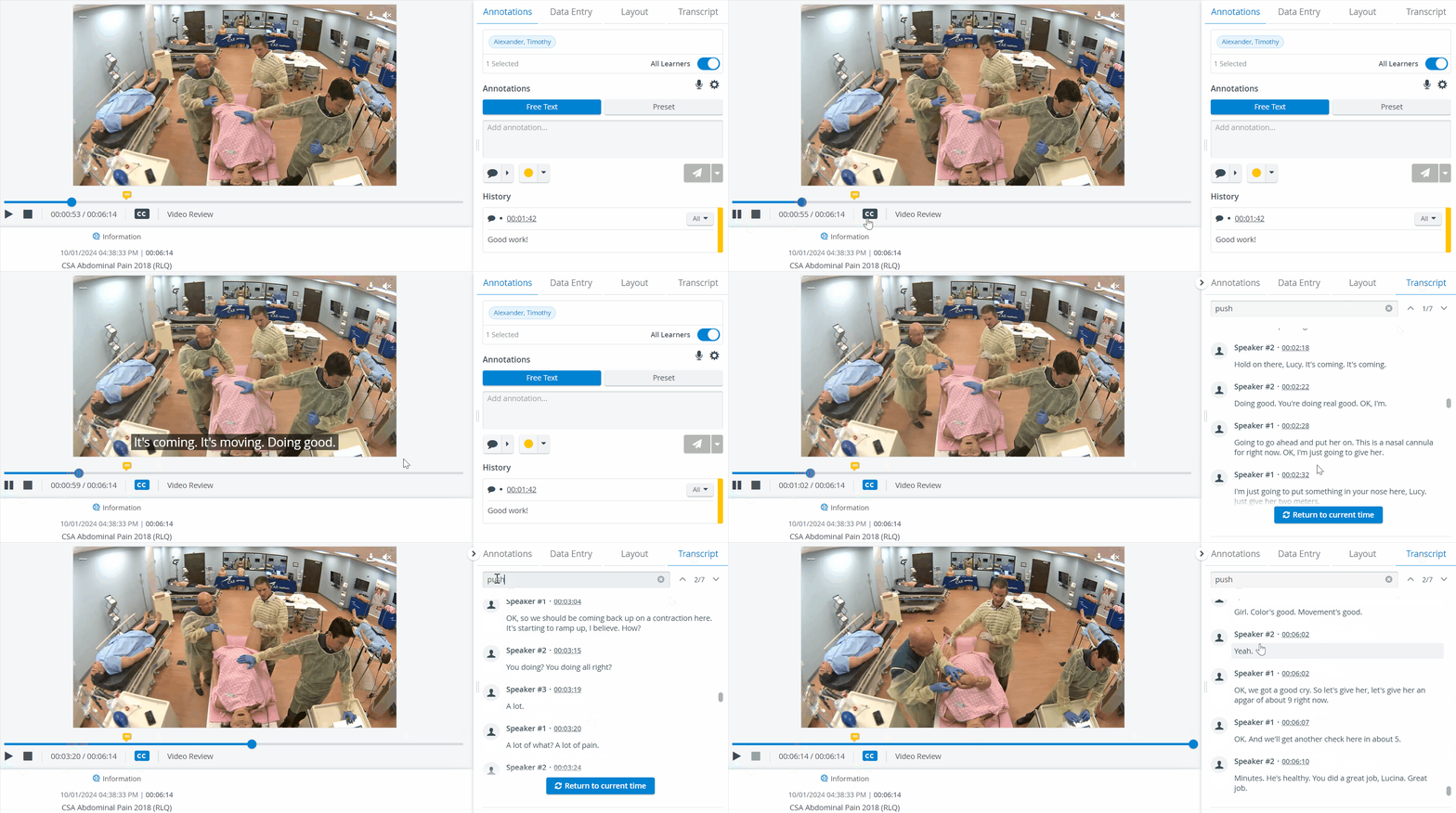
Once globally enabled, the system automatically converts video and audio into text transcripts, enhancing video recording and checklist-related capabilities. This feature provides powerful search capabilities, allowing you to highlight and cycle through specific segments that match your query.
You can navigate the video timeline by clicking a block in the transcript to instantly jump to the corresponding segment for verification.
Furthermore, leverage the generated transcript to enable searchable Closed Captioning (CC) or download the speaker-diarized transcript in standard .srt format.
Learn more here:How to use the Video Transcript Tool?
Best Practices for Writing Checklists for the AI Checklist Assistant
Maximize the efficiency of your AI Checklist Assistant by optimizing your checklist design!
This essential guide provides best practices for writing questions and answer options so the AI can reliably analyze simulation transcripts and pre-fill items.
Summary Checklist for AI-Optimized Questions
✅ Questions must be clear, specific, and scenario-based to ensure accuracy.
✅ Answers must include both correct and incorrect options.
Crucially, structure your answer options to reflect the expected behavior and common mistakes.
✅ Avoid abstract answers — stick to observable behaviors or spoken statements, rather than vague or abstract concepts.
✅ Answer text must sound like something a learner might say.
By phrasing answers in a natural transcript-like manner, you enhance the AI’s ability to find accurate matches and provide more effective automated feedback.
✅ At least one fallback or “None of the above” option must be present.
Learn more here: Best Practices for Writing Checklists for the AI Checklist Assistant
For details on AI tools in LearningSpace, visit AI tools in LearningSpace - How to
More New Features
Export to Excel in User Manager
The new “Export to Excel” option makes it easy to export the values entered in the User Manager of LearningSpace.
A new Export button has been added to the Groups & Users tab, located at the top-right corner of the Groups field. The button is disabled by default. It becomes enabled/clickable once a group is selected on the left side.
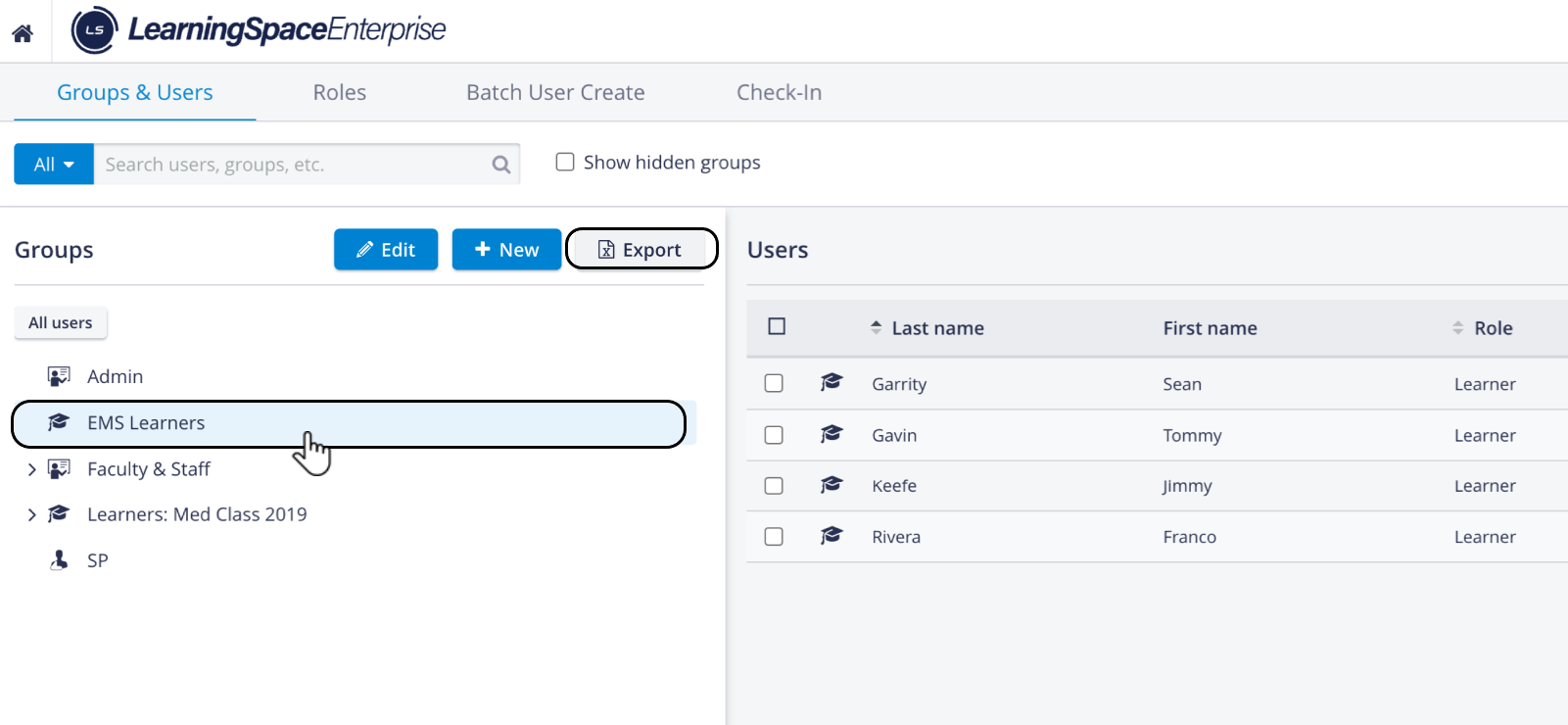
User group selected - Export Button Active
The button remains disabled for users with no read (or read and write) access to the User group.
(See Sharing User Groups.)
Once the Export button is clicked, the Export Settings pop-up opens, which allows users to customize the data to be exported.

Once the selection has been made, click the Export button. The system generates an Excel file containing all the user data of that User group.
For more information, see How to Export LearningSpace User Data.
Push-Button Throttling protection
As a newly introduced feature, LearningSpace’s Push-buttons (used to start and stop video recording for a specific room and to control Privacy mode for SP users) have been equipped with a 5-second throttling protection. This means that any pushes within 5 seconds of the last push will be ignored.
💫Tip of the Month
📺 Watch our short video tutorial about a basic LearningSpace Workflow now with audio narration and subtitles!