Groups and Users
Available to User Managers or Admins
Entering Users, you land on the Groups & Users tab.
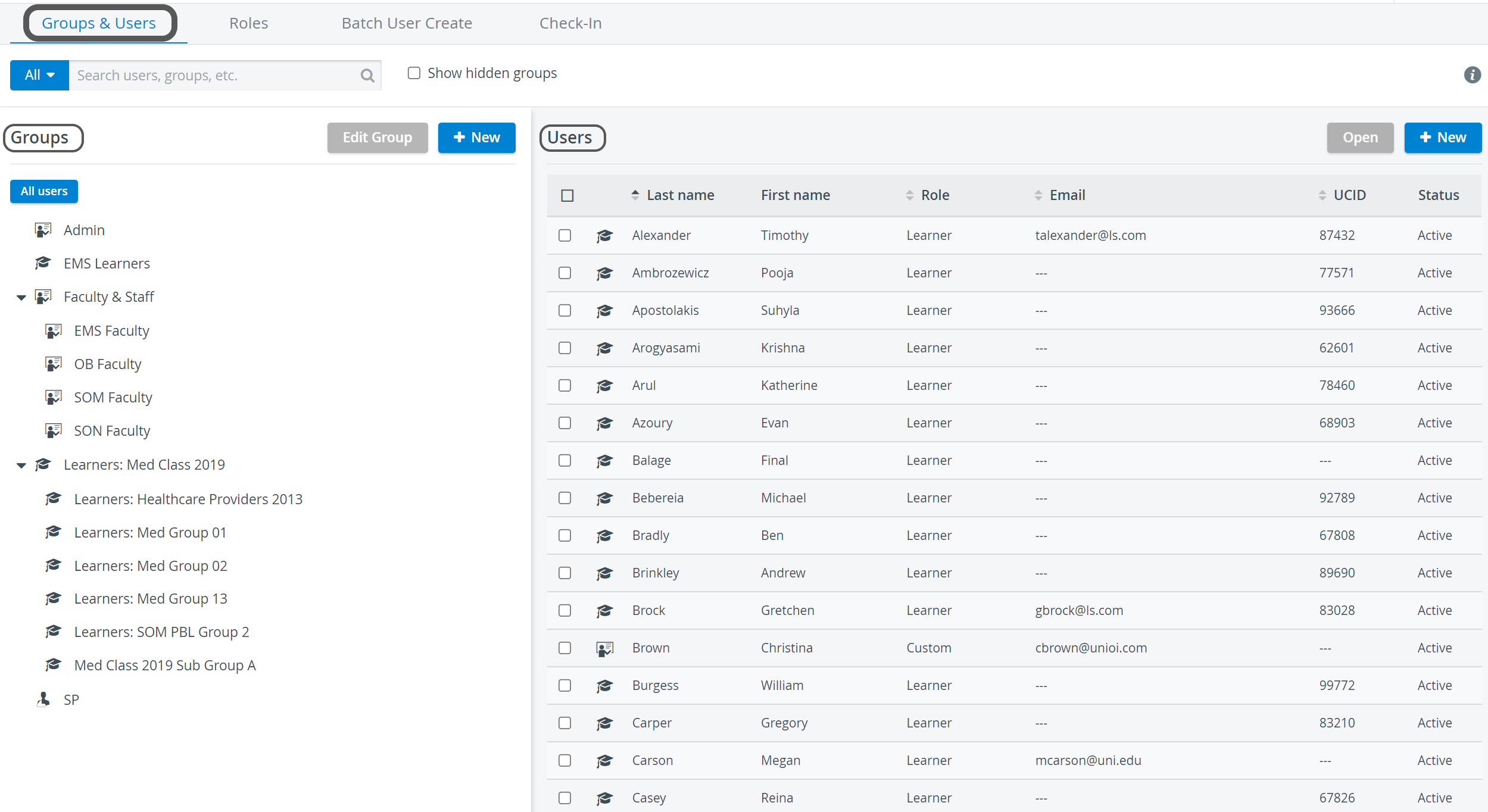
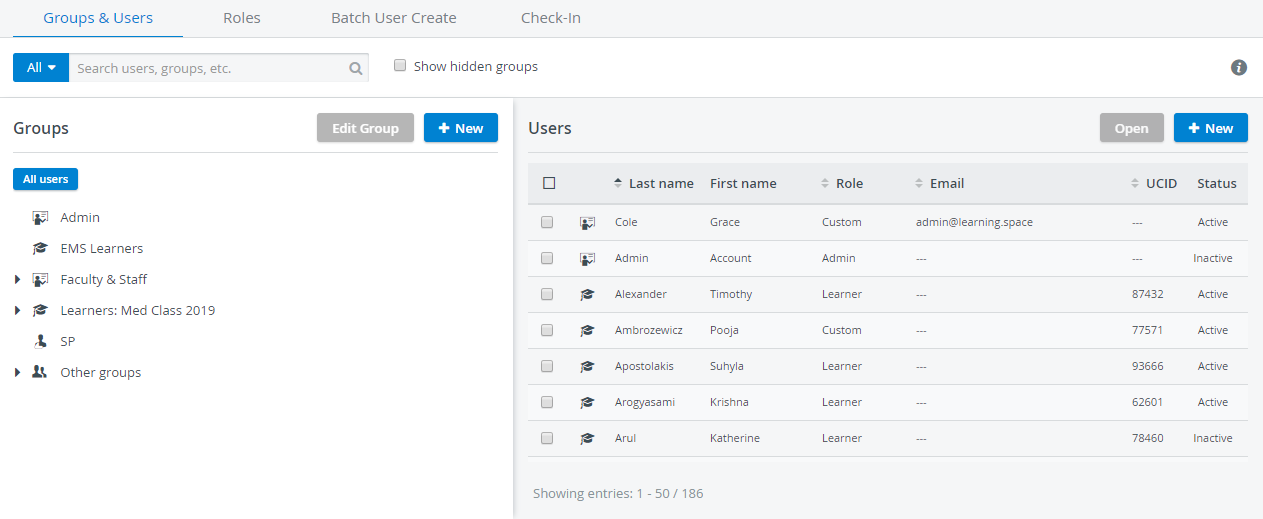
Groups and users are listed on the left and right sides of the page, respectively.
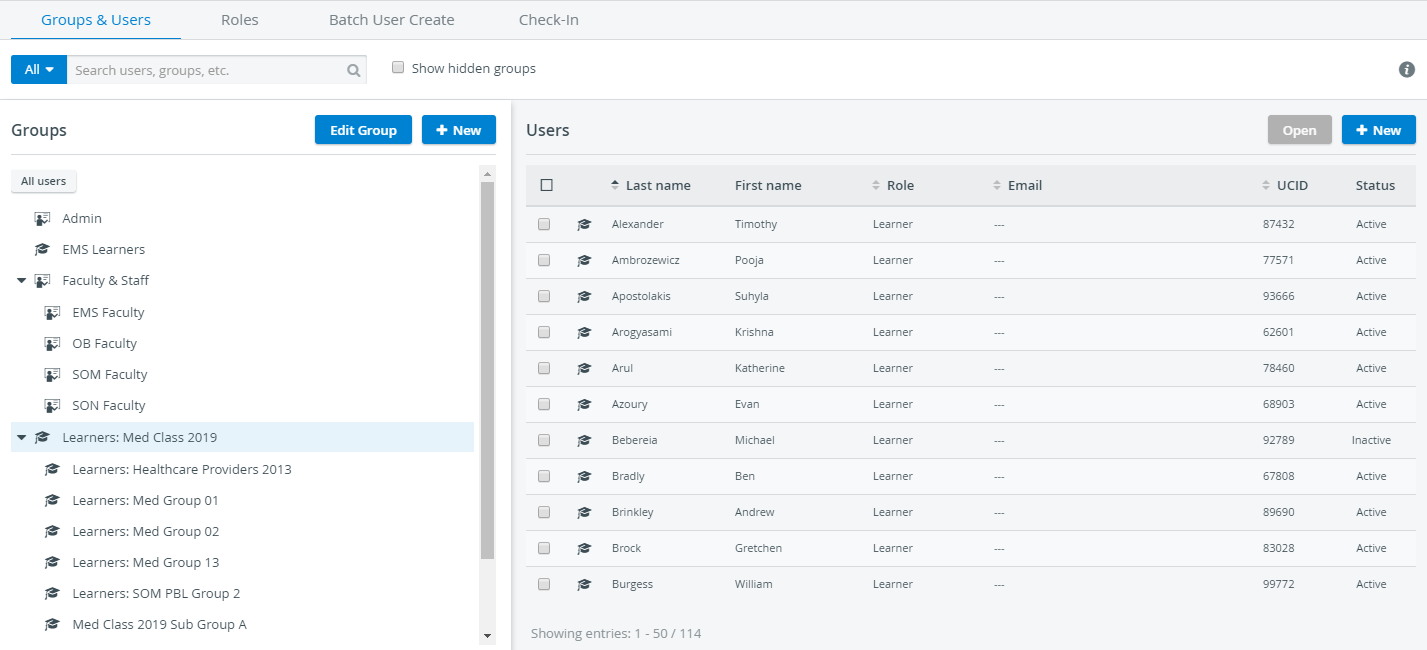
Pictograms
Tip
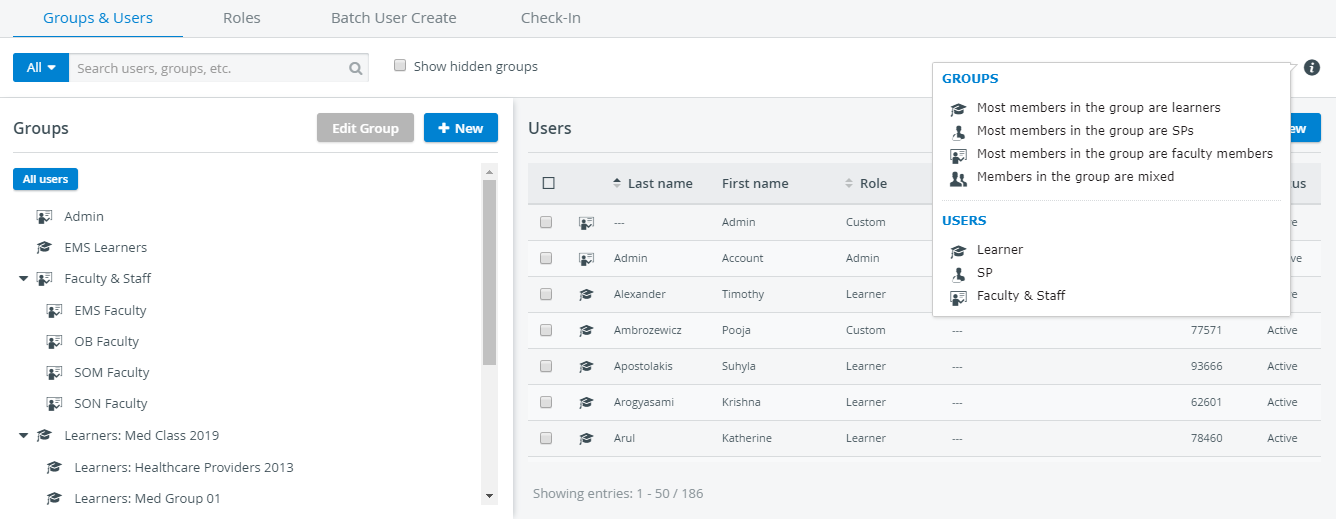
The system distinguishes between different kinds of users and groups using pictograms. Hover over the information tooltip on the right of the screen to see what each pictogram means.

Smart Search Bar
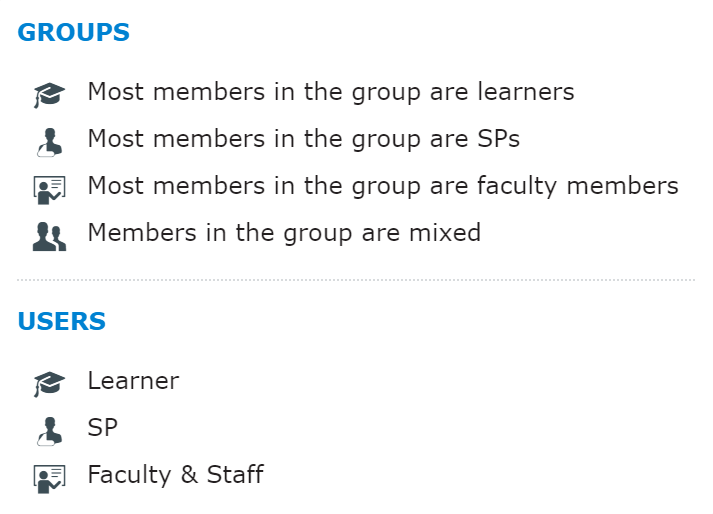
With the smart search bar, you can search users by categories or other personal details.
Click the blue All drop-down to open the search menu to set conditions.
You can filter by type of users: Learner, Faculty, and SPs.
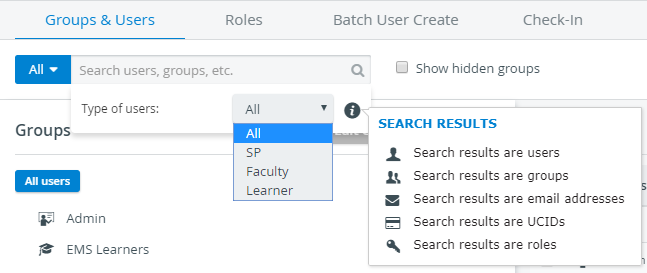
Here, pictograms help to identify the type of results the search bar lists when you enter a search term.
As the snippet illustrates, you can search by user name, group, email address, UCID, and even roles.
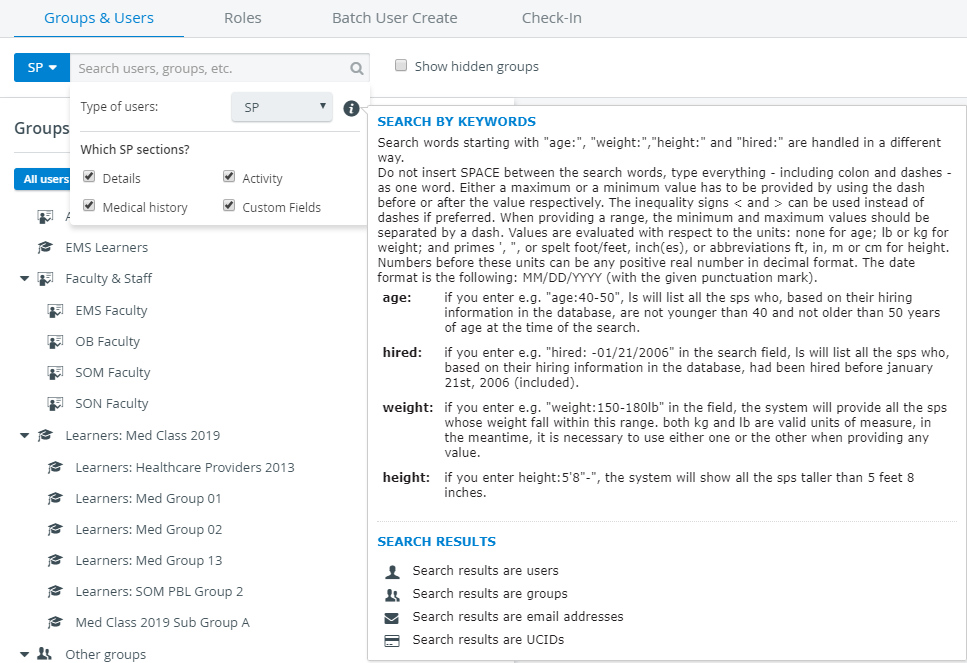
There are additional search filters for SPs: you can select to search the SP's details, medical history, activity, or custom fields, if any, added for the SPs.
The All users button (located on the left under the smart search bar) will list every user registered in the system on the right, even those not added to any group yet.
Hidden Groups
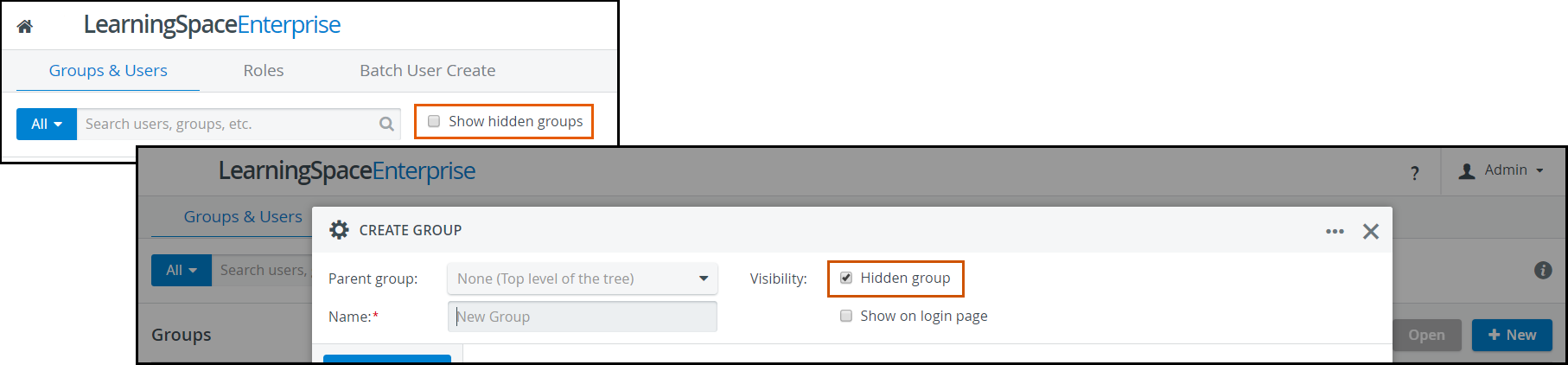
By ticking the 'Show hidden groups' checkbox, hidden groups will appear in the group menu on the left.
The visibility of a group can be set in the Edit Group pop-up window in the header.
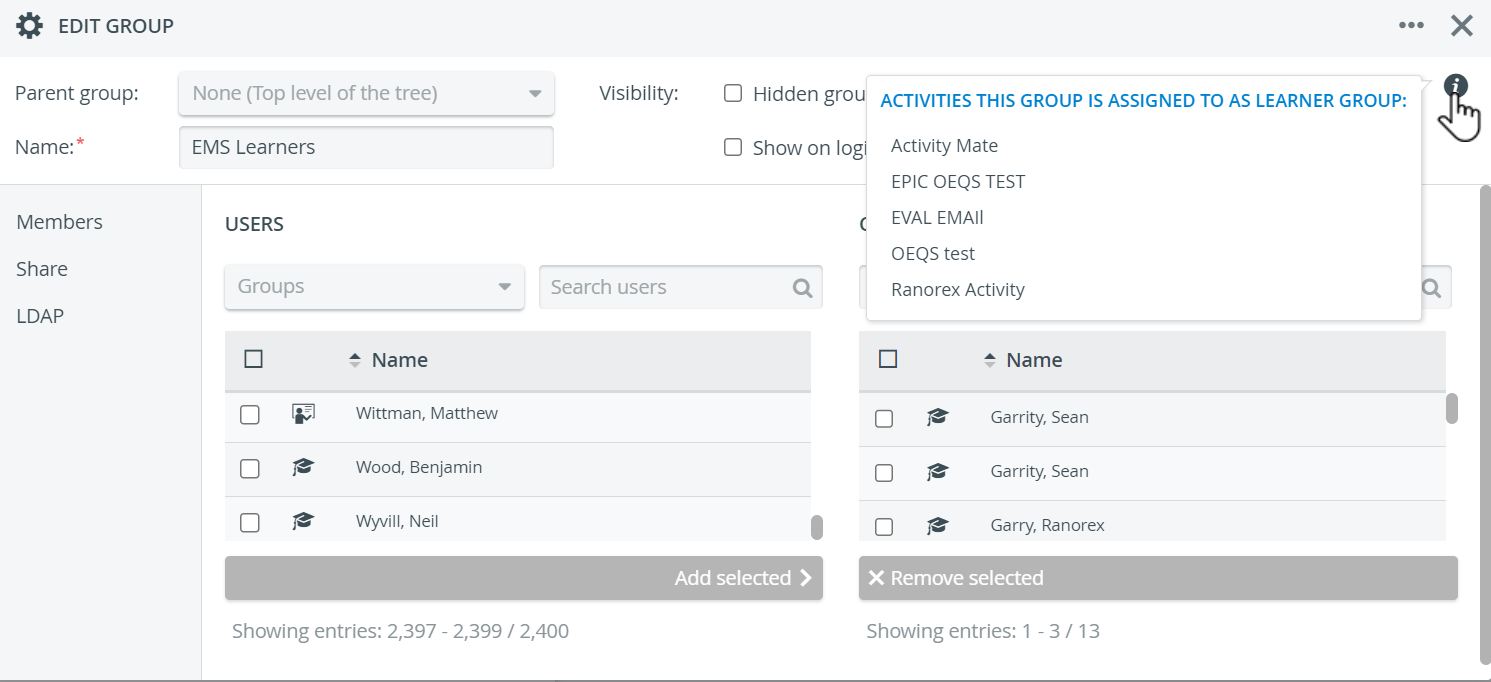
The info icon within the Edit Group pop-up lists all activities assigned to the given group as a participant group (if any).
Group Membership
Users can be added to one or more groups and removed.
Find more information about managing group memberships by following the links below.
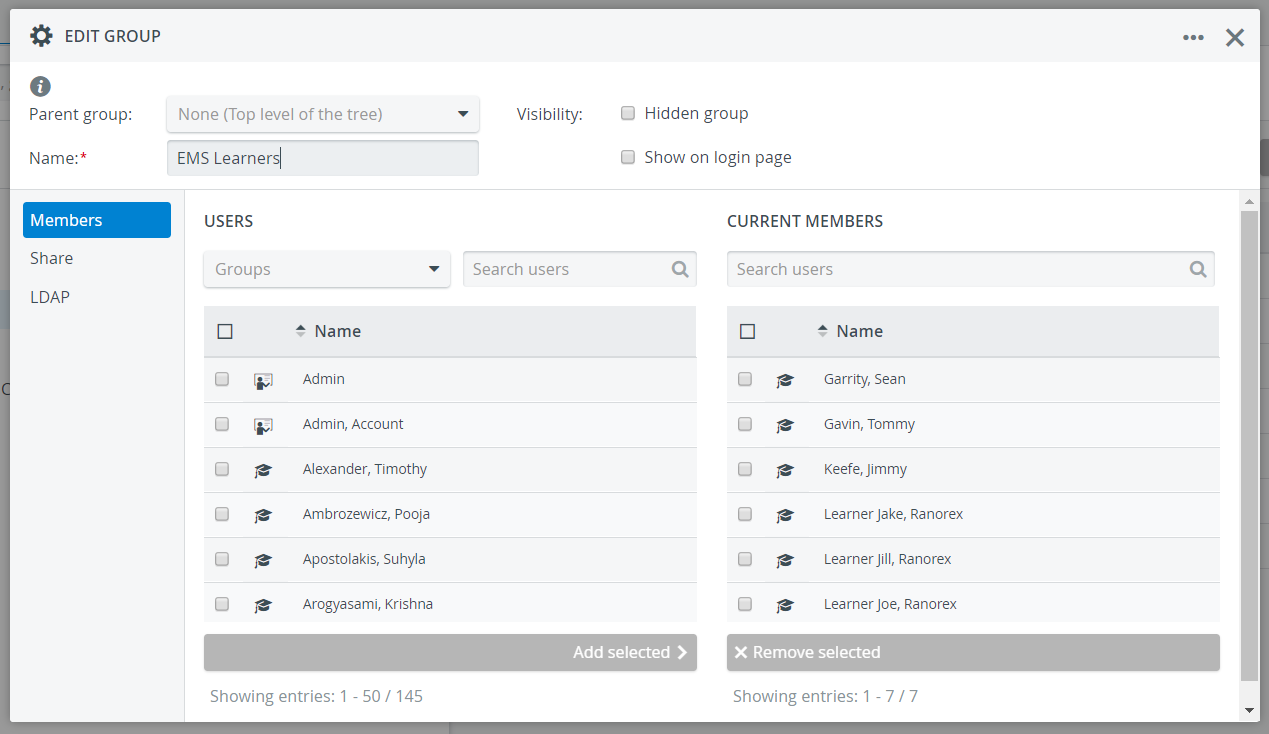
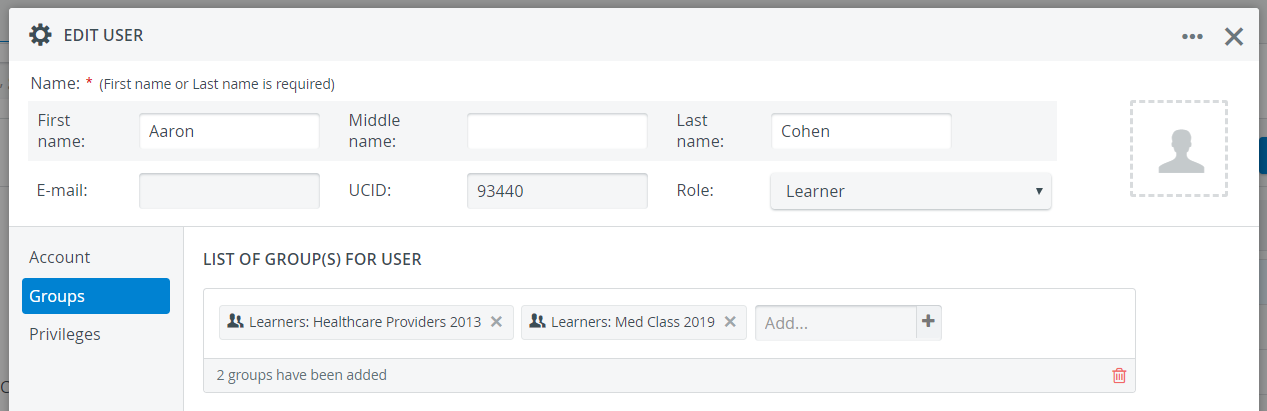
Group membership can be managed in two ways:
Create/ Edit Group pop-up - adding members to a new or existing group
2. Create/ Edit User pop-up - selecting existing group(s) at Groups for a user
Subgroups
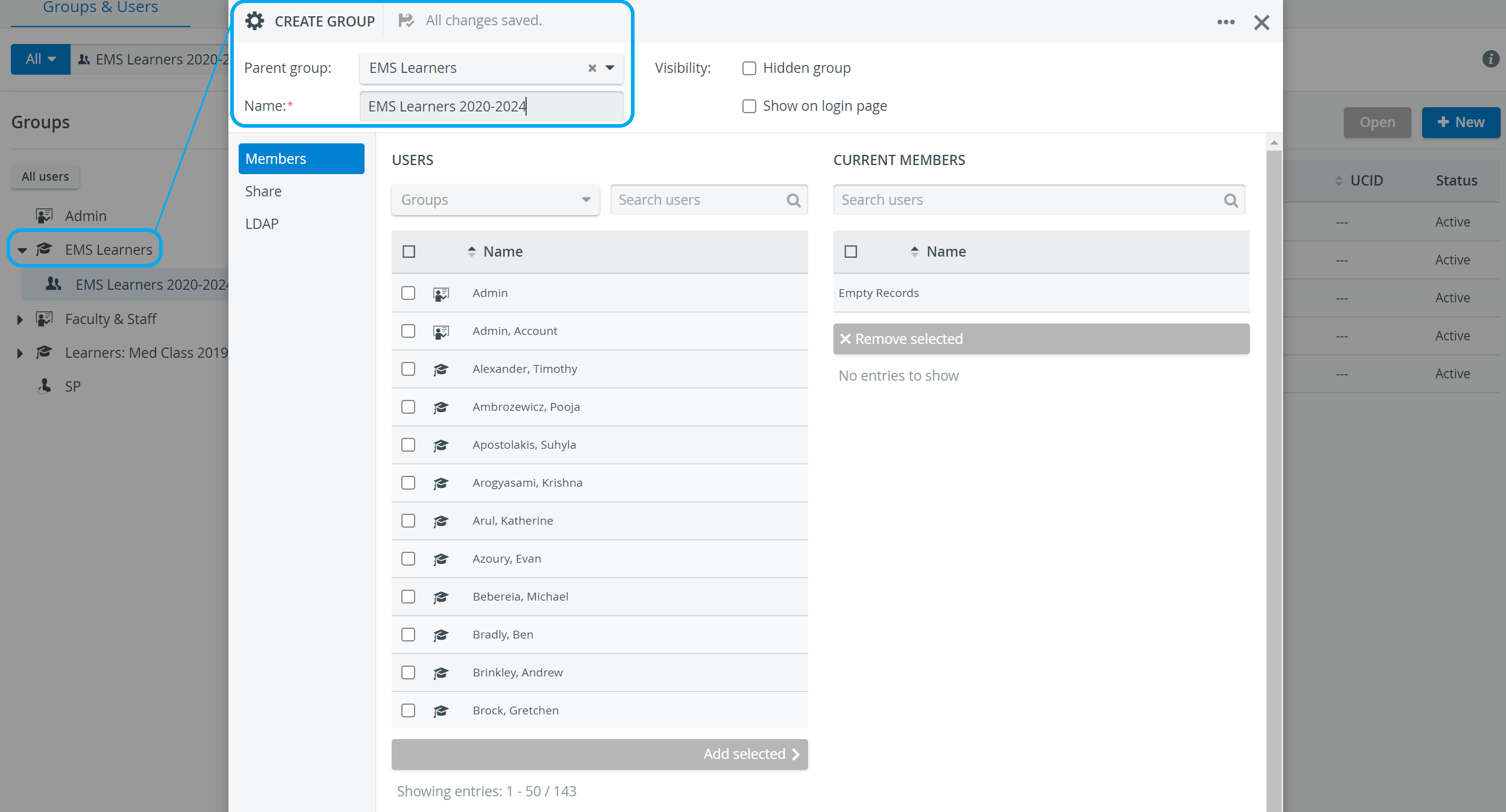
New user groups can be created within already existing larger groups. In such cases, the larger main group is the 'parent' group of the smaller 'child' or subgroup,
including all members of the main group and the subgroup - but not vice versa.
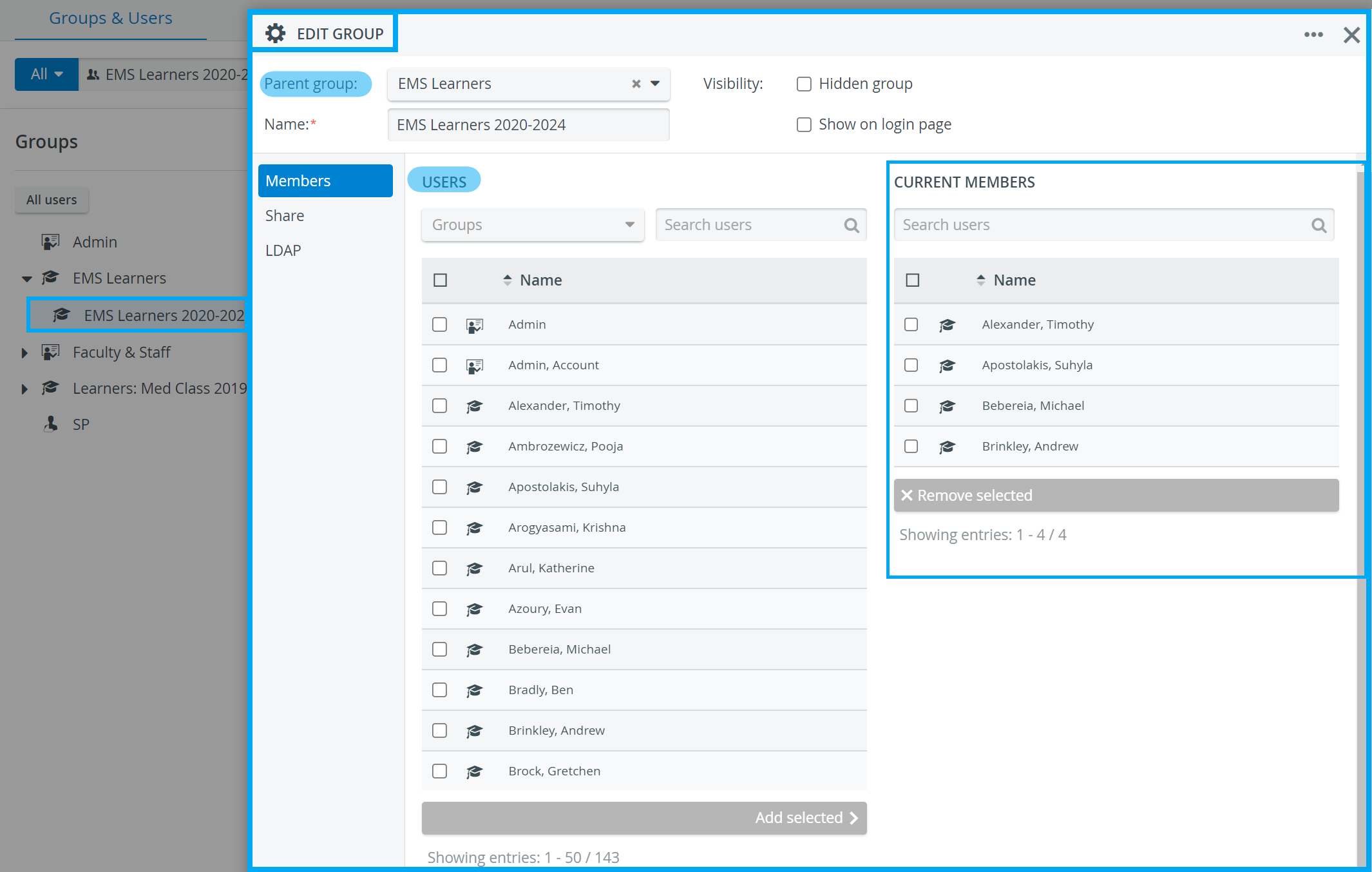
EXAMPLES:
User subgroups can be useful in case
you wish to do differentiated examinations, where only students who achieved certain results should/should not participate
a certain class of students (or any other type of LS users) needs to be 'archived' (i.e., hidden from the user interface), but their stored data should still be available in the system
you wish to add only a subgroup of learners to an event (selected from the Participants dropdown of the Edit Event window)
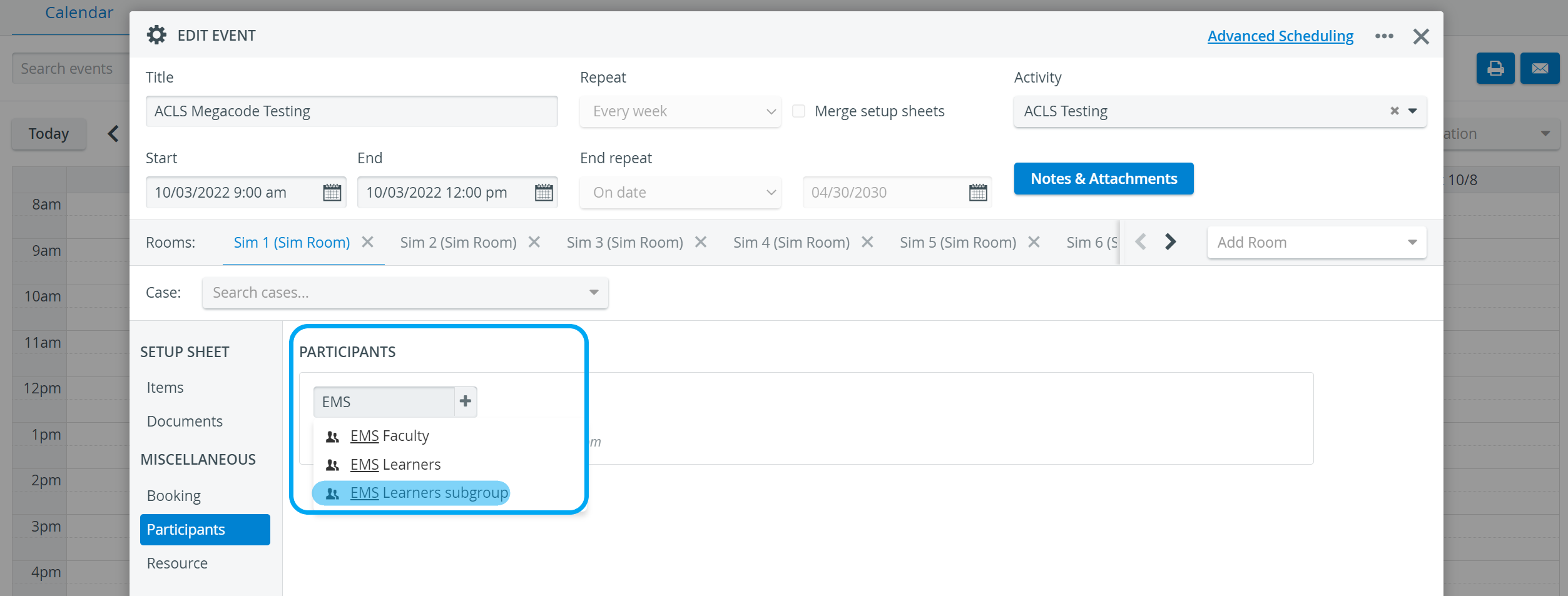
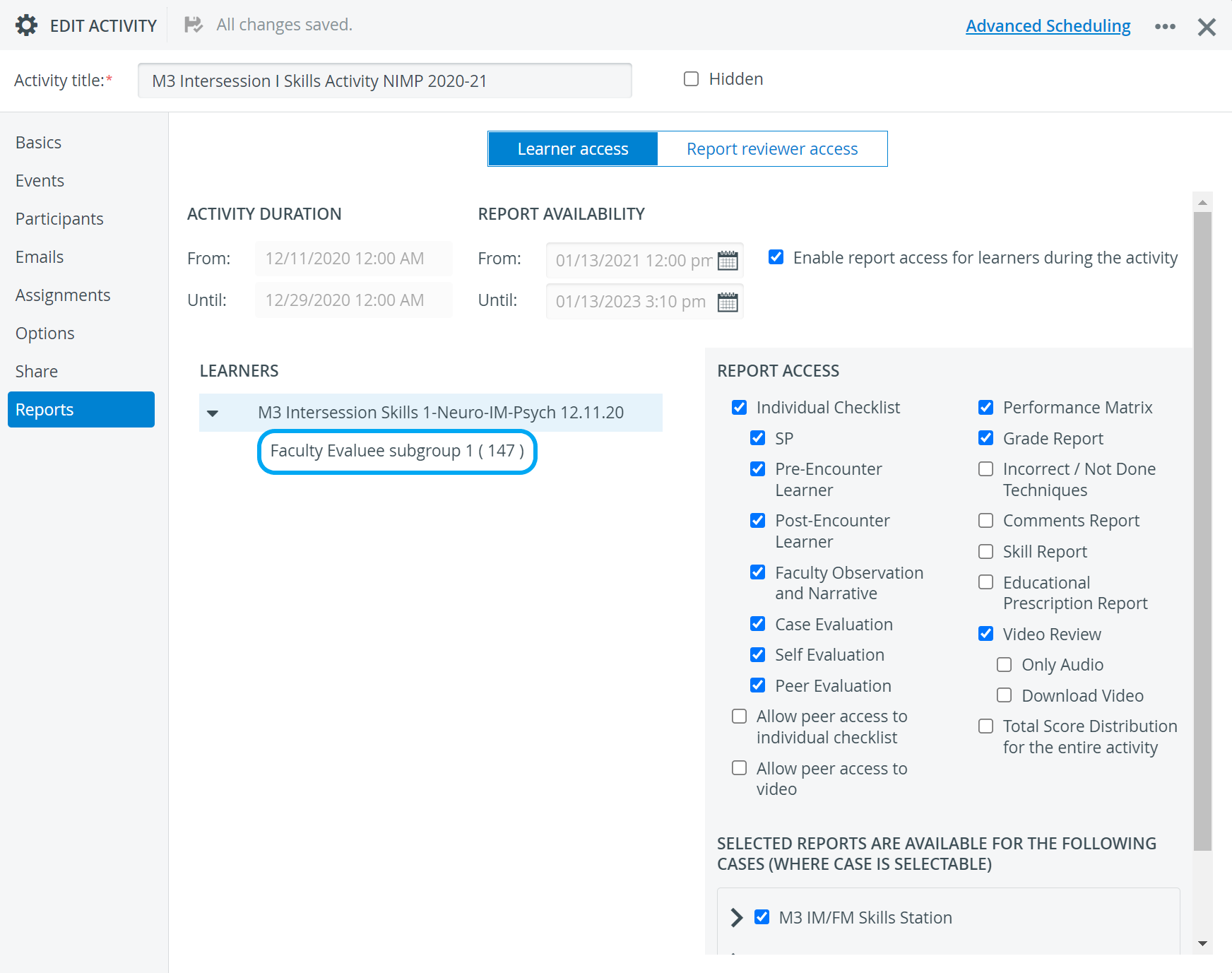
These user subgroups are not equivalent to the evaluator/evaluee subgroups created on the Assignments tab of the Edit Activity window.
(See How to Create Evaluator-Evaluee Subgroup Assignments)
The subgroups displayed on the Reports tab of the Edit Activity window are those set up on the Assignments tab: Faculty Evaluee subgroups are displayed under Learner access, and Faculty Evaluator subgroups are displayed under Report reviewer access. (See more on How to Set Up Report Availability for Report Reviewers and How to Set Up Report Availability for Learners.)
User Data Export to Excel
In the latest version of LearningSpace, a new “Export to Excel” option makes it easy to export the values entered in the User Manager.
The new “Export to Excel” button on the Groups & Users tab is disabled by default. It becomes enabled/clickable once a group is selected on the left side.
The button remains disabled for users with no read (or read and write) access to the User group. (See Sharing User Groups.)
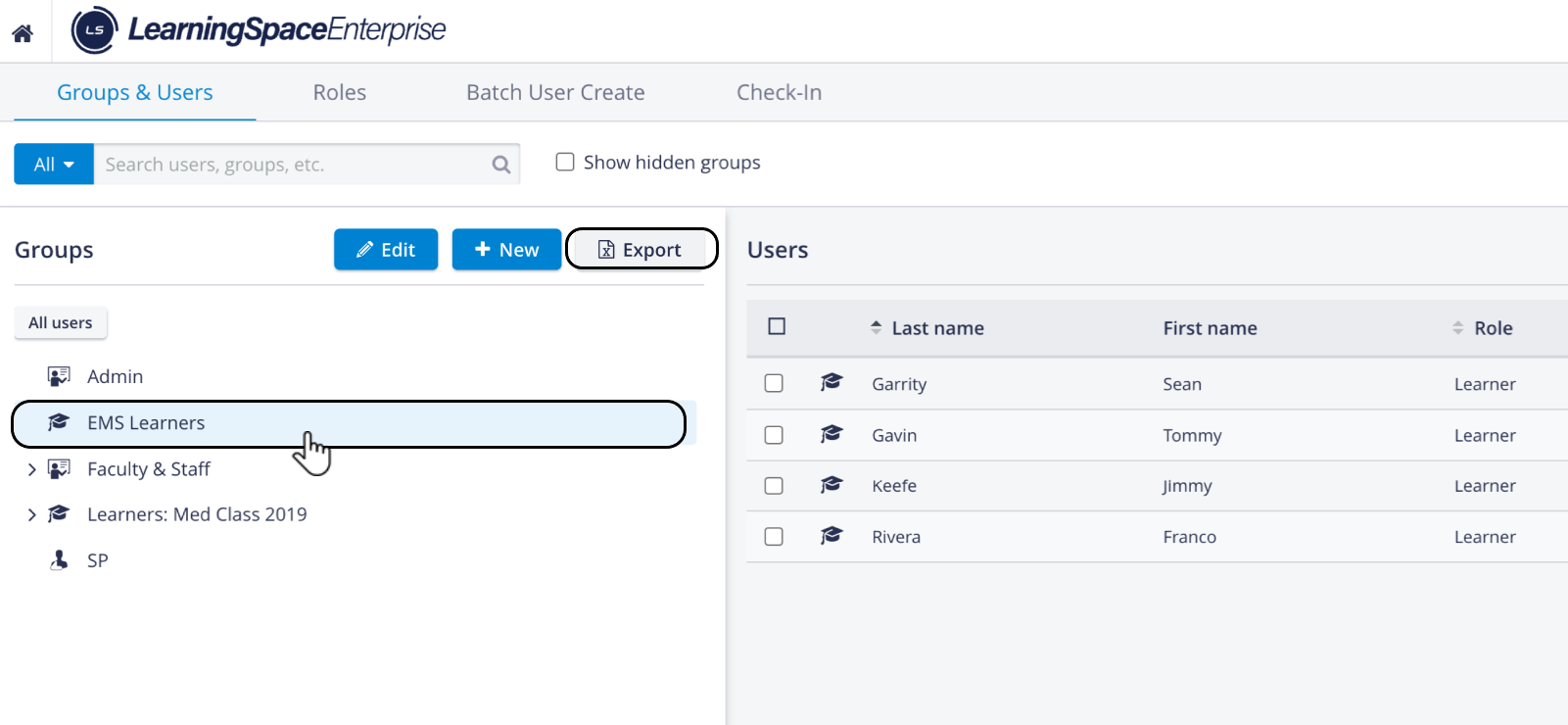
User group selected - Export Button Active
The Export Settings option allows users to customize the data to be exported.

Once the selection has been made, click the Export button. The system generates an Excel file containing all the user data of that User group.
For more information, see "How to Export LearningSpace User Data."
Learn more on our User Manager - How to pages.