How to Export LearningSpace User Data
The new “Export to Excel” option makes it easy to export the values entered in the User Manager of LearningSpace.
A new “Export to Excel” button has been added to the Groups & Users tab, located at the top-right corner of the Groups field.
The button is disabled by default. It becomes enabled/clickable once a group is selected on the left side.
The button remains disabled for users with no read (or read and write) access to the User group. (See Sharing User Groups.)
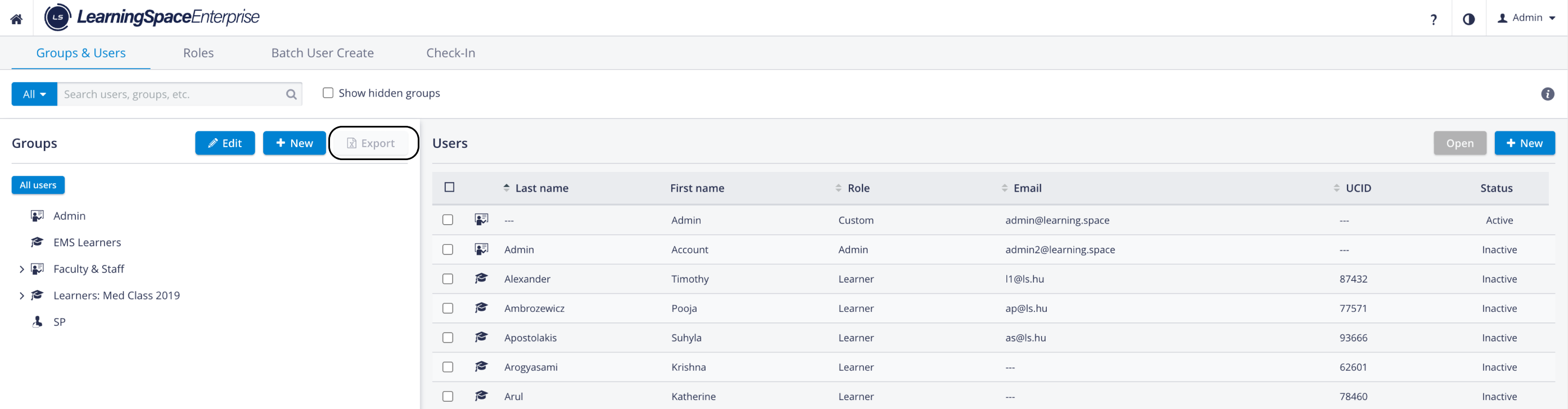
Export Button Inactive
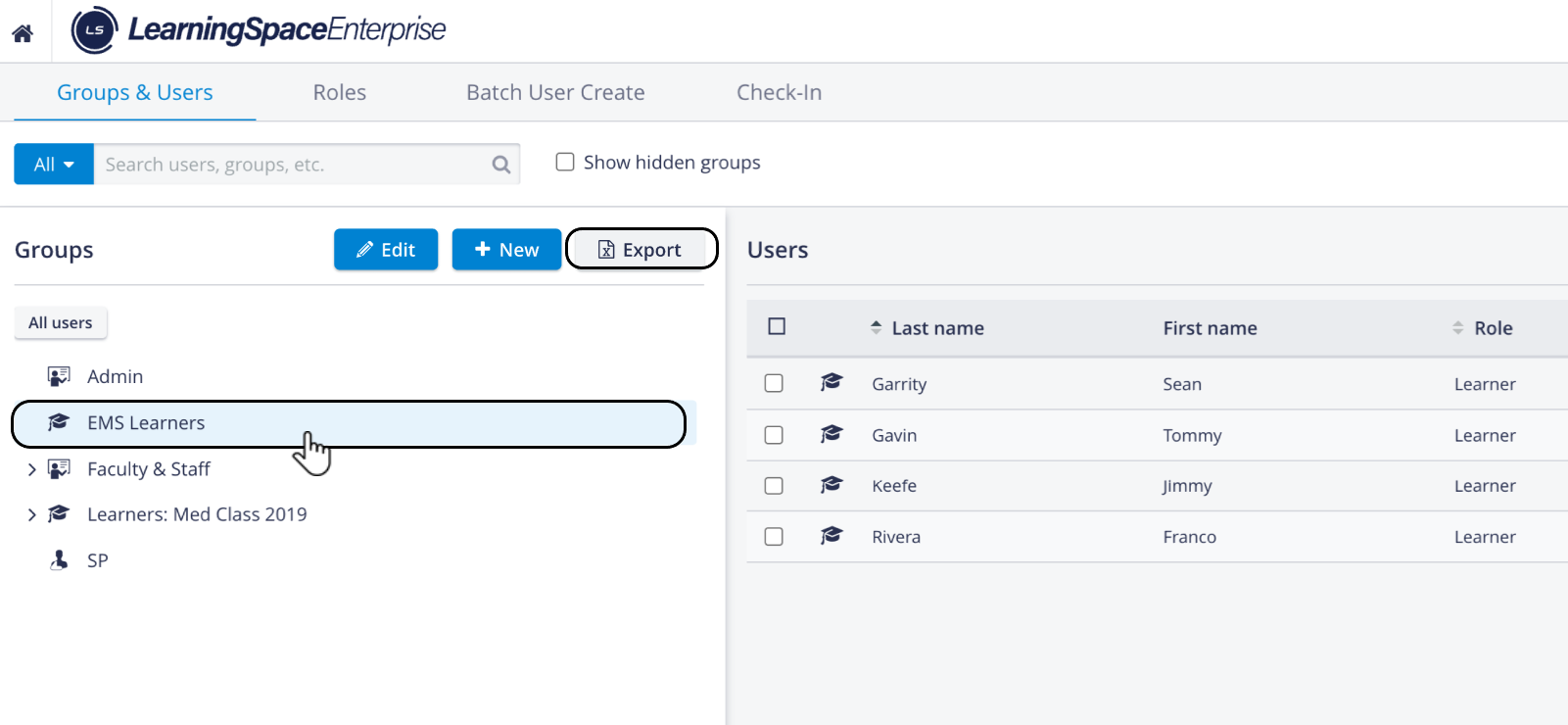
User group selected - Export Button Active
When a group is selected, and the button is clicked, the Export Settings pop-up opens.

Export Settings Pop-up
The Export Settings option allows users to customize the data to be exported.
Here, you can select which data fields to include in the exported file and which to exclude (e.g., email addresses, passwords, group membership, etc.).Categories can be expanded to customize individual fields.
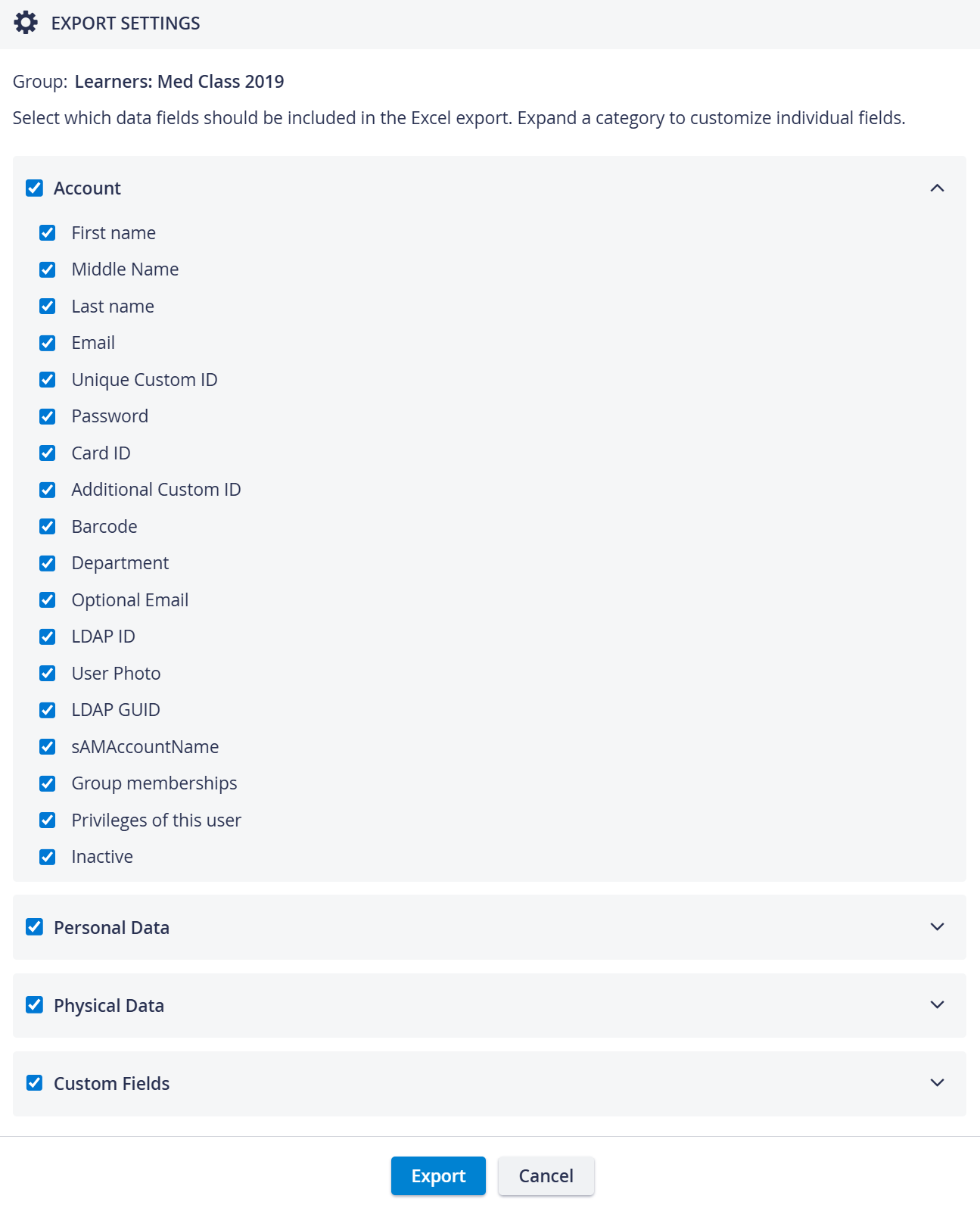
Account Category
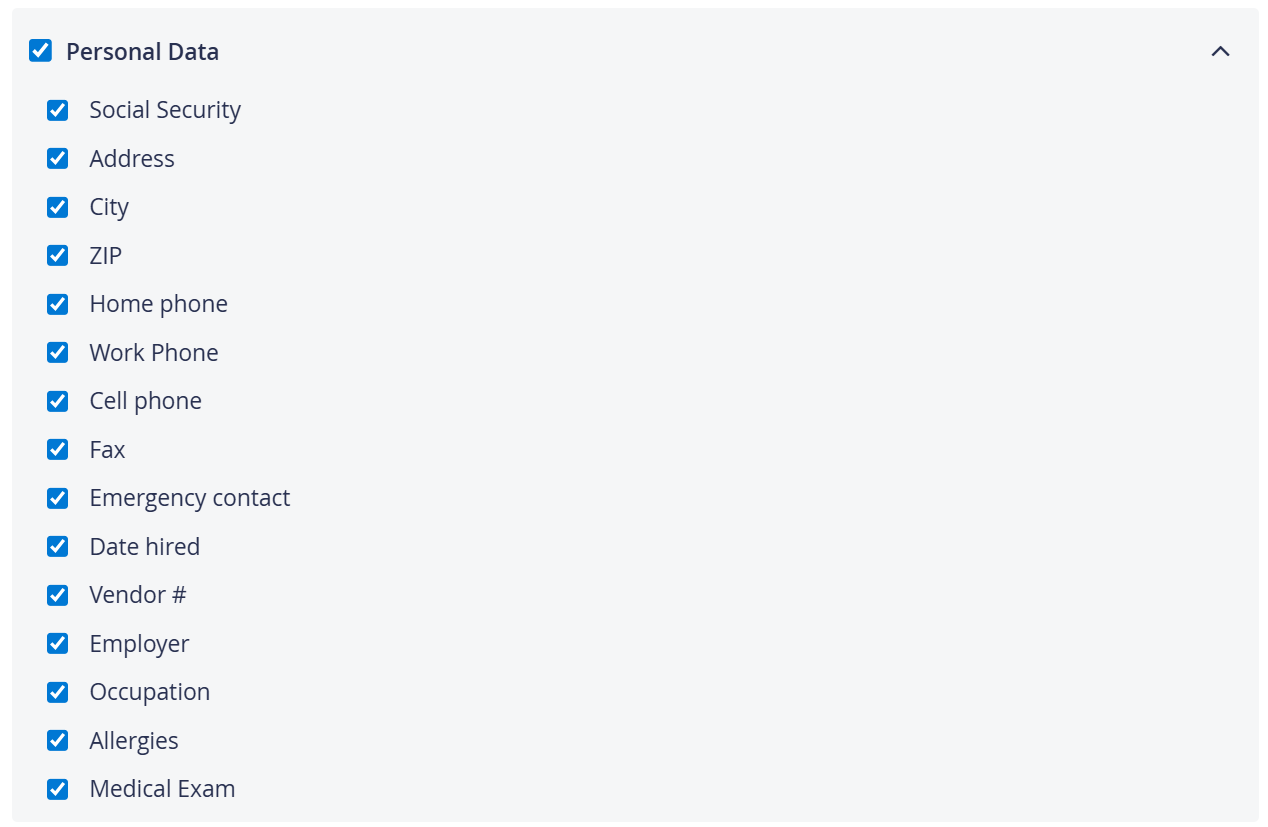
Personal Data Category
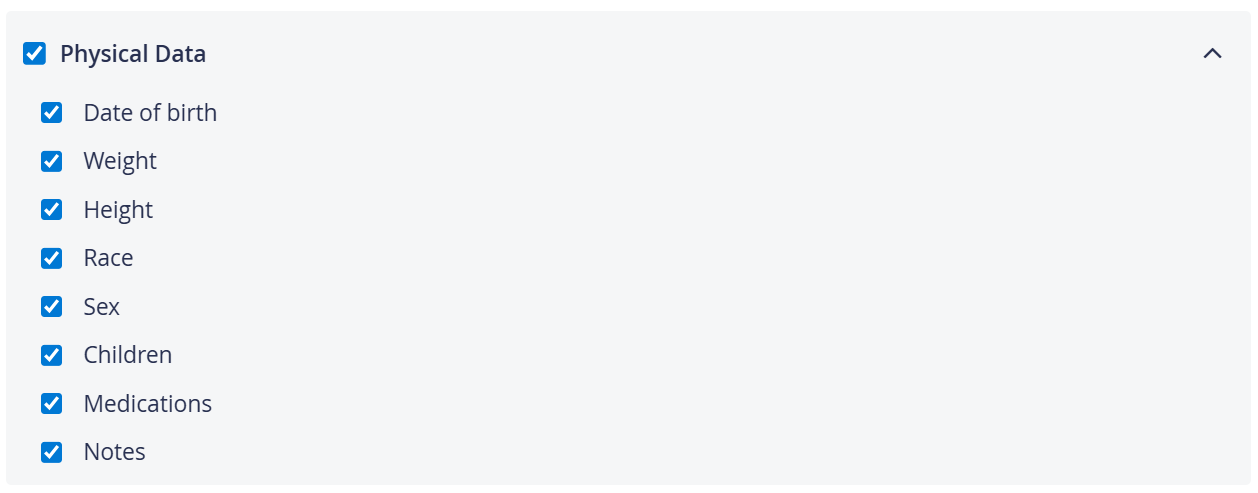
Physical Data Category
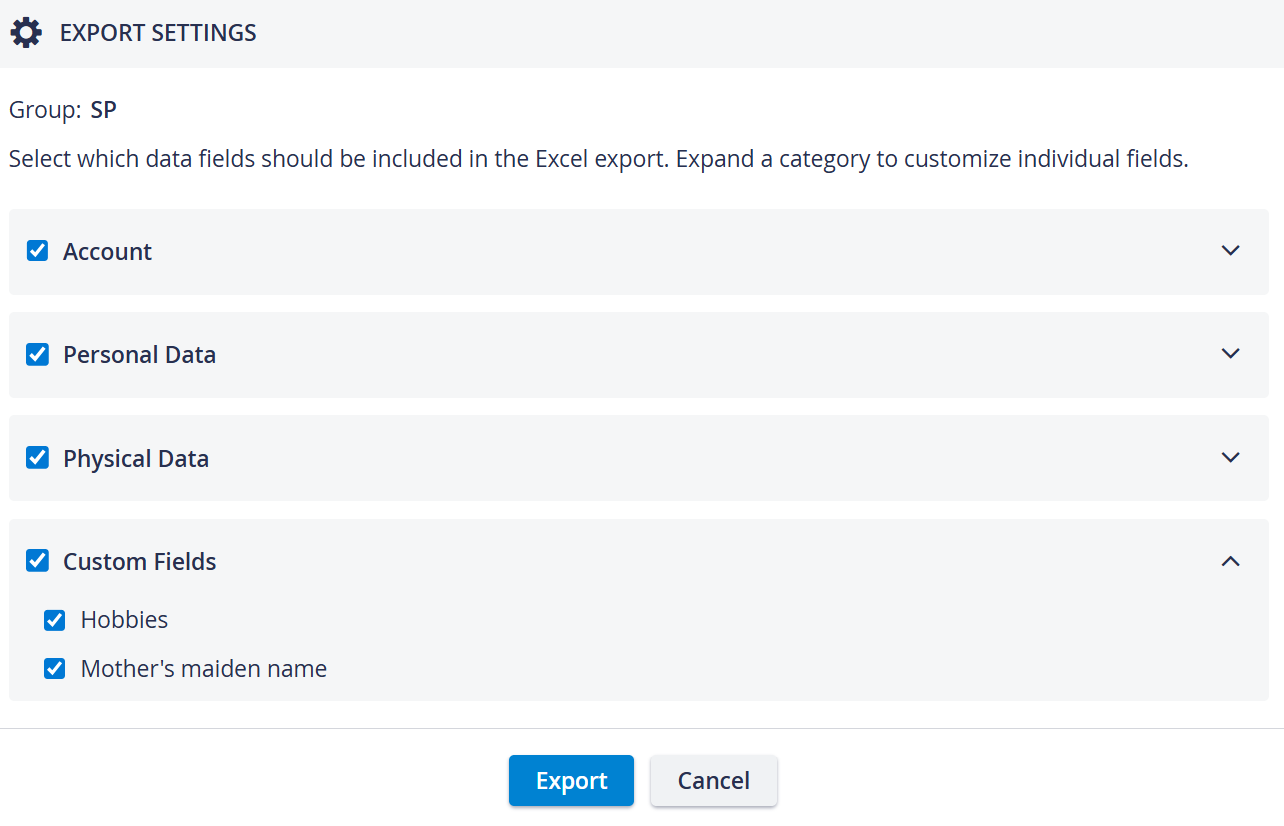
Custom Fields Category (SP-s only)
 TIP: Partial selections are marked with the blue sign.

Category Partially Selected
Once the selection has been made, click the Export button.
The system generates an Excel file containing all the user data of that User group.
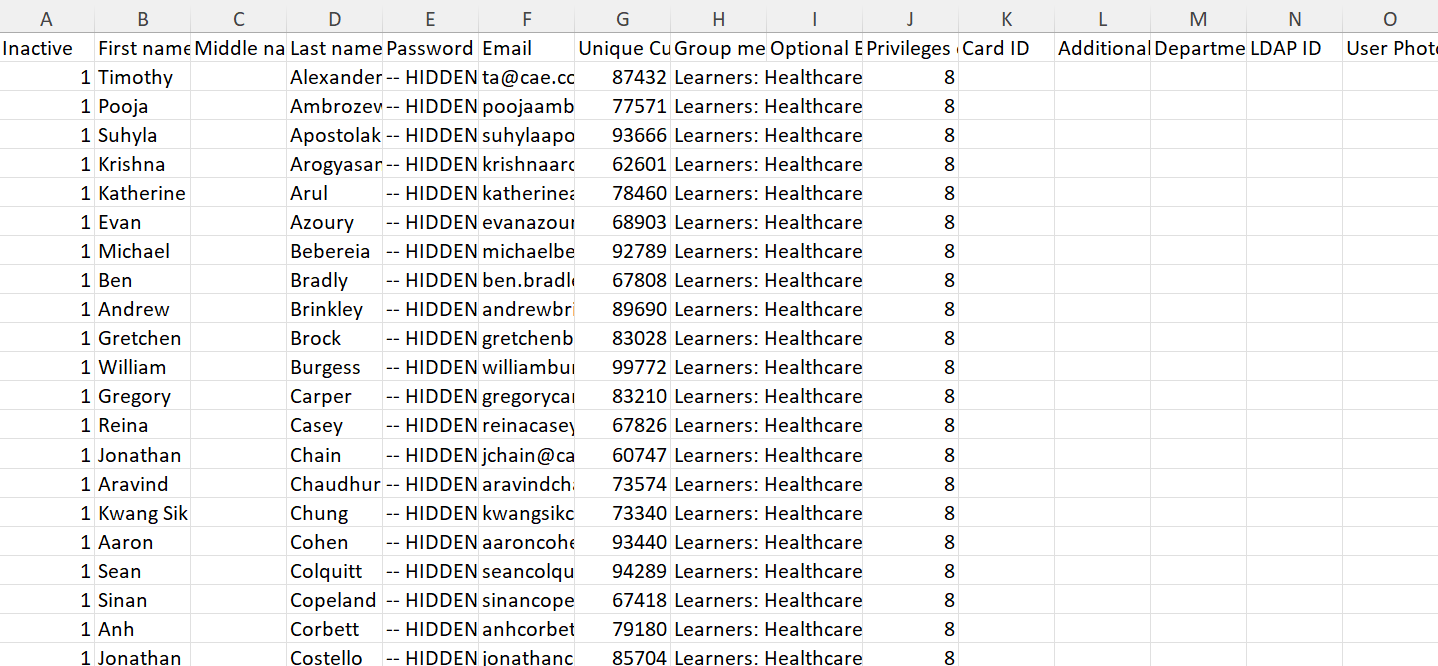
The data exported this way is currently included in the Batch User Create (BUC) export file.
Unlike in BUC, the exported Excel file shows each Custom Field (for SP-s) in a separate column.
IMPORTANT! The files exported via the Export to Excel option are not compatible with the BUC file and thus cannot be imported back into LearningSpace via the BUC process.