Calendar Views
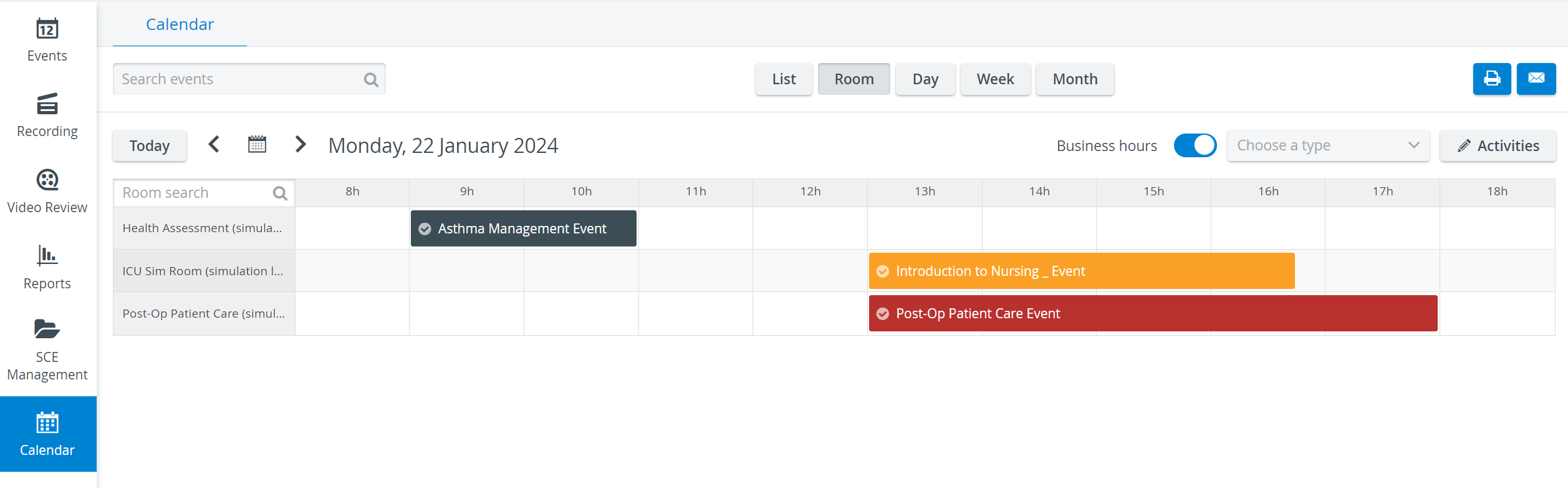
The Calendar can be displayed by Room, Day, Week, or Month, and a List view is also available. This view offers a half-year outlook with a list of all scheduled events. By default, the calendar appears in Room view, and the views can be changed by clicking the corresponding button at the top of the screen.
By default, all events are displayed, color-coded according to the type of Activity they are assigned to. The display can be narrowed by selecting a specific activity type from the drop-down at the top right of the calendar. Once a type is selected, only Events assigned to the selected type of Activity will be displayed; the rest will appear pale.
Scheduling an Event is possible in the Room, Day, Week, or Month views of the Calendar module. See the Scheduling a Stand-Alone Event page.
Business hours
Displaying hours is relevant in Room, Day, and Week views. By default, the Business hours switch is activated; that is, only the business hours are displayed.
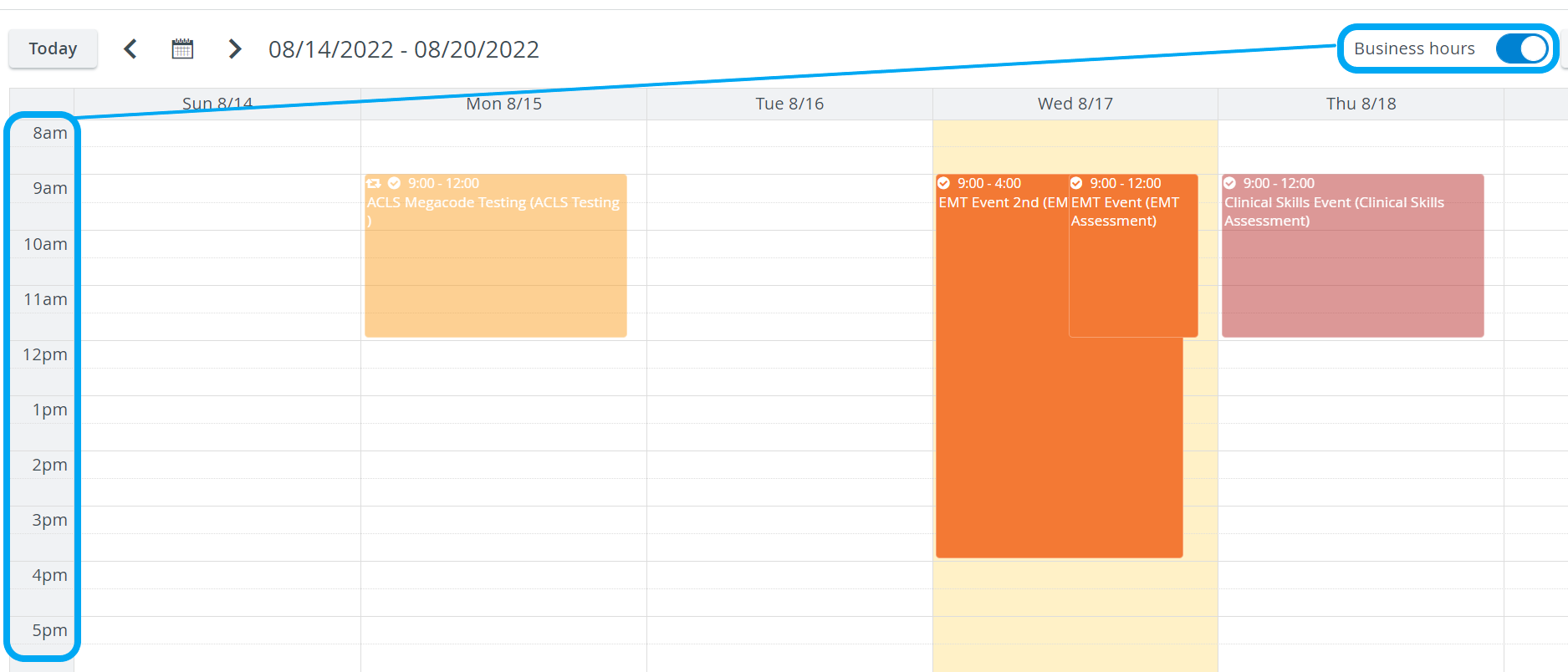
Modifying which period is considered Business hours is only possible in Room View and is a custom setting for individual users.
Printing the content of the Calendar
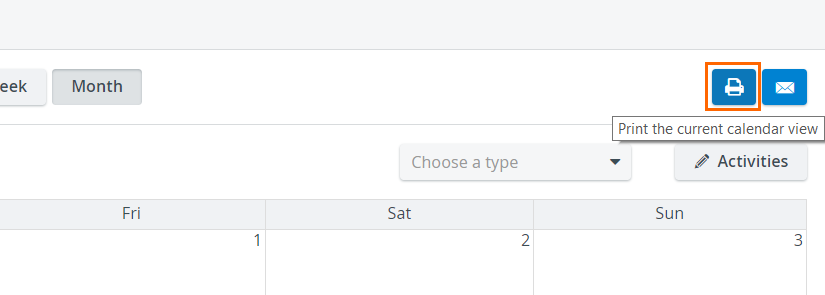
You can print the different calendar views by clicking the printer button to the right of the view buttons (under the user account settings).
When printing, the settings can be adjusted through the browser's printing options.
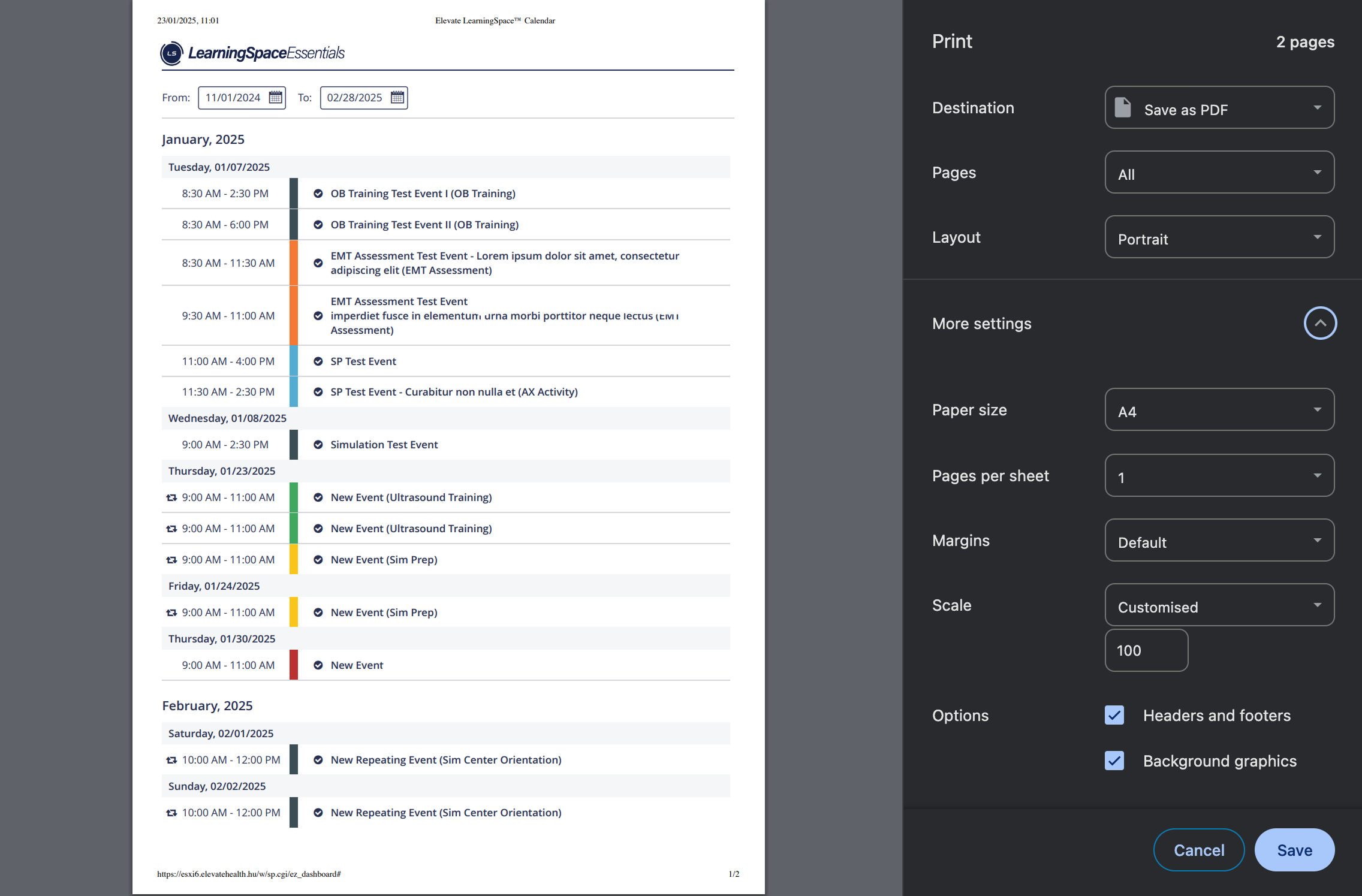
Print View of the Calendar's List View
Exporting a Calendar to an Excel (XLSX) file
Calendar data can also be exported and printed as an XLSX file. This option is available in the List View.
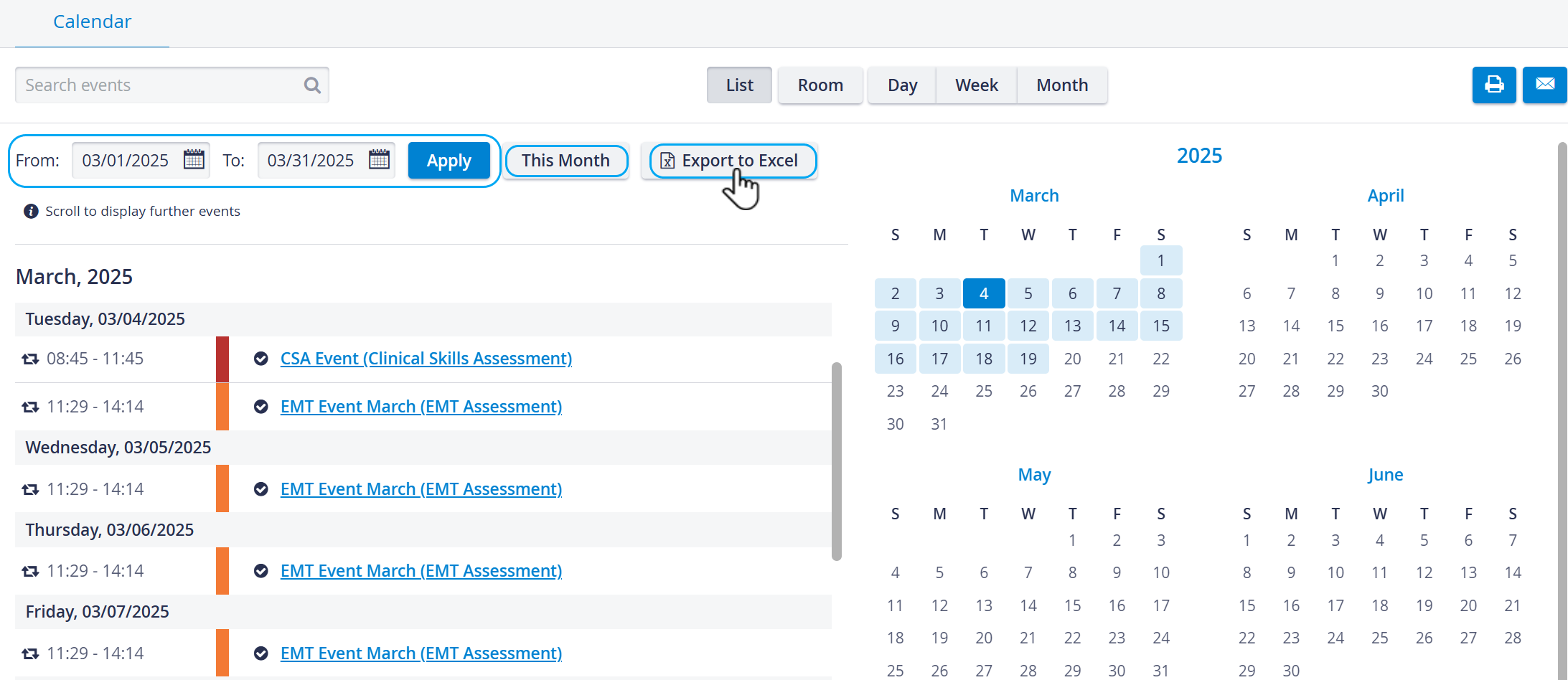
The exported Excel (XLSX) file (report) displays
Start Date, End Date (time interval selected for the report)
Date, time, and title of the listed Events
Day of the Week (displays the day of the week (e.g., Monday, Friday) for each event’s date)
Duration (Minutes) (shows the duration of the event in minutes, calculated from the event’s Start Time and End Time.)
Event title and Activity title
Activity type (displays the type of the Activity)
Activity's Learner Group size (number of members in the Learner Group of the Activity assigned to the Event)
Room(s) (displays the event's associated room(s).)

All instances of recurring events are listed in the report.
The format of the times and dates is shown according to the System settings.
For more information, refer to Can a list of scheduled events be printed?
E-mailing the content of the Calendar
By clicking the envelope button at the top right of the screen, the calendar view currently displayed can be emailed to selected users or groups of users.
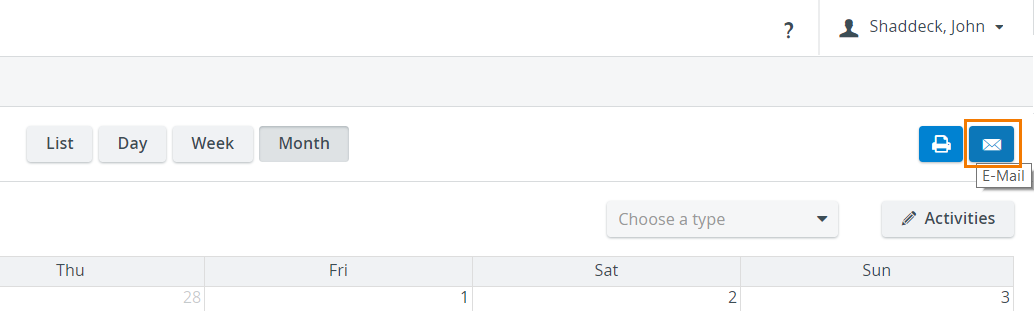
The addressees can be added in the Send Email pop-up window that is prompted by the envelope button.
For further information, visit our Calendar - FAQ and Calendar Practical pages.