OEQS AI Assistant
What is OEQS AI Assistant?
In LearningSpace, Faculty use the LearningSpace OEQS interface to evaluate learner pre- or post-encounter checklists.
NOTE: Once a learner completes the pre-encounter or post-encounter checklist, and the Checklist Prefill is globally enabled in LearningSpace, the system generates a Prefill for the relevant OEQS questions.
The new ‘OEQS AI Assistant’ feature extends the Checklist Prefill featureset and helps OEQS scoring users spend more time on prioritized tasks: AI helps evaluate textual learner responses by offering a range of responses to checklists related to learner responses.
For this aim, a new data processing engine has been introduced that can
digest the respondent’s answers to open-ended questions,
score them using the questionnaire,
and then return the proposed fill results for the OEQS scoring checklist.
The engine provides a confidence level for each checklist item, so scoring users can quickly identify and rate questionable items and complete the checklist more quickly.

OEQS Prefill is only available in English.
The feature is not available for offline LearningSpace users.
Conditions for OEQS Assistant Generation
The OEQS Assistant feature will only activate when the following conditions are met:
A text item or structured text item in a checklist has a Special Section questionnaire assigned to it as the scoring method.
Textual answer has been submitted in the text item or structured text item.
The OEQS Assistant Availability setting is enabled in your LearningSpace instance.
IMPORTANT
How to Enable OEQS AI Assistant
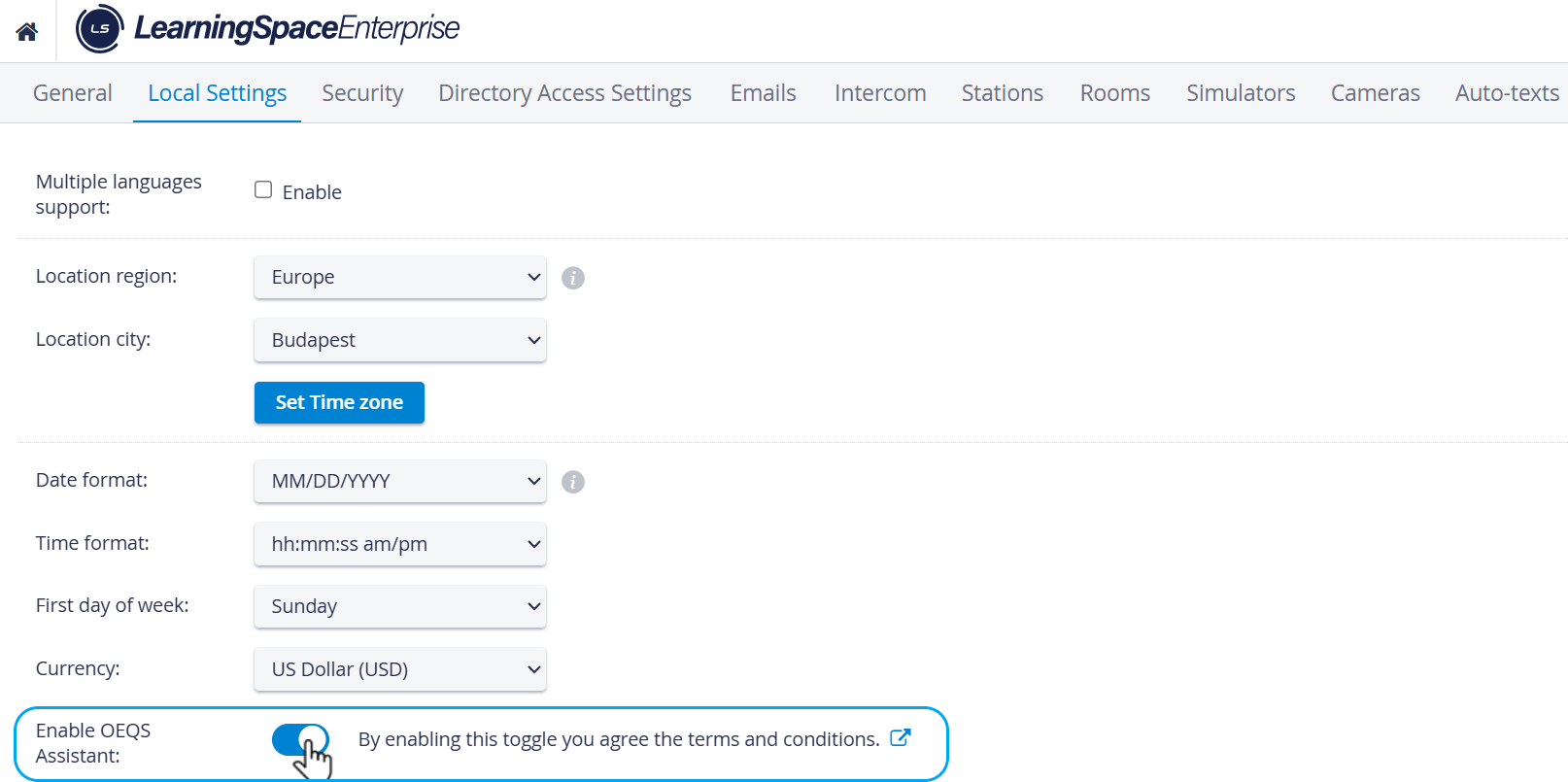
The OEQS AI Assistant can be enabled with the respective ‘Enable OEQS Assistant’ toggle under the Local Settings menu of the System Manager.
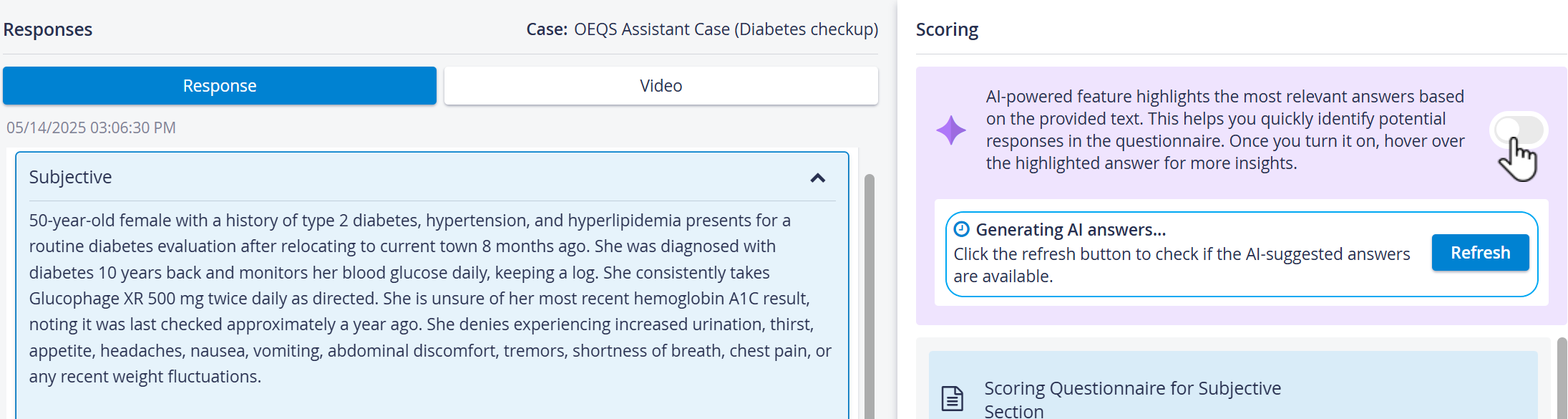
IMPORTANT: If the global OEQS Prefill setting is enabled AFTER a submission has been made for a given checklist, the checklist will NOT have an OEQS prefill available when accessed via OEQS scoring.
For assistance, please contact your LearningSpace System administrators or email ls-support@elevatehealth.net.
How does OEQS AI Assistant Work?
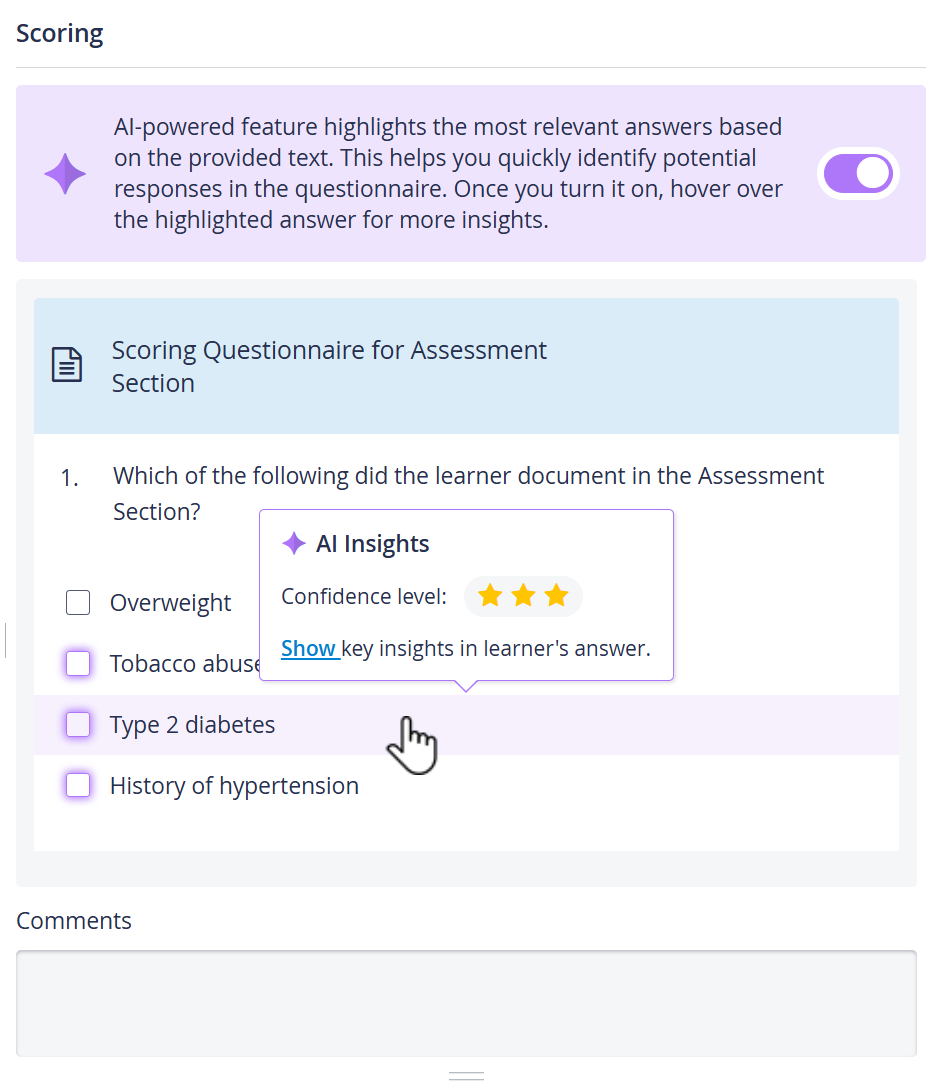
If the generation is successful, the AI will recommend the presumably correct answers highlighted in purple.
When you hover over the selected item, a tooltip appears. This tooltip indicates the AI's confidence in the answer's correctness.
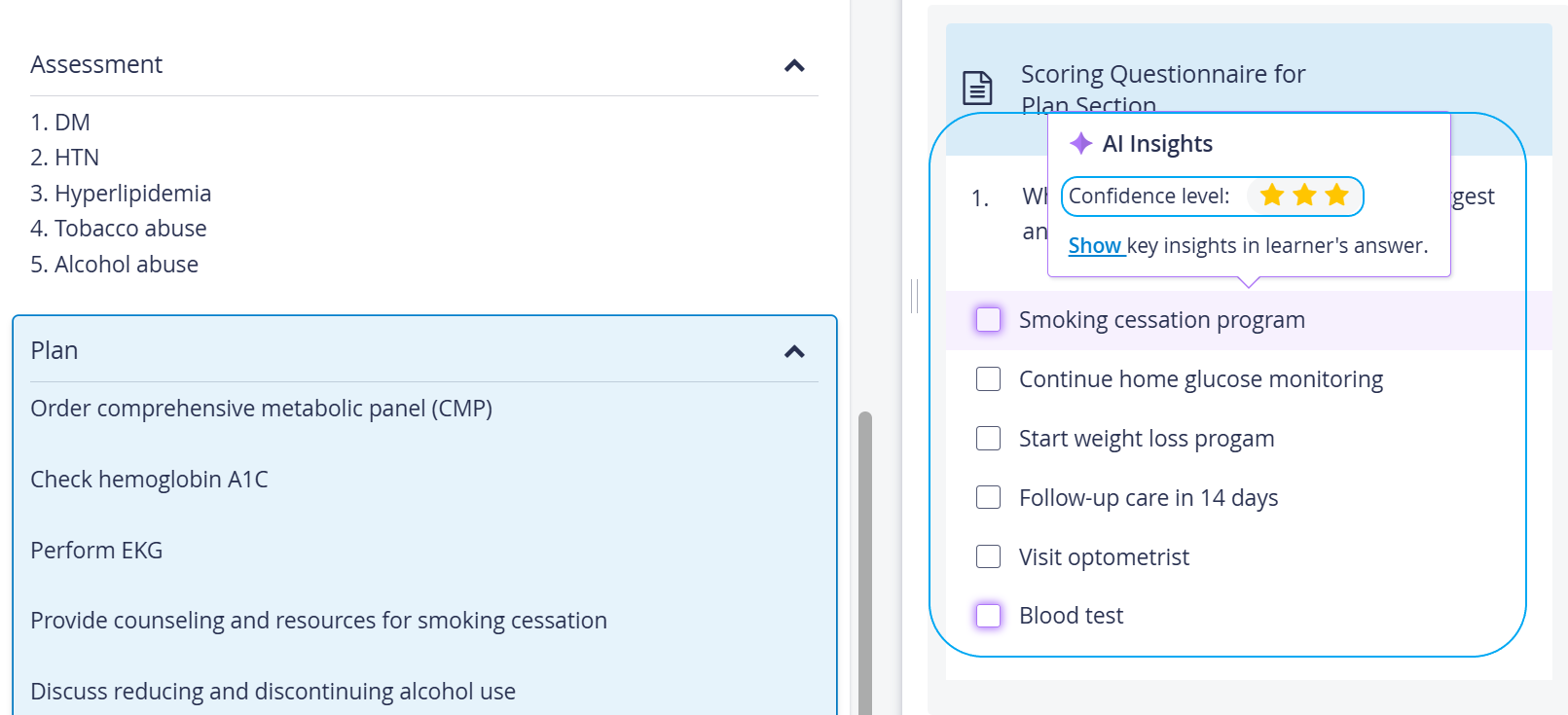
Show Key Insights Option
The evidence in the learner's answer can also be revealed by clicking the "Show key insights in learner's answer" text; the AI will display text snippets that explain why the answer is correct.
In this case, the item also gets a purple border, indicating which answer option's key insights we are showing.

When the insights appear, the user can navigate between the results using a small stepper interface.
Only insights for one answer item can be shown at a time.
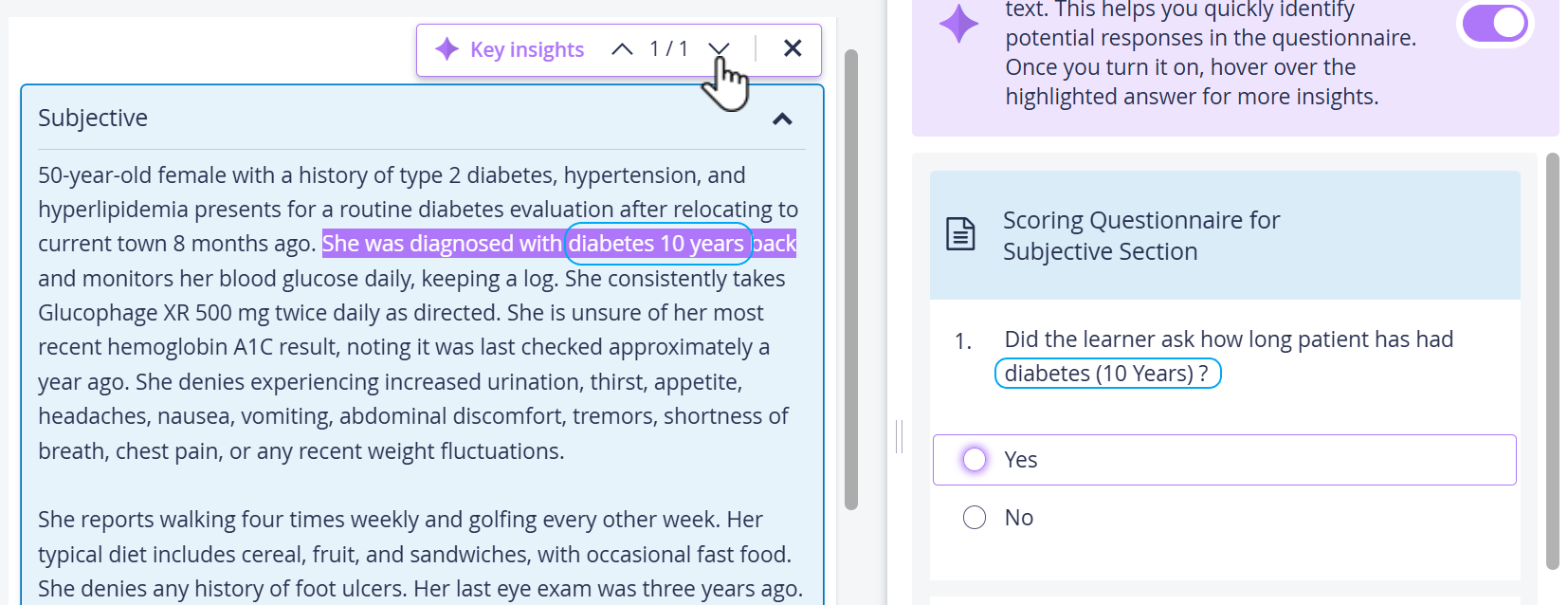
The Key insight interface can be dismissed in two ways:
Click on the X on the right side of the small search box.
Hover over the answer item and click the "Hide key insights" text. The interface returns to its original state.

Linked Questions - Joint Evaluation in OEQS Scoring
The new Joint Evaluation Option enables grouping questions for OEQS scoring in the Case Manager. With this feature, questions can be linked in the Case editor so that they can be graded together using a single grading questionnaire in OEQS.
LearningSpace’s OEQS AI Assistant can handle these grouped items: AI reviews responses to linked questions and provides answer suggestions based on the information as a whole.
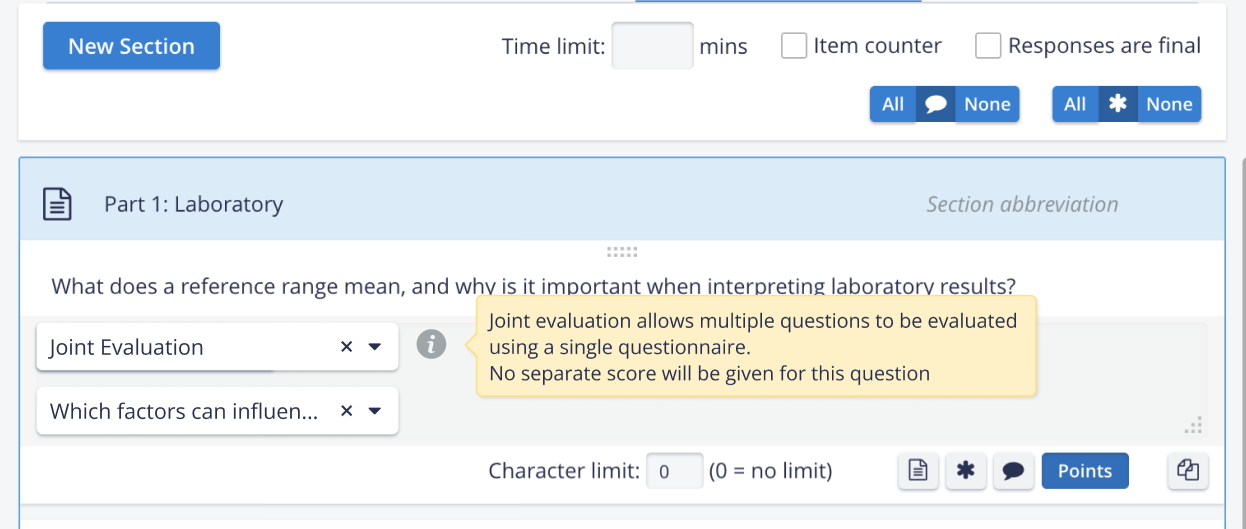
For details, see How to set up Joint Evaluation.
On the OEQS Scoring page, the OEQS Responses panel highlights linked questions (in light blue) and allows easy navigation
Admin or OEQS Data Entry users can see which questions/learner responses are linked together, and can more easily navigate among them during scoring.
The navigation arrows allow users to move only between the linked items during scoring.
The question/learner response box in the Responses panel displays the number of questions linked.
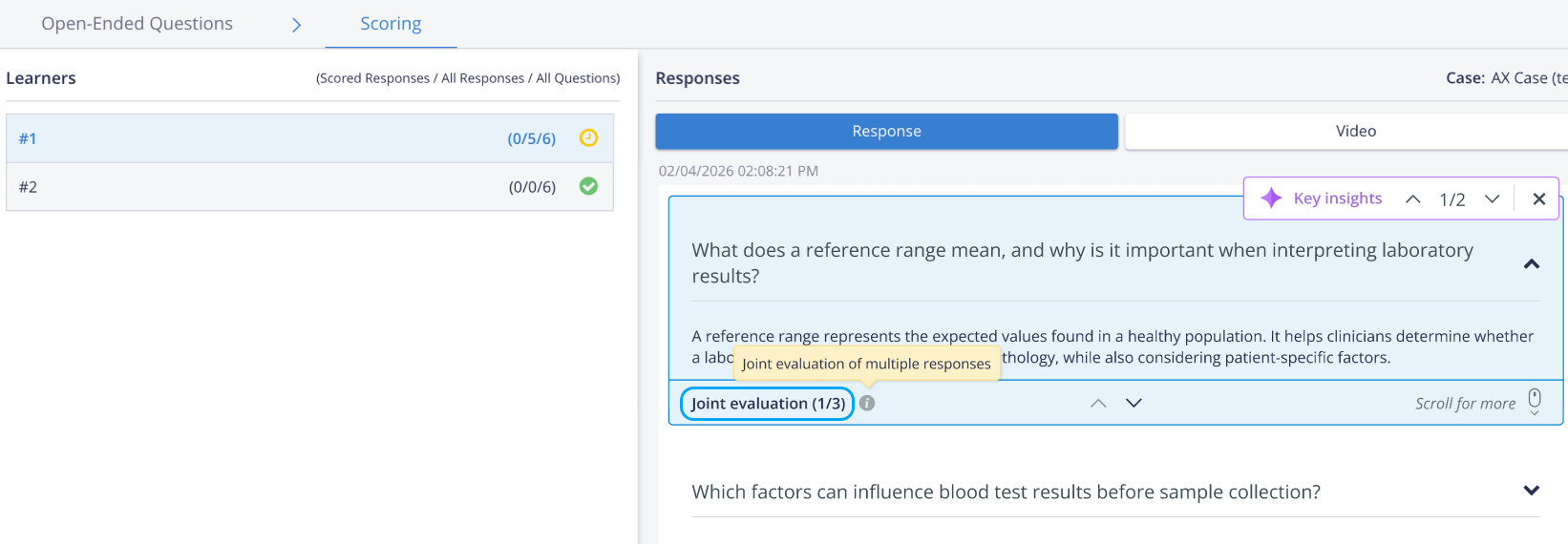
If OEQS AI Assistant is enabled, Key insights in the suggested AI answer jump to the linked question they are found in.
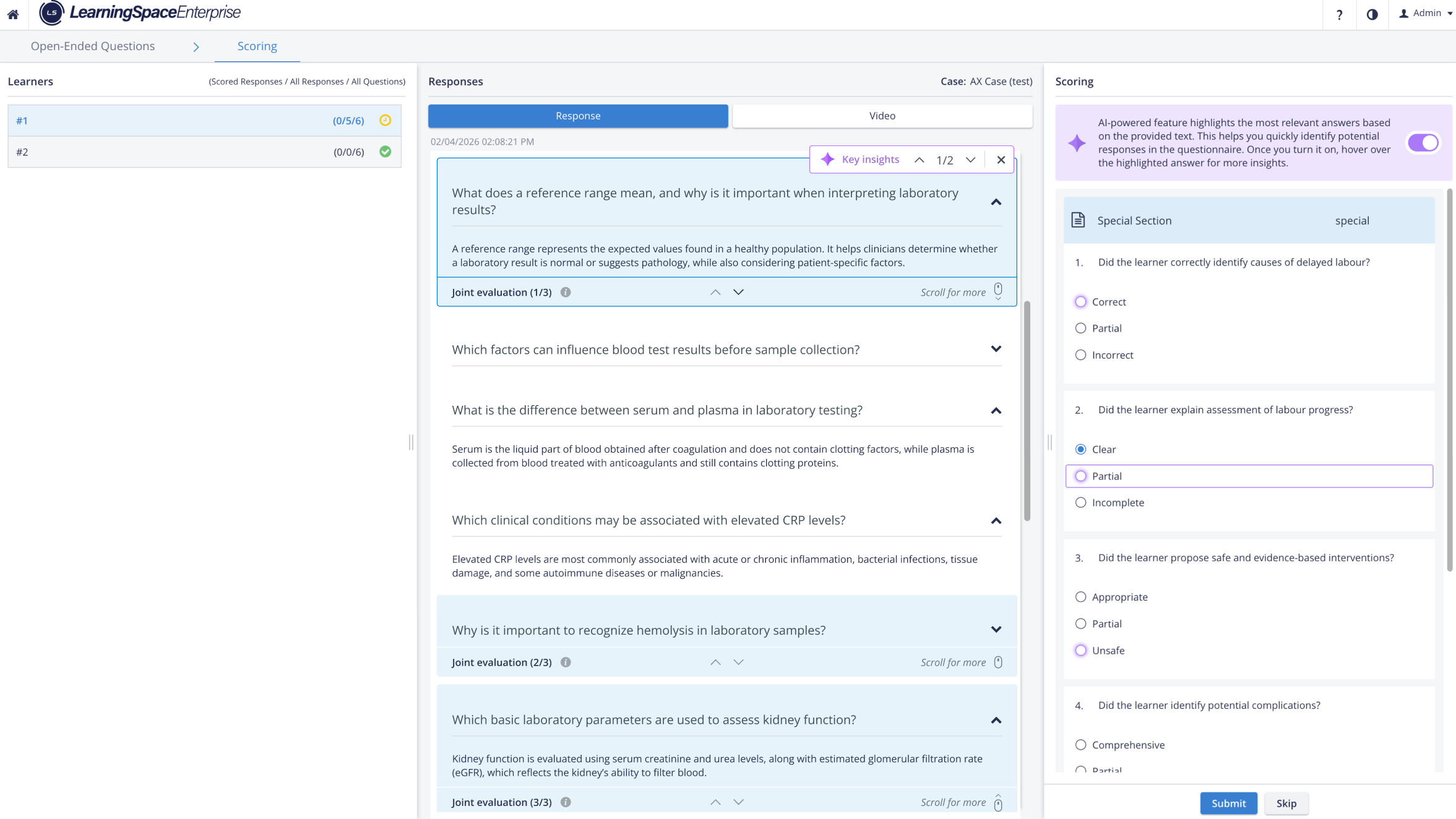
The OEQS Scoring panel displays the same questionnaire when navigating between linked questions
Admin or OEQS Data Entry users can view the single scoring questionnaire while navigating among the linked questions, making it easy to complete the grading checklist and view learner responses simultaneously.
Comments can be added to joint items, but in reports, they will only appear under the main questions.
The Submit button stays inactive until all linked questions are opened. If the last linked question is opened, the Submit button will become active.

For details, see How to set up Joint Evaluation and How to use Joint Evaluation.
Share Scoring Note content with AI
Admin or Case manager users can mark additional scoring content at the question level for AI processing in the OEQS AI Assistant. This way, they can feed additional OEQS scoring-related content to the AI, so the AI's answer suggestions will be based not only on the learner's response but also on the scoring notes.

Share Scoring Notes with AI toggle - Case content editor
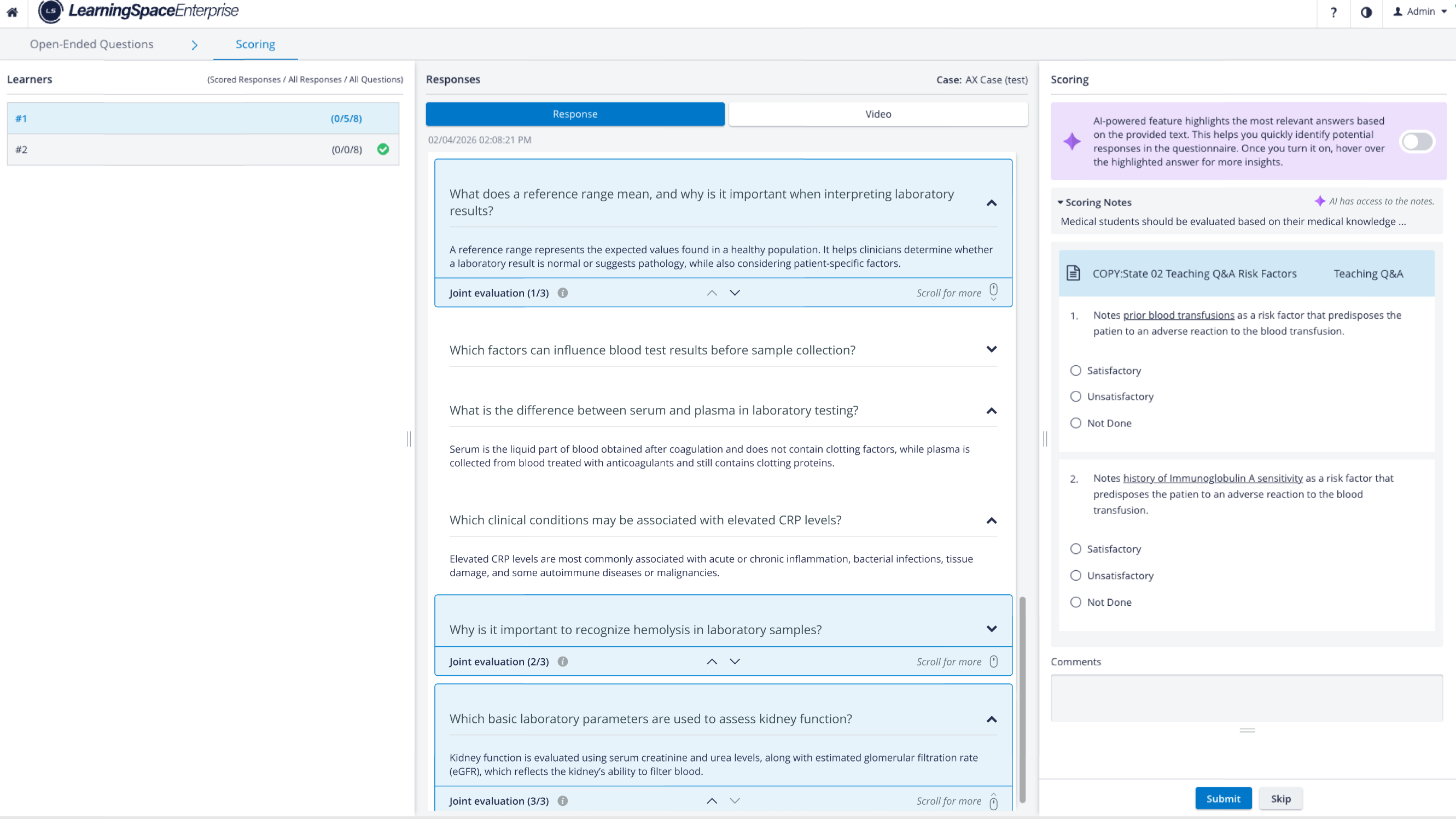
Shared Scoring Notes Content in OEQS Scoring
The ‘Share note content with AI’ option can be set up on the main question in the Case Editor, but on the OEQS Scoring page, the shared note content will also appear for every joint‑evaluation item linked to that main question.
For details, go to OEQS Scoring Page
The Share Note content with AI option is available only if the OEQS AI Assistant Feature is enabled in LS.
Scoring notes can be enabled/disabled after the evaluation has taken place (post-evaluation): this way, you have flexibility over what content should be fed to AI at any given time.
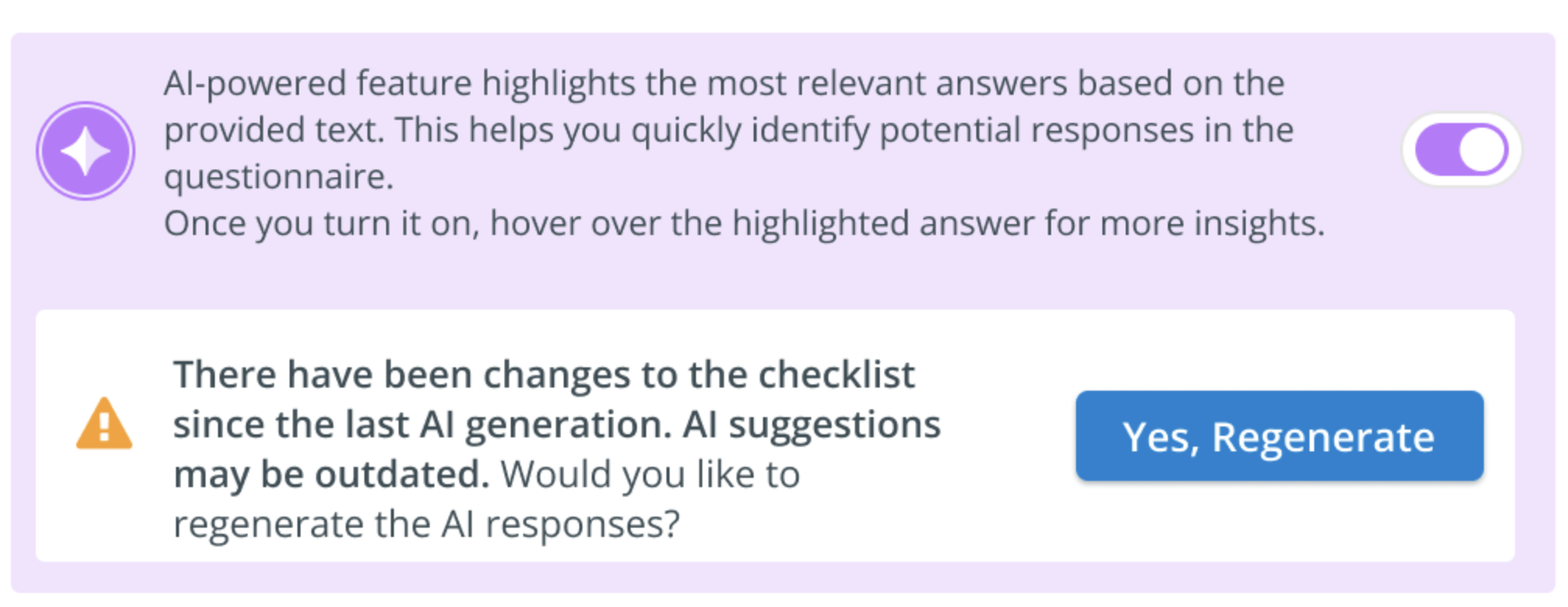
Enabling or disabling content sharing with AI after AI has already generated OEQS scoring suggestions triggers AI suggestion re-generation (if re-generation is triggered on the OEQS page).
Possible Issues
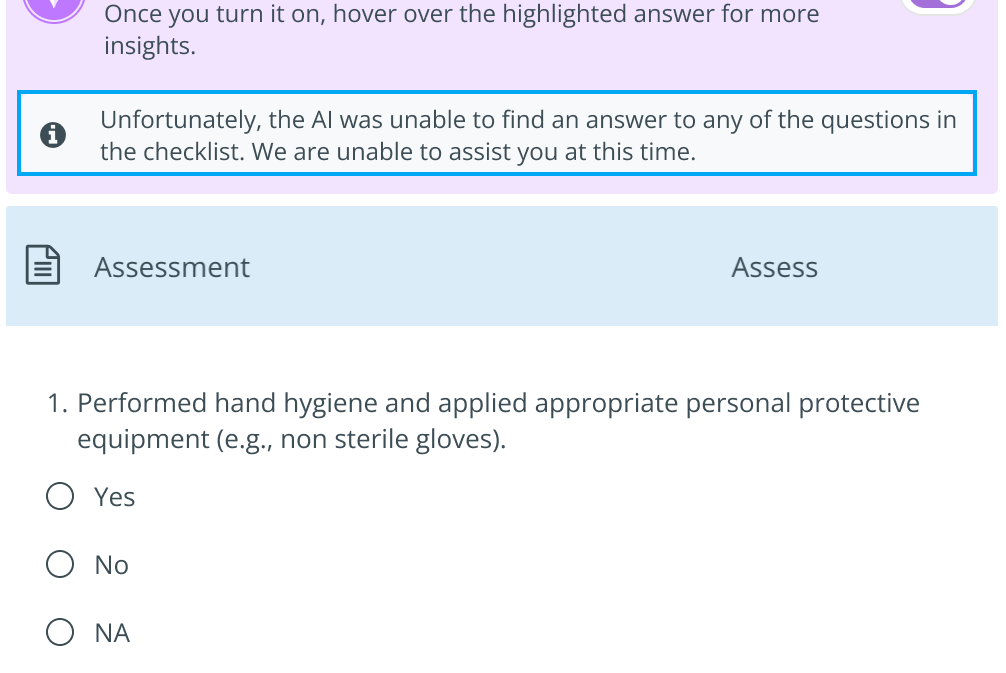
No answers found by AI to the questions in the checklist.
AI Server is not available:
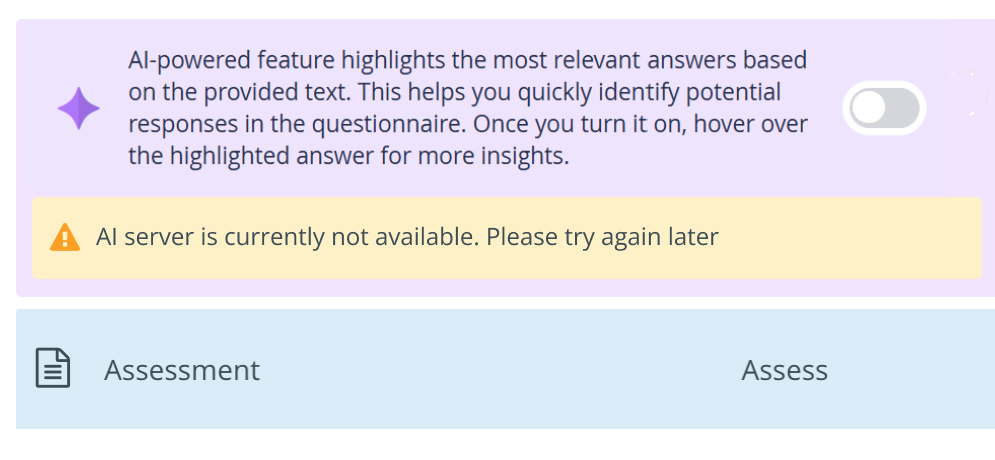
NOTE: Try again later.
AI‑Ready SOAP Note Evaluation Checklist Guide
The LearningSpace – AI Assistant supports faculty by automatically pre-filling SOAP‑note–based checklists using large‑language‑model (LLM) analysis. To ensure accurate, reliable, and verifiable pre‑evaluation, the checklist's structure must be intentionally designed for natural‑language inputs rather than human-scoring shorthand. Our new AI‑Ready SOAP Note Evaluation Checklist Guide provides practical instructions for faculty, SP educators, and OSCE designers on how to build checklists that the (OEQS) AI Assistant can interpret with high fidelity.
Learn more here: AI‑Ready SOAP Note Evaluation Checklist Guide