Pre-Encounter Learner part
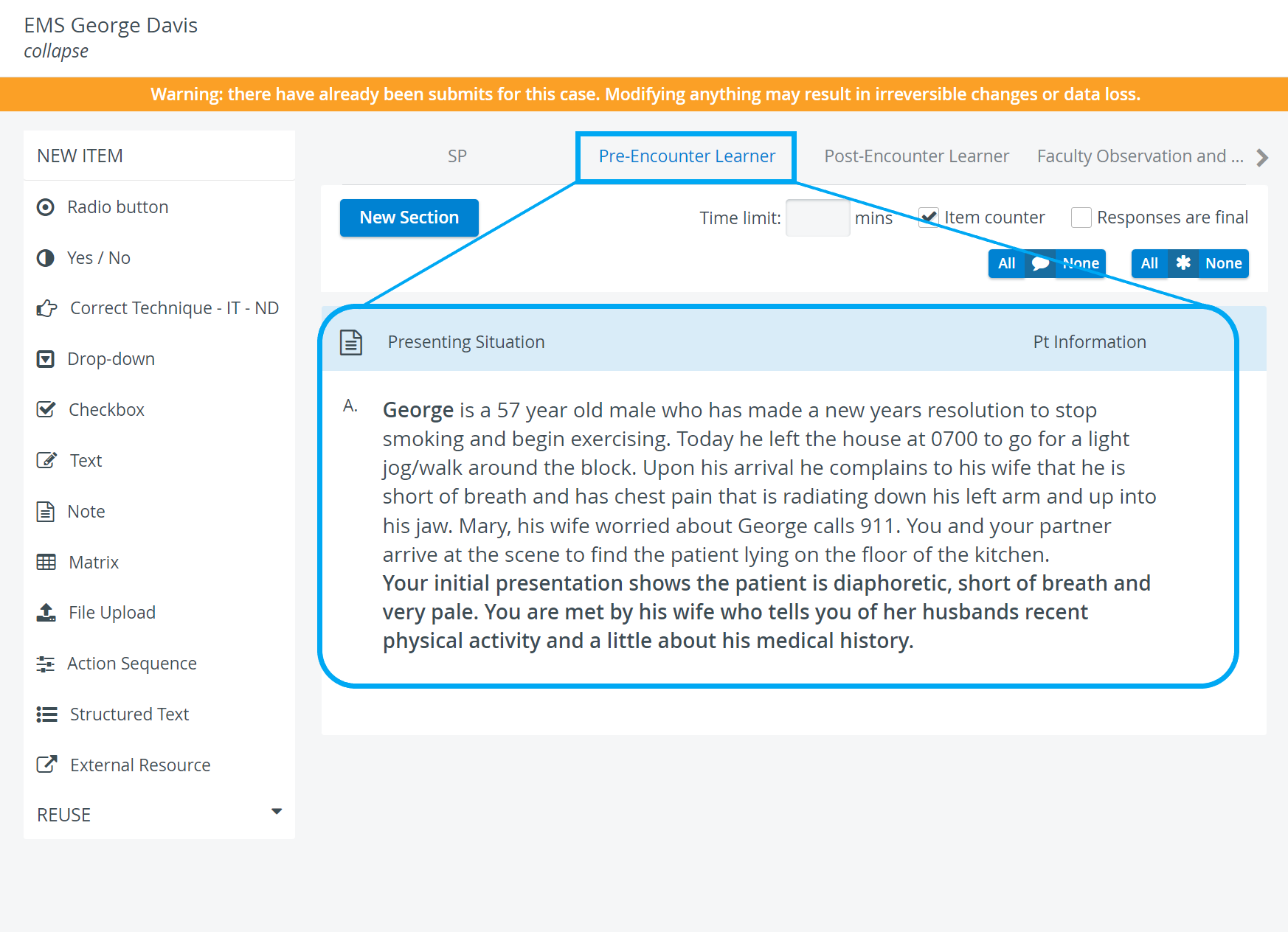
Filled out by Learners
Purpose: learner orientation, or assessment of a learner's prior knowledge
This part contains any textual or multimedia content that provides learners with background information about the Case and patient before the encounter.
There may also be questions for students to fill out, which may or may not be scored.
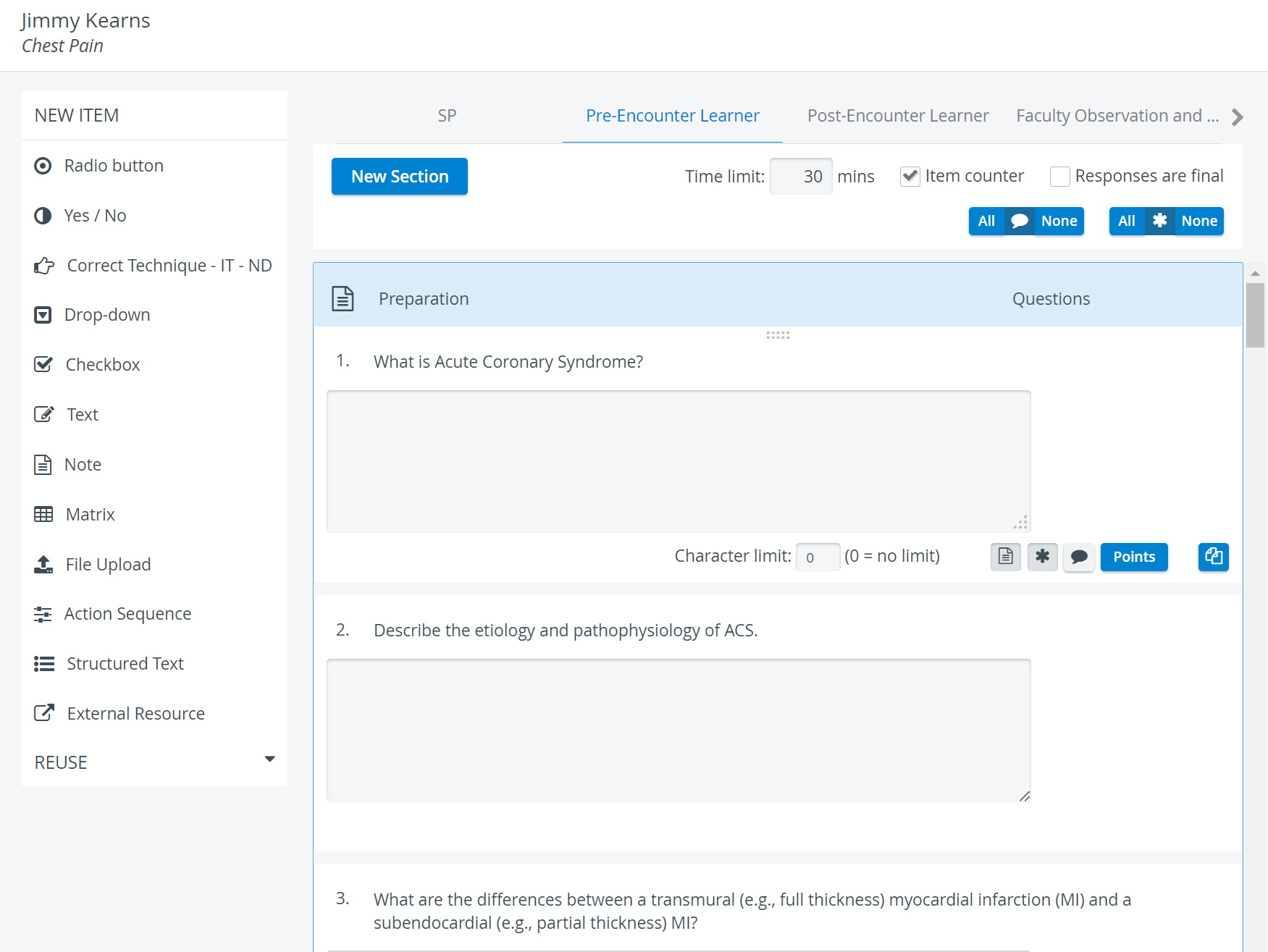
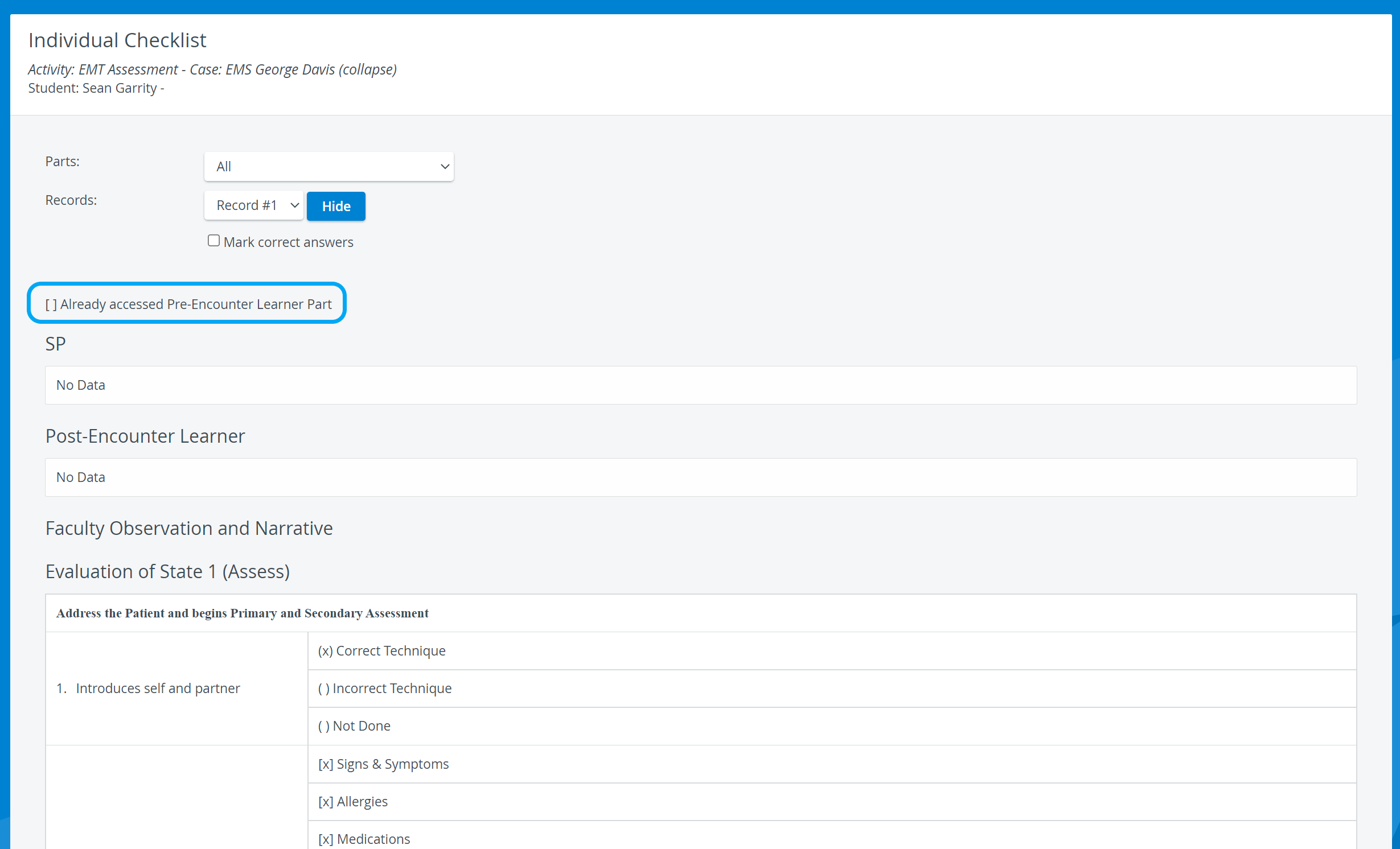
The Pre-Encounter Learner section is fully displayed only once. The part will not be displayed upon the next login once the learner submits it.
It can be accessed via a link at the top of the Post-Encounter Learner checklist.
Uncheck the respective checkbox within their individual checklists to enable Learners to access the Pre-Encounter Learner part (door note) again.
This can also be helpful if the video recording start is set on the Pre-Encounter Learner part display and needs to be reset for some reason. (See How to Set Up User-Action-Controlled Video Recording.)
For details on creating a checklist, see the Checklists page.
The Item counter option is checked by default, so items are numbered sequentially.
Time limit
You can set up a time limit for learners at the top of the pre-encounter checklist in the Case Content editor.
If a learner runs out of time while filling out their checklist, the system will sign the learner out and save all answers entered up to that point.
Even if the learner does not click the Submit button, the system will save the responses as if they were submitted.
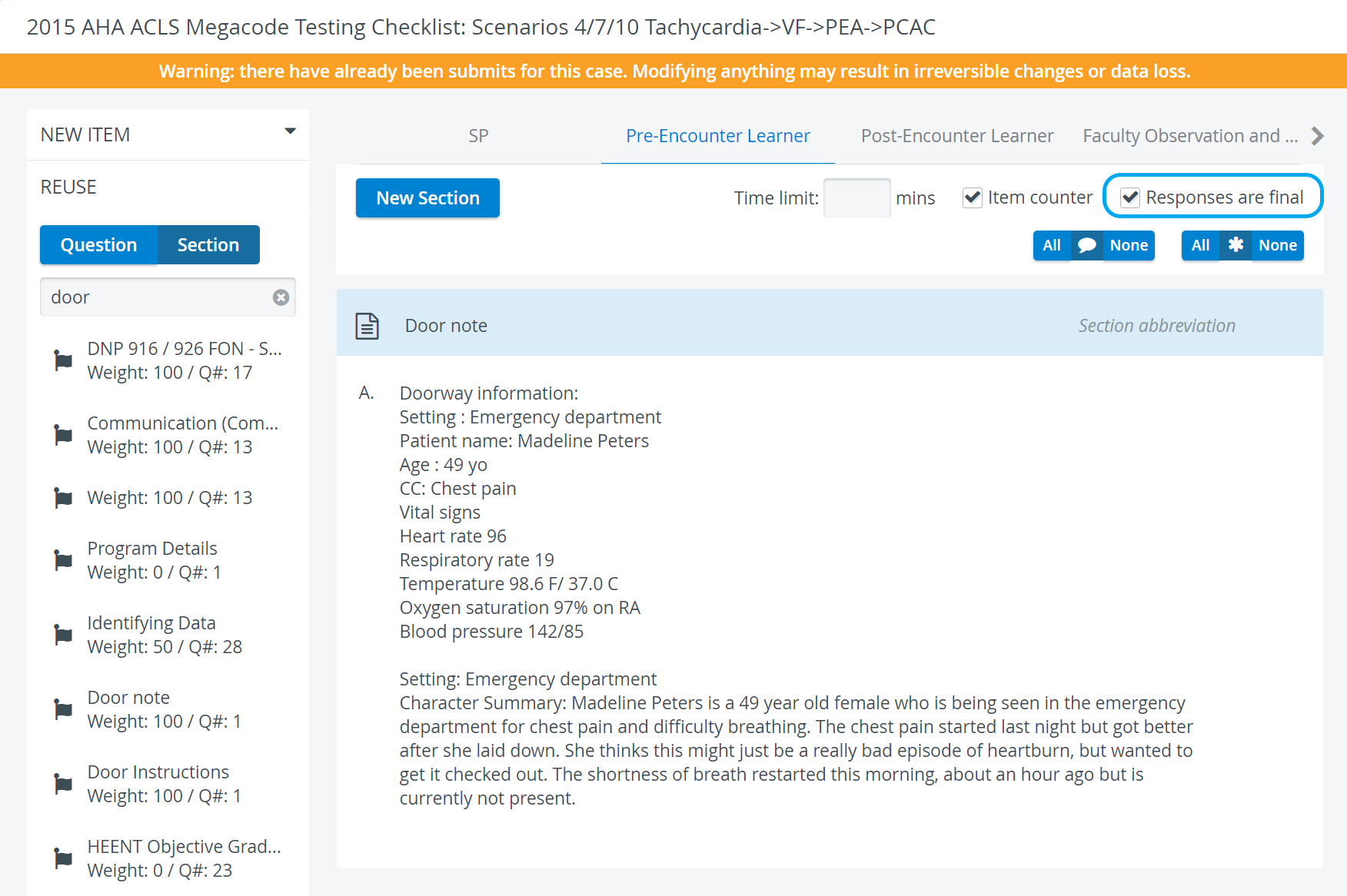
Responses are final
If the Responses are final option is checked, learners can only submit their checklists once; they will not have access to modify their responses later.
All/None Switches
With one click, you can enable or disable Comment boxes for every question of the checklist and /or mark every question as Answer required all at once.

The All/None switches at the top of the checklist apply to every item on it.
 | Comment box | When enabled, every item will have a comment field displayed at data entry for learners to add notes. |
 | Answer required | When enabled, submitting the checklist is not allowed until all questions are answered; if no questions are required, the checklist can be submitted even if none have been answered. |
Show Points for All Items
Admin or case manager users can show scoring details (Points) for all items in a checklist at once, with one click, for a better overview of how each item is scored:
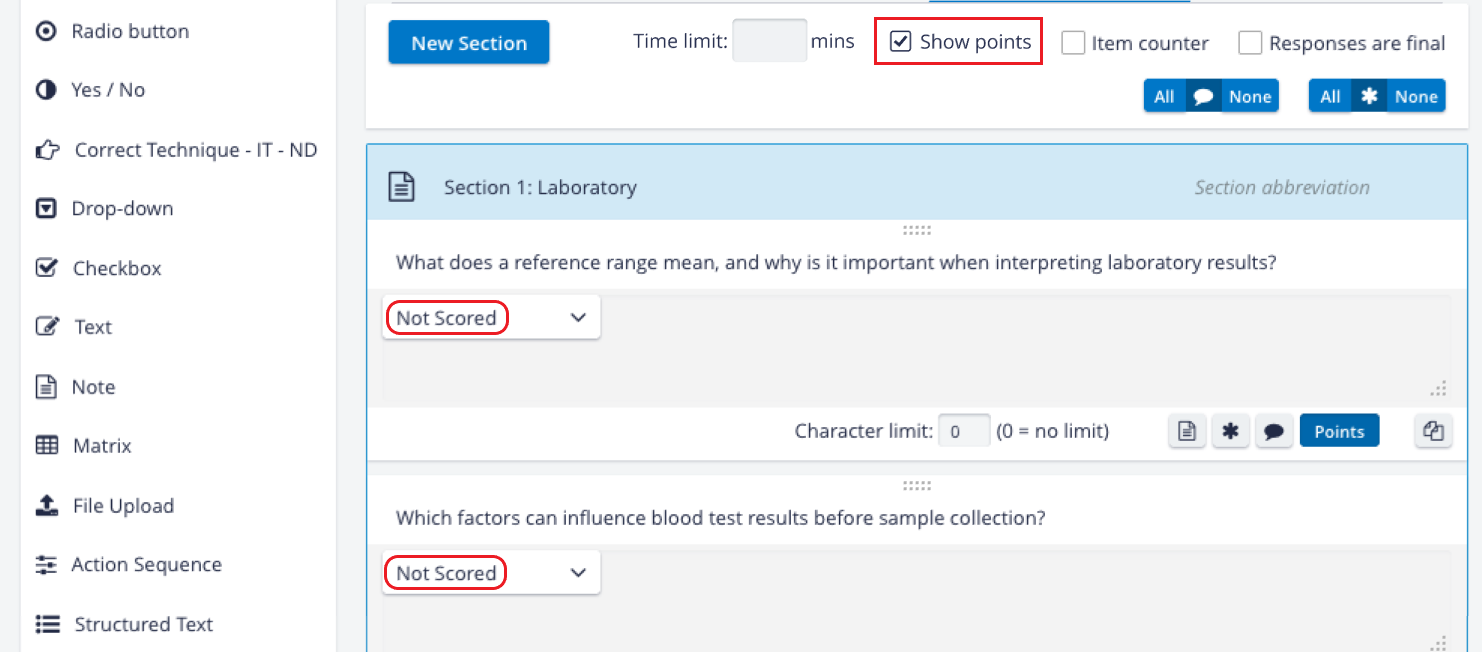
The ‘Show points’ checkbox has three states:
Checked - scoring information is shown for all items in the part.
Dash (horizontal line) - scoring information is shown only for some items (‘partially checked’).
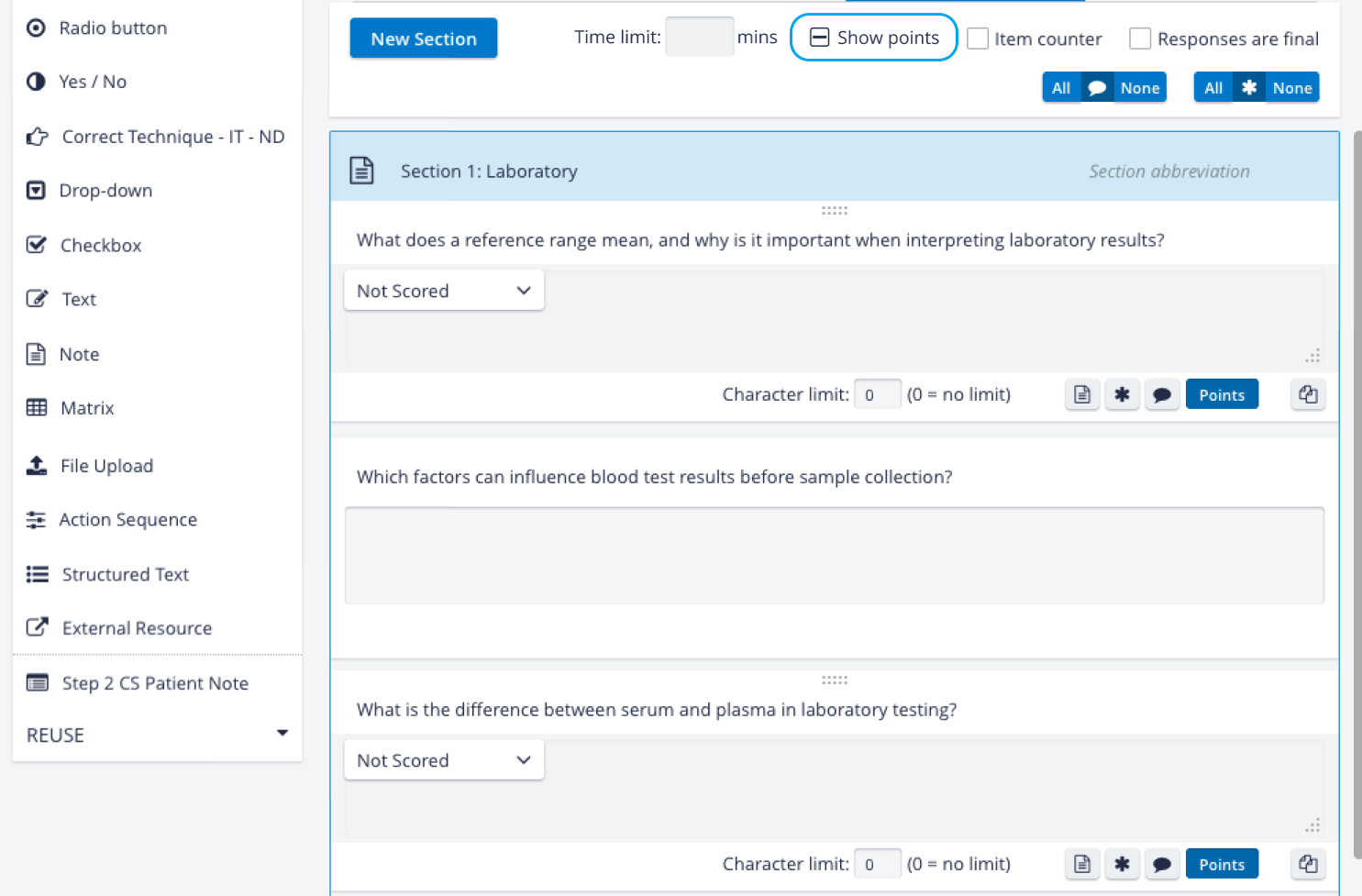
Unchecked - scoring information is hidden for all items.
Joint Evaluation Option
The new Joint Evaluation Option enables grouping questions for OEQS scoring in Case Manager. With this feature, questions can be linked in the Case editor so that they can be graded together using a single grading questionnaire in OEQS.
A joint‑evaluation item always relies on a main item that uses a questionnaire scoring method.
One or more joint‑evaluation items can be linked to a main item simultaneously.
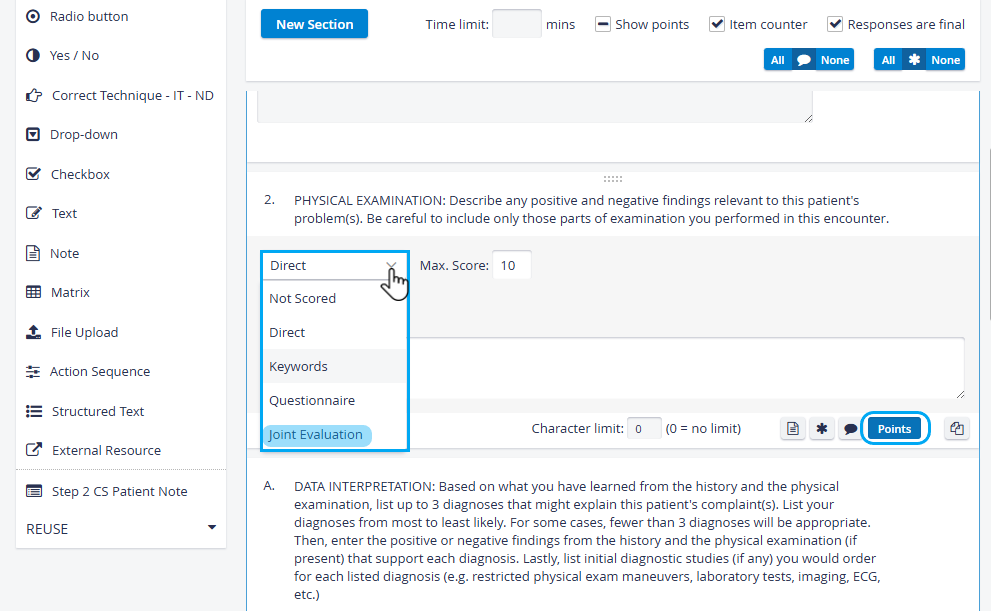
Scoring method drop-down - Joint Evaluation option
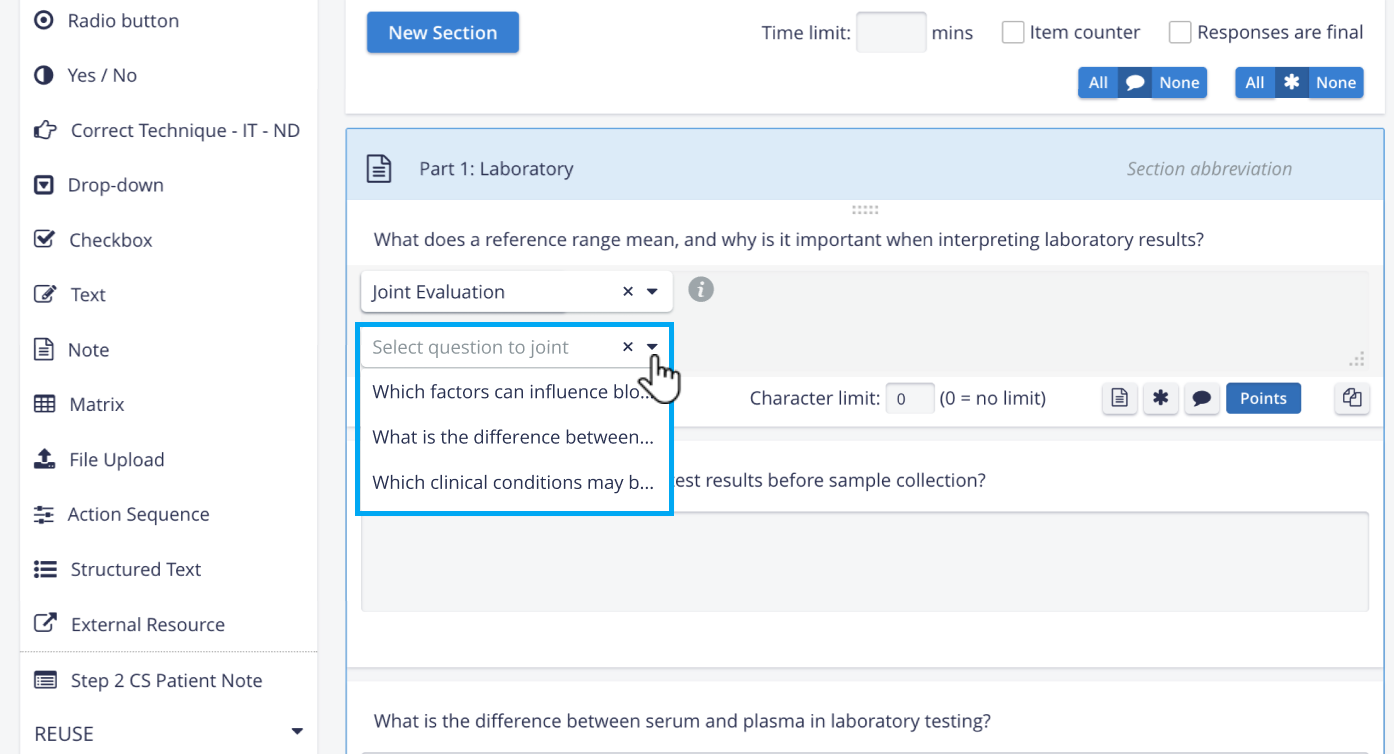
Select question to joint dropdown
IMPORTANT: A joint item can only select a main question from within the same section; the main question must be located in the same section as the joint item.
Joint evaluation option is available for text and structured text items in the Pre-encounter and Post-encounter parts of a case.
NOTE: Only questions within the same case part and section can be linked.
For more details, go to How to set up Joint Evaluation and How to use Joint Evaluation.
For further information, visit our Case Manager and Cases - How to pages or watch our Case Manager Training Videos.