Mobile Recording Feature & LS Anywhere
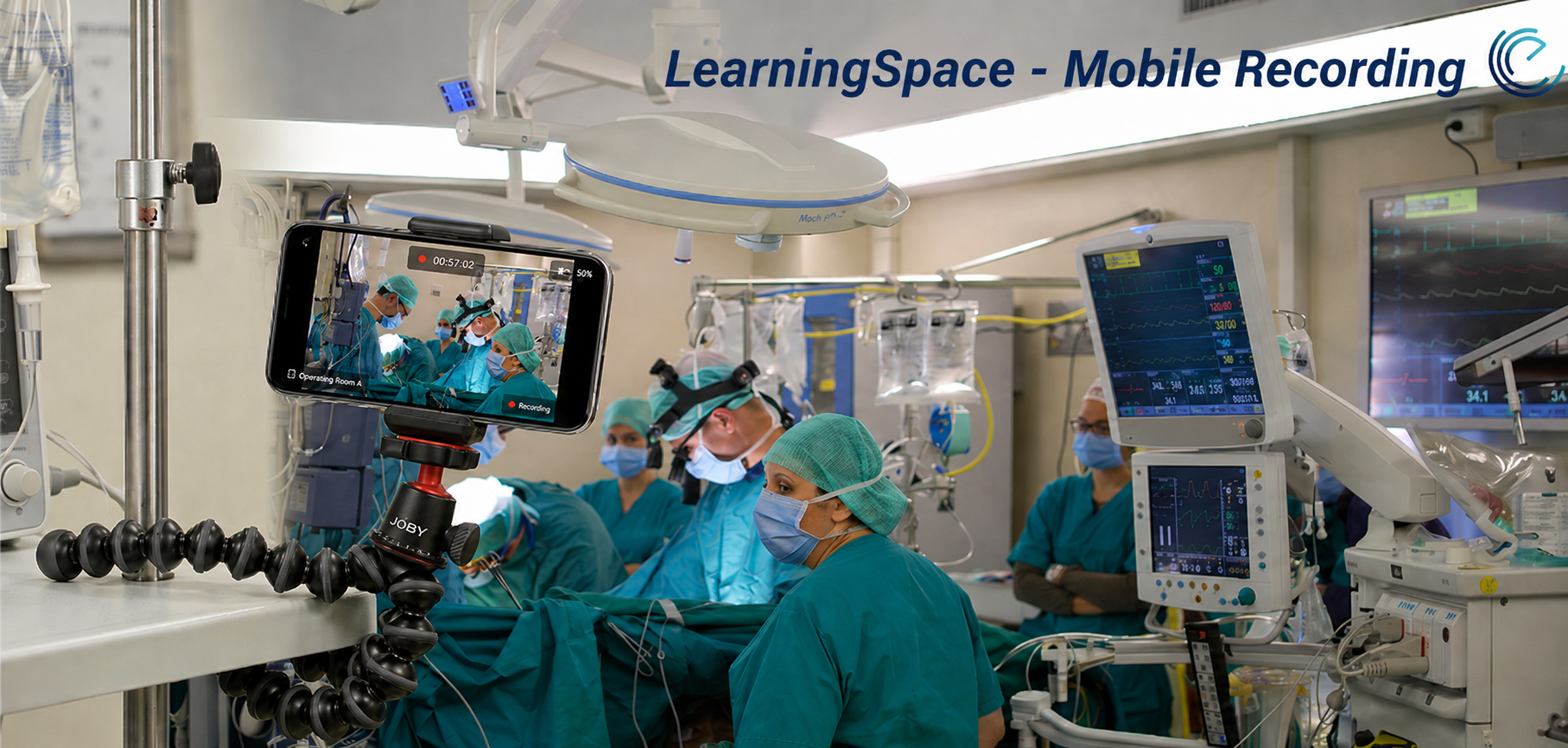
Mobile Recording Feature
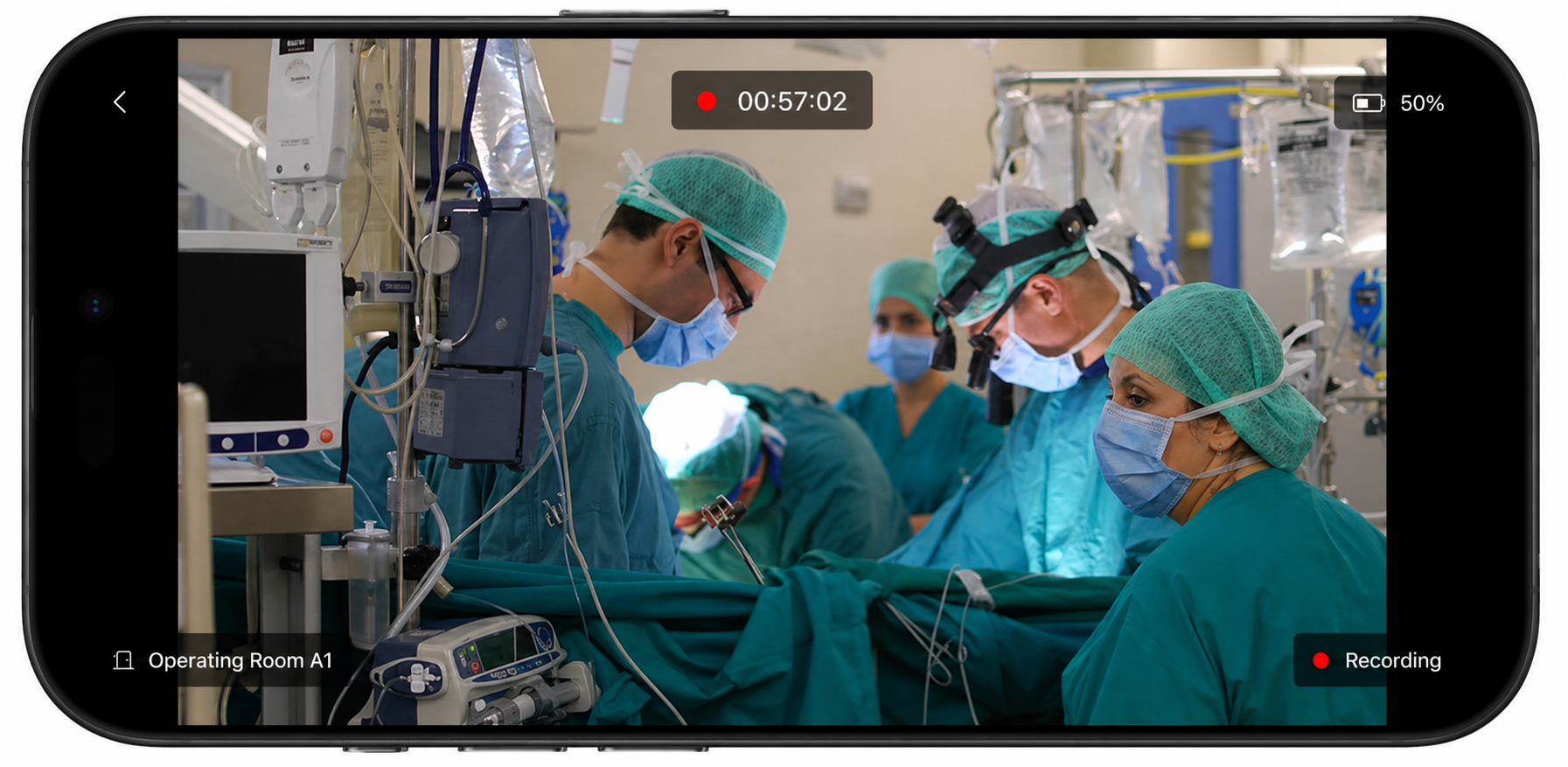
The new Mobile Recording feature enables LearningSpace users to use iOS smartphones and iPads as wireless camera sources through a custom-built mobile application, ‘LearningSpace Anywhere’ (LS Anywhere). As part of the Ultraportable vision, it provides a flexible, cost-effective camera option without extra hardware.
IMPORTANT:
The term "Mobile Recording" refers to recording via mobile devices, but the LearningSpace Anywhere app is always required—it cannot be done independently using the device's built-in camera.
How it Works
You can add/pair mobile devices with LearningSpace using an easy authentication method in the LS Anywhere mobile application.
You can download the application from the App Store.

LearningSpace Anywhere Icon
Important: If your LearningSpace uses a local network (e.g., the institute’s internal network), you will need to follow local network privacy controls.
You can register your mobile device by scanning the QR code available in the System Manager under Cameras the Register Mobile Device option.
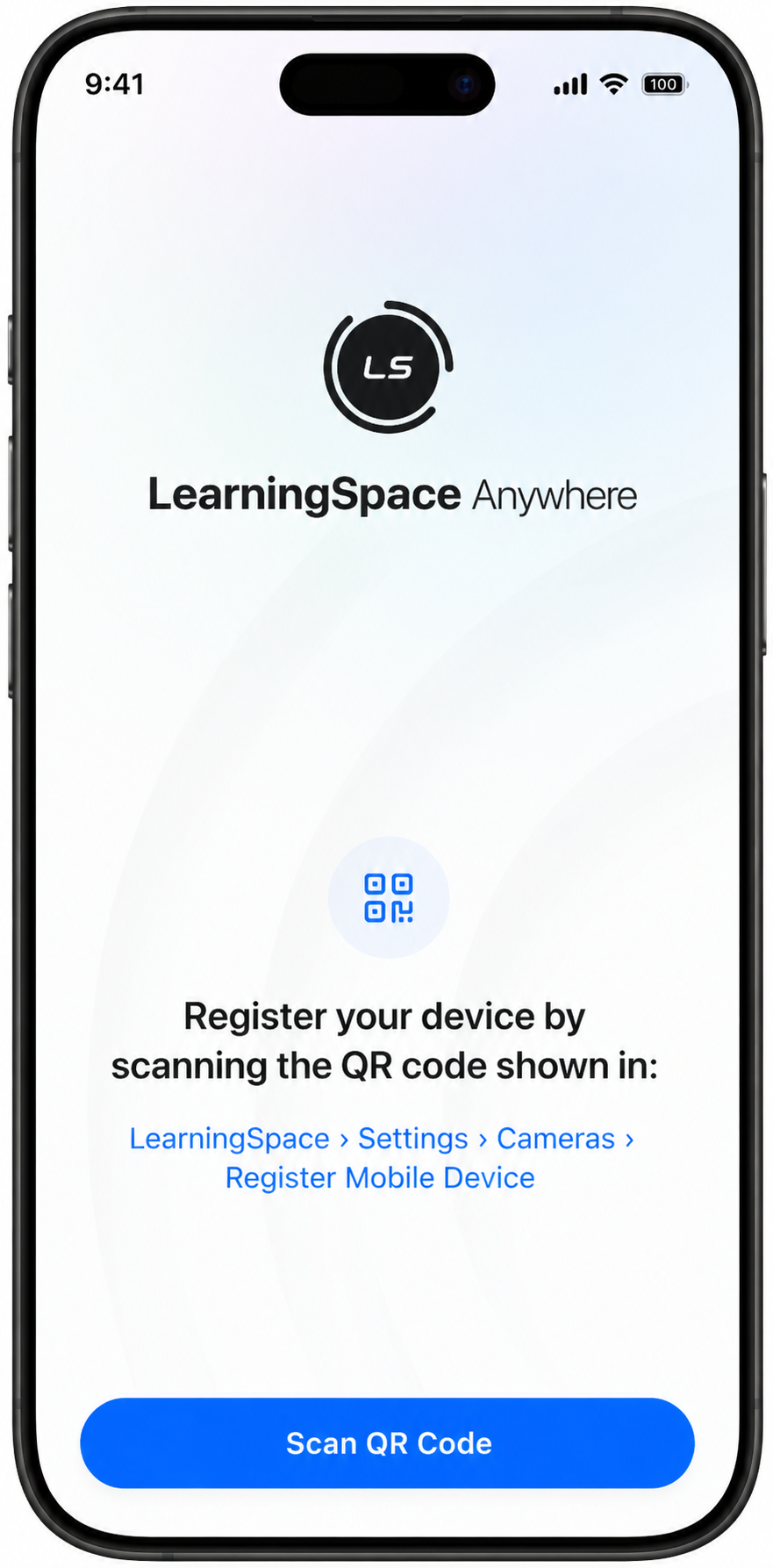
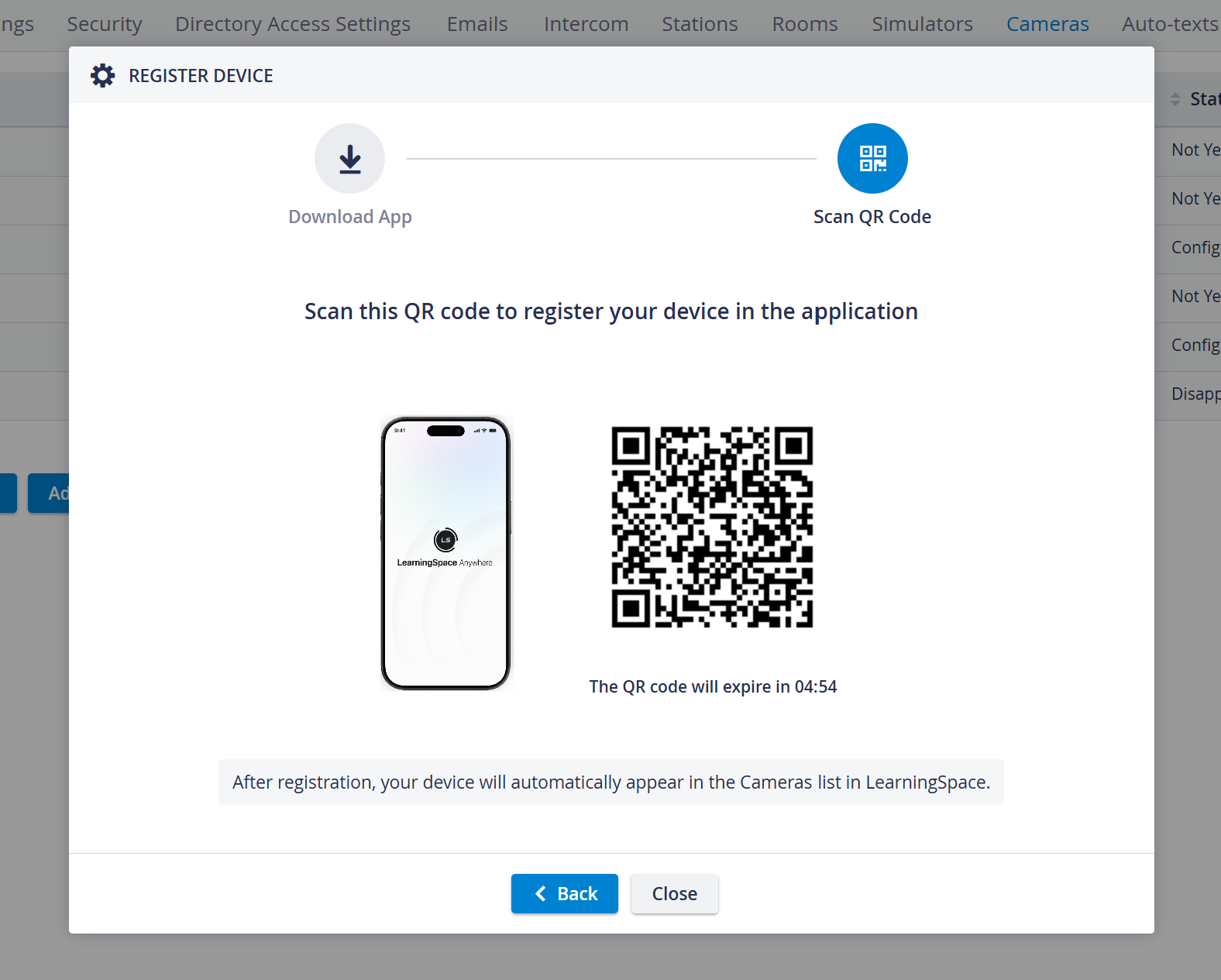
For a step-by-step guide, see How to register a Mobile Device in LearningSpace.
Add a Mobile Device Camera to the System
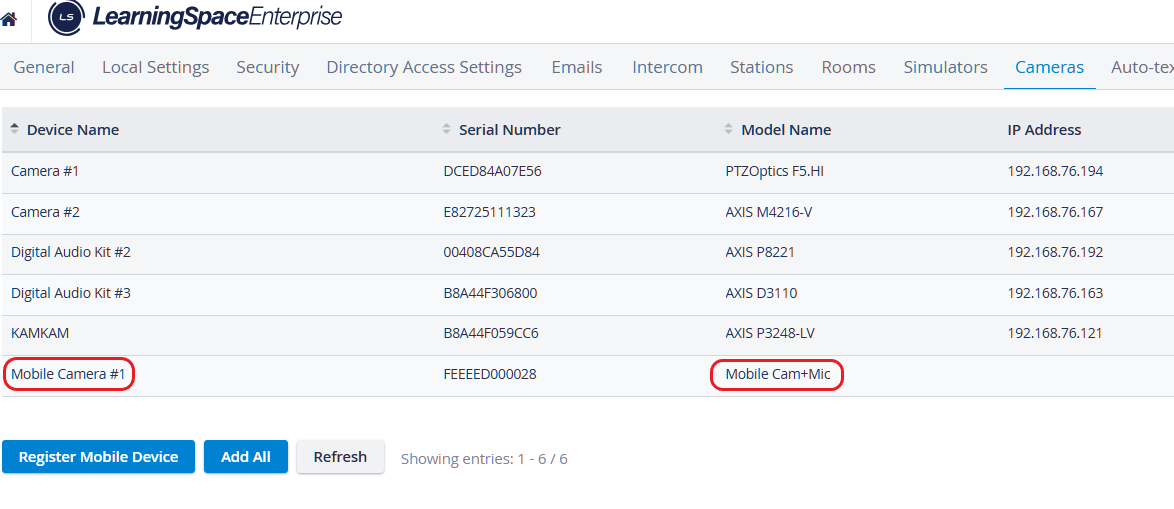
Each authenticated device is displayed in the list of added AV (audio-visual) devices in LearningSpace’s System Manager, on the Cameras tab.
The Model name column displays the mobile device’s function in LearningSpace (Mobile Camera, Mic).
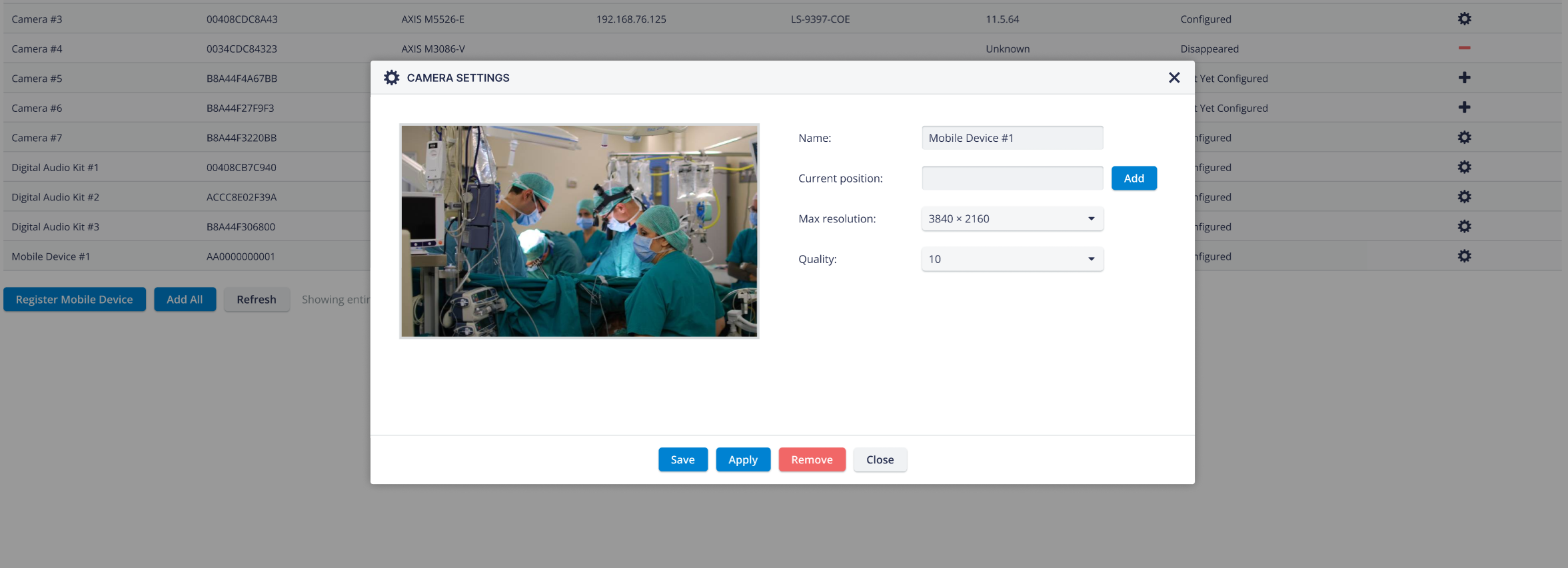
Mobile Device Camera Settings Pop-up
Add a Mobile Device as a Camera to a Room
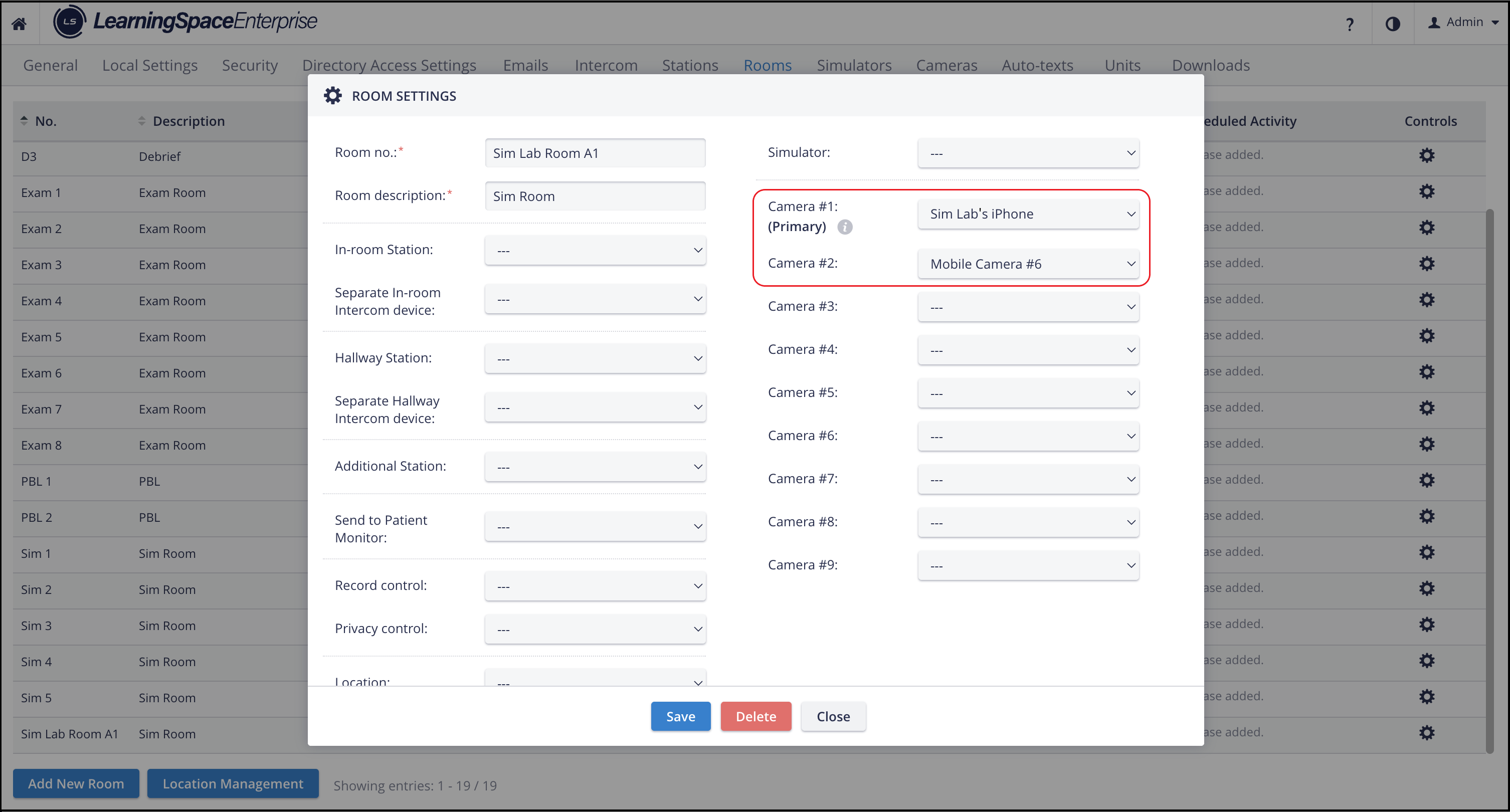
You can add a mobile device to a room as a camera media source on the Rooms tab.
The first camera drop-down indicates whether a device is the room's primary camera.
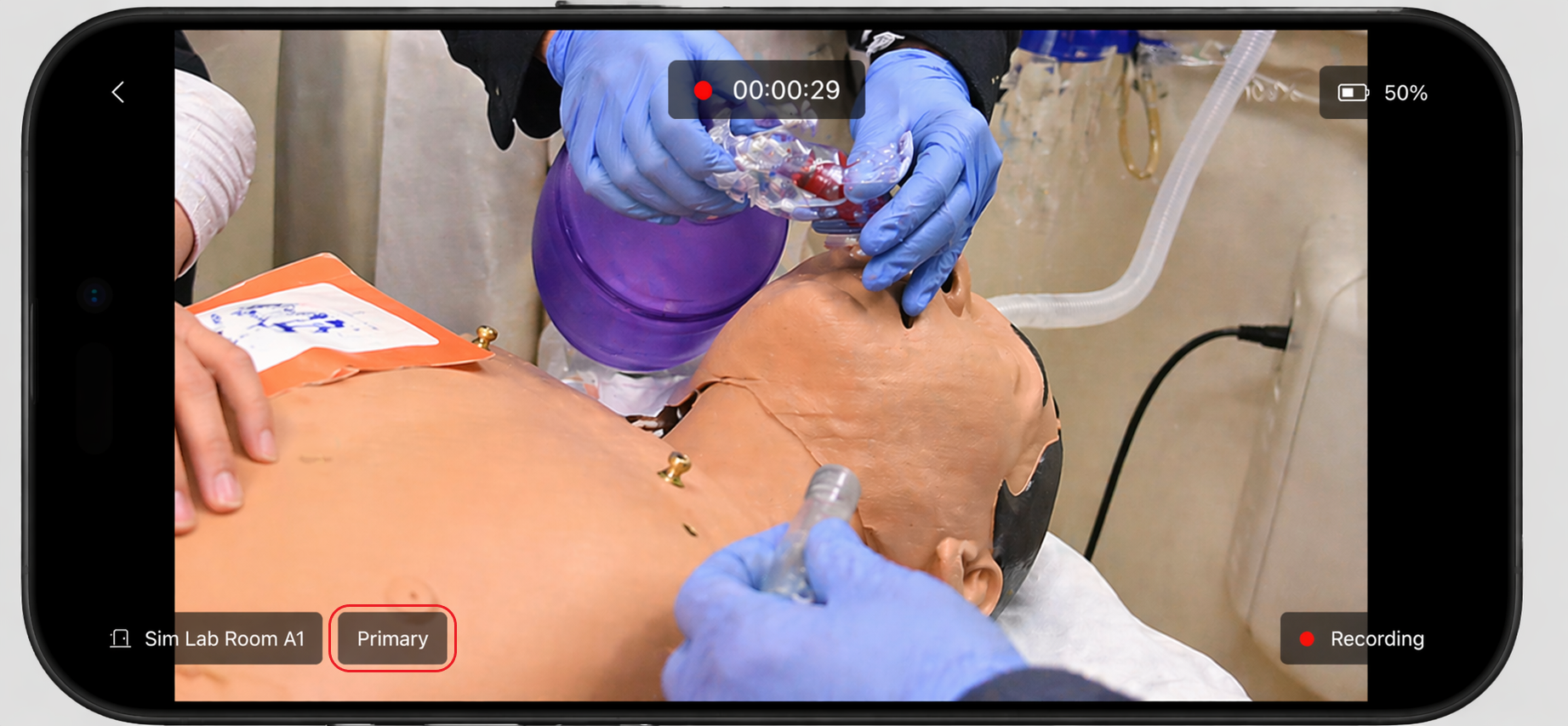
Primary Camera View - Mobile Device
You can edit the mobile device name and room assignment only in LearningSpace, not on the mobile app's main page.
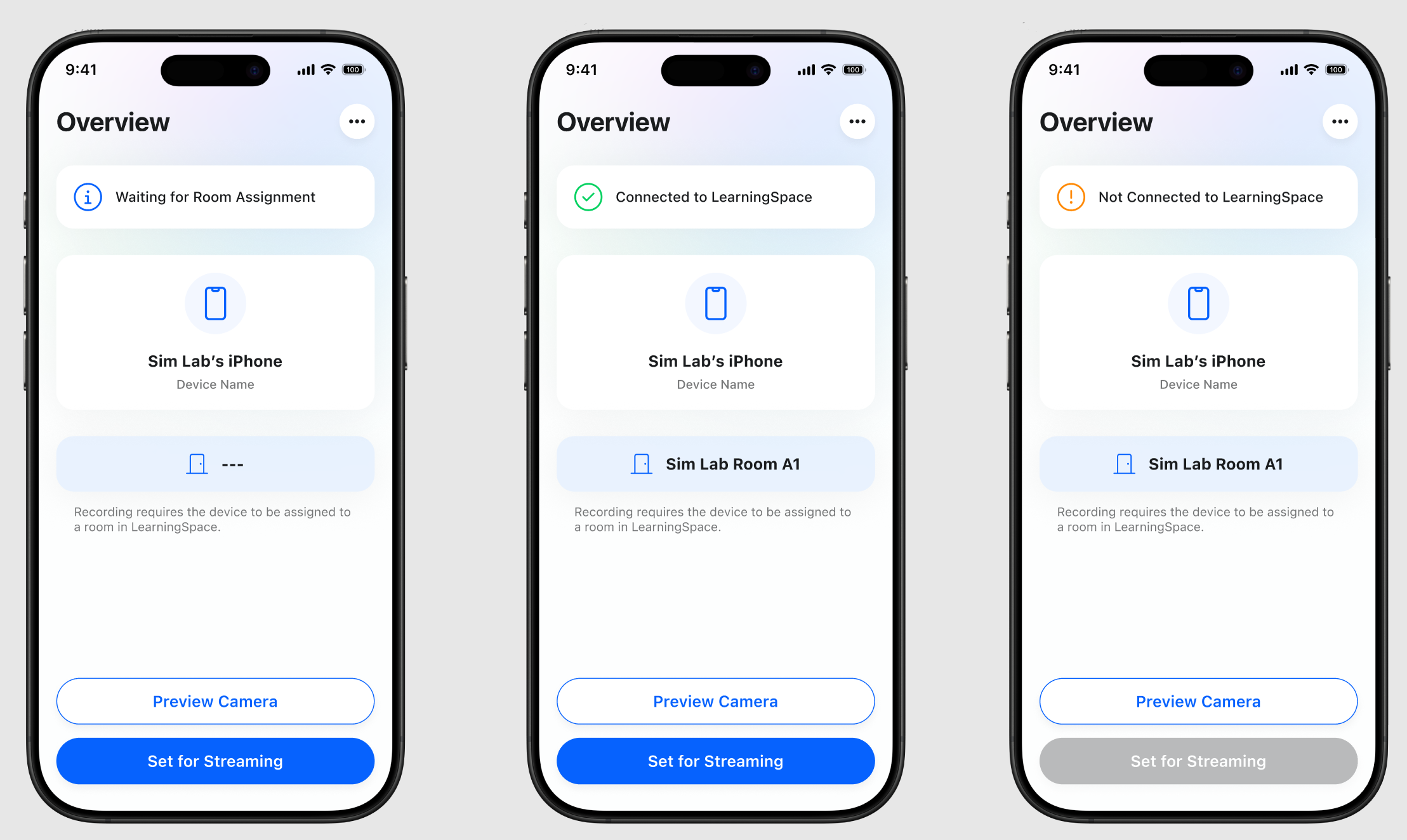
For more information: How to add a Mobile Device to a Room in LearningSpace
Once you set up a mobile camera, reduce the device's brightness to conserve battery power and keep it as cool as possible. Turn off automatic brightness adjustment to prevent it from reverting automatically.
Privacy mode is currently not supported for mobile cameras.
Recording on a Mobile Device
The camera view from a mobile device is displayed in the Single Room View (SRV) of LearningSpace’s Recording module, like all other (IP) cameras.
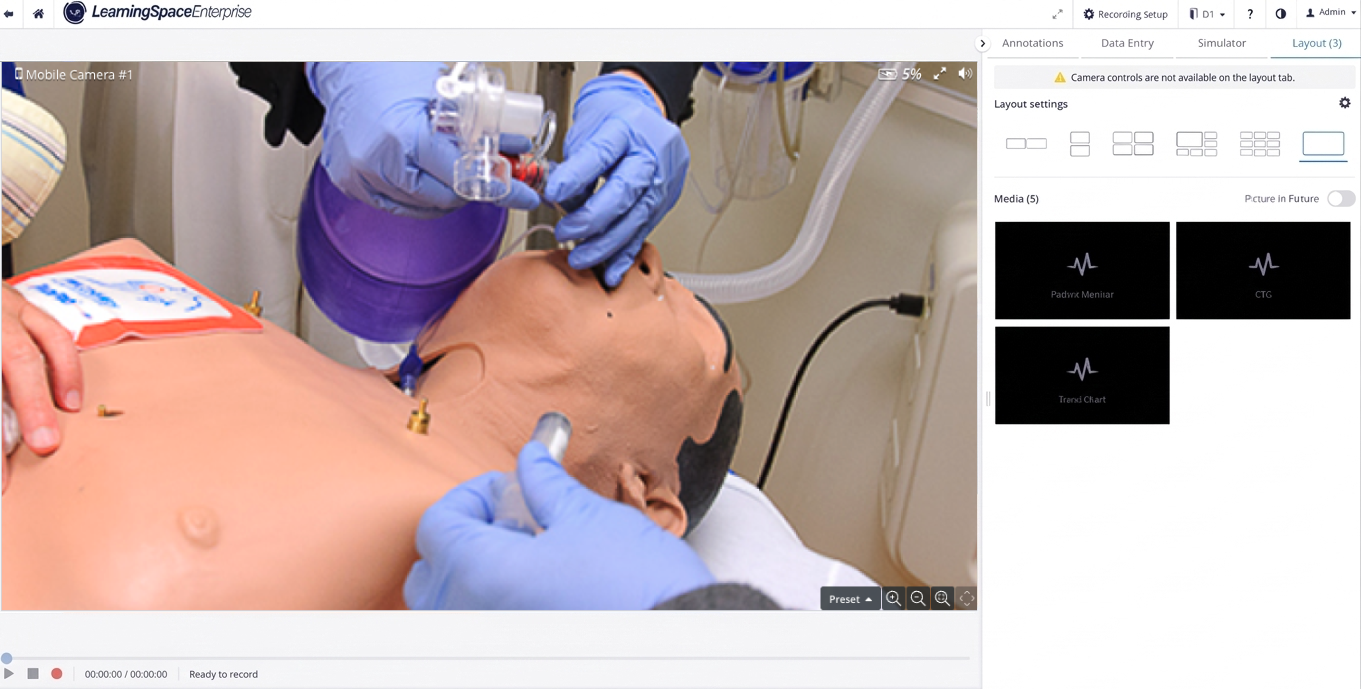
Mobile Camera View in SRV
Zoom control for mobile cameras is available in LS Single‑Room View (SRV), as it is for IP cameras.
Note: The pan function is not available for mobile devices.SRV shows the mobile device's battery status.
The feature does not work on mobile units (old GO units and Ultraportables) but does work on standalone Oneboxes.
A mobile device previously added to the room disappears from SRV if it becomes unavailable.
LearningSpace Anywhere Mobile App

LearningSpace Anywhere Mobile App Icon
Details |
The LearningSpace Anywhere mobile app’s pages support portrait and landscape orientations, but the camera view only supports landscape. 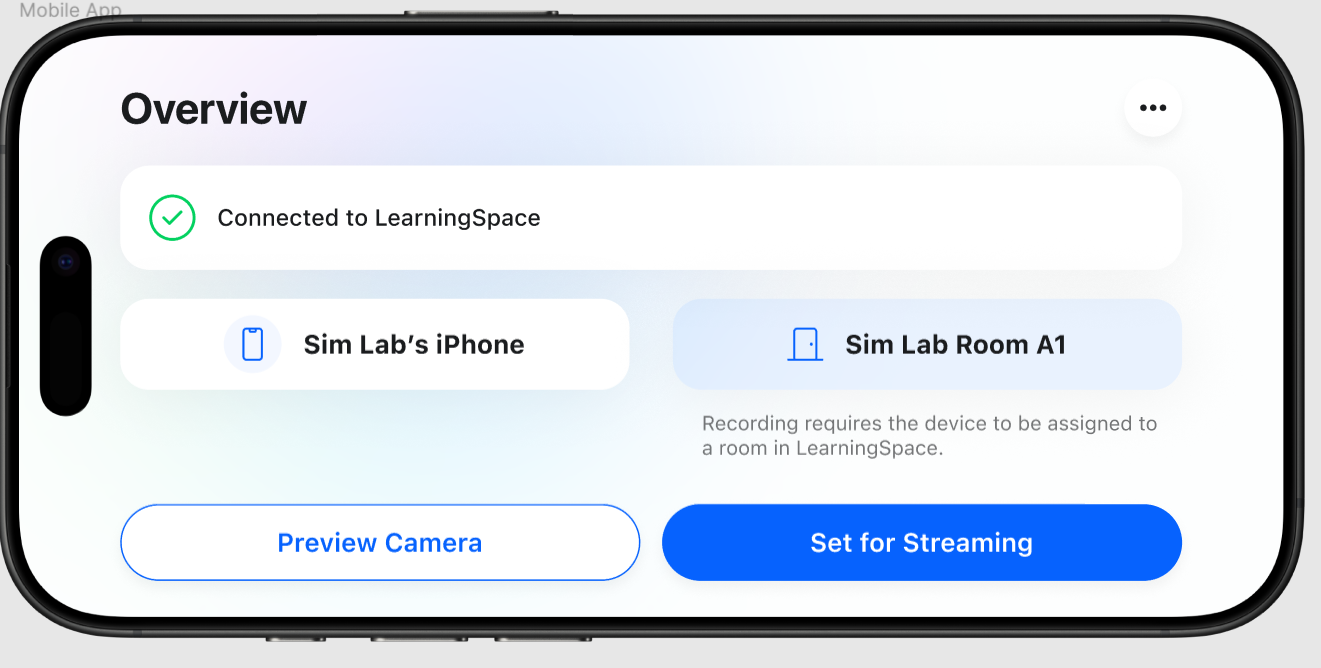 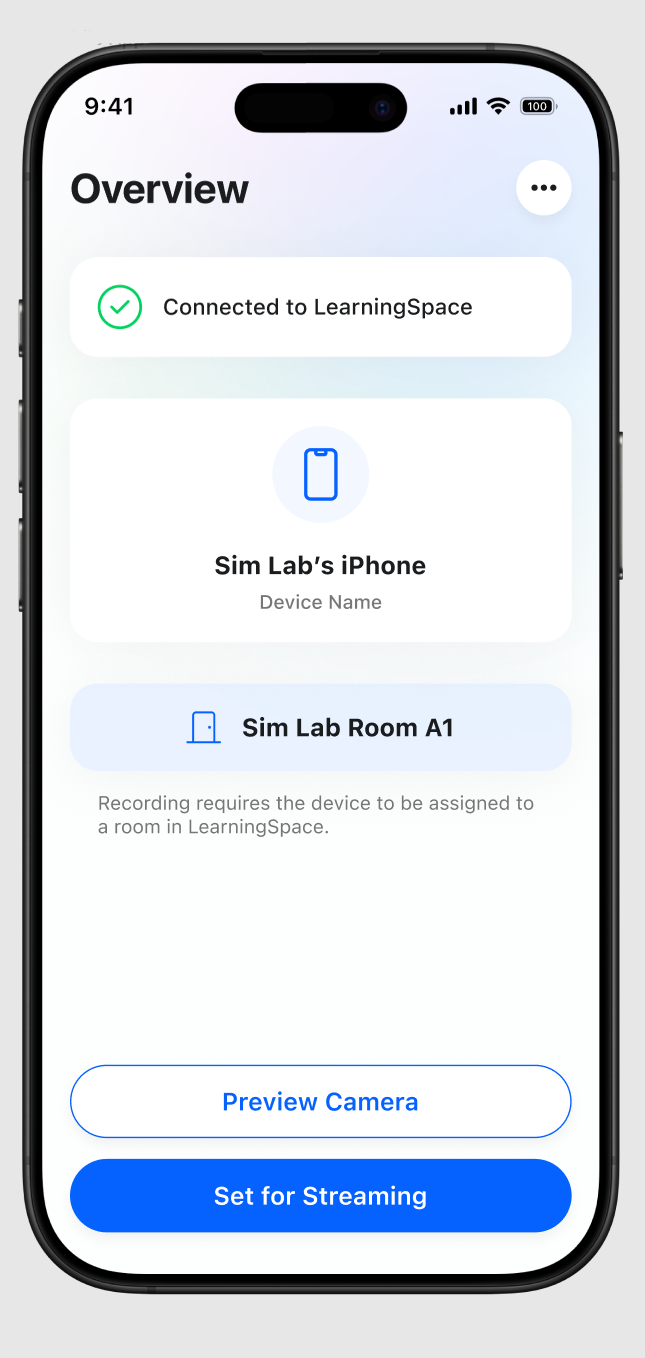 The mobile app indicates whether the device is registered in LearningSpace. The mobile app's overview page displays the device registration status. |
|
Camera and microphone access must be enabled in the Mobile phone’s Settings for proper functioning. 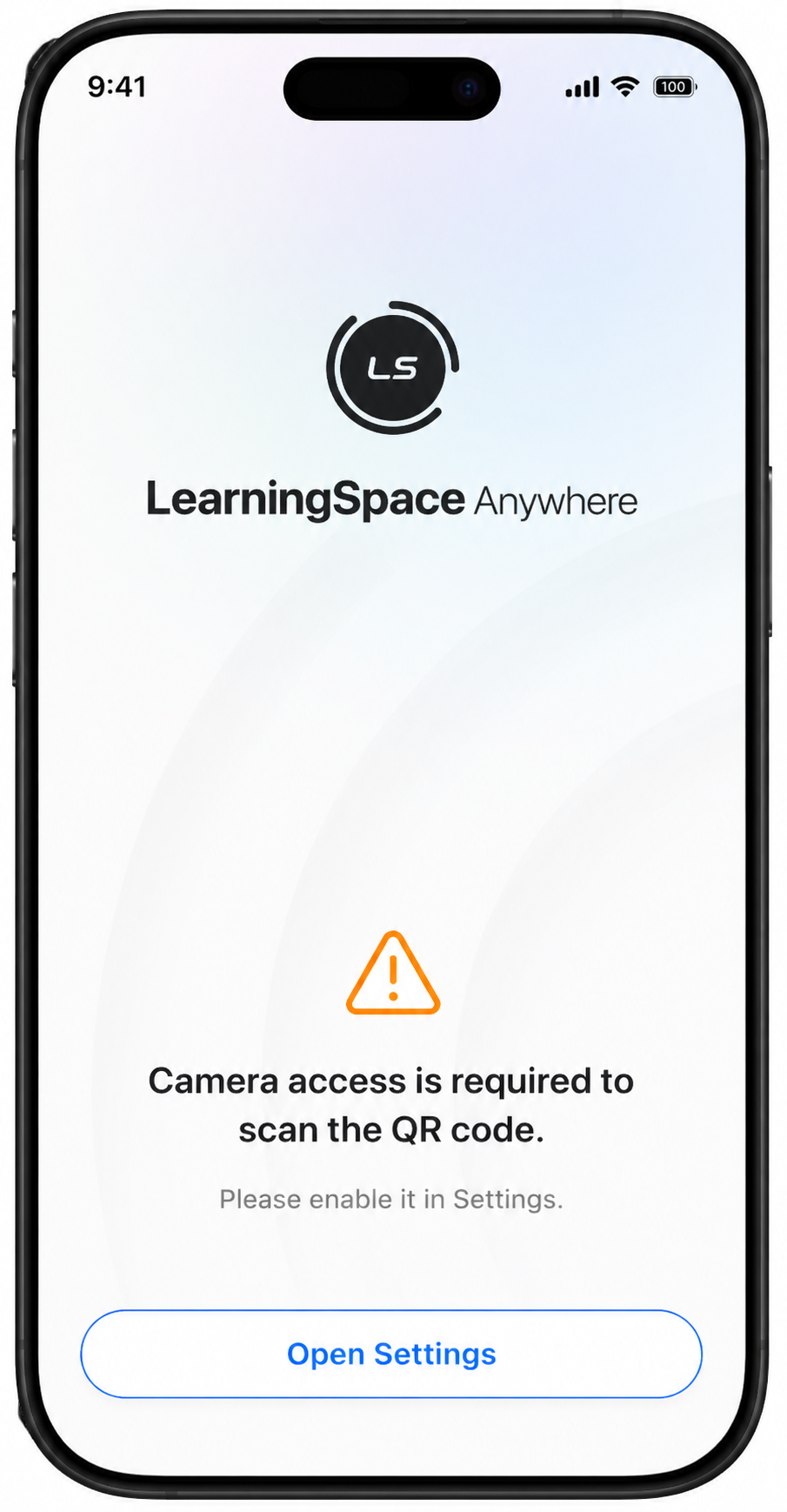 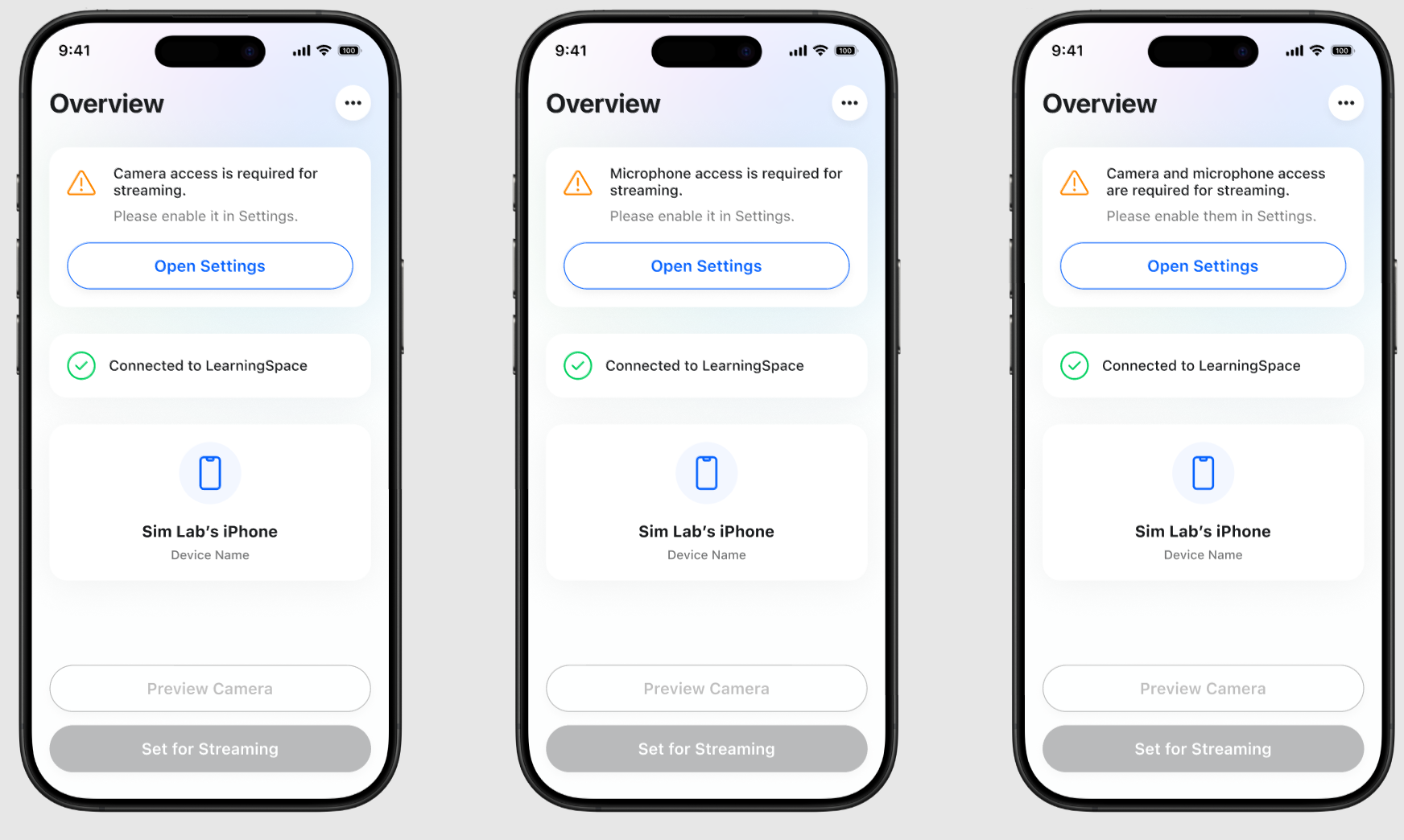 |
The mobile app displays whether it is connected to LearningSpace and if the camera is the primary camera in the room. Data updates in real time. 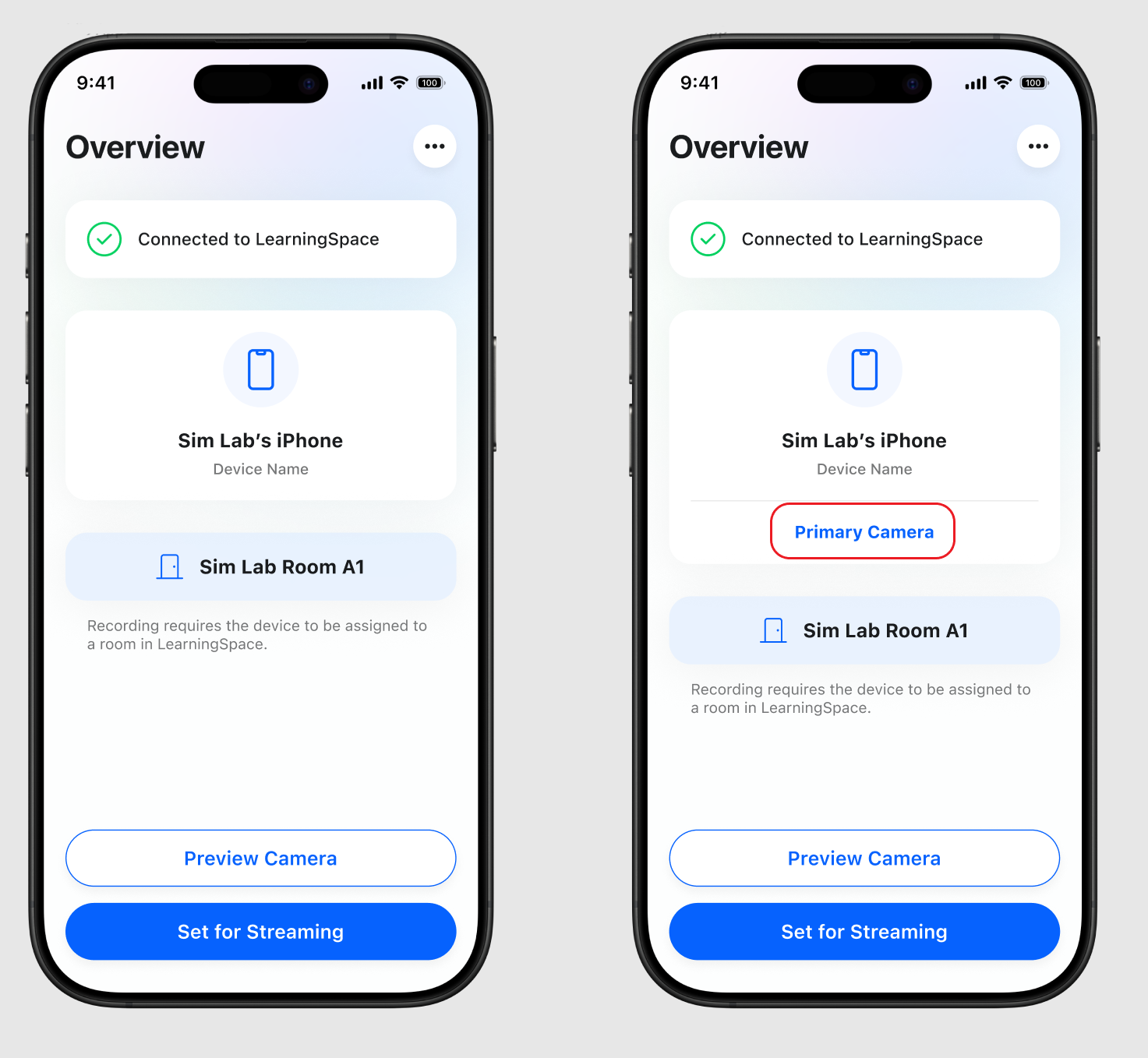 Mobile App - Overview page The mobile app is ready to start streaming to LearningSpace (LS) if it is in Set for Streaming status. 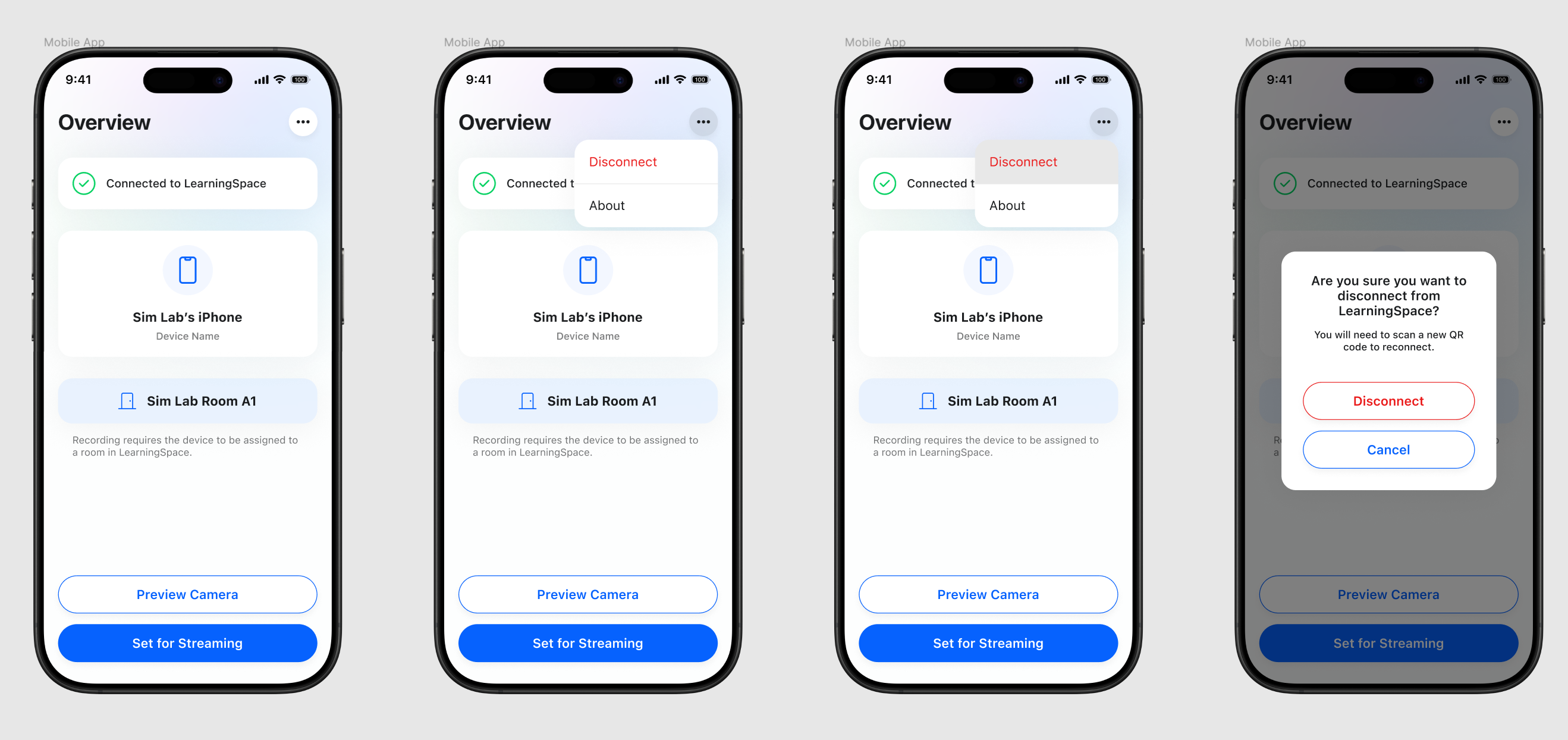 |
Preview camera mode is clearly indicated. The mobile app allows a preview of the mobile camera after registration/pairing, but it does not send the preview stream to LearningSpace. 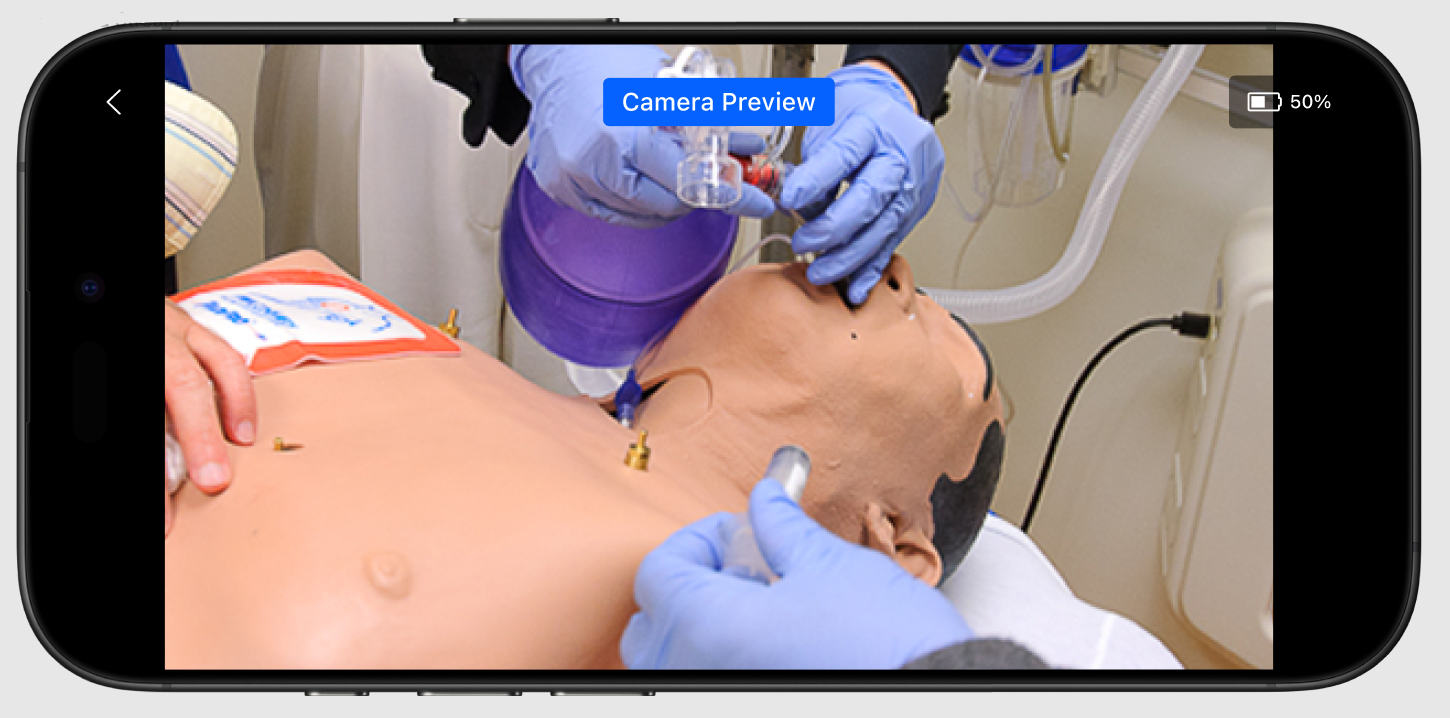 Mobile App - Camera Preview |
Camera view displays device status:
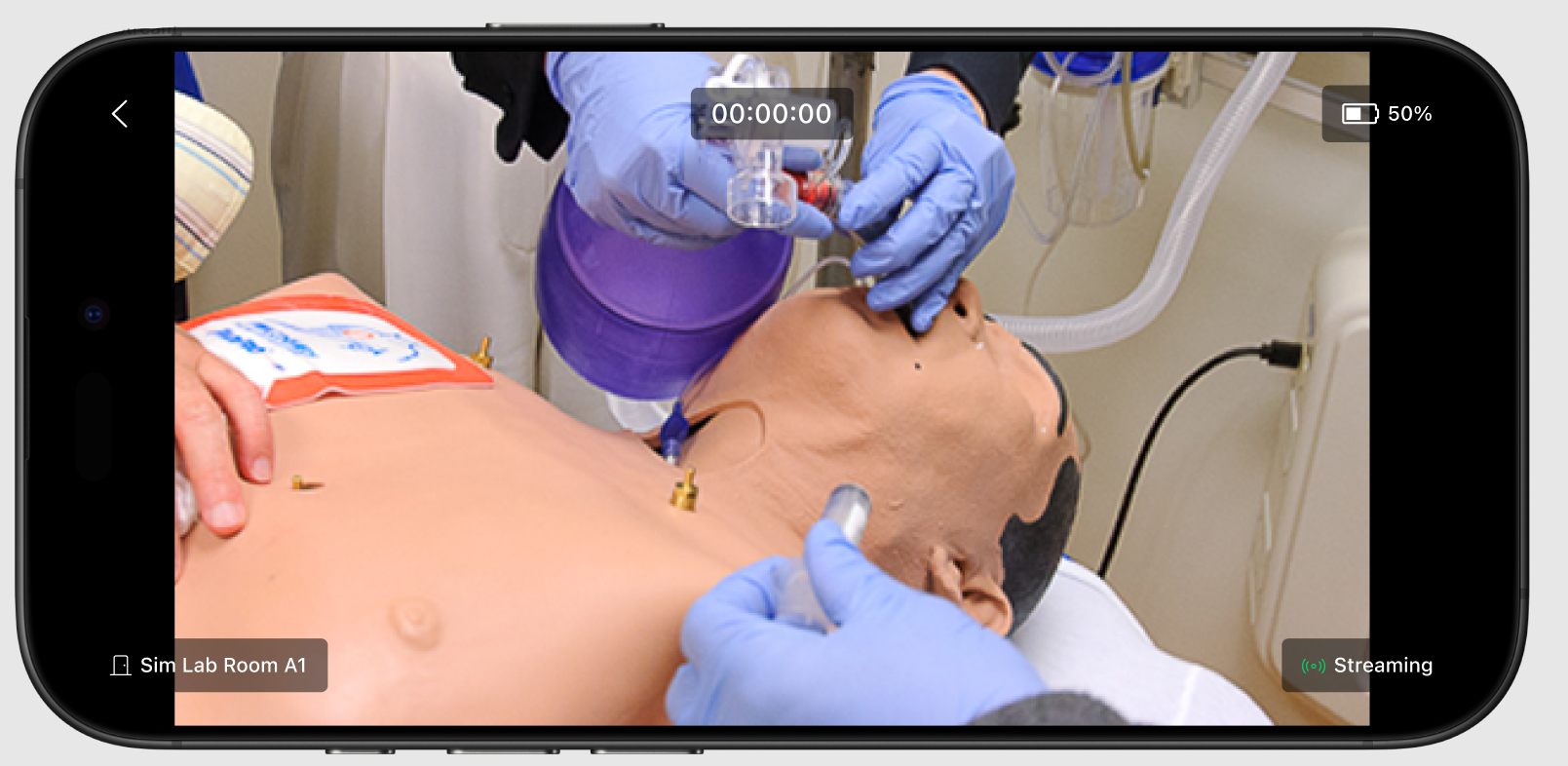 Mobile App - Streaming status 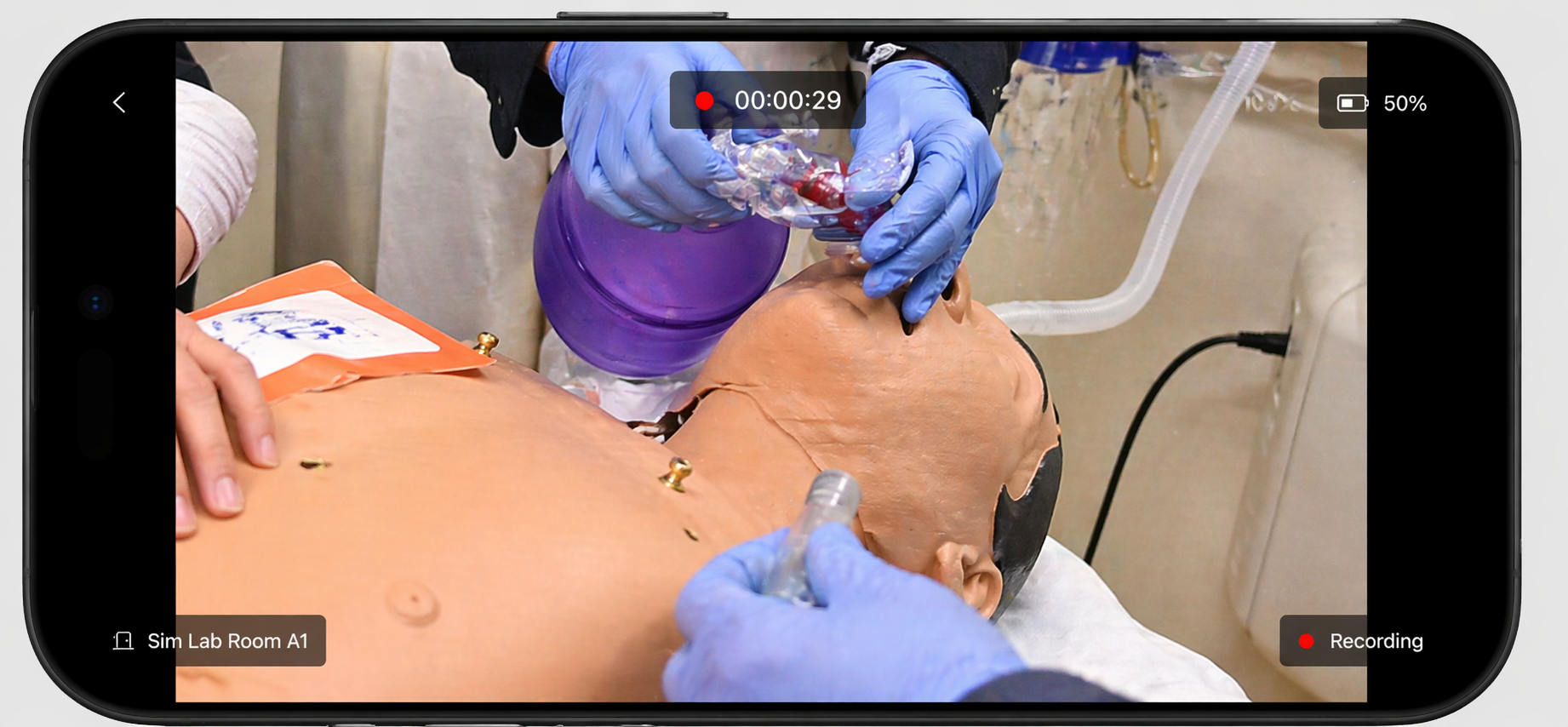 Mobile App - Recording status Mobile app camera view loads the default rear-facing camera. |
Mobile app stops camera streaming to LearningSpace if the camera view is left. This frees resources and prevents unintended streaming. Users can return from the camera view to the Overview page. |
If the user leaves the camera view during recording, a warning message is displayed, informing the user that streaming will stop on the mobile device in LearningSpace. 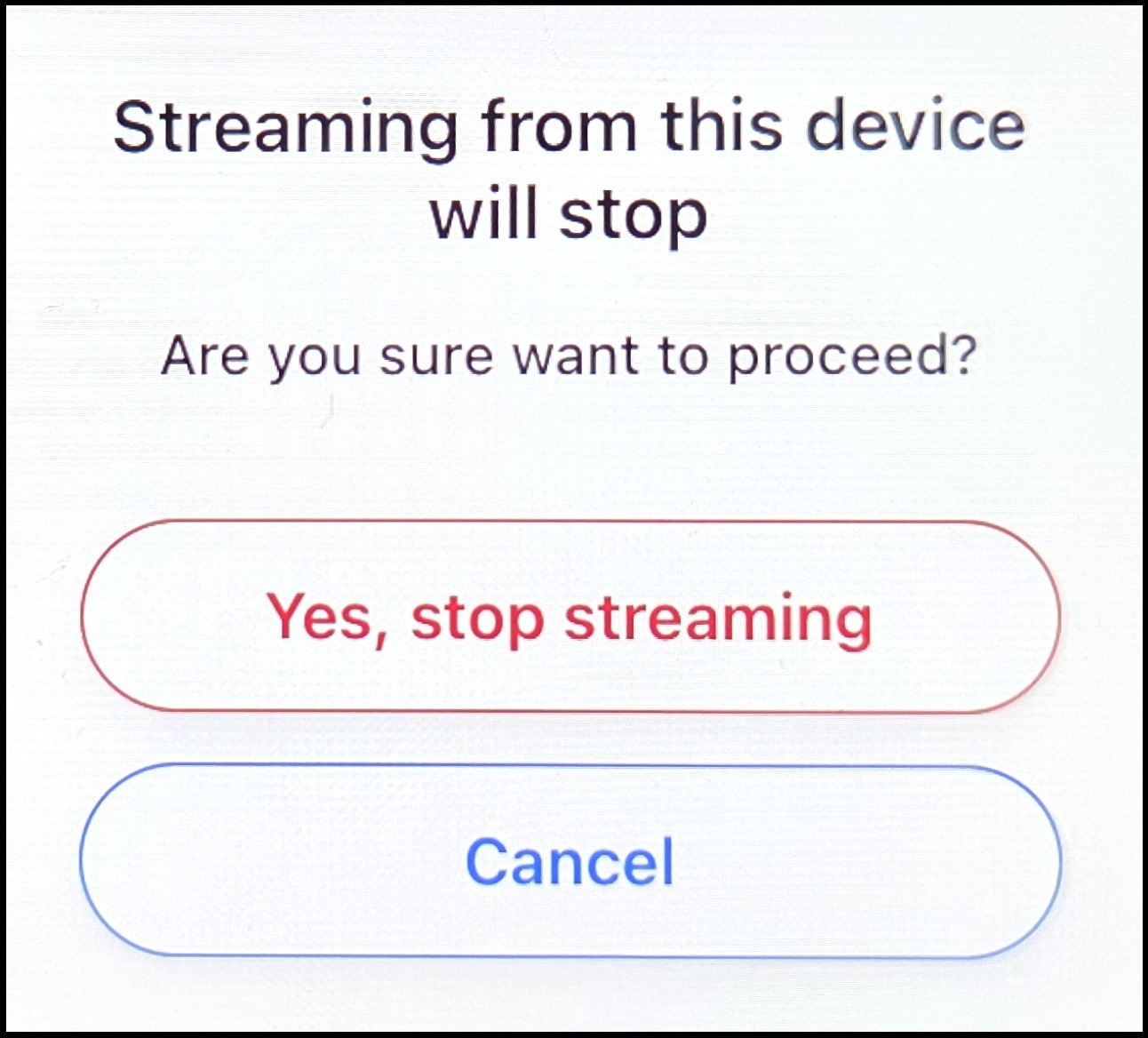 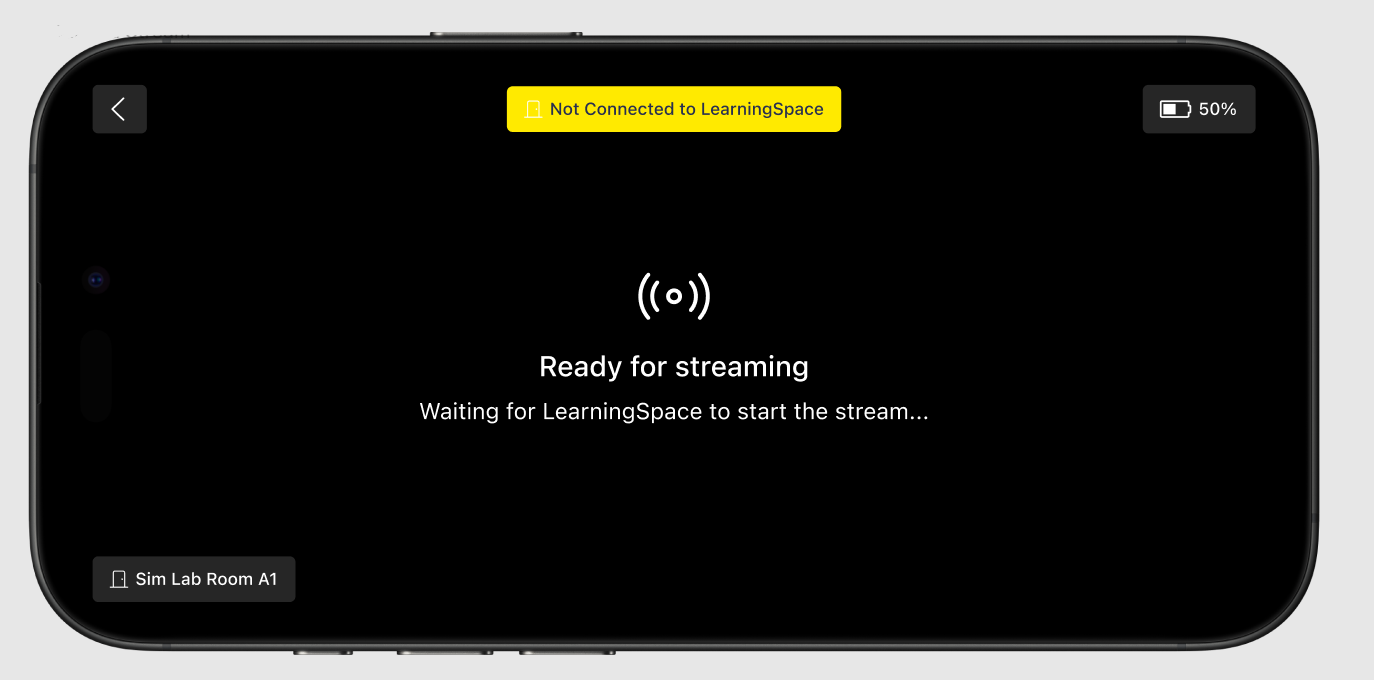 The mobile app displays a message if it loses its connection to LearningSpace and is not ready to record. The streaming status is introduced with a black background, which changes to the camera picture as soon as LearningSpace starts the stream. When the mobile camera is not yet in streaming state, the ‘Camera not ready for streaming’ error message is displayed on the Center Overview (CO) and Single Room View (SRV), and in the Camera Settings (System manager). 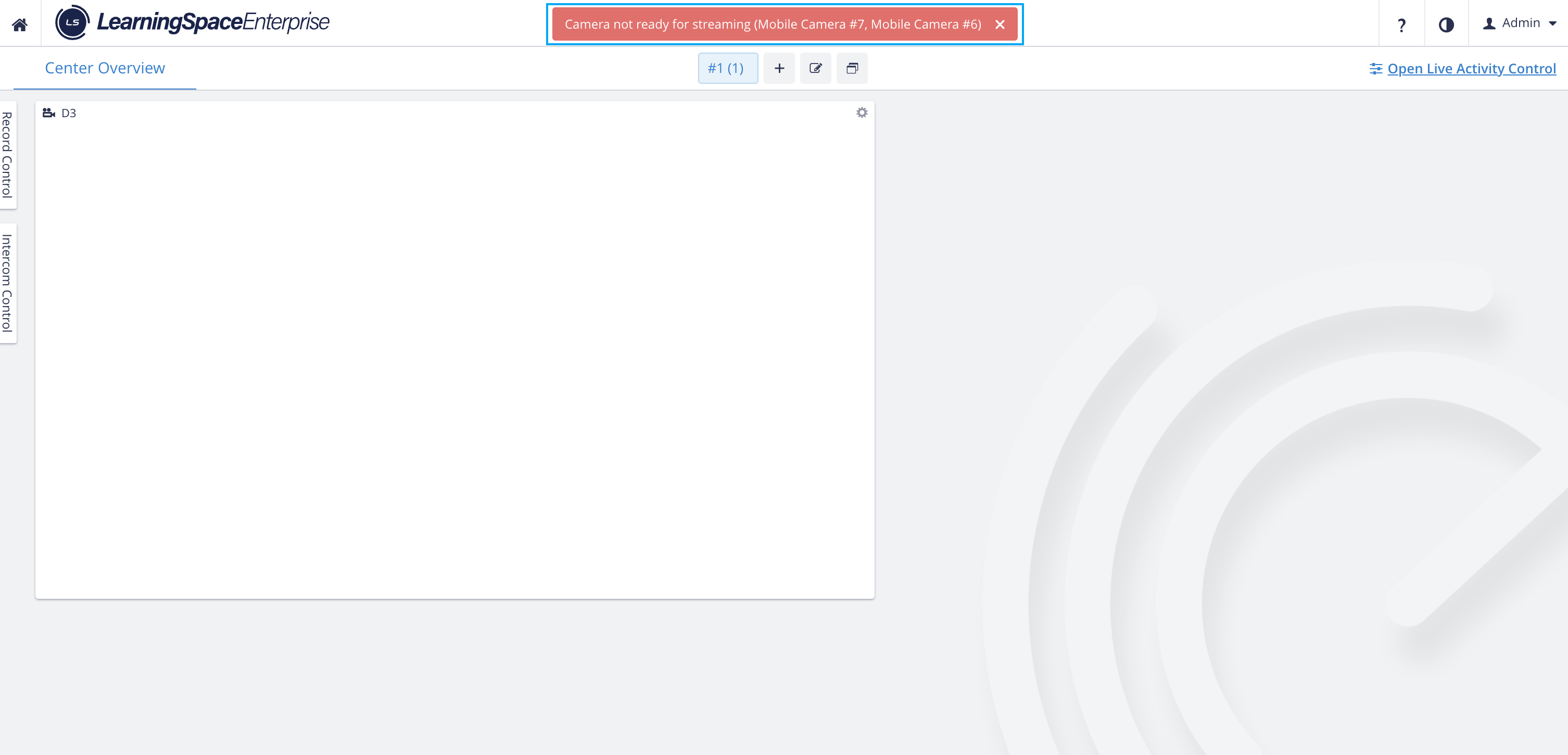 Camera not ready for streaming - Center Overview 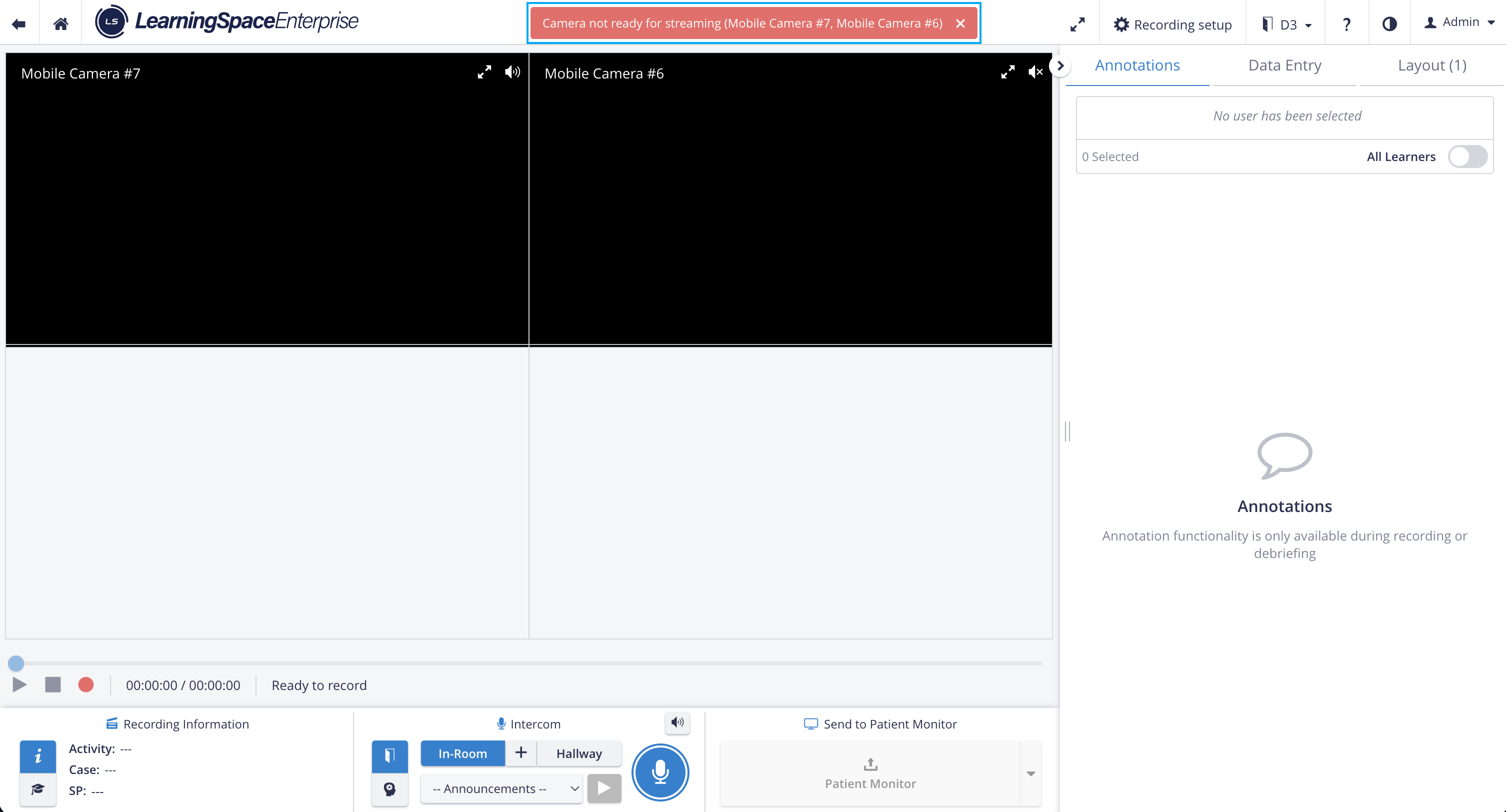 Camera not ready for streaming - Single Room View 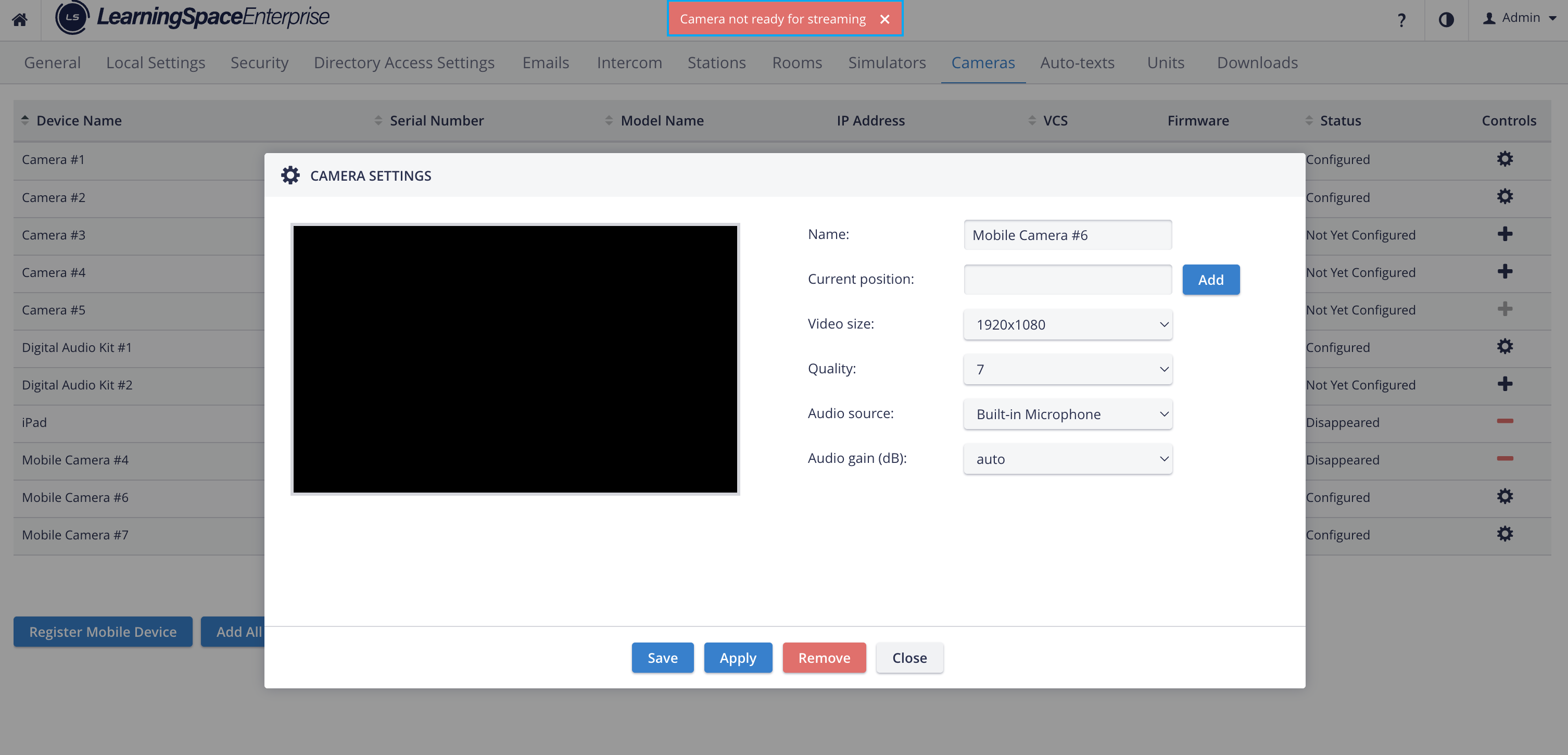 Camera not ready for streaming - Camera Settings |
Post-Processing Time of Mobile Recordings
IMPORTANT: The processing time for certain videos may differ from the normal processing time.
If the stream resolution does not change during a mobile recording, post-processing takes the same amount of time as for a video recorded with network cameras.
Stream resolution may change during recording if the mobile device's bandwidth is unstable. With adaptive streaming, the video stream's resolution adjusts dynamically based on available bandwidth. In other words, when the internet connection slows down, the streaming player automatically drops the resolution to keep the video playing smoothly.
If the video stream is recorded at different resolutions, LearningSpace must transcode it during post-processing, increasing post-processing time (average: 1.5x the video length).
Additional information
Note: Since the mobile phone’s streams go directly to LearningSpace, there is no
· local storage of recordings on the phone;
· recording control on the mobile app;
· advanced camera selection (e.g., wide-angle, telephoto);
· flashlight control from the app;
· muting audio from the app.
iPads also support the Mobile Recording feature.
For more information, see: