How to add a Mobile Device to a Room in LearningSpace
Once successfully registered, you can add a mobile device to a Room in LearningSpace:
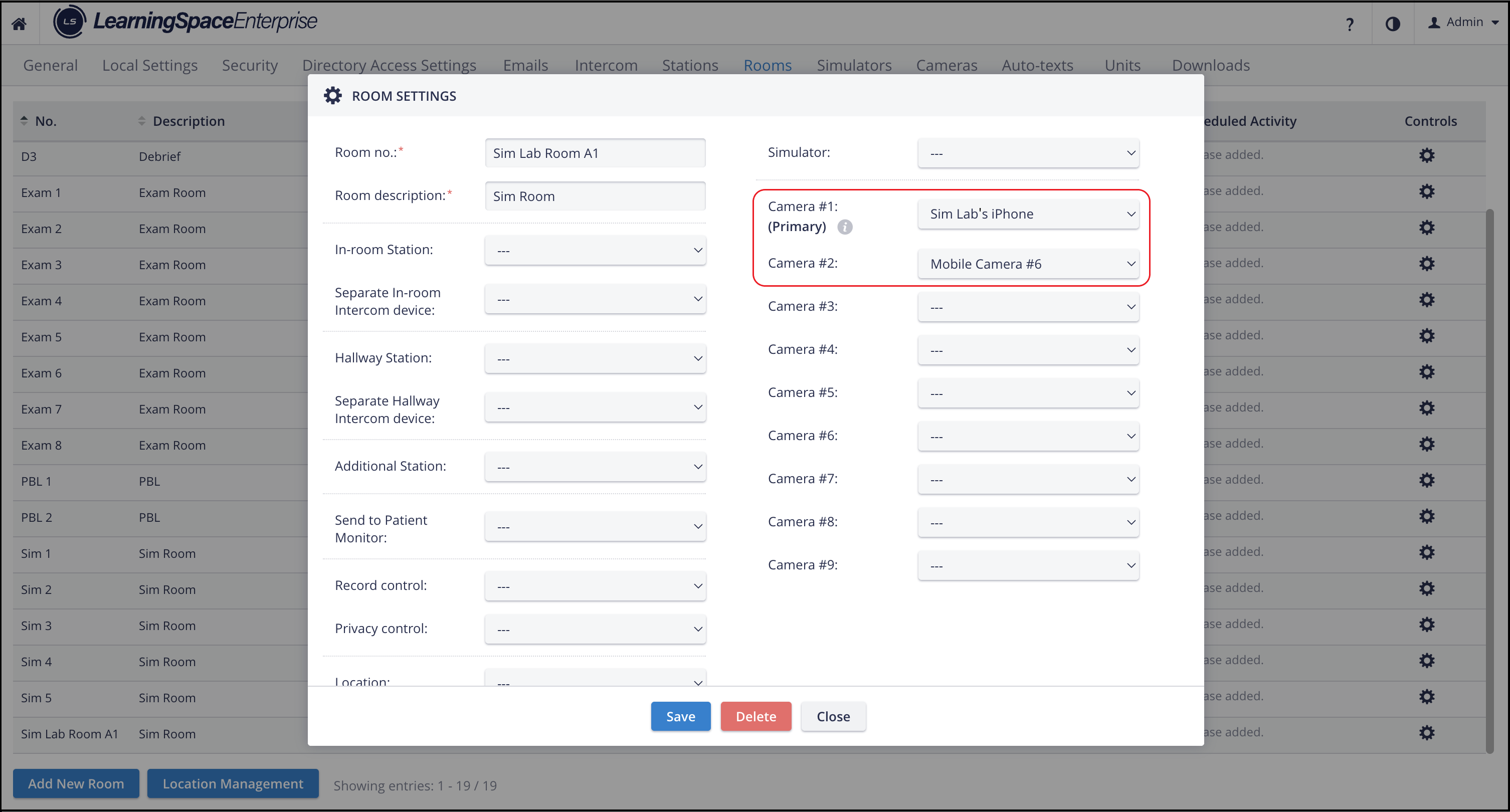
In the System Manager, select the Rooms tab.
In the "Controls" column, click the cogwheel icon for the selected room.
In the "Room Settings" pop-up, add the mobile camera to one of the slots (e.g., "Camera #1 (Primary)") and click Save.
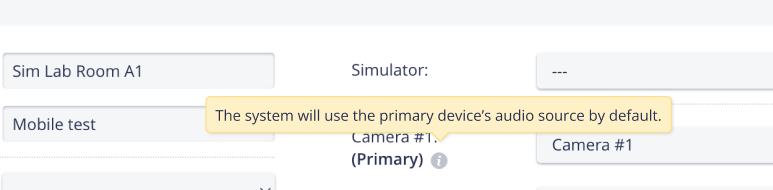
Primary Camera Setting
In the mobile app, you will see the name of the room the camera is assigned to and whether it is the Primary Camera in that room.
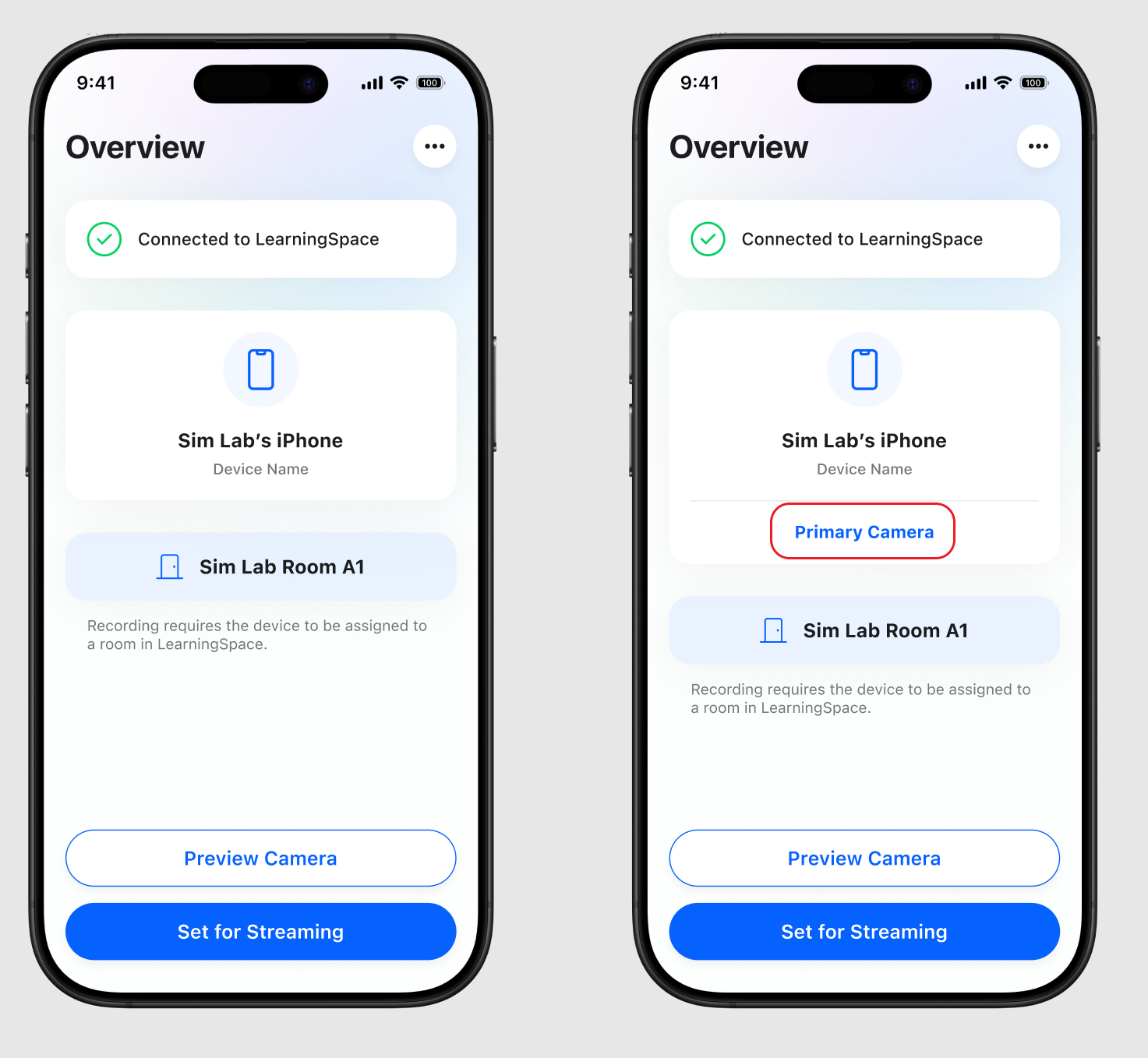
Mobile Device connected to LearningSpace
For more information, see:
Bring Your Own Device Feature (BYOD)