How to use a Mobile Device for recording in LearningSpace
Mobile Recording Feature
Follow the steps below to use your own mobile device as a camera in your LearningSpace system.
Learn more at Bring Your Own Device Feature (BYOD)
Start and Stop Streaming and Recording
Tap Set for Streaming in the mobile app.
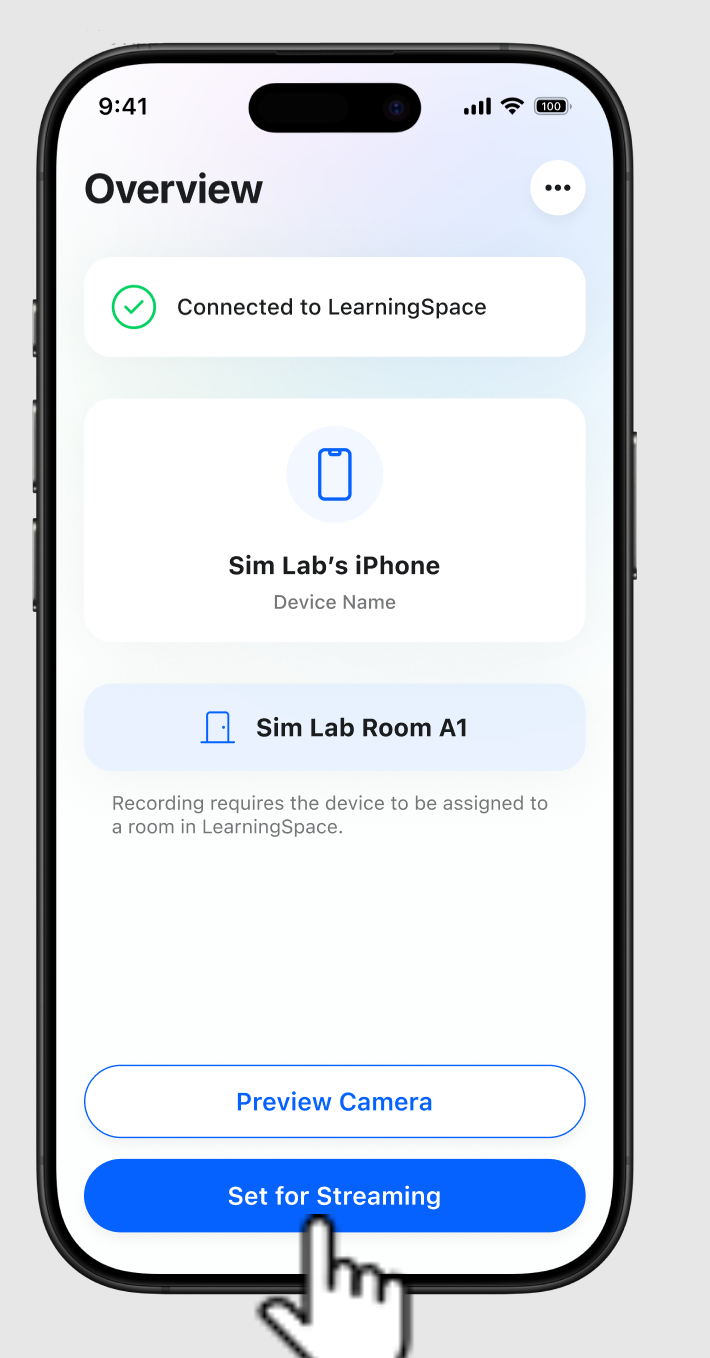
Set for Streaming option
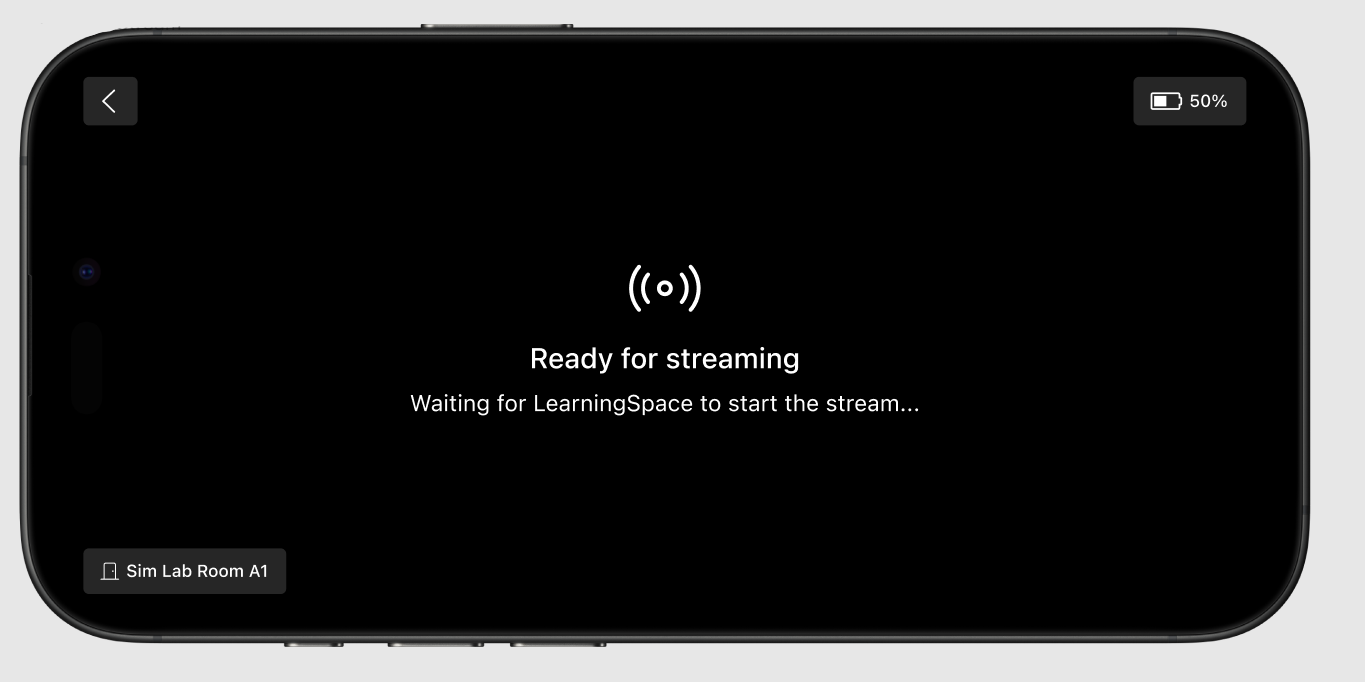
The screen will display “Ready for streaming”.
In LearningSpace, the mobile camera stream will appear in the assigned room’s window (Recording, Center Overview). Go to the Single Room View to preview the room you wish to record in.
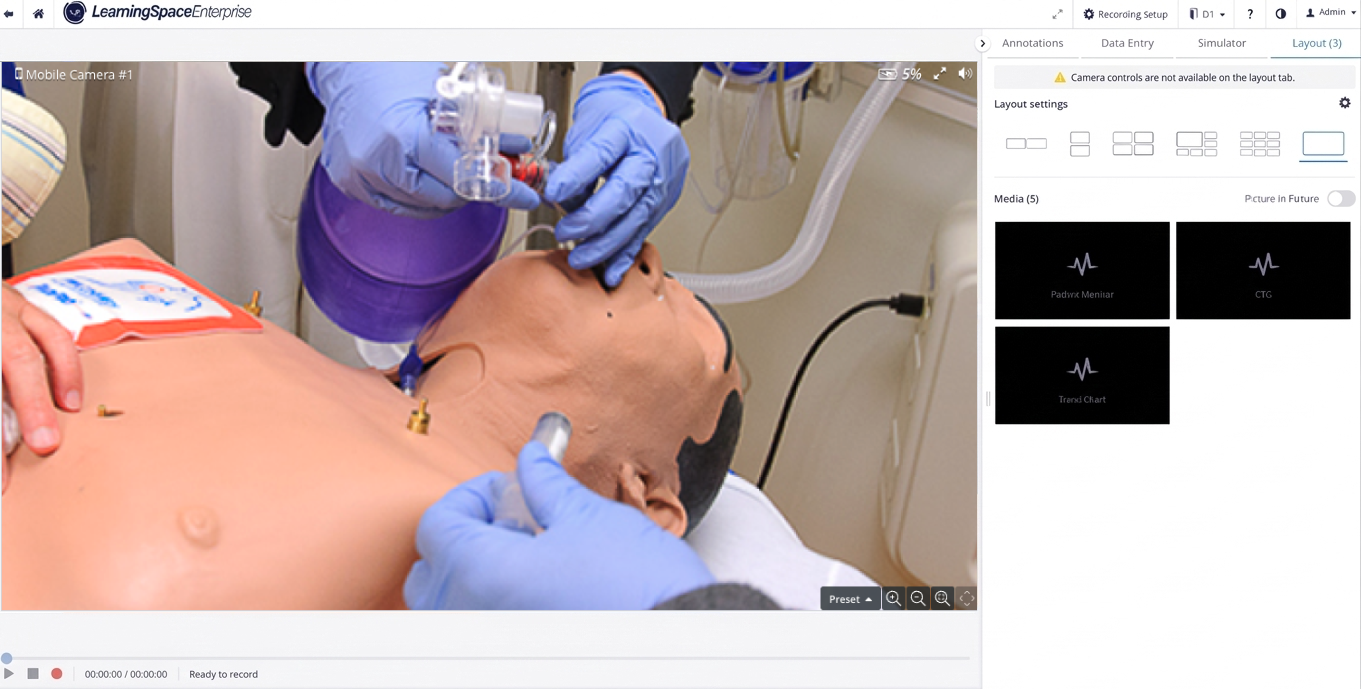
LearningSpace Single Room View - Mobile device stream Preview
The stream will start on the mobile device.
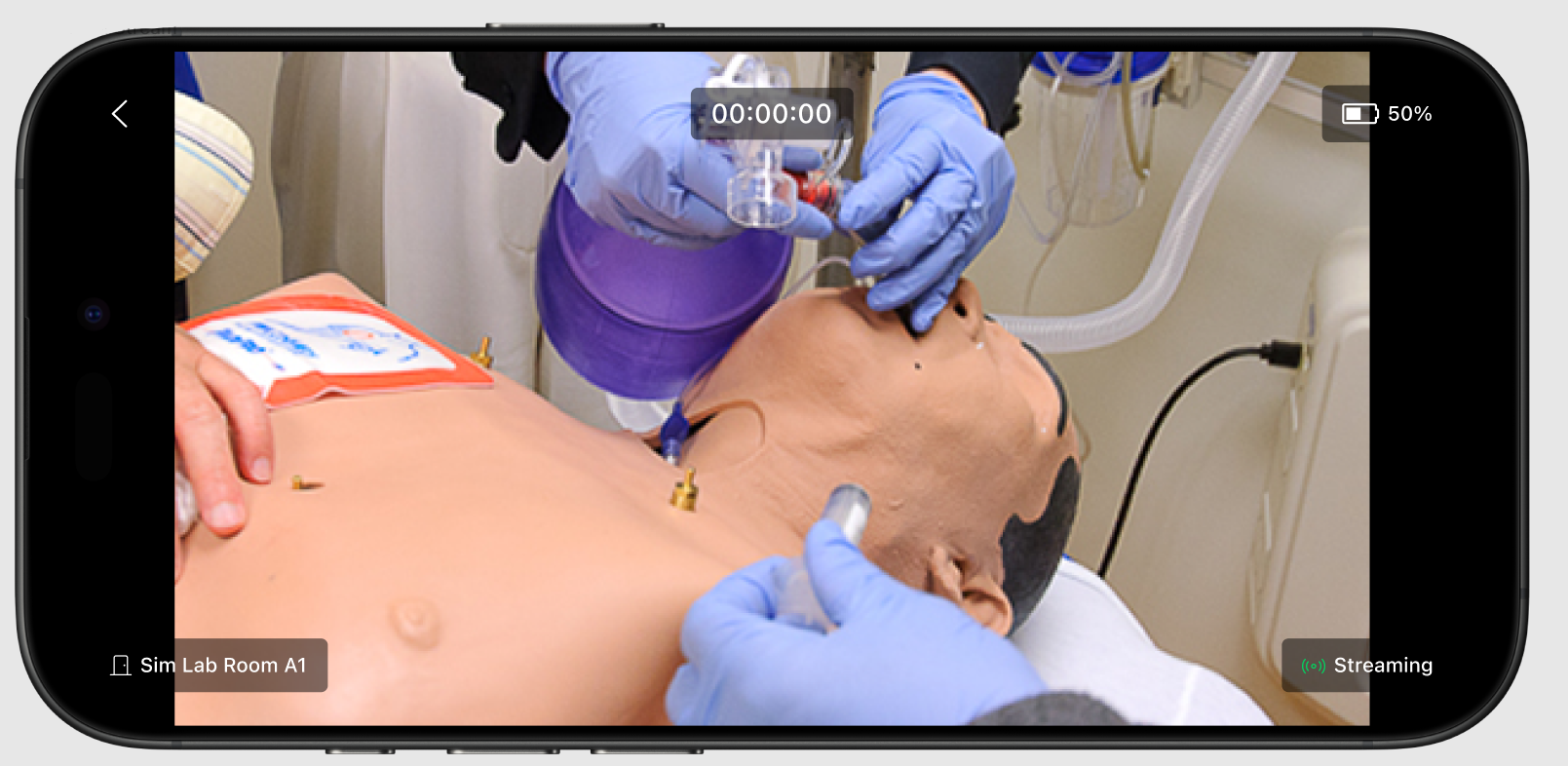
Streaming on the mobile device
Start the recording in LS. The mobile app will reflect the start of the recording.
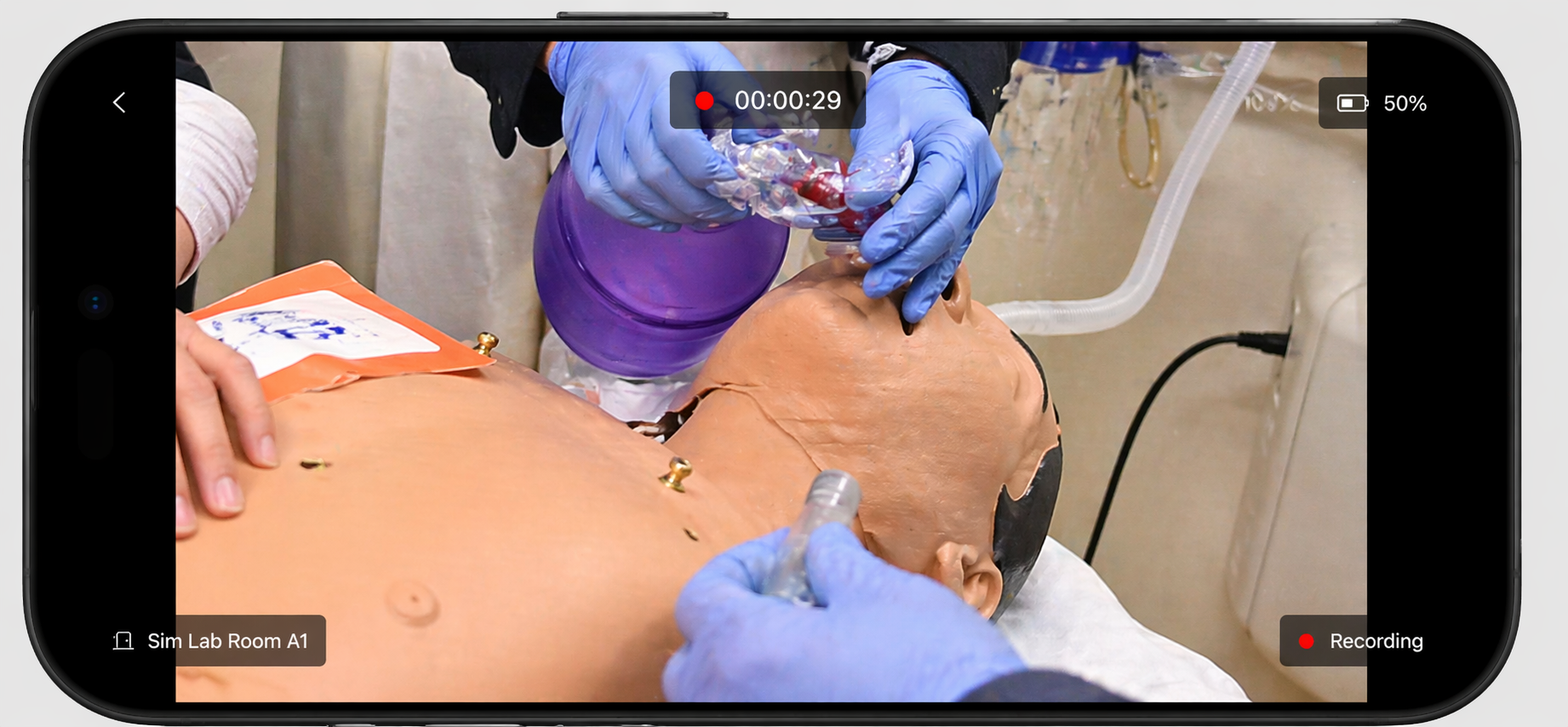
Recording on mobile device
When stopping the recording in LearningSpace, the mobile app will reflect the recording stop.
When the mobile camera is not yet in streaming state, the ‘Camera not ready for streaming’ error message is displayed on the Center Overview (CO) and Single Room View (SRV), and in the Camera Settings (System manager).
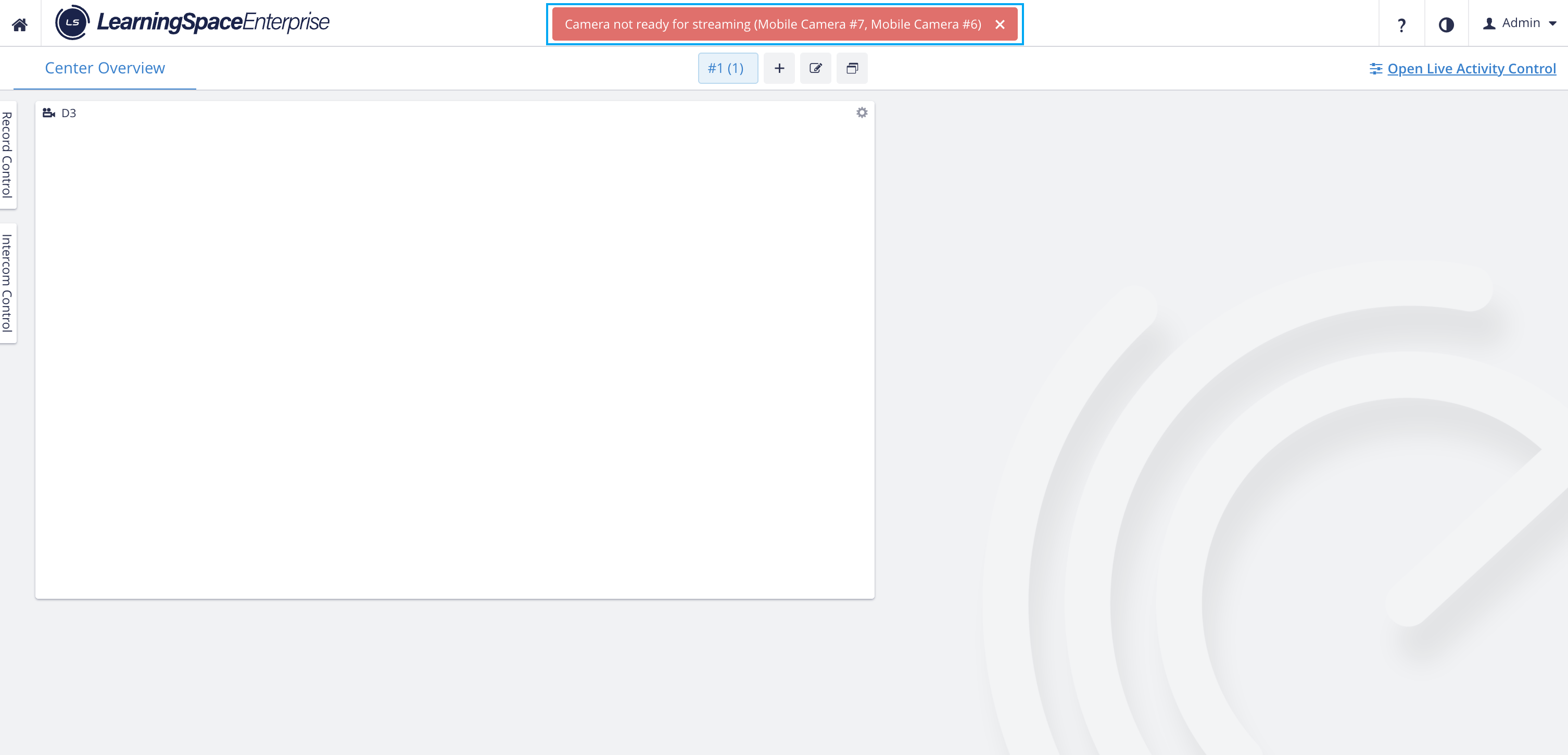
Camera not ready for streaming - Center Overview
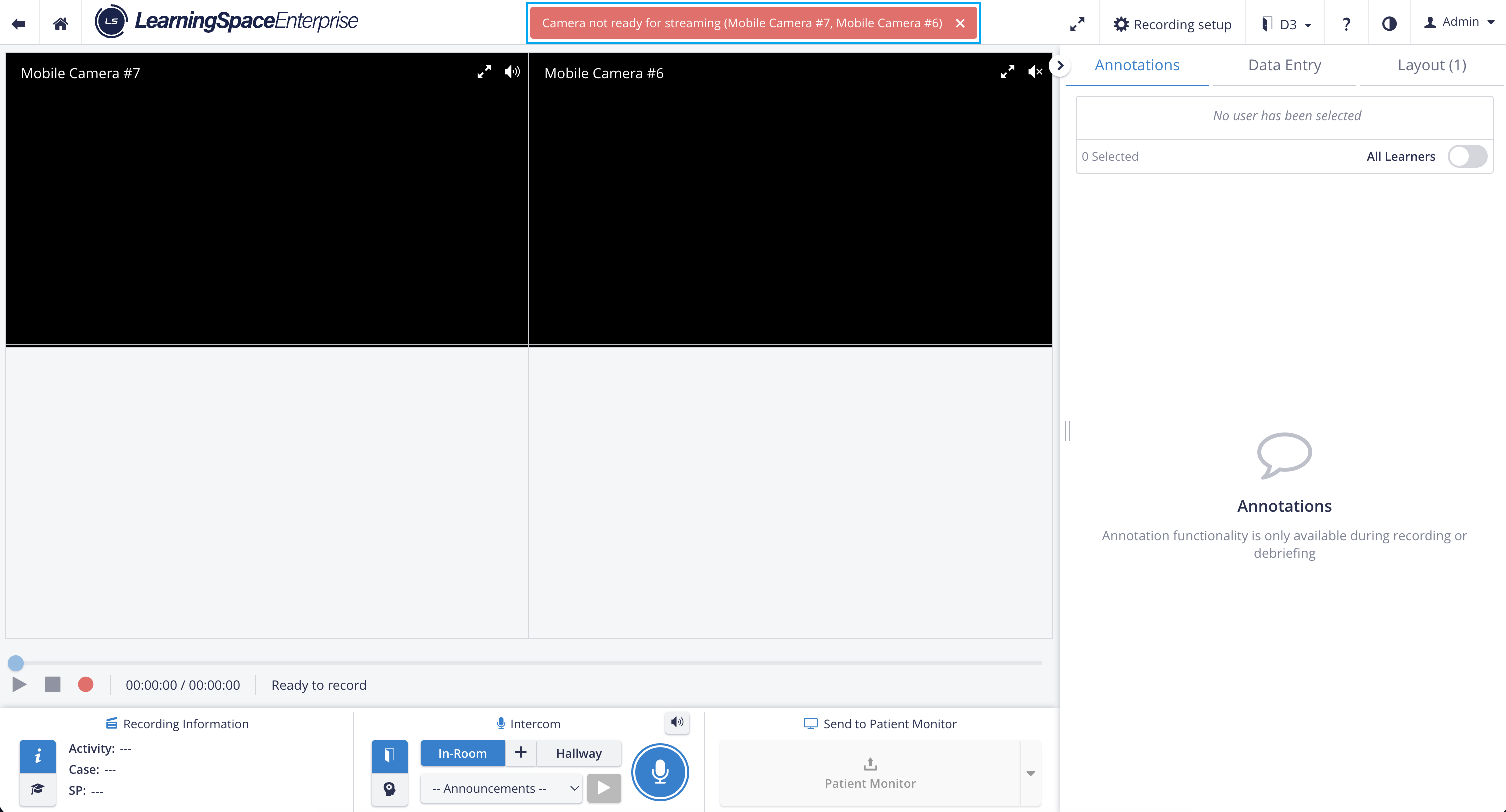
Camera not ready for streaming - Single Room View
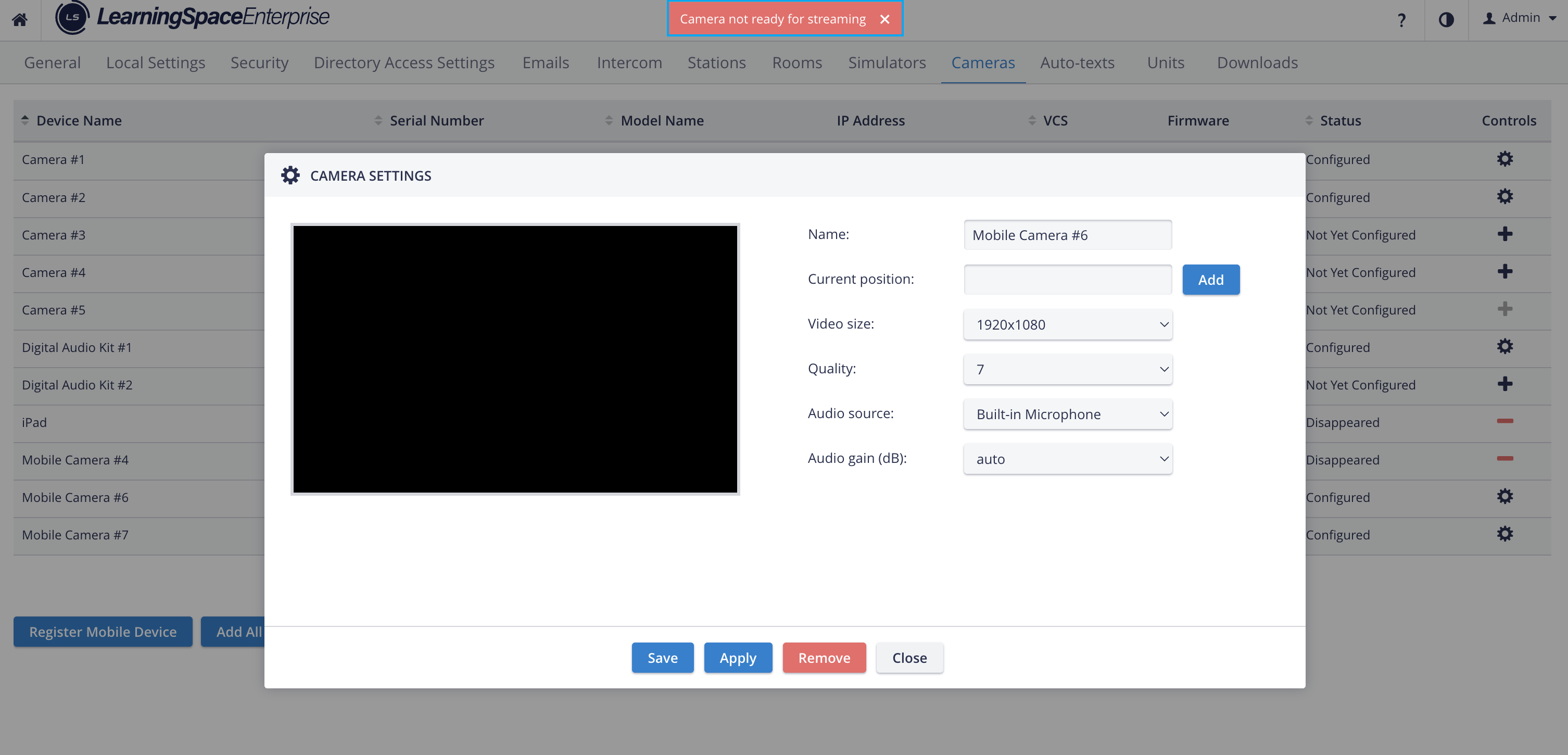
Camera not ready for streaming - Camera settings
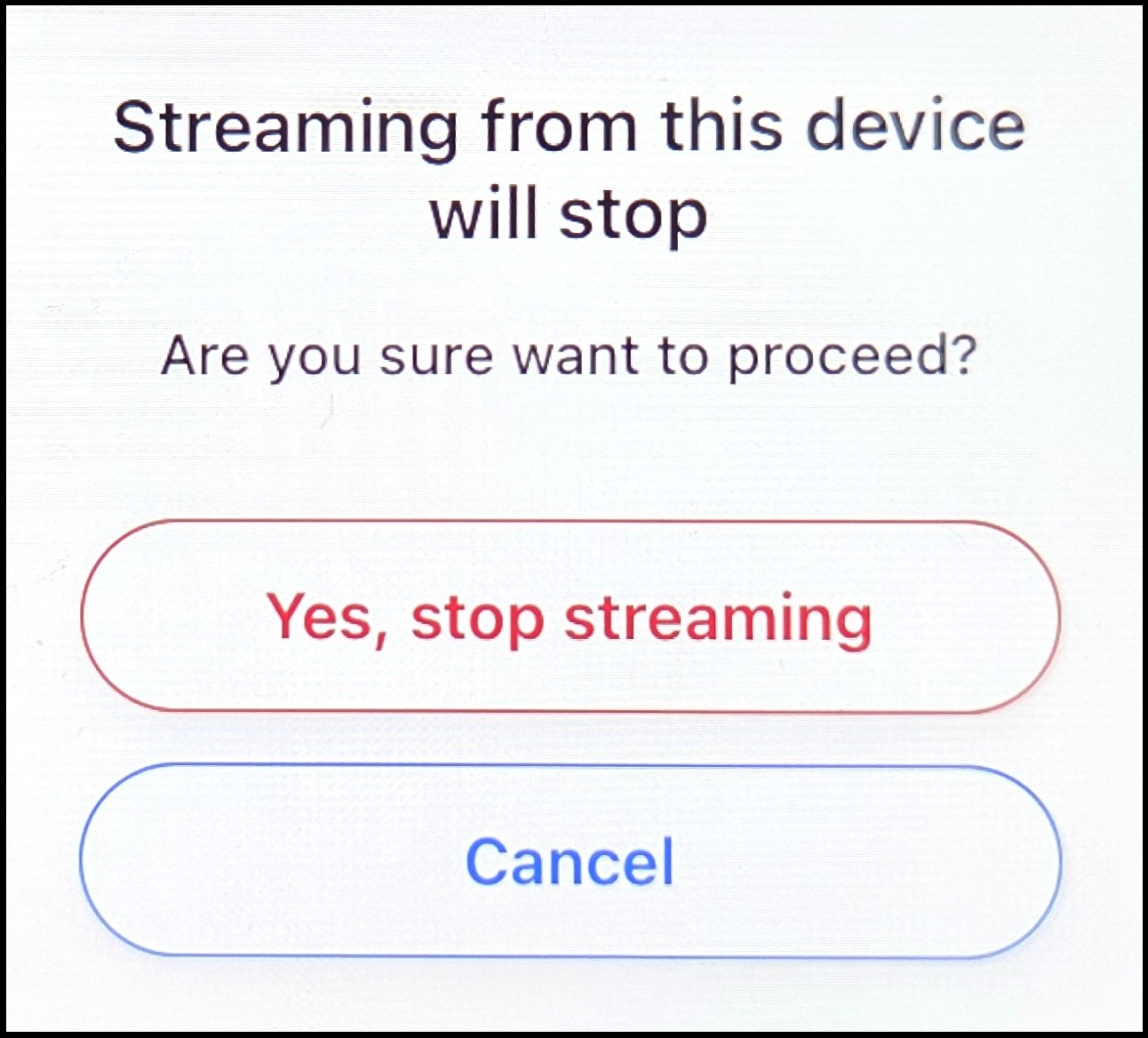
Note: If the camera view is left during streaming, a warning message is displayed, informing the user that streaming will stop on the mobile device in LearningSpace.
Once a mobile camera is set up, reduce the device's brightness to conserve battery power and keep it as cool as possible. Turn off automatic brightness adjustment to prevent automatic reversion.
Post-Processing Time of Mobile Recordings
IMPORTANT: The processing time for certain videos may differ from the normal processing time.
If there is no change in stream resolution during a mobile recording, post-processing takes the same amount of time as for a video recorded with network cameras.
Stream resolution may change during recording if the mobile device's bandwidth is unstable. Due to adaptive streaming, the video stream's resolution dynamically adjusts based on available bandwidth. In other words, when the internet connection slows down, the streaming player automatically drops the resolution to keep the video playing smoothly.
If the video stream is recorded at different resolutions, transcoding is required during post-processing in LearningSpace, increasing post-processing time (average: 1.5x the video length).
Privacy mode is currently not supported for mobile cameras.