2025 July - New Features
1. Flexible Scheduling (‘Flexi’)
The new Flexible Scheduling (‘Flexi’) solution within LearningSpace aims to streamline and enhance the administration and execution of OSCEs by leveraging and enhancing LearningSpace's existing modules. Flexi Scheduling enhances efficiency and alleviates the administrative burden on the Faculty.
An Encounter Template must be added to the Event in the Calendar (in the Edit Event popup).
This action will turn the event into a ‘Flexi’ event.

If using Flexi Events, you don’t have to:
schedule Learners,
assign SPs to Learners,
set Timeslots, Rounds, or Circles,
assign Stations to specific users
and more.
See the differences between Flexi and Advanced Scheduled Events here.
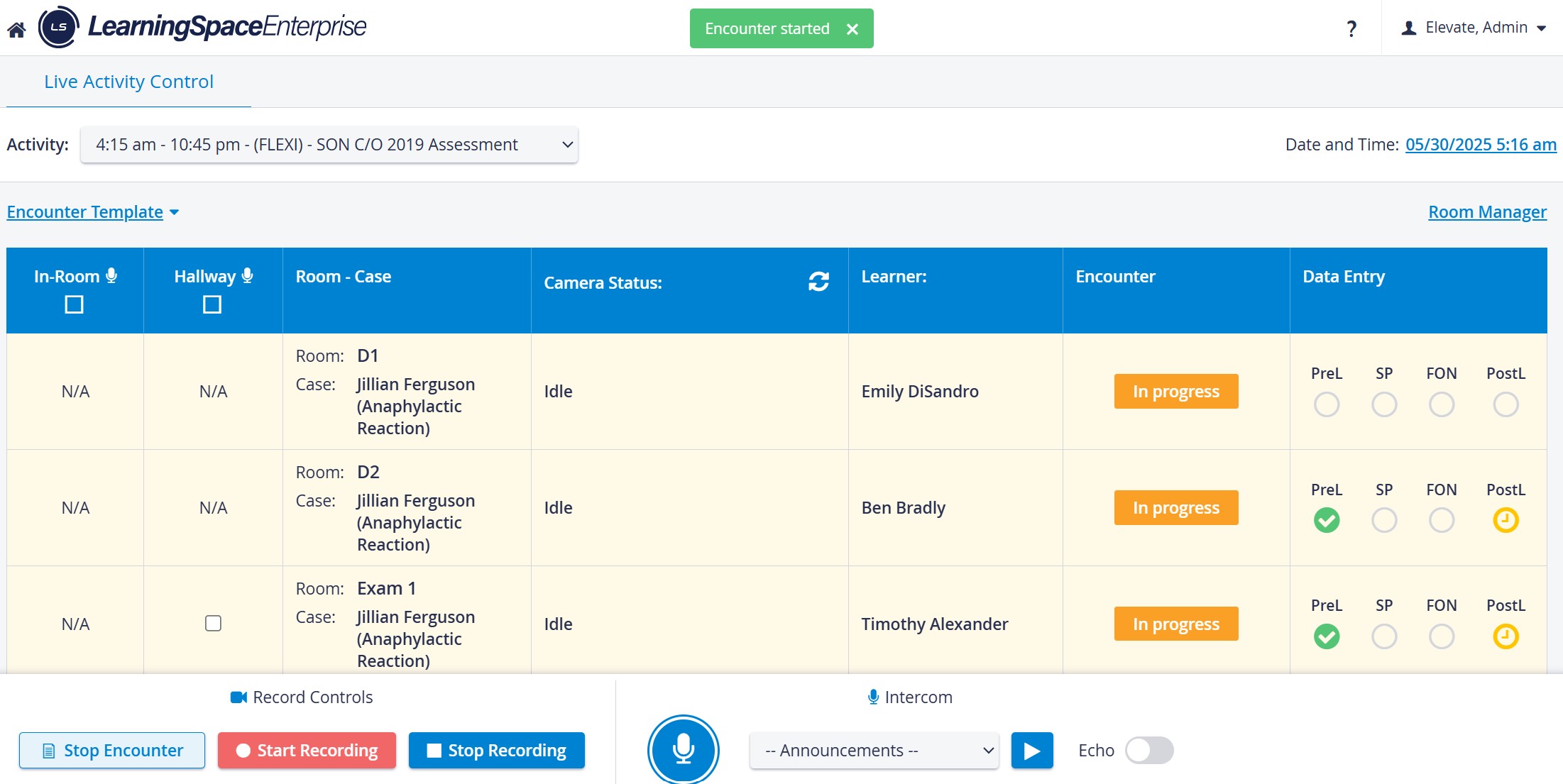
The Flexible Scheduling feature is enabled by default.
For more information, proceed to:
How to Set up and Run Flexi Events
How to create or edit an Encounter Template
Comparison: Advanced Scheduling - Flexi Scheduling
2. Display Point Values in Printable Checklist View
The "Print this Case" feature allows you to print checklists with detailed scoring information. A new enhancement aims to support an even better offline or PDF-based evaluation and documentation in a clear and user-friendly way.
A new checkbox has been introduced in the Print Configuration Panel:
‘[ ] Display point values and section weights for checklist’
When enabled:
Each answer item displays its point value
Each question shows its total max point value
Each section shows:
Its weight
Its total max point value
The overall checklist total point value is shown at the top and bottom

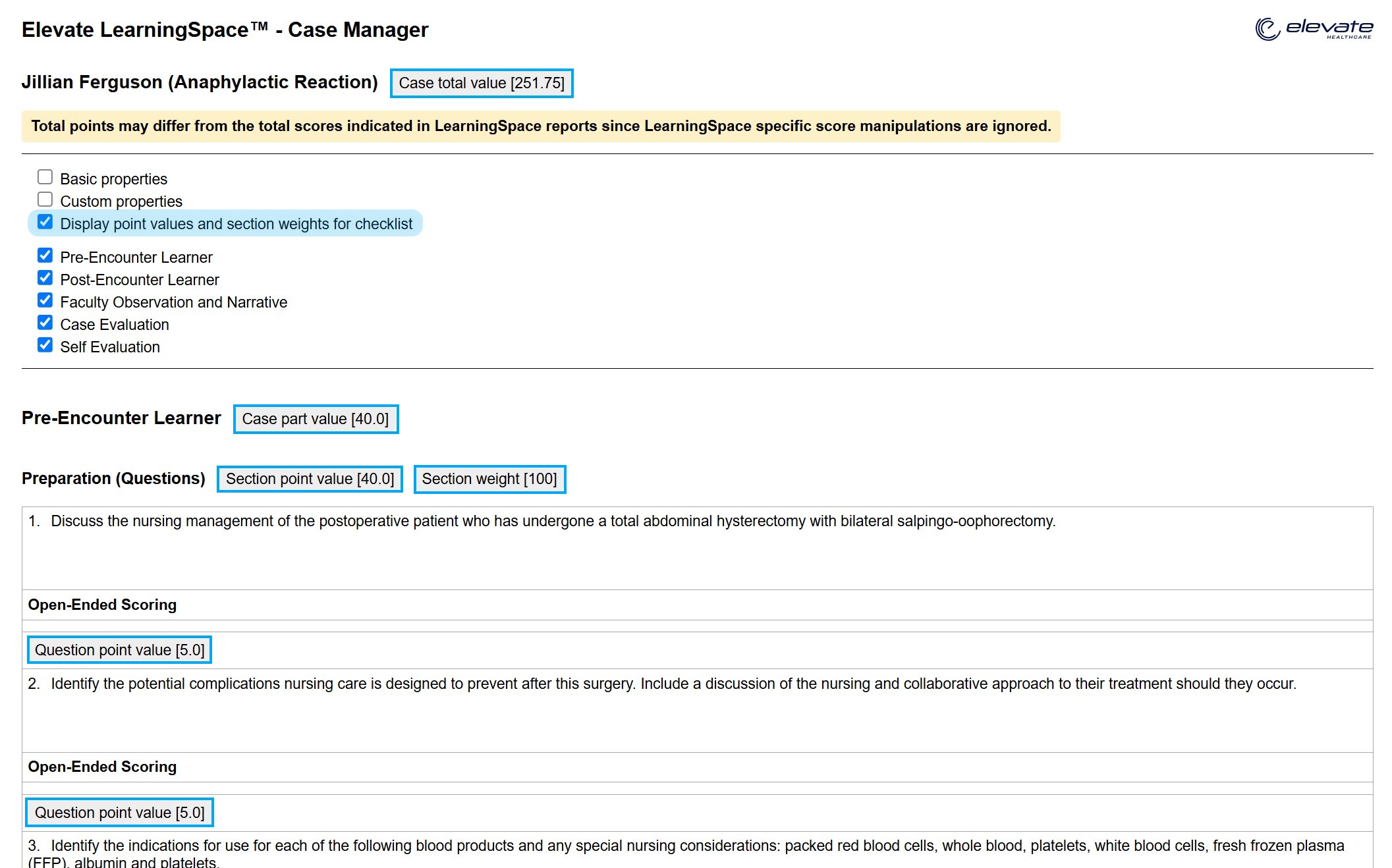
The option is disabled by default.
3. Calendar Export to Excel: Client Column
A new ‘Client’ column has been added to the Excel Export of the Calendar’s List view, displaying the Client associated with the parent Activity of each Event.
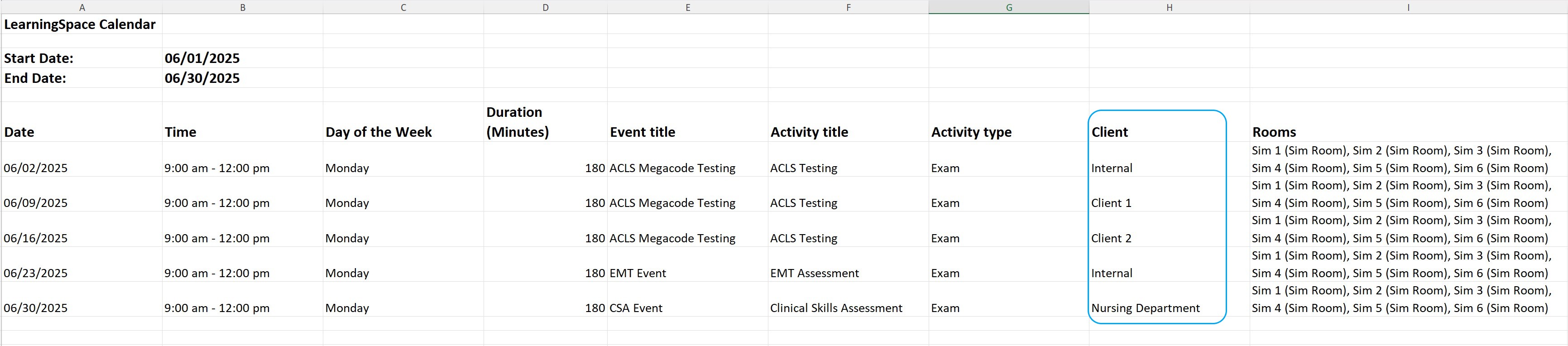
4. Zoom Download Information
With the latest LearningSpace release, a new “info tooltip” has been added next to the status of videos that are Zoom meetings and are still being downloaded. The info contains a rough estimate of when the videos will be available for review.
Until the video is fully downloaded from the Zoom cloud into LearningSpace, the status of the video entry is “Downloading”. The new info tooltip contains the following message:
“Cloud recordings generally take about 2 times the duration recorded to process, but occasionally may take up to 24 hours due to higher processing loads. For example, an hour-long meeting with only 30 minutes recorded would typically take 30-60 minutes to process.“

Info Tooltip about Downloading Cloud Recordings