Structure of Case Manager
About Cases in LearningSpace
A Case is built around a Standardized patient presenting a scenario, and a Learner trying to formulate a diagnosis based on their encounter.
Cases provide the medical content for an Activity. At the core of each Case is an array of scalable, customizable checklists that help you achieve your Activity's specific purpose. An Activity's purpose can be to learn, practice, test knowledge, or develop particular skills.
A Case contains checklists (also referred to as parts) that cover every aspect of the patient-learner encounter, from informing participants with a door note to completing post-encounter checklists from the perspectives of Learner, SP, faculty, and other observers (peer or expert).
A Case can also be designed to oversee training quality or to train new SPs.
When entering the Case Manager, the Cabinets are listed on the left, while all Cases are listed on the right by default.
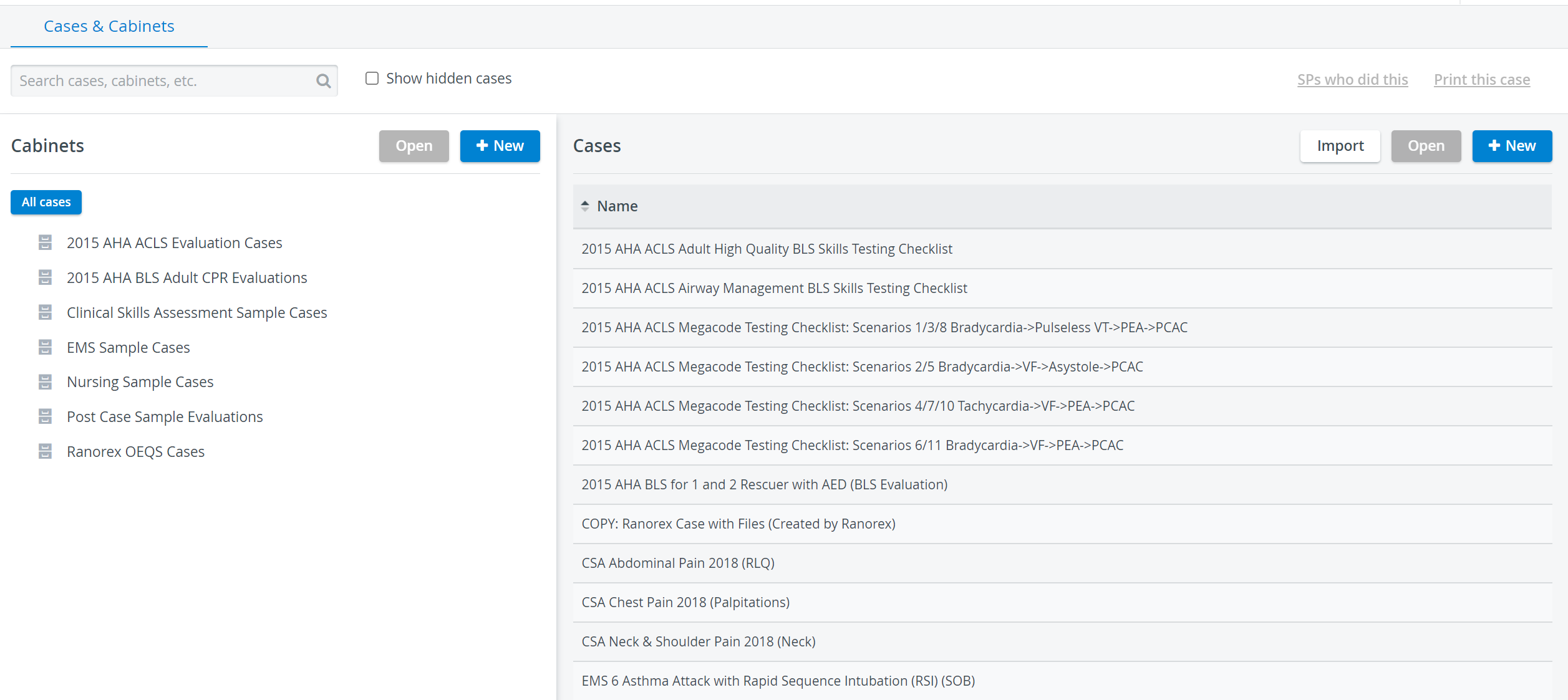
To find a specific Case or cabinet, start typing its title in the Search bar. Any title, including the exact set of characters, will be listed below the field and can be opened by clicking on it.
Case Cabinets
Cabinets help organize Cases and can be structured into parent-child groups.
Existing cabinets are listed on the left side of the Case Manager's opening screen.
In the Cabinet Settings window, new cabinets can be created, or existing ones edited or deleted, by either clicking the New button in the Cabinets panel or double-clicking the desired cabinet.
To determine access (Read-only or Read and Write) for users with the Case Author privilege, selected users must be added to the Share tab of the Cabinet Settings pop-up.
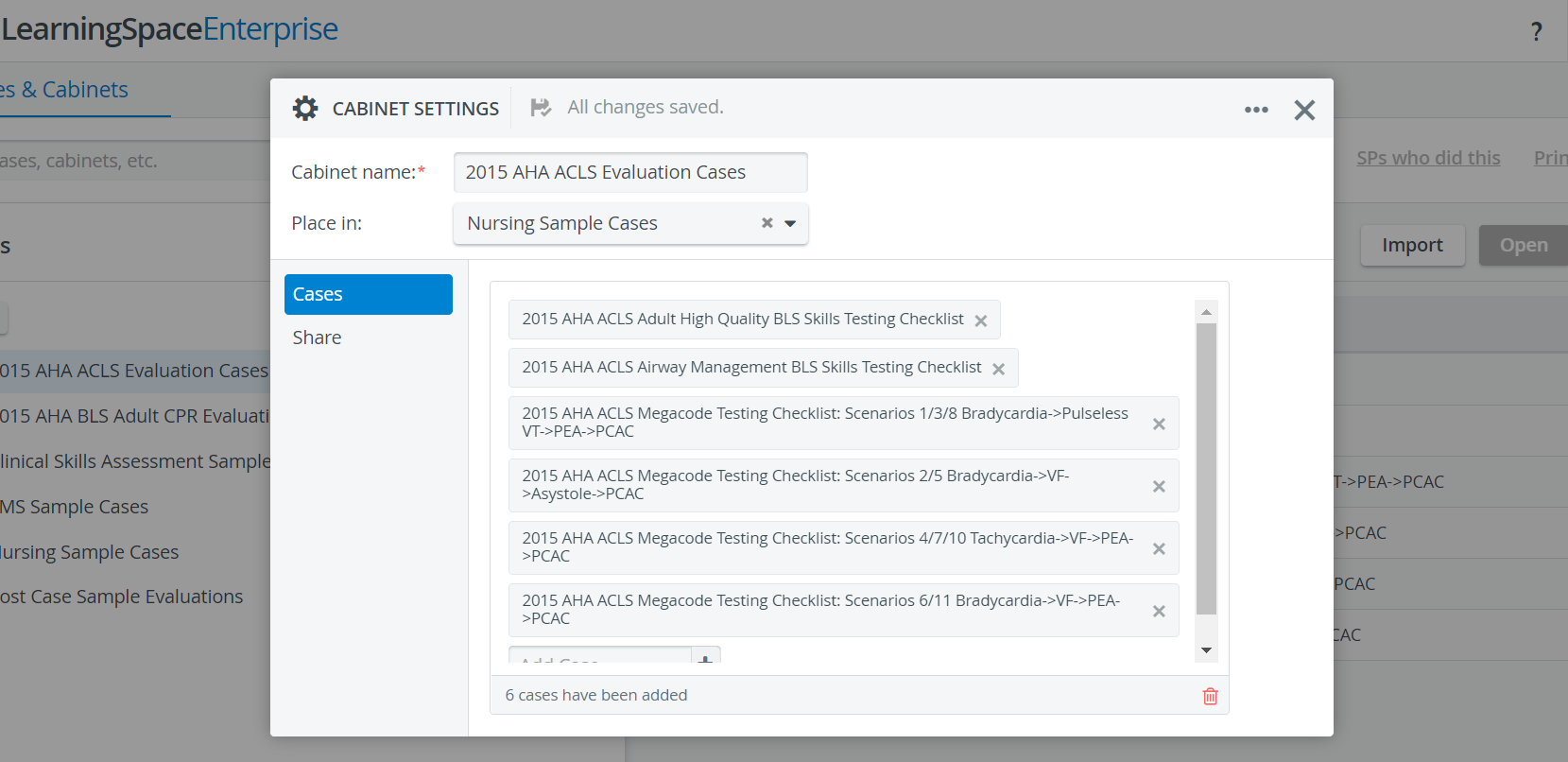
Using the Cabinet function is optional: Cases can be added to the system independently, without being placed in a cabinet.
Cases
To access and edit the details of a specific Case, open the Edit Case pop-up window by double-clicking its title, or by highlighting it and then clicking Open in the top-right corner of the panel.
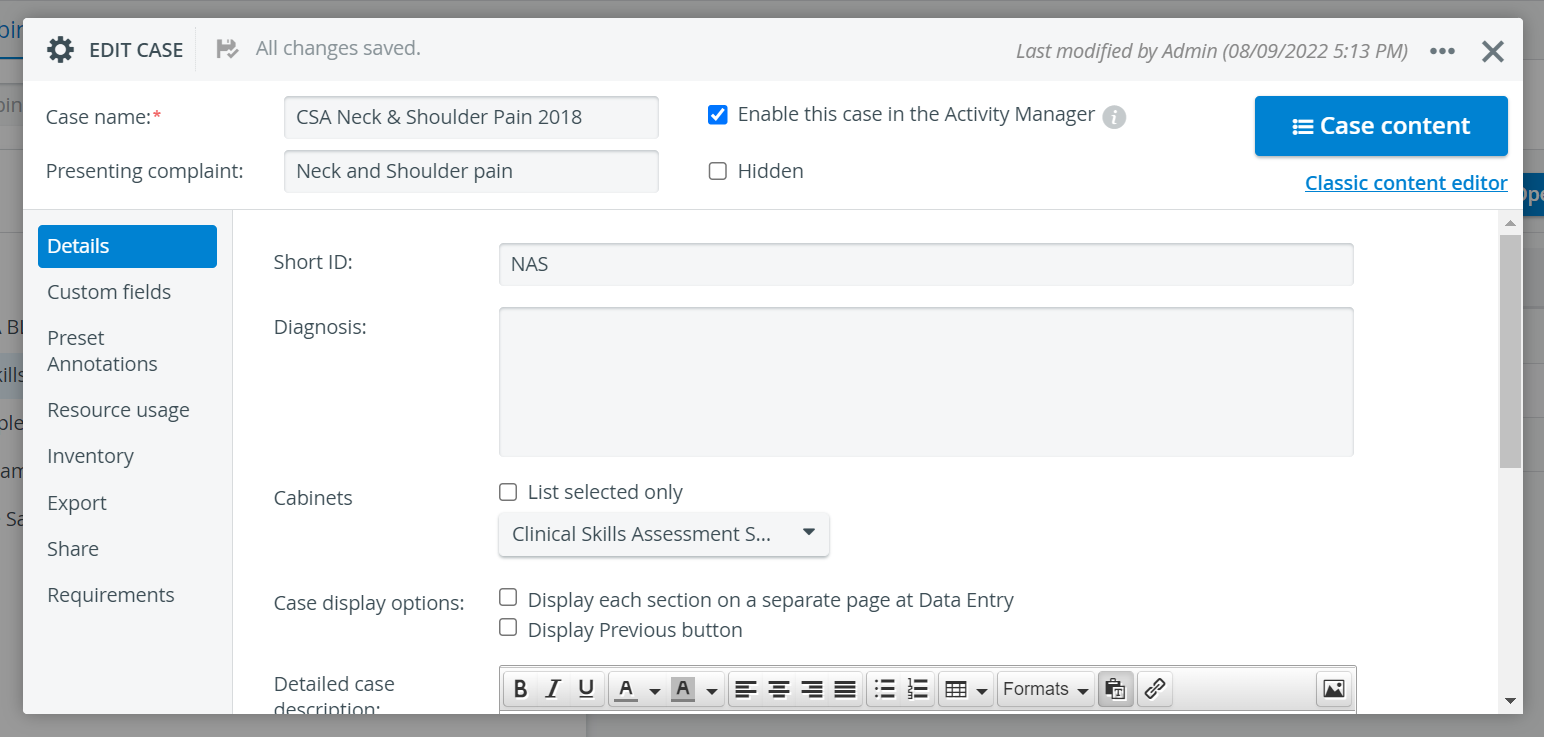
When creating a new Case, the same Case editor window opens. Select the New button in the top-right corner of the Cases panel to start a new Case.
Additional Options
SPs who did this
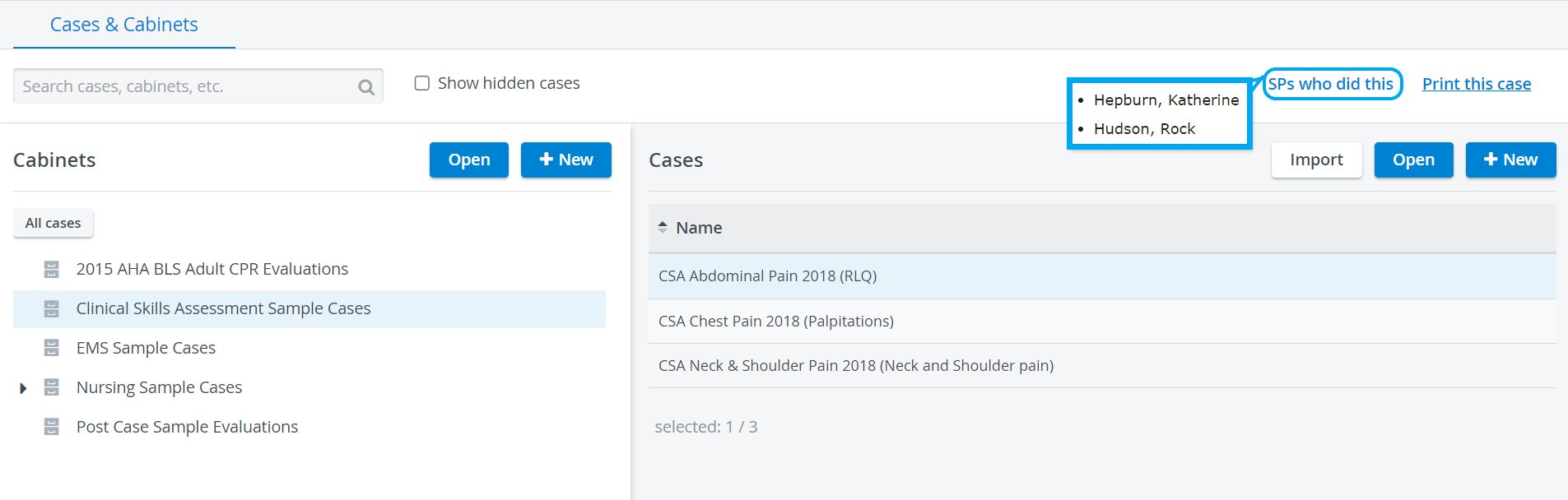
When a Case is highlighted on the Case Manager screen, you can check which SPs have already been assigned to that Case by clicking the "SPs who did this" link on the right side, above the Cases panel.
Print this Case
You can also print the Case and all learner-related checklists for it by clicking the Print this Case link in the top-right corner of the Case Manager screen.
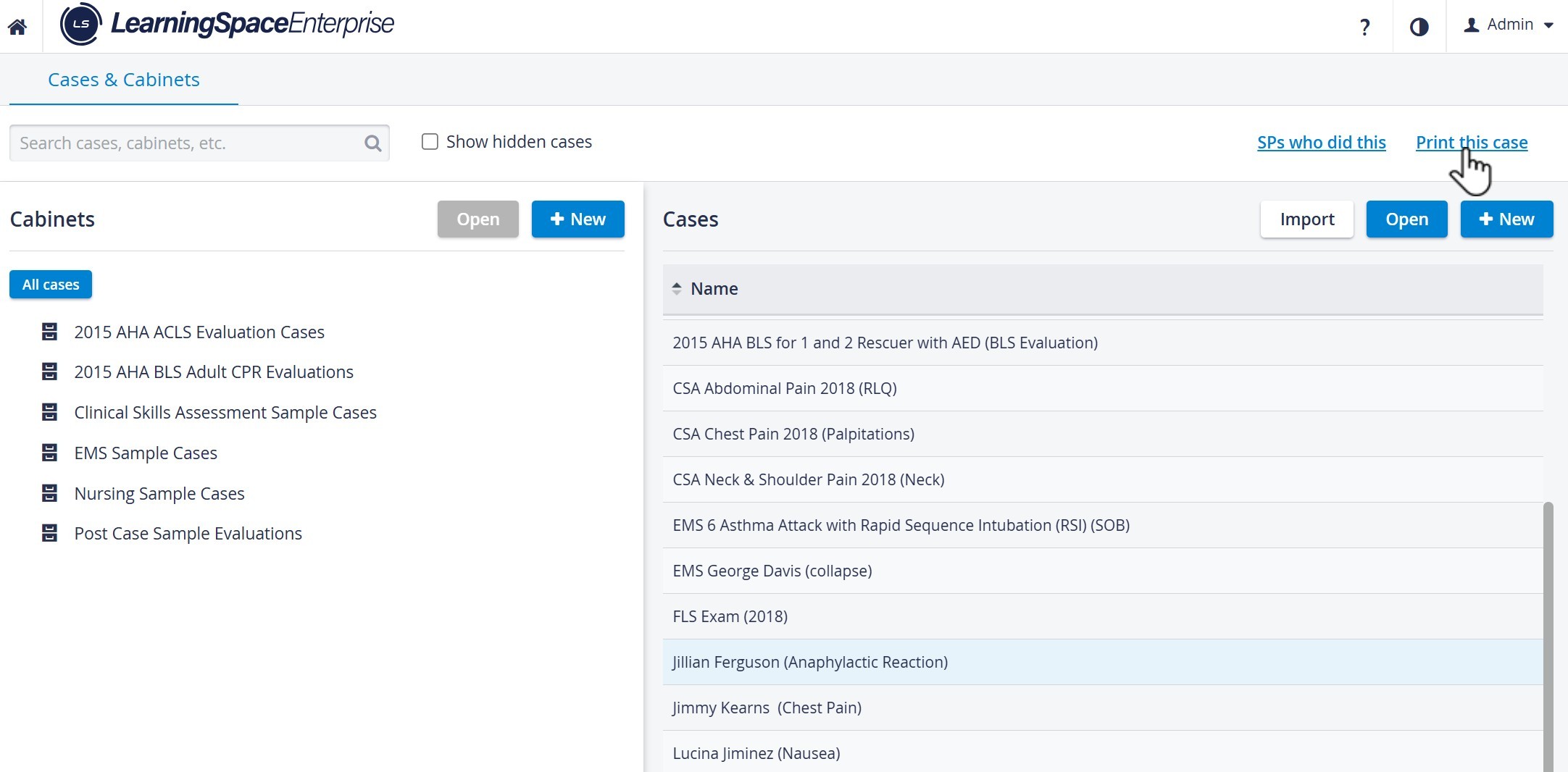
Print this Case option in the Case Manager
Before printing, you can further narrow the parts to print by deselecting the checkbox next to any part(s) you do not want included.
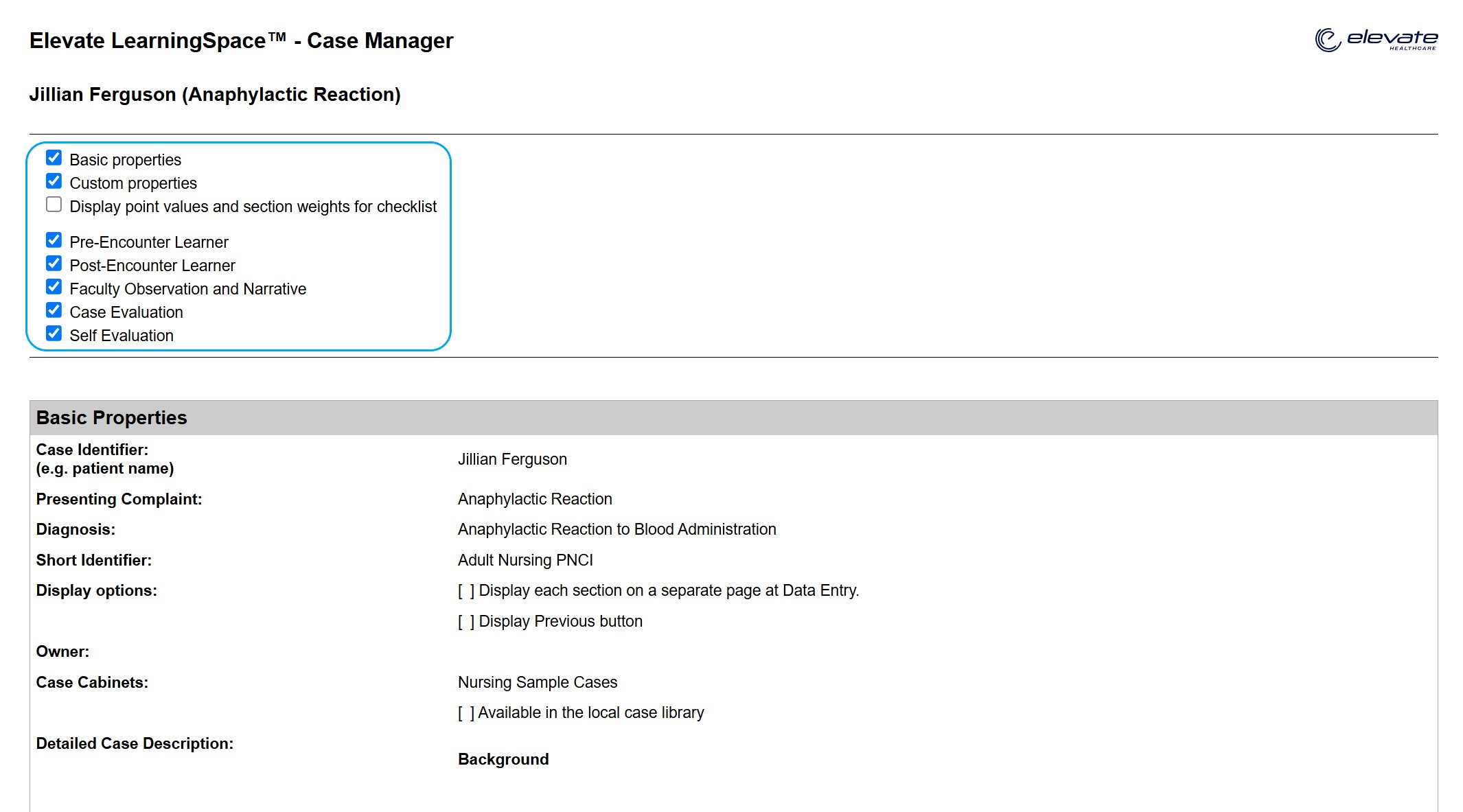
Case Print Options
The ‘Display point values and section weights for checklist’ option is disabled by default.
When enabled:
Each answer item displays its point value
Each question shows its total max point value
Each section shows:
Its weight
Its total max point value
The overall checklist total point value is shown at the top and bottom.
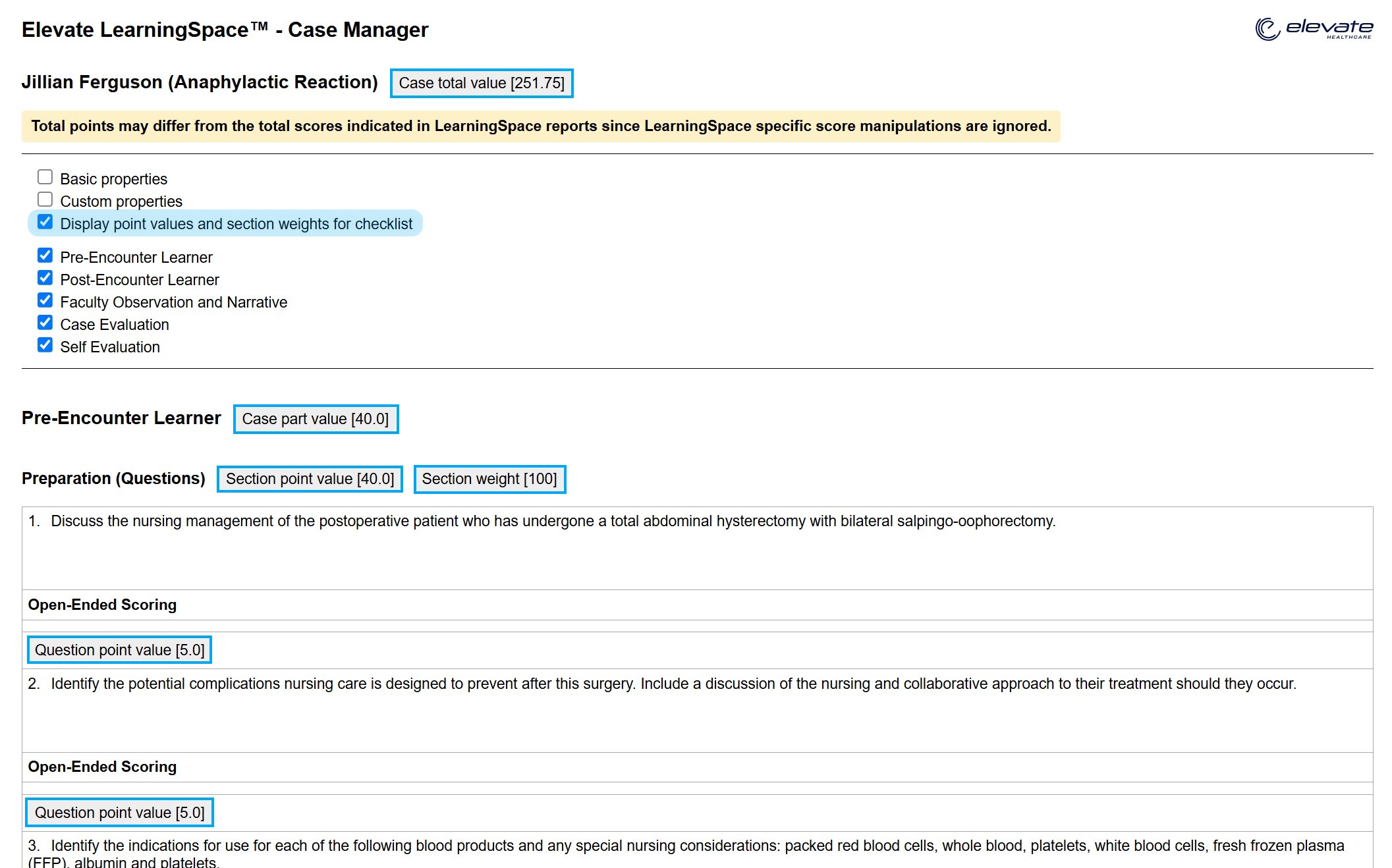
For more information, refer to How to Print a Case.
Import
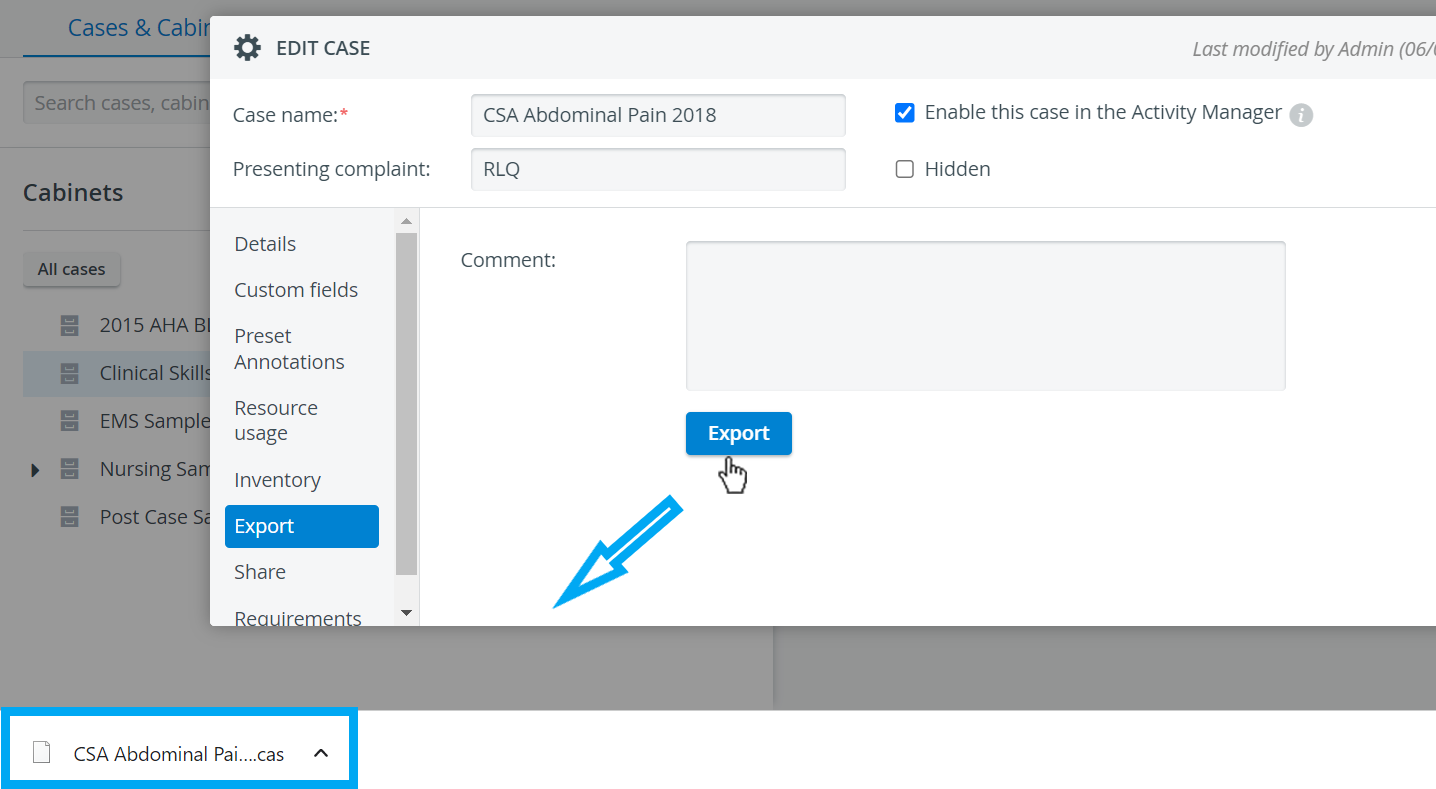
Cases can be exported from the Edit Case pop-up opened for the intended Case. Case content can be saved to a computer in a LearningSpace-compatible “.CAS” file format (including all data, every setting, and Case Content).
Such files can be moved and shared with/ imported into other LearningSpace systems.
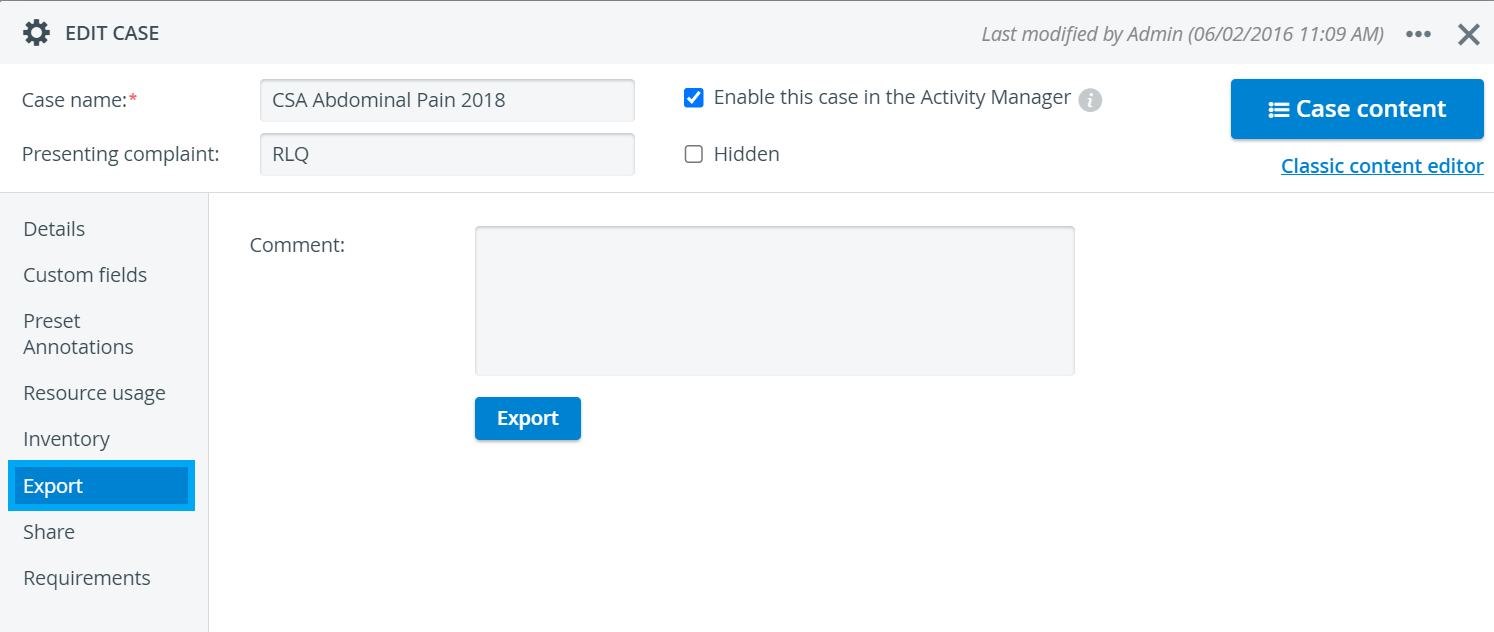
Clicking the Import button opens a file browser window. The selected ‘.CAS’ file saved on the computer in use can be imported into the system by clicking the Open button.
Once the import is complete, the Edit Case pop-up will display all the data for the saved Case. The file can then be modified if necessary.

For further information, visit our Case Manager and Cases - How to pages or watch our Case Manager Training Videos.