2025 Fall New Features
🔹System Setup Guides (Server-based, ONE Box, UP) have been updated.
🔹User Journey Guides for Learners and Facilitators are now available.
Video Transcript Tool
The new Video Transcript tool in LearningSpace enhances video recording and checklist capabilities by introducing automatic transcript generation.
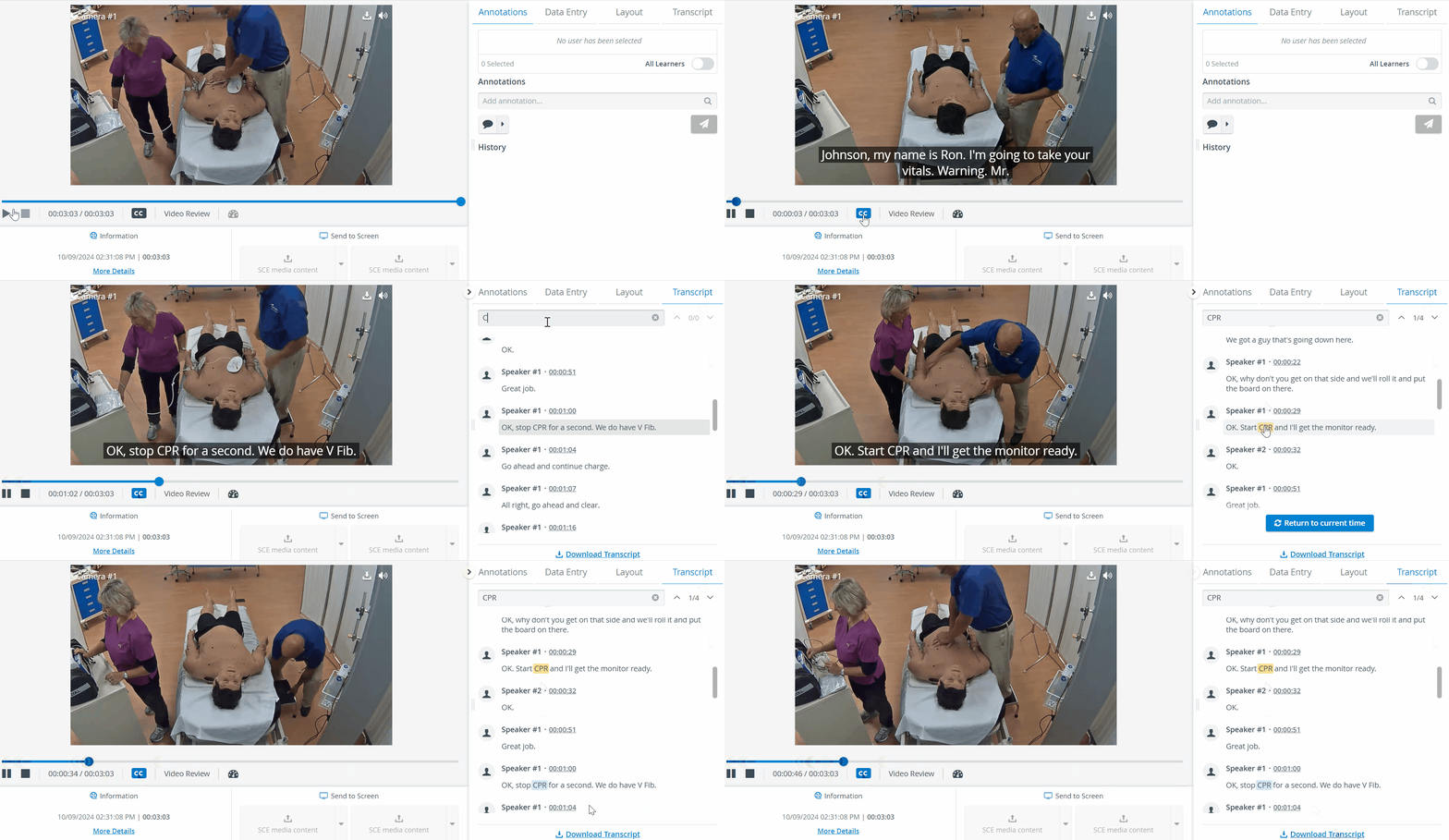
Transcription is the process of converting audio or video recordings into text.
The transcript of a video can be read on the Video review page.
In LearningSpace, transcripts can be generated in the English language.

Audio transcript capability
Once a video is processed and transcript generation is globally enabled under Local Settings (System manager), the system automatically generates an audio transcript for videos.
Enabling Transcripts
Transcripts can be globally enabled/disabled under Local Settings on the System page.
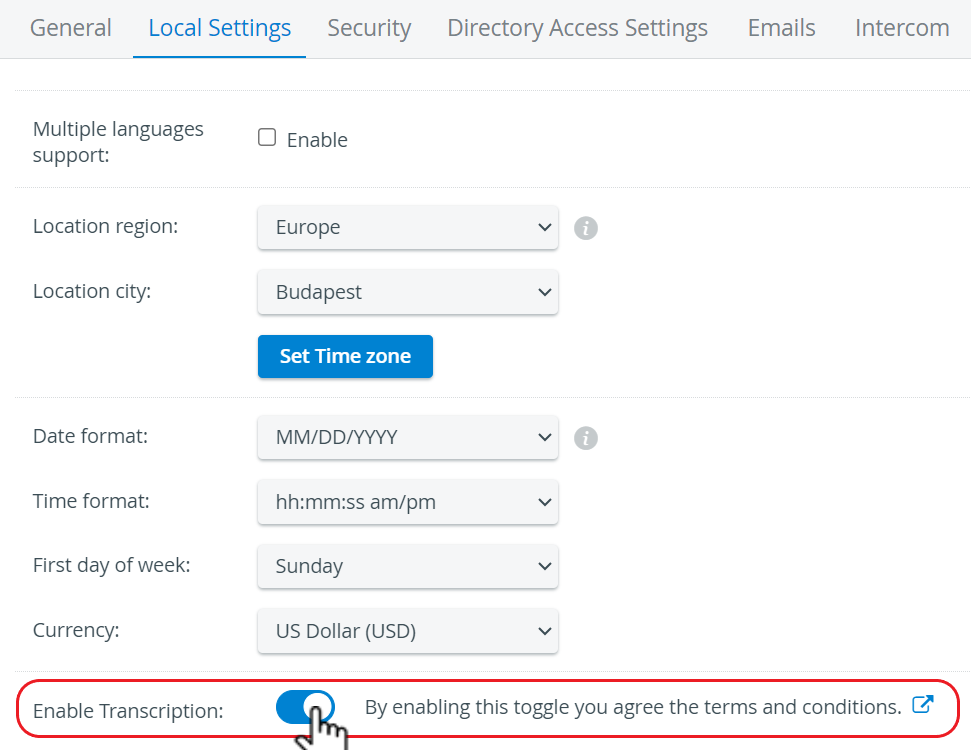
If a global transcript setting is enabled after an existing video is processed, the video will not have a transcript.
Closed Caption (CC)
Closed captions are created by transcribing the video's audio and then synchronizing the text with the video footage.
If a transcript is generated for a video, you can turn on the Closed Caption (‘CC’) functionality on the Video Review interface, utilizing the generated transcript.
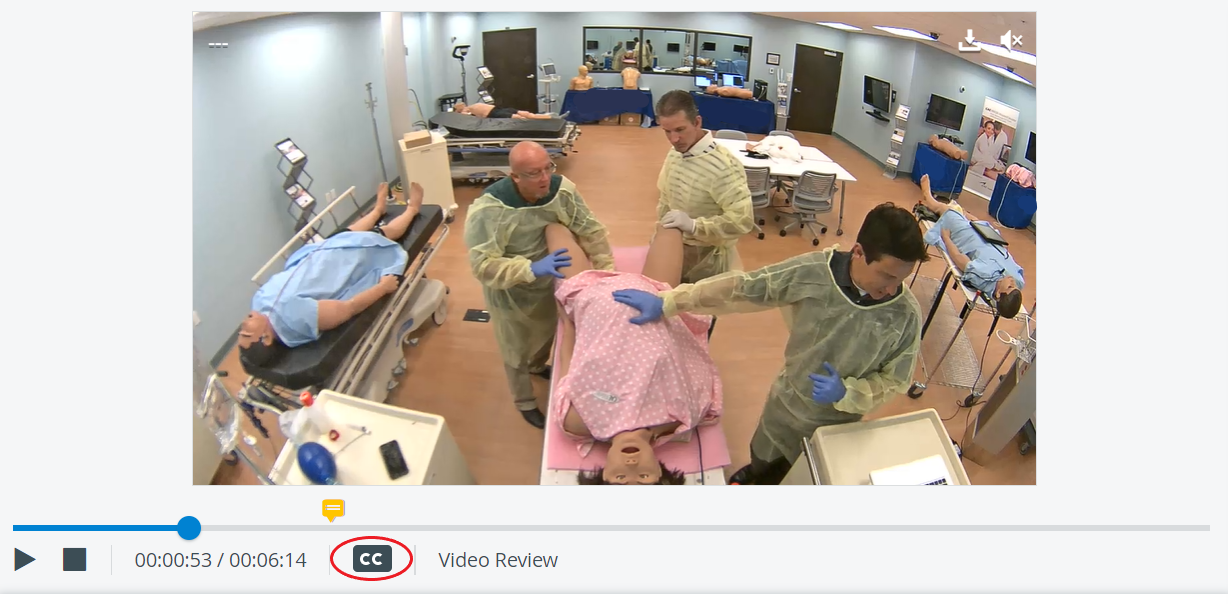
When the icon is clicked, it becomes blue, and a closed caption becomes visible. Clicking it again, it becomes invisible.

Closed Caption is turned off by default.
Searchable Transcripts
You can do a text search in the transcript by typing in the search bar above the transcript.
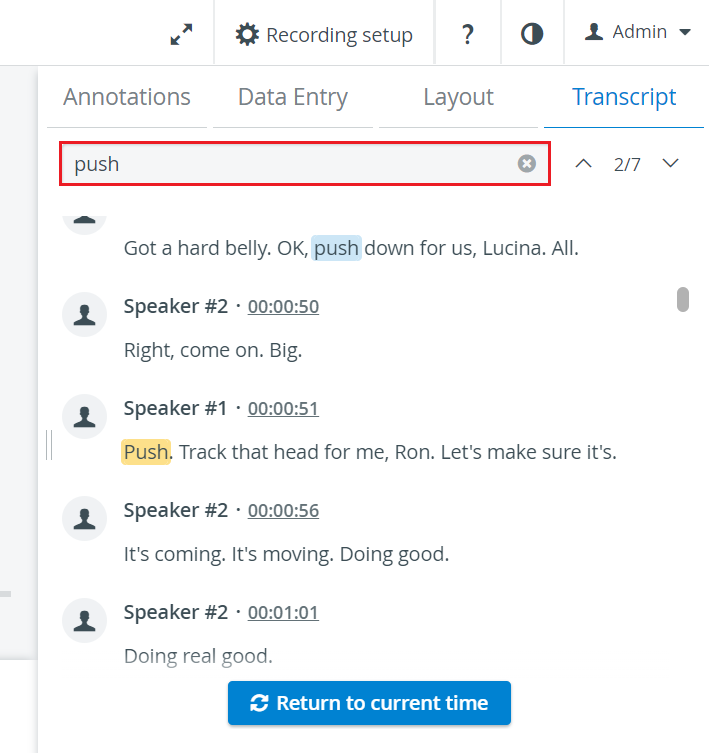
The transcript highlights/displays segments that match the search query, and you can easily cycle through the search results by using the up-down arrow icons or tapping hotkeys.
Scrolling in the video transcript: When scrolling backward or forward, a button appears at the bottom: “Return to current time.”
If clicked, the transcript view jumps to the time segment of the transcript that is in sync with the currently played video.
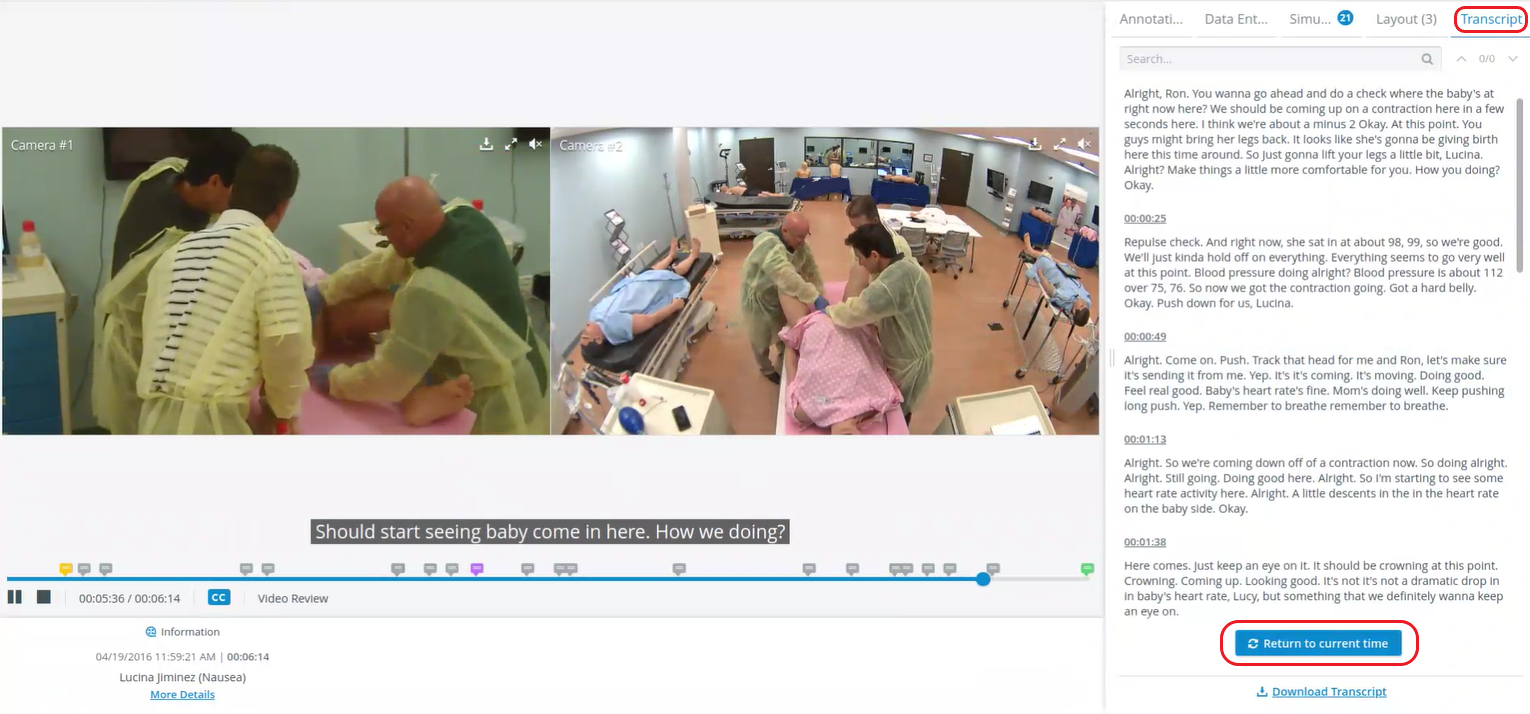
When grabbing the timeline or clicking on the annotation icon, the transcript syncs with it.
Navigation based on Transcript: You can navigate the video timeline by clicking on a given block of the transcript: the video will jump to the corresponding segment.
Transcript file download
By clicking the Download Transcript option, you receive a file in *.srt format, named according to the specified format containing the transcript.
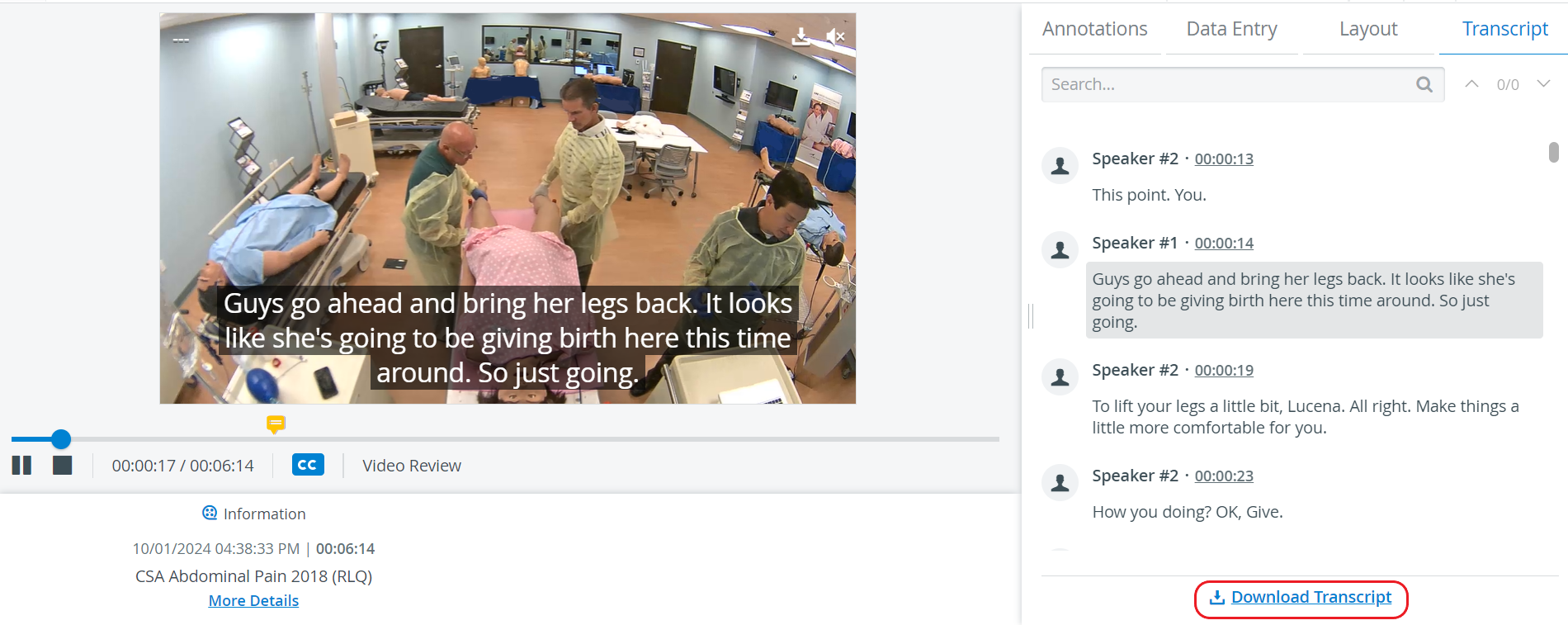
If a transcript is generated for a video with multiple speakers, the different speakers are diarised in the transcript the following way: Speaker A, Speaker B, etc.
Users with the following privileges have the right to enable/disable transcription in Local settings:
Admin
System Manager
For more information, go to How to use the Video Transcript Tool.