Printing Calendar views
Calendar Print Option
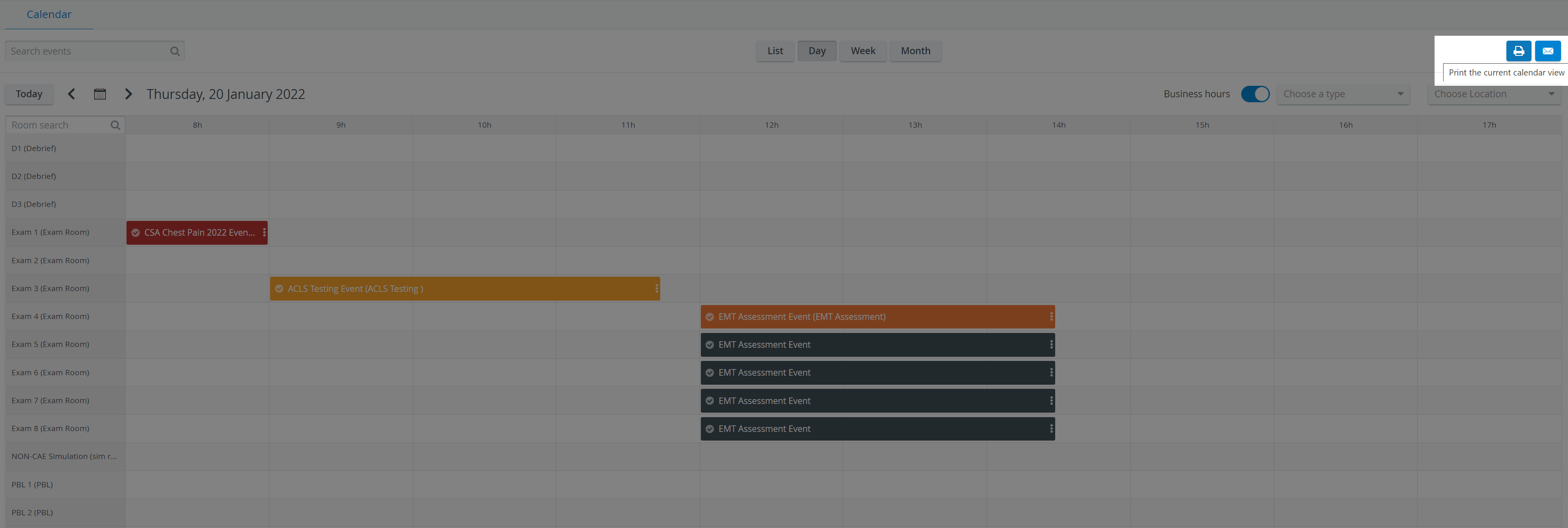
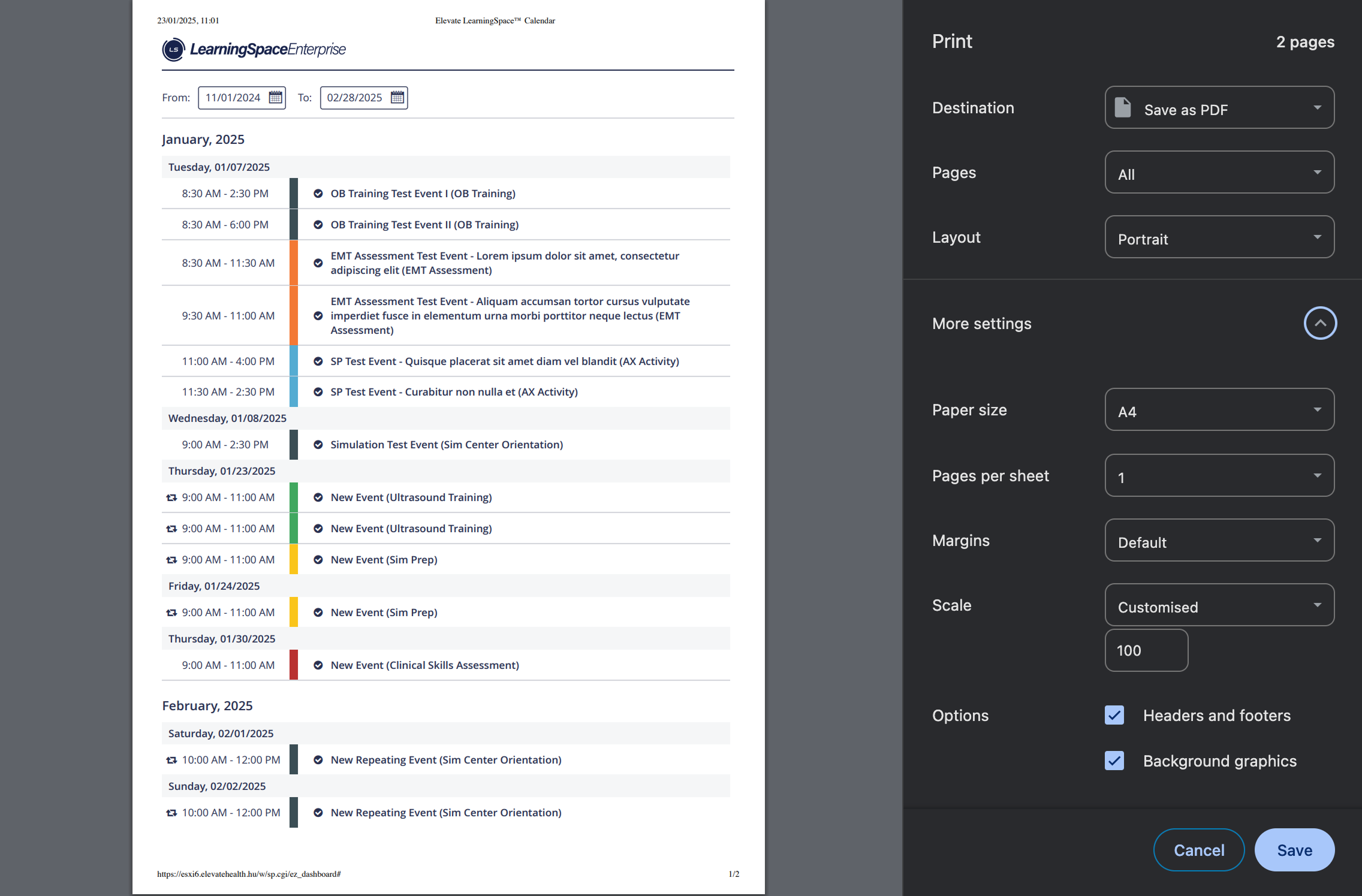
Calendar views (List, Day, Week and Month) can be printed as a schedule sheet by clicking on the printer icon in the top right corner of the page.

Calendar Day View:
Print View of the Calendar's List View:
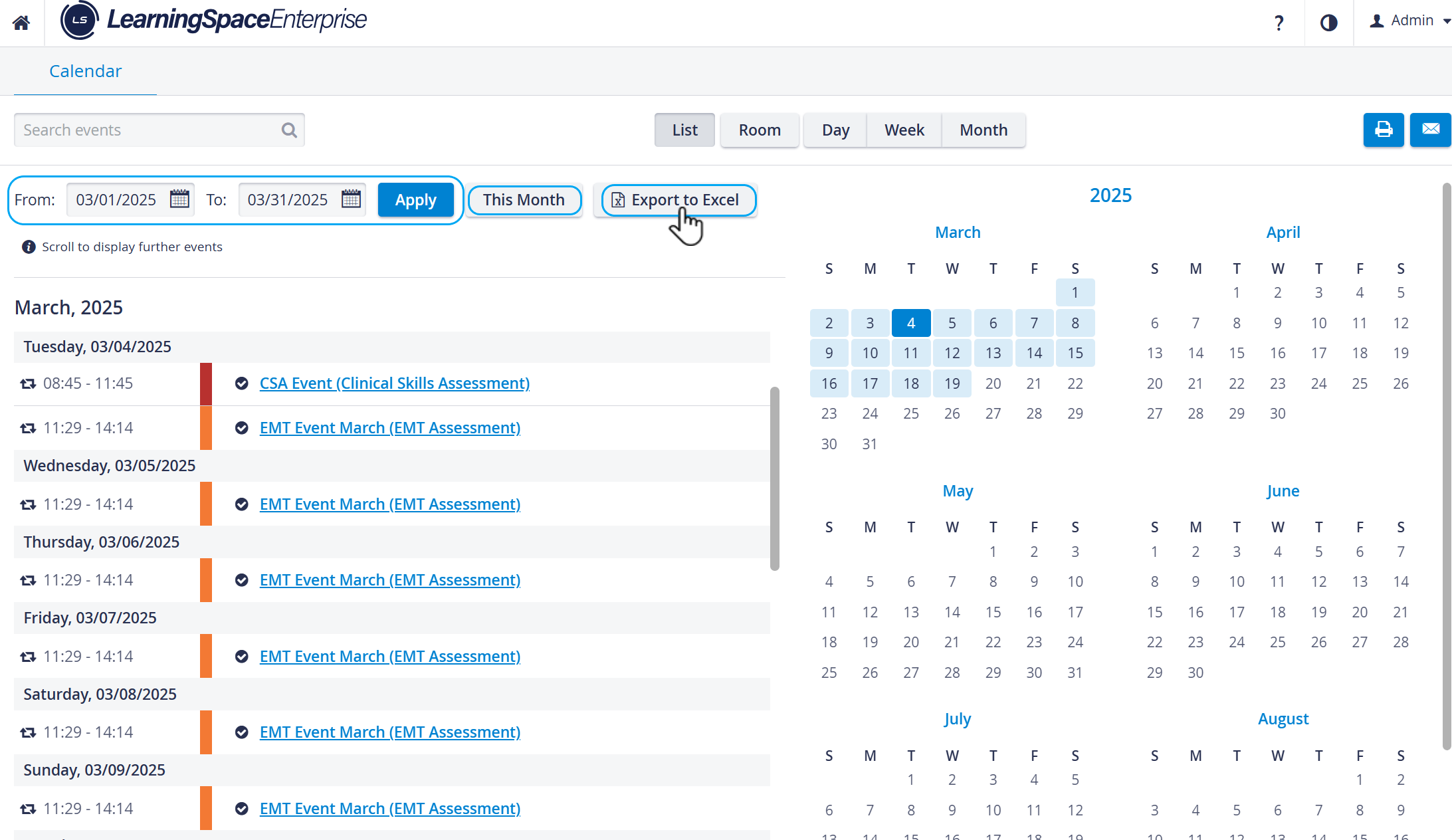
Calendar Export to XLSX file
Calendar data can also be exported and printed as an XLSX file. This option is available in the List View.
The exported Excel (XLSX) file (report) displays
Start Date, End Date (time interval selected for the report)
Date, time, and title of the listed Events
Day of the Week (displays the day of the week (e.g., Monday, Friday) for each event’s date)
Duration (Minutes) (shows the duration of the event in minutes, calculated from the event’s Start Time and End Time.)
Event title and Activity title
Activity type (displays the type of the Activity)
Activity's Learner Group size (number of members in the Learner Group of the Activity assigned to the Event)
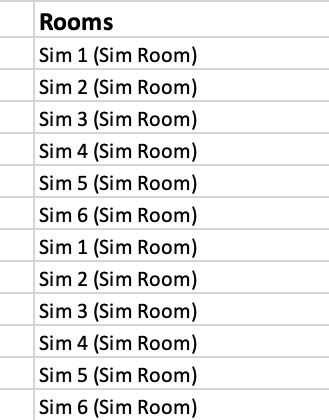
Room(s) (displays the event's associated room(s).)
Client (displays the Client associated with the parent Activity of each Event).

All instances of recurring events are listed in the report.
The format of the times and dates is shown according to the System settings.
More about Activity Types: Basics tab General System Information
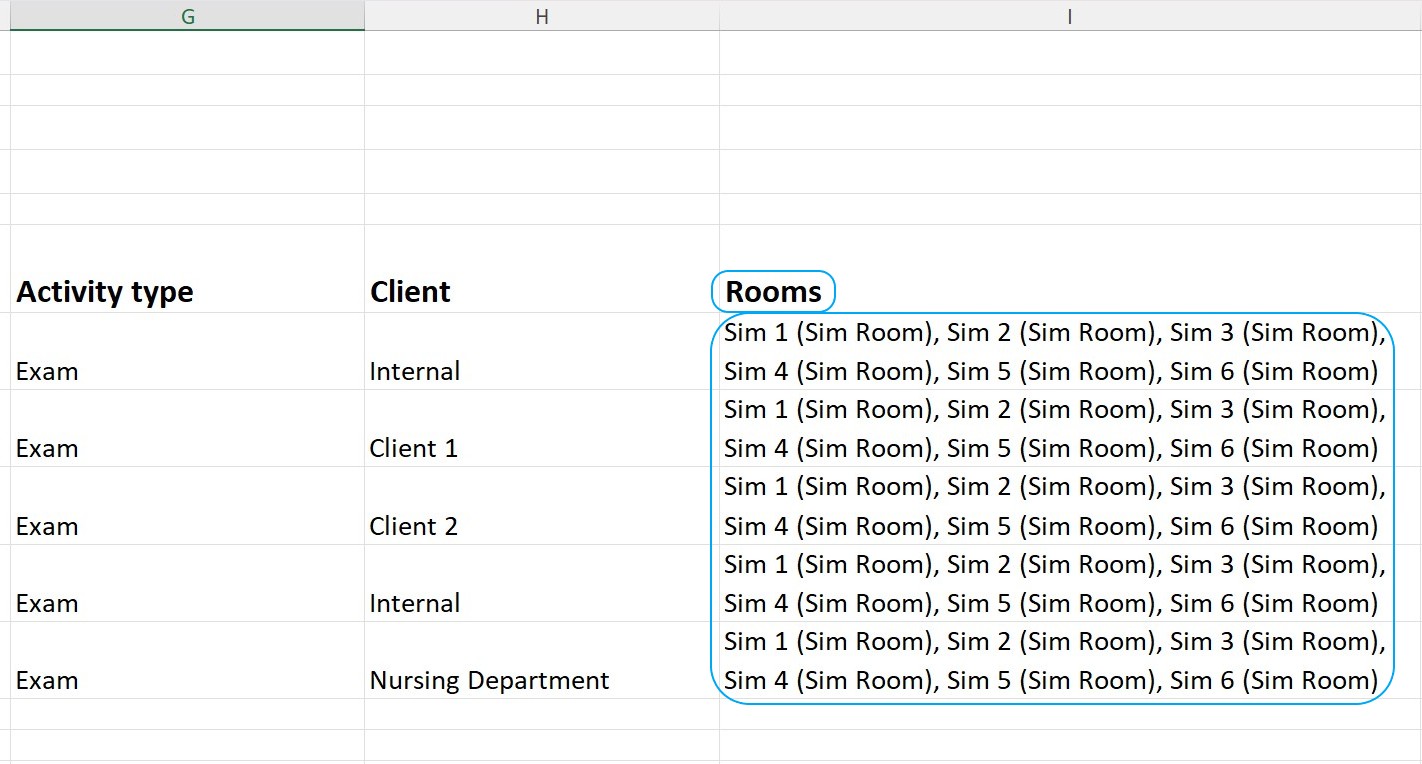
Room-Based Event Breakdown
In the Calendar List view, a new cogwheel icon has been added next to the ‘Export to Excel’ button. When clicked, it opens a pop-up configuration menu with the ‘Break events into multiple rows if assigned to multiple rooms’ toggle:

When the toggle is on, multi-room events appear as multiple rows, with one room per row.
When the toggle is off, multi-room events are listed as comma-separated values in one cell.
Users’ breakdown preference is saved per user and not applied globally. It is reapplied on future visits.
For details, see How to Print a Calendar View.
For further information, visit our Calendar - How to pages or watch our Calendar Module Training Videos.