Managing Events in the Calendar
Creating a New Event
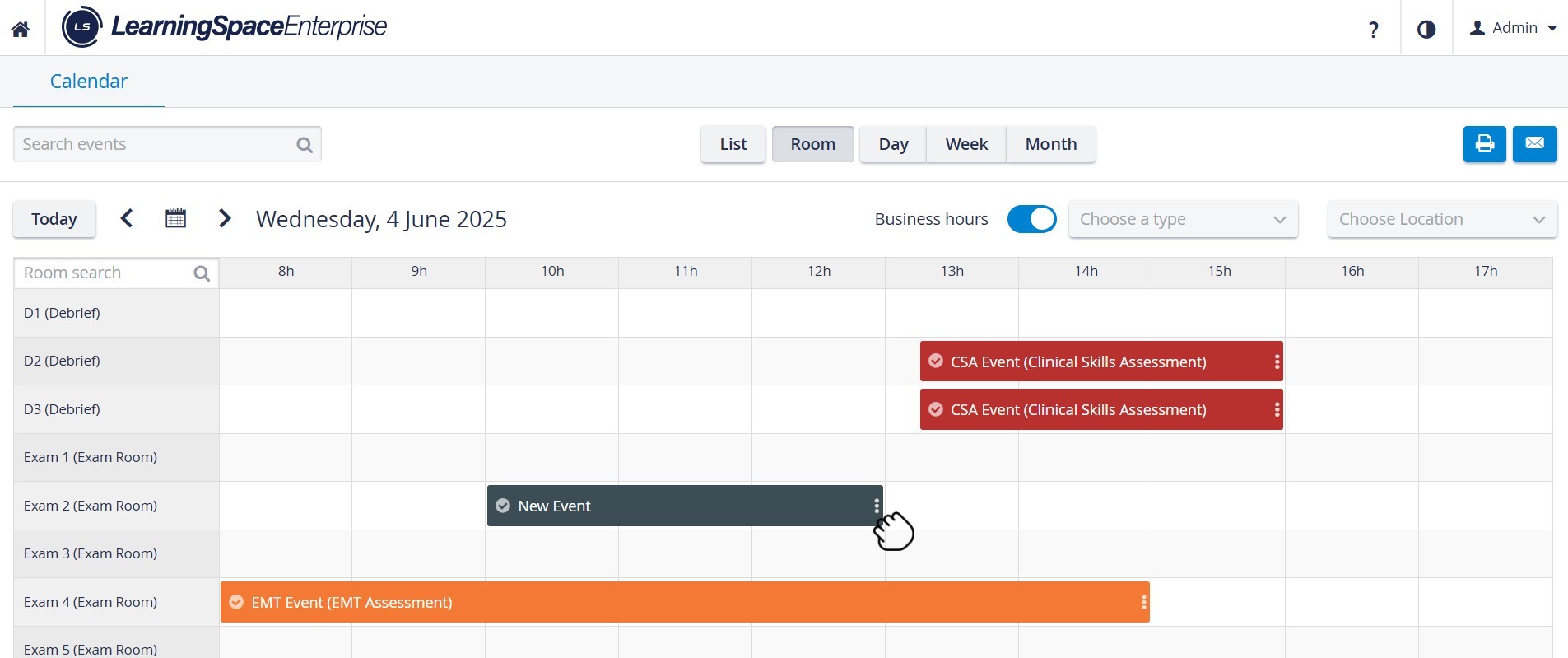
Adding an Event within the Calendar Module can be done by clicking and dragging the cursor, which opens the Edit Event window.
Editing an Event
Already created Events - displayed in the Calendar - can be edited or deleted via the same window opened by double-clicking the desired Event.
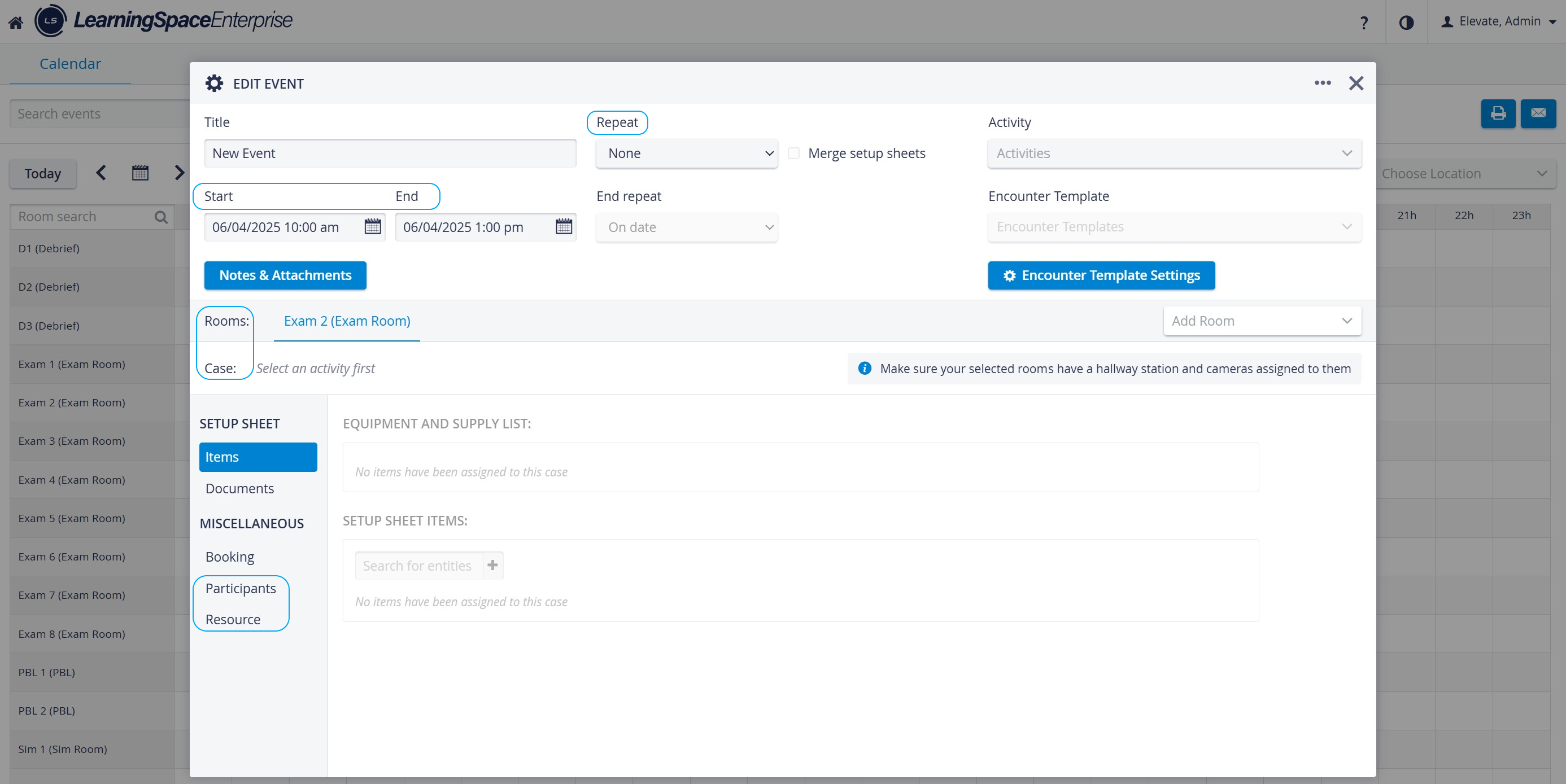
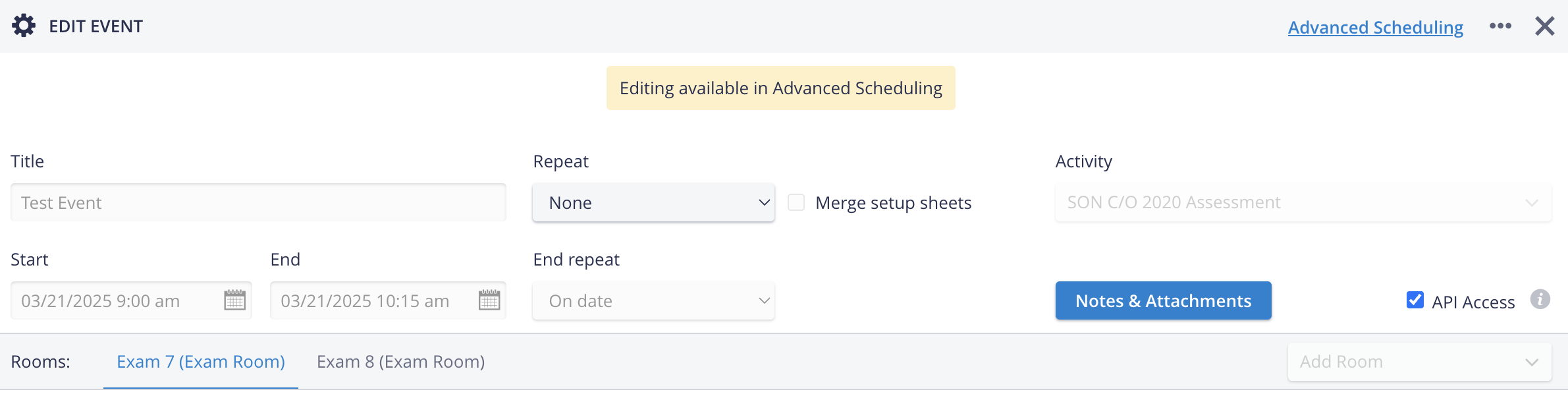
In the Edit Event pop-up,
the exact date and time,
and rooms can be set,
Case(s), Participants, and Resources can be assigned,
and repeat options are also available.
See How to Edit an Event.
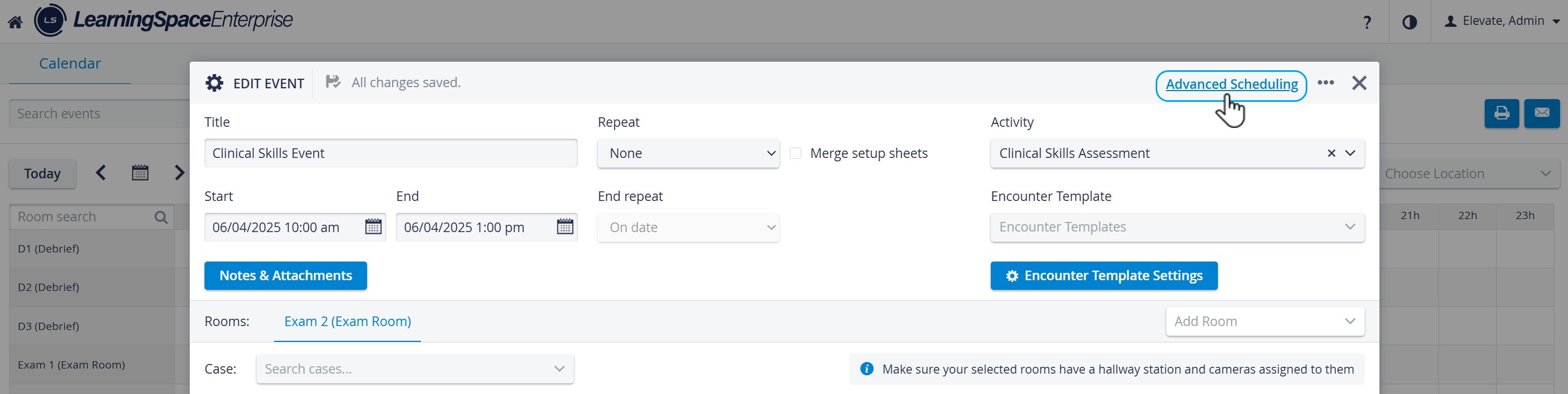
IMPORTANT: Timeslot structure can only be set on the Activity Scheduler page via Advanced Scheduling.
The Advanced Scheduling link that directs to it appears in the top-right corner of the Edit Event pop-up window once an Activity is assigned to the Event in the corresponding drop-down.
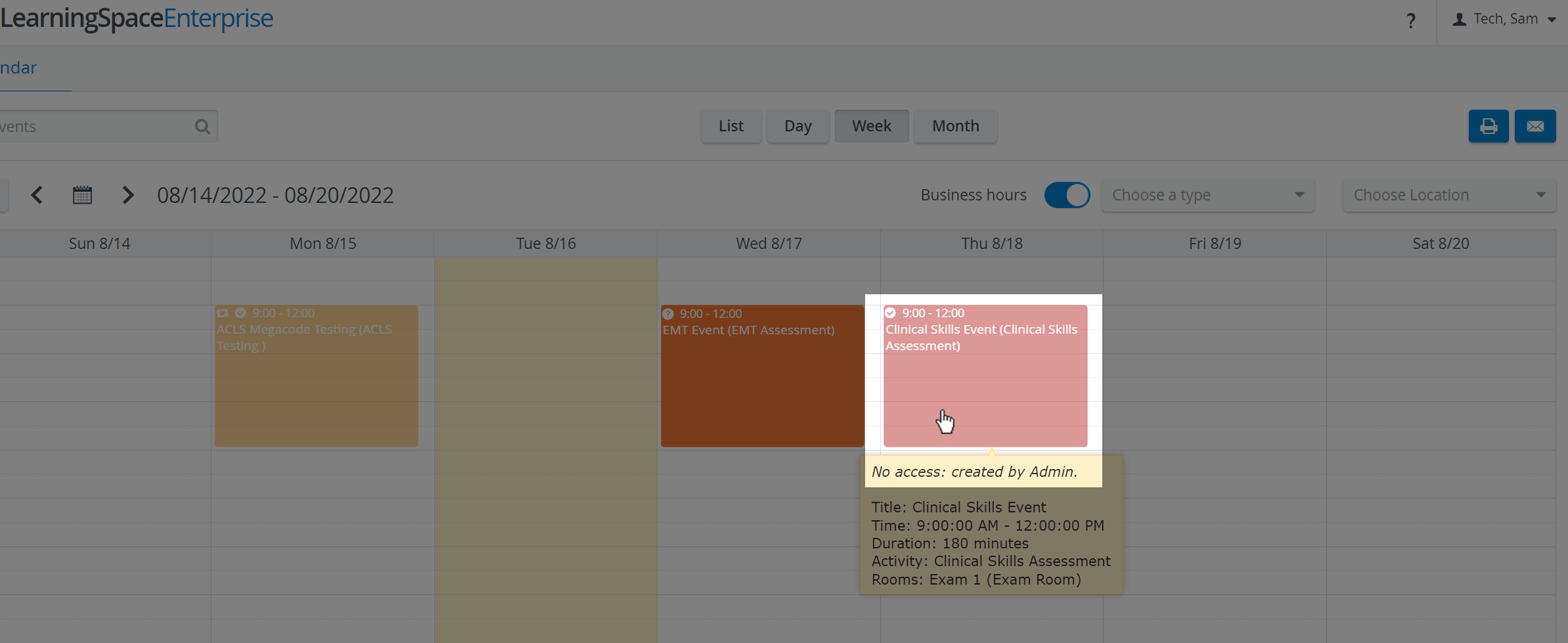
Events with scheduled timeslots can only be edited in Advanced Scheduling, so they appear pale, even for users with the necessary privilege(s).
Events displayed in pale indicate that the operating user has limited privileges (SRP, as opposed to SRP (full control)) and thus has no access to that specific Event. A warning message appears when double-clicking on any such Event, informing about ‘No access’.
Time Settings of Events
Start and End Date selector
The Calendar’s Start and End Date selector for Events works as follows:

Similarly, if we choose a date that makes the End Date earlier than the Start Date, the system retains the Event's length and automatically updates the Start Date.

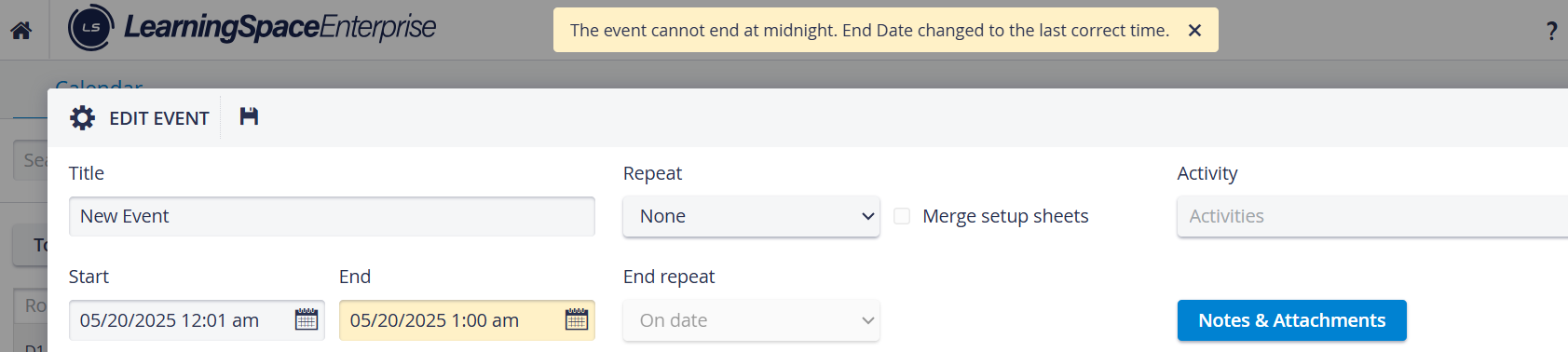
If the Event length cannot be kept in the automatic setting to stay within the given day (which is a mandatory criterion when setting up Events), LearningSpace automatically shortens the Event length to fit the day. The same principle applies if the Event does not fit at the beginning of the day: the automatic setting goes before 12 AM (midnight).

Users are informed about these adjustments with a yellow message.
AM-PM Switch
Smooth switching between AM and PM in the date picker improves the calendar's user experience. The Timepicker add-on is included for setting hours or minutes.

⬆️ Up arrow:
Clock: 9AM, 10AM, 11AM, → 12PM, 1PM, 2PM, ...
or
Clock: 10PM, 11PM, → 12AM, 1AM, 2AM, ...
Minutes: 57, 58, 59, → 0, 1, 2, ...
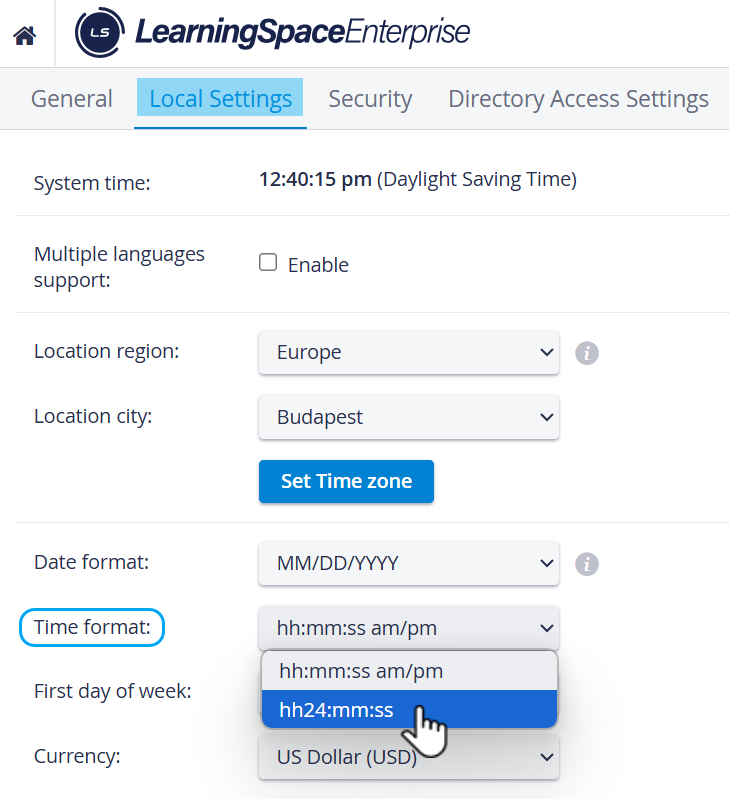
If the setting is 24H:
⬆️ Up arrow:
Clock: 22, 23, → 0, 1, 2, ...
Minutes: 57, 58, 59, → 0, 1, 2, …
Recurring Events
Events can be set to repeat using the respective functionality in the Edit Event pop-up.
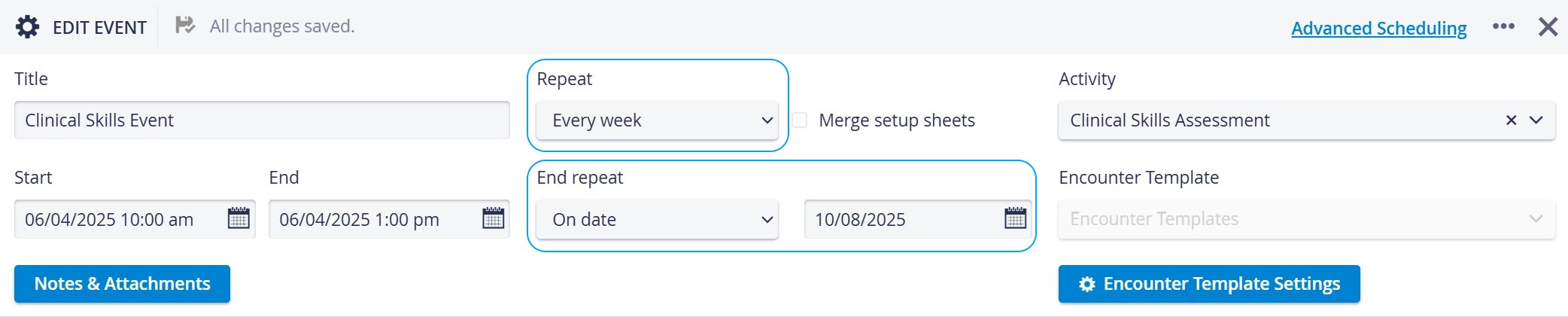
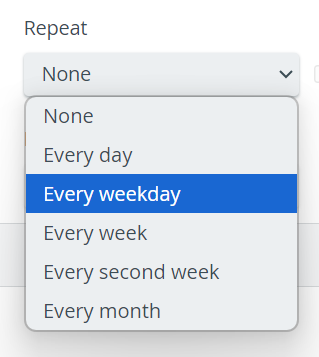
Once the repeat frequency and end have been set, all sequence instances of the recurring event will appear in the Calendar. Each such will have the same Title, Activity, Case, Rooms, and Time and Duration settings.
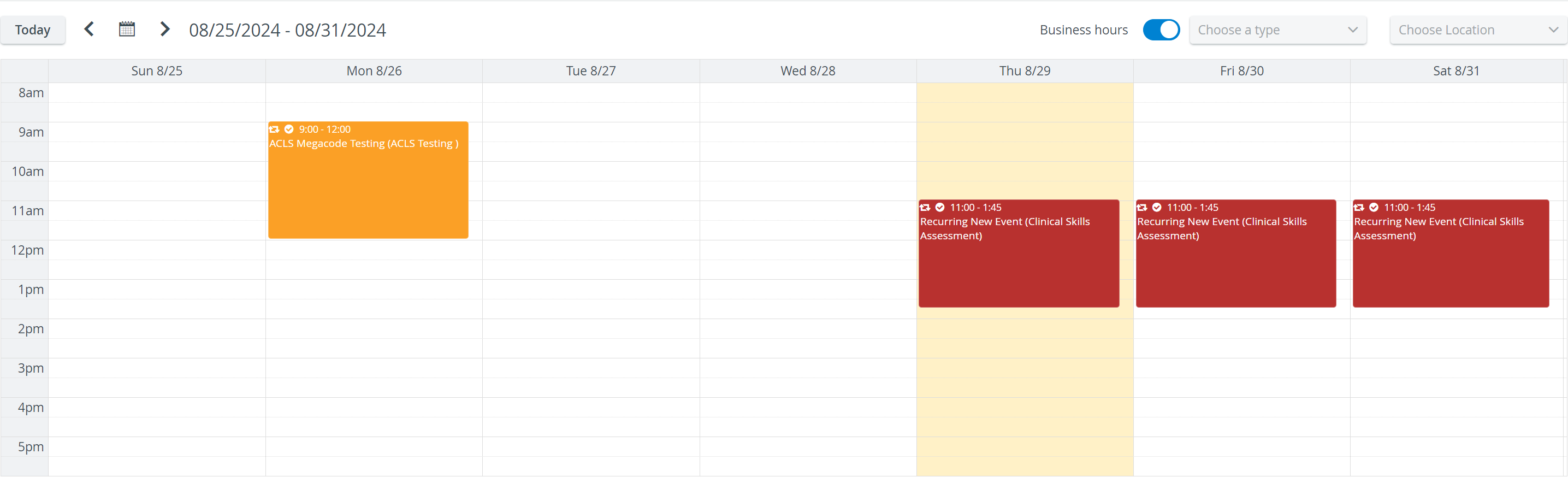
IMPORTANT: Scheduling does not sync with the event repetition. Timeslots and learner assignments must be set manually for each event separately.
Flexi Events
You can create ‘Flexi events’ in the Calendar module with the help of Flexible Scheduling, by adding an Encounter Template to the event.
You can proceed with setting up the event as usual.
On the Edit event popup the following items will be disabled:
Setup Sheet
Miscellaneous
Advanced Scheduling link
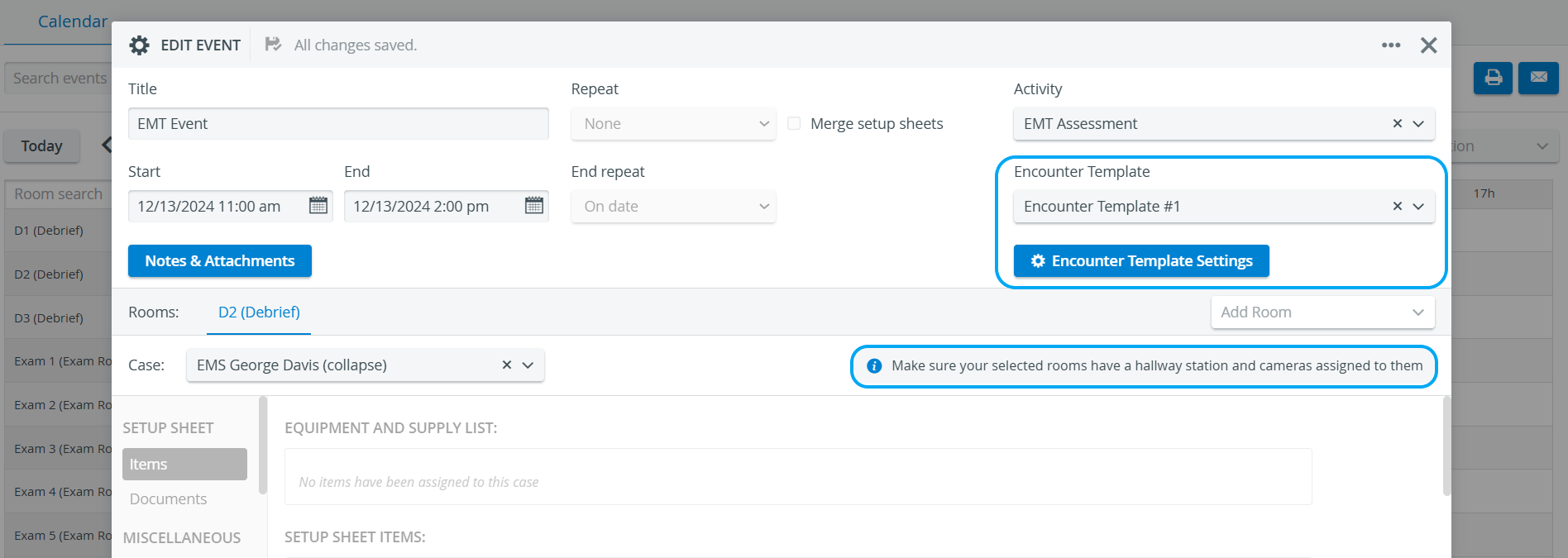
An Encounter Template must be added to the Event (in the Edit Event pop-up). This action will turn the event into a ‘Flexi event.’
In the ‘Encounter Template selector’ option of the Edit Event pop-up, you can add, create, and modify an Encounter Template for an Event.
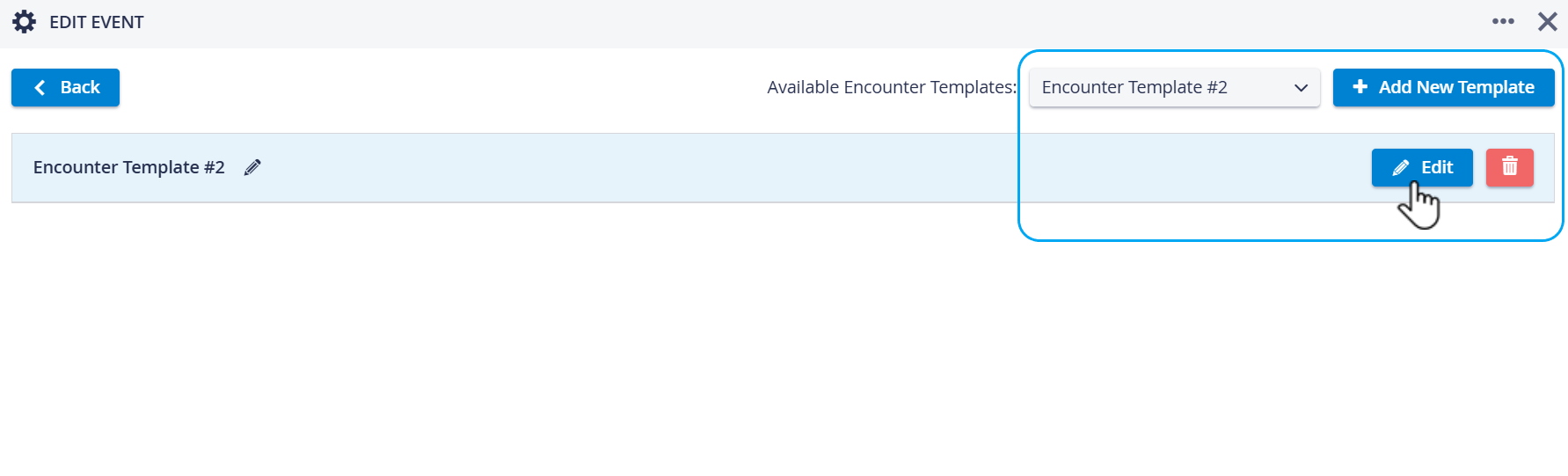
Encounter Template selector and settings
Encounter Templates
Available Encounter Templates can be selected from the respective dropdown menu.
The "Add New Template" option creates an empty Encounter template.
Continue editing it by clicking on Edit.
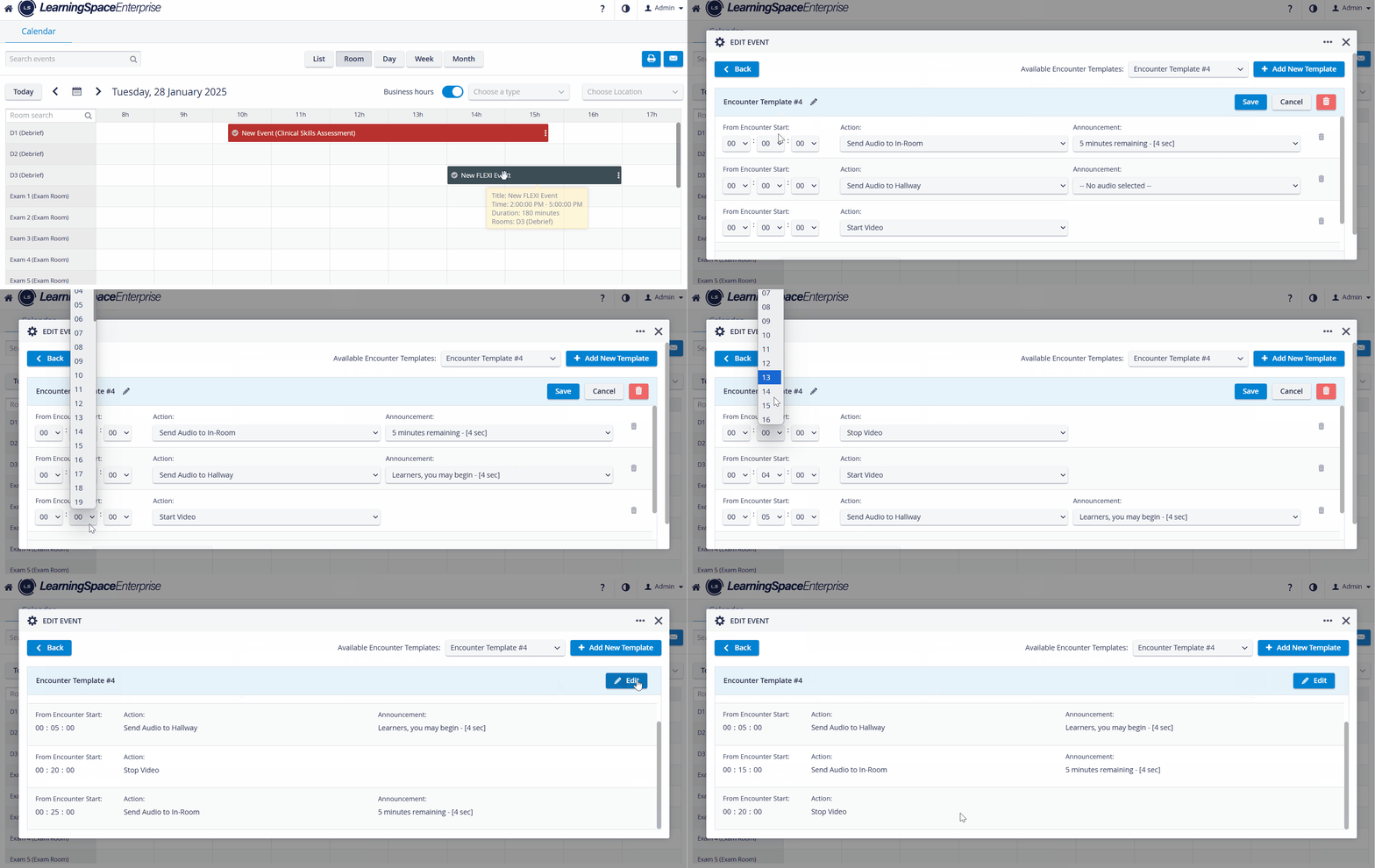
The different actions/steps defined in the encounter template repeat with the start of each new encounter.
The time picker displays hour, minute, and second dropdowns.
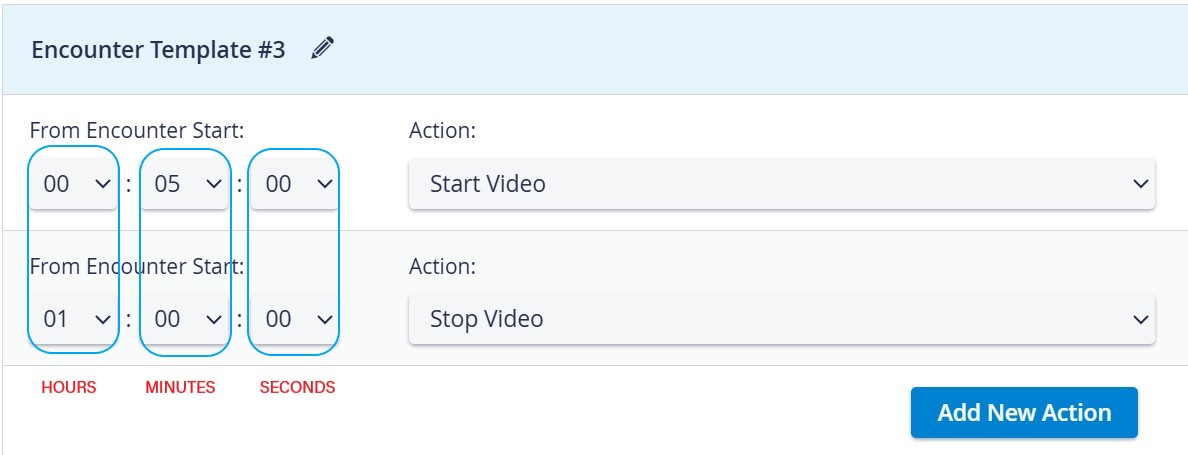
In the example above, the video recording starts 5 minutes after the Encounter starts and stops 1 hour after it.
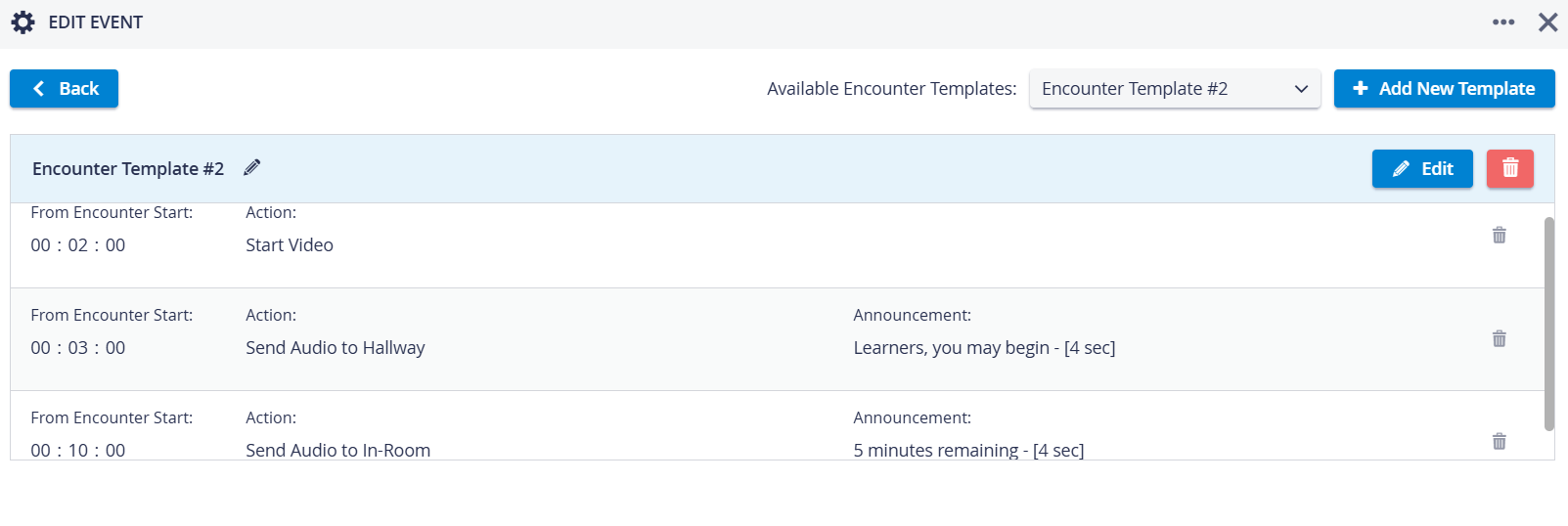
Steps are ordered into a sequence based on the time setting.
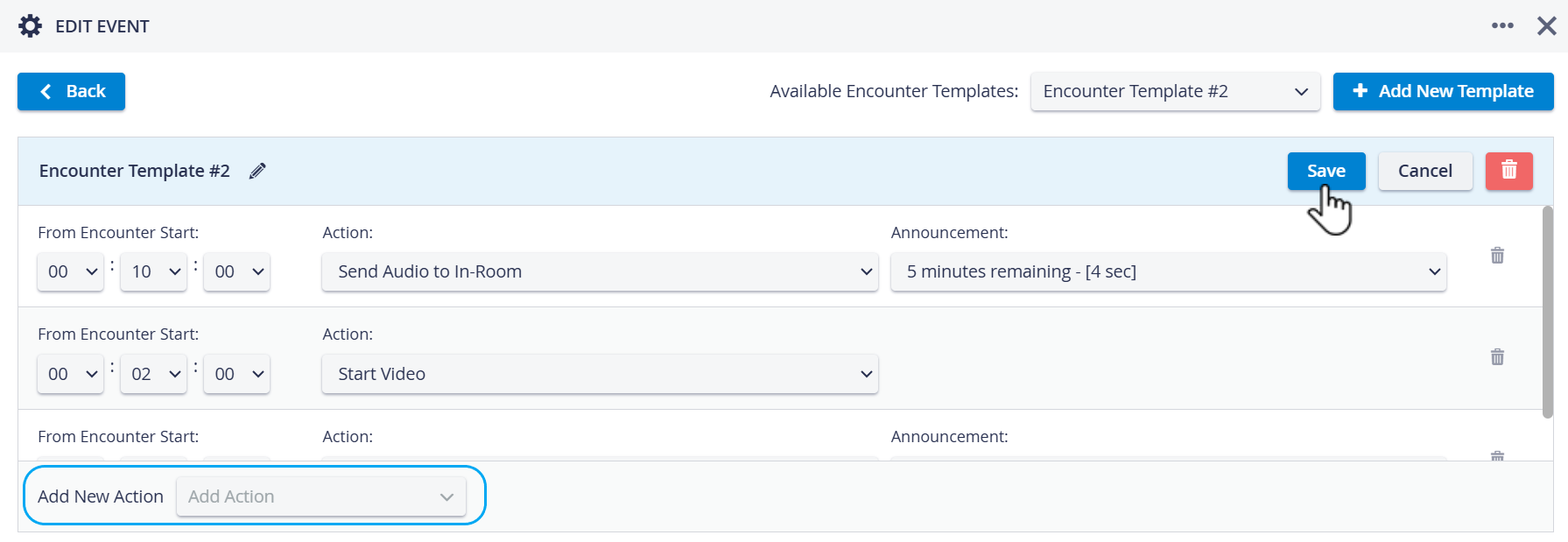
IMPORTANT: Actions are only ordered after saving.
Adding Cases to Rooms
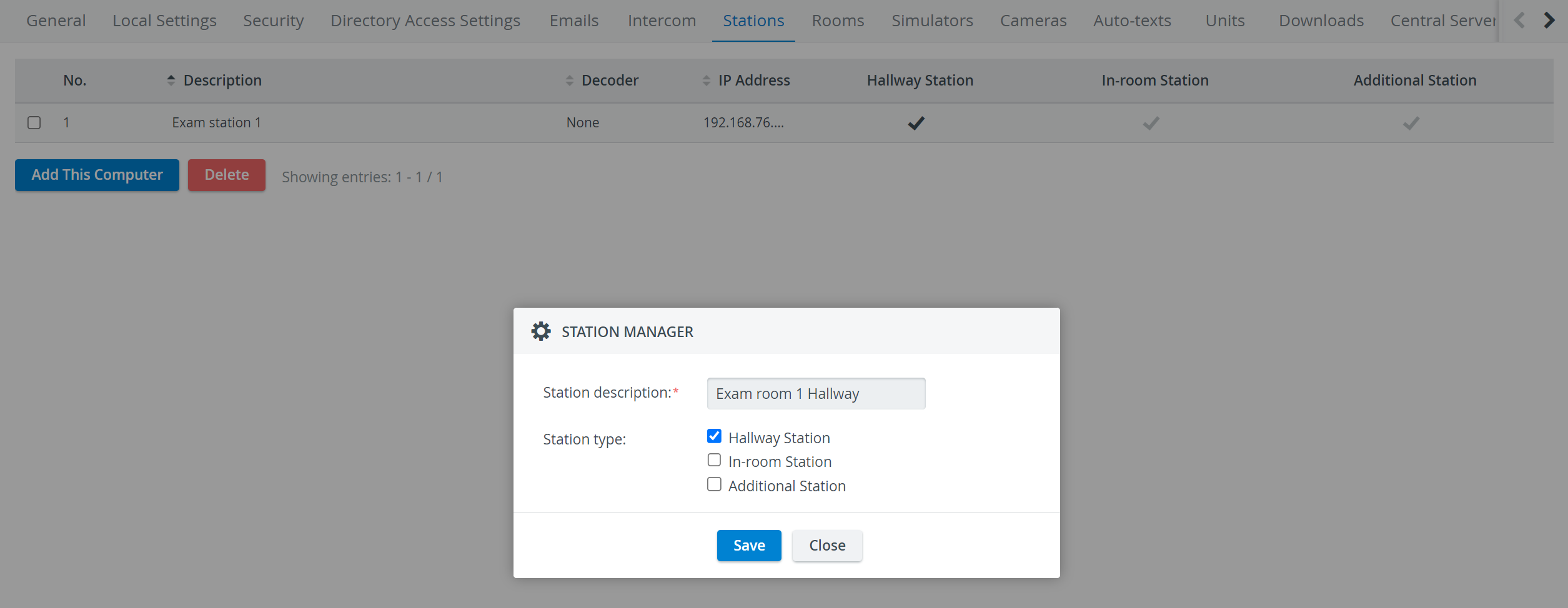
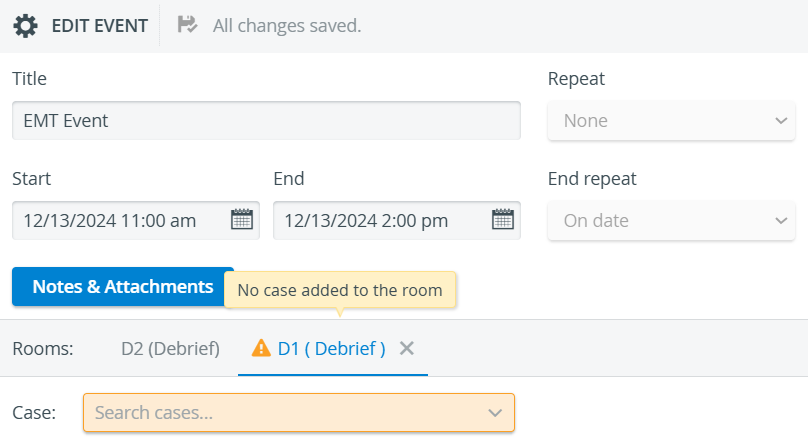
Cases must be assigned to the rooms; otherwise, the system warns you: ‘No case added to the room.’
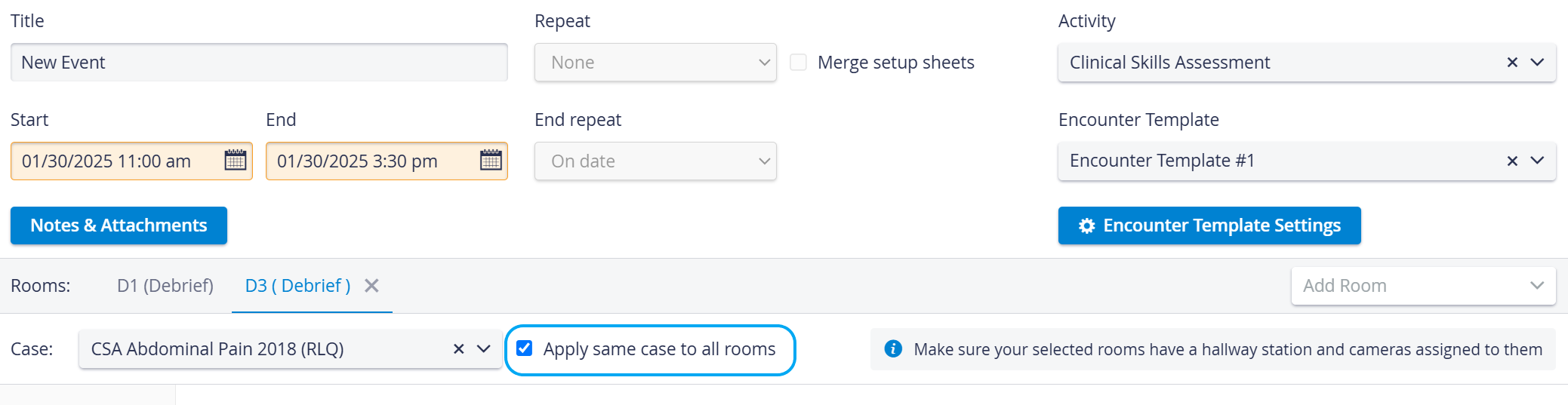
The ‘Apply same case to all rooms’ option can be enabled:
Privileges
Only Admin and SRP Full Control privilege users:
can create and edit Flexi events
can create, edit, and use Encounter Templates
SRP privilege users can’t create Flexi events (only regular events) and can’t edit Flexi and scheduled events created by an Admin or an SRP Full Control user.
For more information, go to
How to manage repeated (recurring) Events in the Calendar and
How to manage repeated (recurring) Events in Advanced Scheduling.
Enabling Data API Access
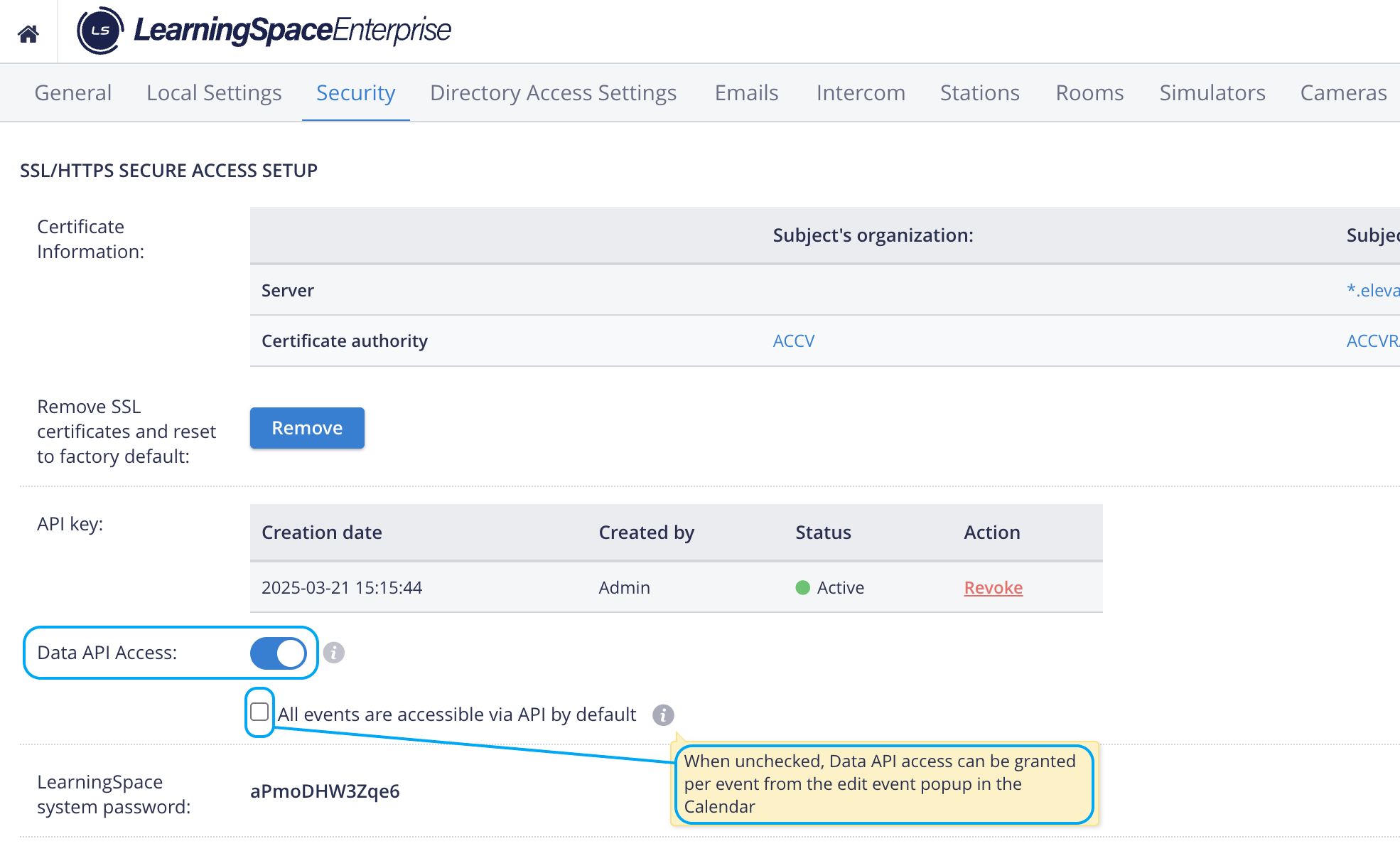
The ‘API access’ checkbox will be visible, and thus, Data API Access can be enabled for selected Events on the Edit Event pop-up, IF
Data API Access is enabled on the Security NEW tab of the System Manager
AND the 'All events are accessible via API by default' option is disabled (unchecked).
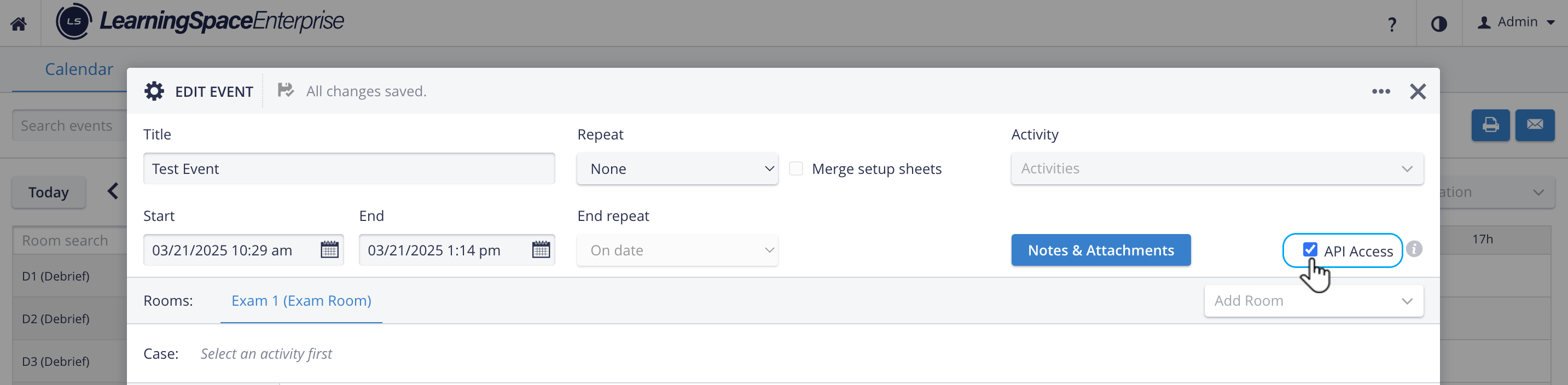
Both events created in the Calendar and in Advanced Scheduling can be saved as API-accessible events.
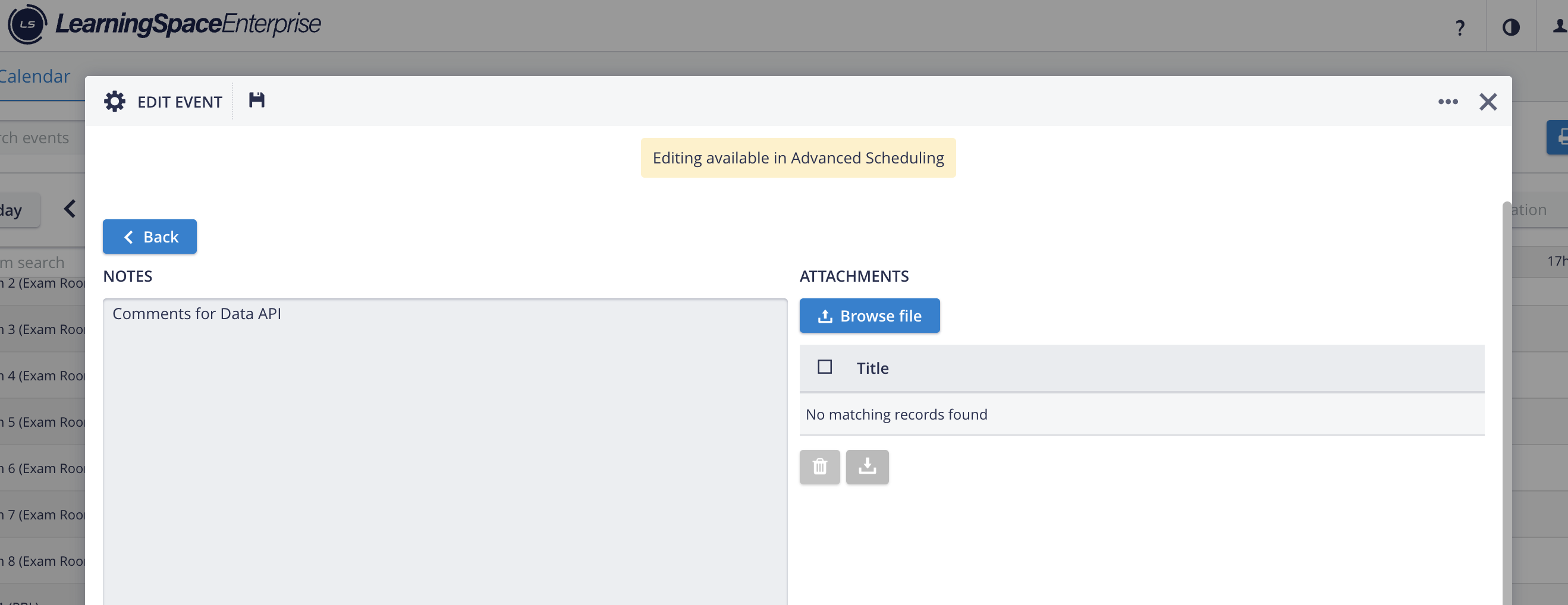
TIP: Notes can also be edited and saved for an Advanced scheduled event.
For further information, visit our Calendar - How to pages and watch our Calendar Module Training Videos.