How to Create a Case
Access the Case Manager
Click the Cases icon on the Dashboard.
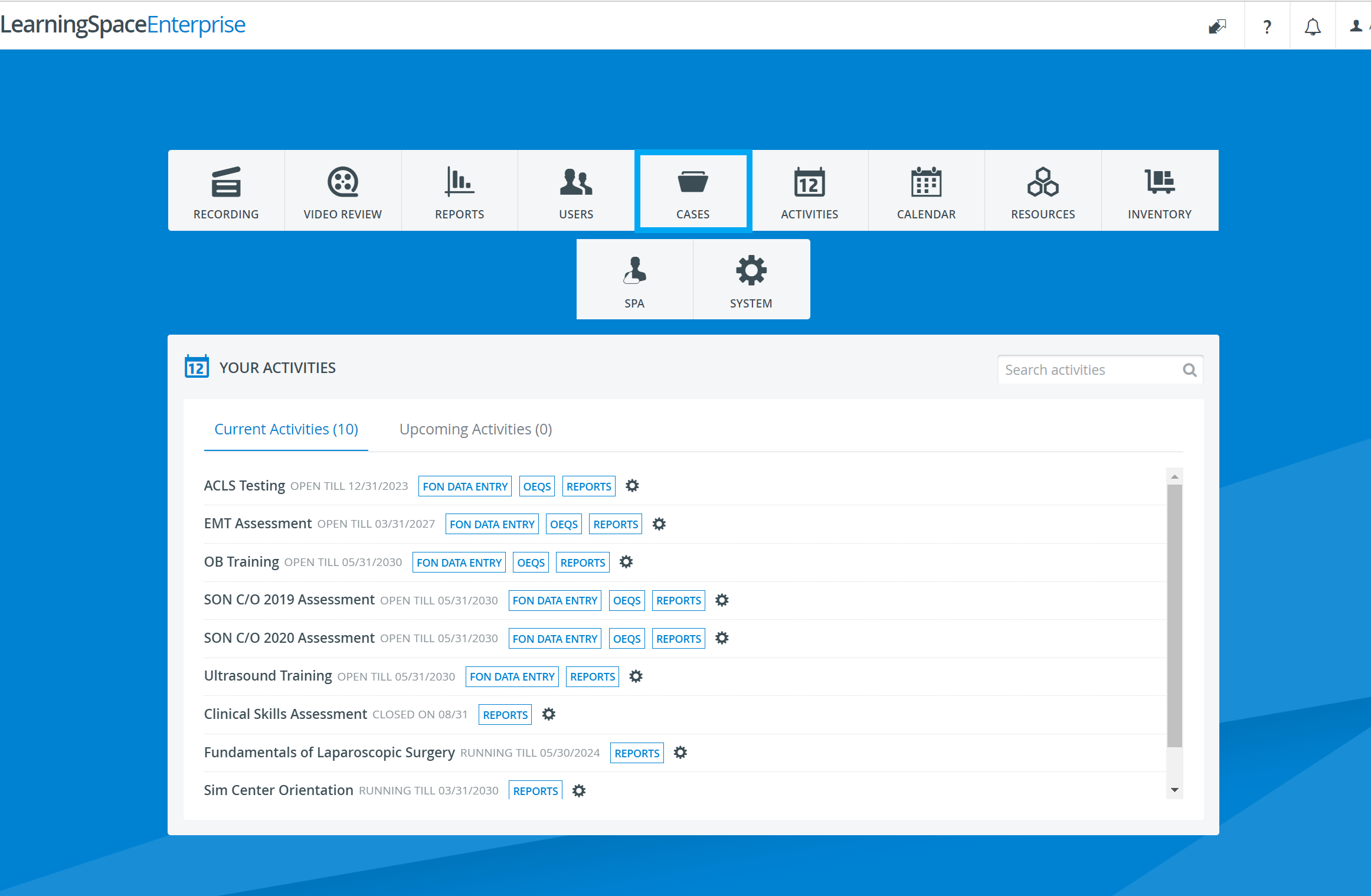
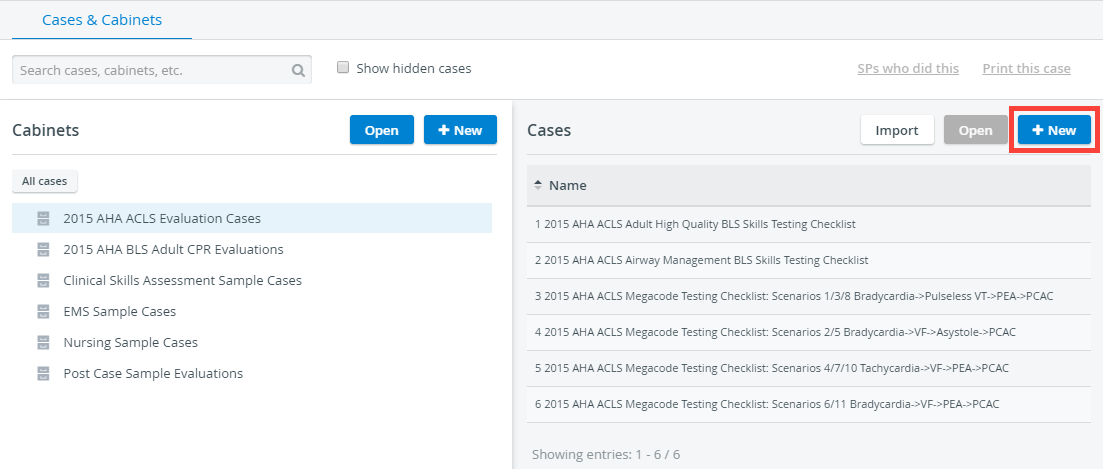
You will directed to the Cases & Cabinets screen with the Cabinets on the left and Cases on the right.Click the +New button on the right side of Cases.
The Edit Case pop-up window opens.
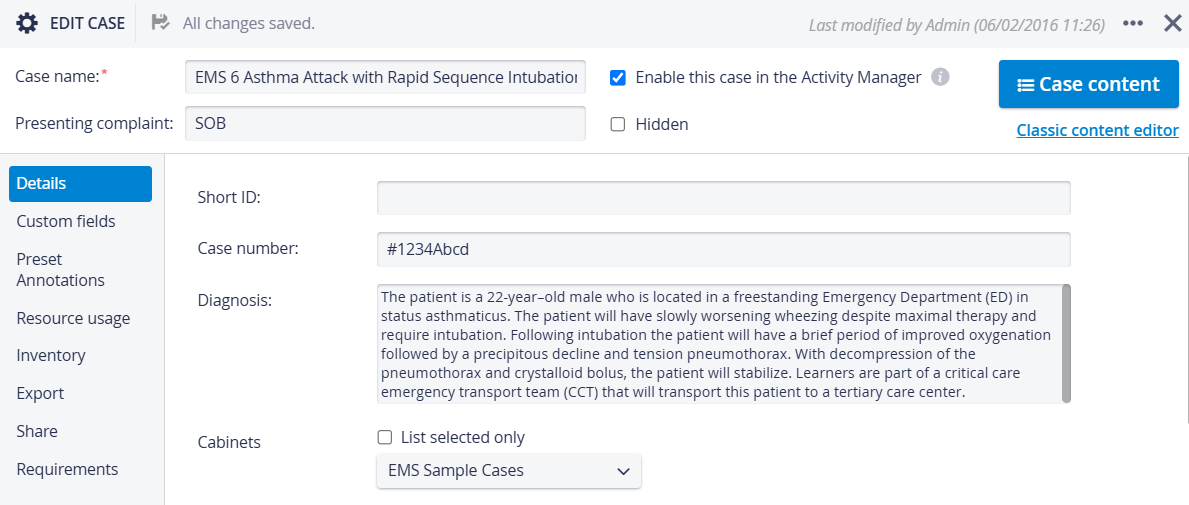
In the header of the Edit Case window, enter the name of the Case and the presenting complaint in the corresponding fields.
NOTE: Once the name of the new Case is entered and automatically saved, the Case Content button becomes active
4. Once finished with the header, you can continue with the following steps:
Fill in the relevant information on the different tabs of the Edit Case pop-up window
Create Case Content
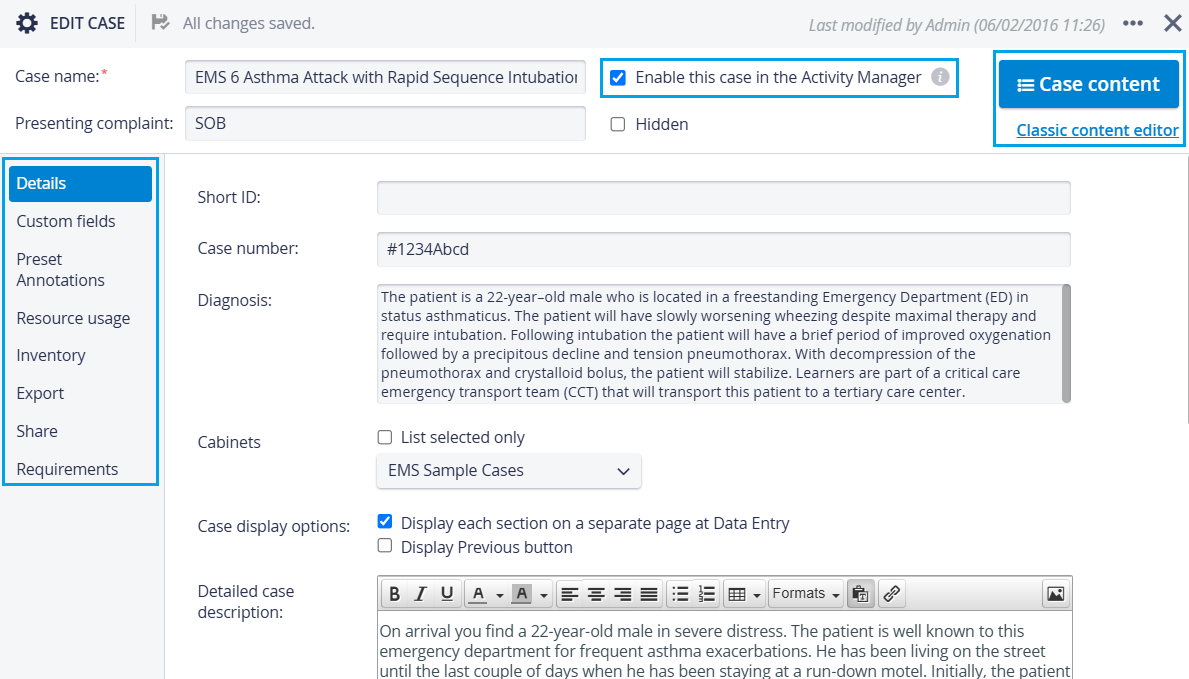
IMPORTANT: A Case will only be available in the Edit Activity pop-up in the Activities module if the Enable this case in the Activity Manager box is checked.
In the latest versions of LearningSpace, a Case number field is available as well, for further identification of the Case.
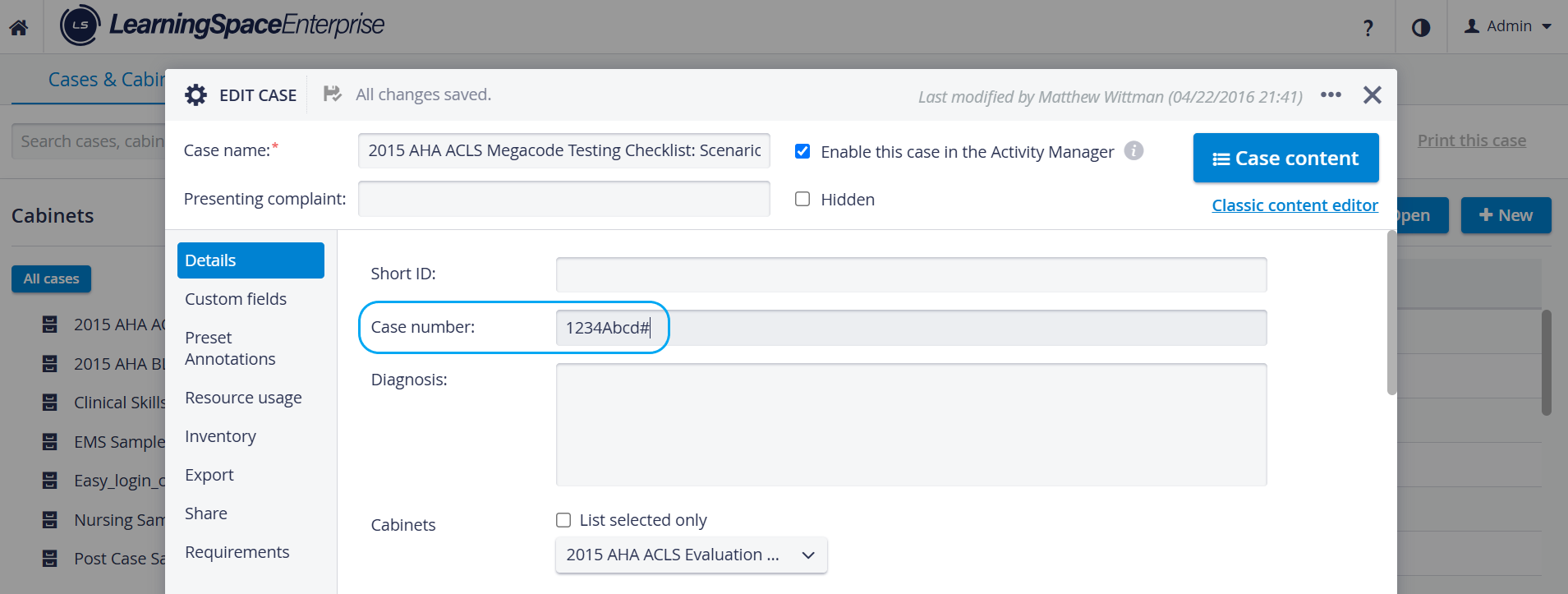
This field is a single-line free text input and can accept any characters. It does not need to be unique, and it is saved automatically.
The value of the Case Number field appears in SP and Learner responses when using the Data API.
If you plan not to use a specific Case for a while, you can hide it from the side menu by checking the Hidden box—the system still stores the Case and its contents, but they will not be visible.
For further information, visit our Case Manager and Cases - How to pages or watch our Case Manager Training Videos.