How to Connect Simulators
LearningSpace can accommodate third-party simulators. A simulator can be connected to the system on the Simulators tab.

All LearningSpace systems can capture signals from any simulator. Different hardware configurations are required depending on the system you are using.
Wireless connection to a simulator
UltraPortable: USB WiFi adapter included with the UltraPortable
ONE appliance:
LearningSpace Enterprise/Essentials/Experience: 2 wireless antennas of the ONE appliance
LearningSpace Intuity: USB WiFi adapter included with the ONE appliance
Server appliance: a Wireless Bridge is required (optional accessory)
If connected directly to a network (without a Wireless Bridge), the simulator will not be detected, and the setup will not function as intended.
Wired connection to a simulator
UltraPortable: dedicated Ethernet connection on the back of the laptop on the left
ONE appliance: dedicated Ethernet connection, labeled "#2" or "Sim."
Server appliance: a Wireless Bridge is required (optional accessory)
If connected directly to a network (without a Wireless Bridge), the simulator will not be detected, and the setup will not function as intended.
Capturing the waveform display of any third-party simulator
UltraPortable: using the USB FrameGrabber (AVIO.HD or DVI2USB), included with the UltraPortable
ONE appliance: using the built-in Display Capture capability (DCU), using the HDMI input
Server appliance: an HDMI encoder (formerly DCU) is required, an optional accessory
Connecting simulators wirelessly
First, LearningSpace has to establish a wireless connection to the simulator. To do this:
Select the Controls cogwheel in the left side panel and select the wireless network of the simulator
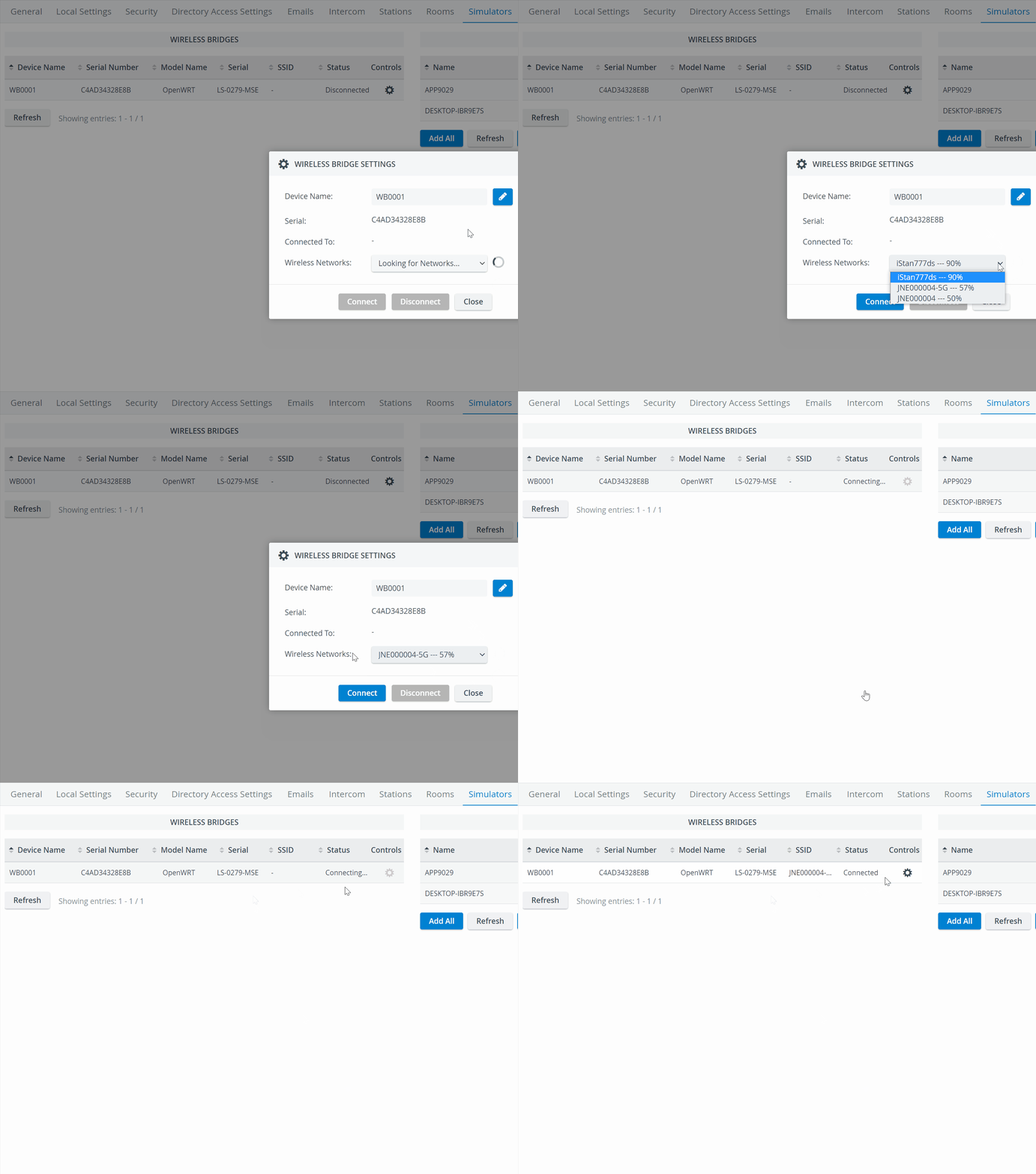
In case there are no Wireless Bridges listed on the left side panel, make sure that:
For an UltraPortable, the USB WiFi adapter is plugged into the USB slot on the right side of the laptop
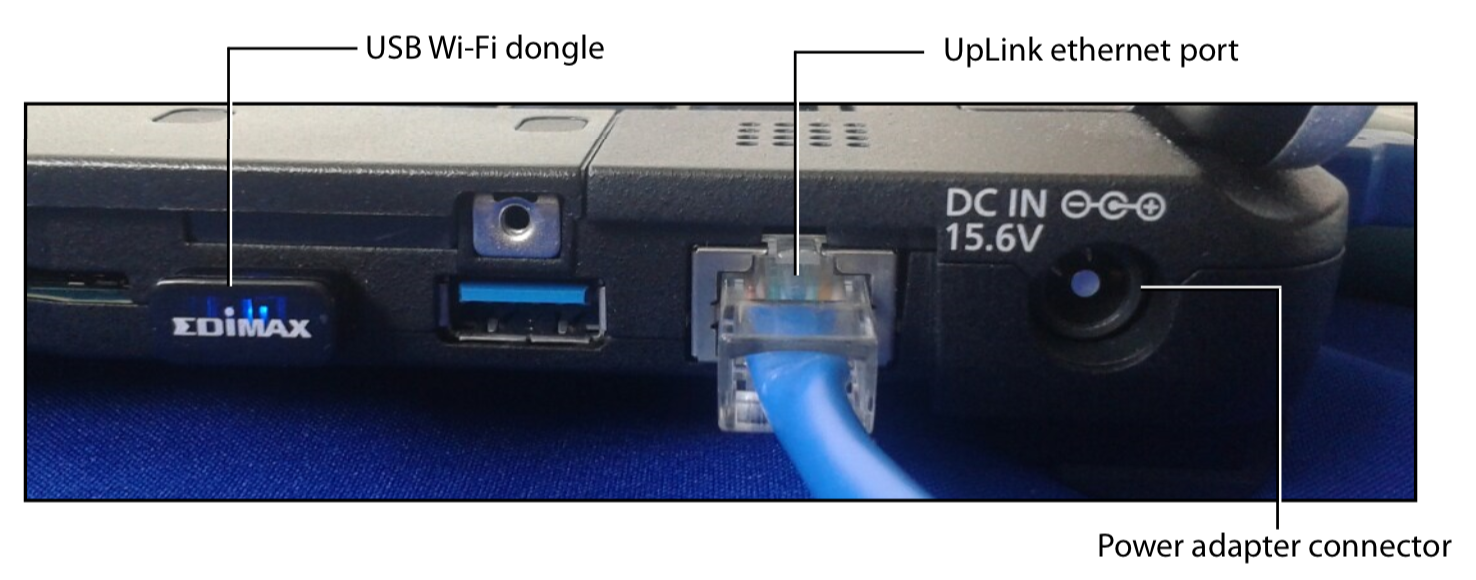
In case the simulator is not listed when trying to connect to the WiFi network:
Make sure the simulator is powered on
Move closer to the simulator
Connect to the selected simulator
The simulator will show up within 10-30 seconds on the right-side panel
After adding the simulator with the + icon, you can move it to the desired room in the Rooms tab.
Connecting simulators using a wired connection
When a simulator is connected to LearningSpace using an Ethernet connection and is turned ON
It is listed in the Simulators panel of the tab within 10-30 seconds.
Click the desired icon in the Controls column to add or remove the simulator.
To add the simulator to the desired room, use the Rooms tab.
A Wireless Bridge is necessary for setting up a correct connection (exception: ONE appliance, UltraPortable units, where a dedicated Ethernet port is available on the device (See above).
If connected directly to a network (without a Wireless Bridge), the simulator will not be detected, and the setup will not function as intended.
Connecting third-party simulators
LearningSpace can accommodate third-party simulators. A simulator can be connected to the system on the Simulators tab.
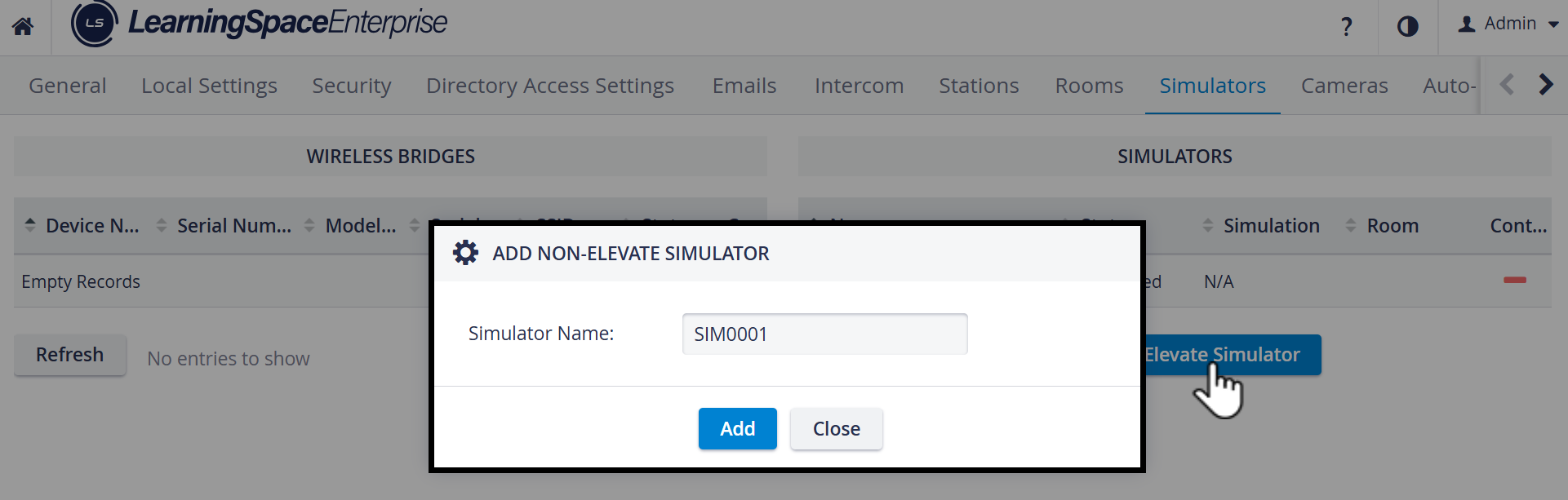
Third-party (non-) simulators are captured using Display capture technology
Take the video output of the waveform display of the third-party simulator (it can be DVI-D or HDMI)
Run a video cable to the input of the device and convert the connector if required:
UltraPortable: DVI input of the USB FrameGrabber
ONE appliance: HDMI input of the ONE appliance (in-built DCU)
Server appliance: HDMI input of the HDMI encoder (formerly DCU)
You must locate the HDMI encoder on the Cameras tab and add it to a room on the Rooms tab.
Recommended resolutions for the HDMI Encoder:
1920x1080
1280x720
How to name and/or connect Wireless Bridges
The Wireless Bridge Settings pop-up can be opened via the Controls cogwheel.

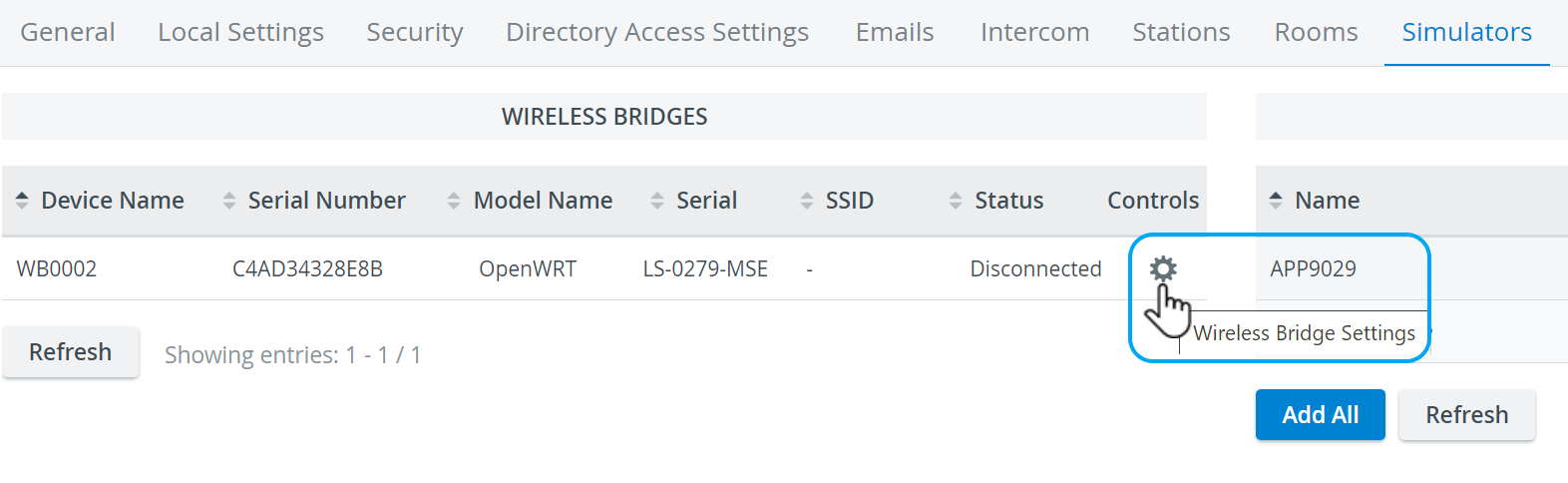
Here, You can add Device Names to wireless bridges to make them easier to detect and distinguish, and you can also connect them to available wireless networks.
The Device Name field becomes editable when you press the blue pencil icon.

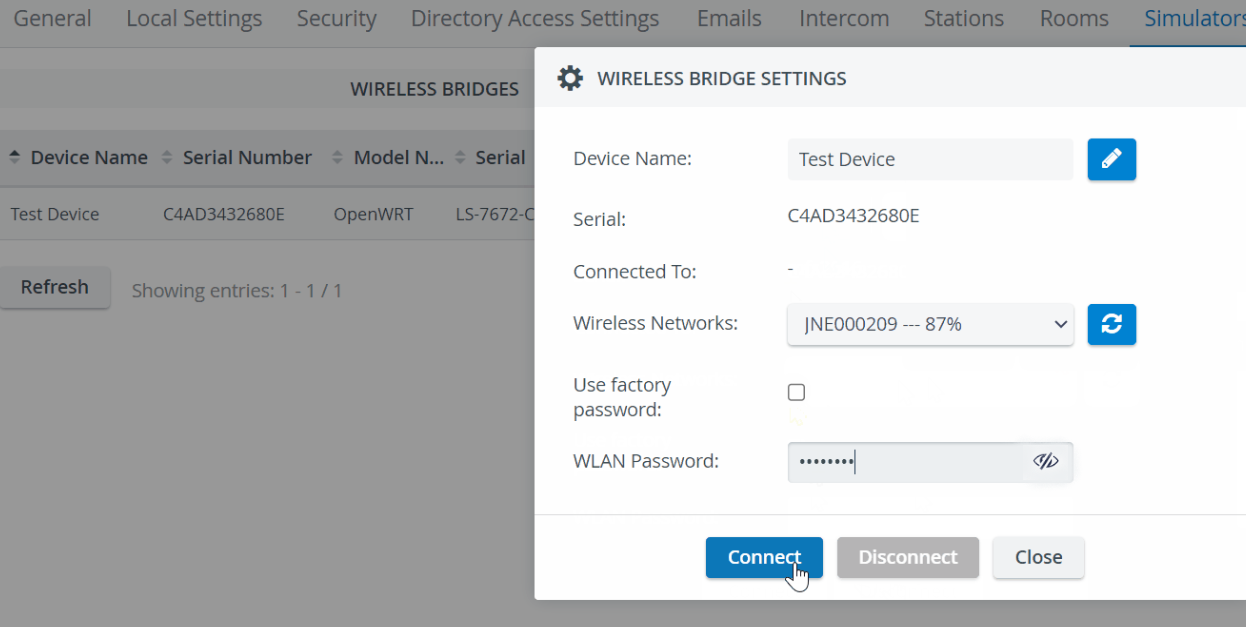
Pressing Connect connects the bridge to the selected wireless network.

IMPORTANT: Pressing Connect will not save the modified Device name (if Save is not pressed before that).
Modifying Device name → Pressing Save → Pressing Close → Device name gets modified.
Modifying Network → Pressing Connect/Disconnect → Pop-up gets closed, and action is performed.
Pressing Close without Save or Connect → no changes are performed.
Password for wireless simulator connection
Password authentication is used to ensure a secure connection to the wireless bridge.
The factory password is the default password assigned to the simulator during setup.
It is always enabled in the pop-up by default.

Custom password
If you do not want to use the factory password for authentication, you can set a unique WLAN password on the Maestro interface and use it within LearningSpace.

Enter this password in the WLAN password field after unchecking the Use factory password option.

When a WLAN Password is set, it will be stored as a Saved password. In such a case, you only have to hit Connect - without re-entering the password.
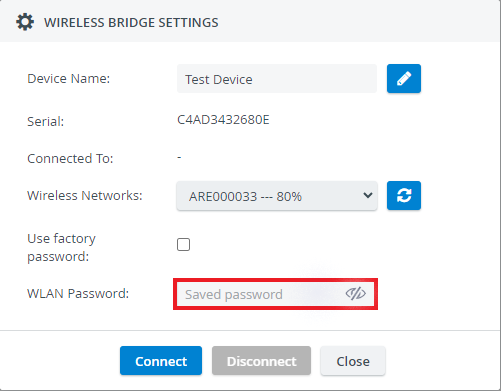
The Wireless Network Refresh button always updates the list immediately.

Learn more on our System Manager pages or review the following PDF documents: