Hiding in LearningSpace
What exactly can be hidden in the LearningSpace System?
User Groups → Hidden Groups
Cases → How to Hide a Case
Sections → Hidden Sections
Activities → How to Hide an Activity
Camera views → How to Hide Camera views
Records → Hiding Records
Submits → Hiding Submits
SP & FON names in Video Review → SP and Faculty name display
What is the purpose of hiding?
It is highly suggested to hide rather than delete, as the latter could alter submissions/reports.
Deleting will permanently remove the subject from the database, whilst hiding will simply remove it from the list to be displayed.
Maintaining a more organized and up-to-date view for the user.
Privacy
The effects of hiding
Hiding User Groups
User Groups will not be displayed in the GROUP list.
Users can still be found in the USERS list and the search box.
Users will not appear to be a part of the hidden group via the Users 'Groups tab.
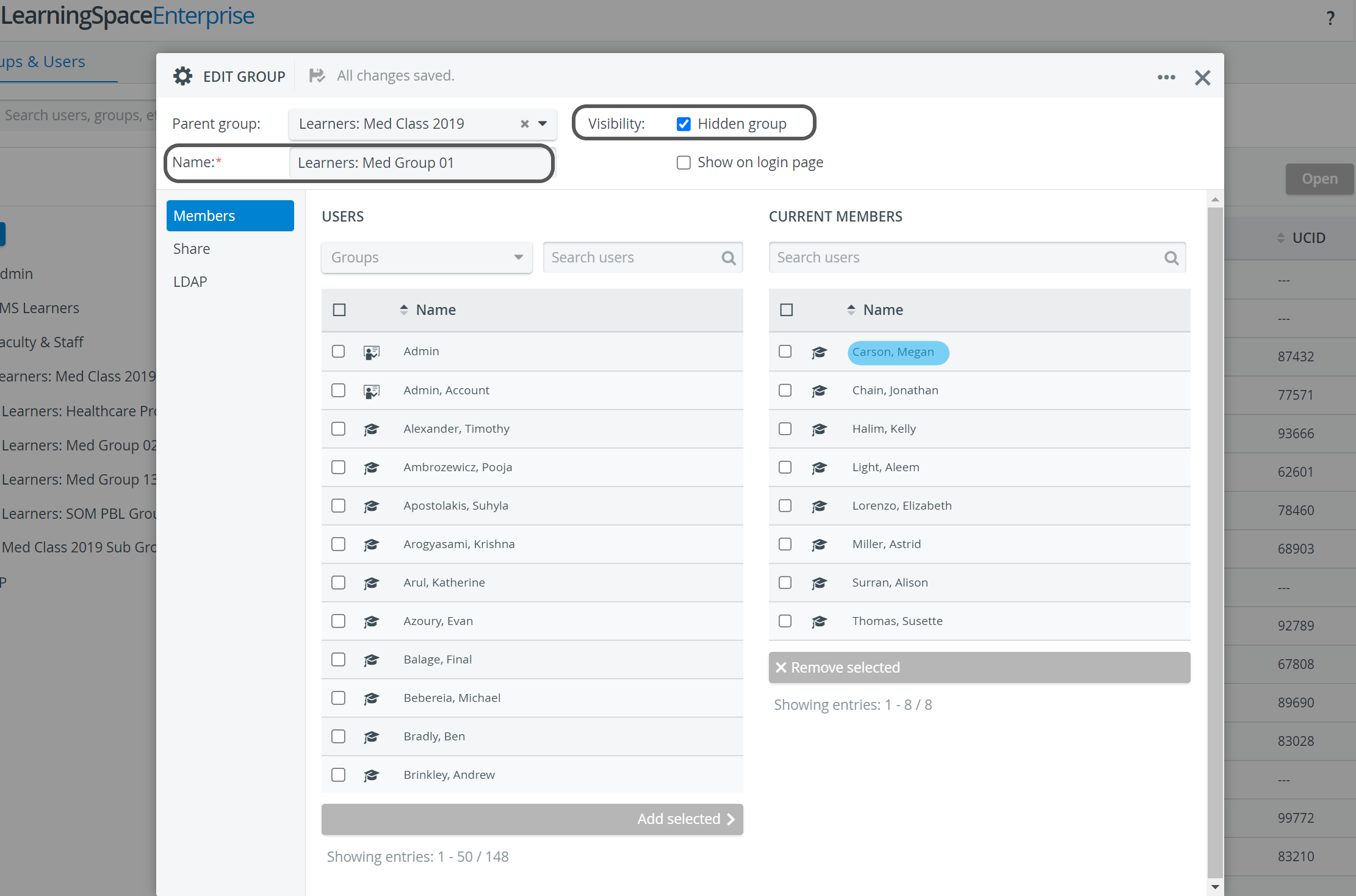
Visibility - Hidden Group in User Manager
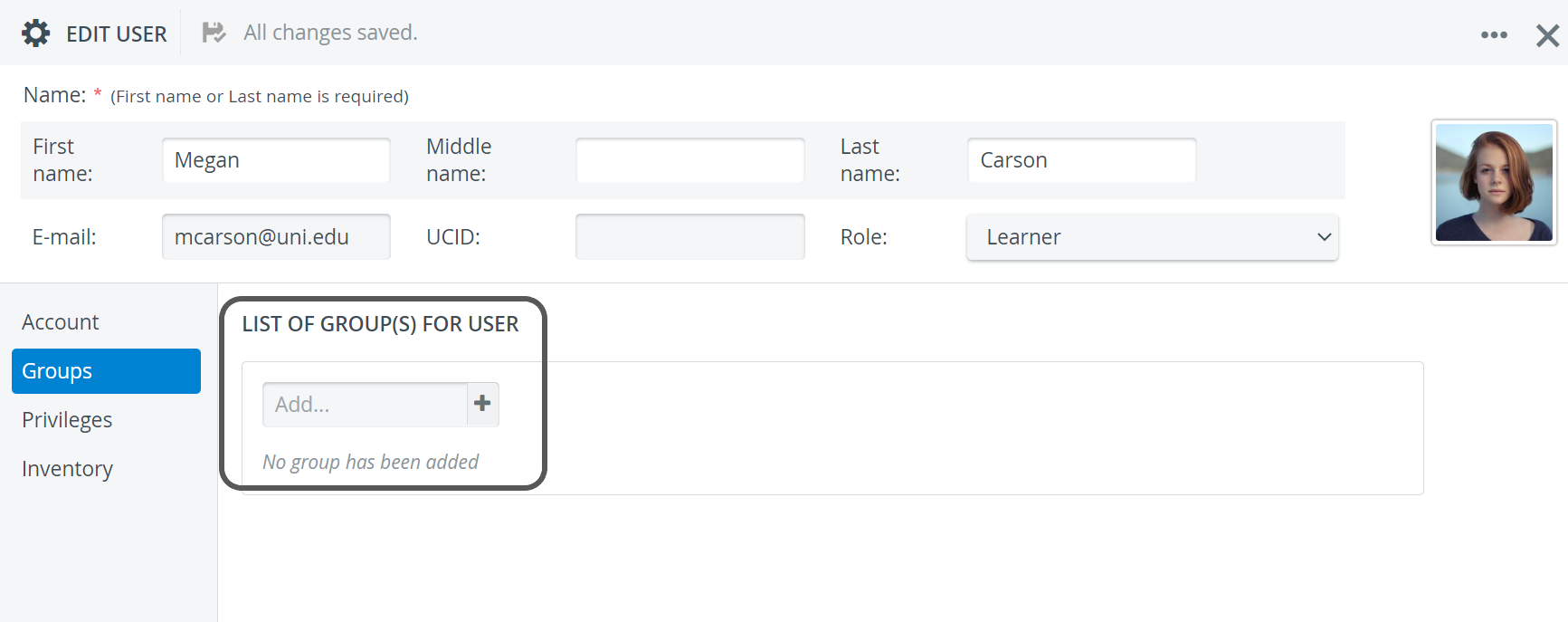
Add User to User Group
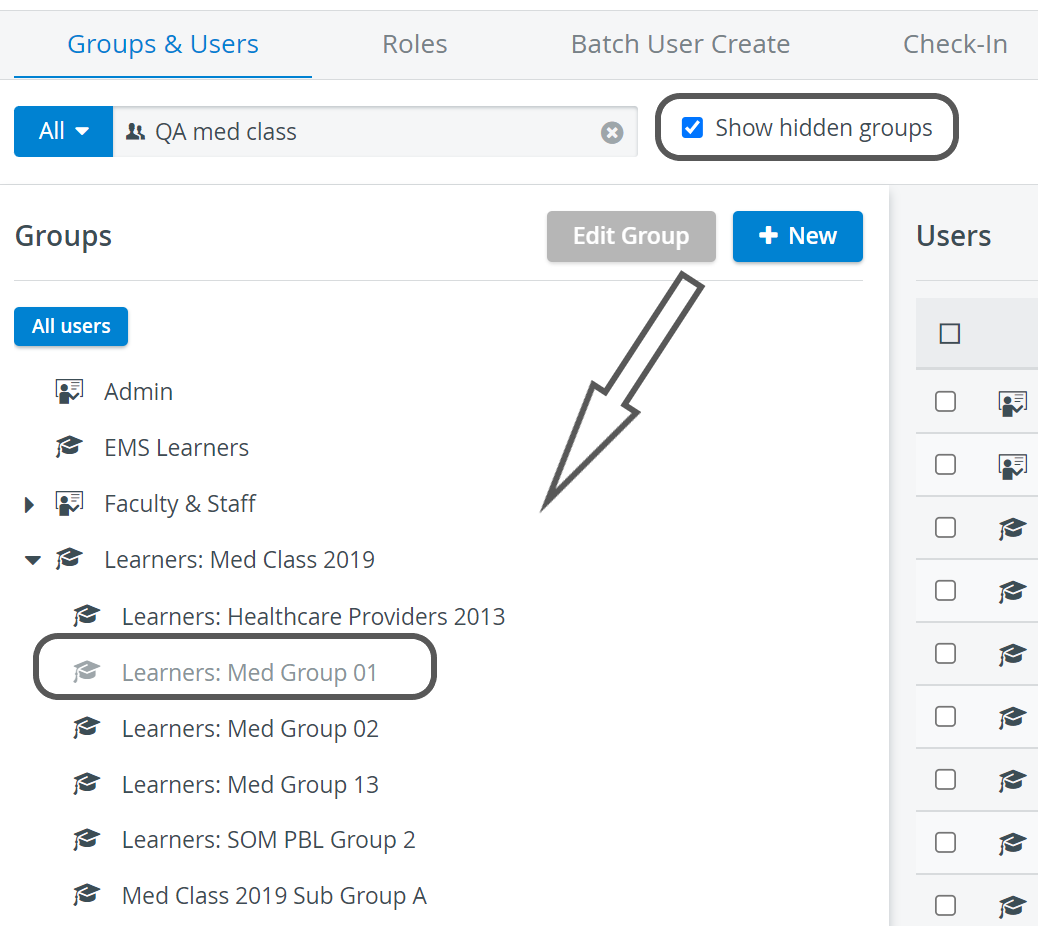
Show hidden groups
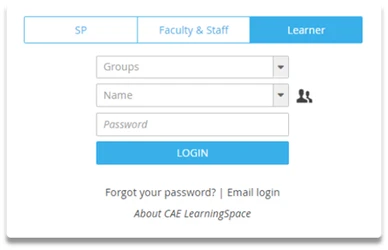
Hiding User Group from the login page (Legacy login)
Disable the “Show hidden groups” option in the User Manager if you do not want to have hidden Groups displayed.
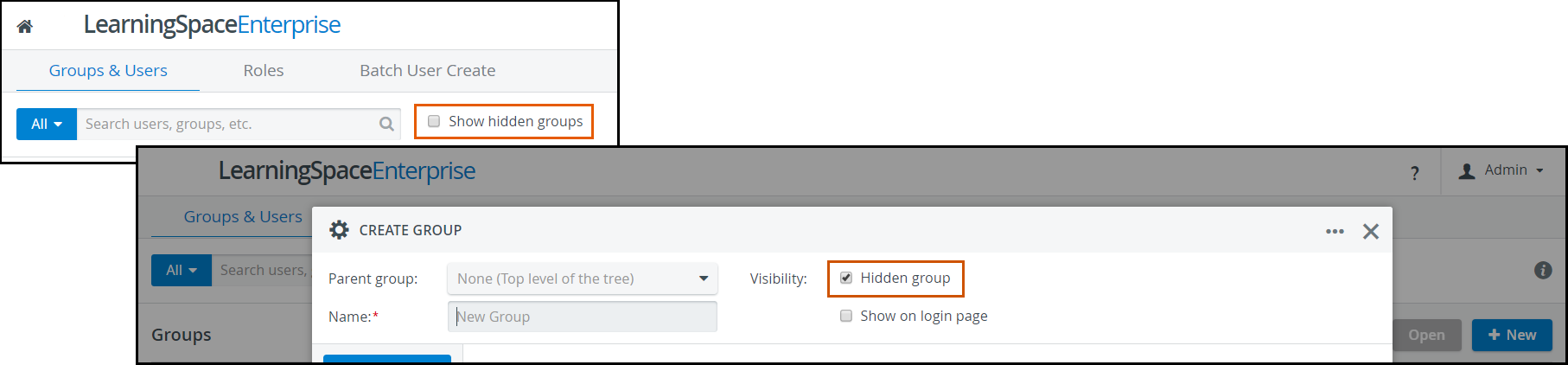
By default, User Groups are hidden from the login page and can be made visible by enabling the "Show on login page".

Show User Group on Login Page option
It will prevent the user from narrowing down the login search to their specific User Group.
Hiding Users
Users of LearningSpace can be made ‘Inactive’ in the User Manager if their status at the institution is no longer active. (E.g. Students might withdraw after a semester or drop out after their first year, etc.)
The easiest way to make users in a specific group inactive is through the Batch User Create tool.

Inactive User
When deactivated:
The Learners’ names do not appear in the list of available learners in the Recording module.
These Learners cannot be evaluated.
These Learners cannot log in to the LearningSpace system.
For information about Inactive Learners, go here.
Hiding Cases
Can still do data entry if a hidden Case is in a currently running Activity.
Hidden Cases will still appear in reports if the Activity is running.
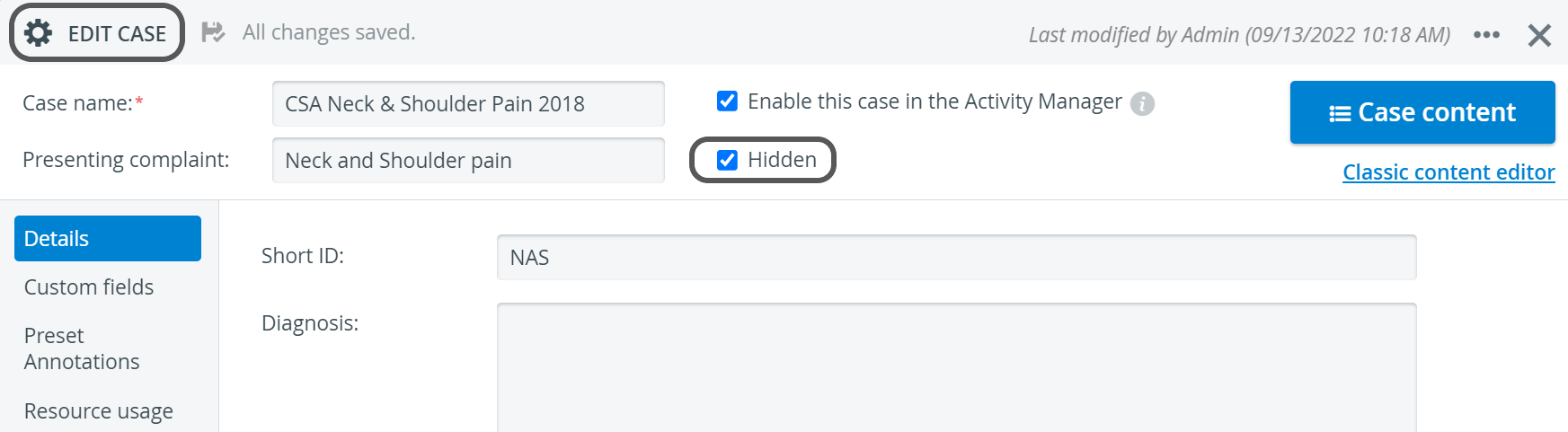
Hidden Case in the Case Manager
Hiding Sections
Hiding Sections will not hide them from data entry, but from being displayed in the reports.
A hidden Section will not be counted in the Case total score.
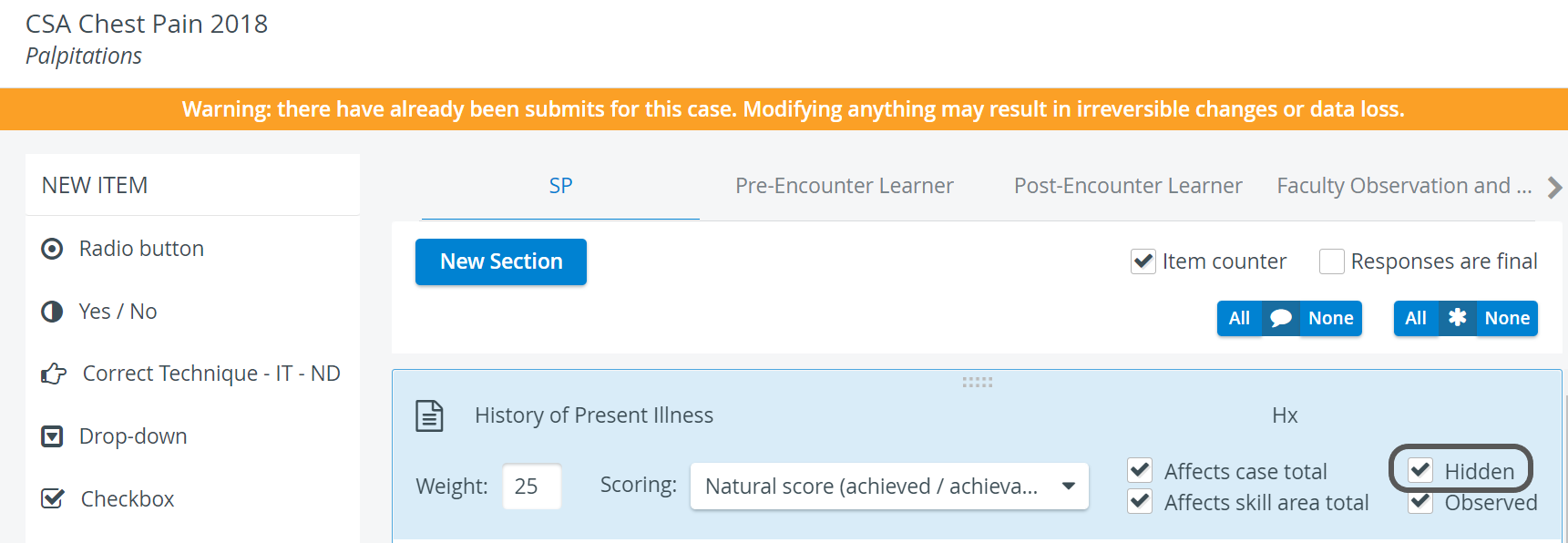
Hidden Section
Hiding Activities
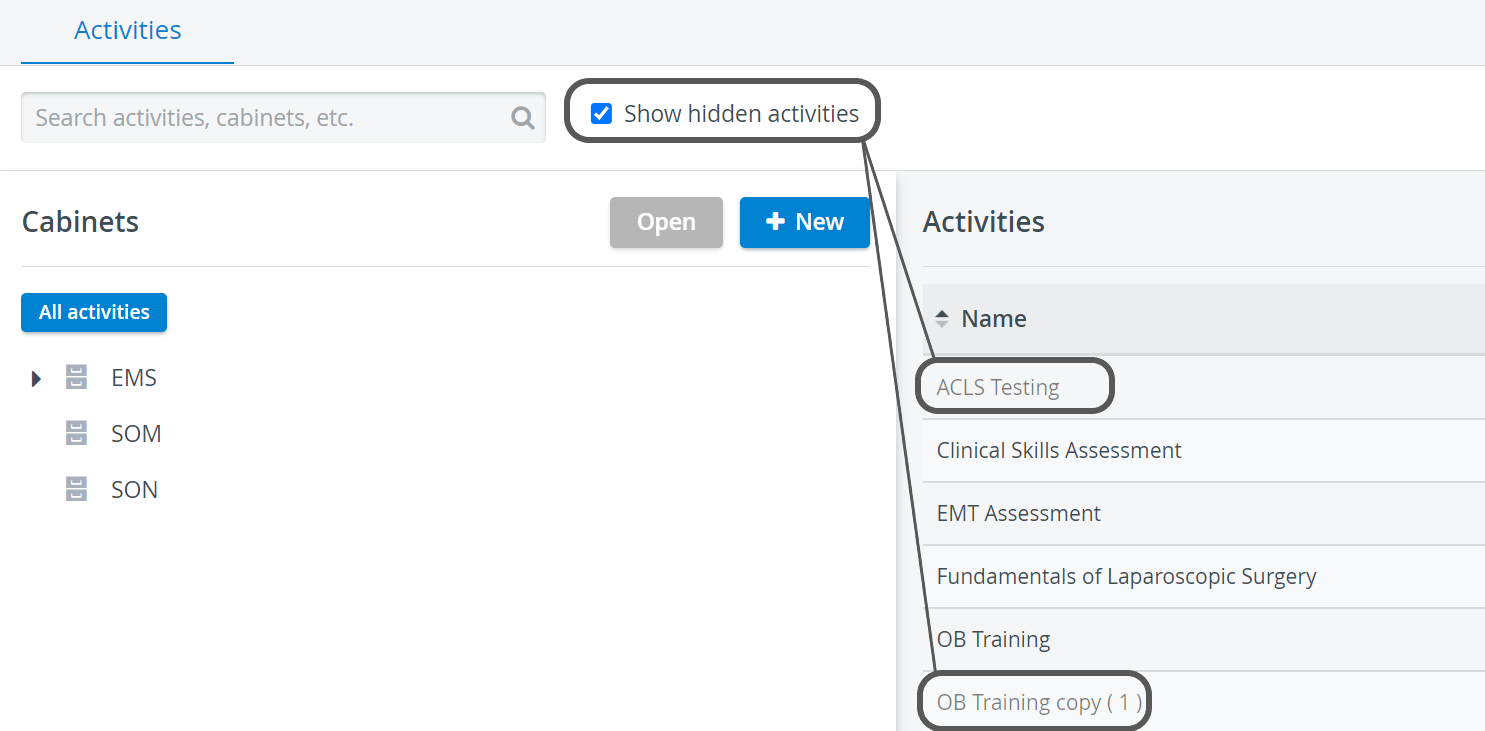
Activity will be removed completely from the Activity list unless 'Show hidden activities' is enabled.
To search for a hidden Activity, 'Show hidden activities' must also be enabled.
Hidden Activities will prevent learner data entry (even for running activities)

Hidden Activity
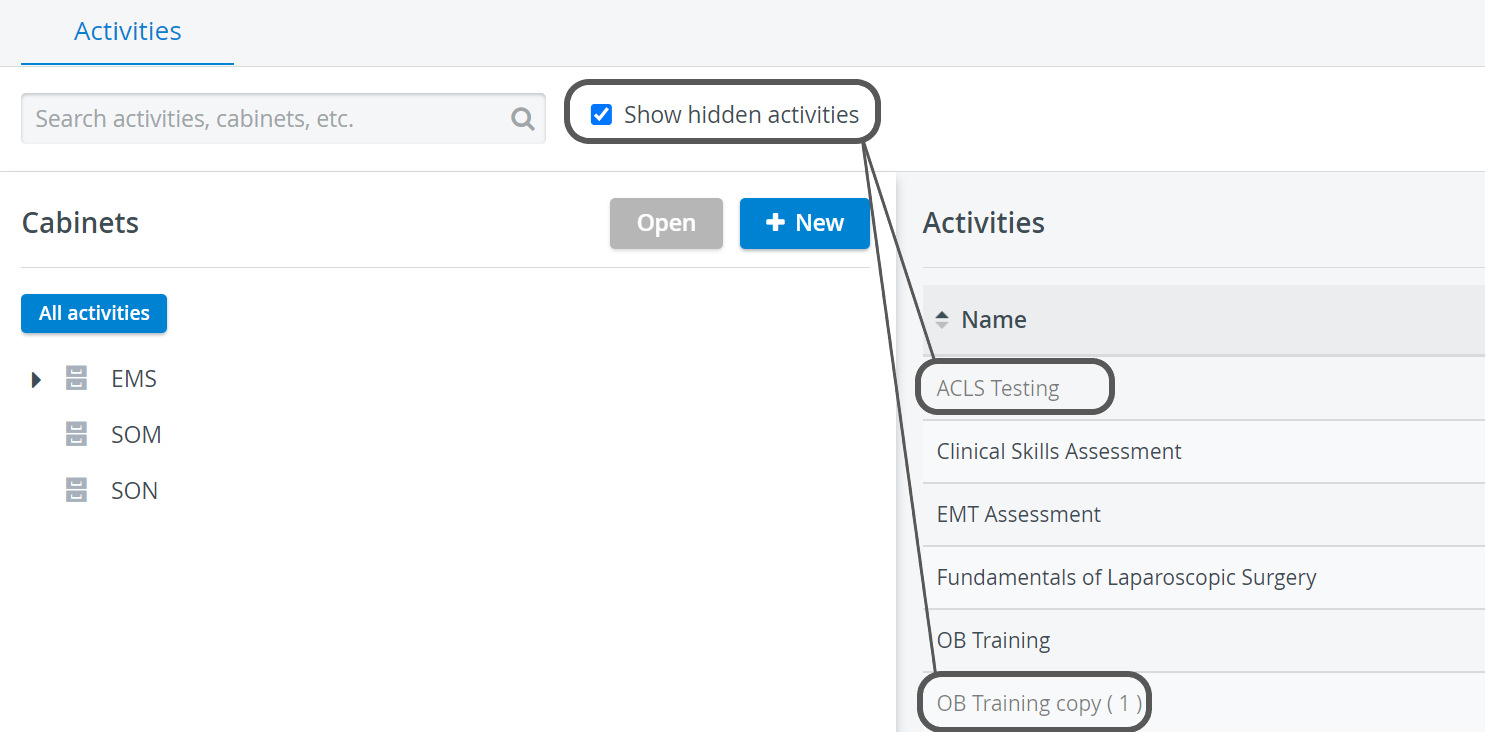
Show Hidden Activities
Hiding Camera Views
If you would like to hide (“black out”) camera views from your Faculty members, the best solution is to use the Running Non-Scheduled Activity (RNSA) function of LearningSpace.
Use it for all Rooms where you do not want them to access live view (camera stream).
To do this, the selected Faculty members should not be members of the Running Non-Scheduled Activity’s Faculty group.
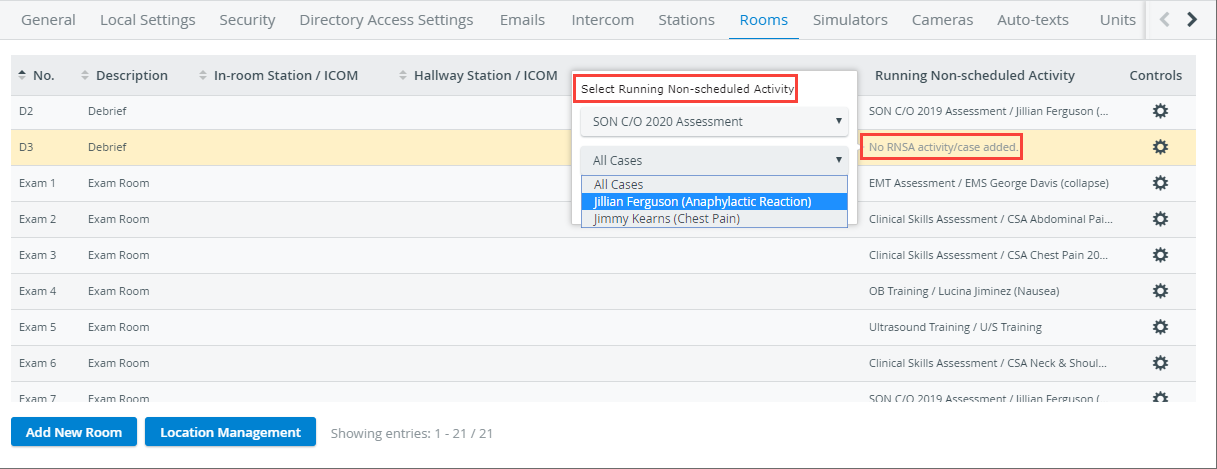
Adding Running Non-scheduled Activity to a Room
Learn more here: RNSA - How to reserve a room without Scheduling.
Hiding Records
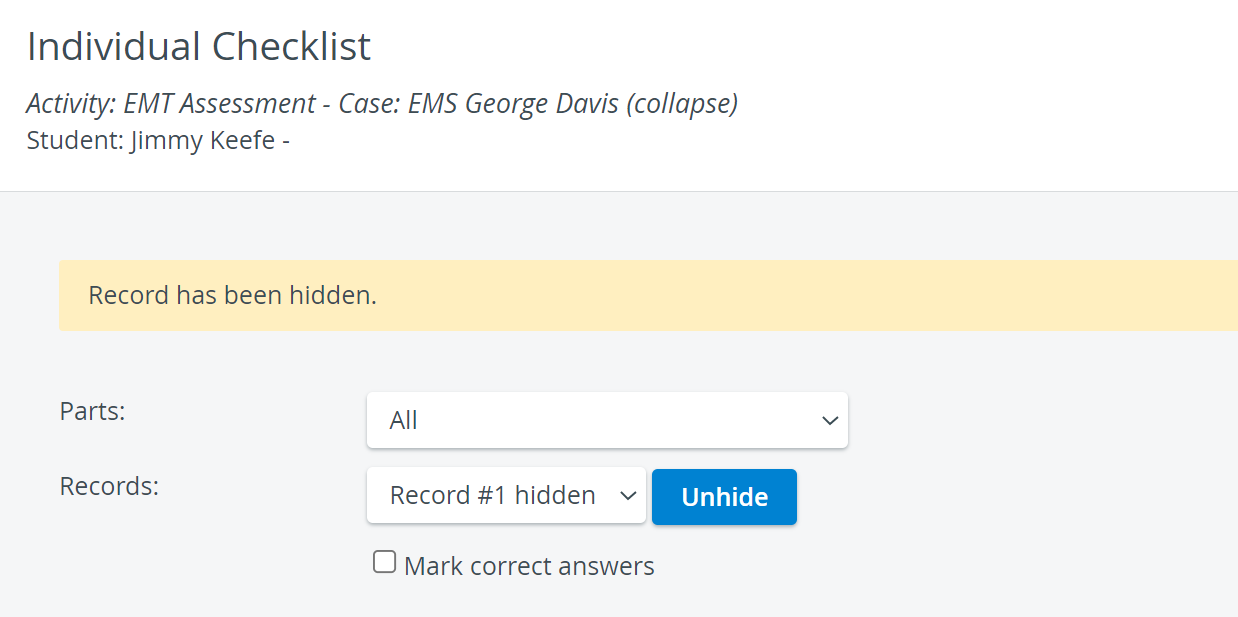
Individual Checklist: Hiding a learner’s record will remove their grade and prevent it from being counted in scoring.
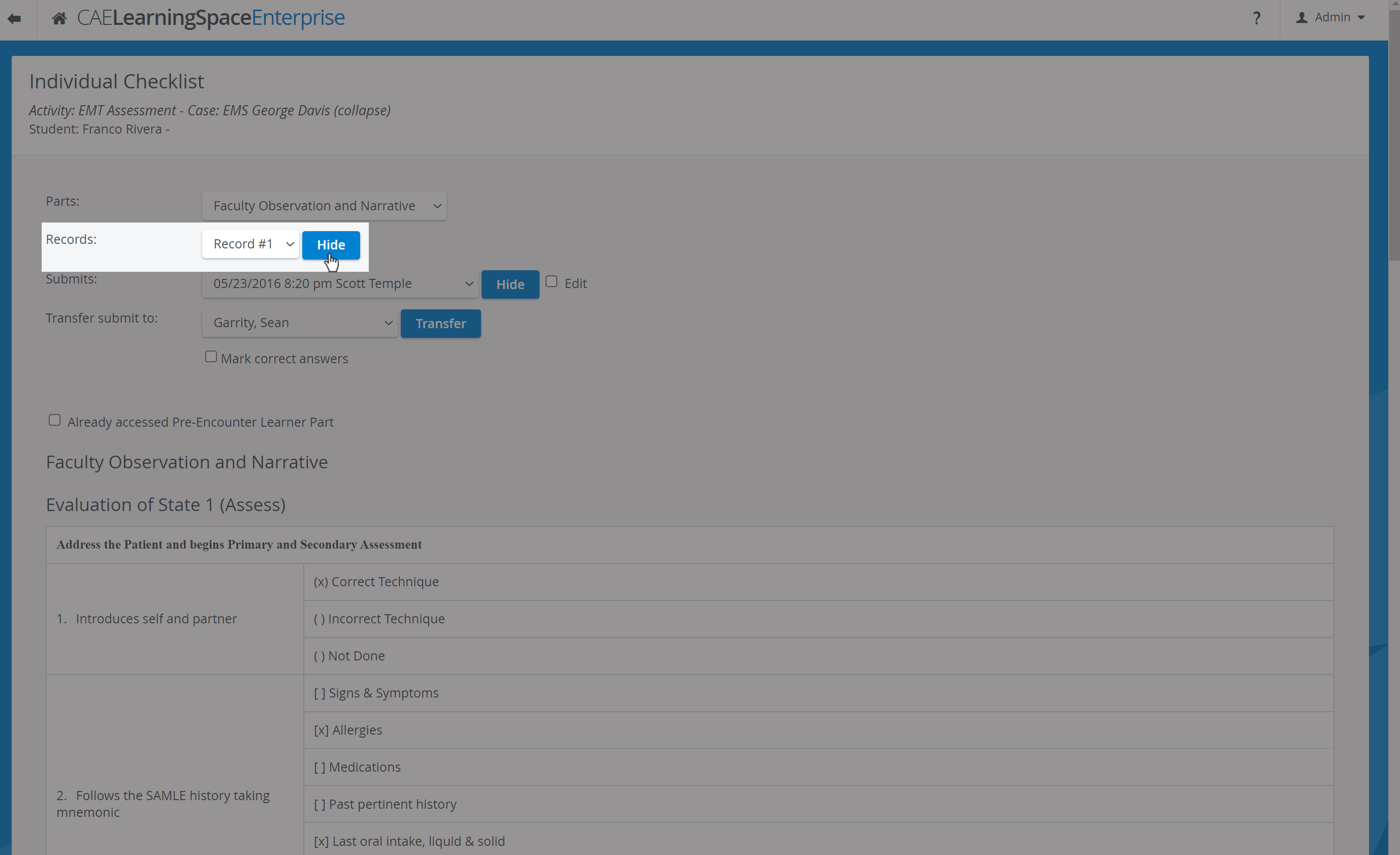
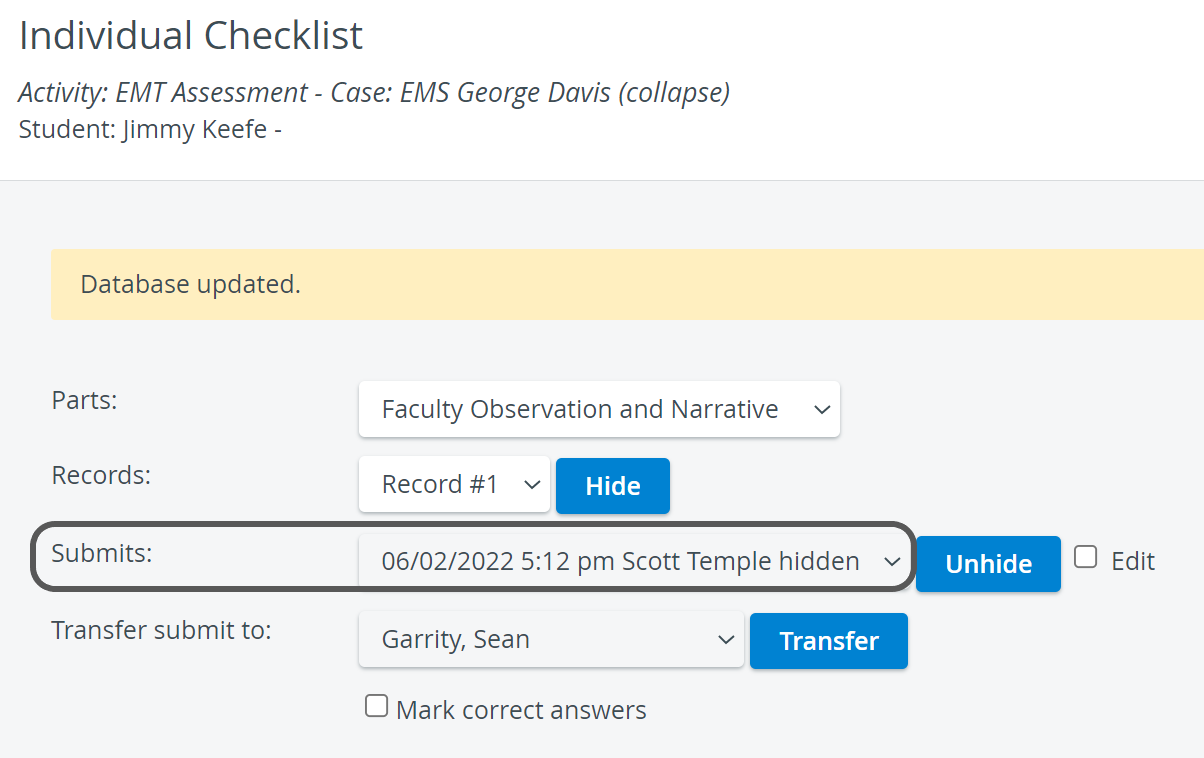
Hidden Submits
NOTE: Hidden records can still be transferred to other LearningSpace users:
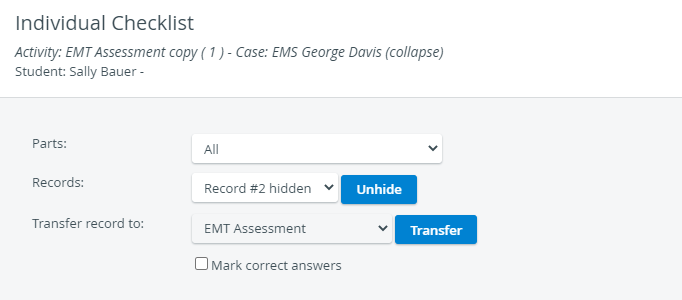
Hiding Scored Learners
During OEQS evaluation, Learners who have already been scored by the evaluator can be hidden to make subsequent evaluations more fluid.
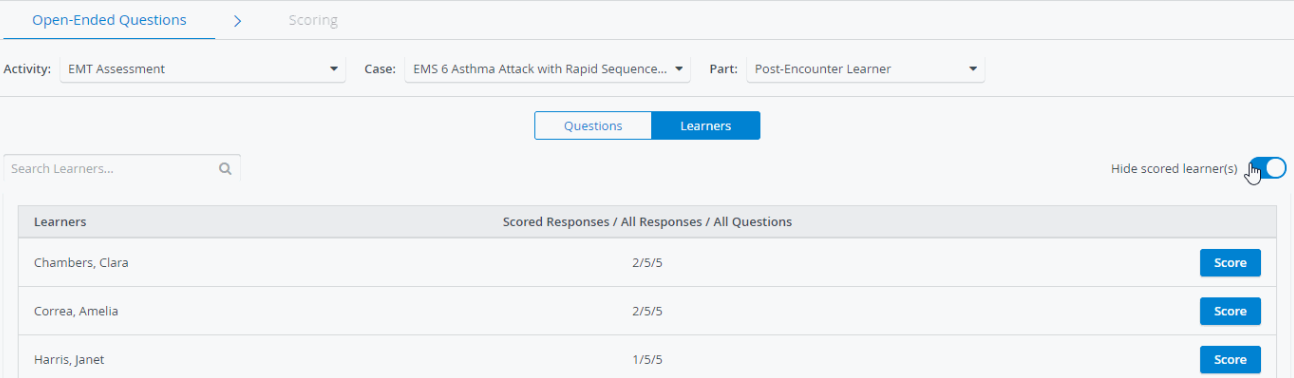
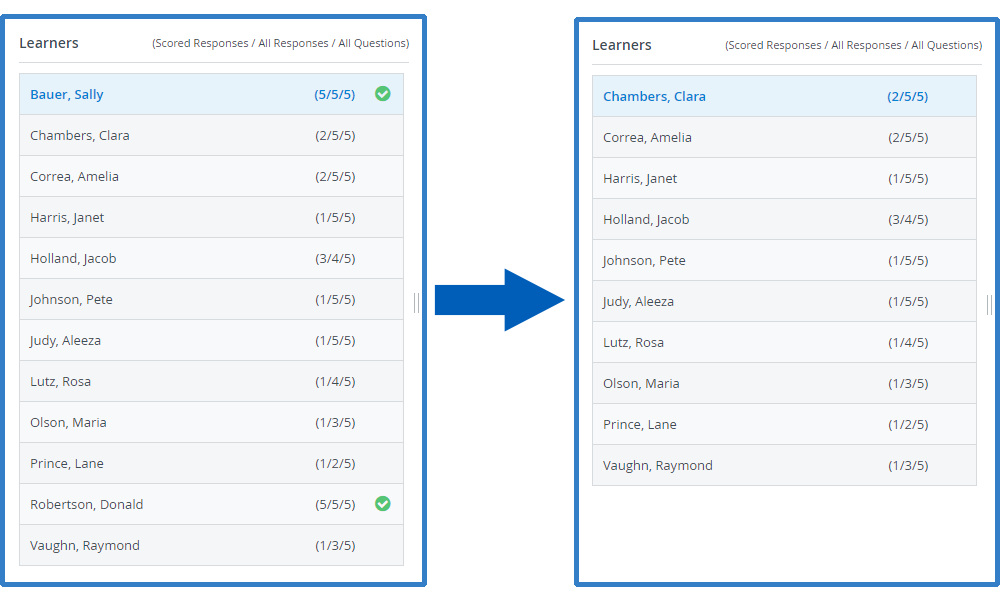
Scoring page not displaying hidden learners
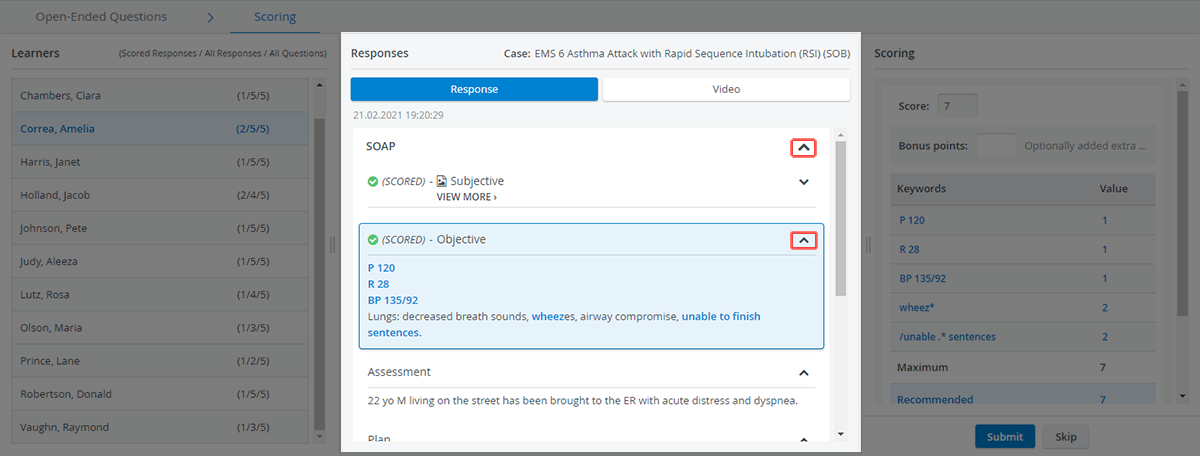
Hide Panels
During the OEQS evaluation, Sections already scored by the evaluator can be hidden to better utilize space.
The effects of hiding Submit
Learner Submits: Hiding a submission will remove it from the submitted checklist and will not count toward the Activity Total Score. It will appear as ‘No Data’.
SP data submits: Hiding a submit will remove the submitted checklists, and it will not count against the Learner in the Activity Total Score. It will appear as 'No Data'.
Only a user with Admin or Report Reviewer Full control privileges can see a hidden section in the reports.
If you hide a submit, the learner will not see it in the Individual Checklist report (if the report is made available to students).
However, if you hide the entire record, the learner will still see the individual submitted within that record, even if the entire record is hidden.
If you want to hide the submits from the learners, you need to hide them individually and not only hide the entire record.
Hiding submits and hiding the entire record works the same way in score calculation: the score of a hidden submit does not count in the overall score, and if the entire record is hidden, scores of all submit (SP, FON, Learner) within that record will be ignored in score calculation.
Hiding SP & FON and Simulator names on Video review
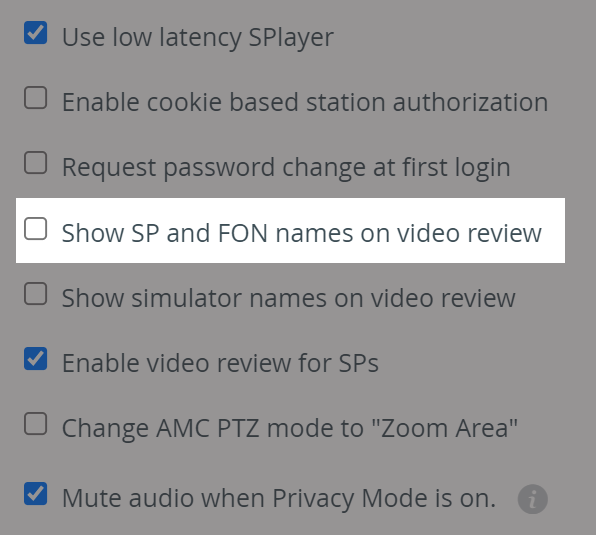
The ‘Show SP and FON names on video review’ and ‘Show simulator names on video review’ options -available on the System manager’s General tab - remove names from the Faculty's view.
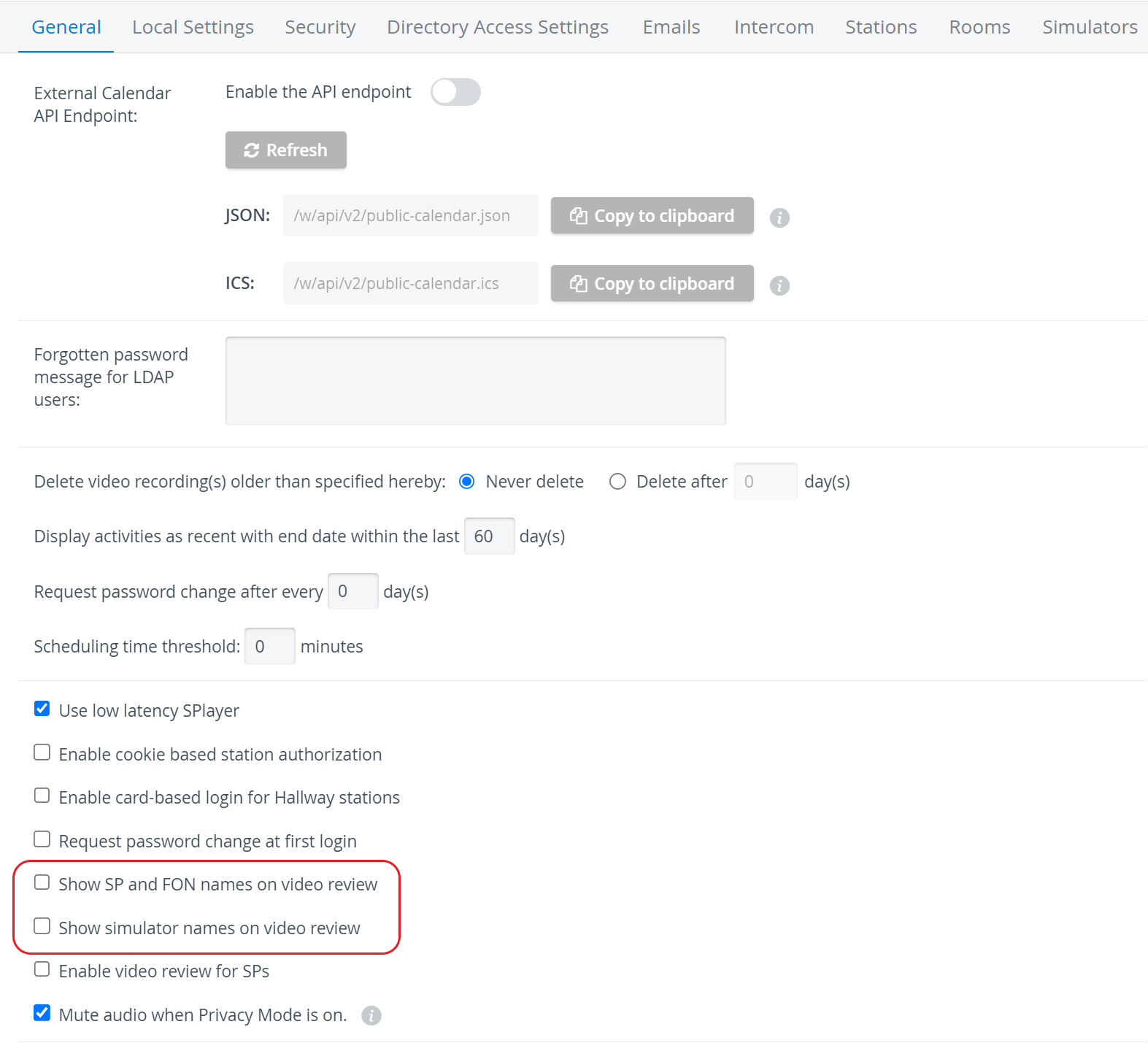
By default, SP & FON names are not shown to Learners during Video Review.
Who can hide and unhide?
Admins
User Manager (only user groups shared w/ user)
Case Author & Case Author full control (only cases shared w/ user)
Activity Manager (only cases shared w/ user)
Report Reviewer full control
Who can see hidden items?
Admins
Activity Manager
Case Author
Case Author (full control)
Report Reviewer
Report Reviewer (full control)
The effects of hiding Activities

Activity will be removed completely from the Activity list unless 'Show hidden activities' is enabled.
To search for a hidden Activity, 'Show hidden activities' also needs to be enabled.
Hidden Activities will prevent learner data entry (even for running activities)
The effects of hiding Records
Individual Checklist: Hiding a learners record will remove their grade and not count in scoring.
The effects of hiding Submits
Learner Submits: Hiding a submit will remove the submitted checklist and it will not count in the Activity Total Score. It will appear as ‘No Data’.
****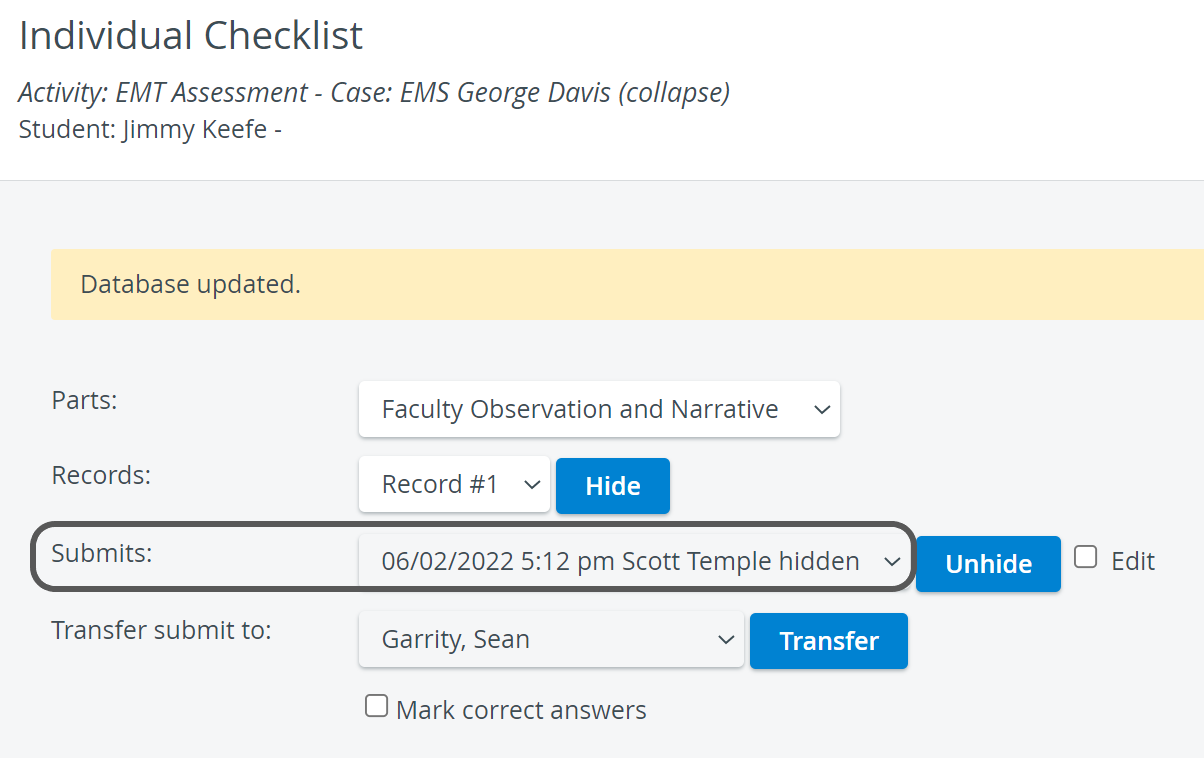
SP data submits: Hiding a submit will remove the submitted checklists and it will not count against the Learner in the Activity Total Score. It will appear as 'No Data'.
In the Reports, only a user with Admin or Report Reviewer Full control privilege is able to see a hidden section.
If you hide a submit, the learner will not see that submit in the Individual Checklist report (if the report is made available for the students).
However, if you hide the entire record, the learner will still see the individual submits within that record even if the entire record is hidden.
If you want to hide the submits from the learners, you need to hide them individually and not only hide the entire record.
Hiding submits and hiding entire record works the same way in score calculation: score of a hidden submit do not count in overall score and if entire record is hidden, scores of all submits (SP, FOn, Learner) within that record will be ignored in score calculation.
Hiding SP & FON names on video review
By default SP & FON names are not shown to learners.
It only removes it from the faculty's view.
Who can hide and unhide?
Admins
User Manager (only user groups shared w/ user)
Case Author & Case Author full control (only cases shared w/ user)
Activity Manager (only cases shared w/ user)
Report Reviewer full control
Who is able to see hidden items?
Admins
Activity Manager
Case Author
Case Author (full control)
Report Reviewer
Report Reviewer (full control)