Events
Activity schedules are broken into Events.
An Event is a period when station setup and SP assignments are the same. This means that throughout the Event, the same Case with the same SP runs in the same room.

IMPORTANT: Events must start and end on the same day, while an Activity can have multiple Events on multiple days and even last for a long stretch of time (e.g., for a year).
Stations in Advanced Scheduling should not be mistaken for the 'Stations' concept as set up in the System Manager (Stations Settings). (A Station, in that sense, is a specific computer that can be linked to a room and used for data entry by any designated participant of an Activity.)
Scheduling an Event
Scheduling an Event within an Activity entails the following necessary steps:
Determining the date and starting time of the event | |
Creating timeslots (within at least one round) | |
Selecting a station (room) as the location of a single Case | |
Assigning learners and SPs (if applicable) |
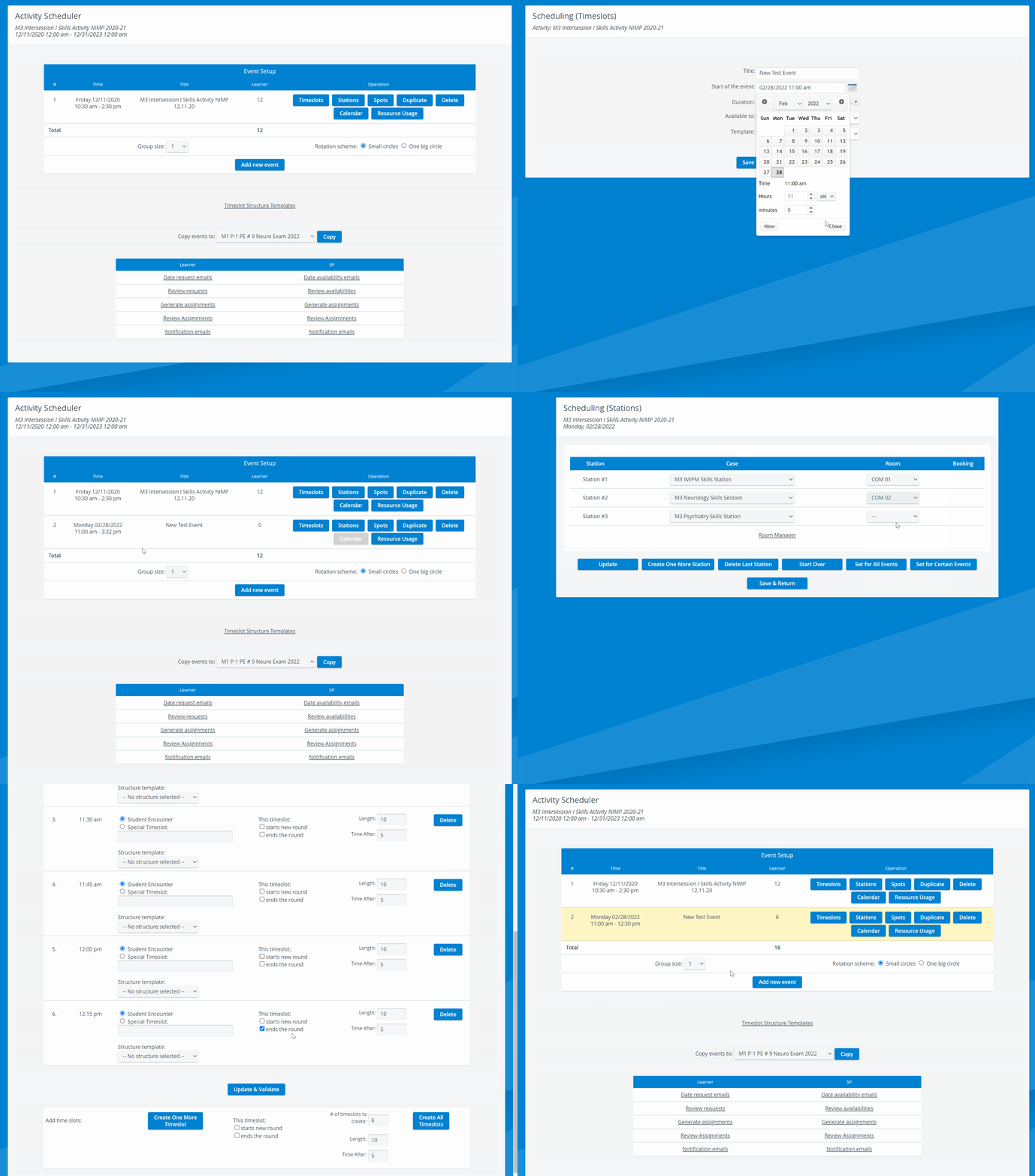
Click the Event's Time hyperlink to get to the Daily Review page.
Change to Compact view if desired.
Change between Station or Student mode as desired.

Time Settings of Events
Start and End Date selector
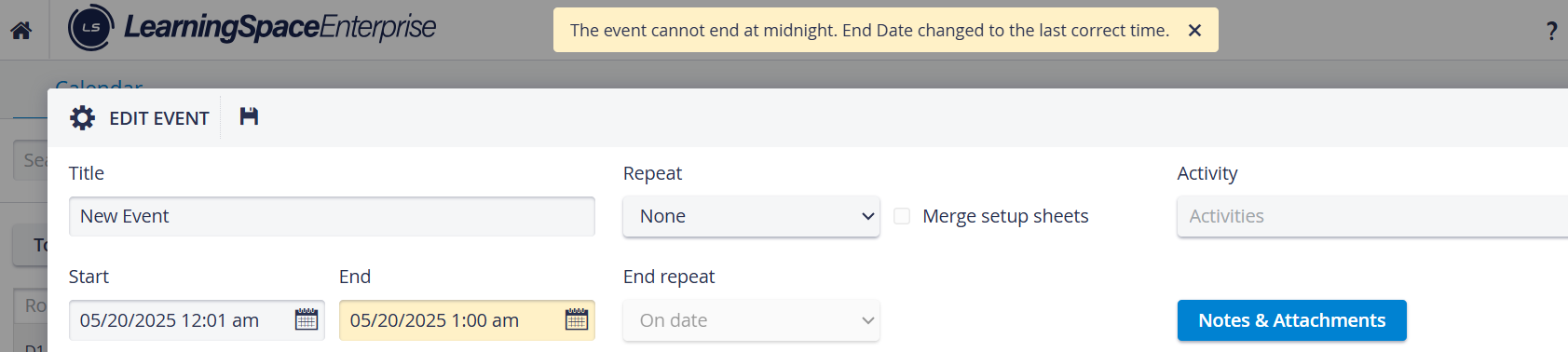
The Calendar’s Start and End Date selector for Events works as follows:

Similarly, if we choose a date when the End Date would be earlier than the Start Date, the system also retains the length of the Event and automatically updates the Start Date value, preserving the Event's length.

If the Event length cannot be kept in the automatic setting to stay within the given day (which is a mandatory criterion when setting up Events), LearningSpace automatically shortens the Event length to fit the day. The same principle applies if the Event does not fit at the beginning of the day: the automatic setting goes before 12 AM (midnight).

Users are informed about these adjustments with a yellow message.
AM-PM Switch
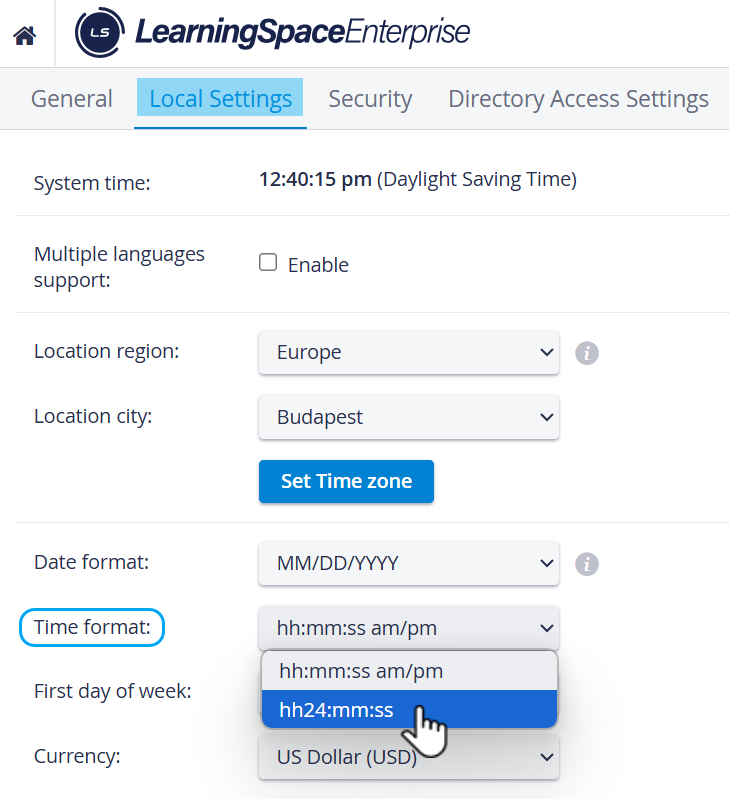
A smooth switching between AM and PM in the date picker helps the calendar's user experience. The Timepicker add-on is included when you need to set hours or minutes.

⬆️ Up arrow:
Clock: 9AM, 10AM, 11AM, → 12PM, 1PM, 2PM, ...
or
Clock: 10PM, 11PM, → 12AM, 1AM, 2AM, ...
Minutes: 57, 58, 59, → 0, 1, 2, ...
If the setting is 24H:
⬆️ Up arrow:
Clock: 22, 23, → 0, 1, 2, ...
Minutes: 57, 58, 59, → 0, 1, 2, …
Recurring events
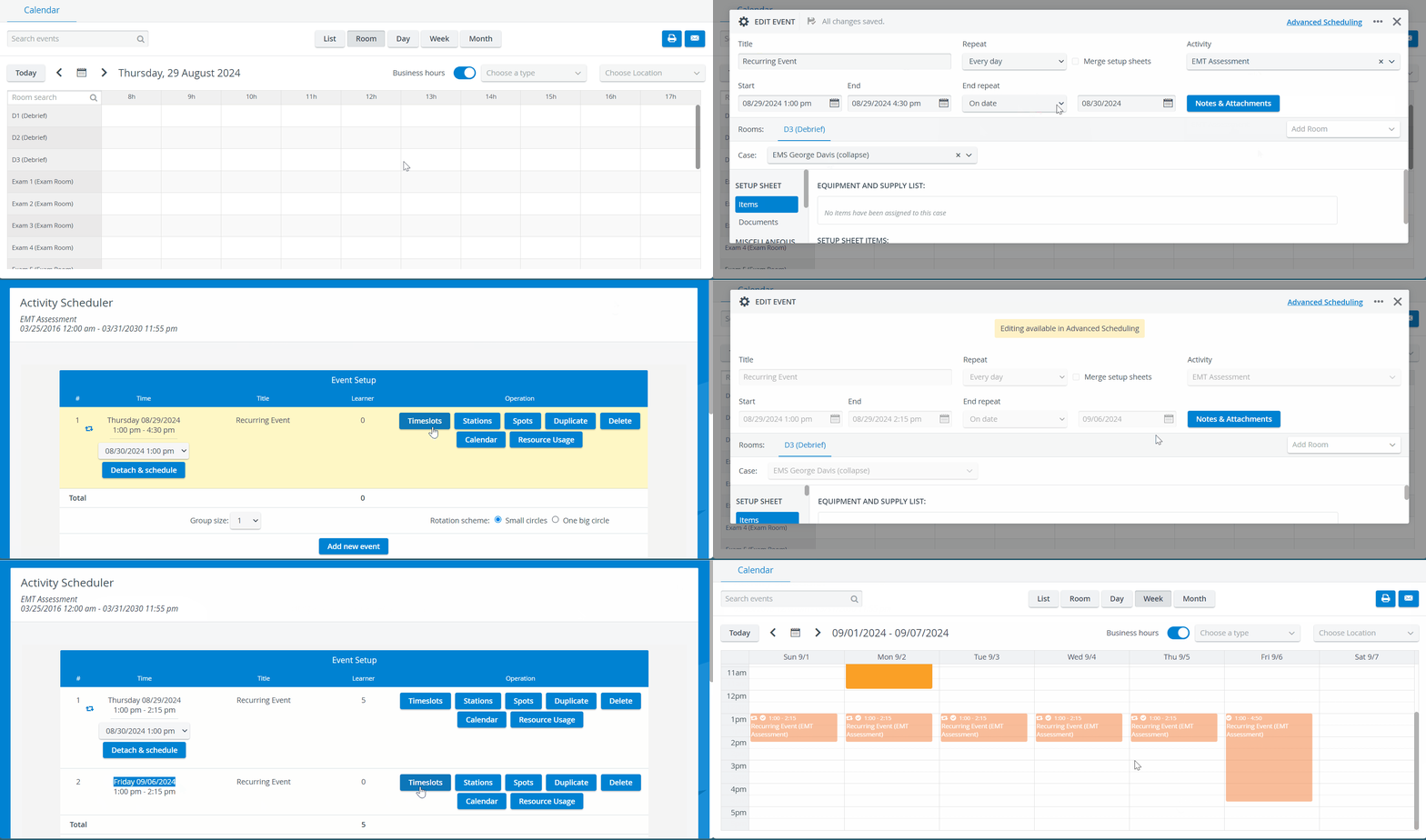
IMPORTANT: In the case of repeated (recurring) events (created in the Calendar), scheduling does not get synced along with the event repetition. Timeslots and learner assignments must be manually set separately for each event.
Printing a Schedule
To print a schedule (on paper or as a PDF), click the Print button at the top right corner of the screen.


The smart scrollbar needs to be turned off before printing reports.
For further information, go to How to Print Schedules.
Manual Scheduling Mode
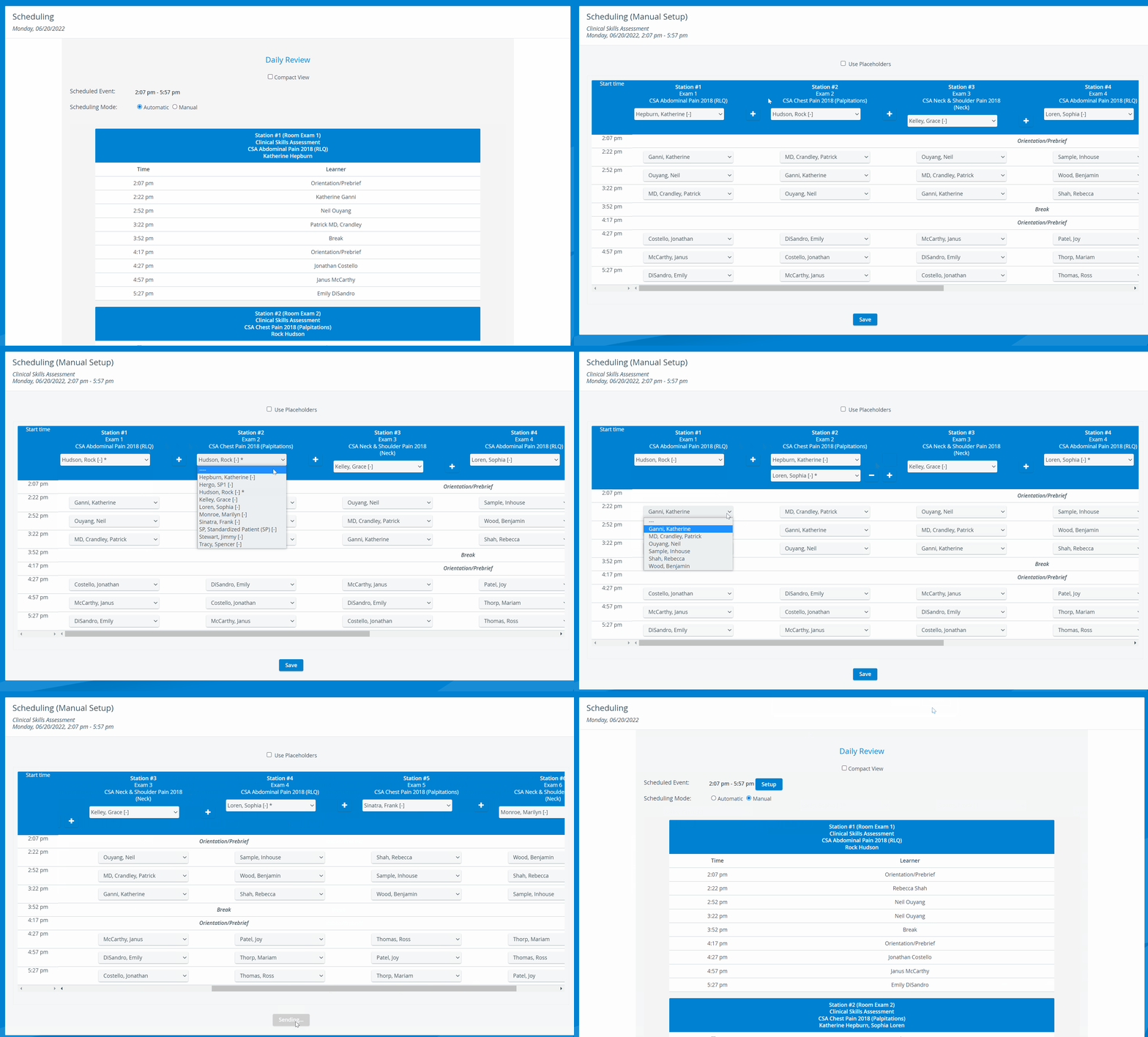
On the Daily review page, you can switch between Automatic and Manual Scheduling modes. When in Manual scheduling mode, you can modify an automatically set-up scheduling:
specify, add, or remove SP-s from a station;
move Learners between timeslots;
use placeholders.
Optional features
Sending date request and date availability emails to learners and SPs | |
Reviewing date requests (if sent out and answered) | |
Reviewing assignments | |
Sending notification emails to learners and SPs |
See more information on managing Email settings in the Systems module here.
Any modifications to the Email templates within Advanced Scheduling will only be effective for the Activity and Event in which they were performed.
Modifications made to the generic Email templates on the Emails tab of the System module become effective in Advanced Scheduling for Activities and related Events created AFTER these modifications have occurred.
Scheduled Events in the Calendar
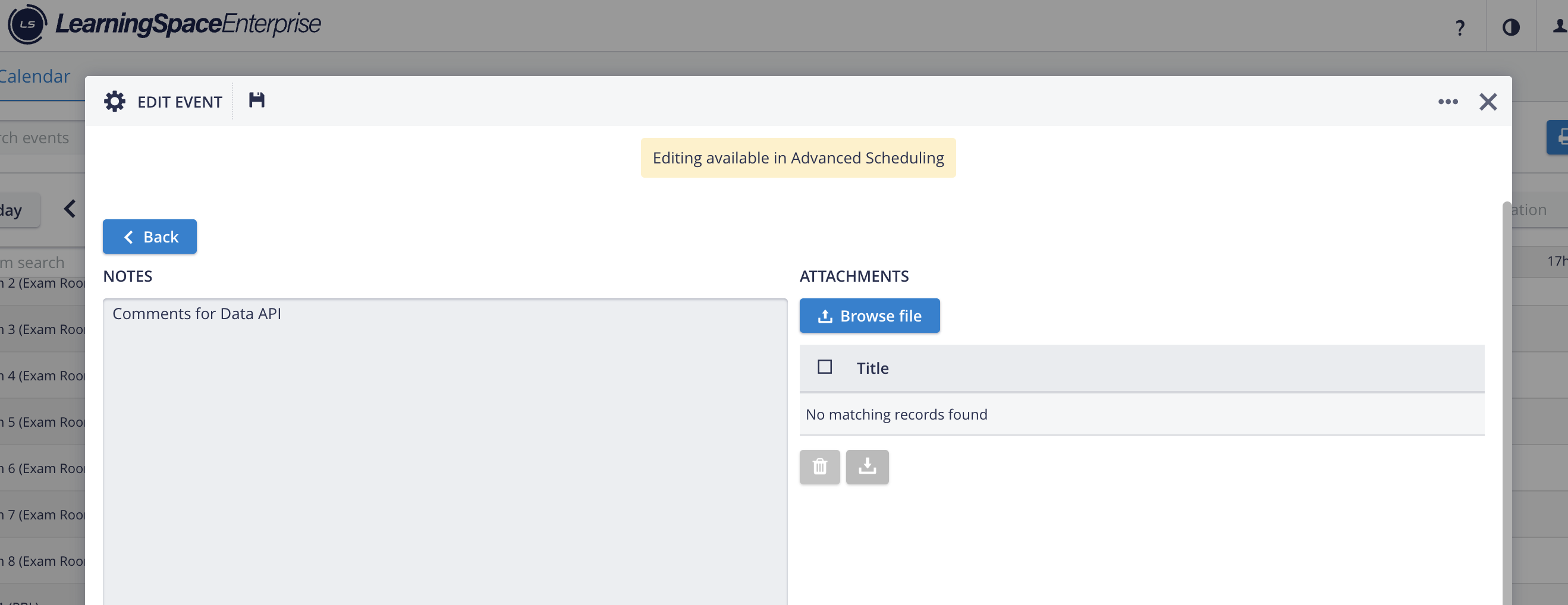
Events created in Advanced Scheduling cannot be edited in the Calendar module of LearningSpace.

However, events created in Advanced Scheduling can be saved as API Access-capable events in the Edit Event pop-up of the Calendar.
Learn more on the APIs in LearningSpace_NEW page.
TIP: Notes can also be edited and saved in case of an Advanced scheduled event, if Data API Access is enabled.
For further information, visit our Advanced Scheduling - How to pages and view our Activity Manager Training Videos.