Edit User Pop-Up
You can manage details for each user in the New/Edit User window.
Name, email address, university ID, role assignment, and user photo are located in the header, while further settings can be edited in the following tabs:
Account: personal data, including the status (Inactive) settings.
Groups: Manage the user's group membership.
Privileges: Here, you can check which privileges your user holds based on their role.
E-portfolio: Here, you can create printable reports of individual learners.
Inventory: The transaction assignee option can be enabled for the user on this tab. It is enabled by default for all newly created Learners.
Creating a new user
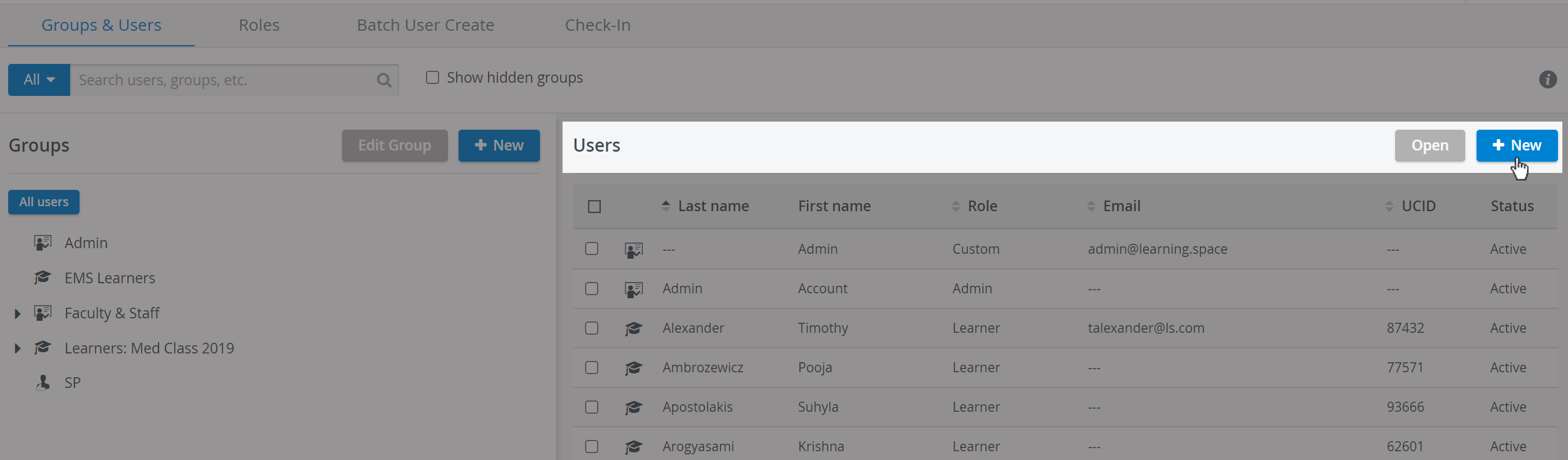
Click + New to create a new user account on the right under Users.
The New User pop-up will be displayed:
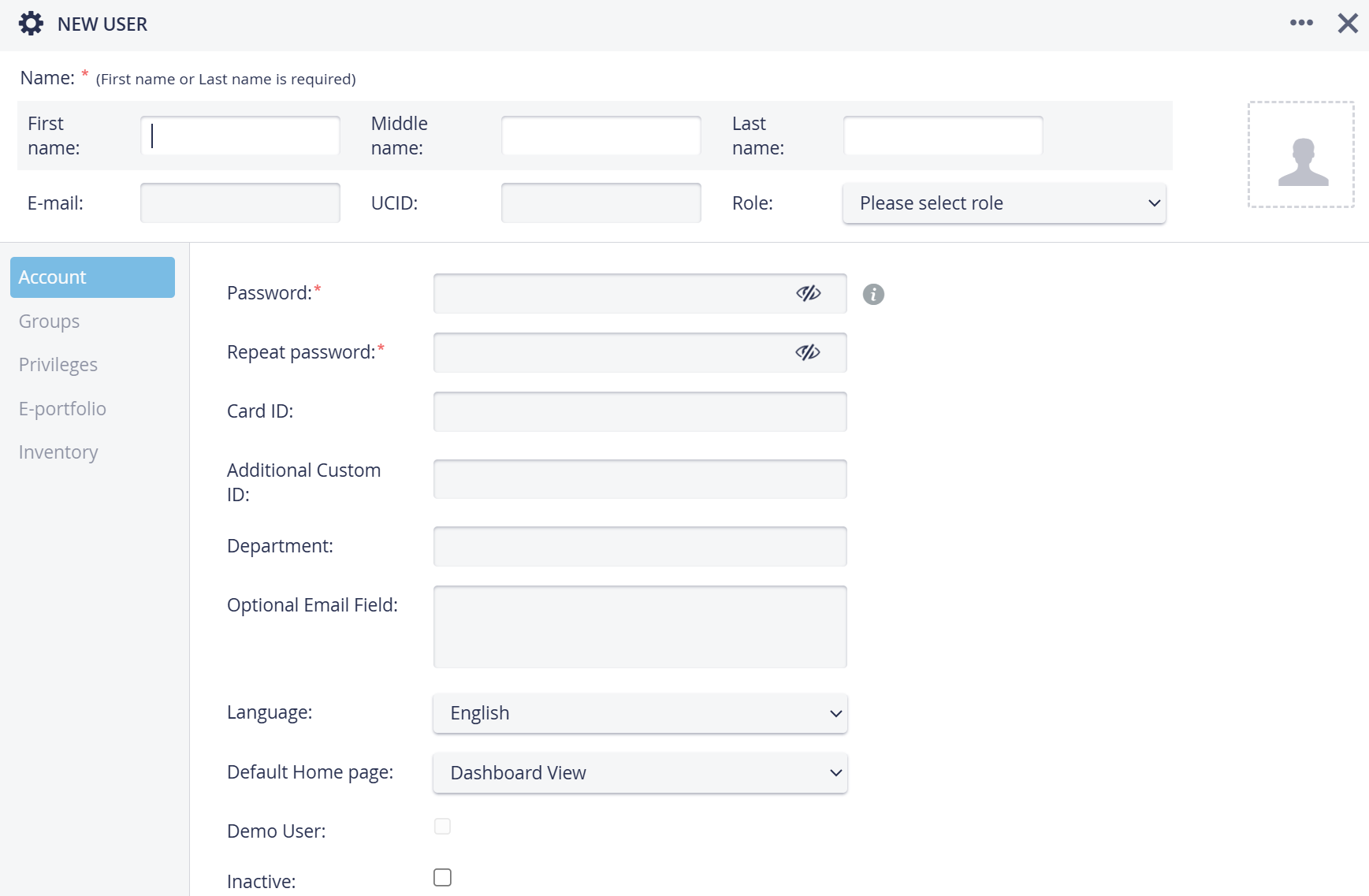
First or last name, email, and password are mandatory. Once all these details are filled in, the faded areas of the window become editable.
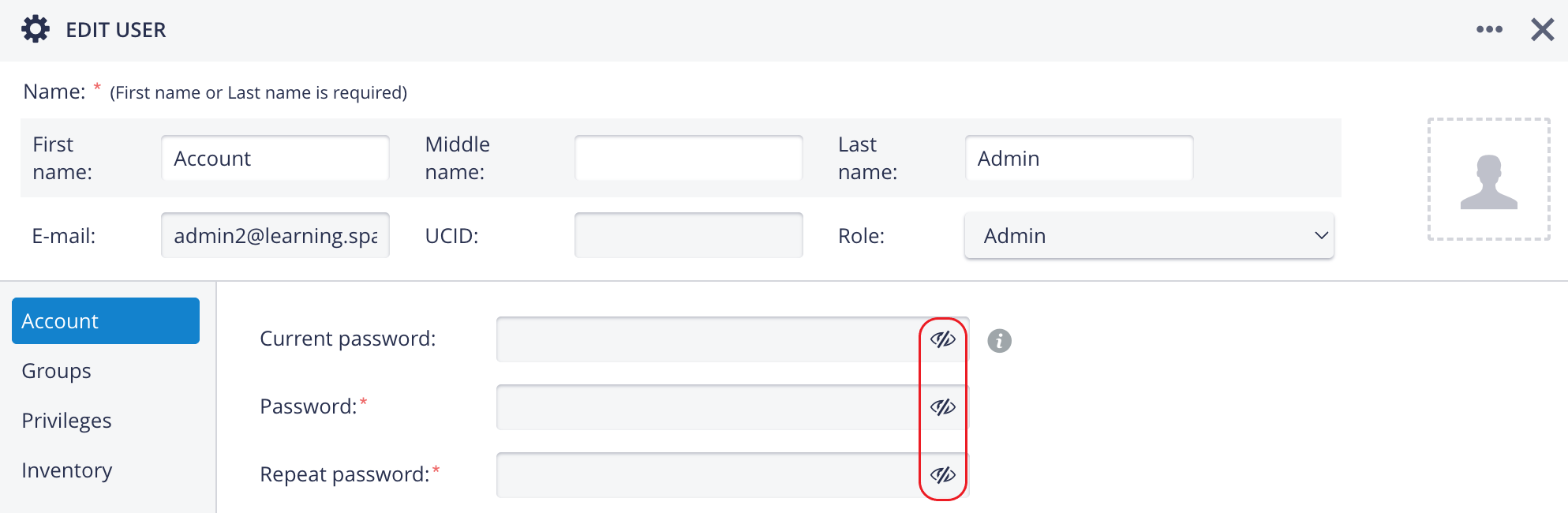
Password Settings fields with Password visibility option
Assigning users a UCID (Unique Customer ID) for easy identification is recommended, but not required.
Roles can also be assigned later on: see more about role assignment here.
User profile pictures can be uploaded in the header of the Edit User pop-up. (See also how to upload multiple photos with the BUC feature here.)
The user's group membership can be managed in Groups; for more information, please see here.
You can check or modify a user's privileges in the Privileges section. Check how to manage privileges here.
Only users with Learner privilege have the E-portfolio tab.
IMPORTANT: When using the Add New user option, the Transaction assignee checkbox gets checked by default for Learner privilege users (if the Inventory manager is enabled within the LearningSpace system).
User Managers cannot create Admin, System Manager, Room Manager, or Learner History/SP Activity-privilege users.
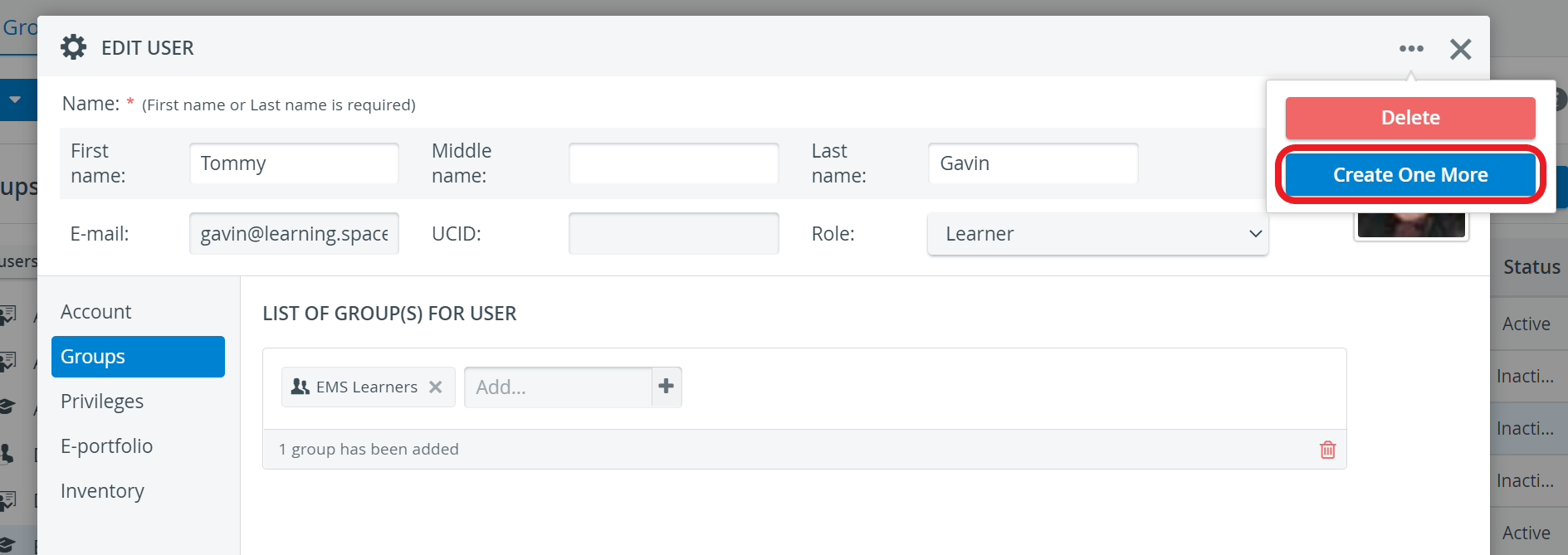
To create additional users, use the "Create One More" option available in the upper-right corner of the pop-up.
Account Tab
User LDAP Authentication
If a directory server is configured for user authentication, LDAP authentication can be set up for users in the Edit User window.
Users can log in using their credentials stored on your directory server by enabling LDAP authentication.
WARNING: If LDAP authentication is enabled, users cannot log in with their LearningSpace Enterprise email and password, nor can they modify it.
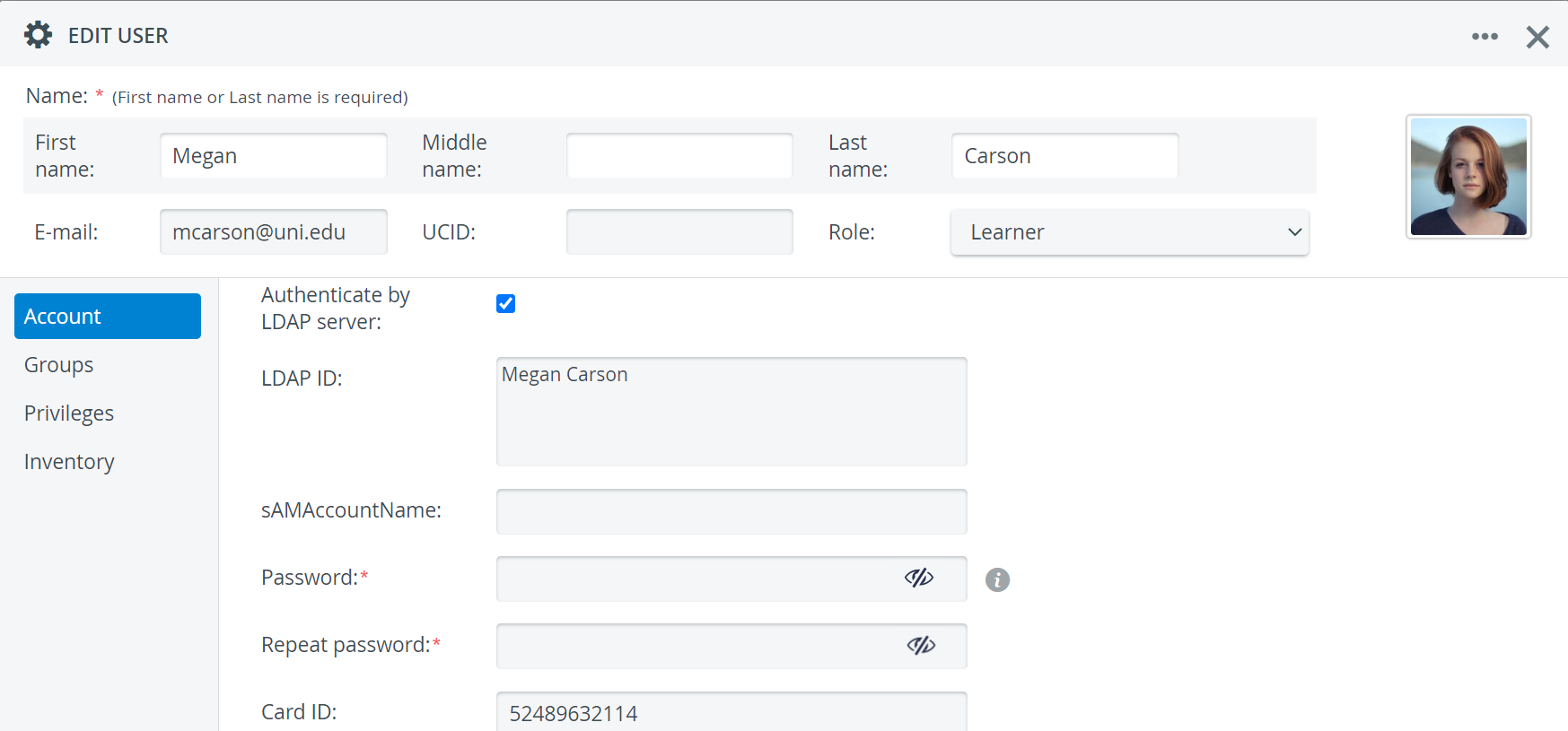
Learn more about LDAP user authentication at How to Set Up a User for LDAP Authentication.
Card ID Field
In the Card ID field, you can enter the numeric equivalent of a barcode or a combination of numbers/characters related to the QR code associated with a Learner user account.
This way, LearningSpace will be able to identify a user based on this ID in case the related QR code/barcode is printed out and used at the Kiosk or other type of Check-in Station: the Check-in Station will detect the barcode/QR Code and match it with the Learner user account it belongs to in LearningSpace.
See more under How to use Card-based Login or Learner Check-In/Check-Out.
With LearningSpace's Batch user create (BUC) feature, card ID values can be added to multiple users.

Character limit:
The Card ID cannot be longer than 127 characters - otherwise, the following error message will be displayed:


Additional Custom ID Field
The Additional custom ID field provides a consistent and anonymized identifier that can be managed institutionally without exposing personal information (e.g., email addresses or names).
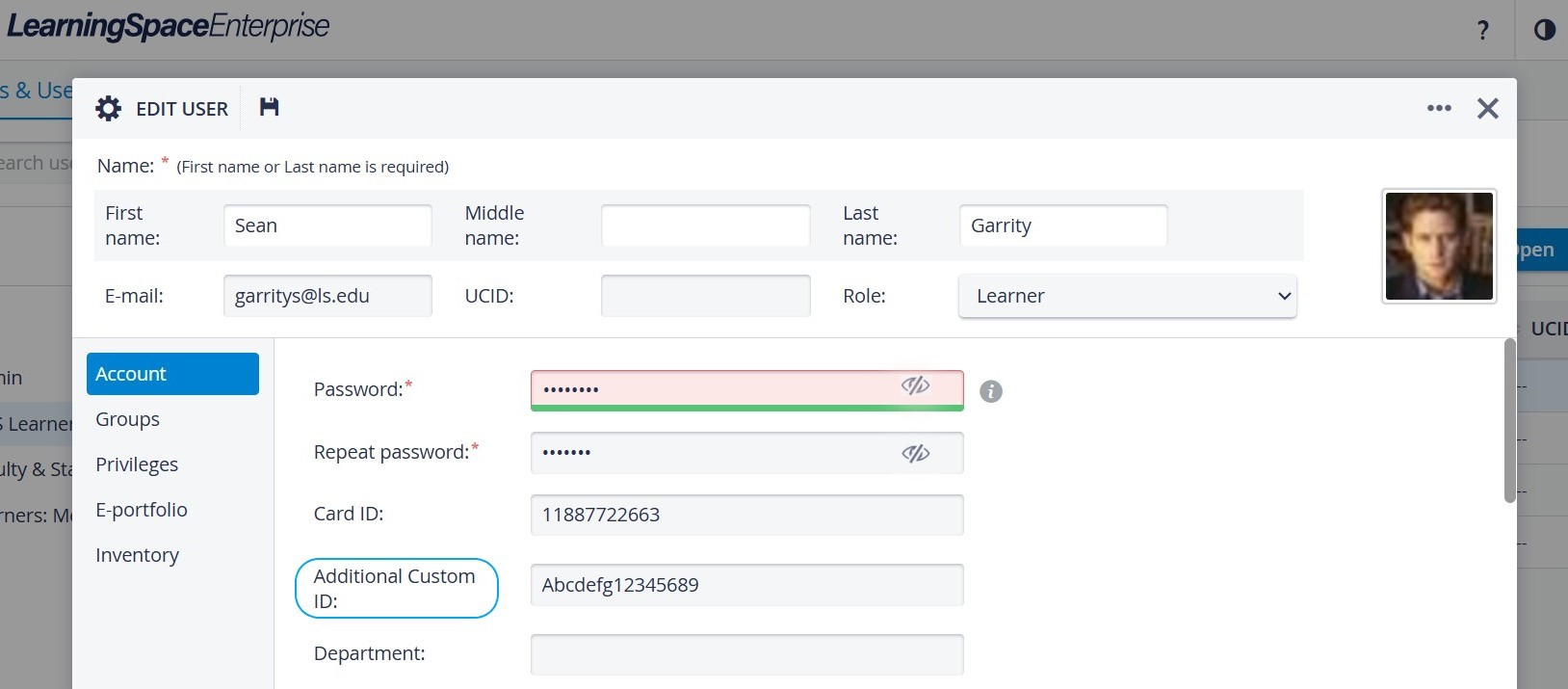
Unlike UCIDs (which may contain identifying data), ‘ACIDs’ are
consistent across all Activity/Case/Part views,
persistent across page refreshes or revisit scenarios,
non-identifiable, and only shows the exact value stored in the “Additional Custom ID” field of the user profile.
The ACID field can not be synced via LDAP synchronization.
When this option is selected in the Reporting Setup, the ordered list of numbers in the Learners column on the OEQS Scoring page is replaced with the learner's Additional Custom ID.
This field will additionally appear in:
If a user does not have an Additional Custom ID value populated, the fallback value (a Unique Identifier, or ‘UID’ ) is used. The UID is a number that does not contain any identifiable information.
➡️ UIDs are
unique identifiers assigned to learners by the system,
are anonymous and consistent (even if the page is refreshed or revisited),
allowing for reliable progress tracking across the system.
Department Field
For an even more detailed identification of LearningSpace users, a new field named ‘Department’ has been introduced in the Edit User pop-up.

Department Field in User Manager
The new field can be synced via LDAP synchronization for each learner. Its content is also included in the Learner Check-in Check-out Report.
Groups Tab
Every group the user is currently a member of is listed here.
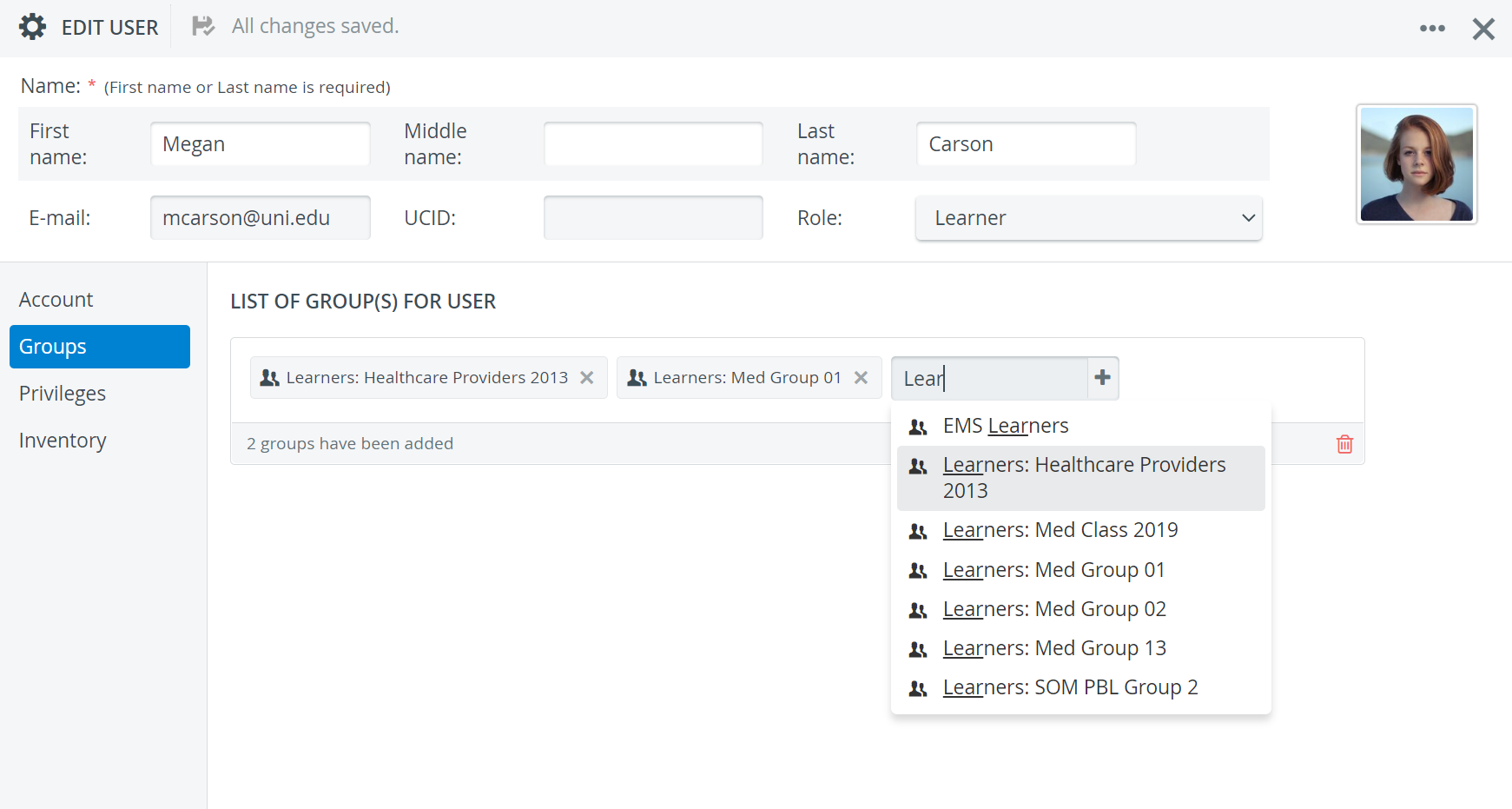
If you search for and add a new group on this page, the user will be added automatically.
Also, a user can be removed from a group by deleting the group from the list.
Privileges Tab
Each user needs a Role, which can only be assigned in the New/Edit User window.
Find out more about creating Roles here.
The system distinguishes between Roles and Privileges:
Roles refer to user types (e.g., Learner, SP, Instructor, etc.).
Privileges are users' capabilities: They limit what users can access in the system (e.g., what they see on their dashboard).
Roles vary from simple ones with one or a few privileges to complex ones with several privileges. You can either select a default role for a user or a Custom role and select the preferred privileges.
Default roles
Default roles can be selected from the Role drop-down menu in Accounts in the Edit Users tab. To check the privileges for each role, select a role, then go to the Privileges tab.
💡 All privileges will be displayed for the role, but cannot be edited.
Custom roles
Using Custom, you can create a custom role for your user.
After selecting Custom from the Role drop-down in the Edit User tab, the view will change to Privileges. Select the privileges you want to grant to your user.

Custom roles in the New/ Edit User window will not be saved. Roles can only be saved for later at Roles.
Inventory Tab
In the Inventory tab of the Edit User pop-up, a checkbox is available for each user. With this checkbox, you can designate any active user as a Transaction Assignee, who can then be assigned as the person responsible for a check-in or check-out transaction.
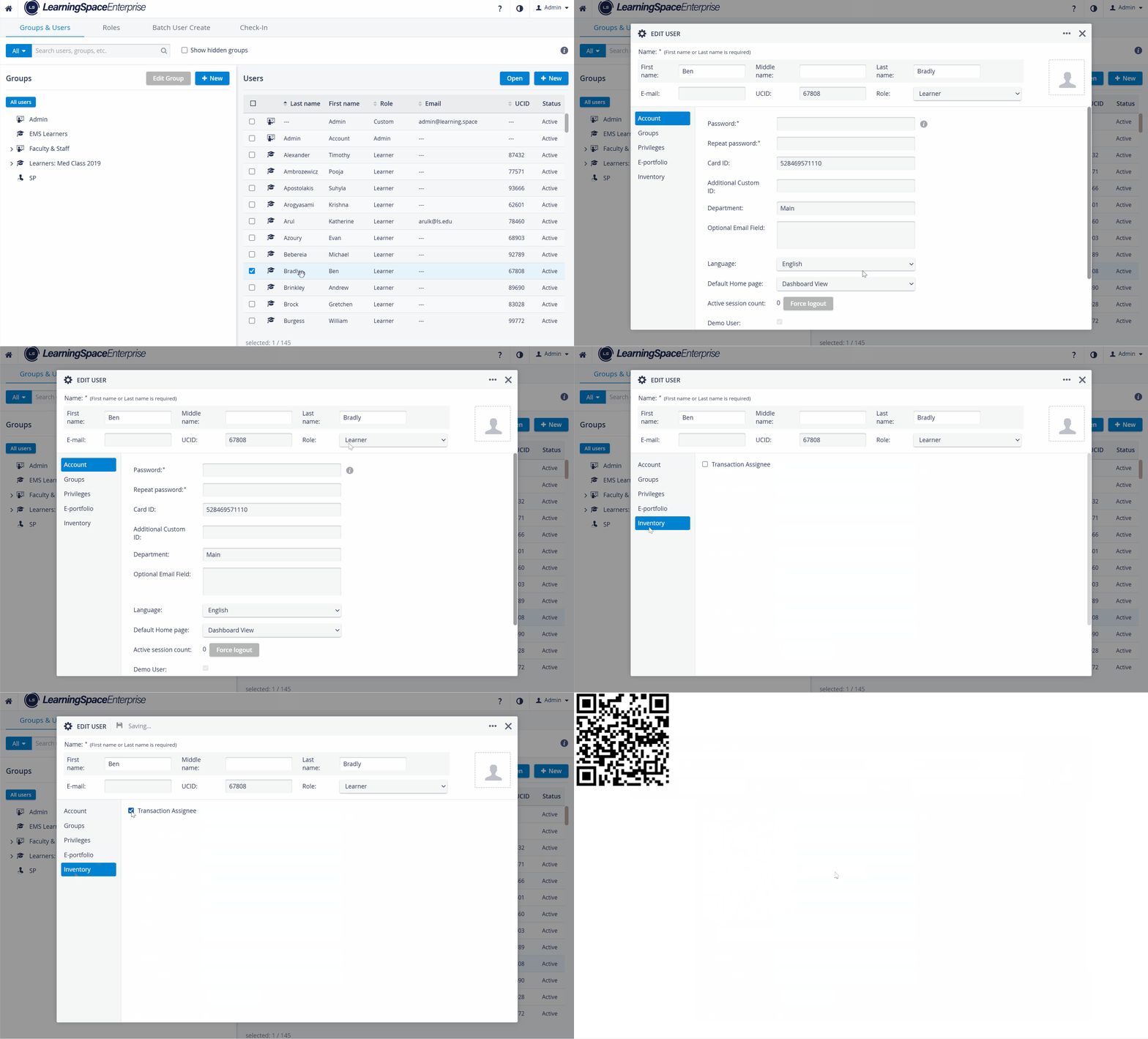
Ensure that the Inactive checkbox is unchecked in the user's Account tab.
Once you assign a user as a Transaction Assignee, the system automatically generates a QR code for that user.
QR Code
Print the system-generated QR code so users can easily identify themselves when picking up or bringing back equipment.
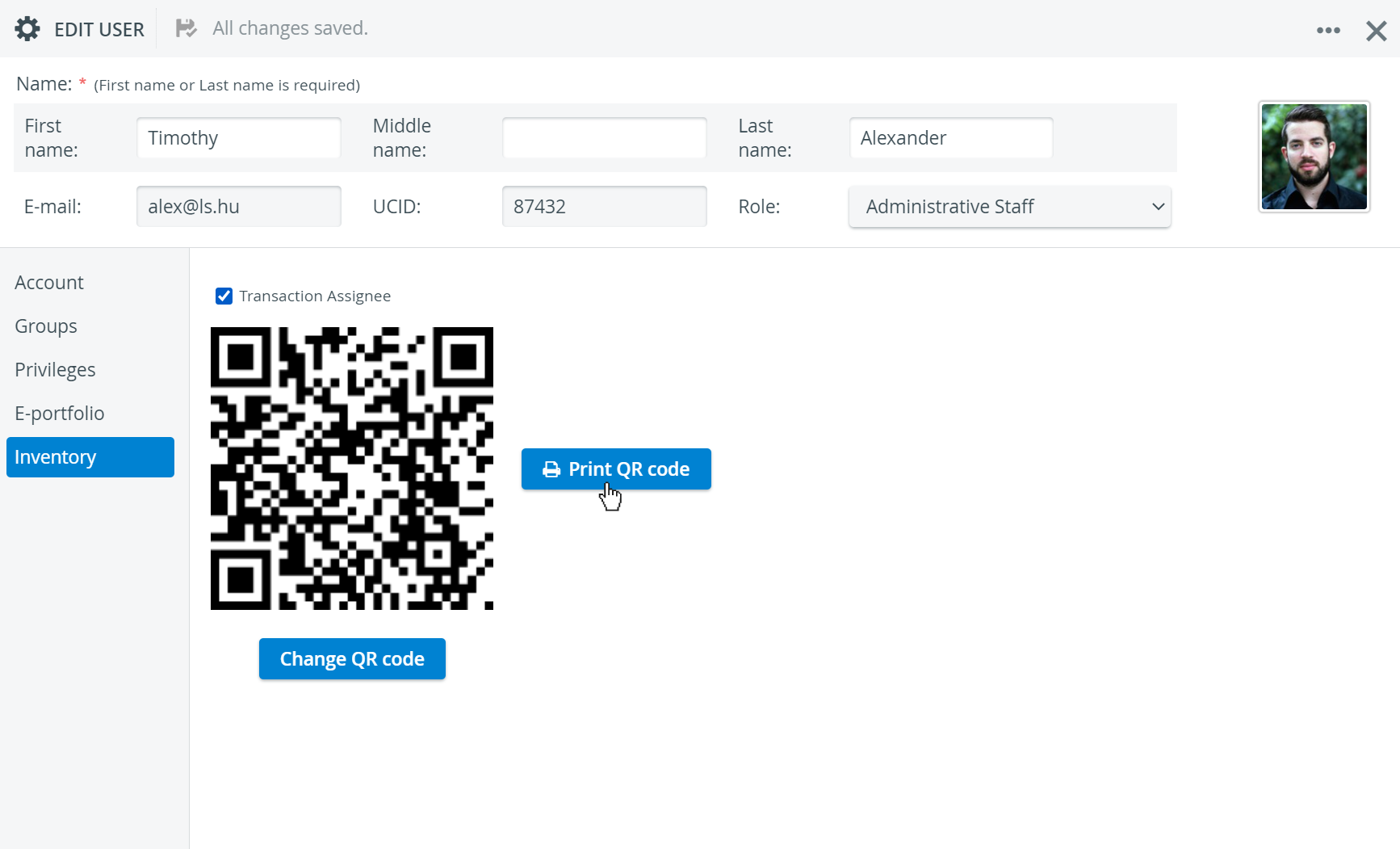
Automatic Transaction assignee privilege assignment for new Learners
When using the Add New user option, the Transaction assignee checkbox is checked by default for users with Learner privilege (if the Inventory manager is enabled in the LearningSpace system).
This way, Learners can be marked as Transaction assignees during Transaction processes in the Inventory.
Learn more on the Privileges & User Access Details page of the Inventory Manager or on our Inventory - How to pages, and watch the Inventory Manager Training Videos.
Deleting users
For deleting users, click on the three dots available in the upper right corner of the pop-up and hit Delete:

Deleting users will prevent you from running reports or pulling data for those users. A better option is to make all these users "inactive": this will retain their data, but they will no longer be able to access the LearningSpace environment.
For information about Inactive Learners, go here.
Additionally, the user group these users belong to can be hidden, so it is not listed in the user interface.
The easiest way to make users in a specific group inactive is through the Batch User Create tool.
For more information, see How to Edit or Delete Multiple Users.
For further information, visit our User Manager - How to pages.