How can I create several user accounts at the same time?
The most efficient way of adding users to the system in batches is via the Batch User Create (BUC) function.
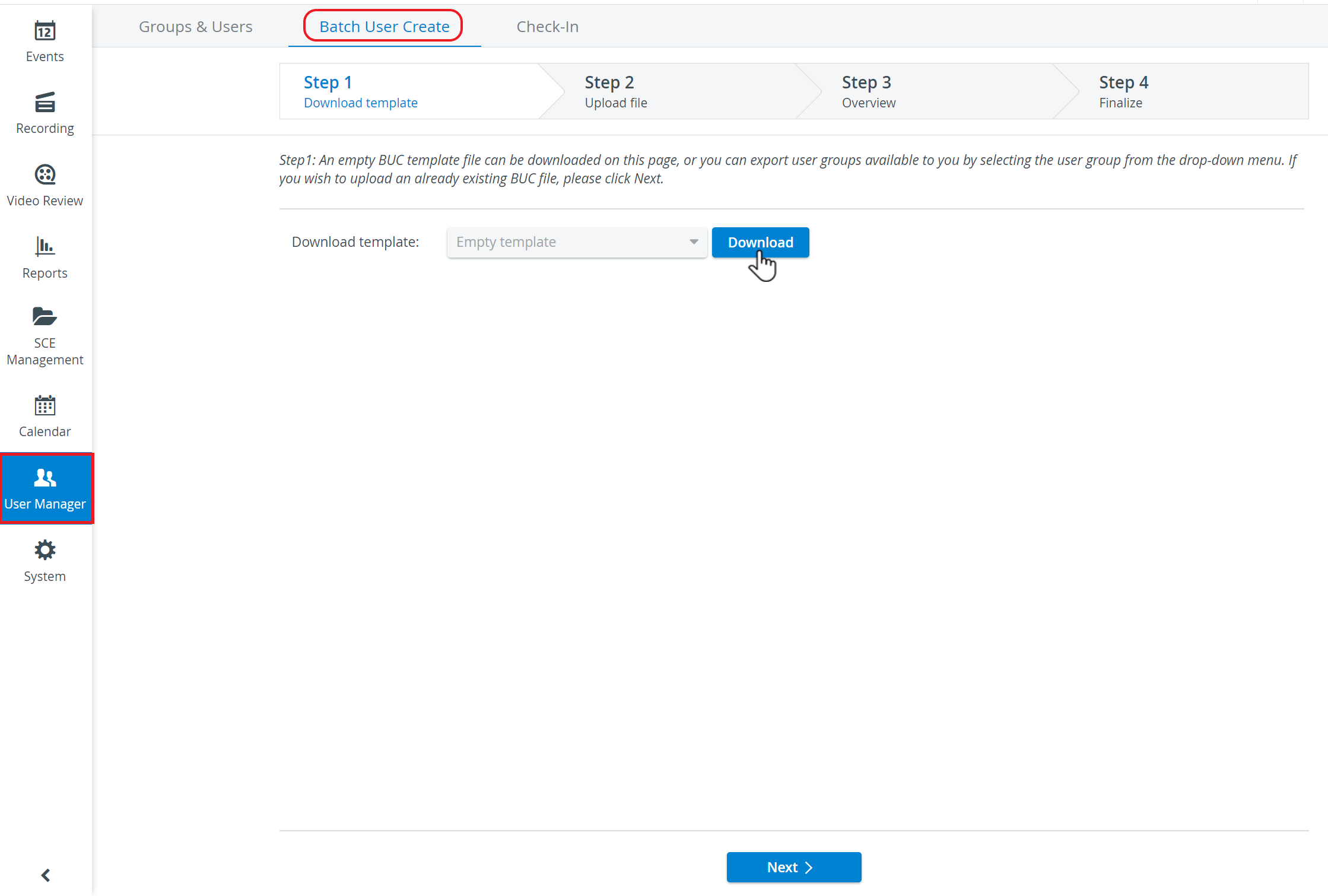
Open the User Manager module and switch to the Batch User Create tab.
Click the Download button to download the empty template.
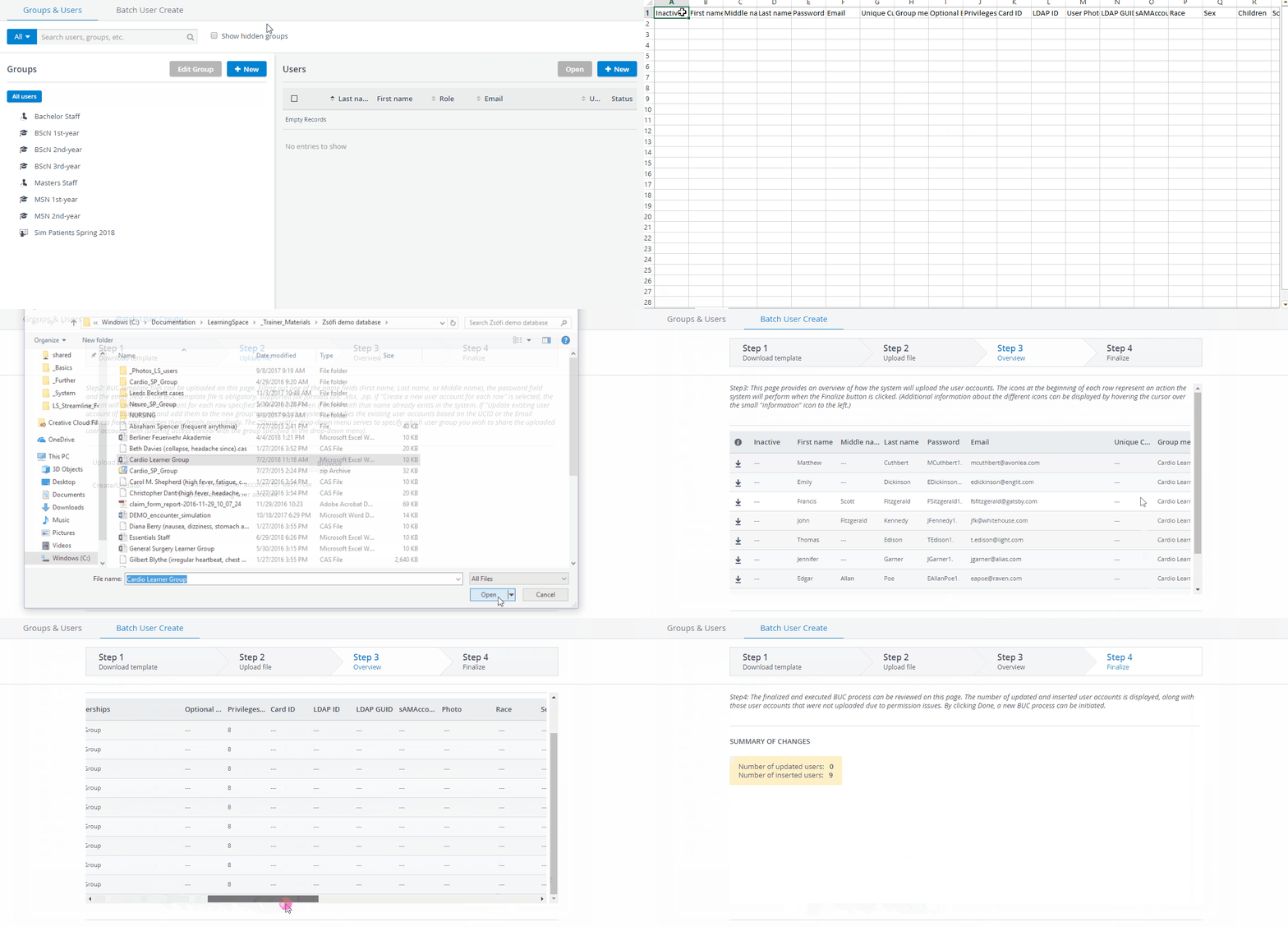
A template downloads in Excel format and contains a header with all data relevant to a user.
IMPORTANT: Zip file format is also supported (when uploading pictures), but only the Excel template downloadable from LearningSpace can be used for Batch User Create purposes – whether as a single Excel or in a zip file. A compatible zip file should be created by selecting all the individual files (i.e., the photos and the Excel sheet) and sending them to a "compressed (zipped) folder", as sending one single folder containing all the files to a zipped folder will result in a format uninterpretable by the system.
NOTE: Dates included in the template (Personal Details of the standardized patient) must be expressed in the following format: YYYY-MM-DD.
Codes to be used in the BUC file for specific roles:
Role
Code in Excel (column J)
Admin
1
Simulated Patient
4
Learner
8
Faculty
40960
Simulation Designer
128
Scheduler
134217984
Operations Specialist
1074266112
Facilitator
1208541568
Click Next to move forward to Step 2 of the process.
Click Browse to upload the Excel file you filled out and saved on your computer, then click Next at the bottom of the Step 2 page to proceed.
Leave the radio button as the default (Create a new user account for each row) to create a new user for each row of the Excel file, then click Next.
NOTE: The Next button only becomes activated when a file is selected for upload.
Step 3 shows how the system will upload the user accounts.NOTE: Hovering over the information icon prompts the tooltip window containing an explanation about the BUC table icons.
IMPORTANT: If data is missing, the system warns the user about the specific errors in the file on the Step 3 surface. In such a case, the user needs to return to Step 2 and upload the corrected Excel file according to the error messages.
Click Finalize at the bottom of the tab.
The Step 4 surface appears with a summary of the number of updated user accounts and, if any, the number of user accounts that have not been uploaded due to accessibility issues.Click Done at the bottom of the tab to conclude the Batch User Create process.
Step 1 will be displayed for further possible uploads.