Batch User Create
The 4-step Batch User Create process of creating or modifying users in batches is described on the assigned tab.
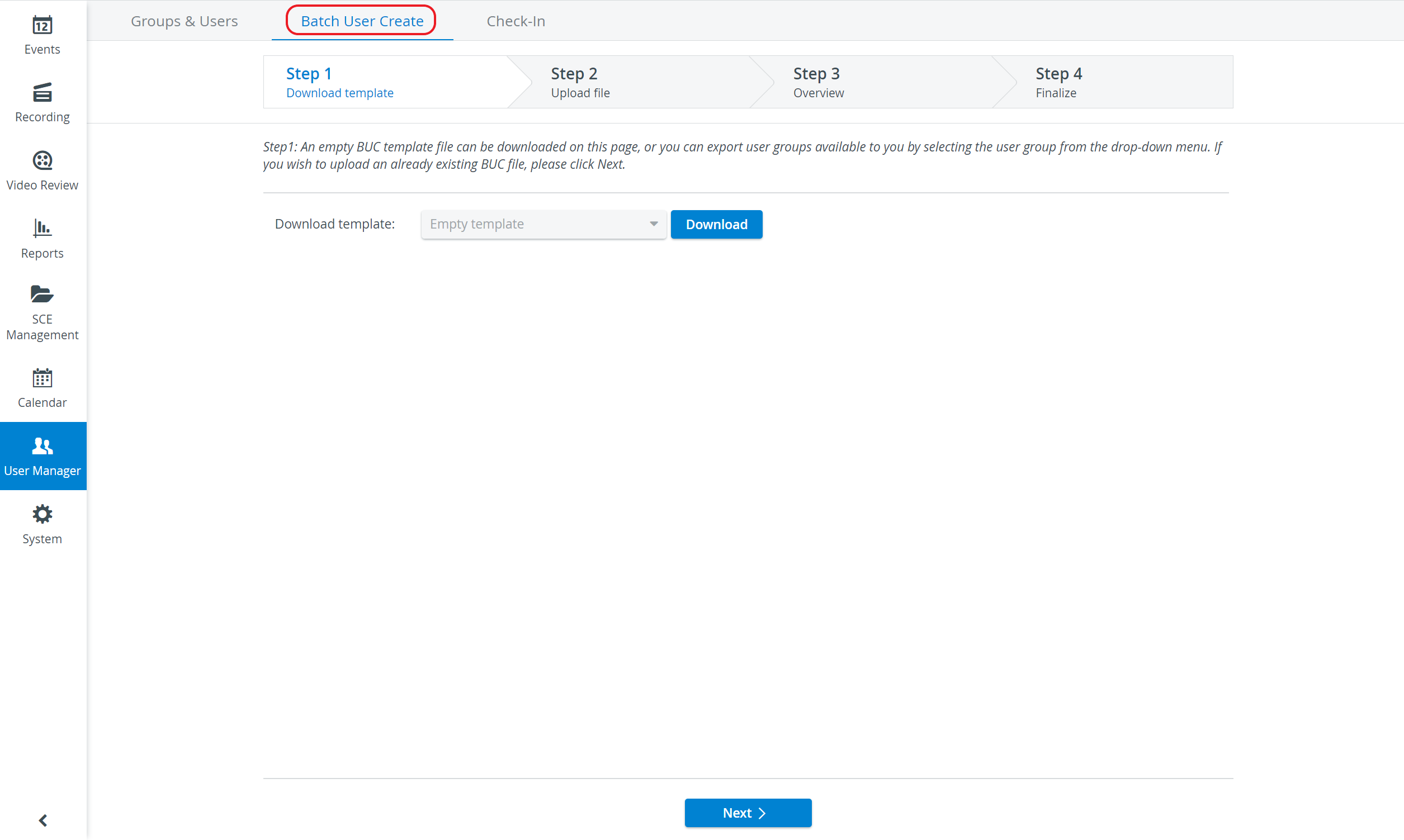
NOTE: Switching between steps can only be done by the Next and Previous buttons at the bottom of the tab.
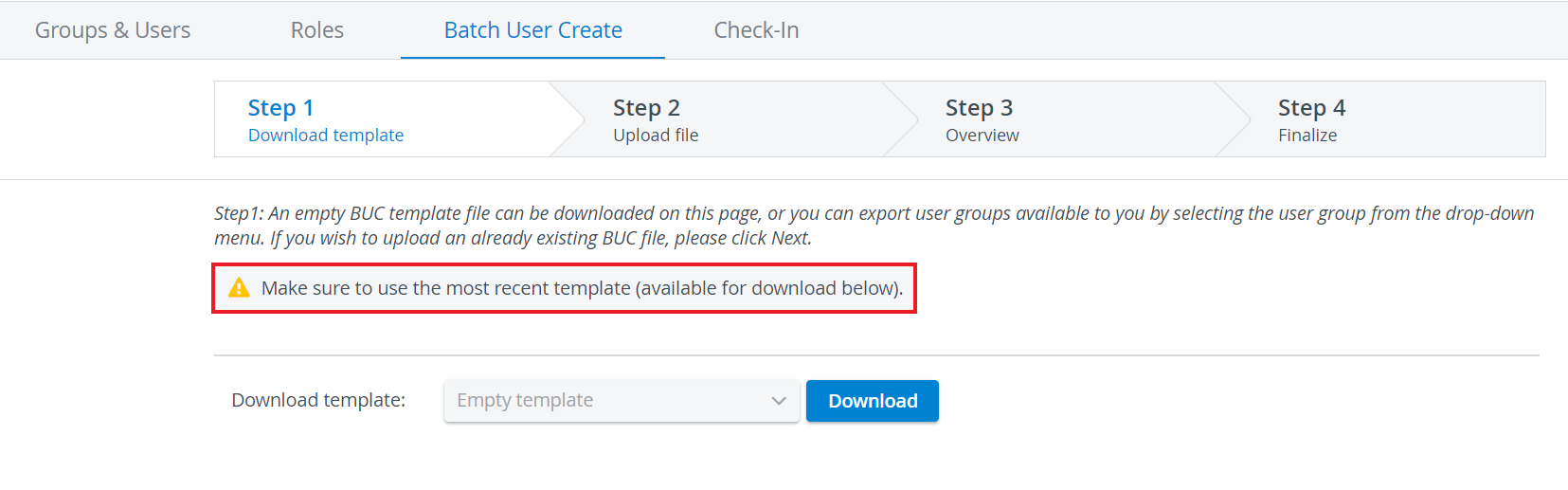
To create new groups of users, the empty template must be downloaded by clicking Download on the first page of the Batch User Create function.
Make sure always to use the latest downloadable template.
When editing, data of users belonging to an already existing user group can be saved in an Excel sheet. The Excel sheet, in turn, provides means for modifications intended for more users within the same group. All group templates can be found in the drop-down list at Download template.
IMPORTANT: Zip file format is also supported. Still, only the Excel template downloadable from LearningSpace can be used for Batch User Create purposes—whether as a single Excel file or in a zip file.
NOTE: Dates included in the template (SP details) must be expressed in the following format: YYYY-MM-DD.
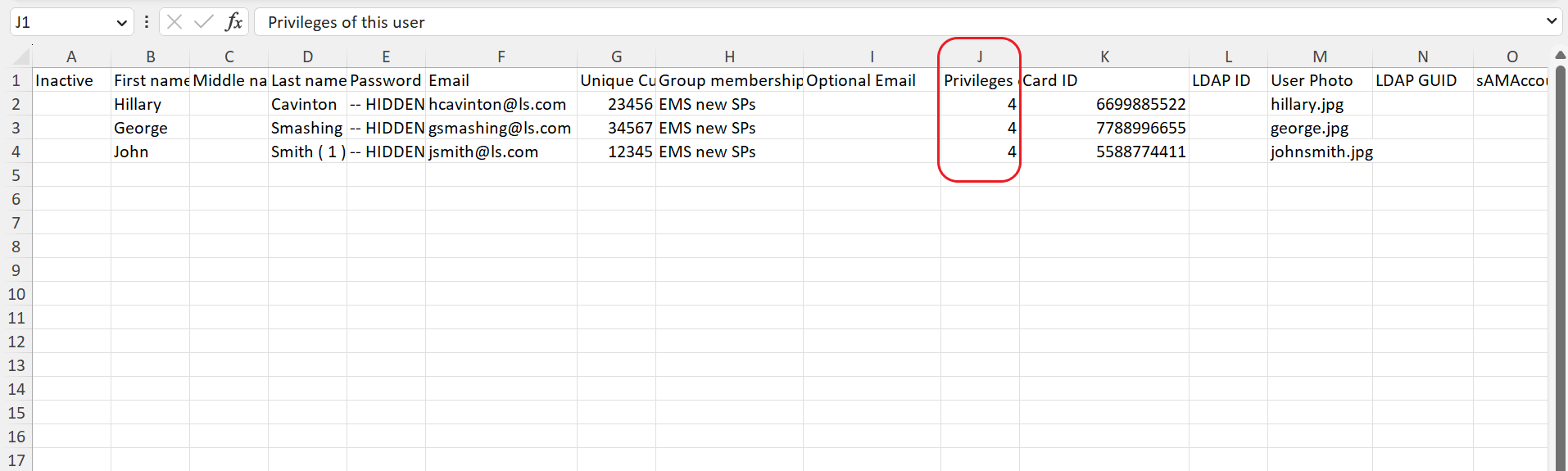
Codes to be used in the BUC file for specific roles
Role | Code in Excel (column J) |
Admin | 1 |
Simulated Patient | 4 |
Learner | 8 |
Faculty | 40960 |
Simulation Designer | 128 |
Scheduler | 134217984 |
Operations Specialist | 1074266112 |
Facilitator | 1208541568 |
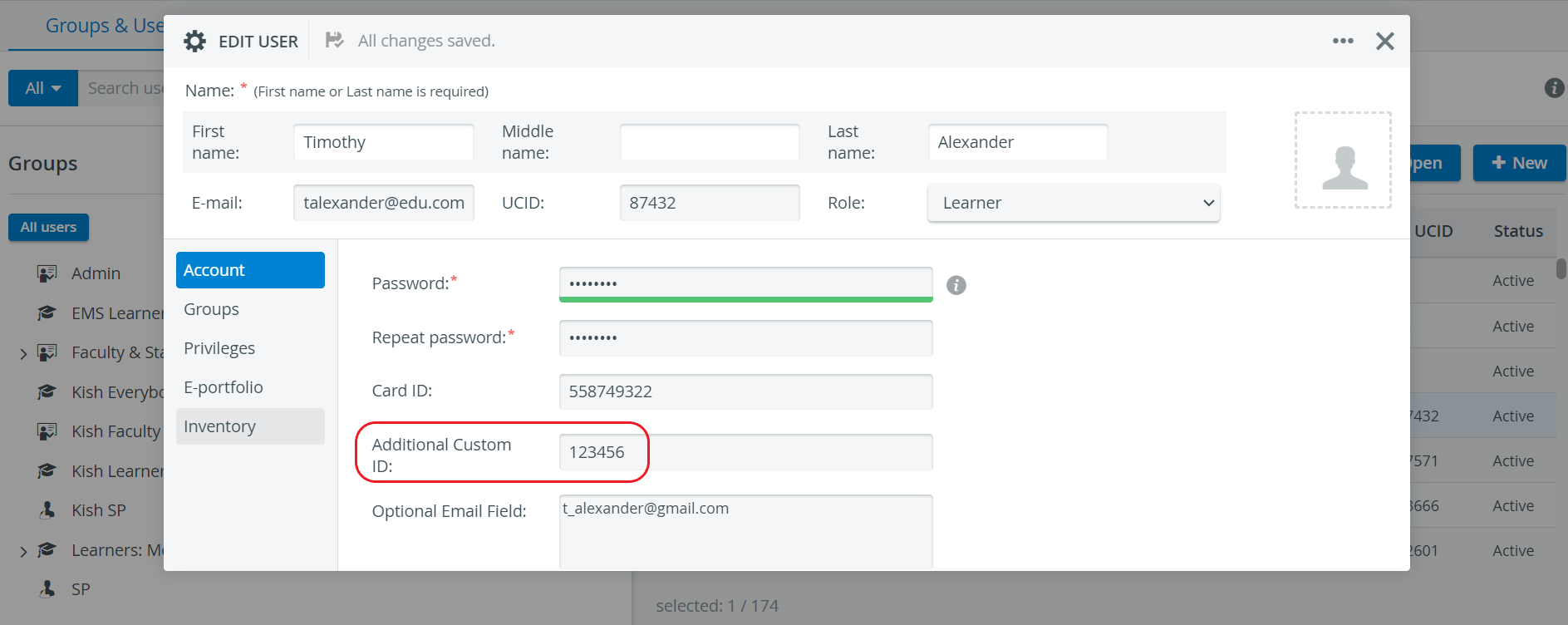
Additional Custom ID
This new field has been added to the User editor, allowing users to “label” LS users without the need to use “unique” ID-s (UCID), e.g., the same for a group of people.
This Additional Custom ID is also displayed in the BUC Excel file.