Can photos be uploaded to a user account?
Photos can be uploaded to individual accounts and in batches to members of a group, via the BUC (Batch User Create) process.
Individual Photo-Upload
Open the Edit User pop-up for the desired user.
The most efficient way to open the Edit User pop-up for a specific user is to start typing their name in the search field and then click the desired name from the results list.
Hover over the photo field in the top right corner of the pop-up to prompt the pencil icon to appear.

NOTE: If a photo has already been uploaded, two icons appear in the photo field: the pencil selects another photo, while the red X removes the already uploaded photo.

Clicking the pencil icon opens the file selector of your browser.
Select the photo you want to upload and confirm it in the file selector.
The photo will be displayed in the photo frame.Click Save at the bottom of the Edit User pop-up window.
An uploaded picture can be deleted or replaced by clicking the red X or pencil icons respectively - displayed when hovering over the picture frame.
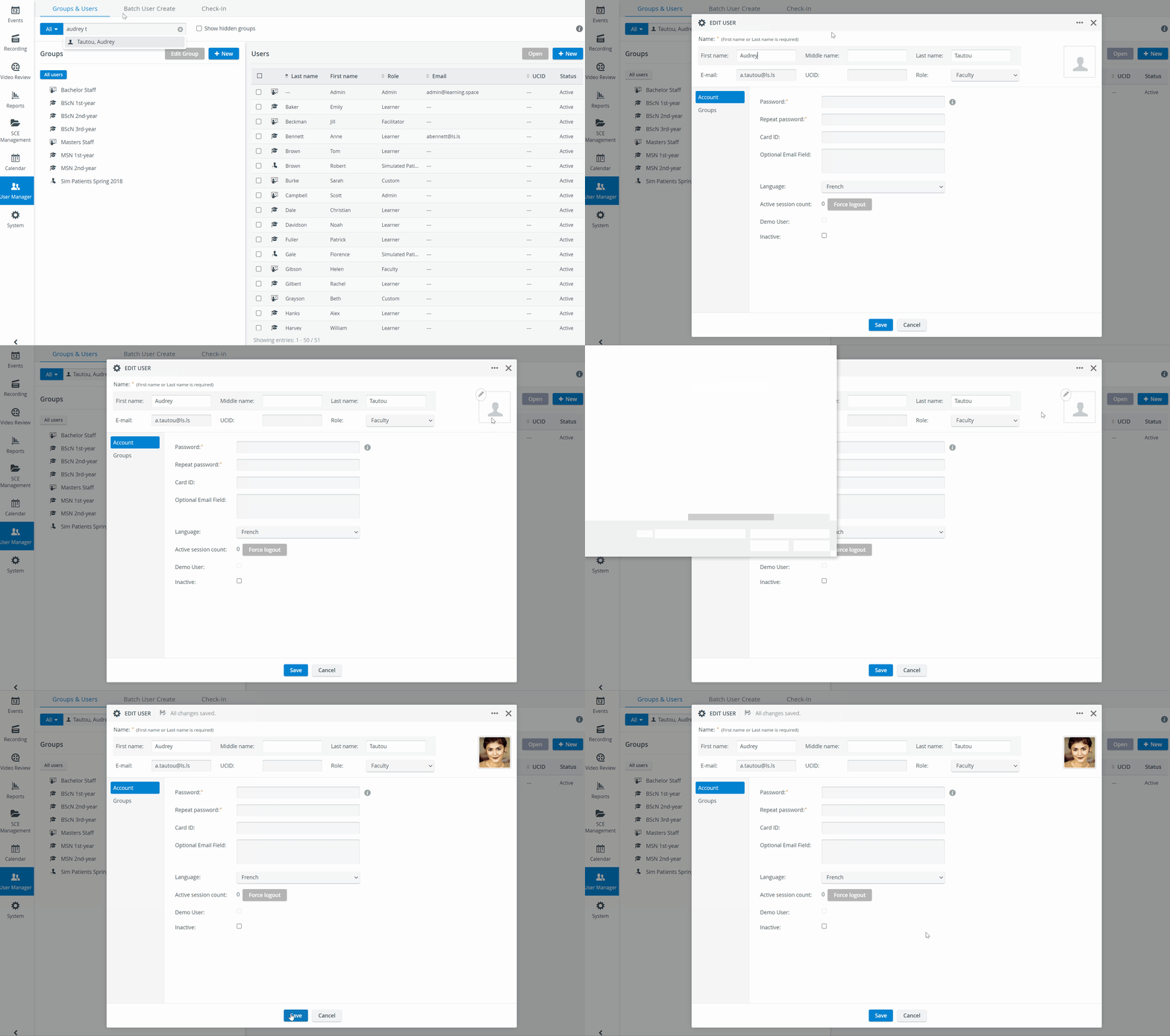
Photo-Upload in Batch
IMPORTANT - The users must be members of the same group to upload photos to many users.
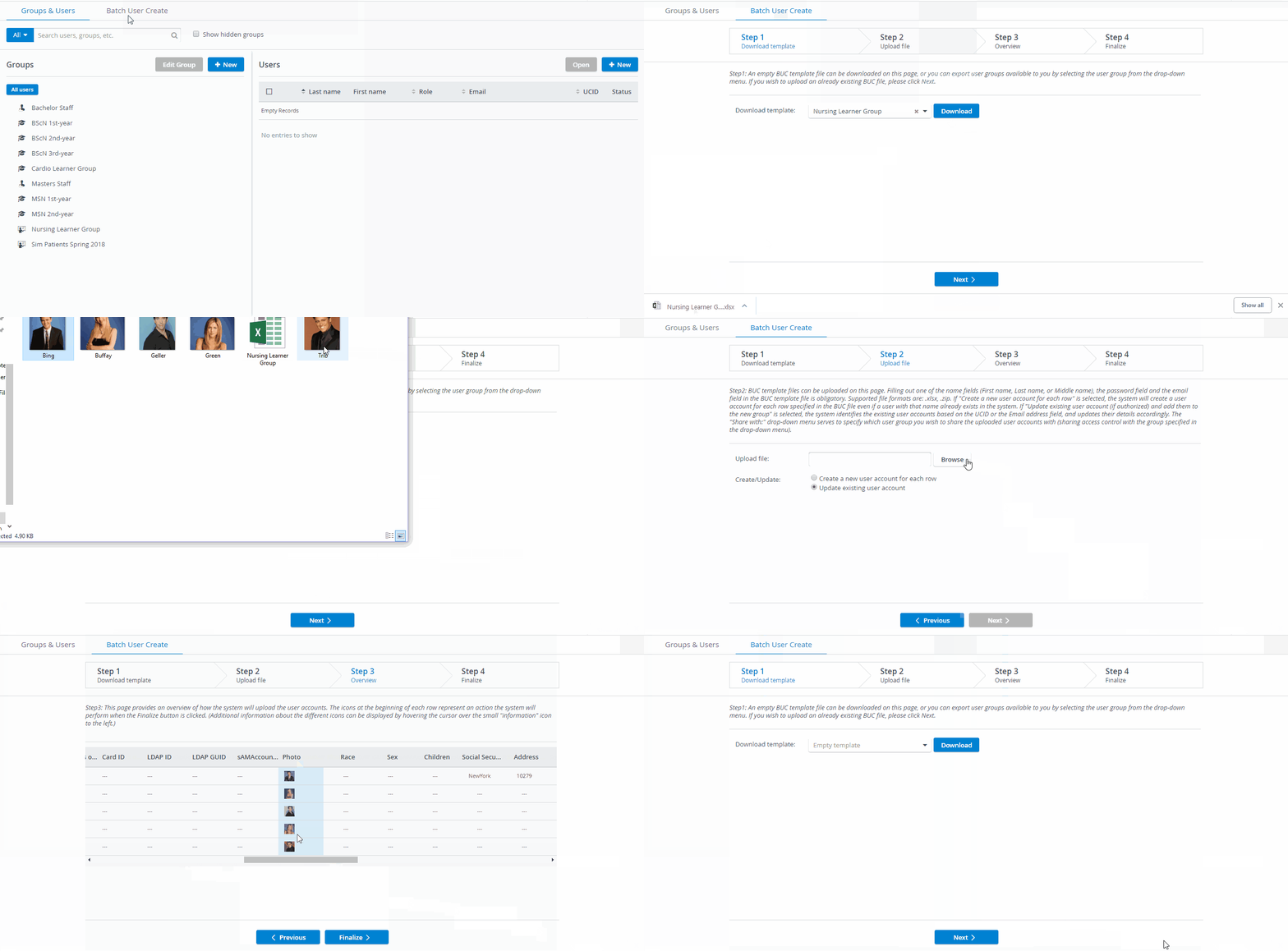
In the User Manager module, switch to the Batch User Create tab.
From the Download template drop-down, select the group in which you intend to upload photos to the members' accounts, then click Download.
An Excel file containing all data about each selected group member entered into the system will be downloaded.
Create a folder containing the Excel file saved from the system and all the picture files intended to be attached to users.
IMPORTANT: The picture files should be named consistently and unambiguously.
Open the Excel and copy the exact name of the picture file in column M (User Photo) to the corresponding name. Include the format (E.g., Photo.jpeg). Your .zip file should include only .jpg and .jpeg photos. Uploading other file formats in BUC will not be successful.
IMPORTANT: If the name of the photo as listed in Excel and the actual name of the photo file are not the same, the system will not be able to find and thus upload the photo.
Always enter the file format in lowercase letters for successful file upload.Some example spreadsheet entries: Correct: FILENAME.jpg, filename.jpg, FileName.jpg, FiLEnAme.jpg
Incorrect:
FILENAME.JPGCompress the folder (i.e., the completed Excel and all the photos) into a .zip file.
IMPORTANT: Sending a single folder containing all the files to a zipped folder will result in a format uninterpretable by the system. Therefore, the files (i.e., the photos and the Excel sheet) should be individually selected and sent to the "compressed (zipped) folder".
On the Batch User Create tab, click Next to move forward to Step 2 of the process.
Click Browse and upload the zip file.
Switch the radio button to Update the existing user account, then click Next.
NOTE: The Next button only becomes activated when a file is selected for upload.
Step 3 appears with an overview of how the system will upload the changes in the user accounts. Check the photo column for the uploaded images.
IMPORTANT: In case of any problem, the system lists the specific errors on the Step 3 surface. In such a case, the user must return to Step 2 and upload the zip file corrected according to the error messages.
Click Finalize at the bottom of the tab.
The Step 4 surface appears with a summary of the number of updated user accounts and, if any, the number of user accounts that have not been uploaded due to accessibility issues.Click Done at the bottom of the tab to conclude the Batch User Create process.
Check the created/updated User accounts in the User Manager, for the uploaded images.
For further information, visit our User Manager pages.