User Account
Users with SP privilege can sign in to their LearningSpace user account off-premise via the SP Administration Mobile application.
SPs must submit an enrollment application form to register a new account. If the application is approved, a user account will be created automatically for the admitted SP in the institution's LearningSpace system.
SPs with an existing LearningSpace user account can log in to the SPA Mobile app with their LS user account credentials.
For Standardized Patients
Download the SP Administration Mobile application from the Apple or Google Play store.
Sign-in
SPs can sign in to their user account via a sign-in QR code if they are connected to their institution's LearningSpace server.

Institutions provide the sign-in QR code for SPs who are active users registered or enrolled in the institution's LearningSpace system.
SPs can connect to only one institution at a time, but they can simultaneously connect to every LearningSpace system they are registered in using each institution's sign-in QR code.
In the current version of LearningSpace SPA, LearningSpace support generates the institutional QR codes. To request a QR code, please contact ls-support@elevatehealth.net.
(In the upcoming module versions, the QR codes will be generated automatically when the feature is activated within the LearningSpace system.)
Login issues
When trying to log in to the SPA Mobile app with the wrong credentials, users get the error message “Invalid sign-in credentials”.

Use the ‘Forgot my Password’ option to get a temporary password.
Three failed login attempts yield the error message "Your IP address has been banned due to too many failed login attempts". After this, you cannot log in with any other SP user account.
Users with no Admin privileges should contact their Institution’s IT department or an Admin.
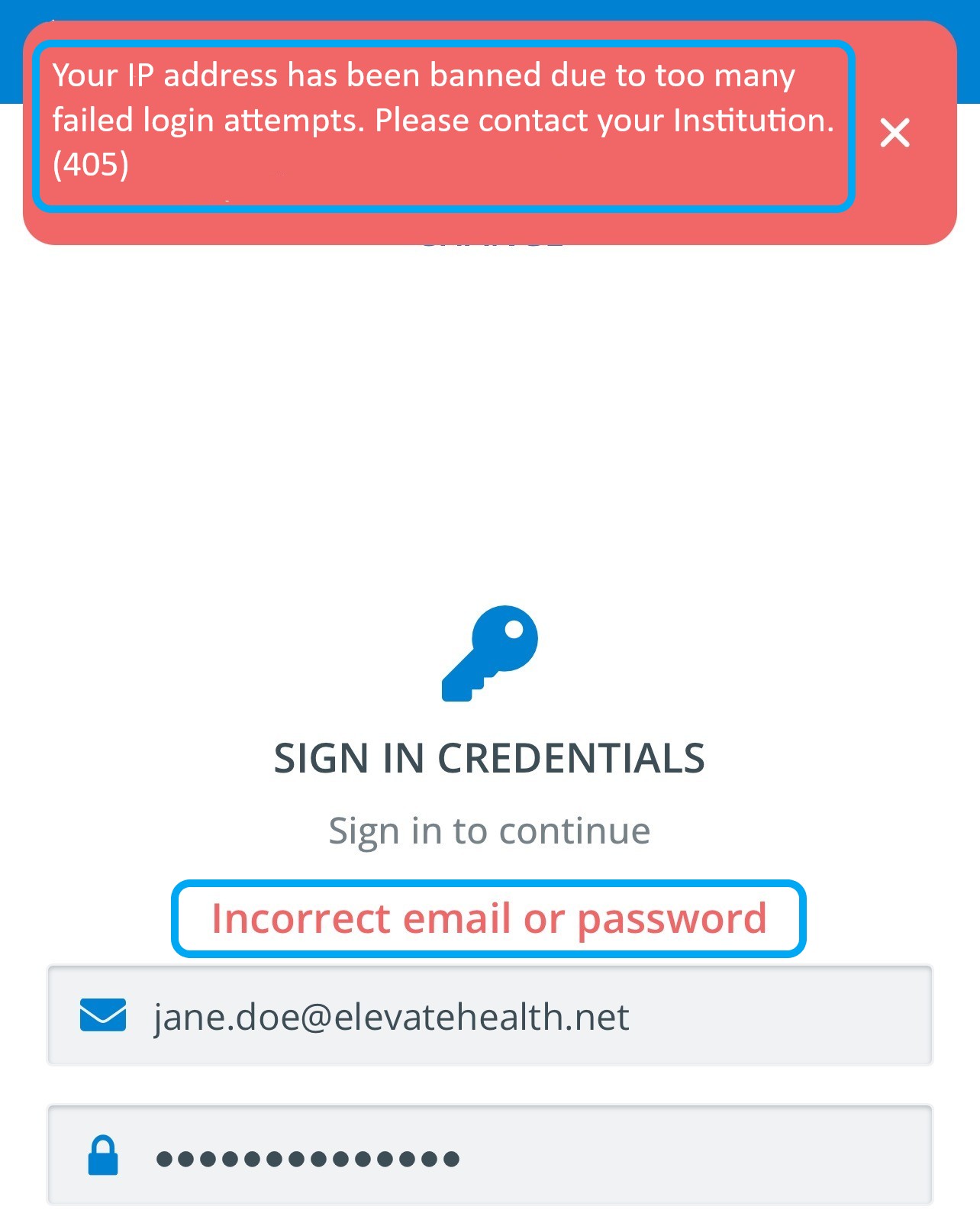
Resolving the issues:
Admin users can log in with their own account and "unblock" the device. After that, SP users can log into their accounts using the right credentials.
Alternatively, if you wait 15 minutes, the device gets unblocked automatically, and you can log in again with an SP (without the need to log in with an admin).
Tabs
There are three main pages inside the SP Administration application:
Requests
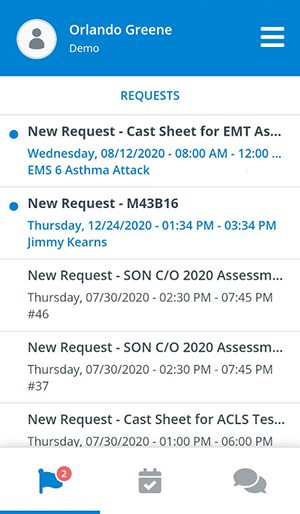
After sign-in, SPs land on the Requests page, where they can view their appointment requests. Appointment requests for Sessions are invitations sent by SP coordinators to ask SPs if they are available at the specified time and date to perform the assigned scenario.
SPs receive request alerts every time they are invited to new appointments.



Accepted Requests
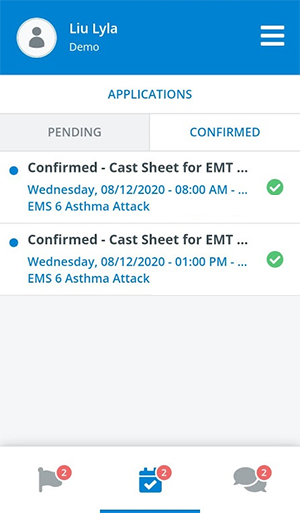
SPs can find their pending and confirmed appointments on the Accepted Requests page.
Appointment requests become pending once the SP has accepted the appointment and is waiting to be confirmed for the scenario by an SP coordinator in charge in the SPA module of LearningSpace, with the Confirm option of the respective Case.

Pending requests will be confirmed once the SP coordinator confirms that the SPs will perform the scenario.
Messages
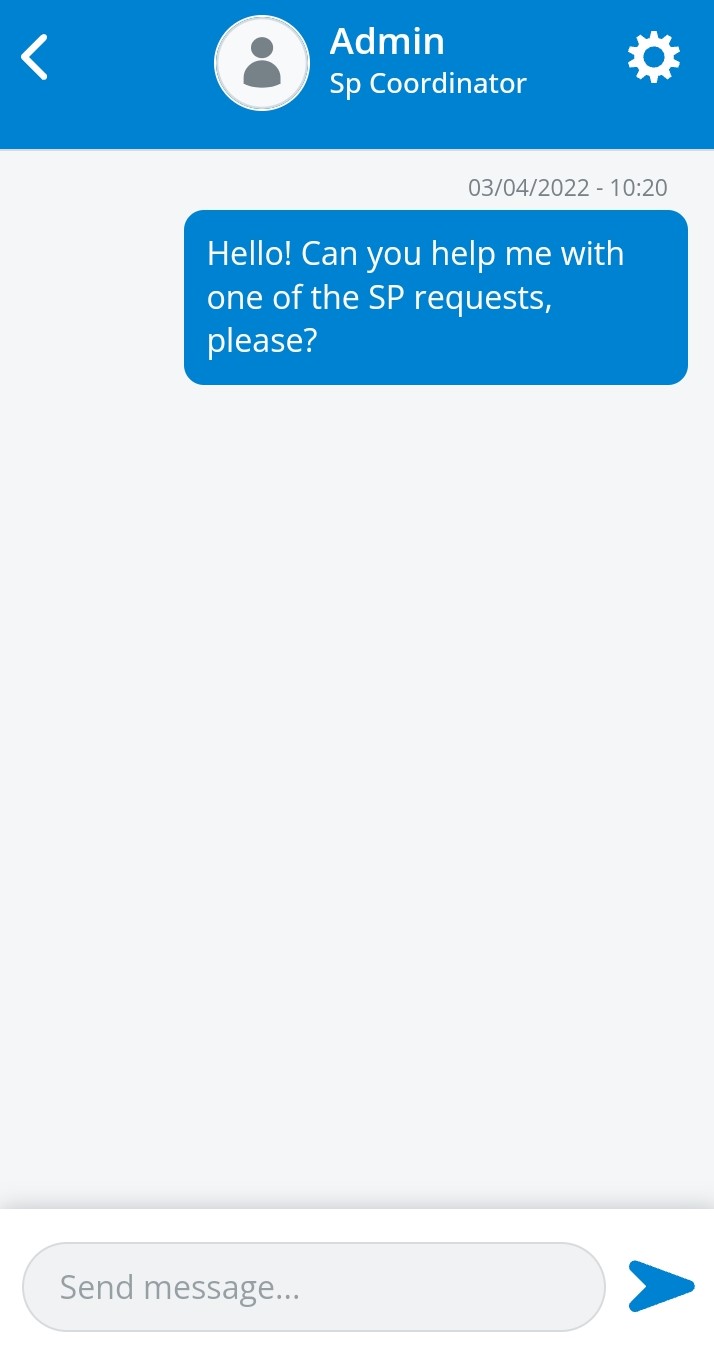
SPs and their SP coordinators can exchange messages using the built-in chat of the SP Administration application.
SPs receive in-app alerts about every new incoming message.
SP coordinators can direct messages to each confirmed SP from the Chat tab inside the SPA module.
SP coordinators can also create a group chat including the confirmed SPs of a session or an entire cast sheet.

Further Options
Edit Profile
Providing optional information (e.g., certifications or consent to sensitive examinations) will help SPs appear more often in search results when SP coordinators are recruiting for scenarios.
SPs can manage their profile information at Edit Profile:
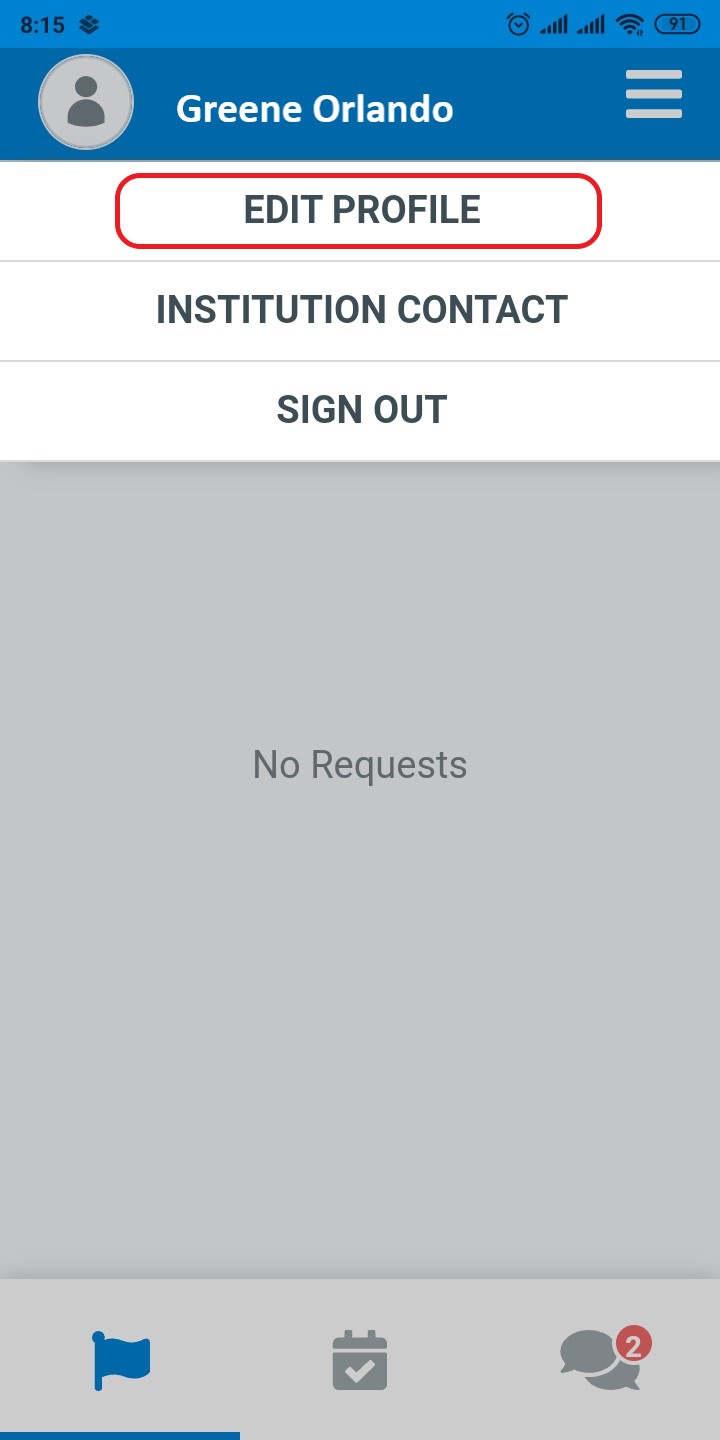
Profile information is divided into four subcategories:
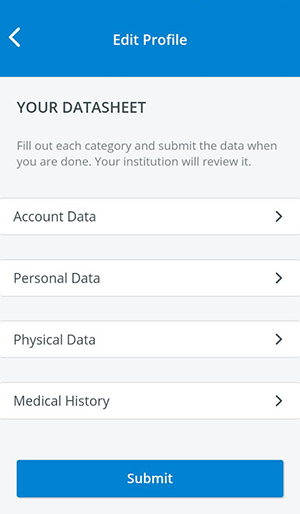
Entering each subcategory, SPs can fill in or modify the following details:
SPs can return to the main page of their profile editor using the back arrow.
Account Data: SPs can review and modify their sign-in credentials.

Personal Data: SPs can provide their contact details and certifications. They can also consent to sensitive examinations.

Physical Data: SPs can enter their demographic and physiological characteristics. SPs can also add customized information fields to their profile.

SPs registered through LearningSpace can complete their profile, in case any data is missing, through the Fill required fields page after logging into the SPA Mobile app.
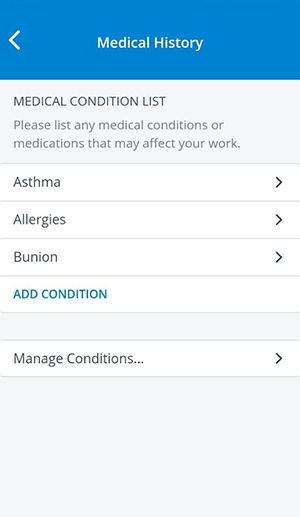
Medical History: SPs can enclose real-life medical conditions affecting their work as Standardized Patients.
Profile picture
Profile pictures can be added and edited by clicking on the profile picture image and then using the Upload Photo option.


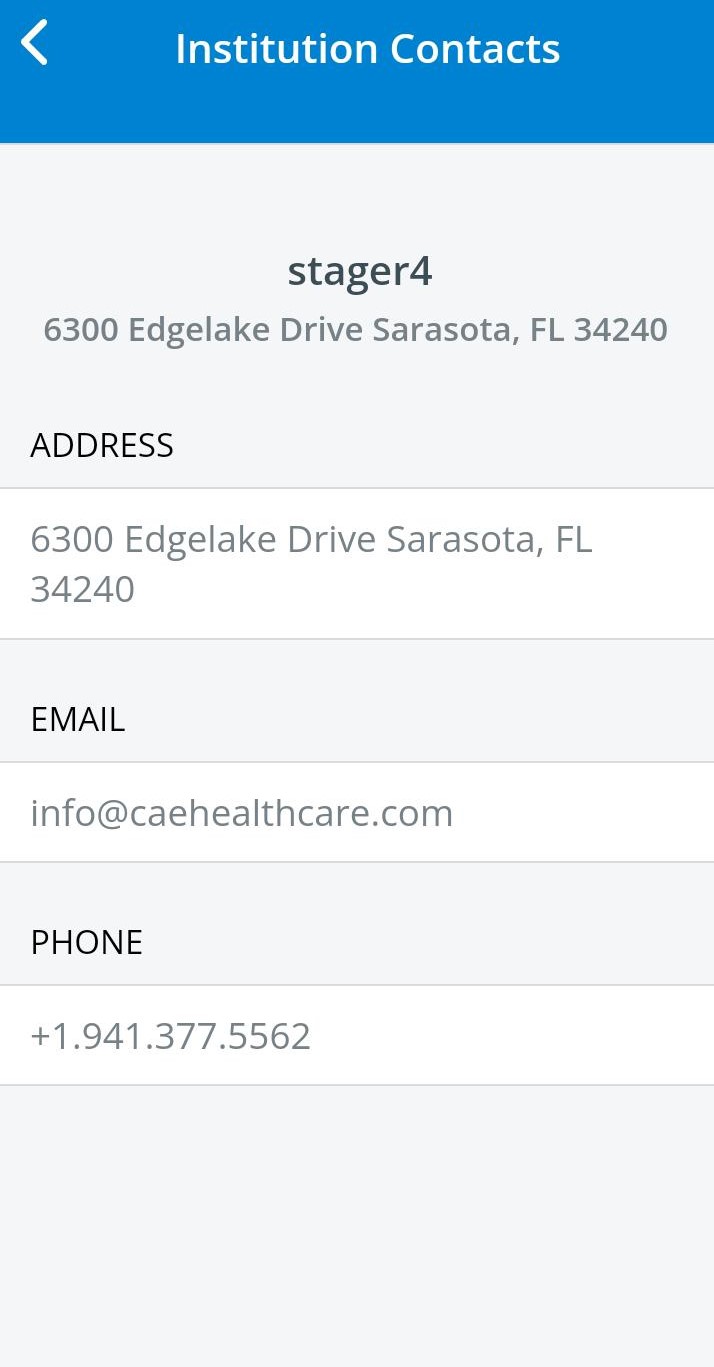
Institution Contact
Under Institution Contact, the contact details of the Institution to which the SP is logged in via its QR code are displayed.
Sign-out
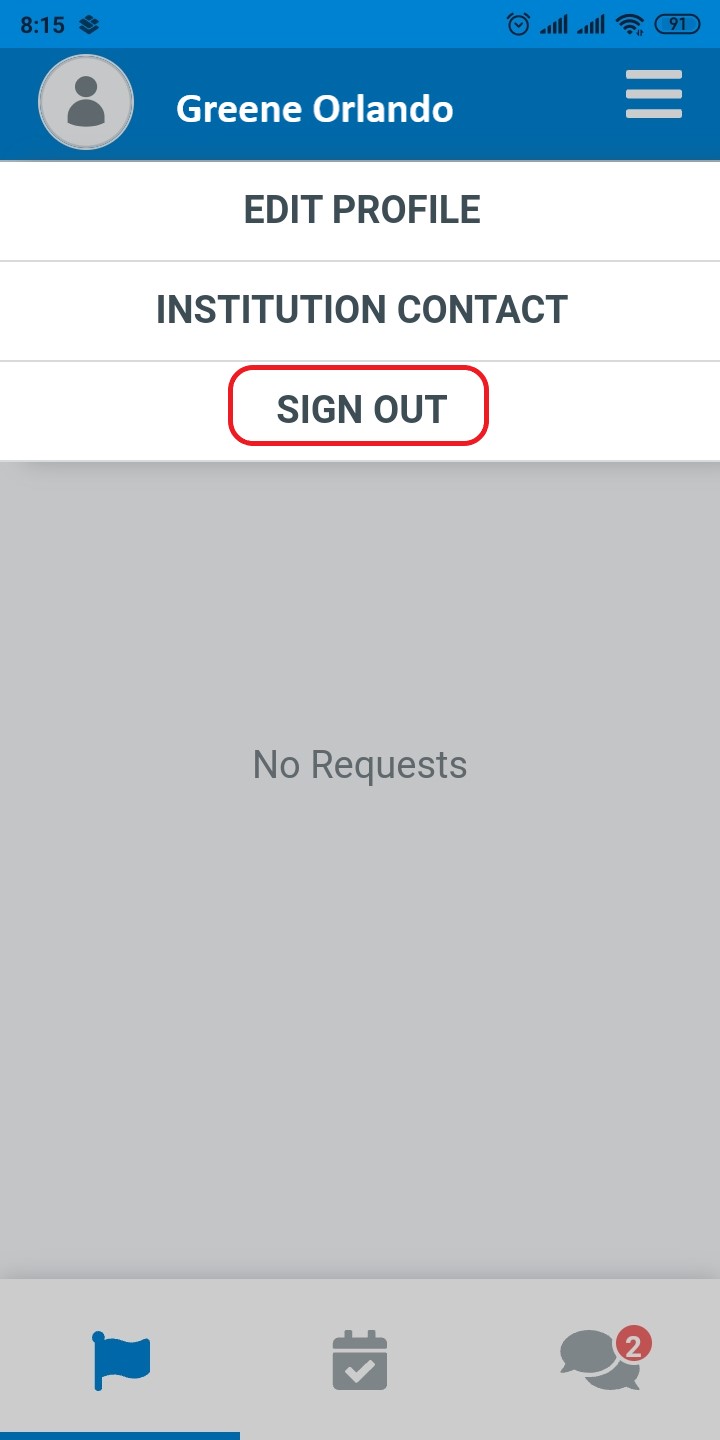
SPs can access the sign-out option in the menu:
For further information, visit our Standardized Patient Administration and Standardized Patient Administration - How to pages.
Related pages