Single Room View in Video Review
Single Room View
In the Video Review module, click on a recording to open it for review: you will be redirected to the Single Room View of the recording.
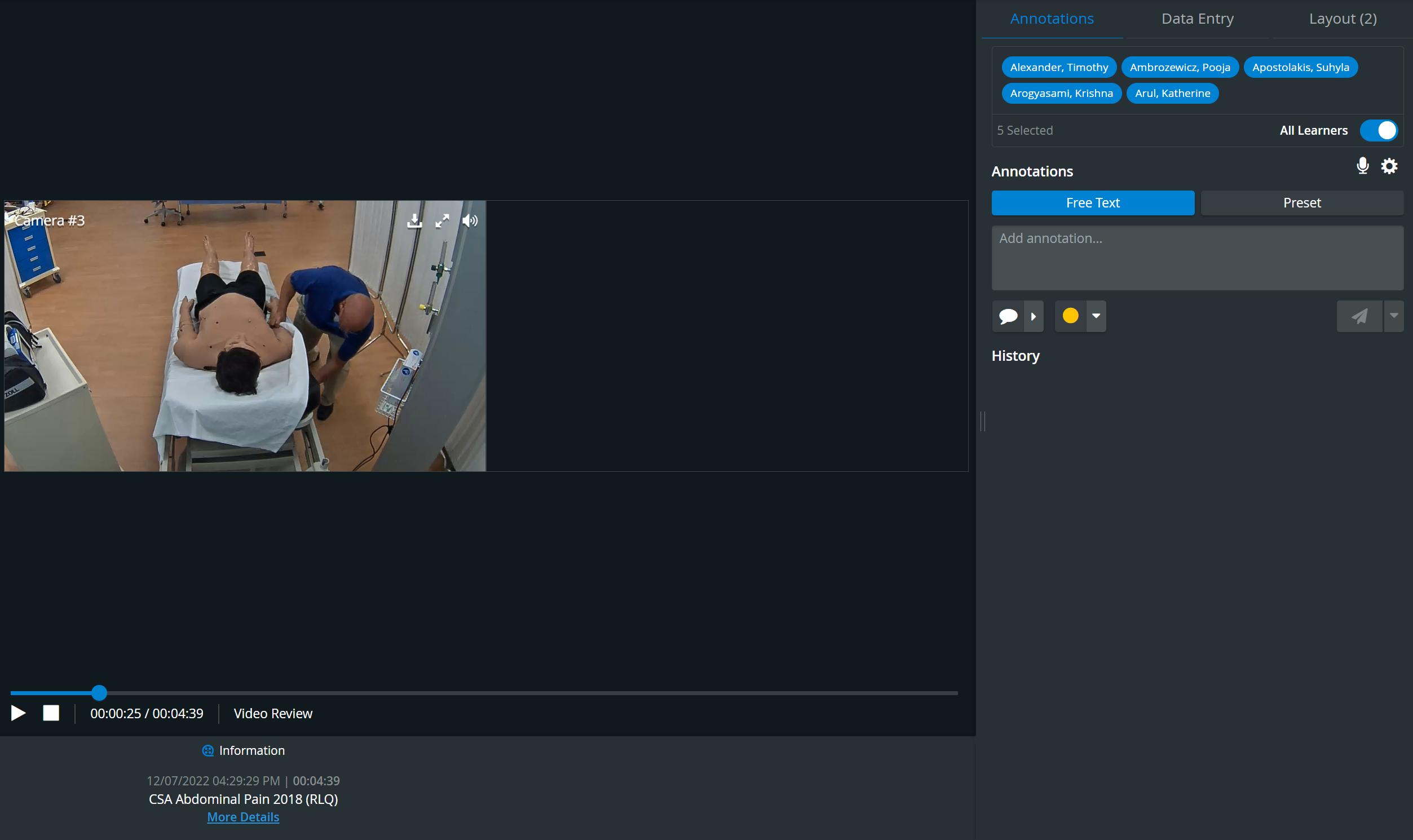
The LearningSpace Single Room View on the Video Review page has the same layout as the Single Room View of the Recording module, with the following differences:
In Video Review
Intercom and Simulator widgets is not available
Camera control options (PTZ, etc.) are not available
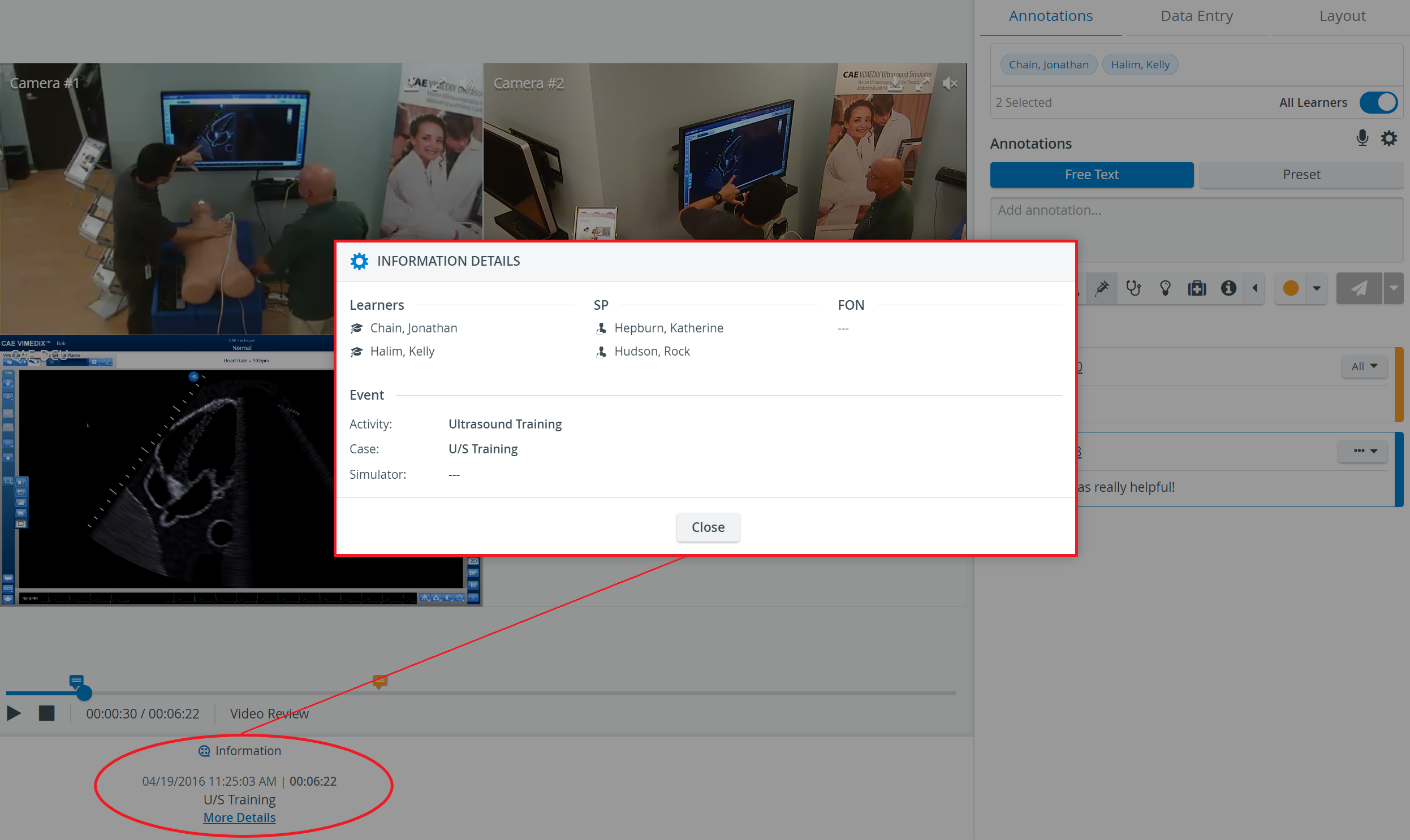
An information panel is added: by clicking on the More Details link, Simulation details can be viewed (Learners, SP, FON, Activity, Case).
This panel can be minimized to allow more space for the focused content.
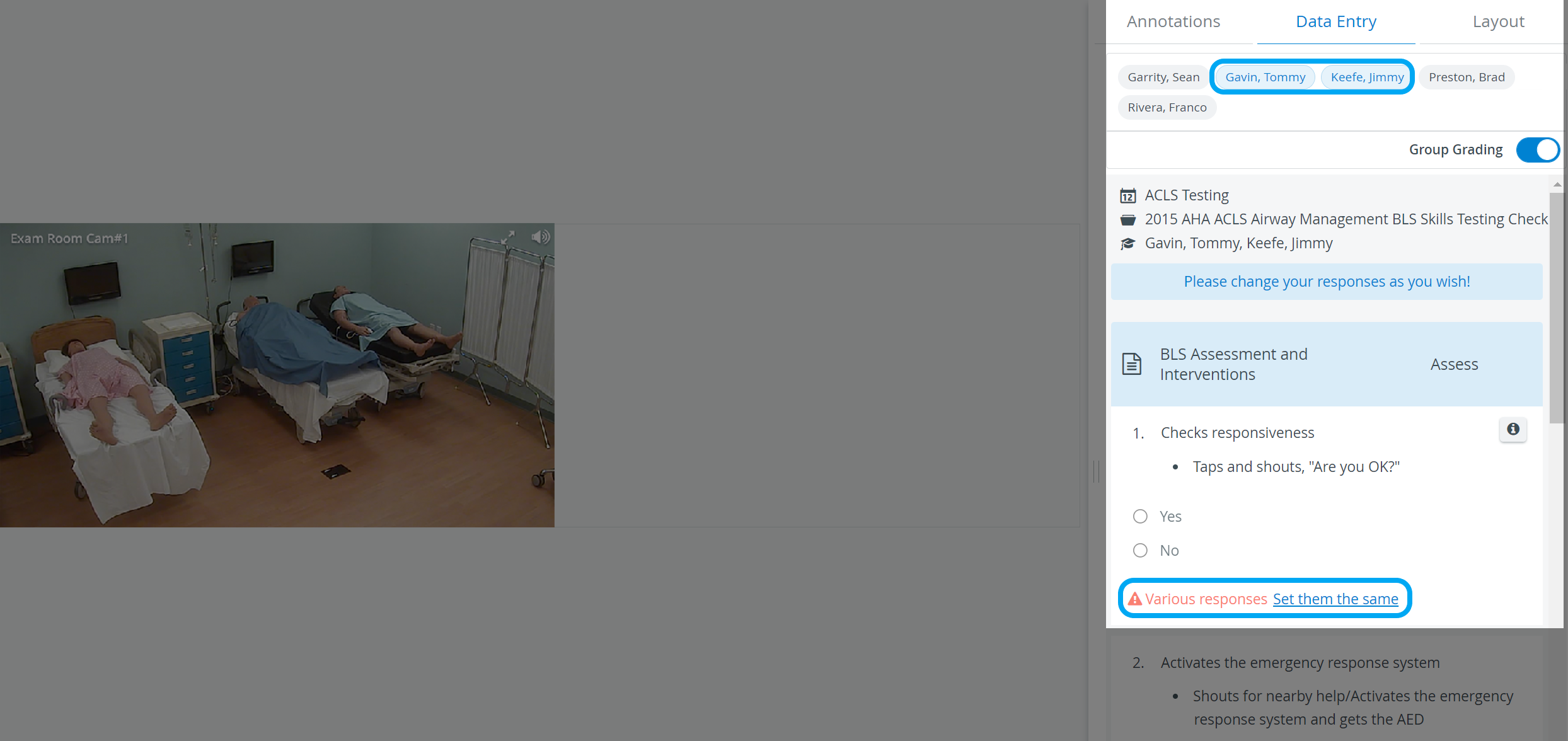
The Data Entry tab is for filling out the FON, Self-Evaluation, or Peer-Evaluation checklists of the Case (if any) during video review.
Data entry can be submitted for a single learner or the whole group assigned to the event.
Selected learners are displayed in blue. Group grading can be enabled by using the respective toggle.
Learn more under How to Use Group Grading.
If different responses were given to individual learners and Group grading is activated afterward, a warning message appears about the Various responses and allows the grader to set the answers the same:
The Group grading limit is 100 learners. If more learners are selected, the system warns you:

The sizing of camera views might not be optimal (images might be cut) with a 4:3 video size during recording in Single Room View.
The recommended ratio is 16:9.
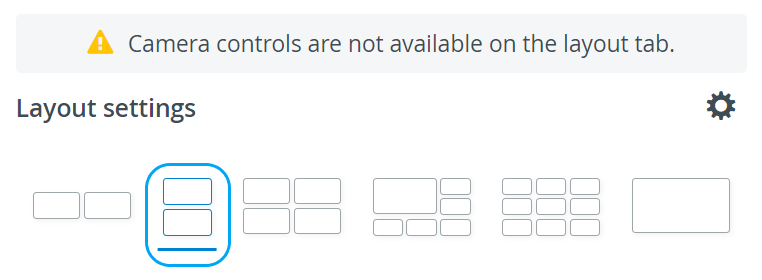
Vertical Double Layout
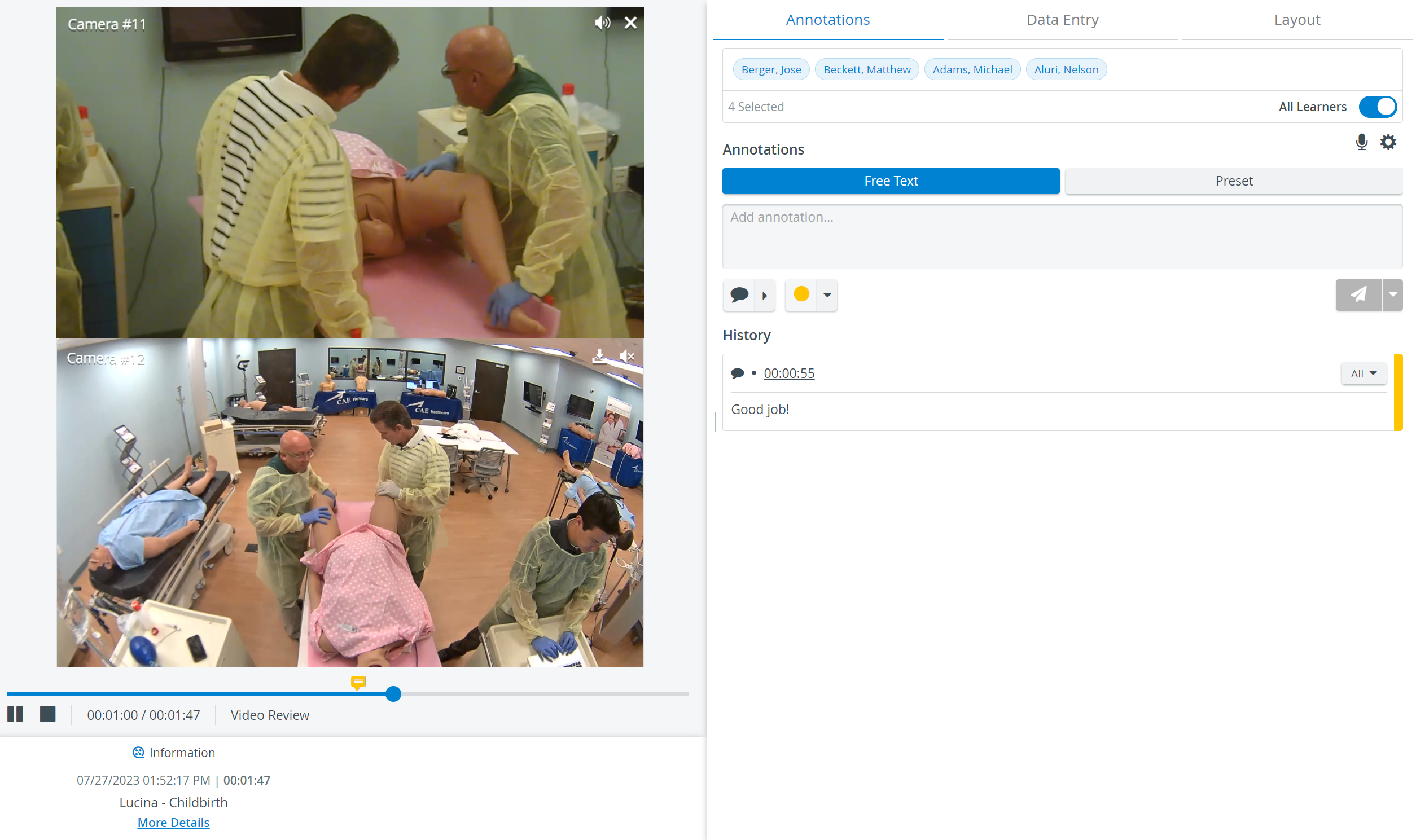
In some cases, two camera views must be displayed on top of each other (i.e., in a single column) during recording.
In the latest version of LearningSpace, the utilization of the space available in the Single Room View
panels can be maximized and
the panels on the right side (Annotations tab, Data Entry tab) or additional windows can be displayed in a larger size with the Vertical double layout feature:
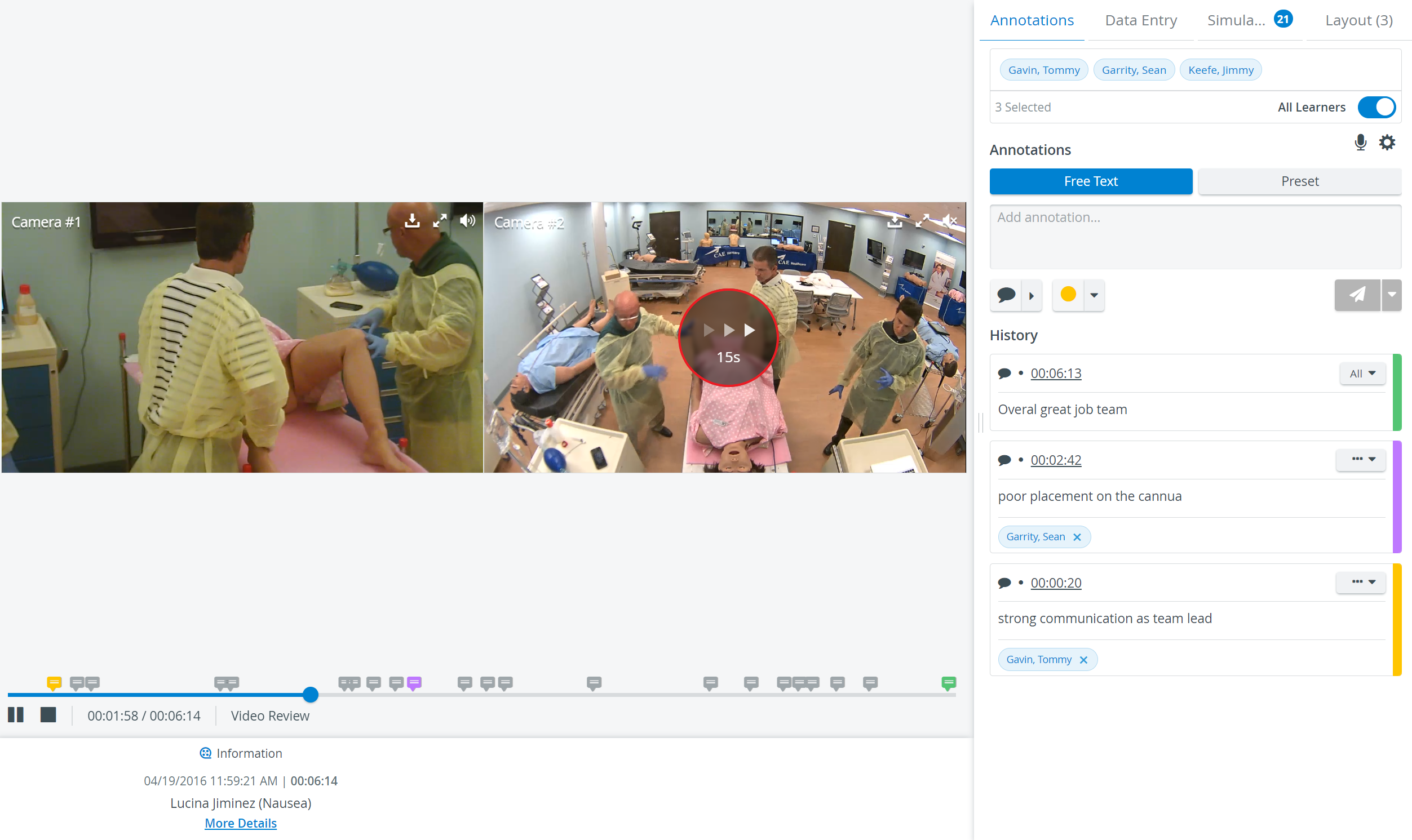
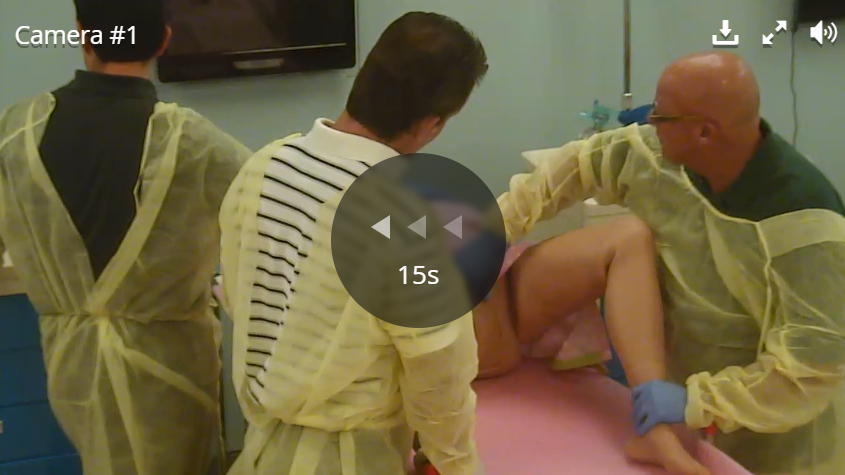
Jump Forward/Backward Hotkey
Pressing the respective key jumps the video forward or backward by 15 seconds.
Video Playback Speed Controls
 With the help of the Video Playback Speed Icon, the fast-forward and slow-motion playback capabilities of the Video Review module can be utilized.
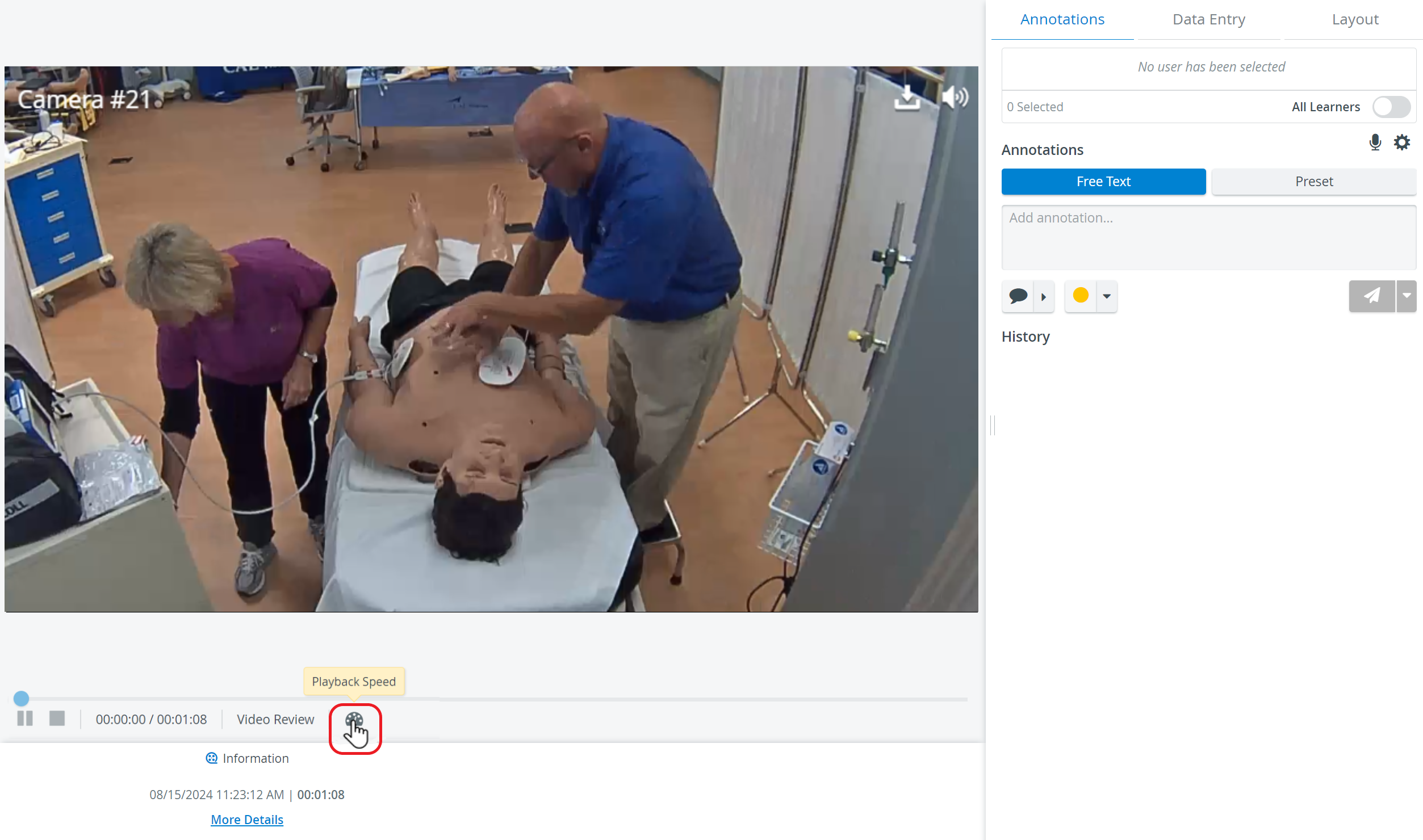
Users can change the playback speed to the following values:
0.25x, 0.5x, 0.75x, Normal, 1.25x, 1.5x, 1.75x, 2x, 3x, 4x
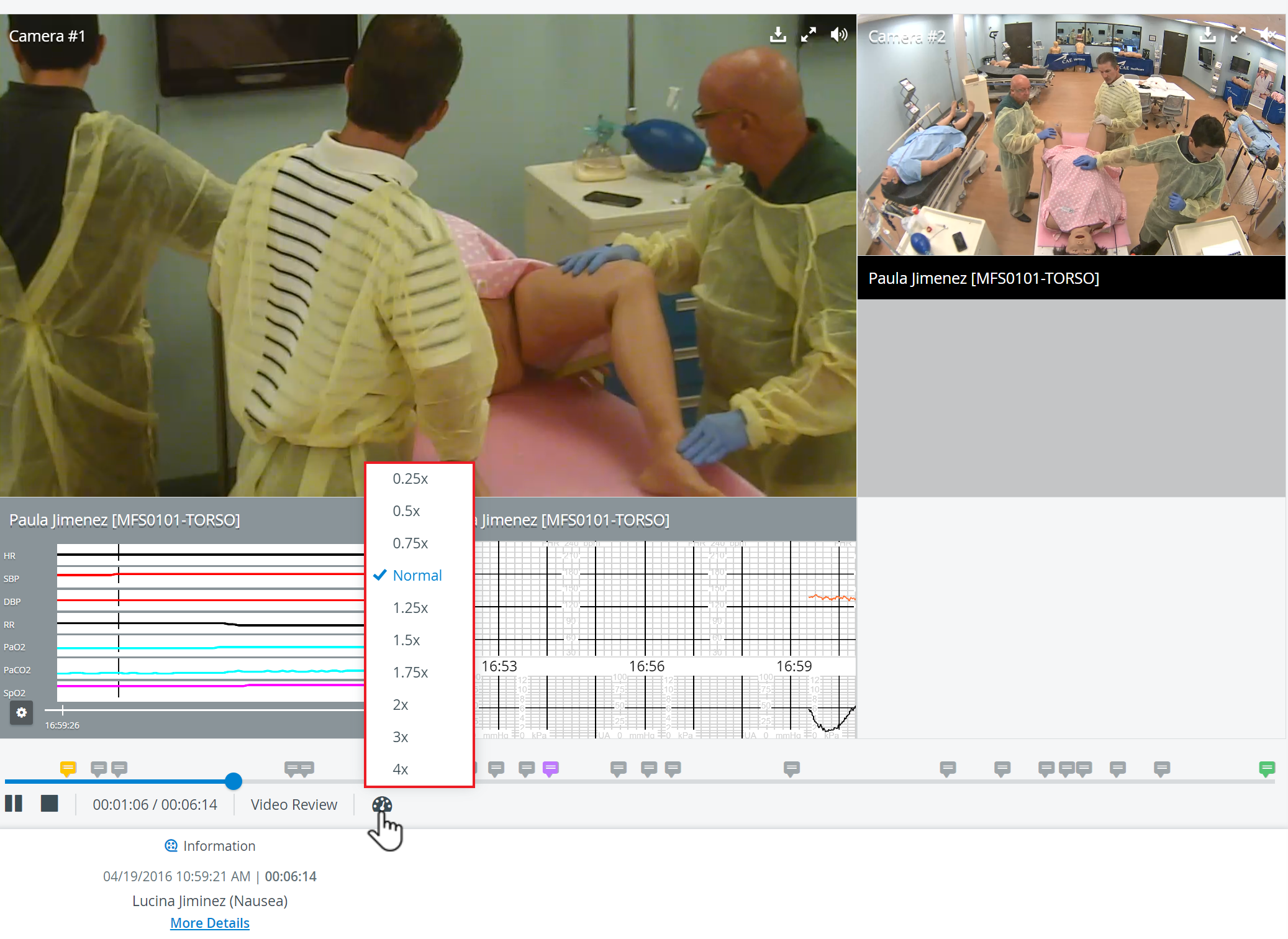
Hovering over each option will change its background color. The text turns blue when selected, and a checkmark appears next to the selected playback speed.
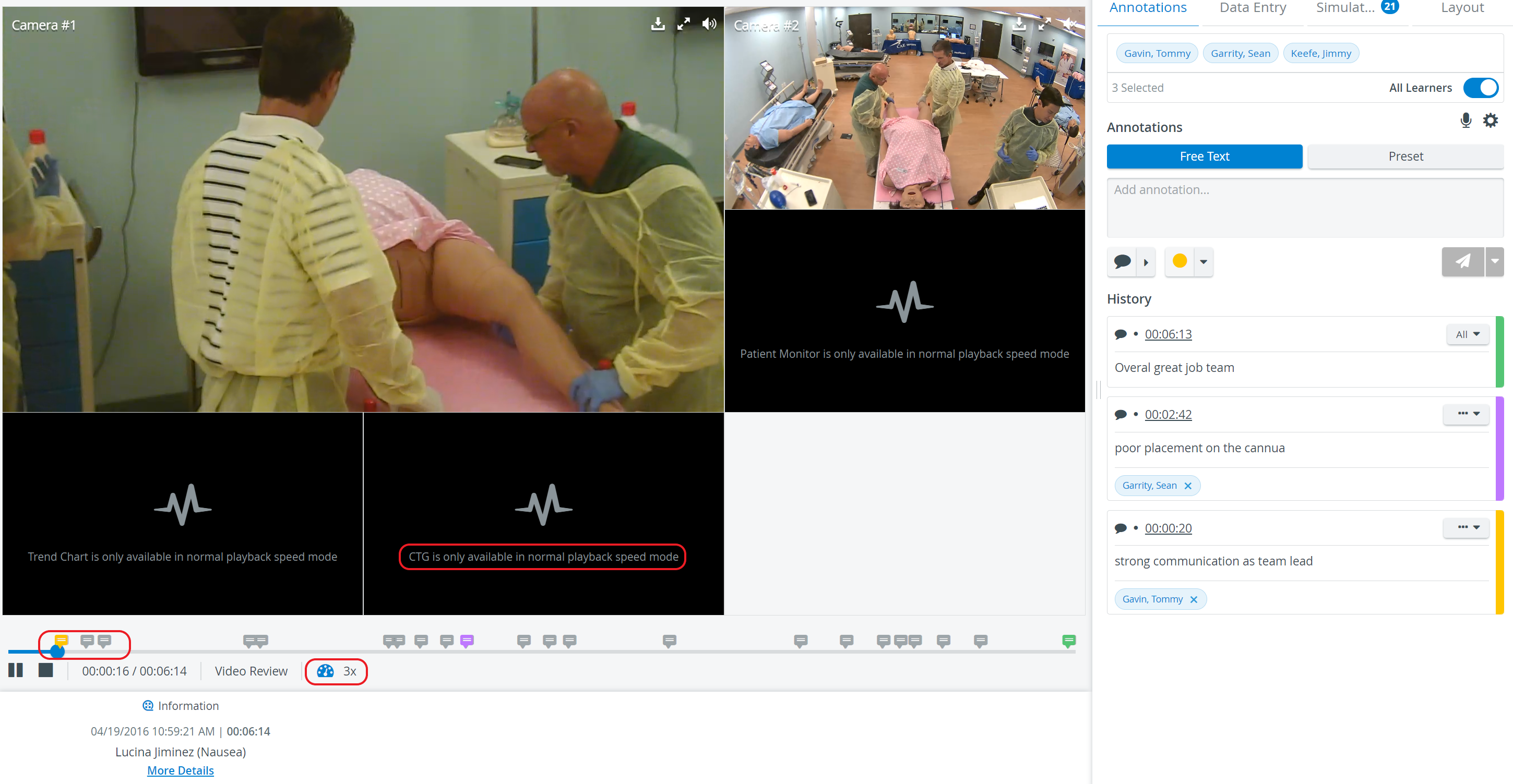
IMPORTANT: Only videos can be sped up; waveforms cannot. Simulator widgets (Patient Monitor, Trend Chart, CTG) will be disabled when fast forward or slow motion is enabled. A tooltip will appear on waveforms stating, "Patient Monitor / Trend Chart / CTG is only available in normal speed mode.”
Simulator logs or annotations stay in sync with the video speed.
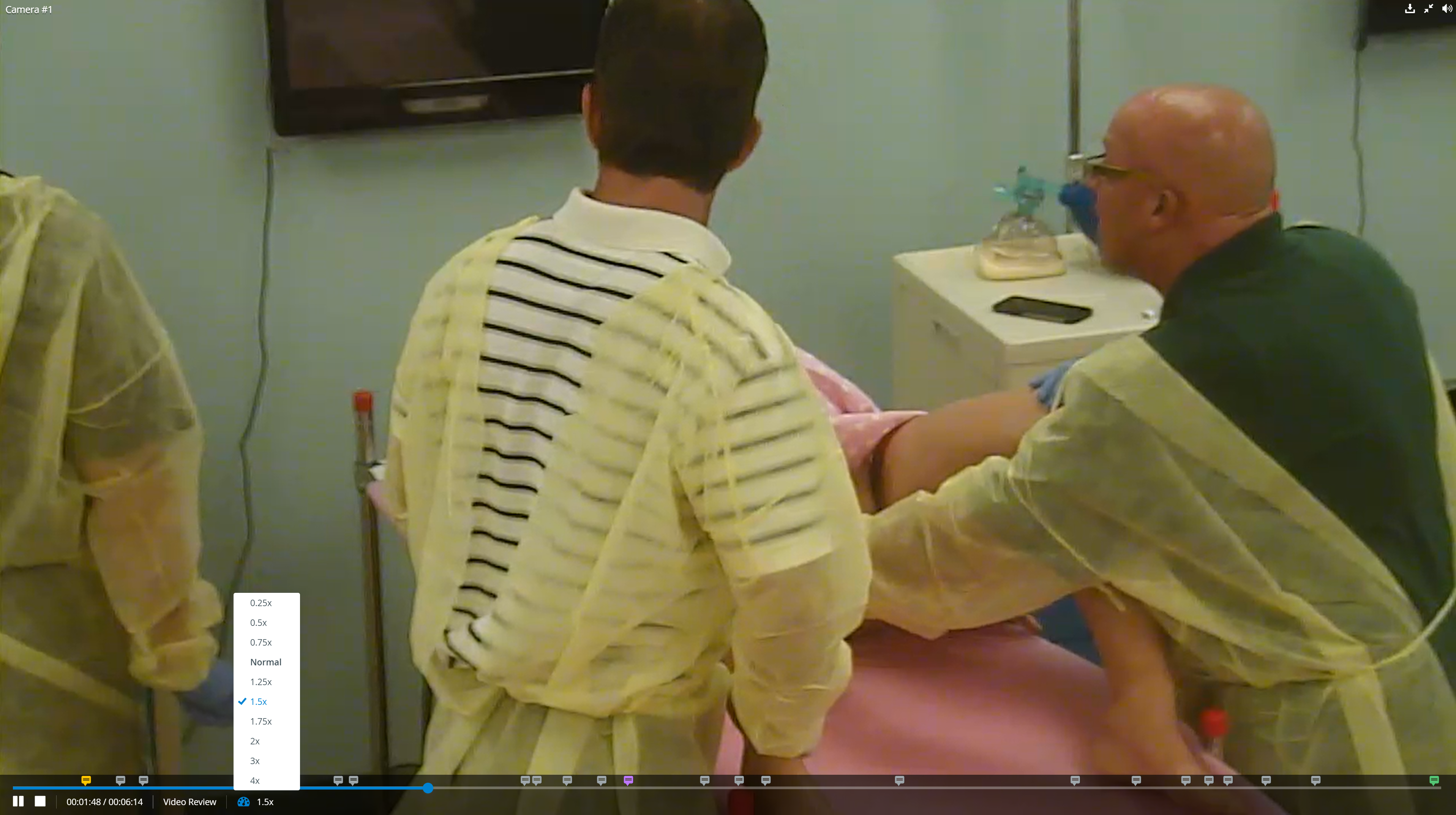
The Video playback speed feature is also available in full-screen mode.
Video Transcript Tool
The Video Transcript tool enhances video recording and checklist-related capabilities with audio transcription by utilizing automatic transcript generation.
The transcript of a video can be read on the Video review page.
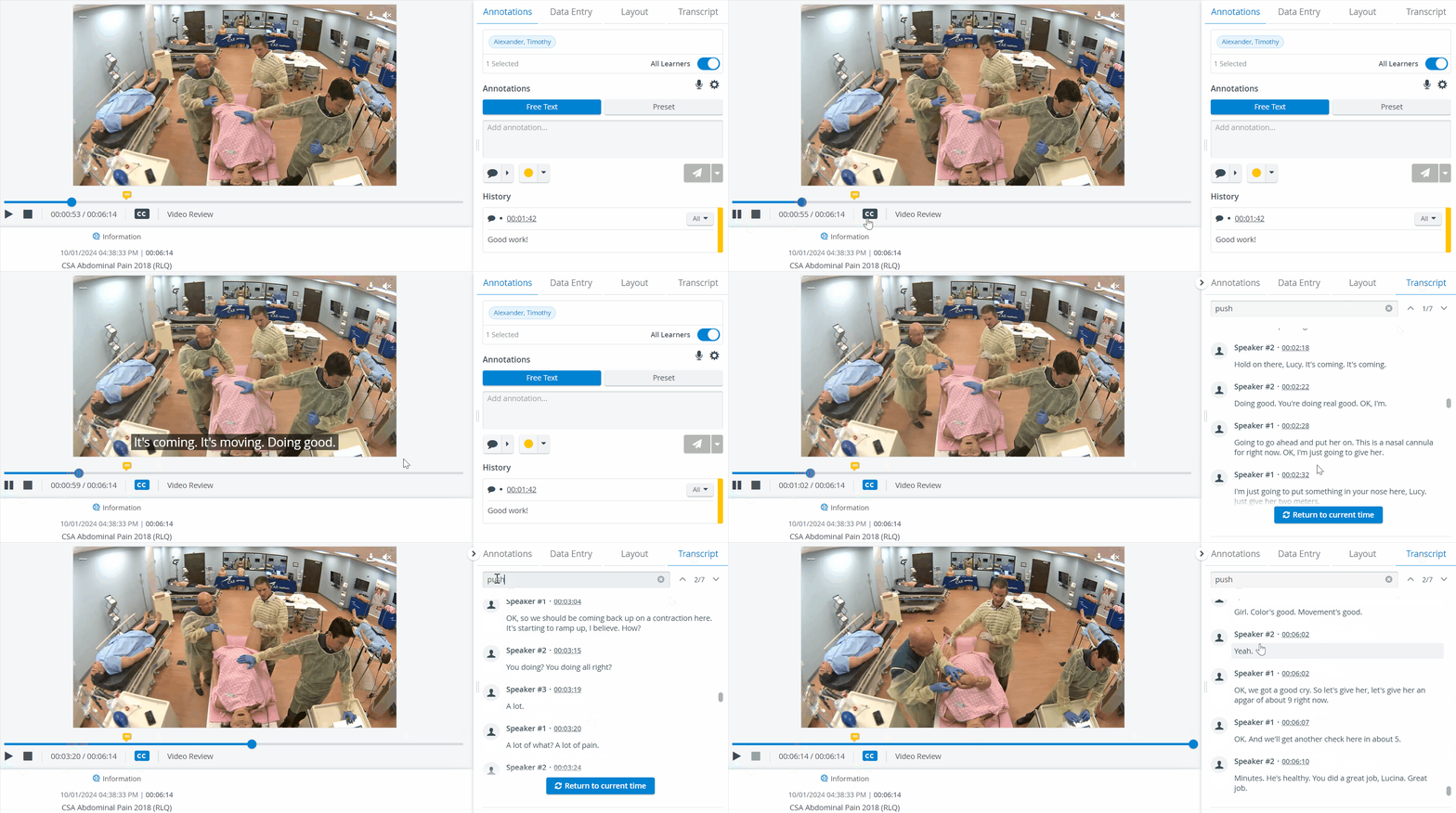
In LearningSpace, transcripts can be generated in English.
For more information, see How to use the Video Transcript Tool page.

Enabling Transcripts - Transcripts can be globally enabled/disabled under Local Settings on the System page. Once a video is processed and transcript generation is globally enabled, the system automatically generates an audio transcript.
For assistance, please contact your LearningSpace System administrators or email ls-support@elevatehealth.net.
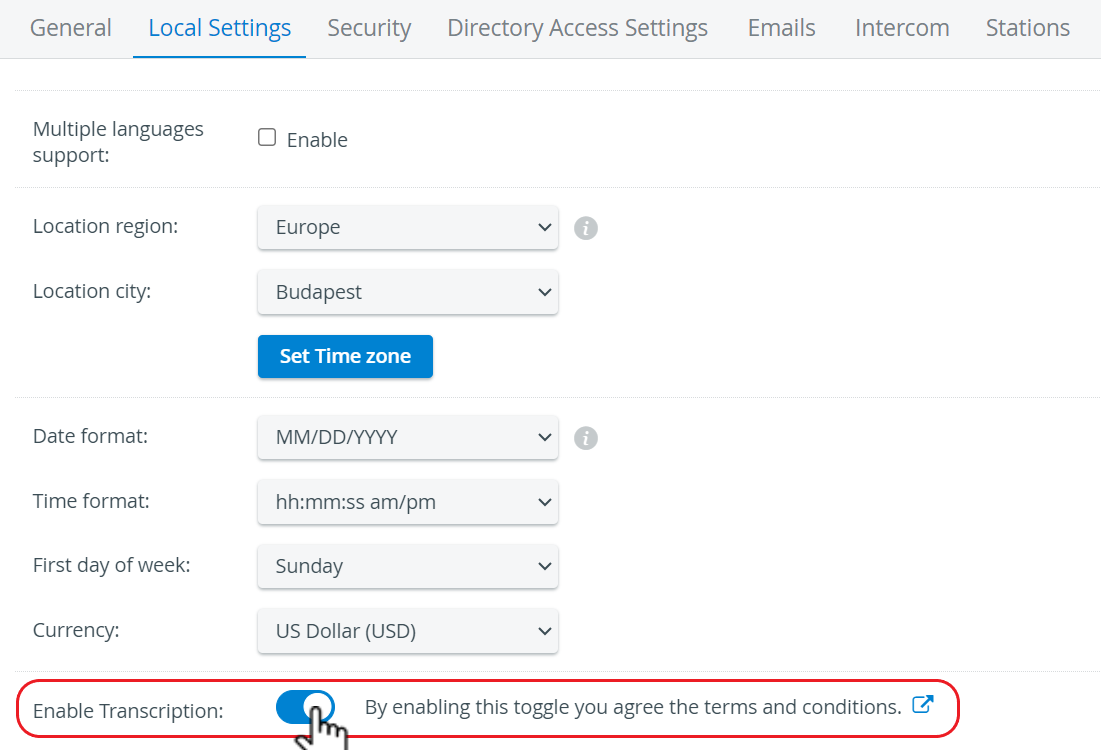
If the Transcript feature is hidden (disabled), the system does not generate transcripts, and the Transcript tab is not displayed on the Video Review page.
If the global transcript setting is enabled after an existing video has been processed, the video will not have a transcript.
Closed Caption (CC) - If a transcript is generated for a video, you can turn on the Closed Caption (‘CC’) functionality on the Video Review interface, utilizing the generated transcript.
To turn on Closed Captioning, use the grey “CC” button in Video Review/SRV, aligned with the recording controls (rec, play, stop).
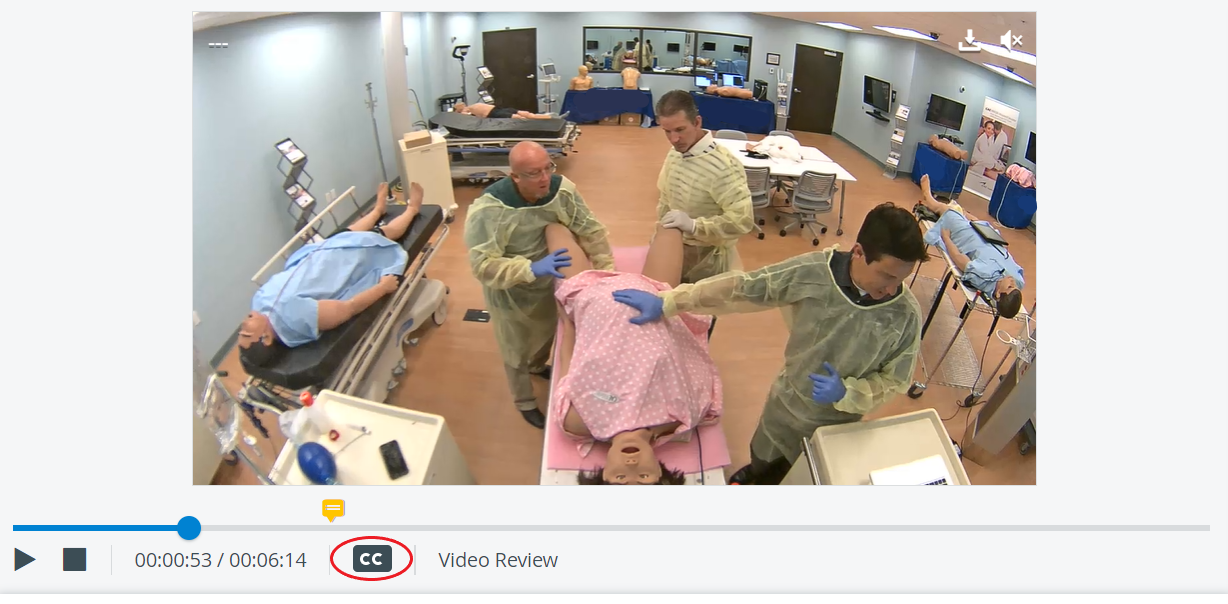
When the icon is clicked, it turns blue, and a closed caption appears. Clicking it again makes it invisible.
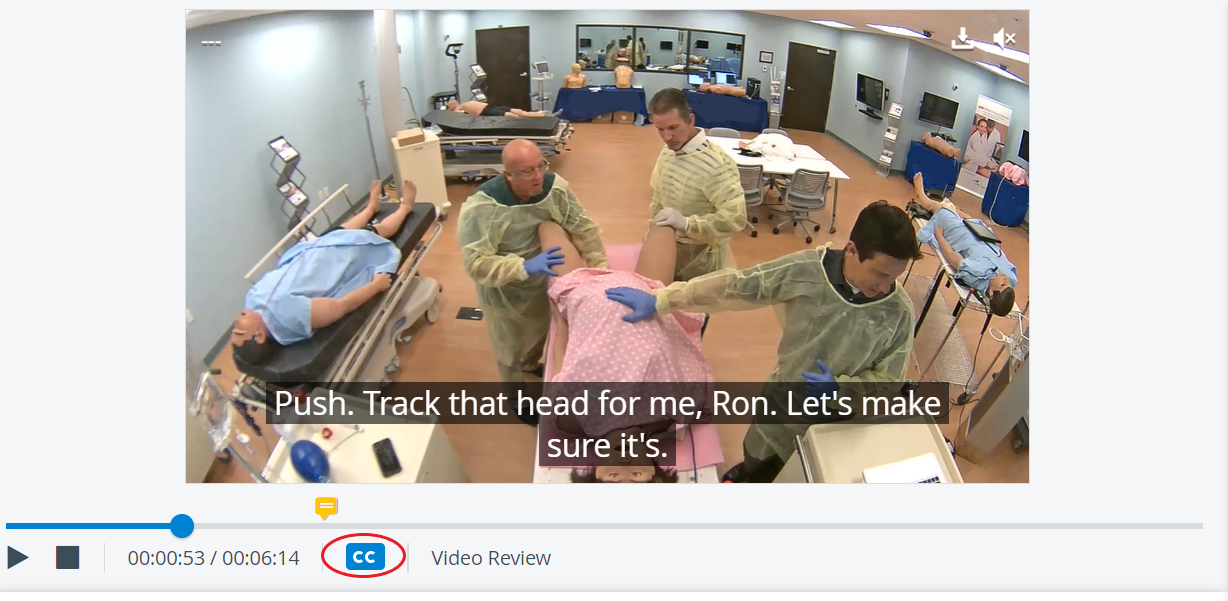
Closed Caption is turned off by default.
Searching in the Transcript - You can do a text search in the transcript by typing in the search bar above the transcript.
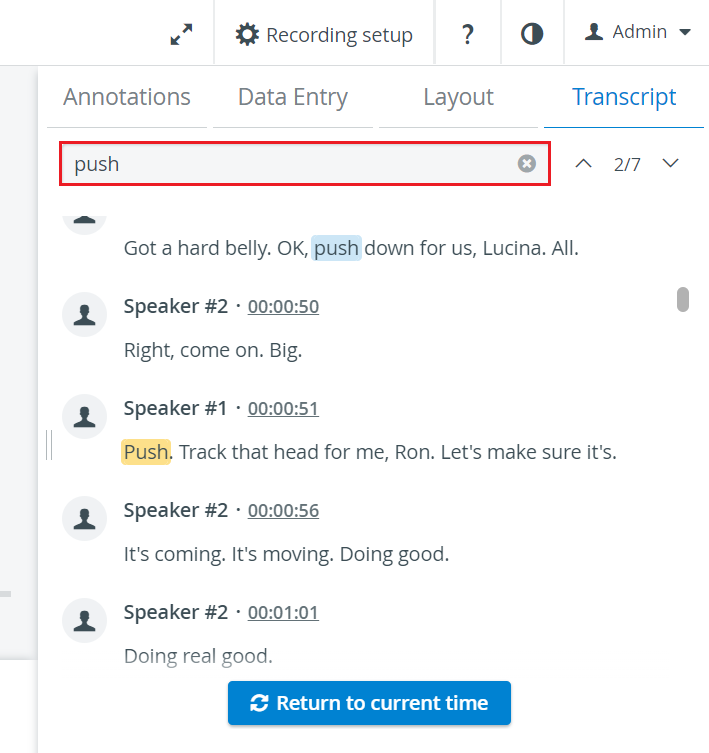
The transcript highlights/displays segments that match the search query, and you can easily cycle through the search results by using the up-down arrow icons or tapping hotkeys.
When you grab the timeline or click the annotation icon, the transcript syncs with it.
By clicking the Download Transcript option, you receive a file in *.srt format, named according to the specified format, containing the transcript.
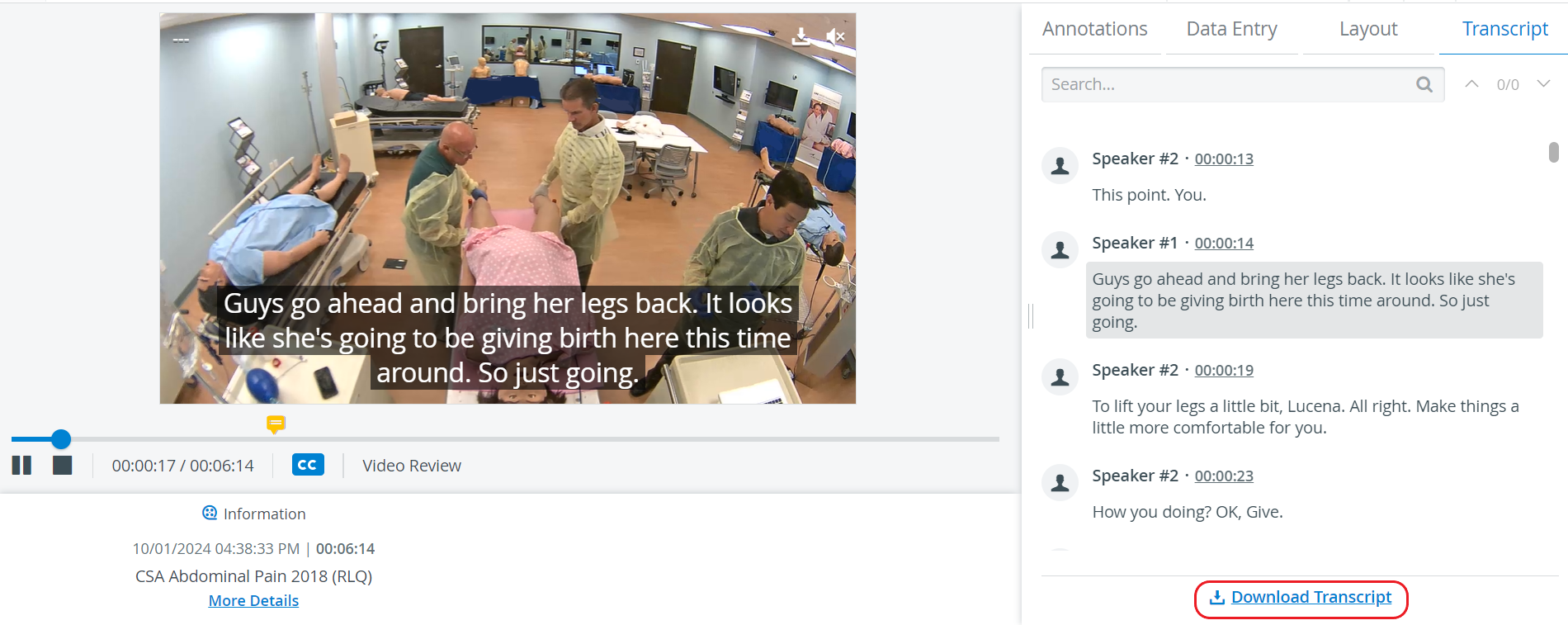
If a transcript is generated for a video with multiple speakers, the speakers are diarised in the transcript as follows: Speaker A, Speaker B, etc.
Once a video is deleted, the related transcript will be deleted as well.
For more information, go to How to Play a Recording.
Learn more on our Video review - How to pages.