Reports
Take a look at the current status of your stock in the Reports tab:
Assemble your available items in a single report, or break them into categories
Check the whereabouts of your supplies and equipment
Query the usage or consumption of certain types of items
Check durable pieces of equipment that were removed from your inventory
Prepare the supply needs of future events
You can access the following Inventory Reports:
Downloading Reports
Each report can be downloaded (and printed) as a PDF file or exported to a .xlsx datasheet:
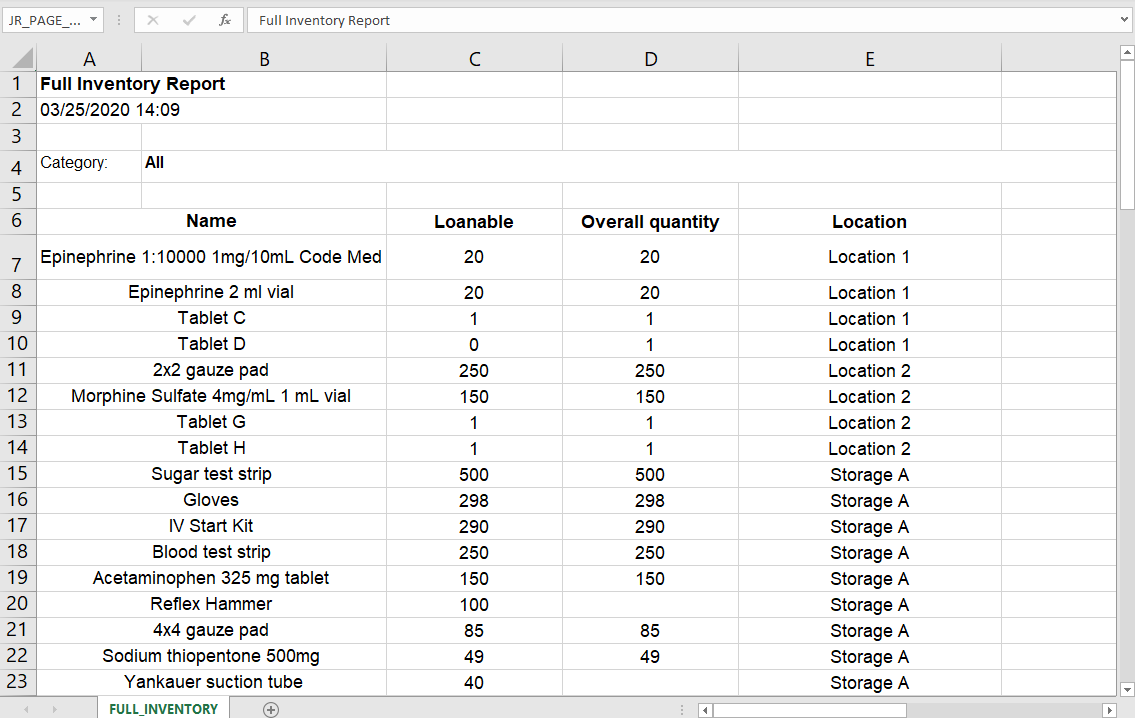
The latest enhancement allows LearningSpace's Inventory Reports to support Chinese, Korean, and Cyrillic characters.

Inventory Report
Full Inventory
This report lists all equipment and supplies currently in stock.
For Non-Consumables, the report shows the number of loanable items / the overall quantity of items.
Every Asset is included in the report, even those out on loan.
The Full Inventory report can be broken down by each of the four main item categories. Results can be sorted in alphabetical order by selecting "Names" or in descending order by loanable quantity by selecting "Quantity".

Overdue Assets Report
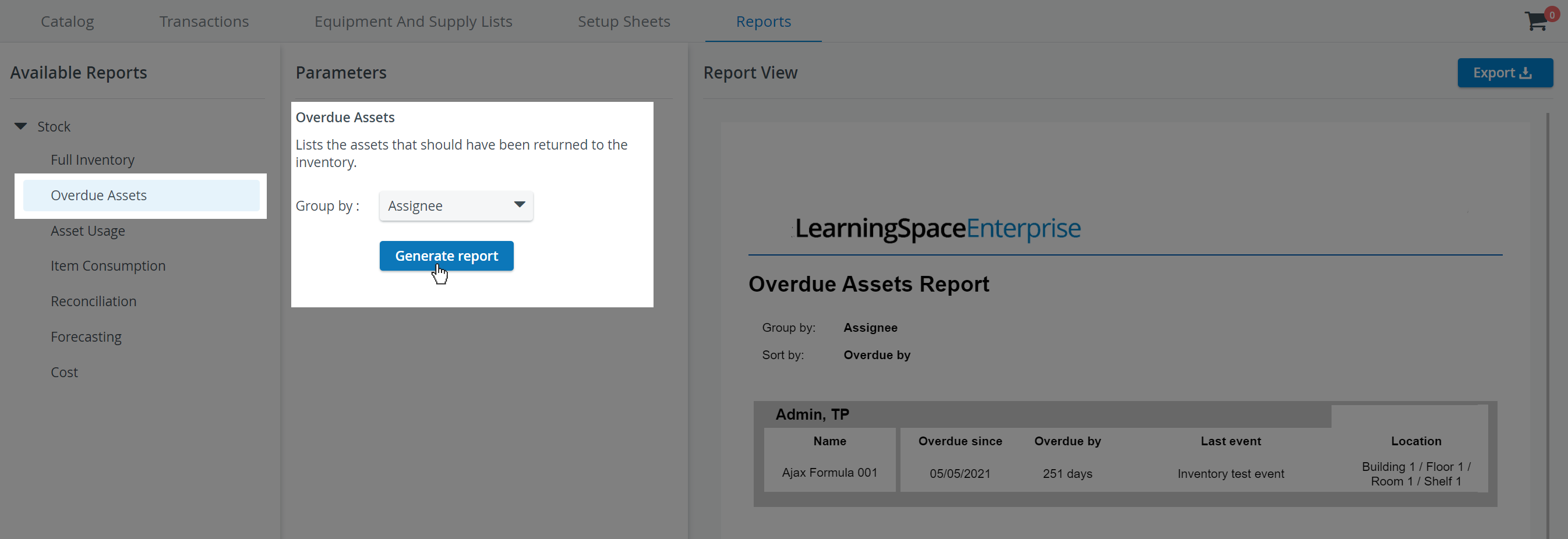
This report lists the assets that should have been returned to the inventory. It can be grouped by Assignee or by Location.
Asset Usage Report
This report allows you to query asset usage hours for a specific time range.
You can sort usage data by asset name or by the number of hours each asset was used.
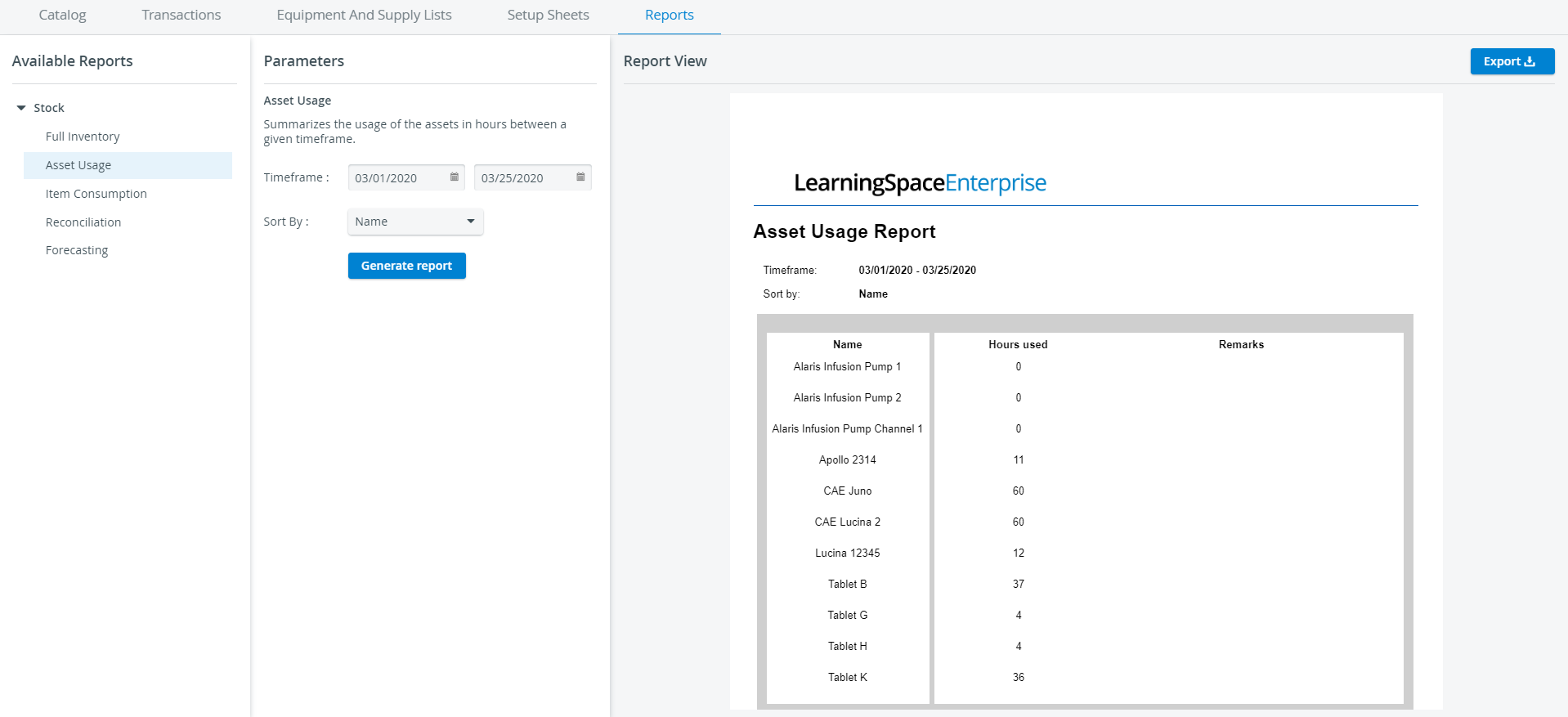
The asset usage report displays the usage of all assets checked out or used during the selected time frame.
If an asset was checked out before the selected timeframe but not added to an event's Setup Sheet, the report will not display it.
Item Consumption Report
This report enables you to track the consumption of disposable items — including Consumables With Expiration and Consumables Without Expiration — within a specified time range.
You can set up the report to break down item consumption by location. You can sort usage data by the names of consumable items or by their quantities.

Reconciliation Report
Check the exact number of your Consumables With Expiration, Consumables Without Expiration, Non-Consumables, and Assets you had to reconcile within a given time frame.
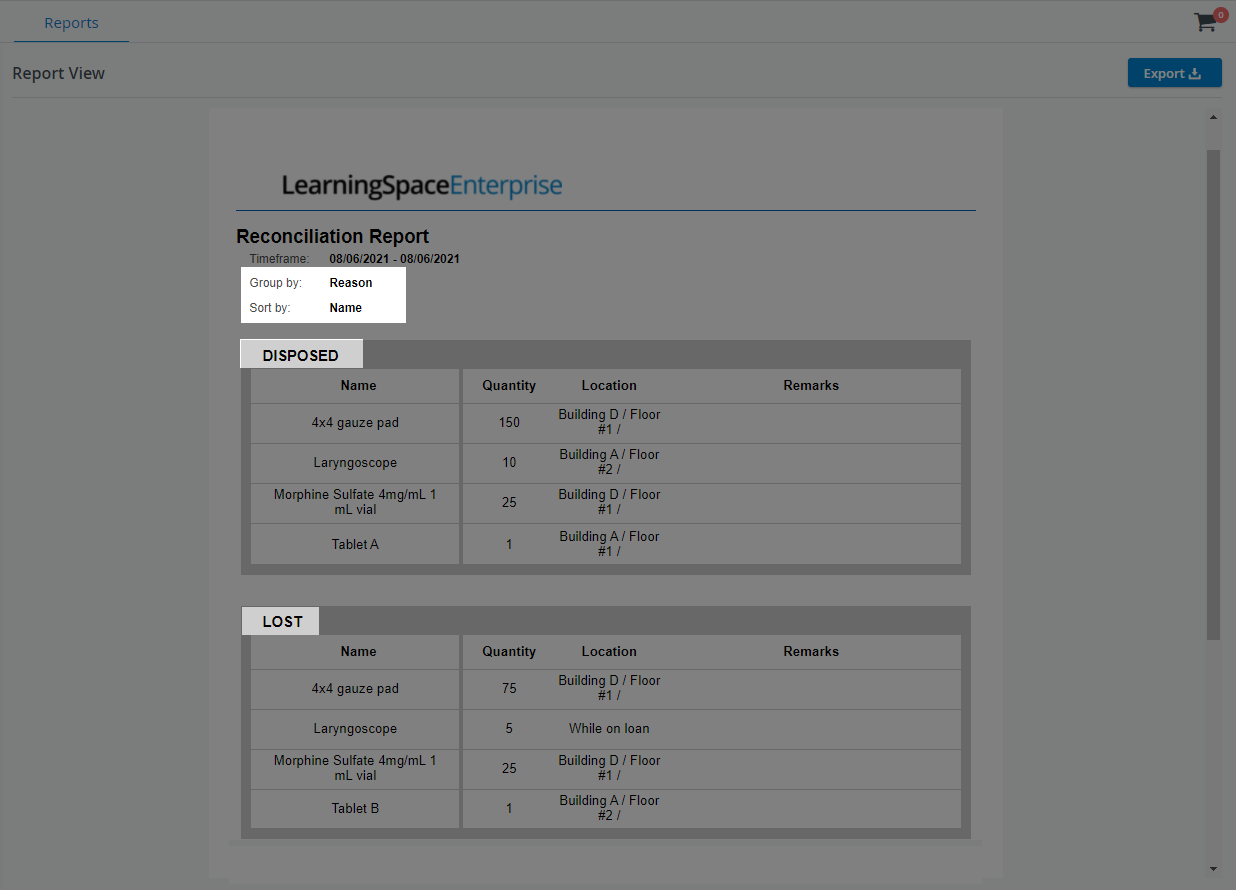
This report will explain why your equipment was discarded and indicate the last storage location for each item, or confirm whether each item was reconciled while on loan.
You can choose between grouping the reconciled items by their last known location or by the reason they were disposed of.
You can sort reconciled equipment by item name or by quantity.


Forecasting Report
Check the equipment and supply needs of your upcoming events. Once you have saved a Setup Sheet for a future event but haven't checked the items on the setup sheet out yet, you can check whether you have enough supplies in your inventory or change the asset you want to use for an event.
Define a time frame to view and display multiple events in a single report.
The Forecasting report informs you if you don't have enough stock of a particular item or if a selected asset is unavailable, calculating the "insufficient quantity" based on each event's Setup sheet.

Since a low number of emails are sent only when items are checked out, not when requested or reserved in a Setup sheet, it is recommended that a Forecasting report be run before events.
Cost report
Inventory managers can use the Cost report to keep track of the cost of event-related Consumable items. If a consumable item is added to an event's Setup sheet, its cost will be added to the Cost report. This data is gathered from the Cost field of the Cost tab, which is available in all consumable items' Edit properties window.

AM-PM Switch

Smooth switching between AM and PM in the date picker improves the Timeframe field’s calendar user experience. The Timepicker add-on is included for setting hours or minutes.
You can switch to a 24-hour format by navigating to the System settings page.
Learn more about the Inventory Manager on our Inventory - How to pages, and watch the Inventory Manager Training Videos.