Preset Reports
Preset Reports Tab
The Preset Reports tab provides system-defined reports about Individual Learner scores, Group performance, and Test Activity.
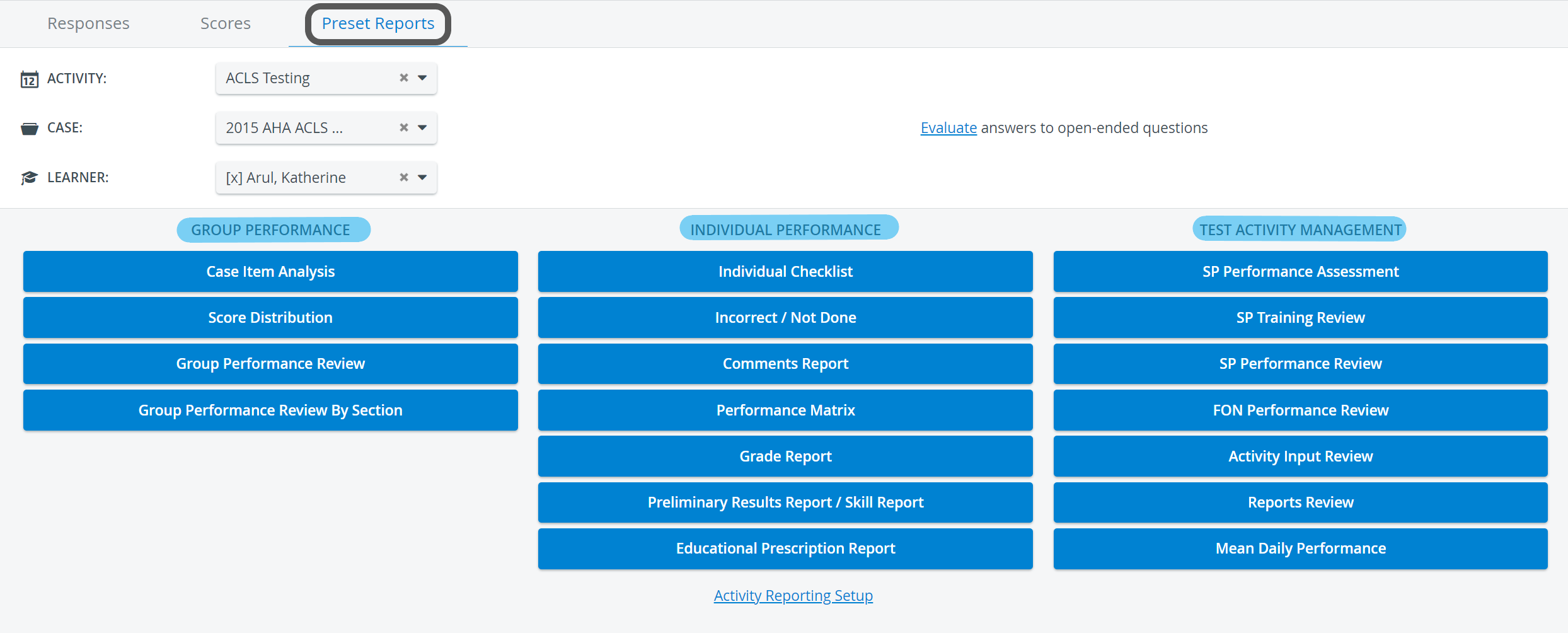
By selecting the desired Activity, Case, and Learner from the respective drop-downs at the top of the tab, the relevant reports become available; that is, the corresponding buttons become activated.
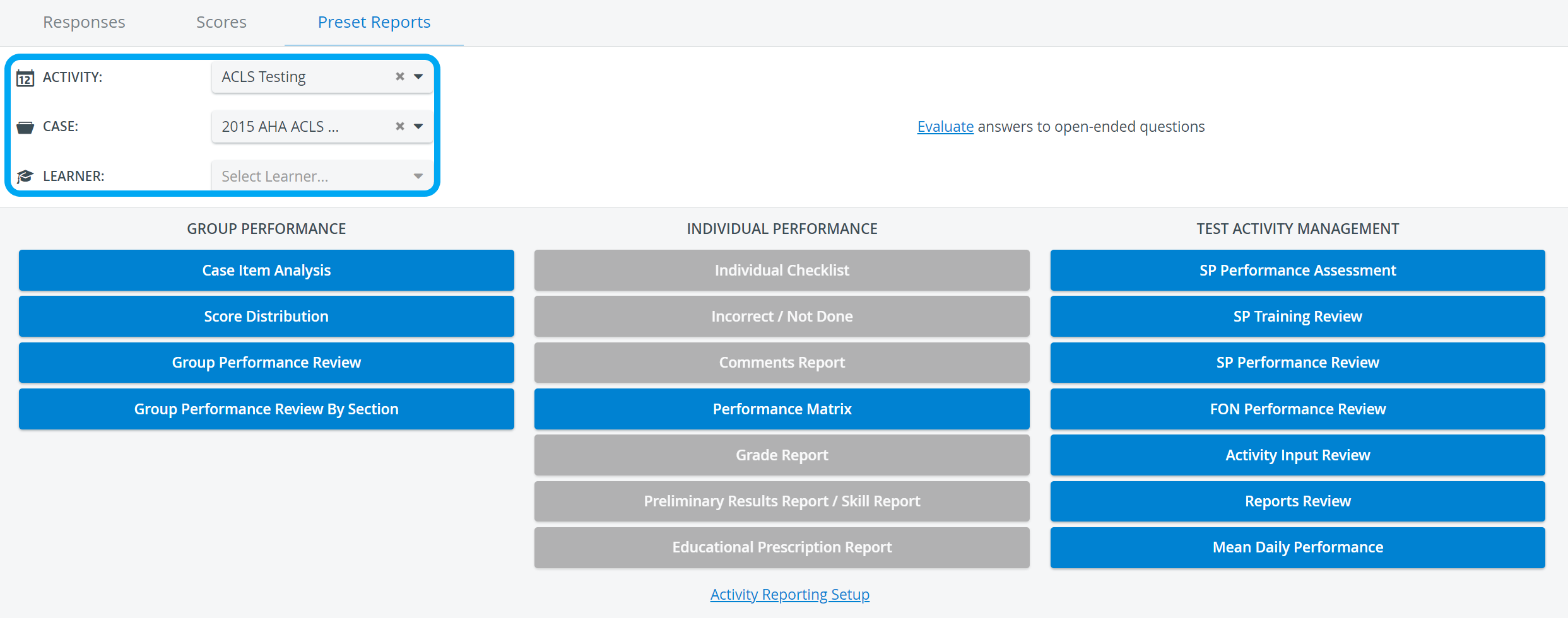
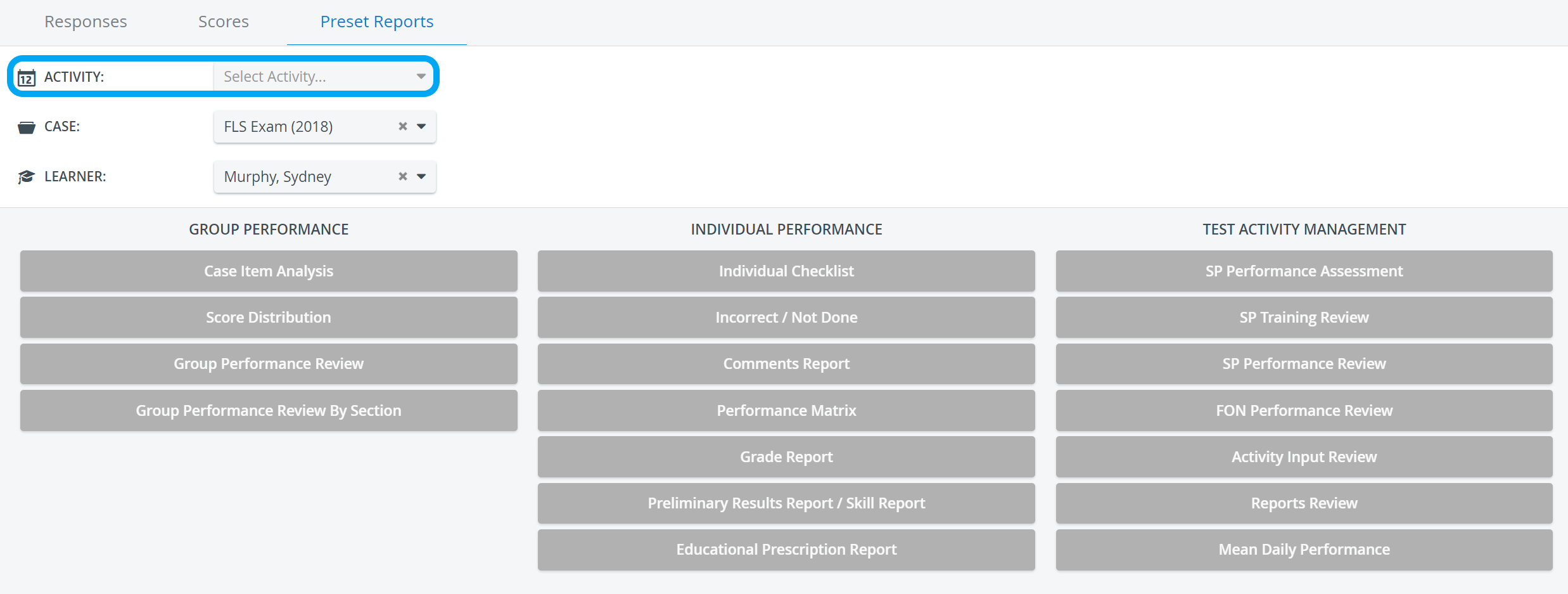
IMPORTANT: If only a Case or a Learner is selected, no report will be available; the Activity must always be specified for report availability. In other words, the reports are based on a selected Activity and specified by choosing Case and Learner.
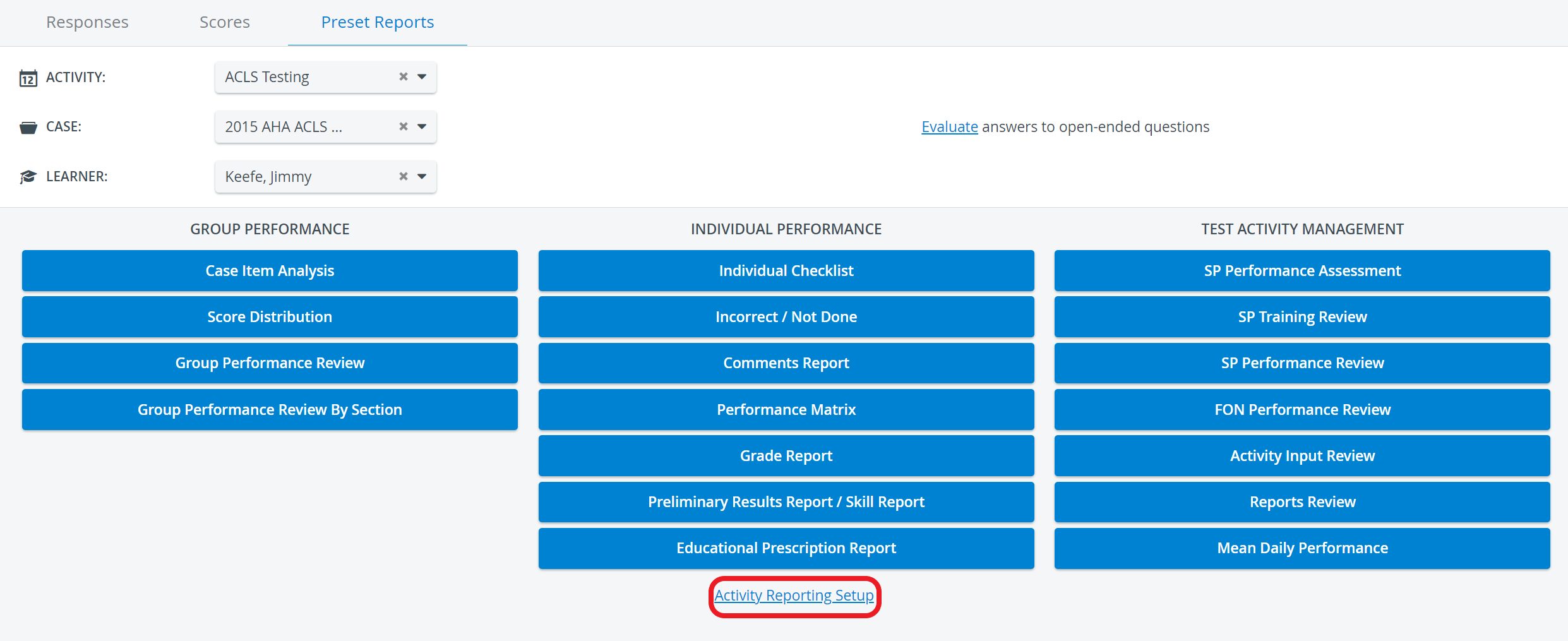
NOTE: Once a report becomes available, the Activity Reporting Setup link appears at the bottom of the tab, allowing direct access to the Activity Reporting Setup page.
Print Reports
To print a Preset Report (on paper or as a PDF), click the Print button at the top right corner of the screen.

For more information, go to How to Print a Report.
The smart scrollbar needs to be turned off before printing reports.
Export Reports to Excel
In the latest versions of LearningSpace, certain Preset reports can be exported into an Excel (.xls) file for more convenient management and easier utilization of the exported data in applications like Microsoft Excel or Google Sheets.

Reports that can be exported into Excel:
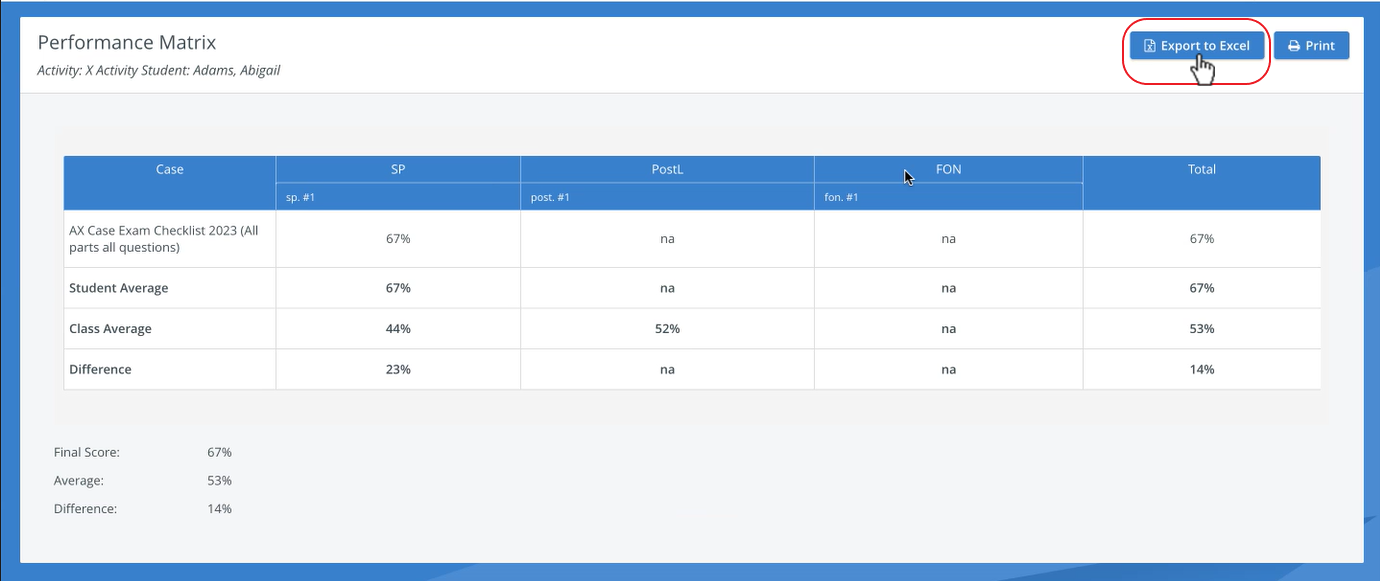

Hide ‘Print Reports’ and ‘Export to Excel’ Options for Learners
This feature hides the ‘Print’ and ‘Export to Excel’ buttons for Learners on Report pages by default. The setting is accessible in the "Report Printing" section of the Report settings for a given Activity.
This option can resolve concerns about learners' ability to print or export reports during testing events. While learners need access to feedback (comments from SPs, clinicians, etc.), the export and print functions are not always suitable for them.
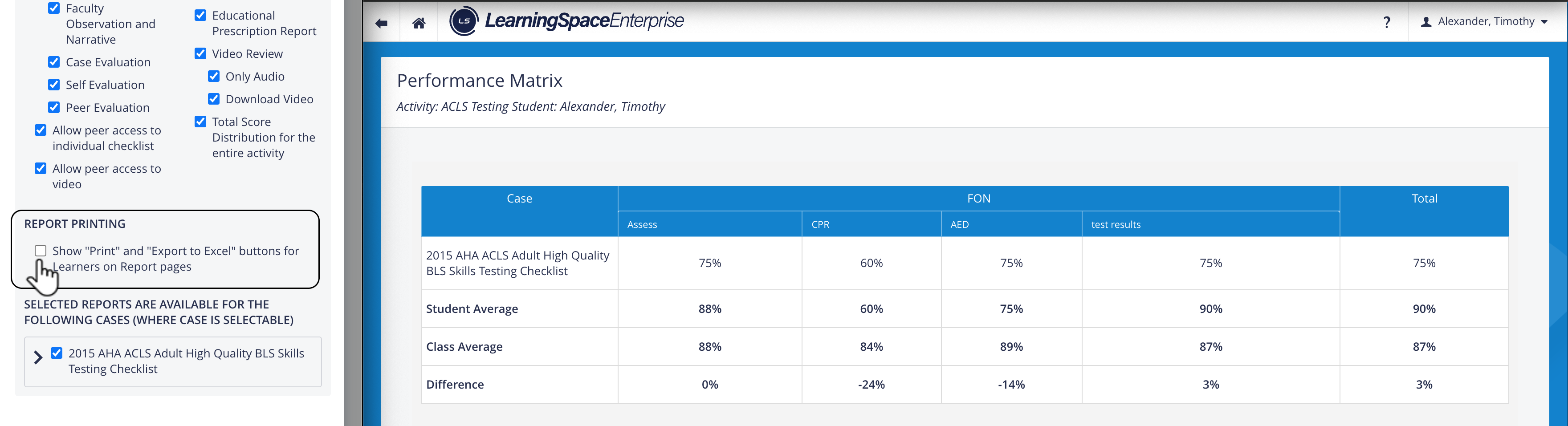
When toggled off (unchecked), the "Print" and "Export to Excel" buttons on the Report pages are hidden for Learners.
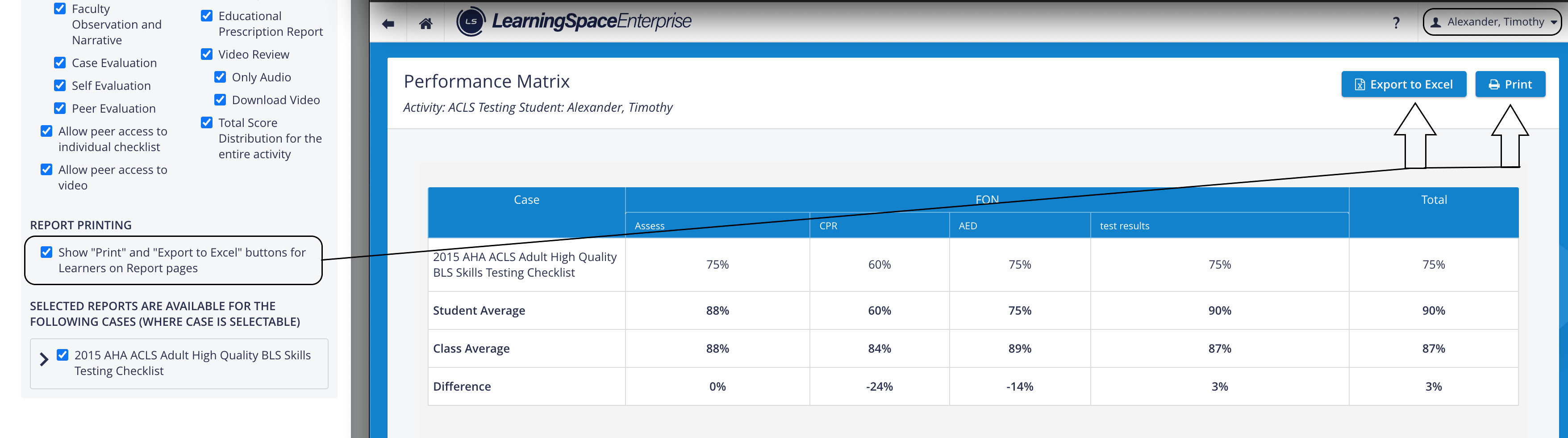
When toggled on (checked), the buttons are visible to learners.
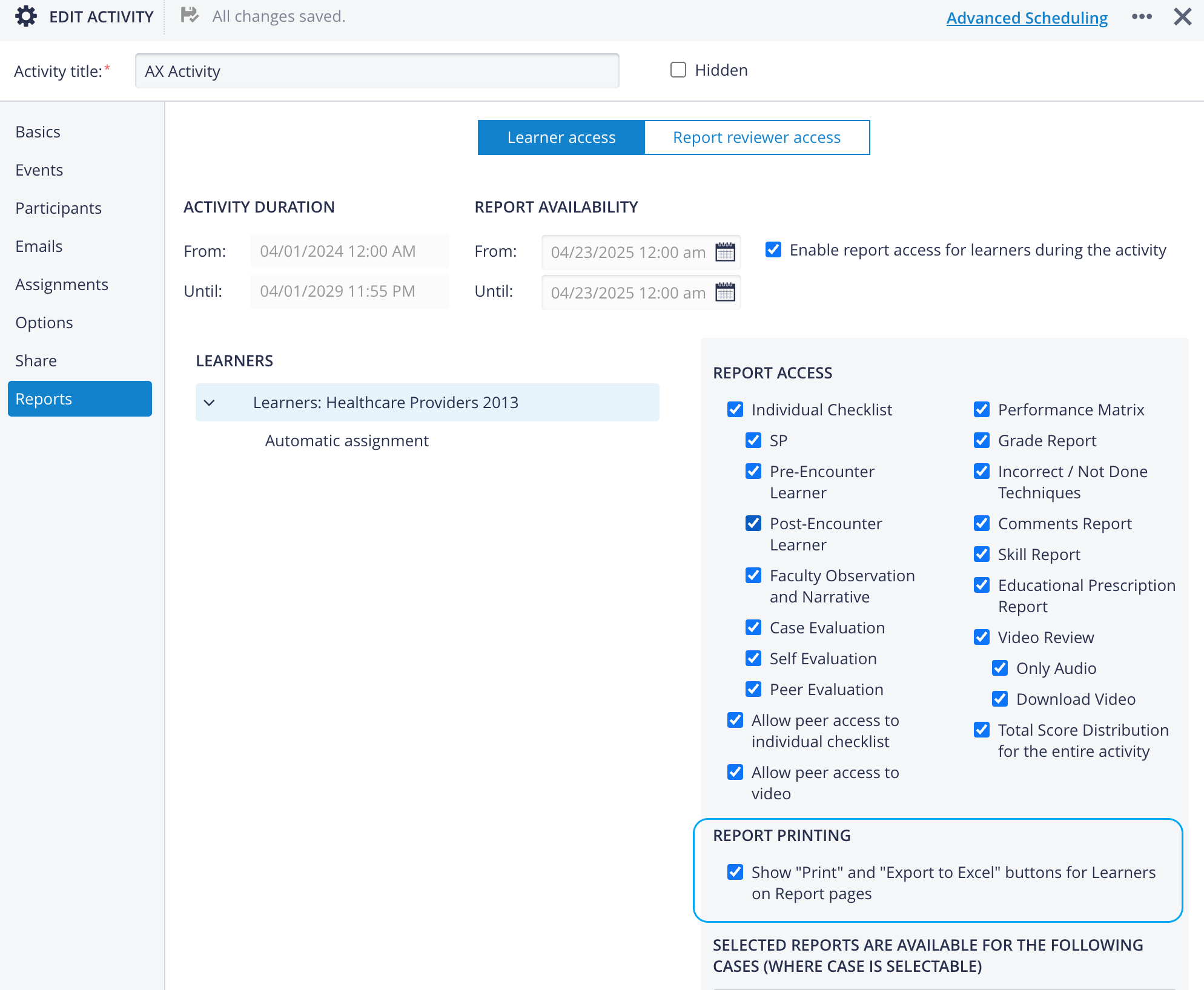
The setting is toggled off by default.
View on the Reports printing page:
If the Report Printing option is disabled (unchecked), the buttons remain hidden for Learners on the Reports pages:
For more information, see 2023 August New Features - Release Notes.
For further information, see the Reports - How to pages and the Reports Module Training Videos.