Preset annotations tab
You can find the annotations assigned to a particular Case in the Preset annotations tab in the Edit Case pop-up of the selected Case.
These annotations were added to the Case either by
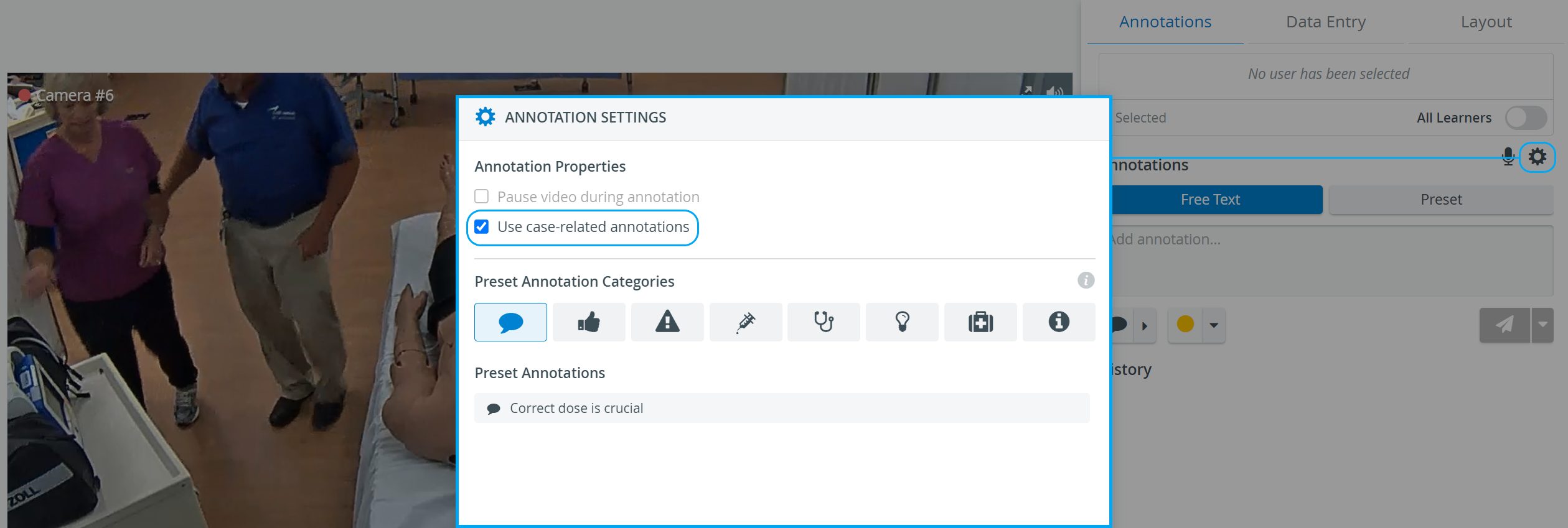
using the Annotations panel in the Single Room View (SRV) in Recording or in the Video Review module while the Use Case-related annotations checkbox was checked in the Annotations Settings window, OR
by defining Case-specific or simply adding existing annotations here:
New annotations can be added as a simple line of text without any formatting. They can then be customized in the General tab in System or in the Annotations panel in either of the previously mentioned modules.The Use Case-related annotations checkbox can only be selected—the checkbox is only active— if a Case is added to the recording, either in Single Room View (SRV) or Video Review
Search Annotations
Search existing annotations in the Add Annotation field—start typing in the field to display search results. Click on a result to assign an annotation to the Case.

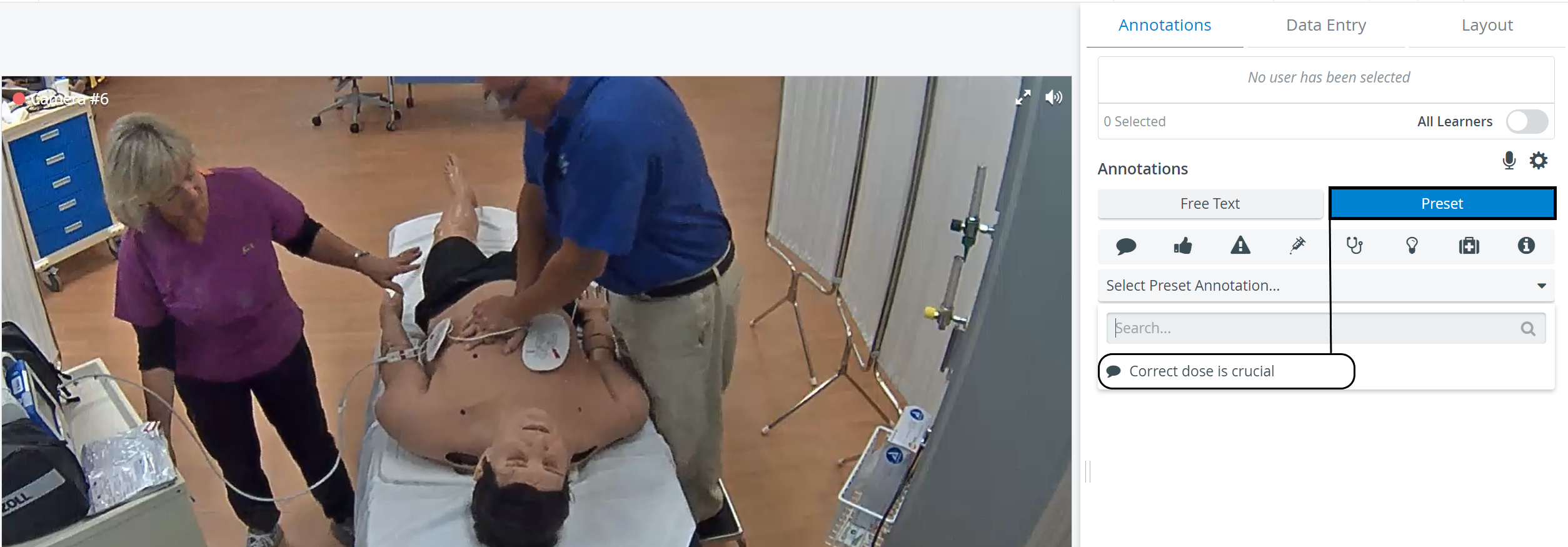
If the Use case-related annotations option is activated in the Single Room View during recording, the system will load Preset Annotations related to the Case.
You can also remove the annotations from the Case. ✔️ The annotations are not deleted from the system; they will still be saved and available.
Removing Annotations from the Case:To remove a specific annotation, click on the red ❌ of a tag
To remove all annotations from the Case, click the red trash bin icon in the bottom right corner of the tab
For further information, visit our Case Manager and Cases - How to pages or watch our Case Manager Training Videos.