Performance Matrix
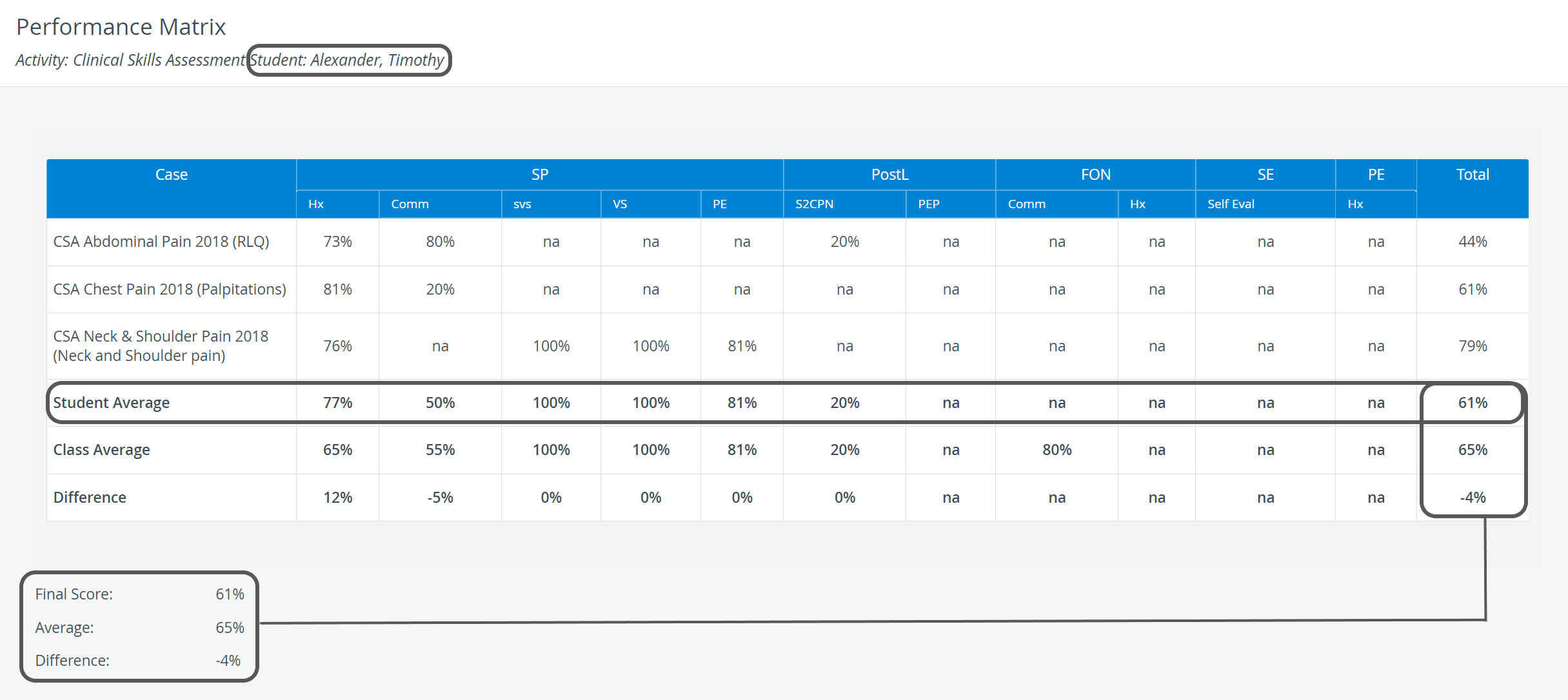
The Performance Matrix is a review of a Learner's scores for different parts (checklists) of Cases by Section and compares them with the class performance.
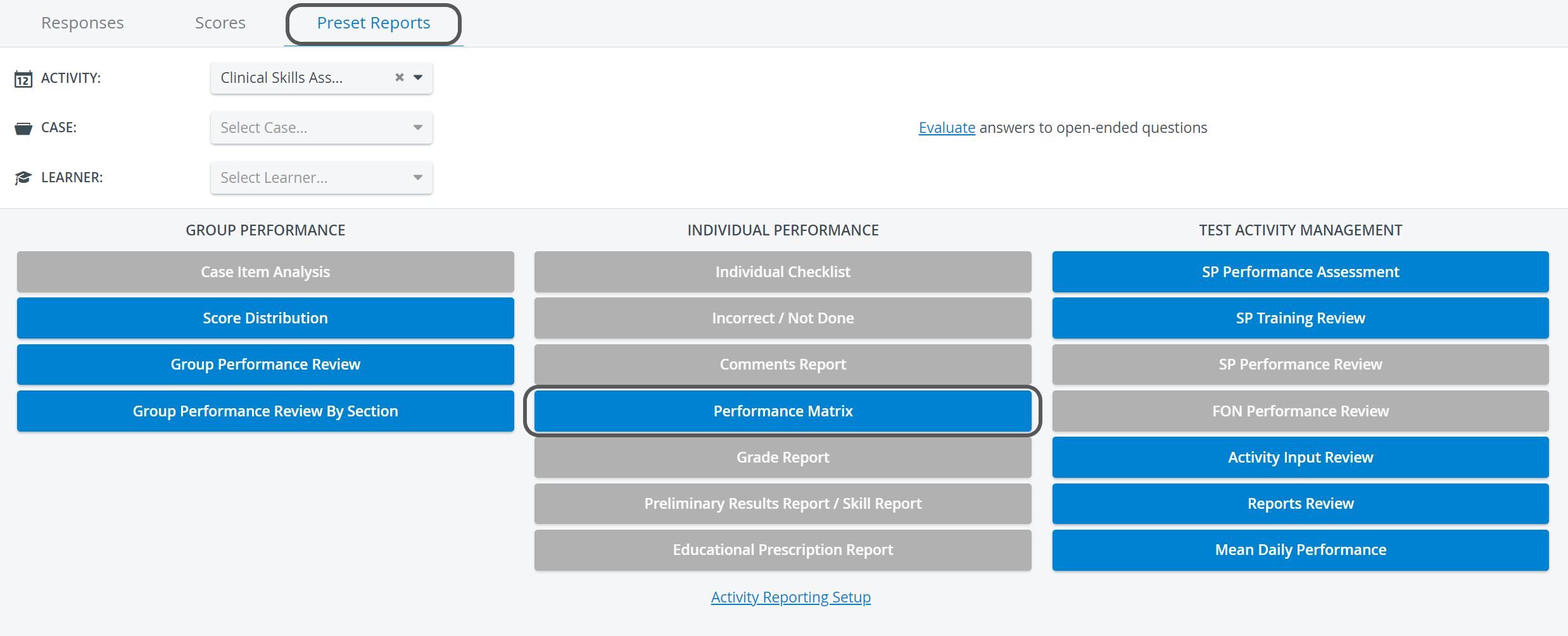
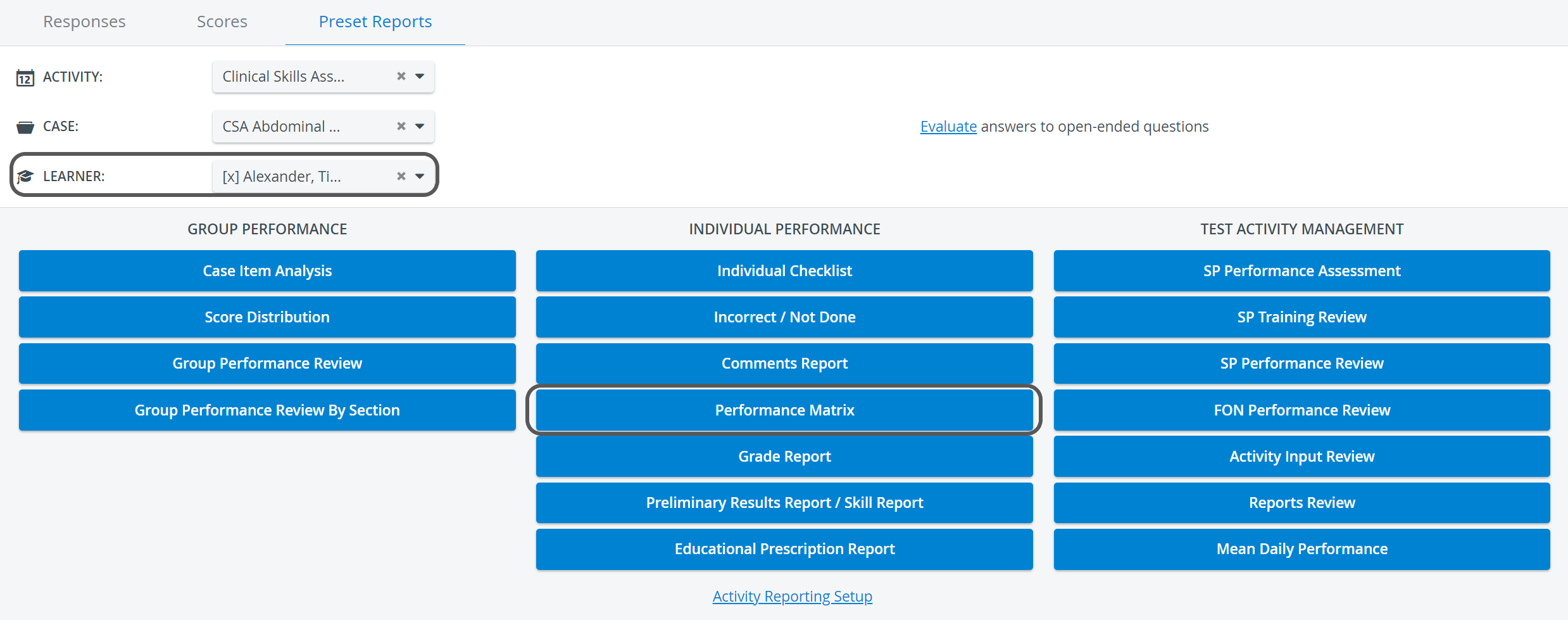
The report displays
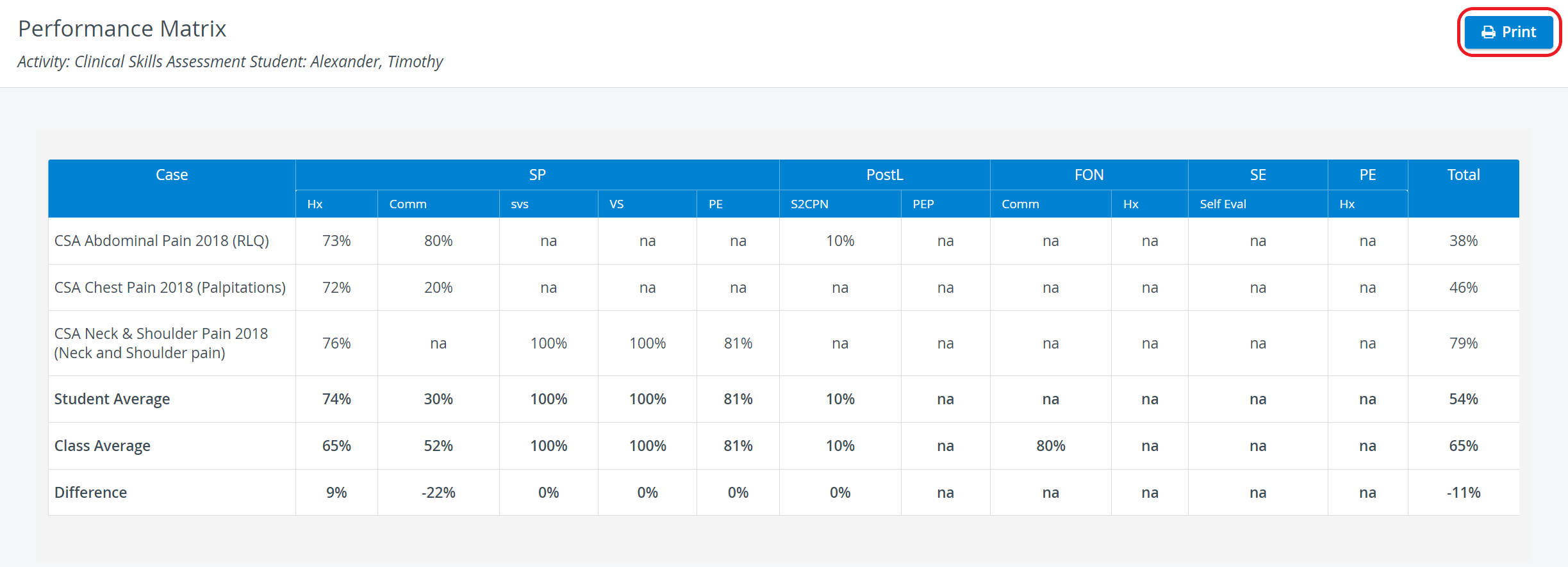
the selected Learner's scores or the scores for the Sections of the Cases for the entire Learner group of the Activity,
total scores for Cases - shown in the last column of the table - either for one Learner or for the entire group,
average scores - providing means to compare Learners' performance in a Section, a Case, or the entire Activity with the class average.
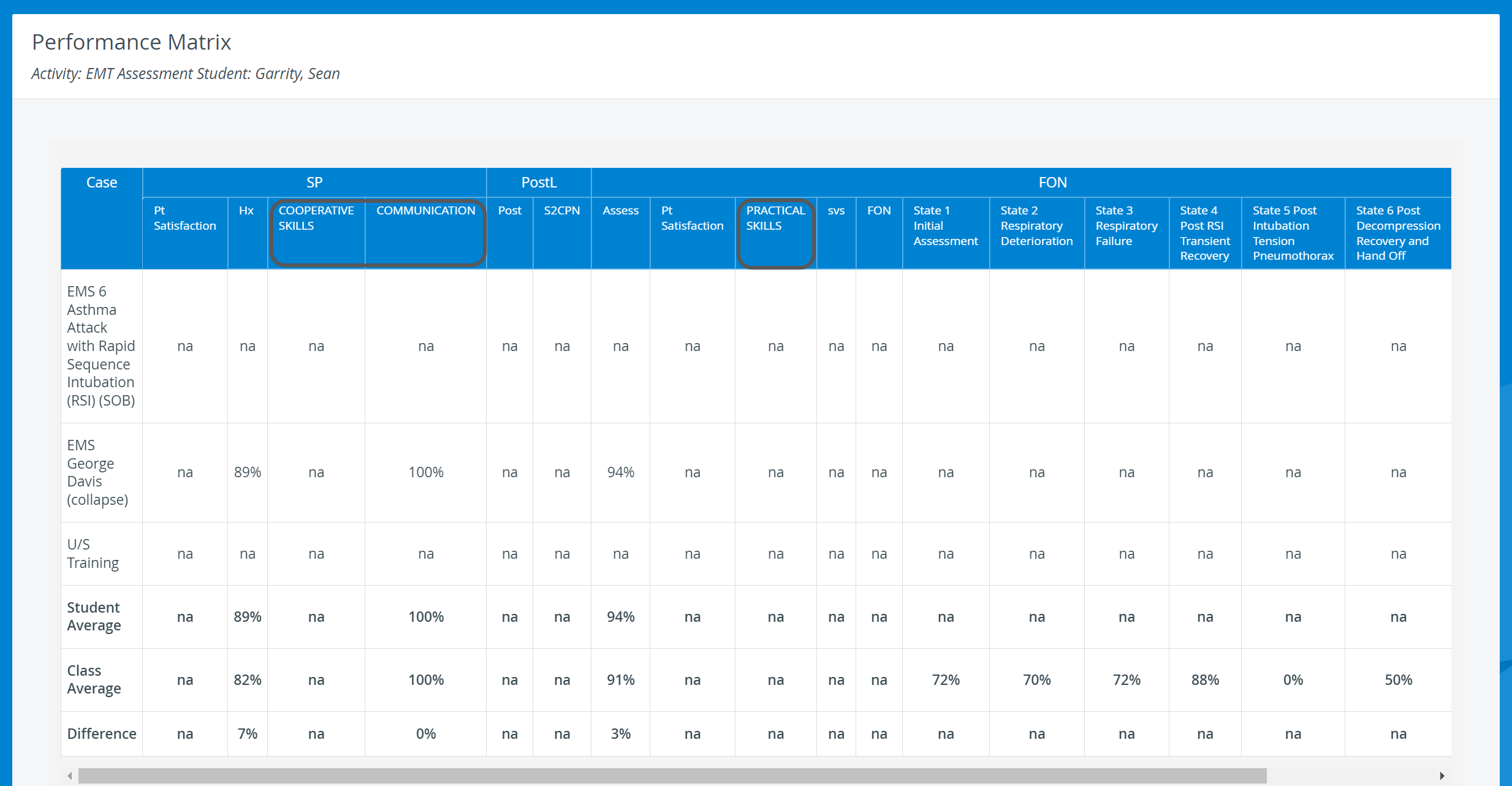
This report also displays Virtual sections (items with specific tags, creating a unit) used within a specific Case/Activity:
The data can also be displayed for a whole Learner group of an Activity.
The Filter to group option is displayed only if subgroups are available within the participant group assigned to the Activity (Learner group).
However, the dropdown does not include Evaluee subgroups.
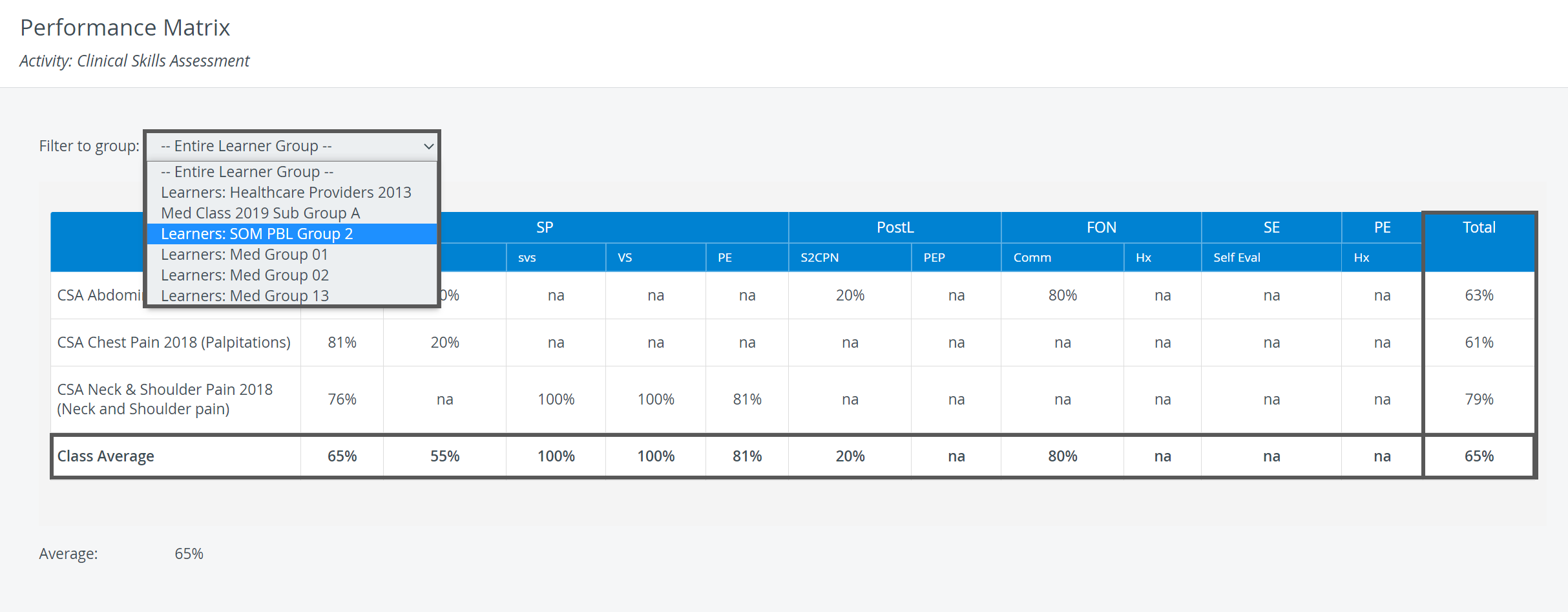
If a certain Section is not included in all the Cases assigned to the Activity, the table will contain columns for all Sections that affect scoring, but in the rows of Cases not containing a particular Section, the relevant column will contain "na" (not applicable).
Printing a Report
To print a Performance Matrix Report (on paper or as a PDF), click the Print button at the top right corner of the screen.
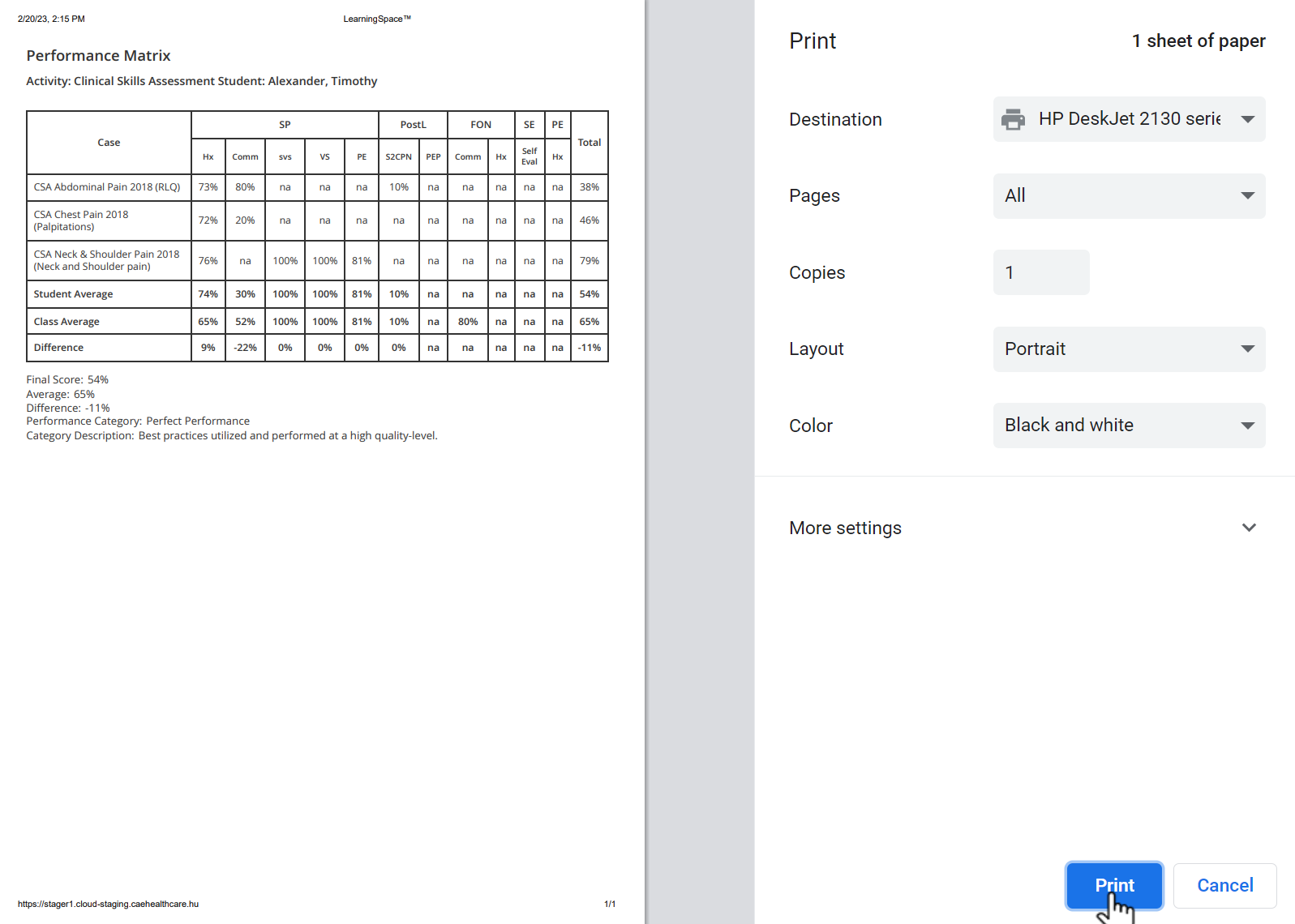
For more information, go to How to Print a Report.
Export to Excel
In the latest versions of LearningSpace, reports can also be exported to an Excel (xls) file for more convenient management and an essentially easier use of the exported data in applications like Microsoft Excel or Google Sheets.

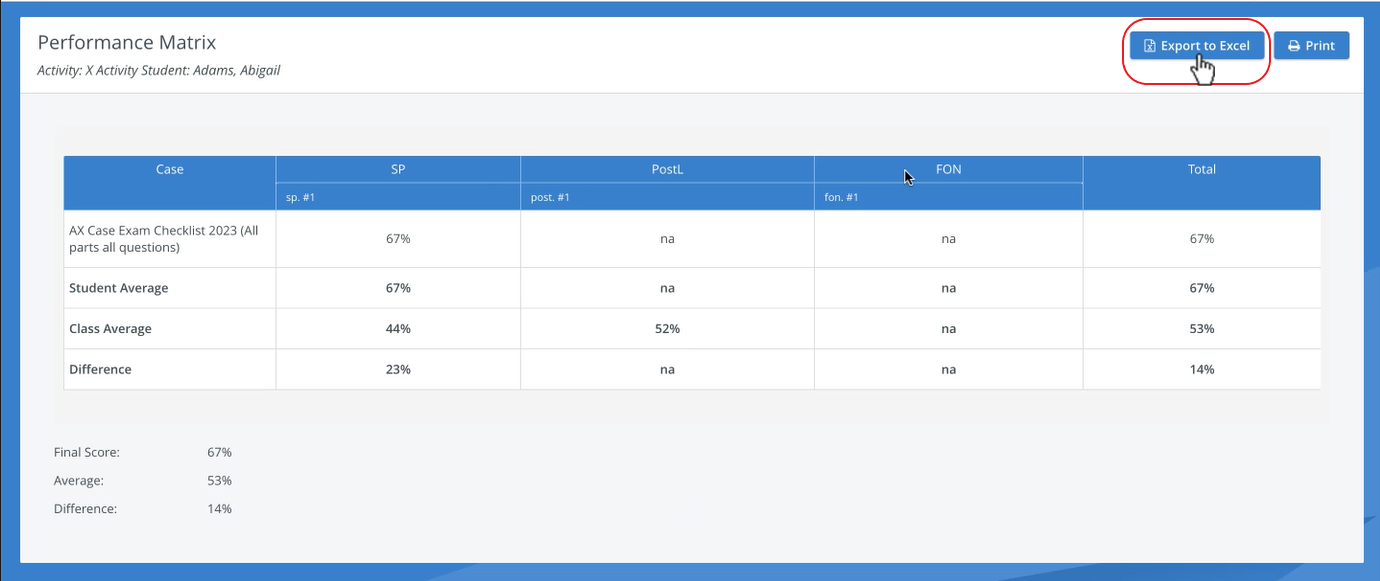

The ‘Print Reports’ and ‘Export to Excel’ options are hidden for Learners by default. The options can be enabled under the "Report Printing" section in the Report settings of a given Activity >> See Learner Access
For further information, see the Reports - How to pages and the Reports Module Training Videos.