Learner Data Entry
Learner Data Entry - A Step-by-Step Guide
Learner Log-in
1.1. On the LearningSpace login page, enter your Email address and Password.
1.2. Hit Login.
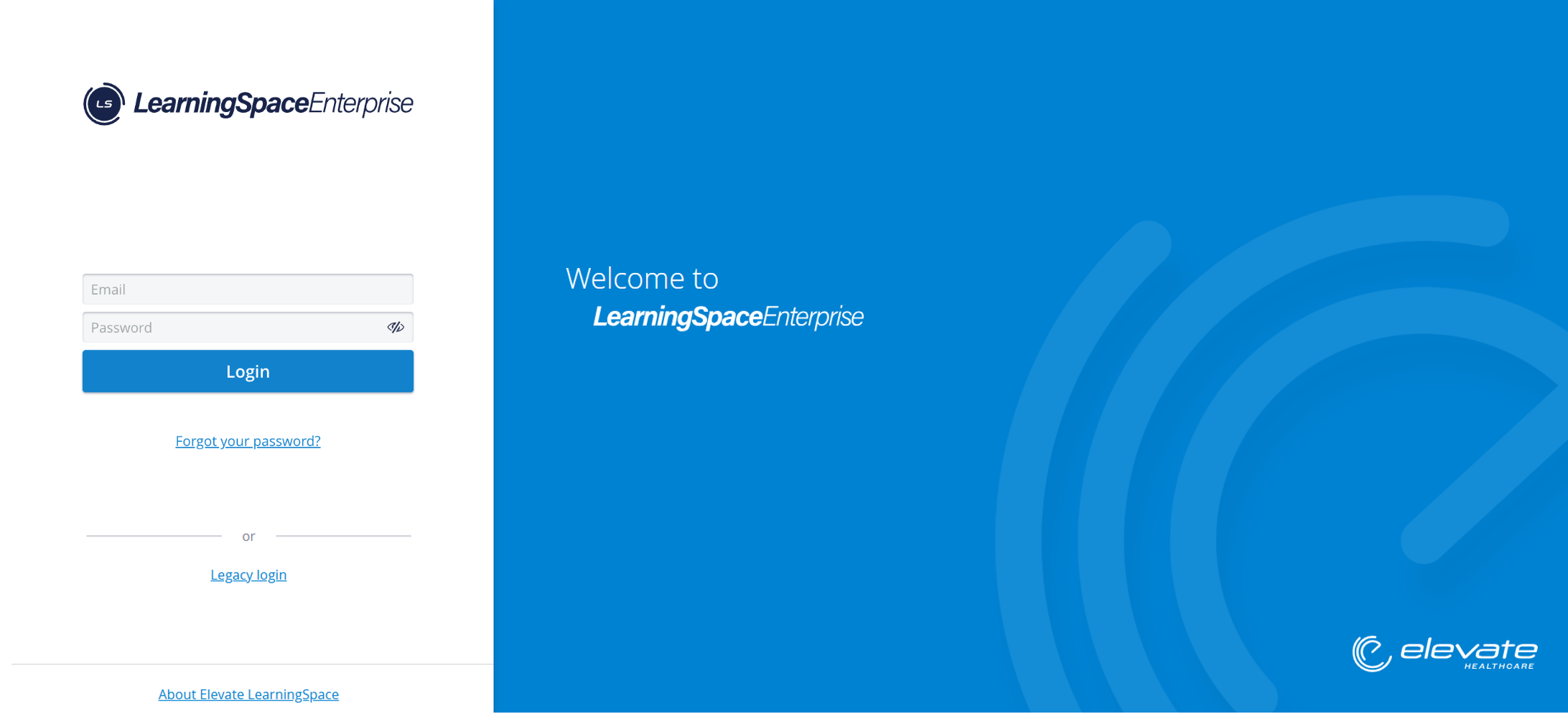
For different ways to log in to LearningSpace, proceed here.
Pre-Encounter data entry
2.1. After logging in, click on the ’’Data-Entry’’ button.

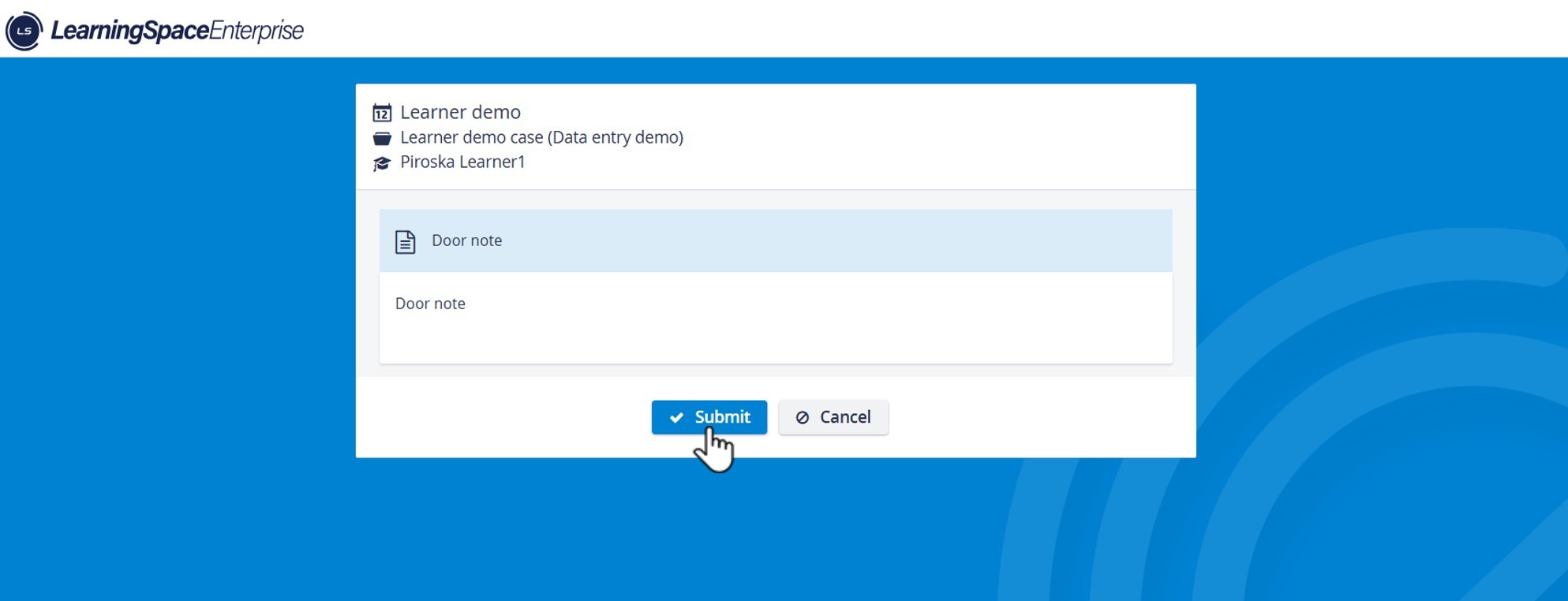
2.2. Read the door-note or fill out the checklist and hit Submit.
Note: After submitting the checklist, you might be redirected to the Login page.
Post-encounter data entry
3.1. Hit Data Entry again.
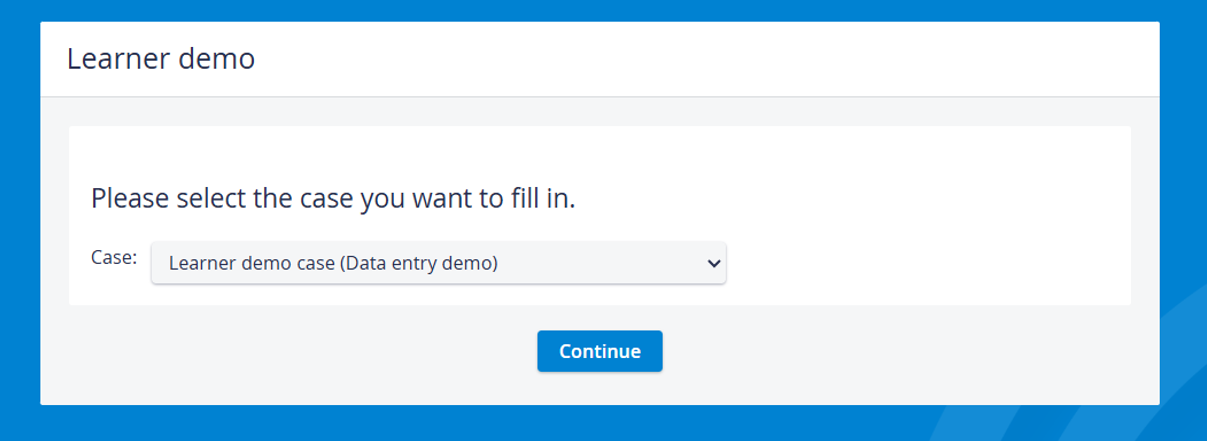
3.2. Select the Case in question and hit ’’Continue’’
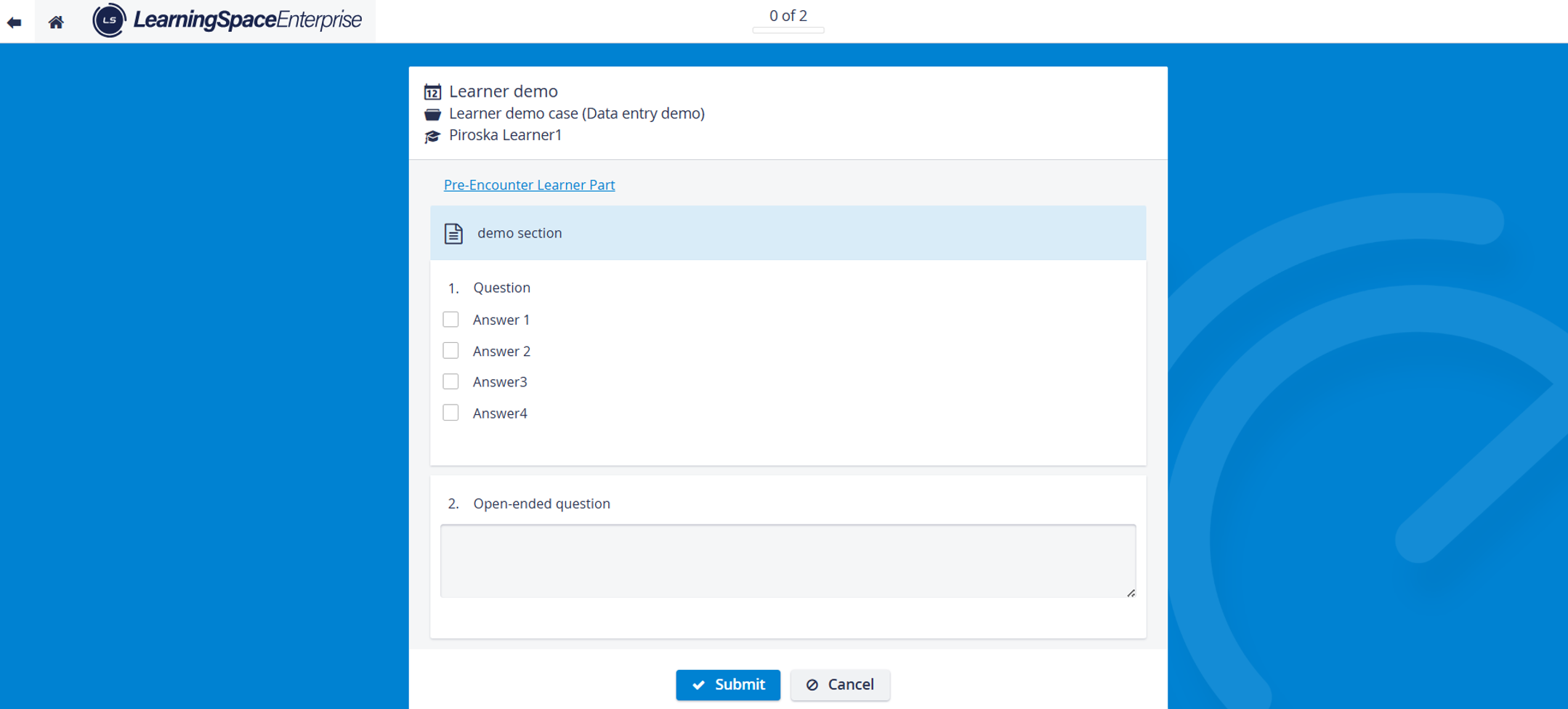
3.3. Fill out the checklist and hit” Submit.
A time limit can be set for learners' checklists in the Case Content editor. Once the time is up, the system signs the Learner out and saves all the answers entered up to that point.
Case evaluation
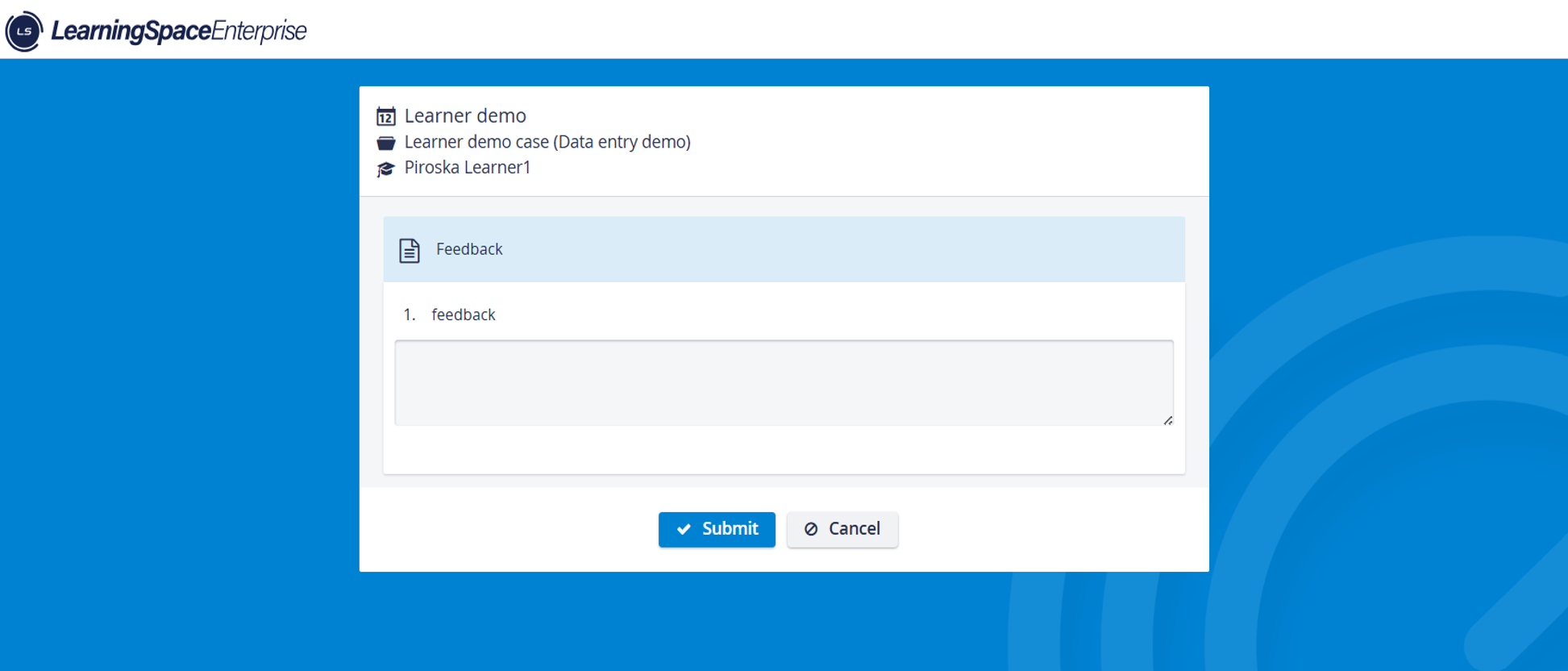
4.1. Fill out the Checklist and hit submit.
Self-evaluation

5.1 Click on the Self Evaluation button.
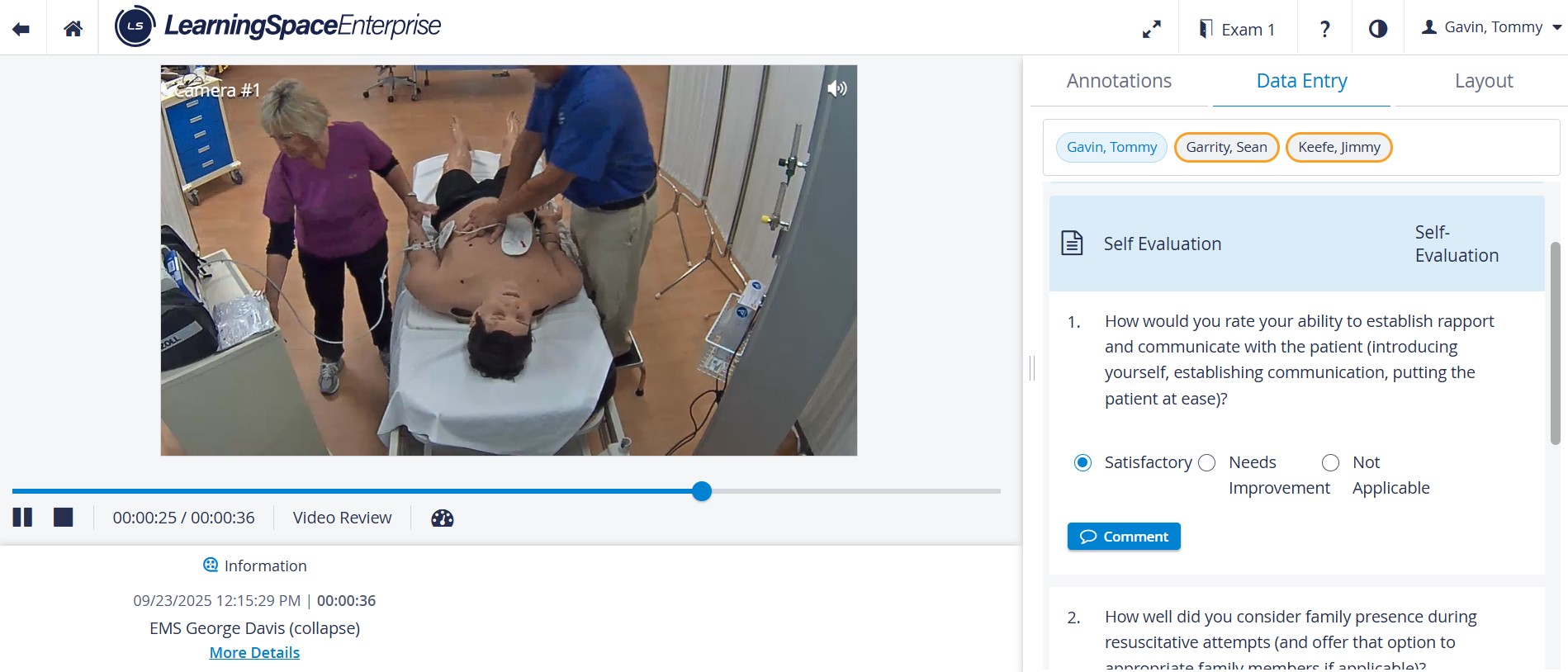
5.2. You can review your own video.
5.3. Fill out the checklist and hit ’’Submit’’.
Peer-evaluation
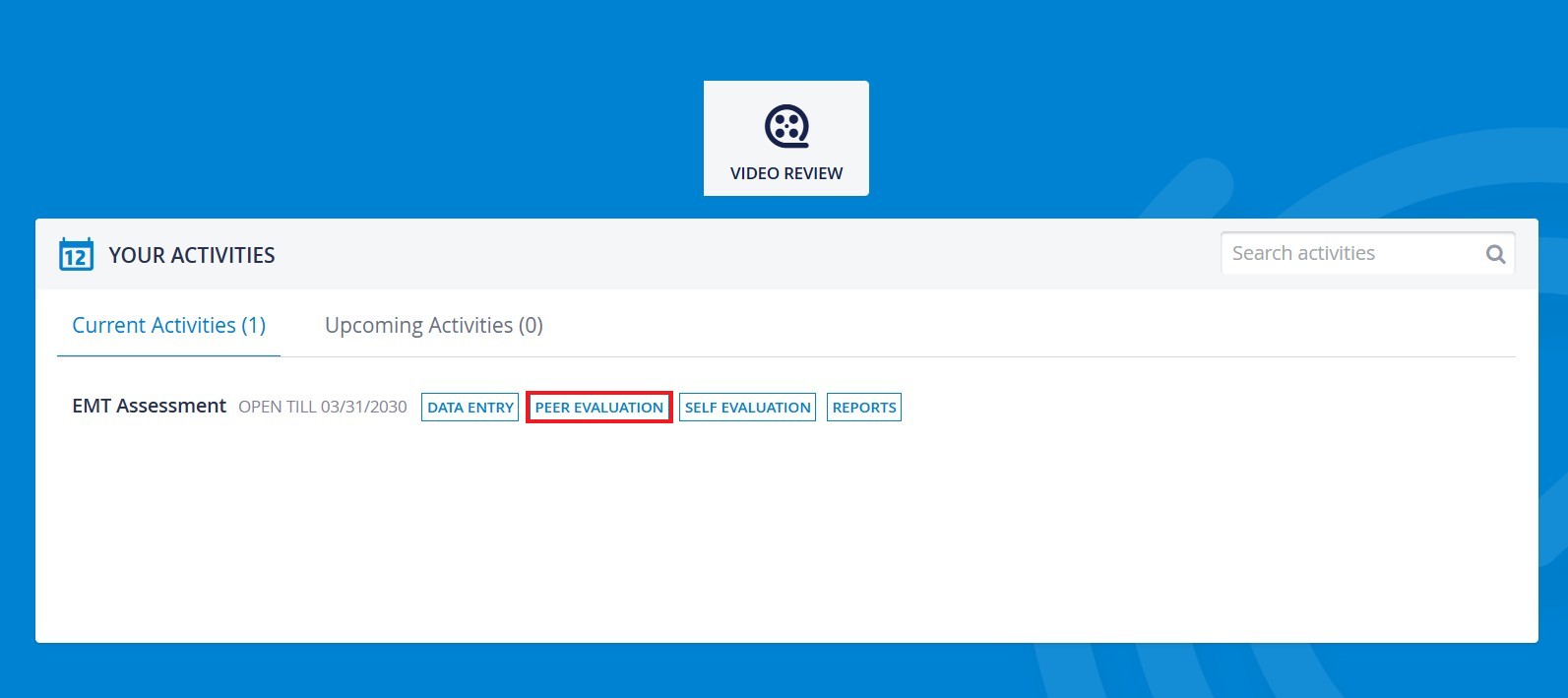
6.1. Click on Peer-Evaluation.
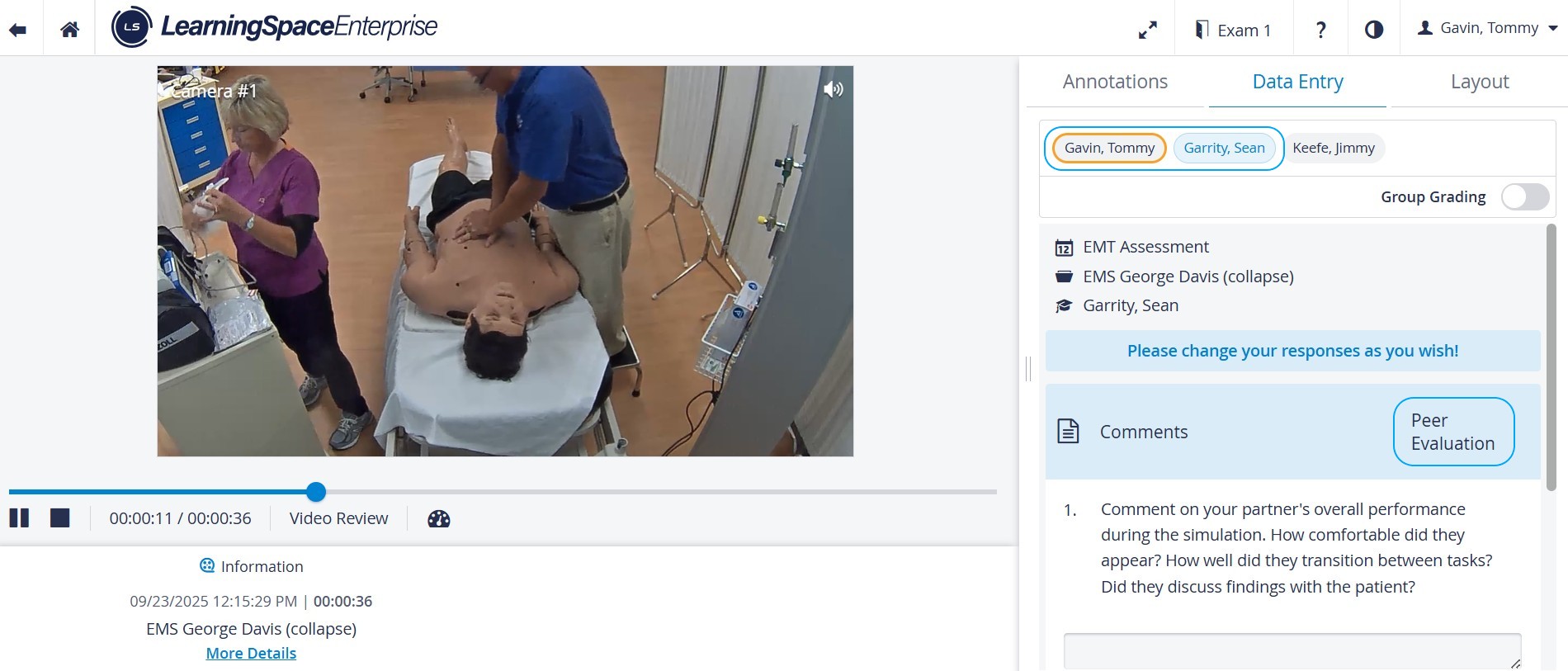
6.2. You can review your peer’s video.
6.3. Fill out the checklist and hit ’’Submit’’.
For more information, see User Journey - Learner