Intercom Announcements
LearningSpace Enterprise uses HTML5-based Intercom, meaning that the Flash plug-in no longer needs to be enabled; only a straightforward user interface change has to be completed to use Intercom. Depending on the browser's default settings, the microphone may have to be enabled for the client computer to be connected to the Intercom system.
The Intercom pop-up window automatically opens upon launching LearningSpace in the browser if the computer used is added to they system as a Station. (See How to Configure Stations.)
If the microphone is not enabled by default, the system requests permission; if it is, the pop-up will indicate that it is 'Connected'.

On the Intercom tab, preset (pre-recorded) announcements can be added, recorded, and used in the system during recording.
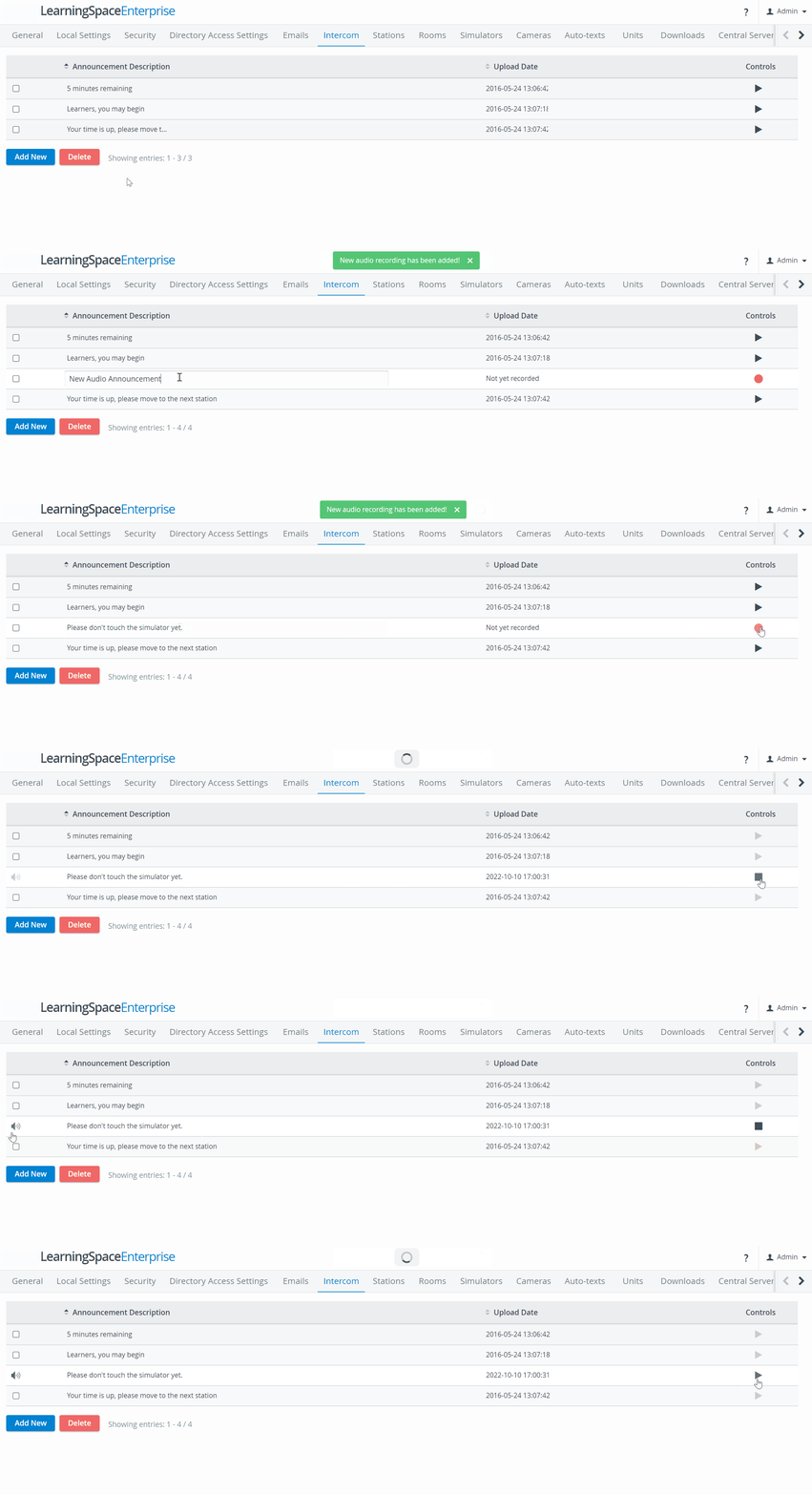
To delete an announcement, click the checkbox in its row and Delete.
Also, the Intercom push to talk hotkey can be defined on this tab:

Once the Intercom hotkey is defined here, users with Administrator and Intercom privileges can use this keyboard shortcut to send Announcements.
IMPORTANT: The Intercom functionality of LearningSpace requires the web browser to have access to the microphone of the client PC, which in turn requires a secure HTTPS connection to the LearningSpace server.
That is, the client computer's microphone can only be used with a valid SSL certificate. (This restriction stems from the Chrome browser security regulations.)
Learn more on our System - How to and Recording Module pages.