How to Manage Pre-recorded Intercom Announcements
IMPORTANT: For security reasons, any Intercom-related action involving using the client computer's microphone can only be conducted with a valid SSL certificate.
(This restriction stems from the Chrome browser security regulations.)
It is recommended that LearningSpace not be used on multiple browsers and/ or tabs simultaneously for optimal intercom functionality.
Intercom announcements can be edited and new ones can be added on the Intercom tab of the System module. All previously recorded messages are listed and can be listened to by clicking the Play icon in the Controls column.
To add a new announcement, click the Add New button.
In the editable New Audio Announcement field that appears, enter the announcement.
When ready to record, click the REC control next to the new announcement.
Once the recording is started, the REC control toggles to Stop control.Say the message you wish to record into the microphone.
The length of an announcement can be approx. 2 minutes.
When finished, click the Stop button.
When the recording is stopped, the Stop control toggles to the Play control.
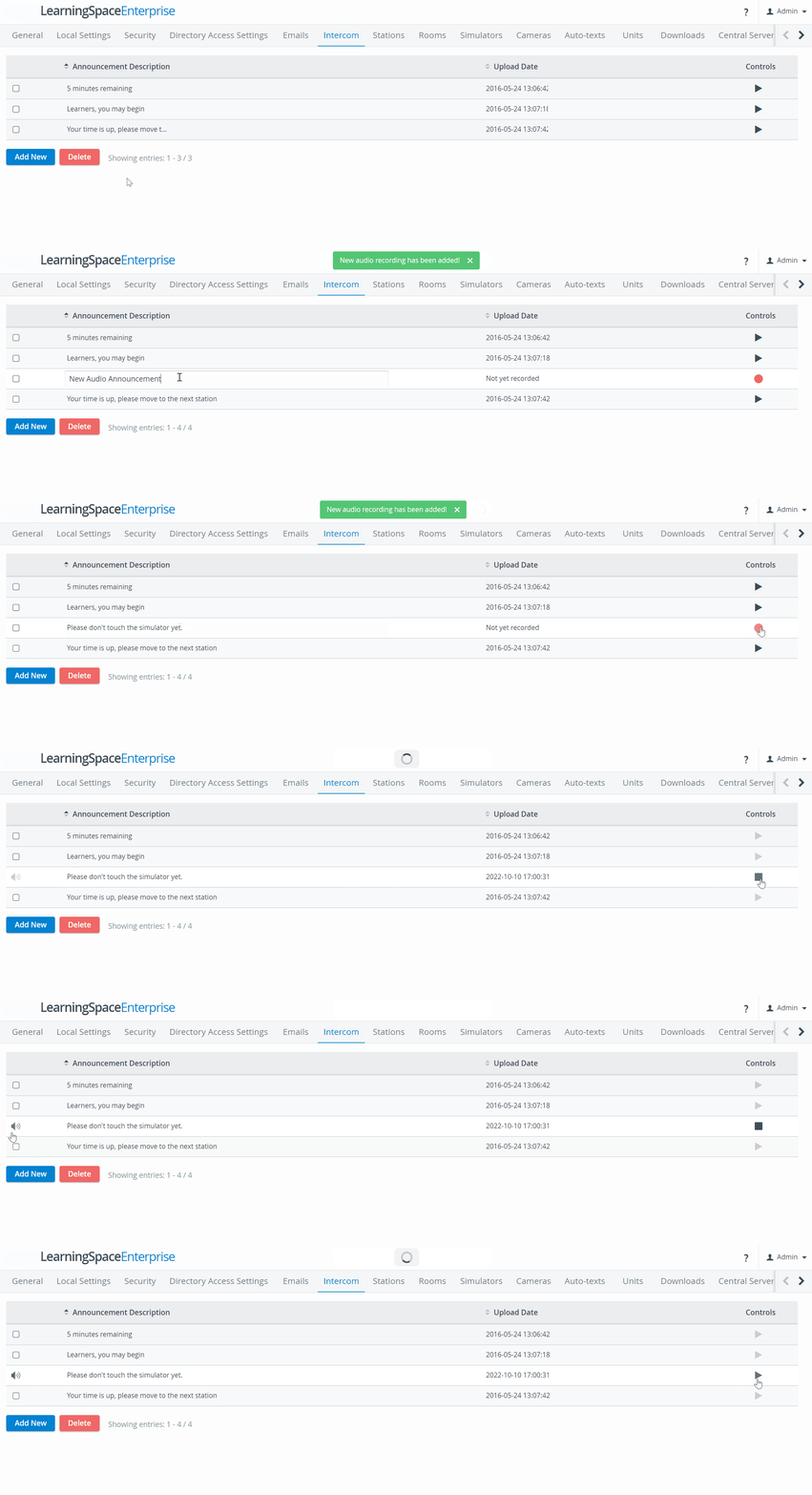
Once an announcement is recorded, the recording date is displayed in the Date of recording column.
To edit a pre-recorded announcement, click the Announcement Description field to be edited, type in the modification, and then click outside the field.
To delete one, check the box of the announcement and click Delete.
Learn more on our System Manager and Recording Module pages.