Individual Checklist
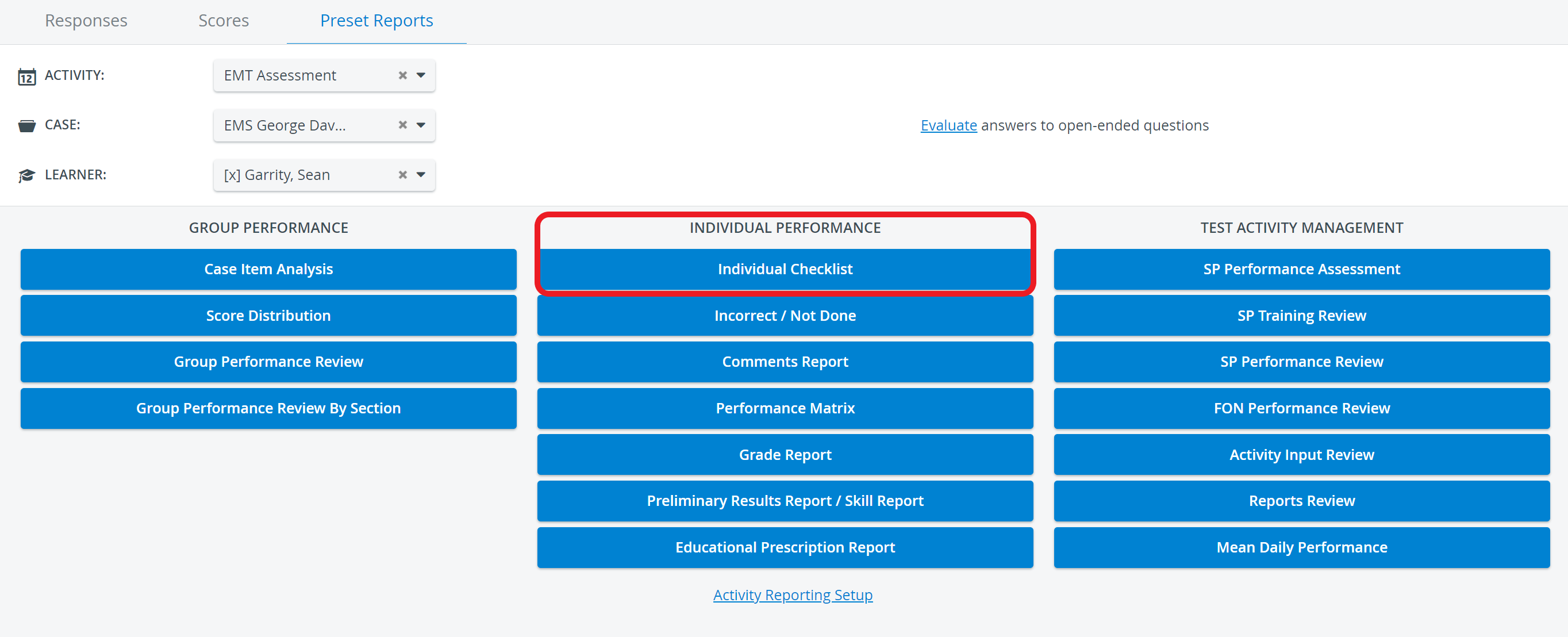
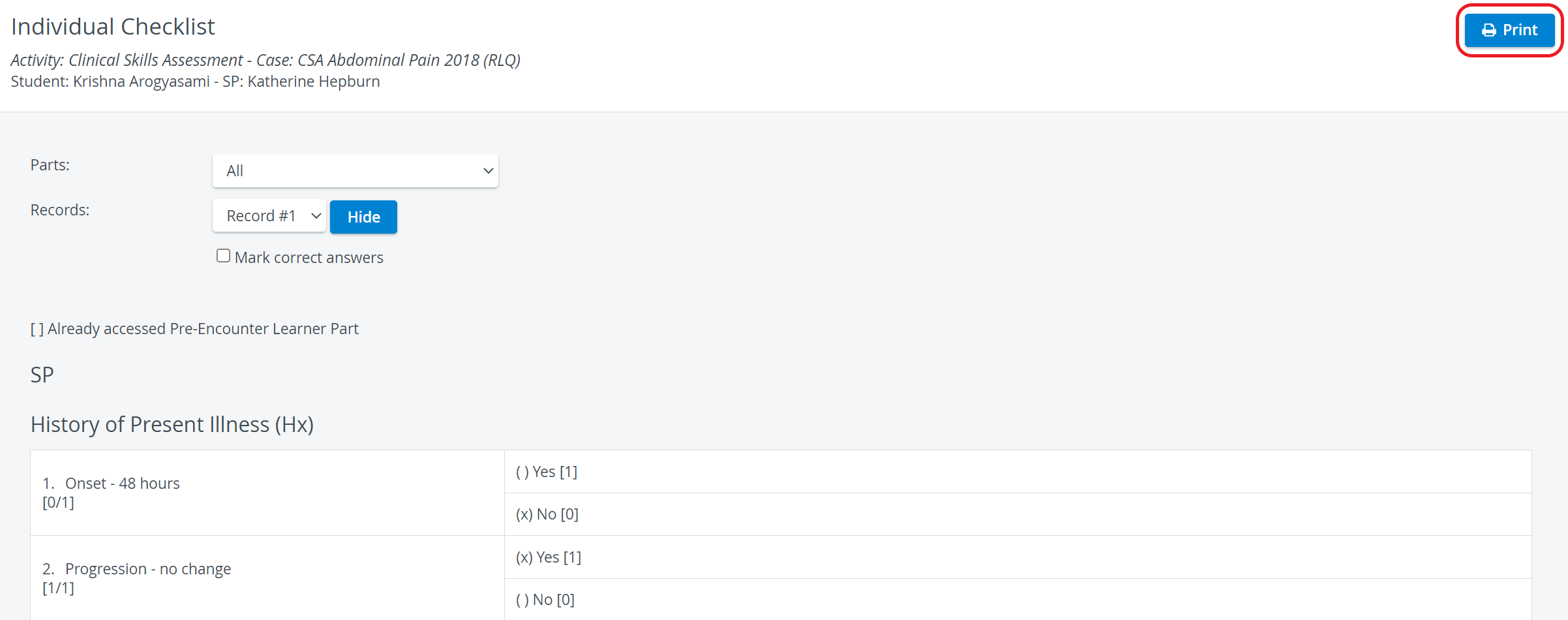
The Individual Checklist page is used to review an individual learner's entire record for a single Case of an Activity.
As the report is for individuals, it is only activated (accessible) once a learner is selected on the Preset Reports page.
By default, all Cases assigned to the Activity are displayed here; thus, it needs to be selected as well.
The Parts drop-down menu serves to specify Case parts (checklists).
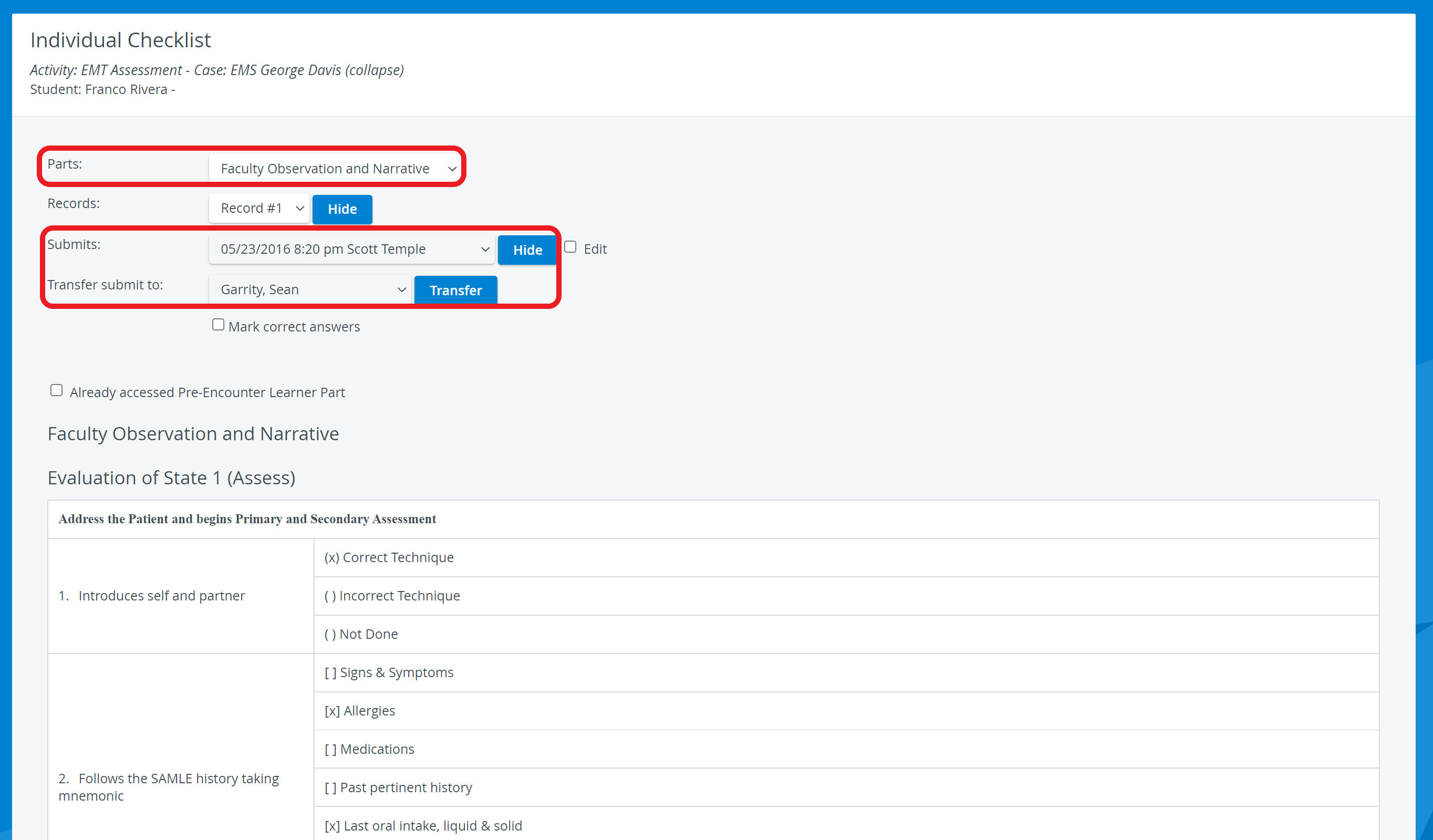
Once a single checklist is selected from the Parts drop-down, the 'Submits' and 'Transfer submit to' drop-down menus are displayed. This allows for transferring submitted data to another learner's account within the same group. Such a transfer may be useful when the SP accidentally selects the wrong student when filling out the SP checklist.
See also How to Transfer Records.
After selecting a record or submitting from the dropdown, the Hide buttons in the respective rows can be used to hide the selected record.
See more here: What can be "hidden" in LearningSpace, how and for what purpose?
Only users with Admin or Report Reviewer full control privileges can view hidden records.
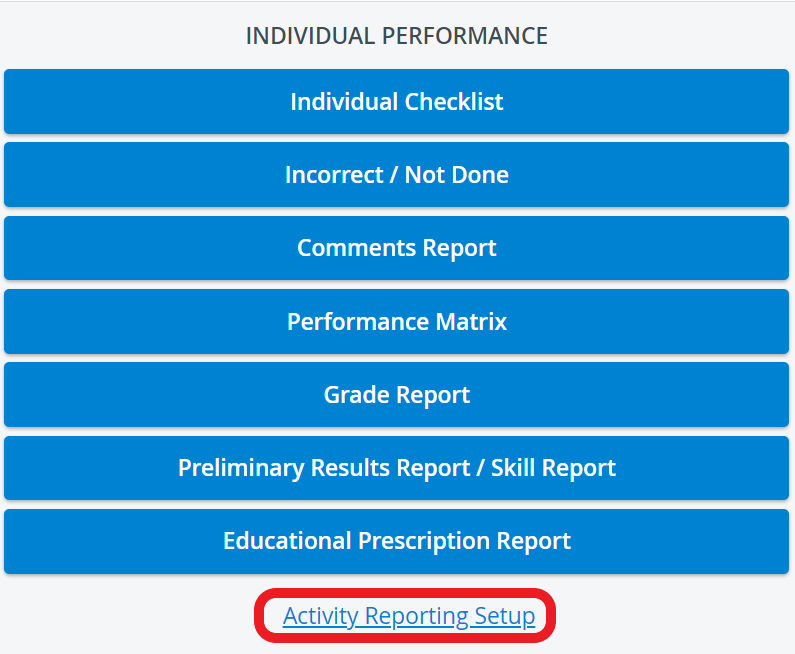
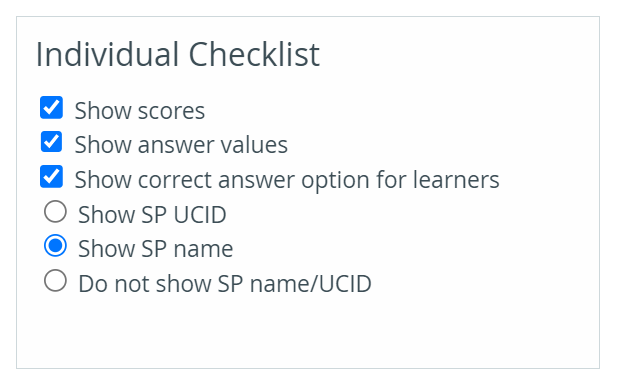
To have scores/answer values/correct answers displayed in this report, go to the Activity Reporting Setup's Report Formatting tab and have the desired checkboxes enabled under Individual Checklist:
If the Pre-Encounter Learner Part needs to be re-taken during an event, remove the tick from the checkbox of the Already accessed Pre-Encounter Learner Part option.
FON submit
The FON submit (OEQS) is not clickable in the report if the item has “Direct scoring.” It is only clickable if the item’s scoring is questionnaire-based or based on the Keyword method.
To check out the Direct scoring-related report, use the Comments report.


Video display
In the Parts drop-down, clicking Video displays the encounter recording, which is considered a learner record.
Delete This Video - deletes the displayed video after confirming the action in the prompted pop-up.
The deletion is irreversible and cannot be reversed for recordings locked by an Admin user.
Transfer video - when clicked, drop-down menus are displayed, allowing selection of where the recording is intended to be copied or moved.

Convert video - when clicked, the selected video gets converted to a media item within the LearningSpace system.

Printing a Report
To print an Individual Checklist Report (on paper or as a PDF), click the Print button at the top right corner of the screen.
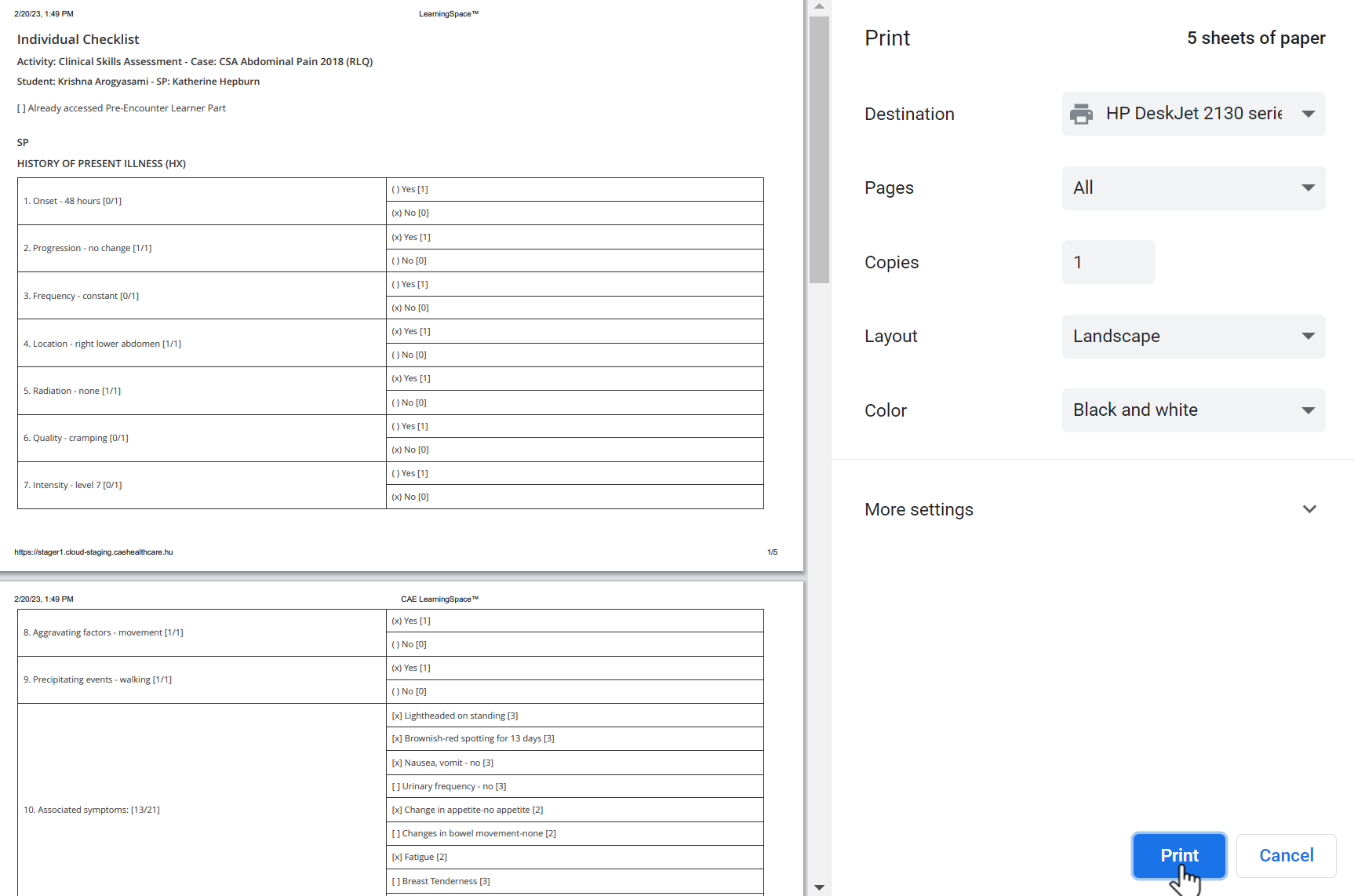
The ‘Print Reports’ and ‘Export to Excel’ options are hidden for Learners by default. The options can be enabled under the "Report Printing" section in the Report settings of a given Activity >>
See Learner Access
For more information, go to How to Print a Report.
Related pages
For further information, see the Reports Module, the Reports - How to, and the Reports Module Training Videos.