How to Set Up Start and End Dates
Start and End dates are required to start working with your new Activity. The Activity will be running throughout the time range that the start and end dates determine.
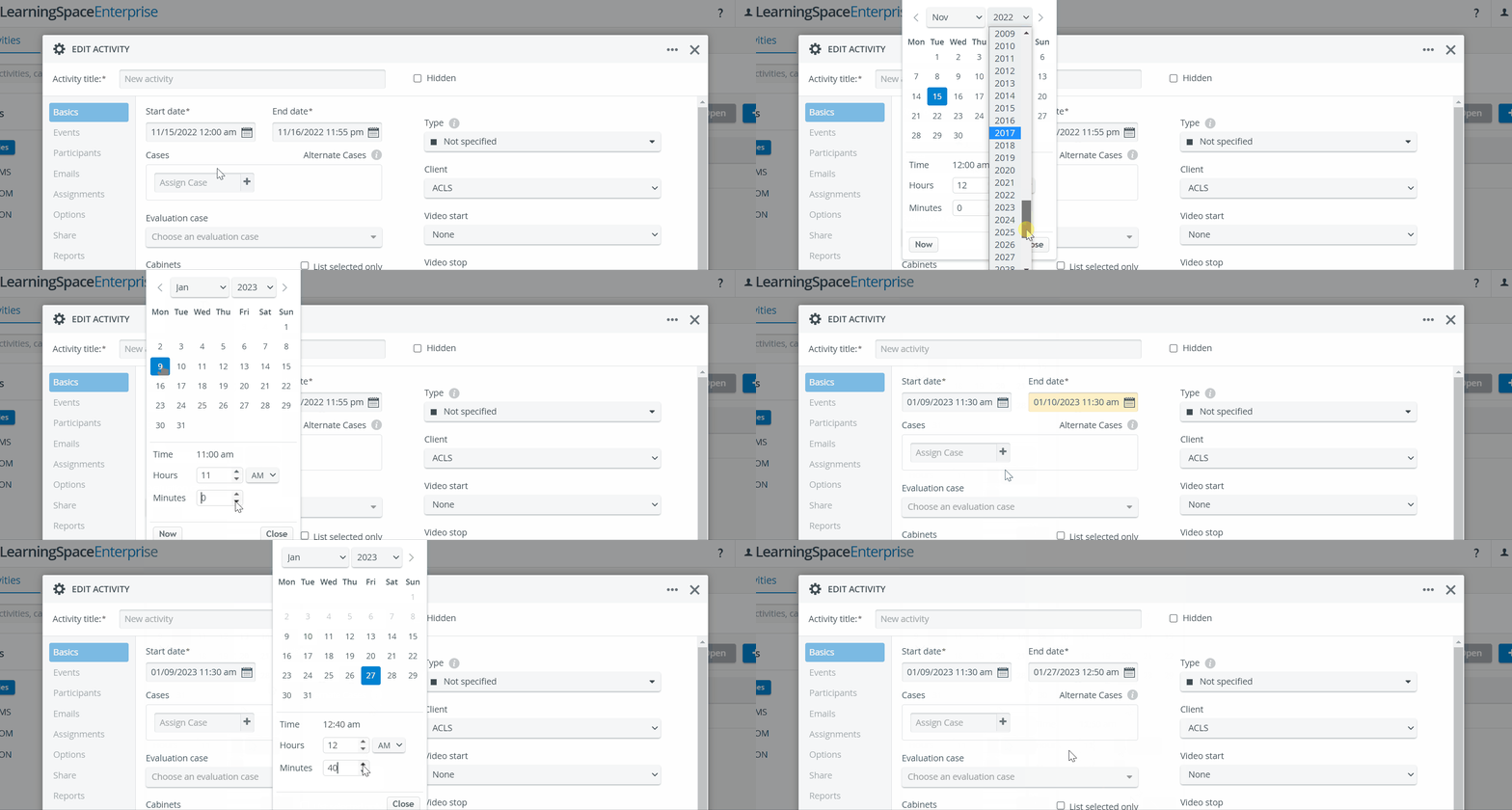
The start and end dates fill in automatically after a new Activity is created: by default, the start date is set to midnight of the day you created the Activity, and the end date is at 11:55 PM on the following day.
Managing Start and End Dates
On the Basics tab of the Edit Activity pop-up, click on the calendar icon or anywhere in the Start date field → a calendar pops up below.

Select the month and year at the top.
💡 Move to the next or previous month with the arrows on the sides.
💡 With the Now option, you can select the current date and time with one click.
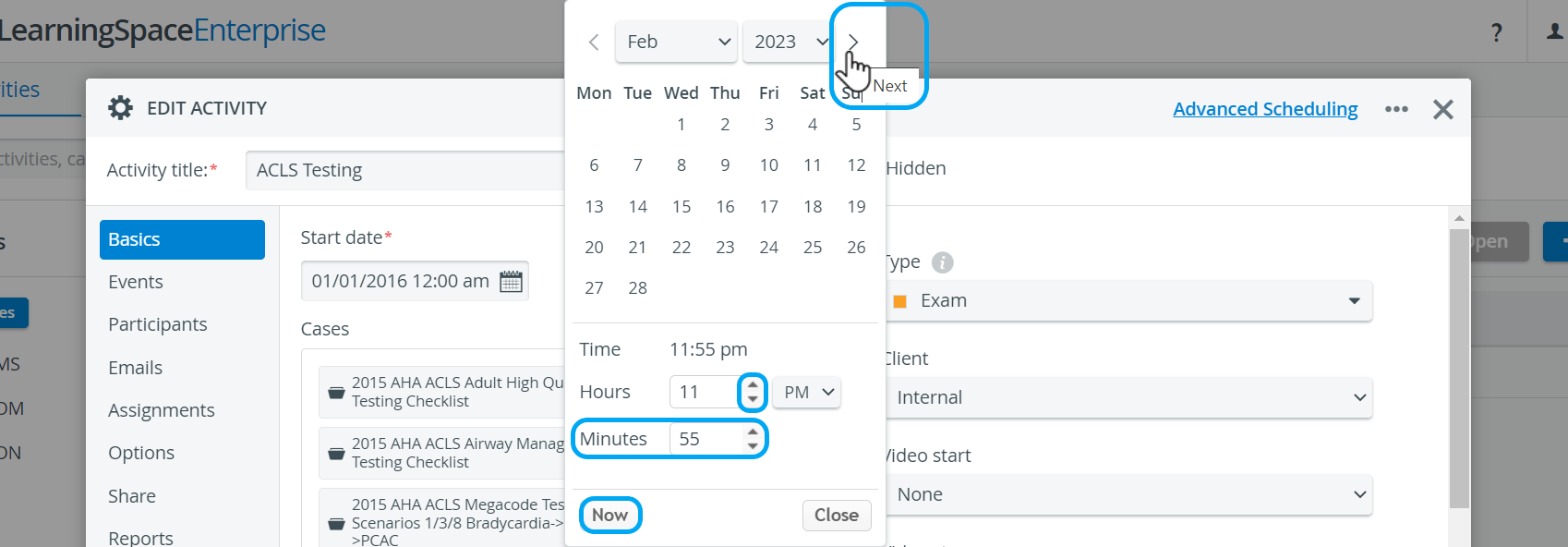
Click on a date in the calendar to select a day.
The calendar only saves the date if a day is selected. Changing the year and month is not enough to save a new date.
Adjust the hours and minutes with the horizontal sliders at the bottom.
The minute slider has 5-minute time-step intervals.
5. Repeat the above steps to set the End date.
The system does not allow you to pick an end date before the start date.
Start and End Date selector
The Calendar’s Start and End Date selector for Events works as follows:

Similarly, if we choose a date when the End Date would be earlier than the Start Date, the system also retains the length of the Event and automatically updates the Start Date value, preserving the Event's length.

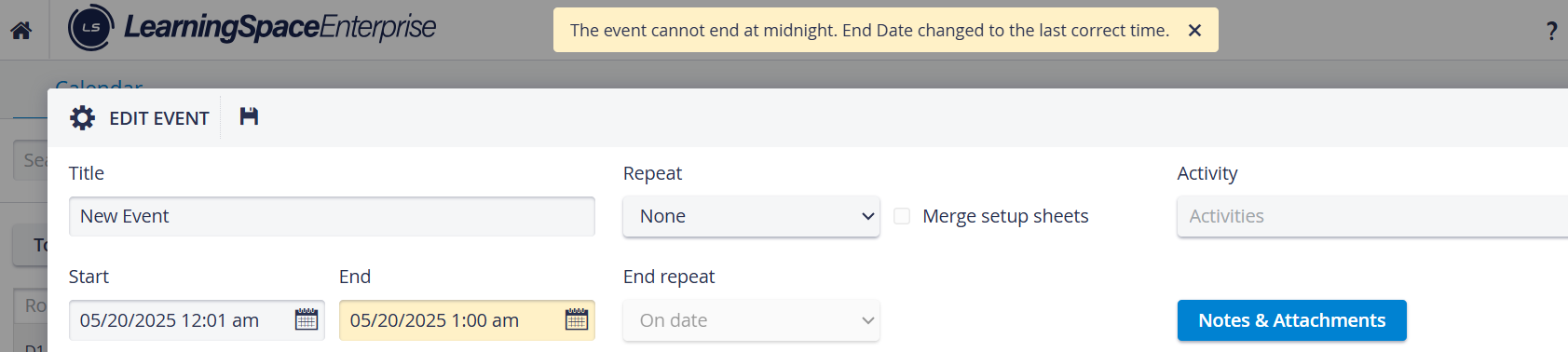
If the Event length cannot be kept in the automatic setting to stay within the given day (which is a mandatory criterion when setting up Events), LearningSpace automatically shortens the Event length to fit the day. The same principle applies if the Event does not fit at the beginning of the day: the automatic setting goes before 12 AM (midnight).

AM-PM Switch
A smooth switching between AM and PM in the date picker helps the calendar's user experience. The Timepicker add-on is included for setting hours or minutes.

⬆️ Up arrow:
Clock: 9AM, 10AM, 11AM, → 12PM, 1PM, 2PM, ...
or
Clock: 10PM, 11PM, → 12AM, 1AM, 2AM, ...
Minutes: 57, 58, 59, → 0, 1, 2, ...
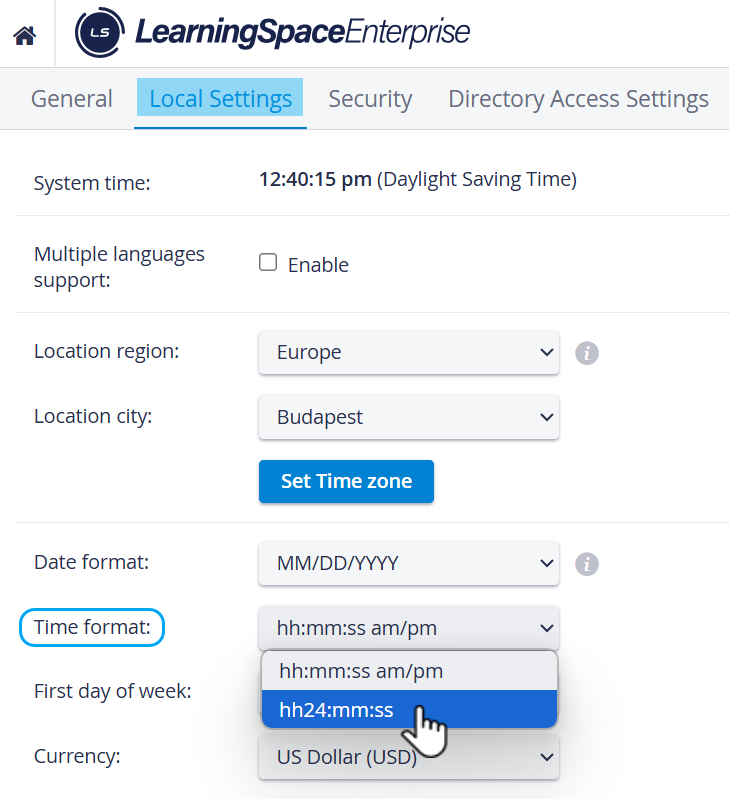
If the setting is 24H:
⬆️ Up arrow:
Clock: 22, 23, → 0, 1, 2, ...
Minutes: 57, 58, 59, → 0, 1, 2, …
For further information, visit our Activity Manager, Activity - How to pages, and view our Activity Manager Training Videos.