How to Score Responses
When entering the Scoring, you will have a learner and question highlighted according to which question or learner you have selected for scoring in one of the available view options:
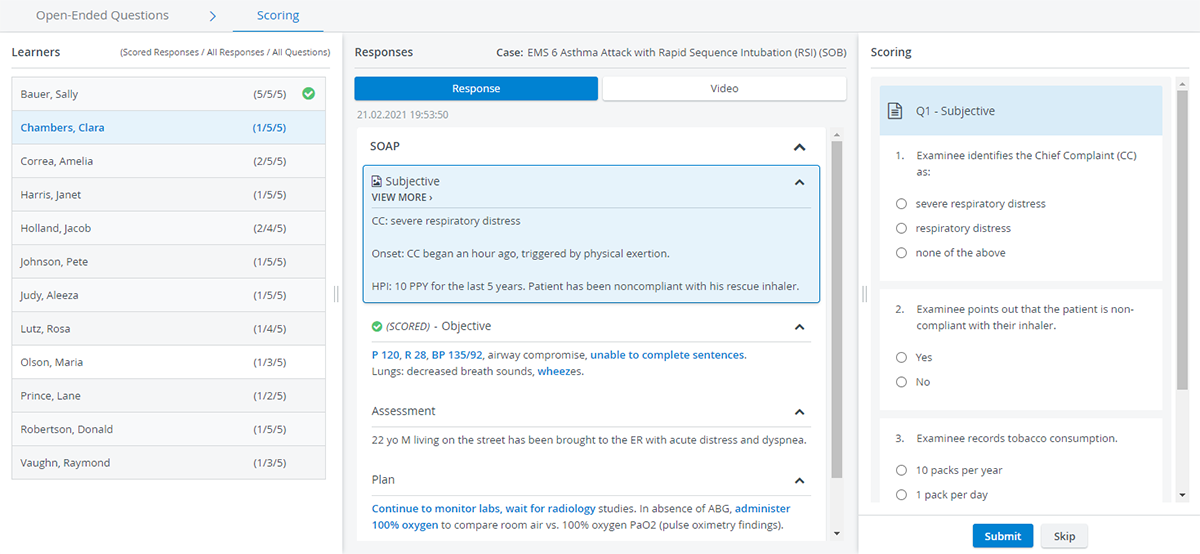
Select Learners
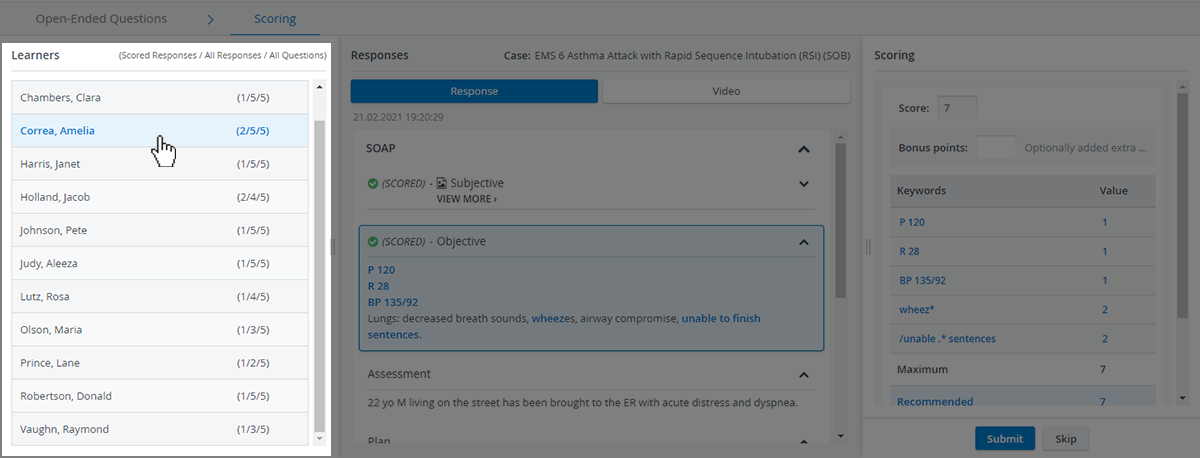
To select a learner for scoring, click on a learner inside the Learners panel on the left:
When switching between learners, the Responses panel will stay on the same highlighted question.
To replace a learner's display name with their unique custom ID or to hide learner identifying information altogether, Administrators or Report Reviewer (full control) users can manage the Privacy settings of Open-Ended Question Scoring in Activity Reporting Setup.
NOTE: Report Reviewer (full control) users can only access activities to which they are added as faculty members.
Learner’s ACID (or UID) Option
When Learners’ identifying information is hidden, learners are usually represented by randomly assigned numbers, which change across Activities, Cases, and Parts. This might make it challenging to track progress while maintaining anonymity.

Show learner's Additional Custom ID Option
By using the "Show Learner’s Additional Custom ID" option (Privacy Settings dropdown of the Activity Reporting Setup), the ordered number list in the Learners column on the OEQS Scoring page will be replaced with the learner's Additional Custom ID.

Unlike UCIDs (which may contain identifying data), ‘ACIDs’ are
consistent across all Activity/Case/Part views,
persistent across page refreshes or revisit scenarios,
non-identifiable, and only show the exact value stored in the “Additional Custom ID” field of the user profile.
See related information on the User Editor page ("Additional Custom ID").
This field provides a consistent and anonymized identifier that can be managed institutionally without exposing personal information (e.g., email addresses or names).

Learn more here.
Select Responses
Click and scroll to navigate between responses in the Responses panel in the center.
Hide responses or entire sections with the help of the drop-down arrows included at each question and section header.

Score Responses
Grade a highlighted response in the Scoring panel on the right:
Direct Scoring
Where Direct grading is applied, score a response by simply selecting a point value from a scale.

Keyword Scoring
In the case of Keyword grading, the system calculates a recommended score based on keyword matches and enters the point value in the Score field that can be revised manually:
Use the Submit All button on the OEQS Dashboard in the Questions view to submit the recommended scores with one click for every data entry for a keyword-graded question.

Questionnaire Scoring
With the Questionnaire grading method, evaluate free-worded responses by filling out a questionnaire: each answer is assigned a point value that will be added as a score after submission.
The Questionnaire method requires a case part named "Special Section" for scoring. If the point values are modified in a Special Section that has already been used for scoring, you have to resubmit scores for the related question items to recalculate them. Find more information here about when score resubmission is required.

Already Scored Responses
When a faculty member clicks “Submit” on an already scored response, a pop-up shows the following text: “This response has already been scored. Are you certain you want to apply a new score?”

Proceed with either the “OK” or “Cancel” option.
NOTE: The function is available for direct / keyword / checklist-scored questions.
Skip Responses
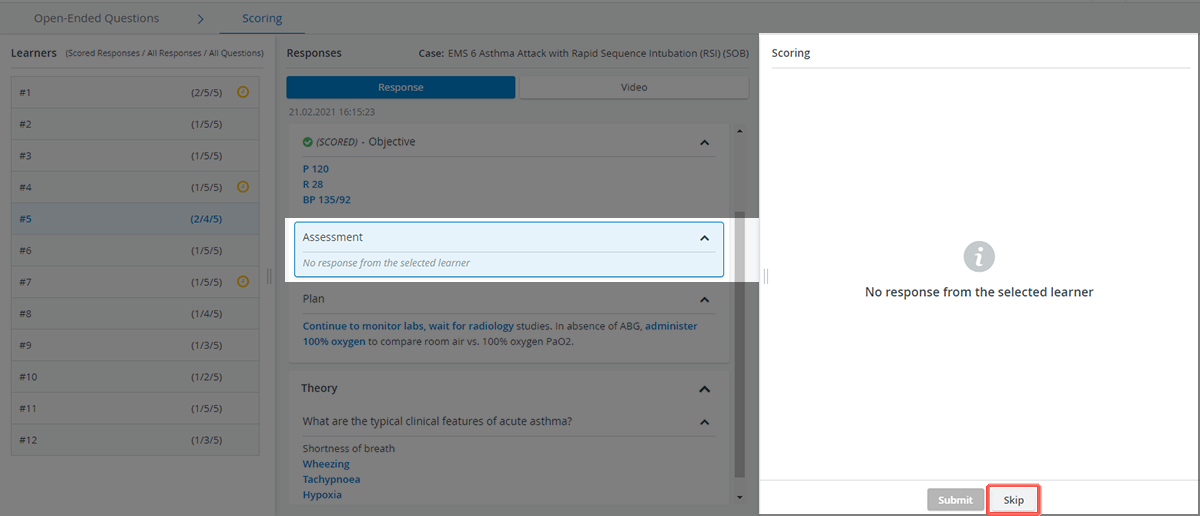
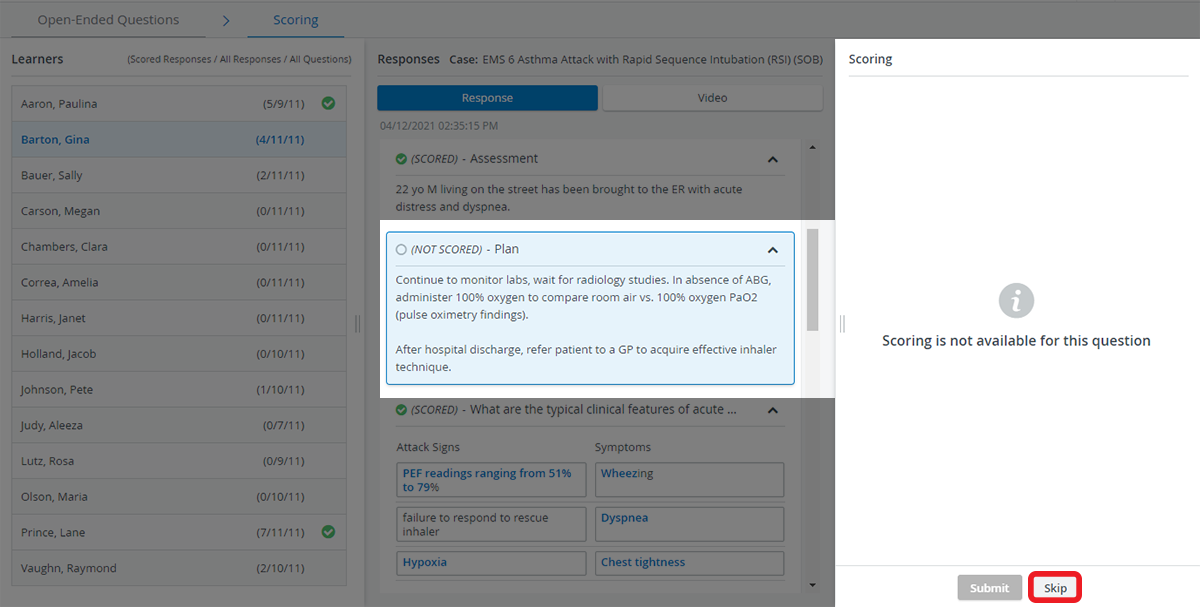
Use the Skip option to jump to the next question if
the selected learner has not submitted their response to the question or
Scoring is not available for the question (the question is labeled as 'NOT SCORED' in the Responses panel)
Next Learner Option
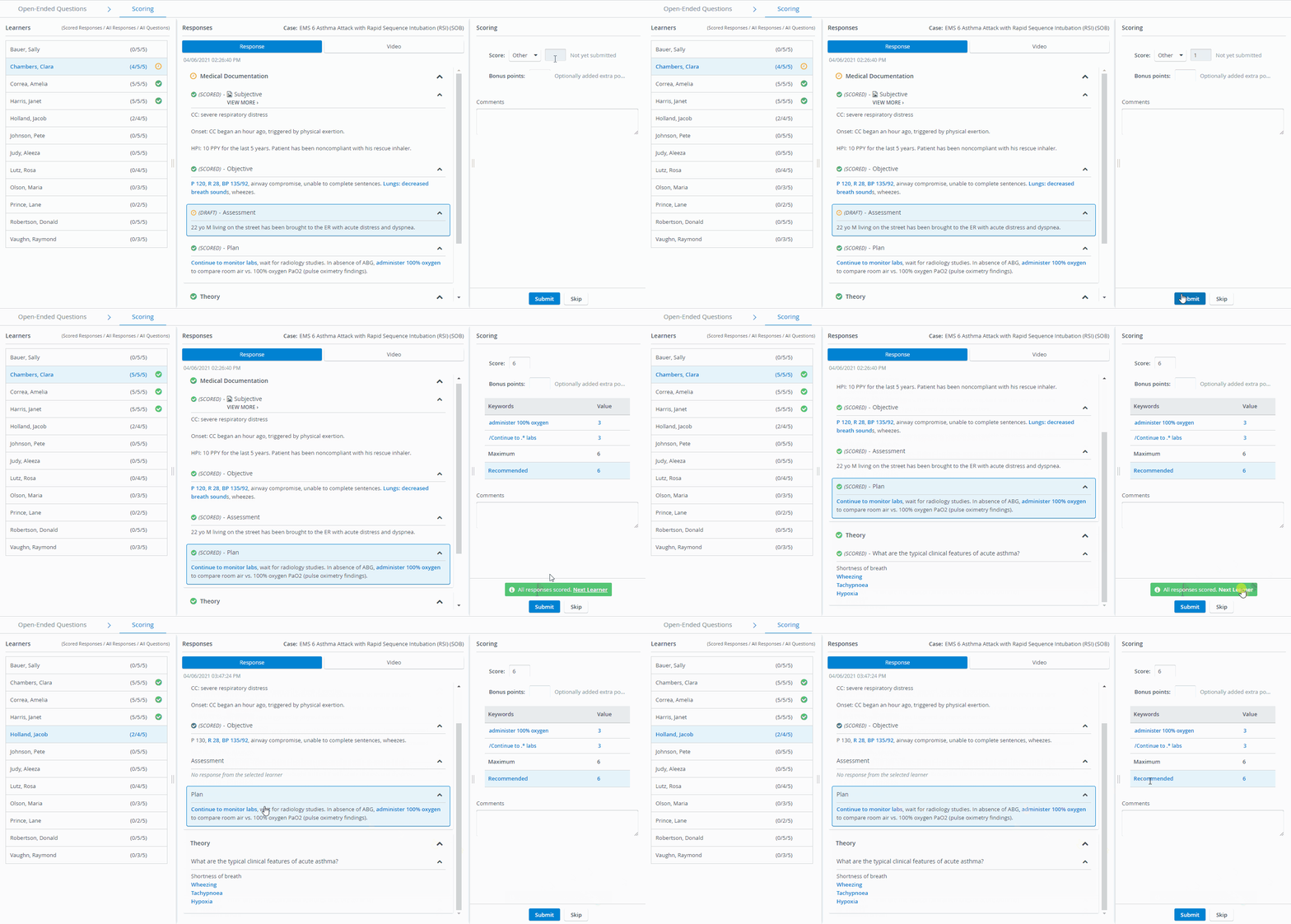
Use the Next Learner option at the bottom of the Scoring panel once every scorable response is scored on a learner's checklist.
You will be forwarded to the next learner who has unscored responses:
Score Drafts
Navigate away freely from the current response you are grading to compare it with other responses and return later to submit your final score.
Every score you enter but do not submit for a response is saved as a draft while you are working inside the other parts of the QEQS module:
Draft scores are available as long as you stay inside your current OEQS session: if you return to your Dashboard without submitting your scores, your drafts will be discarded. Scores are only saved permanently by submission.
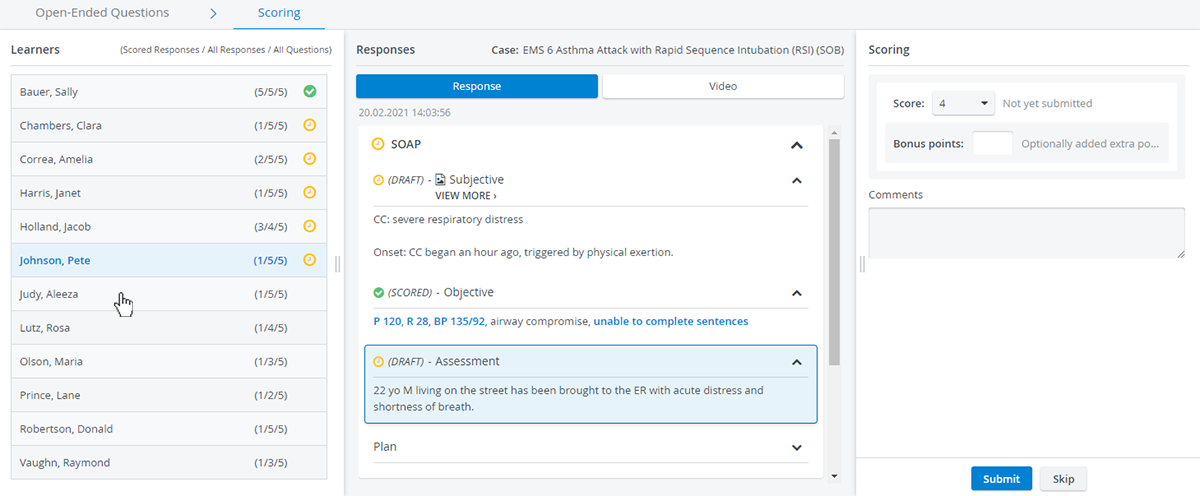
Once you edit a score in the Scoring panel, a yellow draft status is displayed at the question and the learner you have scored. Find the comprehensive explanation of statuses here.
See further information on the Open-Ended Questions Scoring (OEQS) Module page.