How to Make Time and Date Adjustments of Calendar Events
Drag & Drop Events in Calendar
Access the Calendar module and select a desired view.
In the Room, Day, or Week view, drag the right or the bottom side of the event respectively to change the ending time, hence the length, of the event.
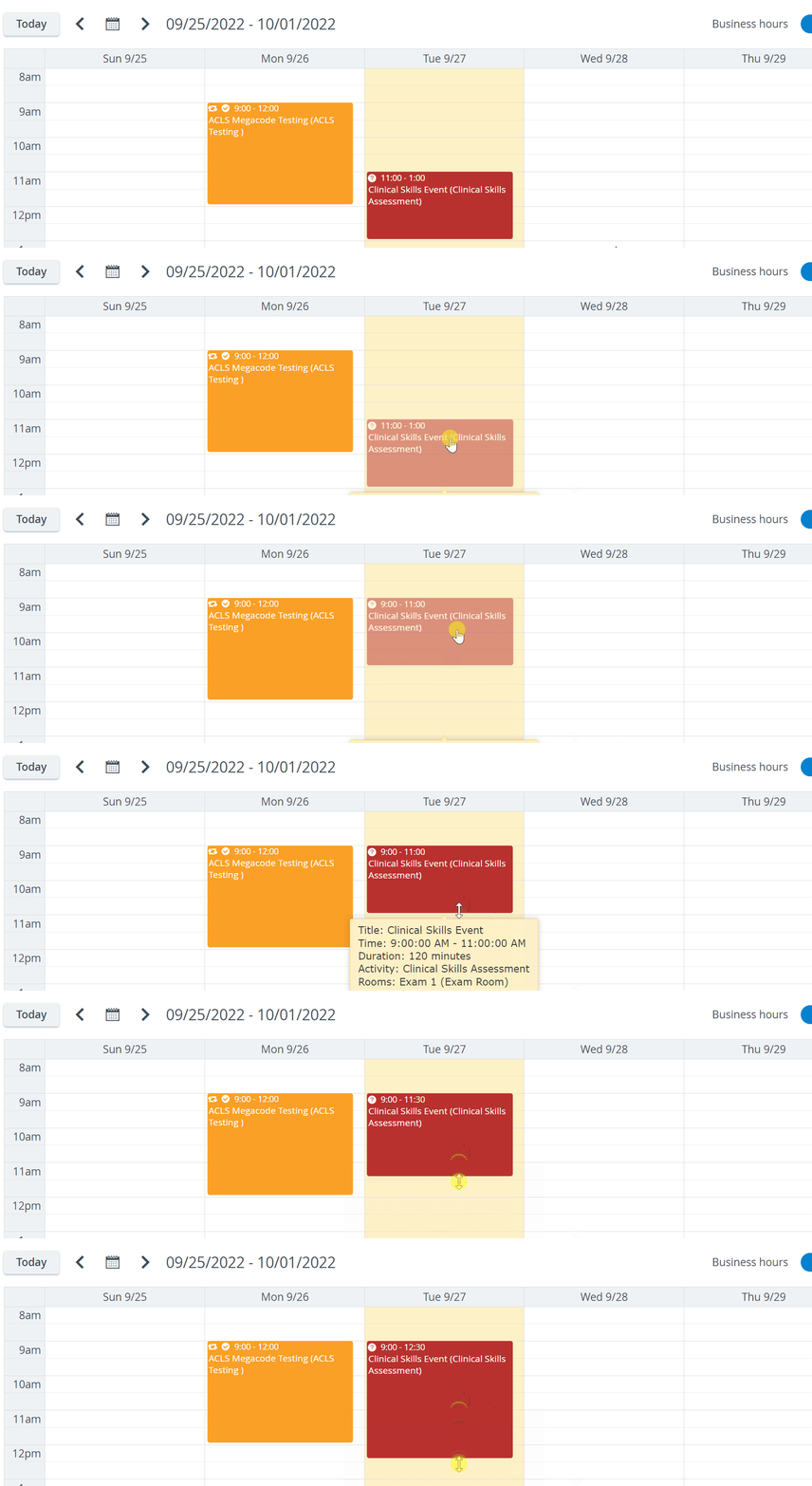
IMPORTANT: In the case of repeated events, a message confirms whether the modification should be applied to only the specific event or all the repetitions.

3. In either view, drag and drop the event to the time spot desired to be the new starting time of the event, with the length unaffected.
In Room view, dragging is only possible horizontally (as vertical movement would involve changing room).
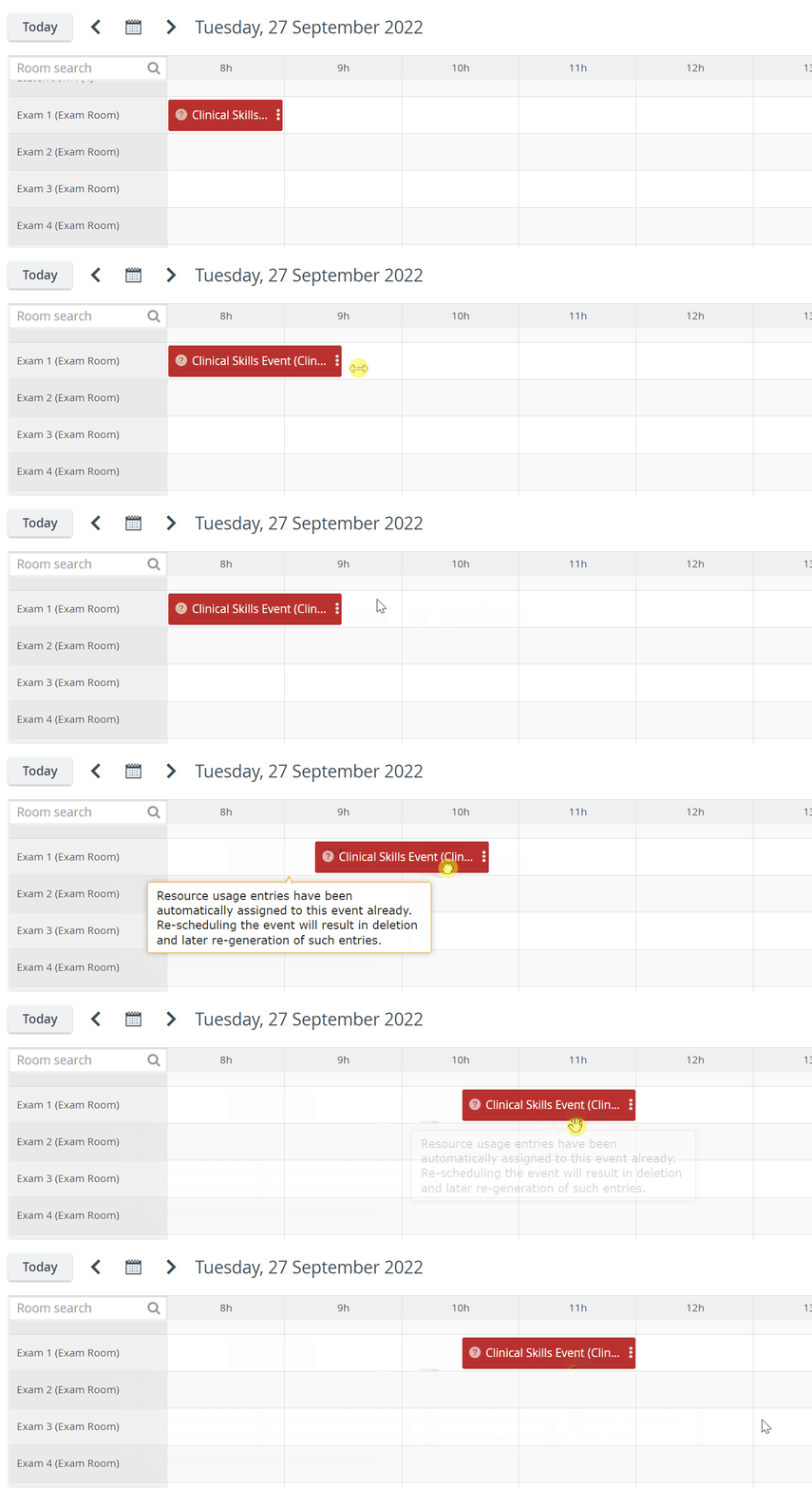
IMPORTANT: The drag and drop motion is only possible within the displayed time set/view:
In Room and Day view, only the time can be changed,
in Week view, time, and date within the given week,
in the Month view, the time and date can be changed to any point of the month.
For further information, visit our Calendar Module and Calendar - How-to pages, or watch our Calendar Module Training Videos.
Time Settings of Events
Start and End Date selector
The Calendar’s Start and End Date selector for Events works as follows:

Similarly, if we choose a date when the End Date would be earlier than the Start Date, the system also retains the length of the Event and automatically updates the Start Date value, preserving the Event's length.

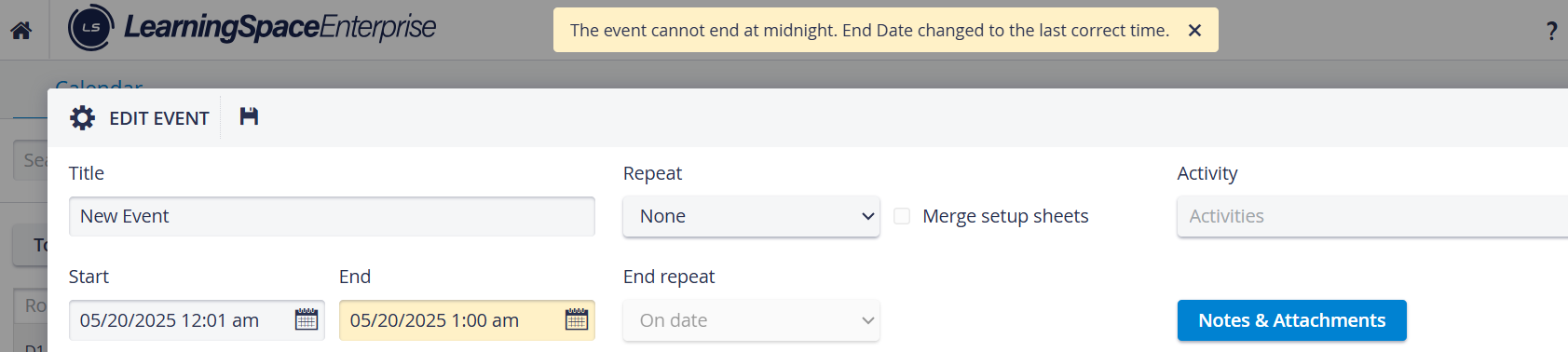
If the Event length cannot be kept in the automatic setting to stay within the given day (which is a mandatory criterion when setting up Events), LearningSpace automatically shortens the Event length to fit the day. The same principle applies if the Event does not fit at the beginning of the day: the automatic setting goes before 12 AM (midnight).

Users are informed about these adjustments with a yellow message.
AM-PM Switch
A smooth switching between AM and PM in the date picker helps the calendar's user experience. The Timepicker add-on is included for setting hours or minutes.

⬆️ Up arrow:
Clock: 9AM, 10AM, 11AM, → 12PM, 1PM, 2PM, ...
or
Clock: 10PM, 11PM, → 12AM, 1AM, 2AM, ...
Minutes: 57, 58, 59, → 0, 1, 2, ...
If the setting is 24H:
⬆️ Up arrow:
Clock: 22, 23, → 0, 1, 2, ...
Minutes: 57, 58, 59, → 0, 1, 2, …