How to Edit an Event
IMPORTANT: Access to the Calendar module is restricted to users with Admin, SRP, or SRP (full control) privileges.
A user with either privilege can edit events. However, in the Case of users with SRP privilege, any modification made with respect to time, repetition, Activity, or room settings has to be (re-)approved by a user with Admin or SRP (full control) privilege.
Accessing Calendar Events
Access the Calendar module and select either view.
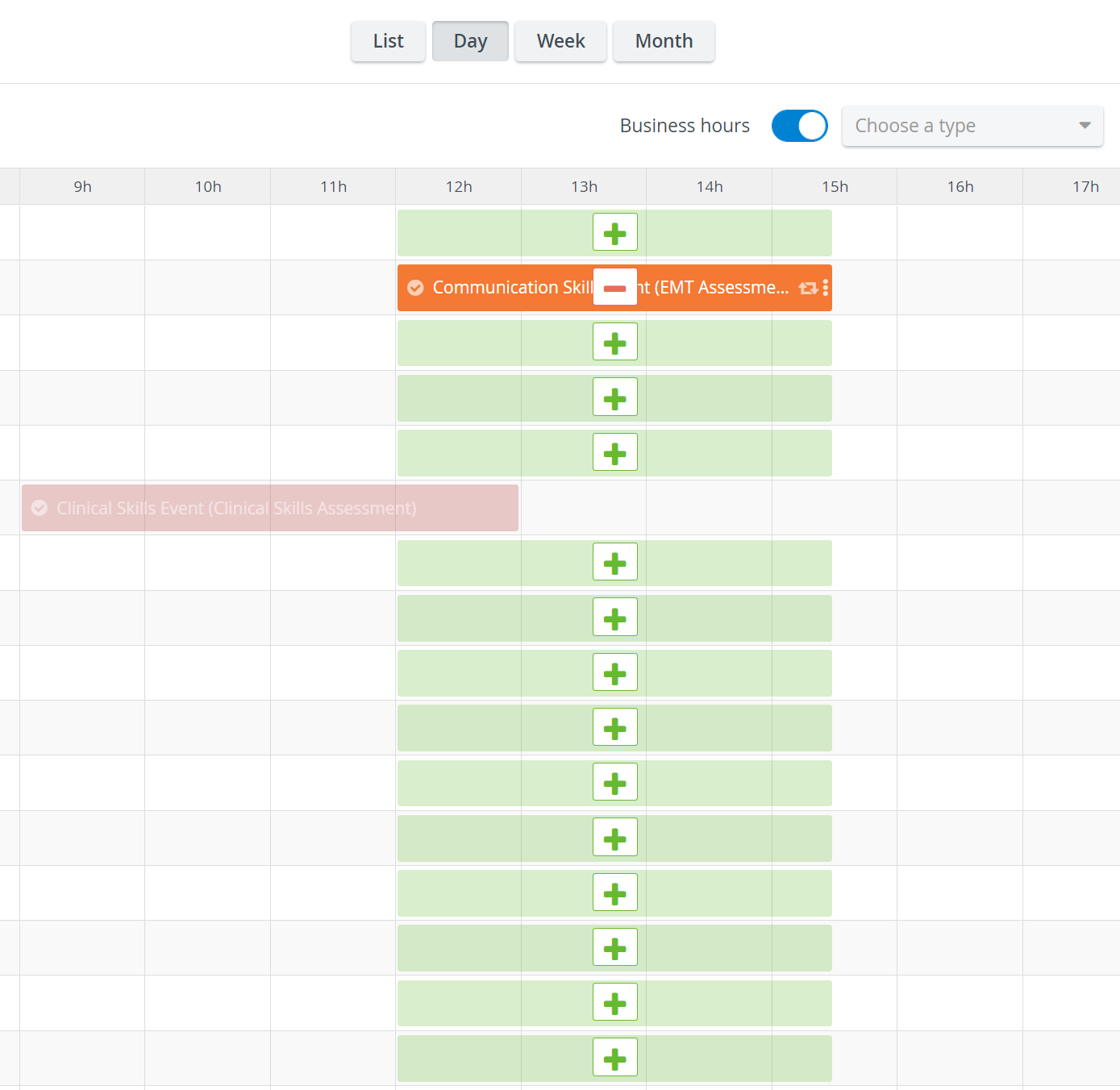
Scheduling displayed pale indicates that the operating user has limited privileges and thus no access to that specific scheduling.
Events with scheduled timeslots can only be edited in Advanced Scheduling, so they appear pale even for users with the necessary privilege(s).

2. Single-click the Event intended to be edited.
In Day view, clicking the desired Event once prompts two options to appear: Edit Event and Set Rooms.
Click Edit Event to open the Edit Event pop-up window. The Edit Event pop-up window appears.

Set Rooms provides a direct way to add further rooms to the Event and/or remove the original room.
Editing a Calendar Event
The Edit Event pop-up opens directly by double-clicking on the event intended to be edited.
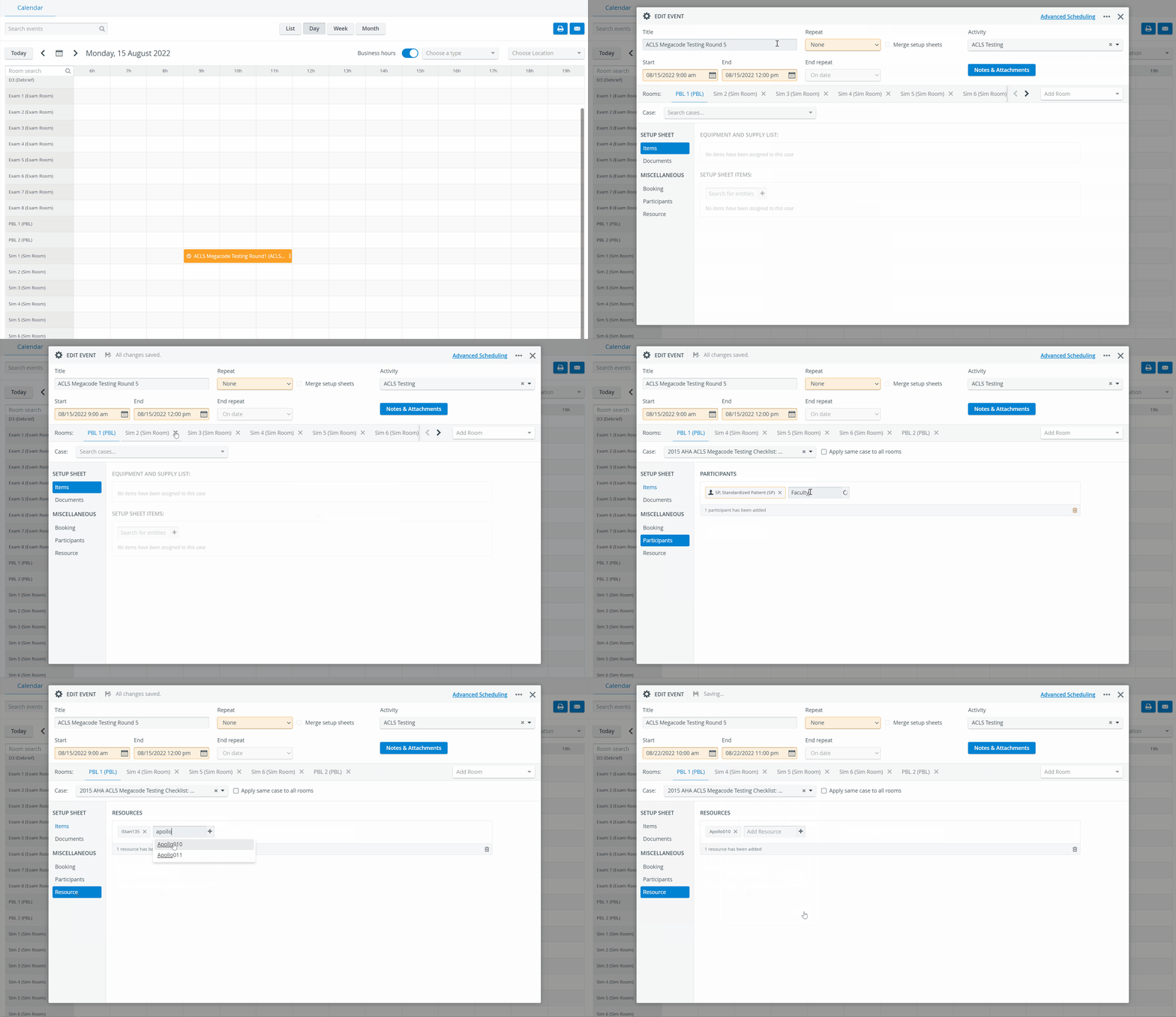
3. Edit the title using the cursor or any other data using the respective drop-down menus.
If the Activity is changed, all Cases from all stations will be deleted, as Cases are assigned to the Activity.
Add rooms or delete an assigned one by clicking the X next to its name.
5. Change a Case by deleting the assigned one and adding another from the Case drop-down.
Only those Cases are offered in the drop-down list assigned to the Activity within which the Event is scheduled.
If the Activity, including the Event, has more Cases assigned to it and the Event takes place in more rooms, the Apply same Case to all rooms option is offered below the Case drop-down.
6. Remove participants by clicking the X next to their names or remove all added participants by clicking the trash bin icon in the bottom right corner of the panel. Add others via the Add Participant field.
Participants can be individual users or groups as well.
7. If desired, remove resources by clicking the X in their fields or remove all added resources by clicking the trash bin icon in the bottom right corner of the panel. Add others via the Add Resource field.
Changes are saved automatically.
Document upload to Events
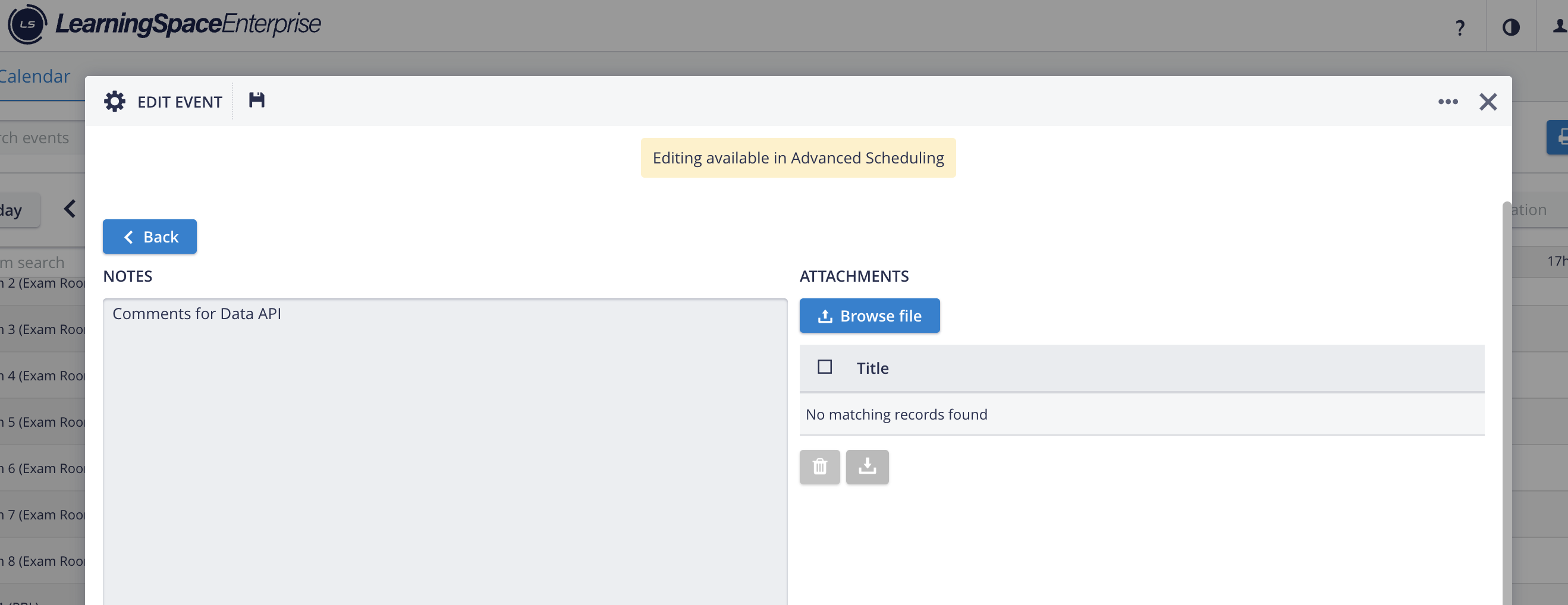
Document upload is possible for Events via the Calendar module, without a Setup sheet being added to the Event (if the Inventory manager module is enabled).
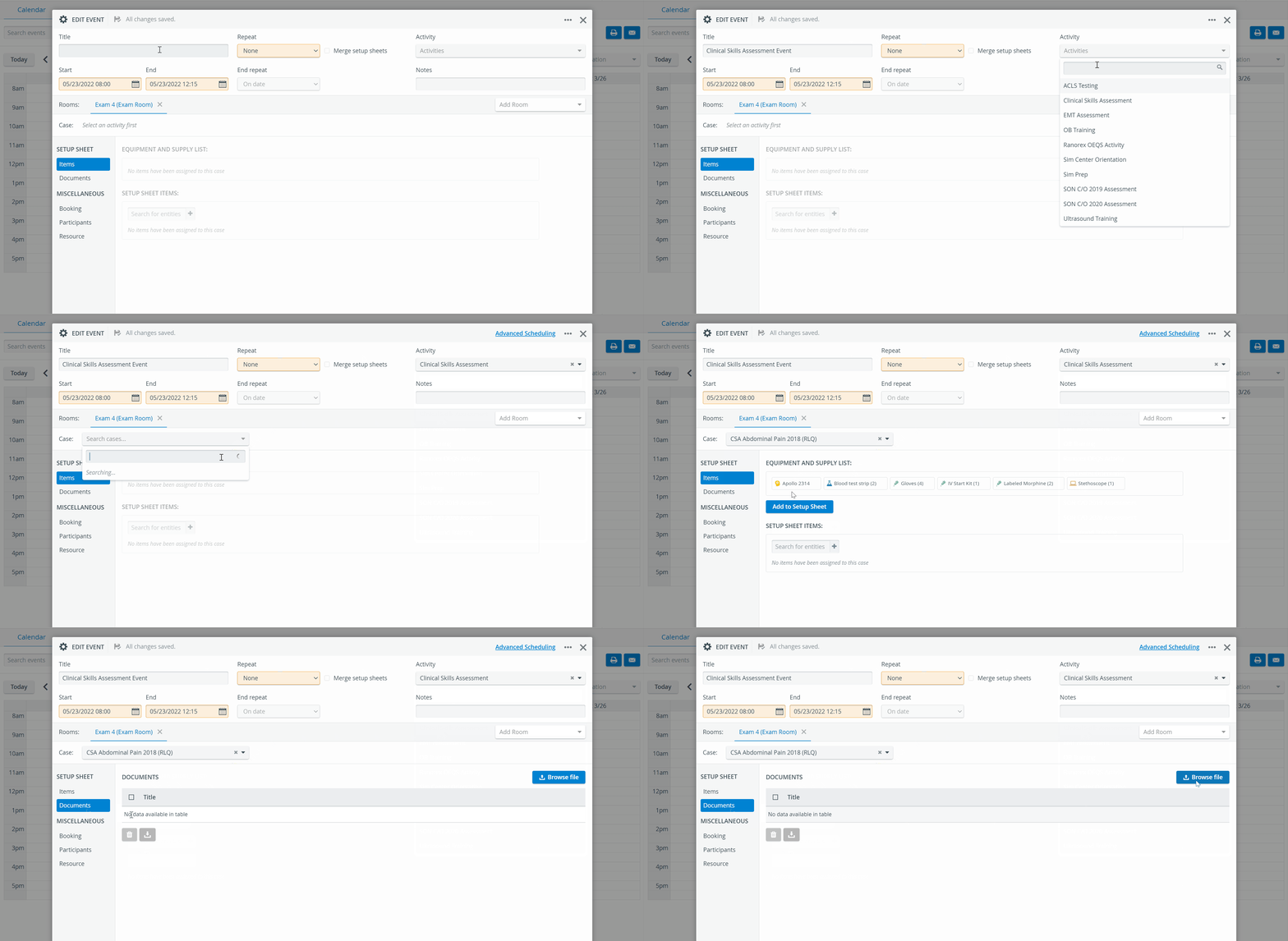
Documents uploaded to Events this way are only displayed in the Calendar, not the Inventory module.
Enabling Data API for Events
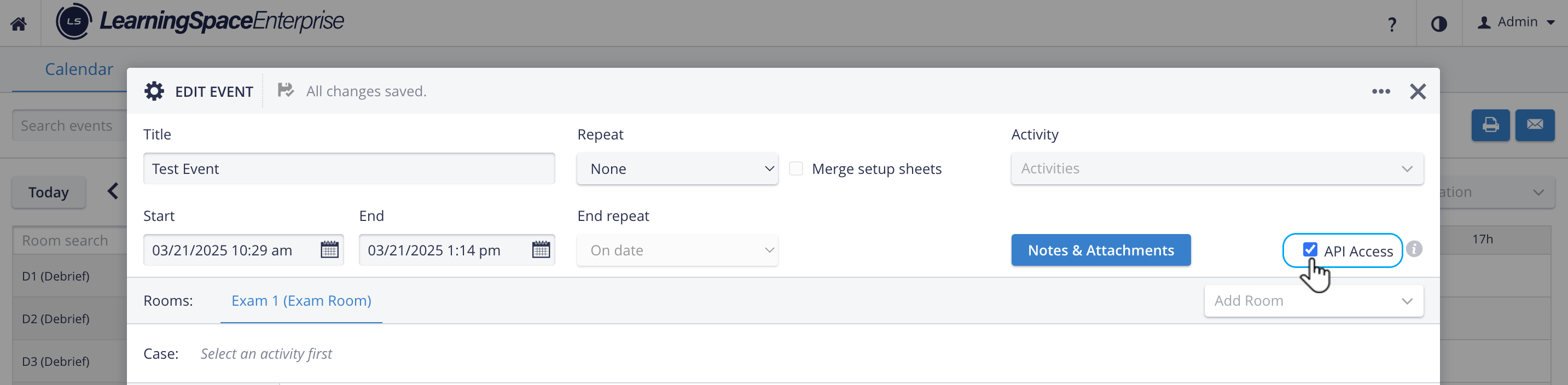
Both the events created in the Calendar and in Advanced Scheduling can be saved as API Access-capable events.
The ‘API access’ checkbox will be visible, and thus, Data API Access can be enabled for selected Events on the Edit Event pop-up, IF
Data API Access is enabled on the Security NEW tab of the System Manager
AND the 'All events are accessible via API by default' option is disabled (unchecked).
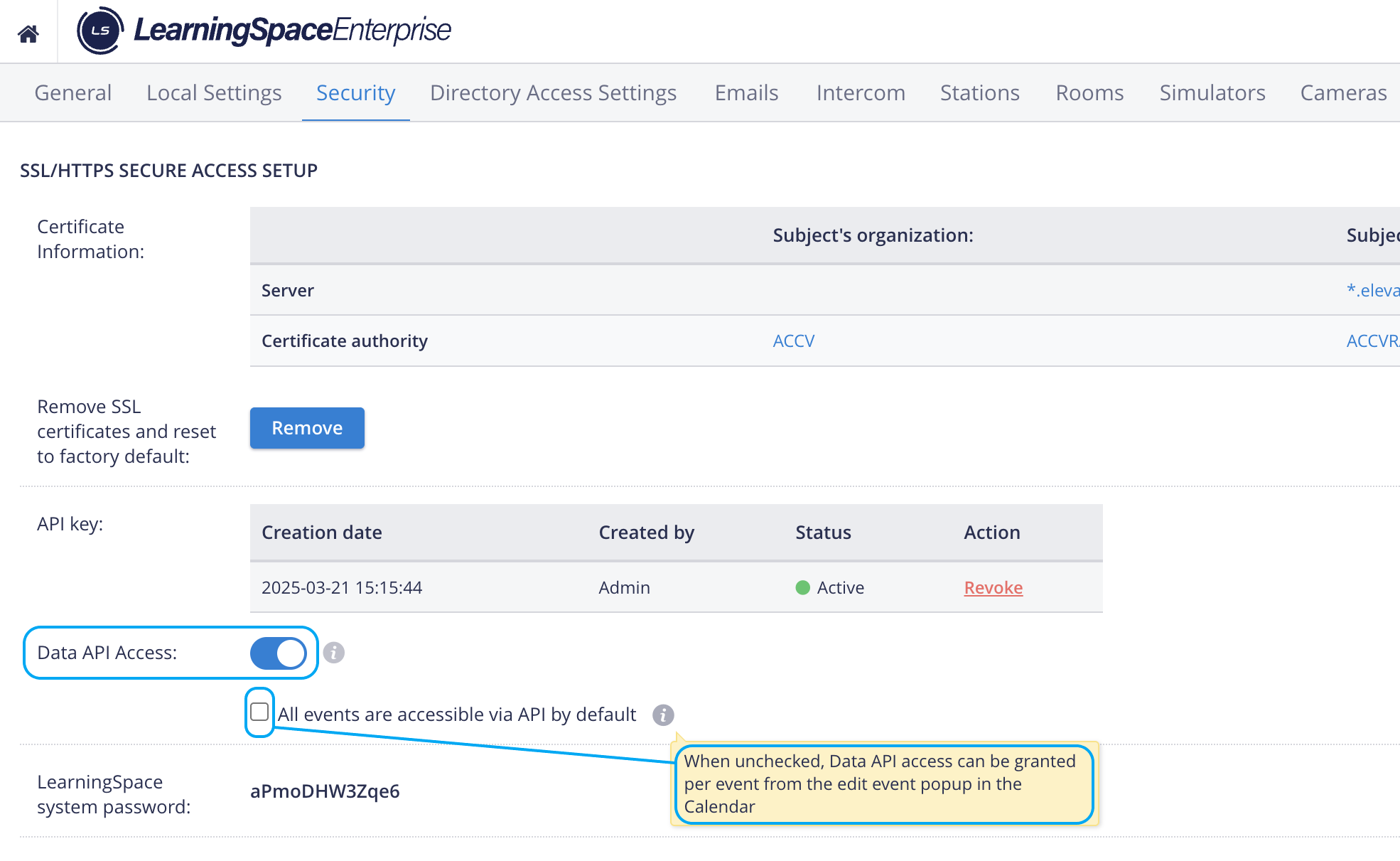
For more information, see APIs in LearningSpace How to Generate a Raw Data API key
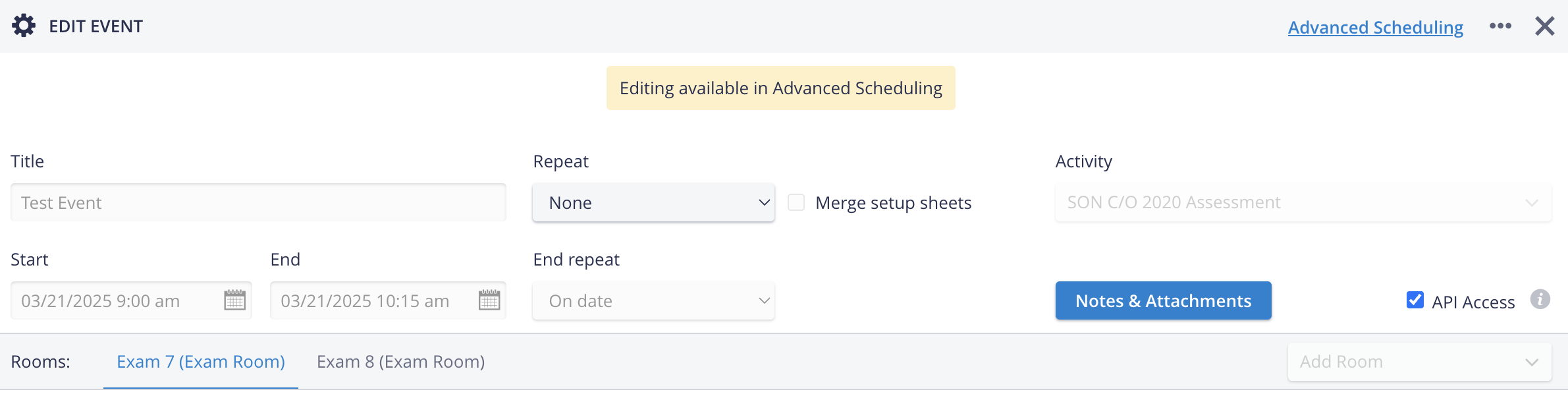
TIP: Notes can also be edited and saved in case of an Advanced scheduled event.
For further information, visit our Calendar Module and Calendar - How-to pages, or watch our Calendar Module Training Videos.