How to Create Evaluator-Evaluee Subgroup Assignments
Create evaluator-evaluee subgroups in the Assignments tab of an Activity to determine which Faculty member or Learner can evaluate which learner(s).
Before Starting Setup
Open an Activity of your choice for editing.
Ensure a Faculty & Staff and Learner group is added to the Activity.
Evaluator-evaluee subgroups can only be assigned if both Faculty & Staff and Learner groups are added as participant groups to the Activity.NOTE: The Assignments tab informs you if your participant group setup is not complete.
After adding these participant groups, the members of each group are automatically assigned to each other as evaluators (Faculty) and evaluees (Learners). Also, evaluators have full access to learner evaluation by default.
Creating New Evaluator-Evaluee Subgroups
The Assignments tab informs you about the default evaluator-evaluee group assignments.
It presents two options for creating evaluator-evaluee subgroups:
Faculty → Learner and
Learner → Learner.
Switch between the two options by clicking on them.
Faculty → Learner
By default, all Faculty members have access to the data submitted by all Learners —> ‘Full access’.
To change this, you can set up custom access by switching to —> ‘Custom’.

Relations need to be created to set up custom access for the Faculty.
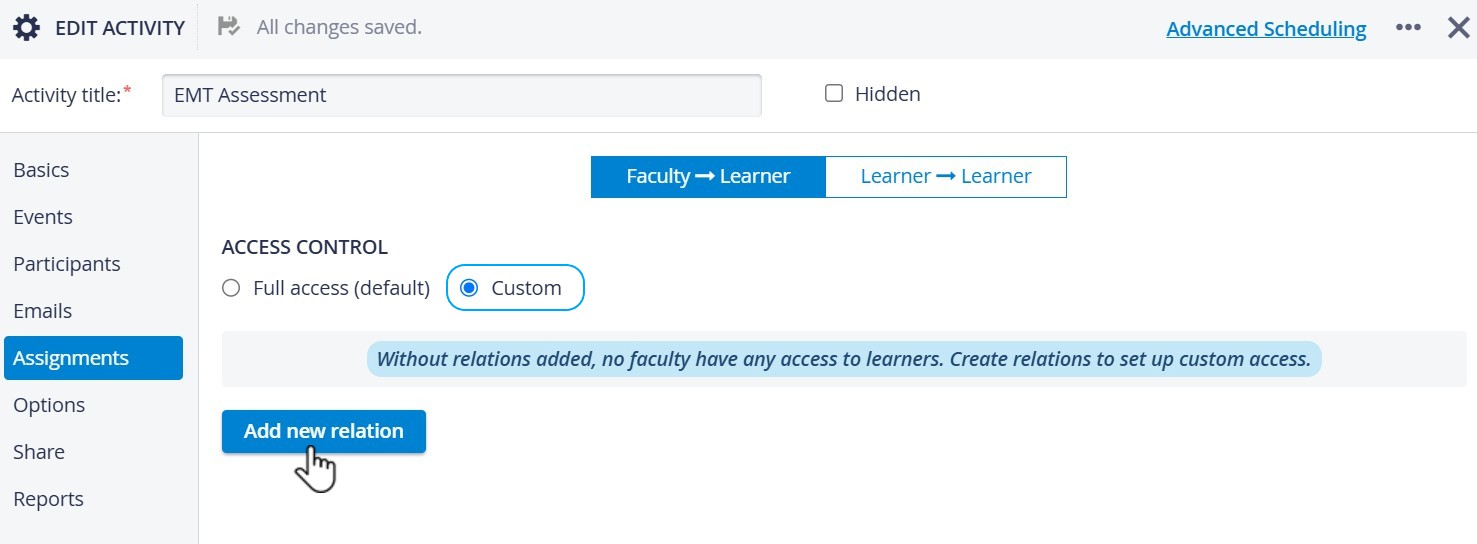
A subgroup setup template is displayed after clicking Custom under the Faculty → Learner option.
The template has two sides: an Evaluator and an Evaluee side.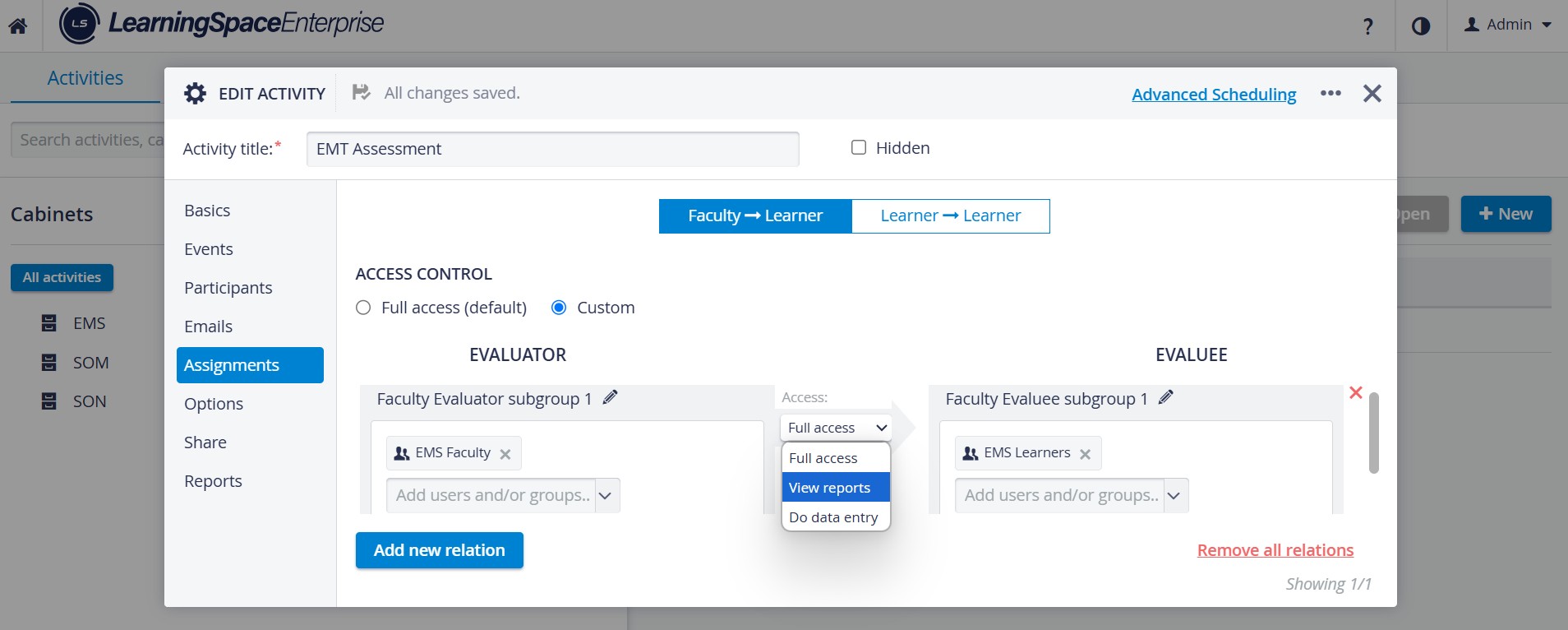
Click the default names of each subgroup to edit (pencil icon).
Click inside the Add users and/or groups... field to add users.
All eligible users for data entry and/or report review will be listed.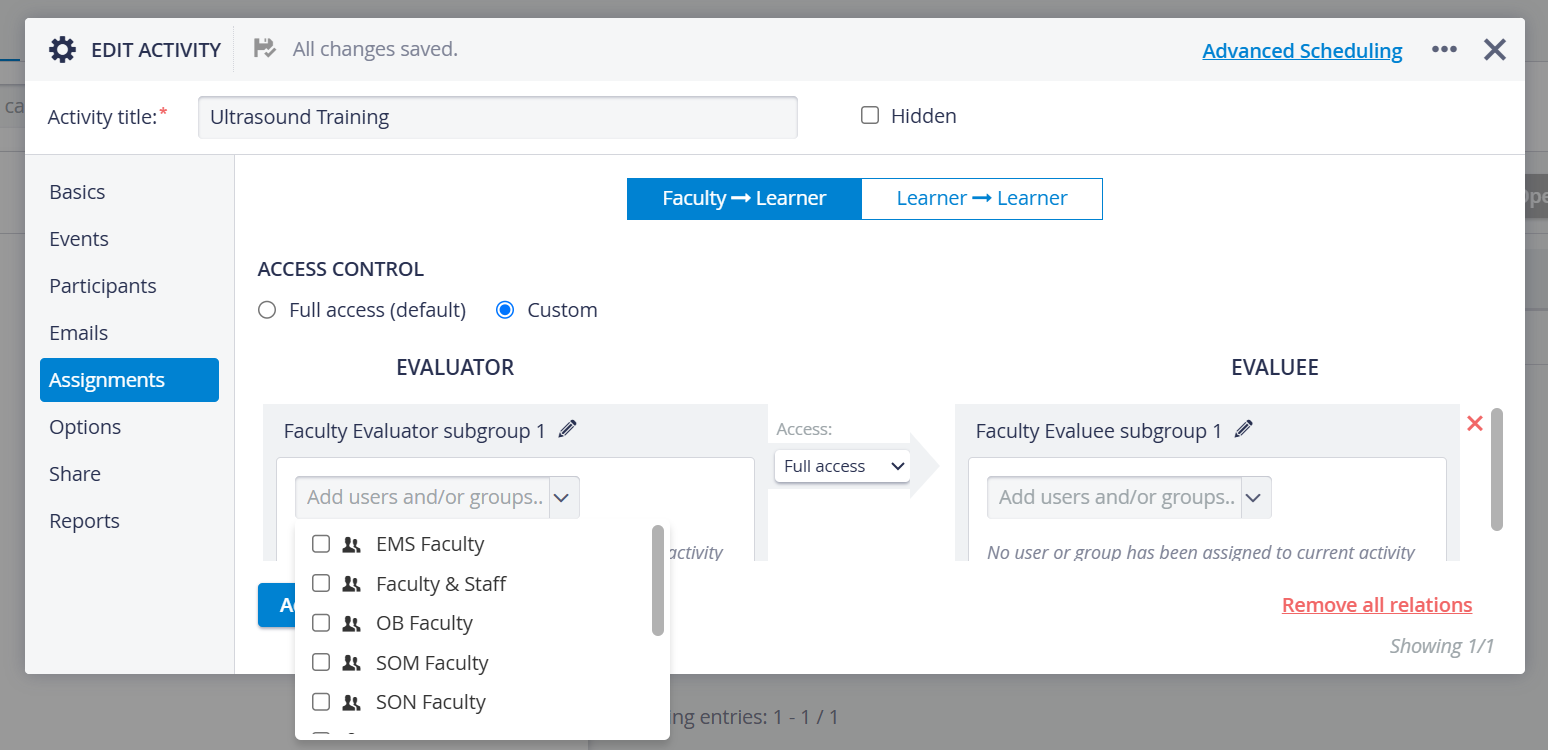
IMPORTANT: Not all Faculty members are eligible to be Evaluators.
Only the users with the following privileges can be selected:FON
Report Reviewer
Anonymous Report Reviewer
Open-Ended Question Scoring
Add one or more Faculty members on the Evaluator side of the tab, then select learners on the Evaluee side.
The evaluators will have access exclusively to the selected evaluees, and the evaluees cannot be evaluated by anyone other than the delegated Faculty members.
Set up the Evaluator subgroup's level of access to the Evaluee subgroup.
Select an option in the mini drop-down located between the subgroups:
Full access = Evaluators can submit data entry on Evaluees and view their reports.
View reports = Evaluators of the group will only be able to view the reports of the Evaluees, but cannot submit data entry.
Do data entry = Evaluators of the group will only be able to submit data entry of the Evaluees, but cannot view their reports.
IMPORTANT: The access options do not permit Evaluators to use features beyond their capabilities. For example, if an Evaluator user only has report-reviewing privileges, they cannot perform data entry, even if the Full access option is selected.
💡 Add a new subgroup setup template by clicking the “Add new relation” button.
☑️ To remove a user or group from either subgroups, hover over their names and click the red X next to their name.
☑️ To remove an entire subgroup setup, click on the red X on the right side of the tab.
☑️ To remove all subgroup setups, click “Remove all relations”.
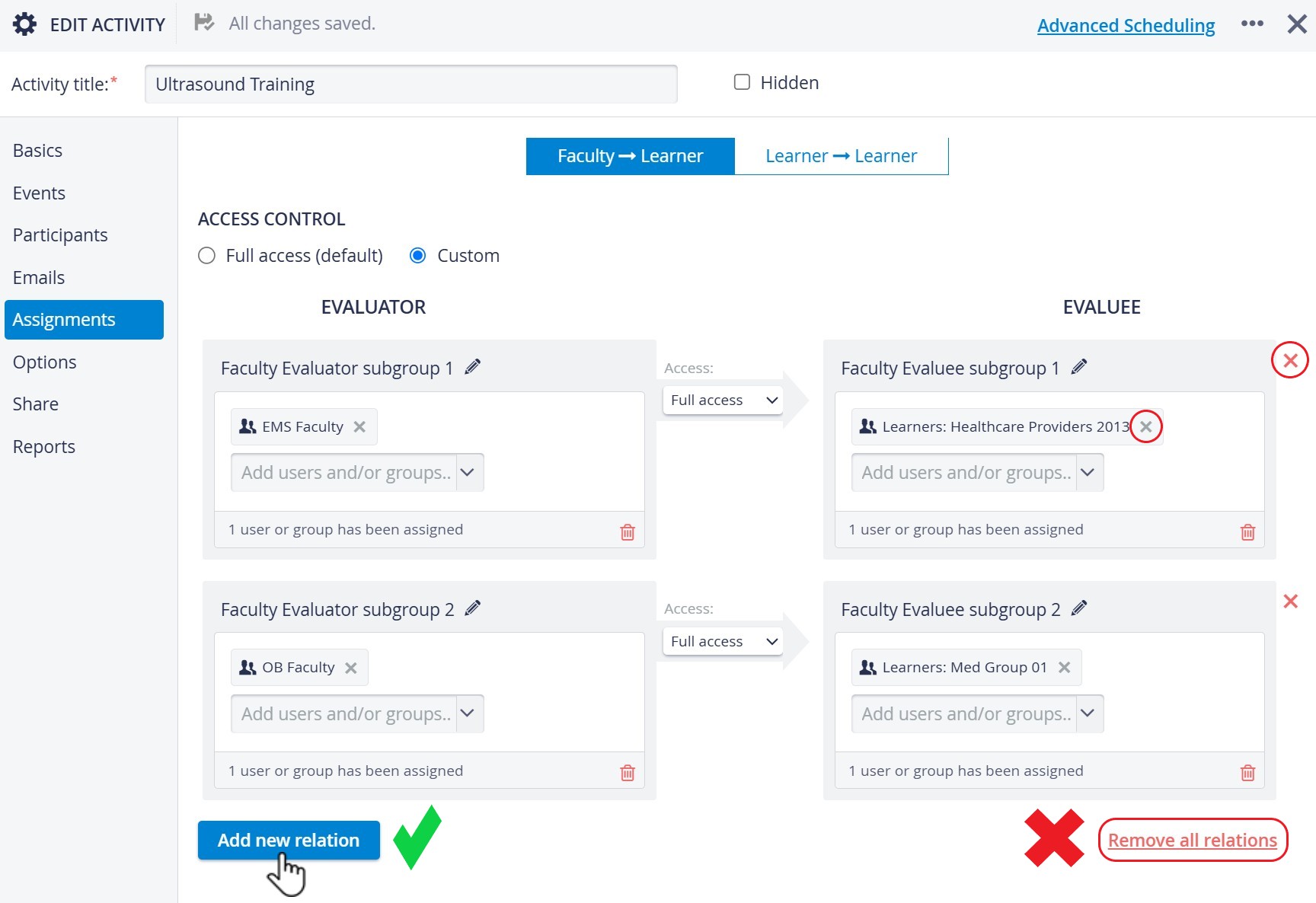
You can create as many subgroups as you need. Subgroups will also be listed on the Reports tab.
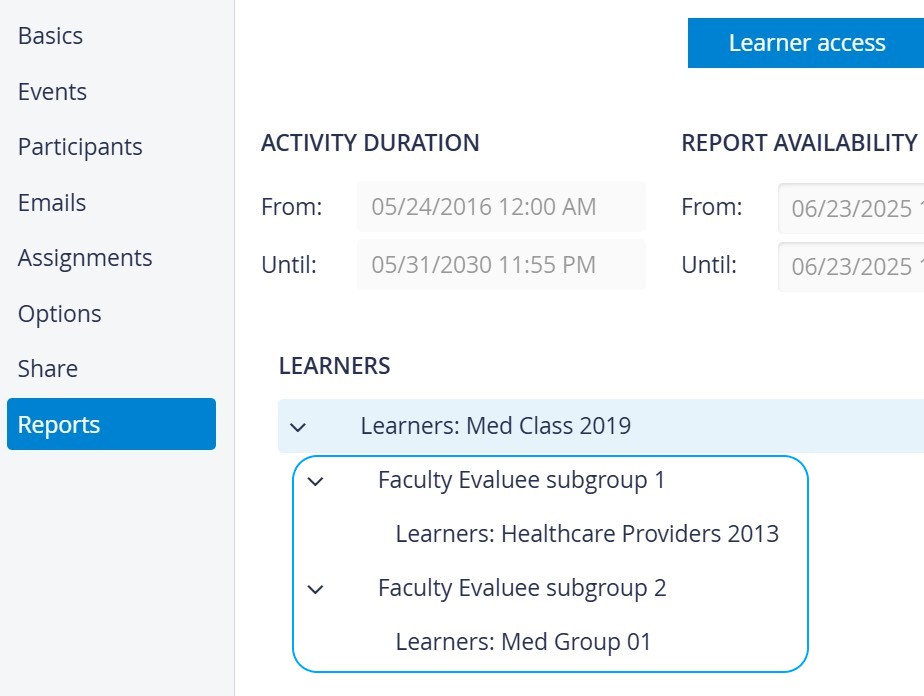
Learner Subgroups - Reports tab
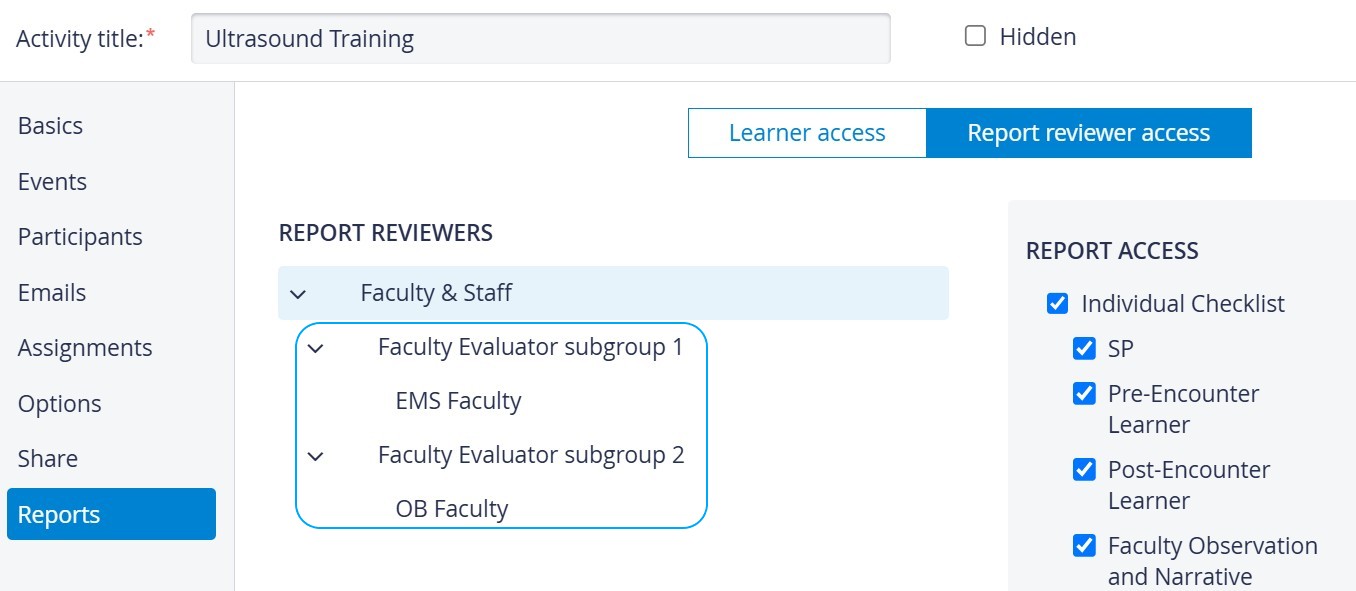
Faculty Subgroups - Reports tab
Learner → Learner
Prepare Peer evaluation with this option: delegate learners to evaluate other learners. Selecting peer Evaluators and their Evaluees in the Assignments tab is an essential step in setting up Peer evaluation.
A full peer evaluation setup requires additional settings. → See How to Establish Peer Evaluation.
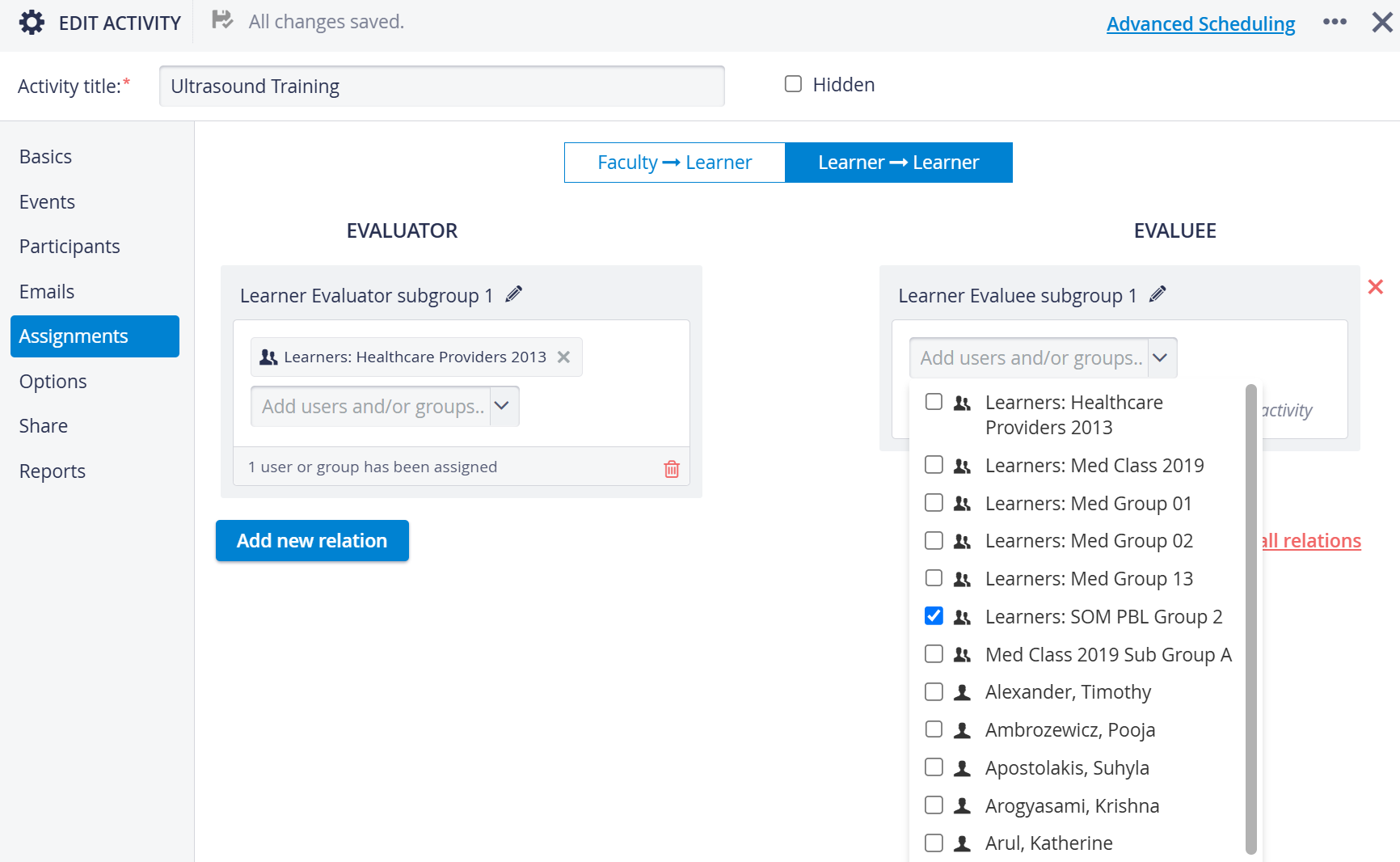
Start by adding a new subgroup setup template by clicking the “Add new relation” button.
You can create as many subgroups as you need.Click the default names of each subgroup to edit.
Click inside the Add users and/or groups... field to add users.
Add one or more members on the Evaluator side of the tab, then select different members on the Evaluee side.Peer evaluation assignments work in one direction →: Evaluator learners can only evaluate the designated Evaluee learners, not the other way around.
💡 If you want to have each learner be evaluated by at least one of their peers, set up at least one more evaluator-evaluee subgroup where the learners are assigned to the opposite roles (e.g., Group 1: Learner 1 is Evaluator, Learner 2 is Evaluee. Group2: Learner 2 is Evaluator, Learner 1 Evaluee.)
Note
There are no levels of access available within the Learner → Learner assignment option. Unlike Faculty evaluators, learner evaluators only have the ability to submit the Peer evaluation checklist but cannot generate reports.
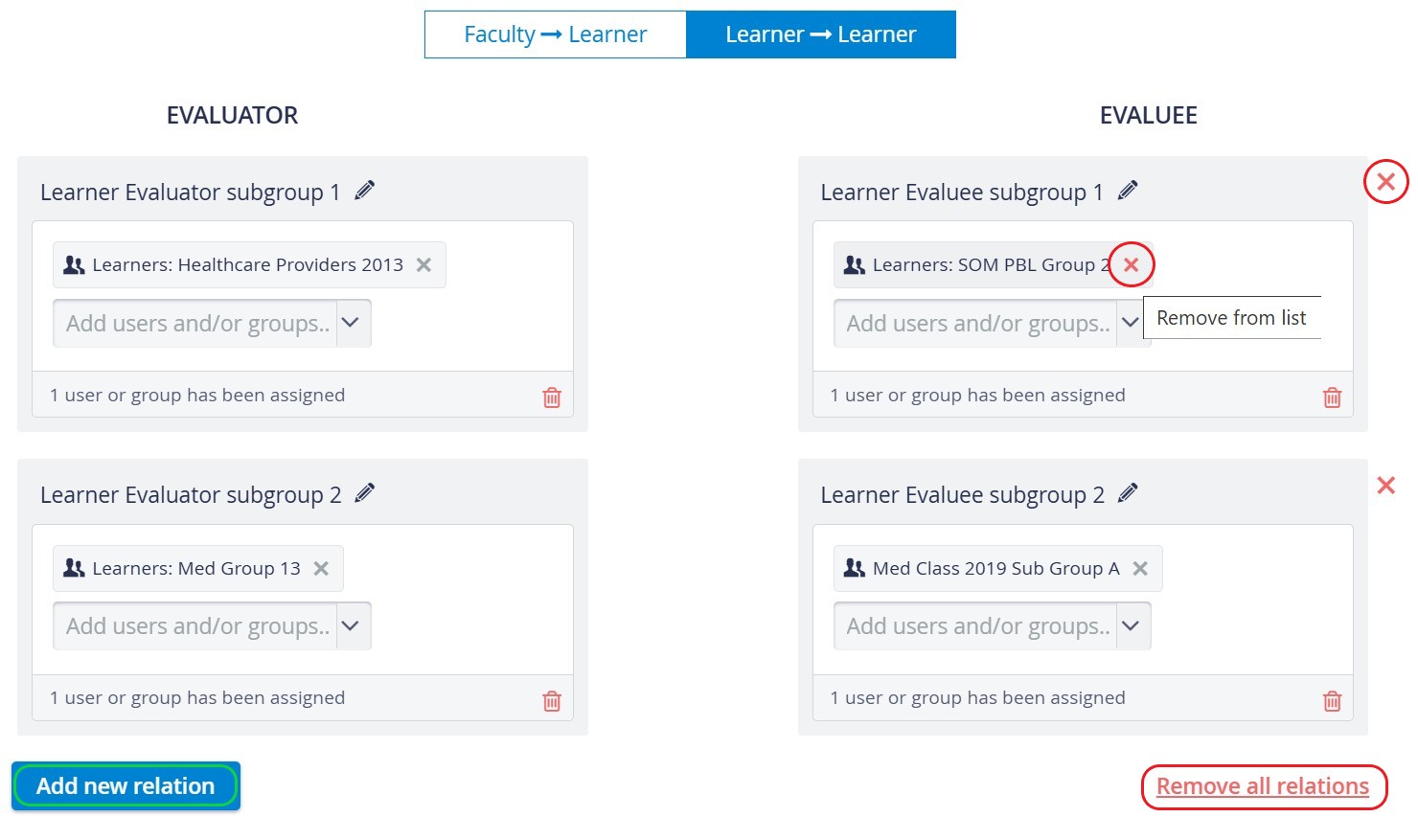
☑️ To remove a user or group from either subgroups, hover over their names and click the red X next to their name.
☑️ To remove an entire subgroup setup, click the red X on the right side of the tab.
☑️ To remove all subgroup setups, click “Remove all relations”.
For further information, visit our Activity Manager, Activity - How to pages, and view our Activity Manager Training Videos.